Push Notifications in Flutter: If you’ve ever received a message or alert from an app while using your phone, chances are it was a push notification. Push notifications in flutter are messages that pop up on your phone, even if the app is not open. They can be anything from reminders, updates, or special offers. For developers, integrating these notifications into apps is a powerful way to keep users engaged.
In this blog, we’re going to show you how to set up push notifications in a Flutter app using Firebase, a popular tool for managing notifications. Whether you’re new to Flutter or just want to learn how notifications work, this guide will walk you through everything you need to know – step by step – so you can start sending notifications to your users in no time!
We will cover:
- Create a basic flutter app
- Set up a firebase in your flutter app
- What are the necessary dependencies, and how we add that
- How to handle foreground and background notifications. How to terminate that
- How to display push notifications in flutter on your device
- Sending test notification
Lets Start!
1. Create a Basic Flutter app
If you don’t have Flutter installed on your device, please install it first. You can follow the official installation guide for that.
- After installation you can create you flutter project for that run the following commands :
flutter create (inside the arrows give your app name )
flutter create push_notification_app
cd push_notification_app
flutter run
2. This will create a new Flutter project and run it on your connected device or emulator.
2. Set up a firebase in your flutter app.
The next step is to integrate Firebase into your Flutter app. Follow these steps to set up Firebase:
1. Create a Firebase Project.
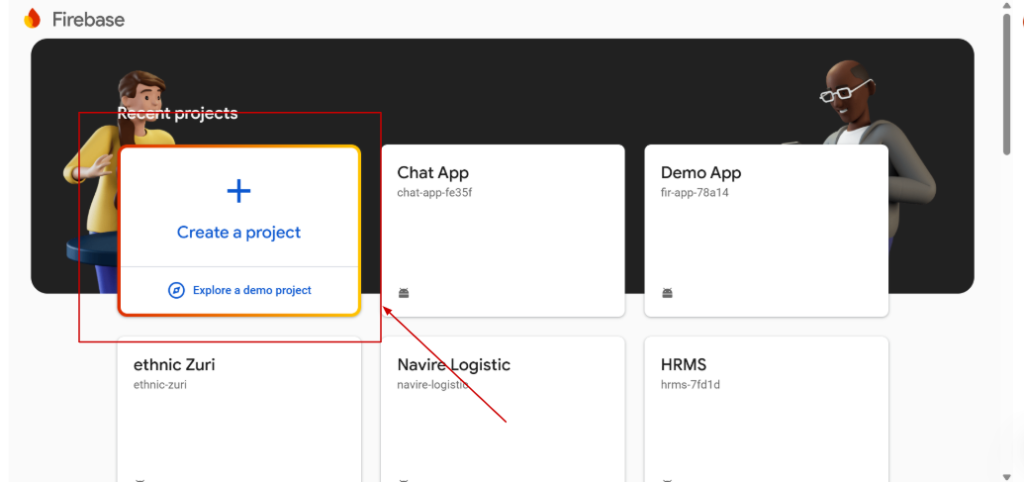
a. Go to the Firebase Console.
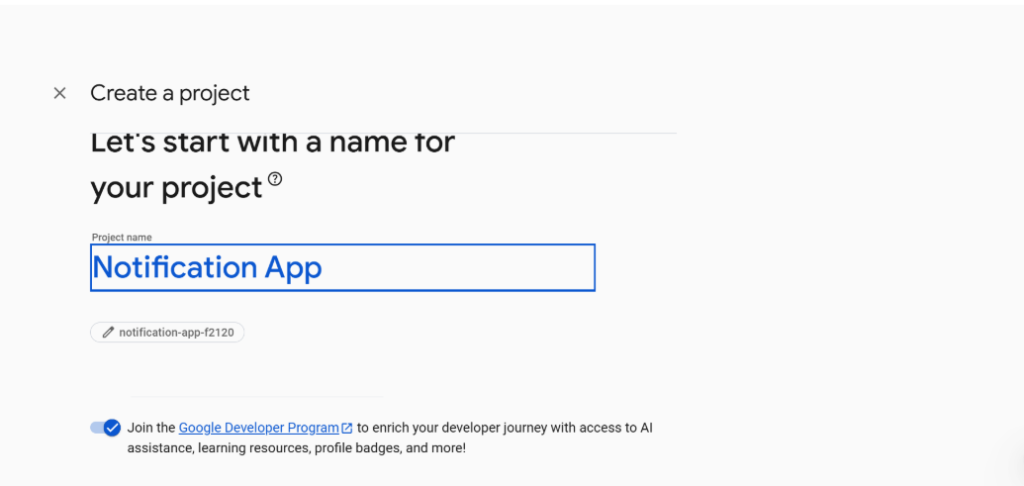
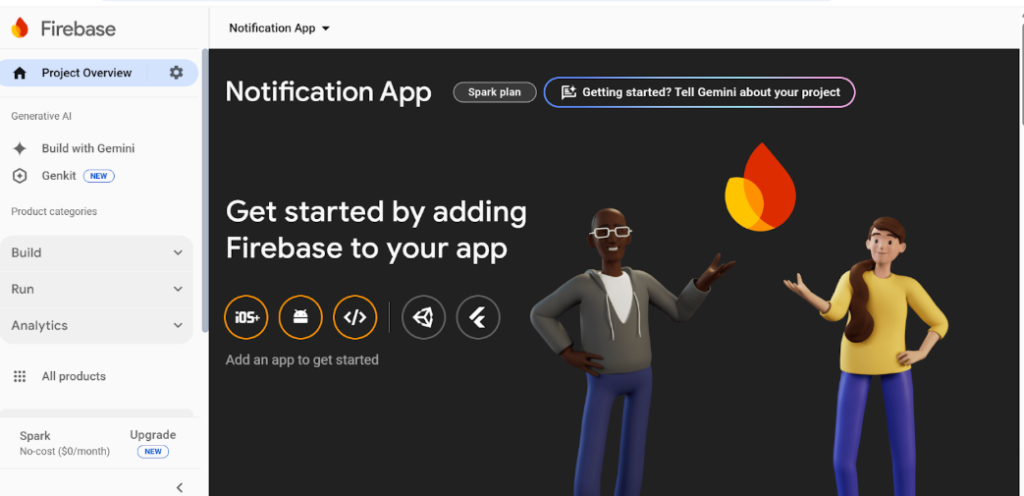
i. Click Create a project and follow the setup instructions.
b. Once the project is created, go to Project settings > General.
2. Add Firebase to Your Flutter App
a. For Android:
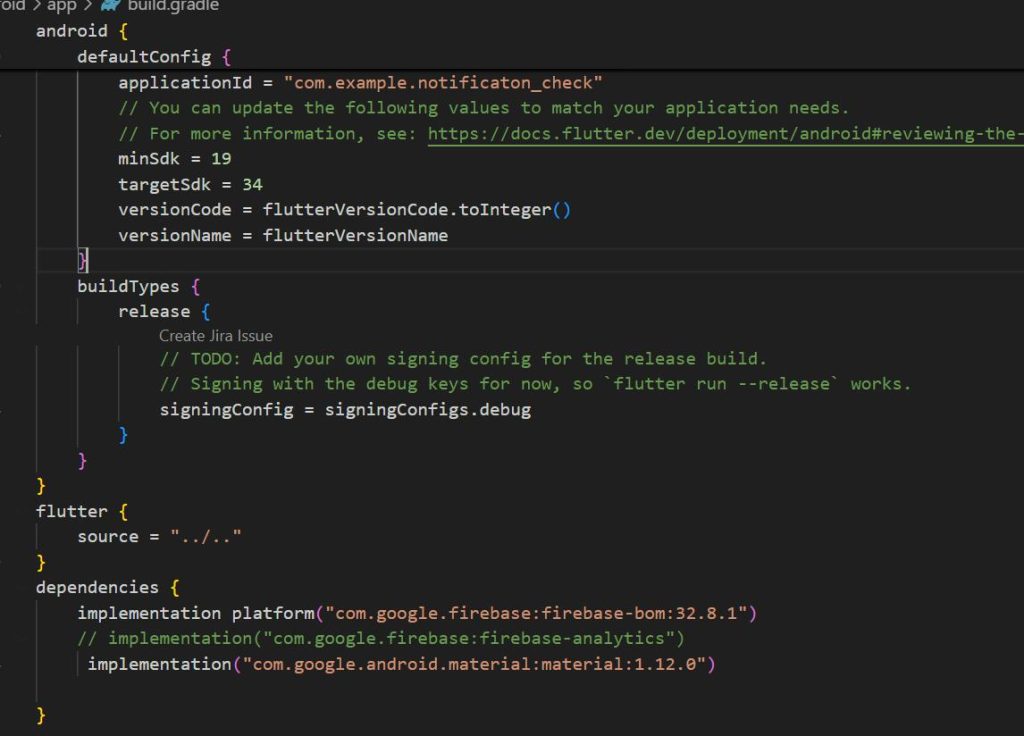
I. Enter your package name (found in android/app/build.gradle under applicationId).
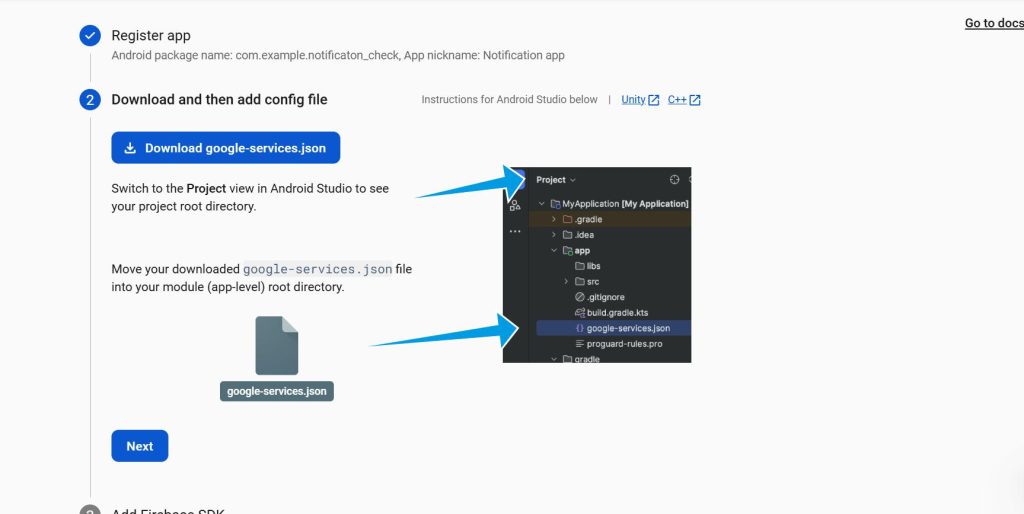
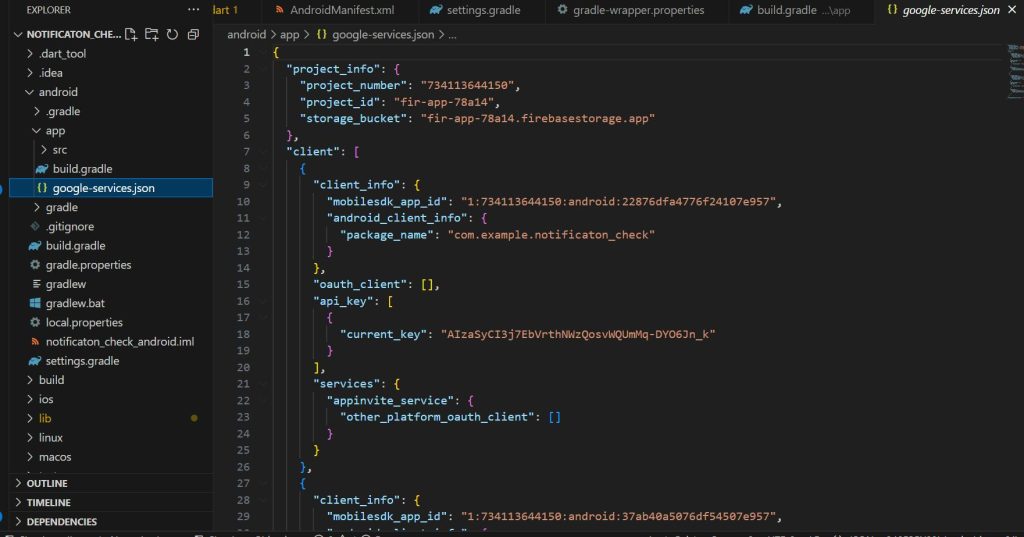
ii. Download the google-services.json file and place it inside android/app/.
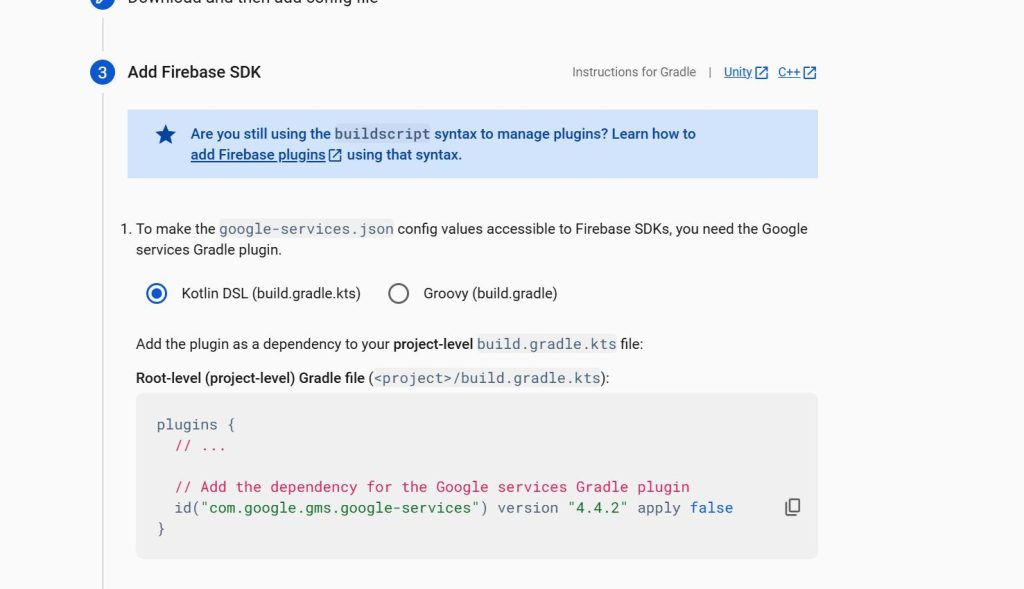
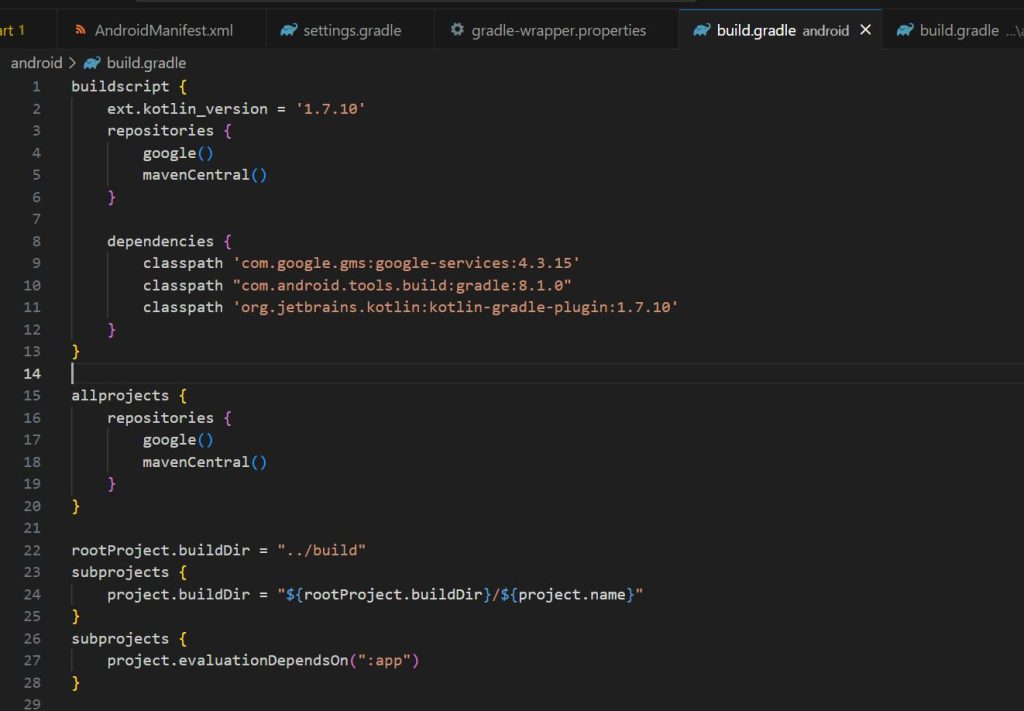
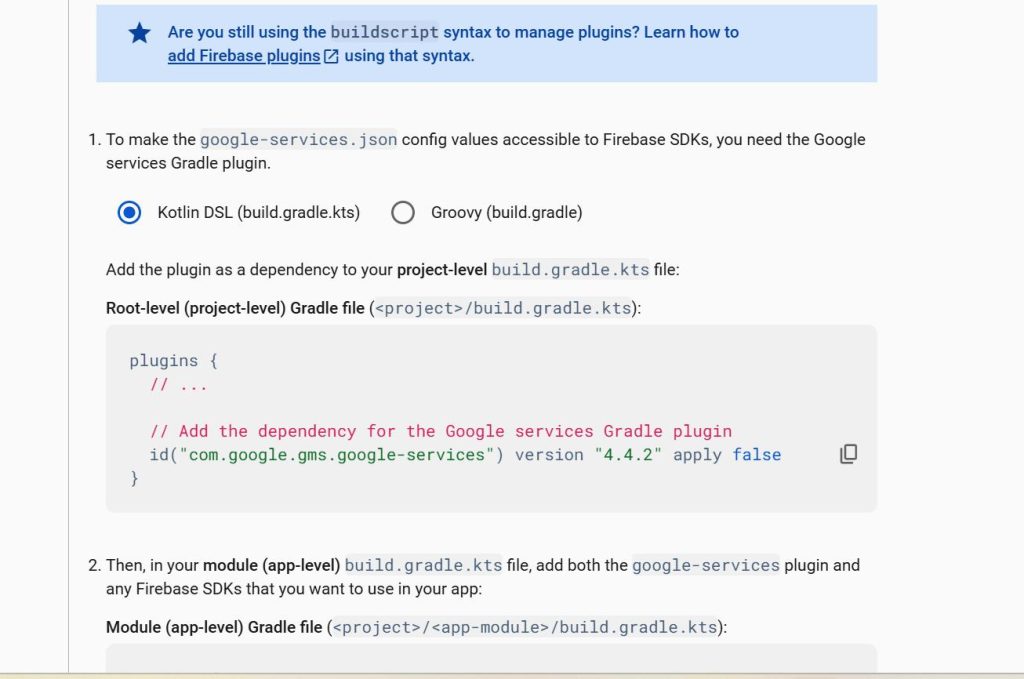
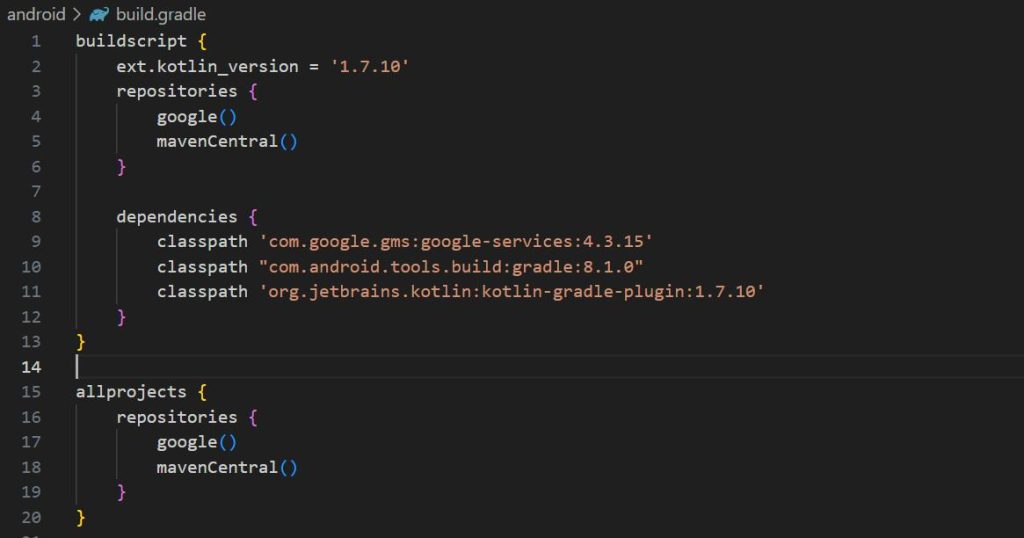
iii. Add the Firebase SDK in android/build.gradle:
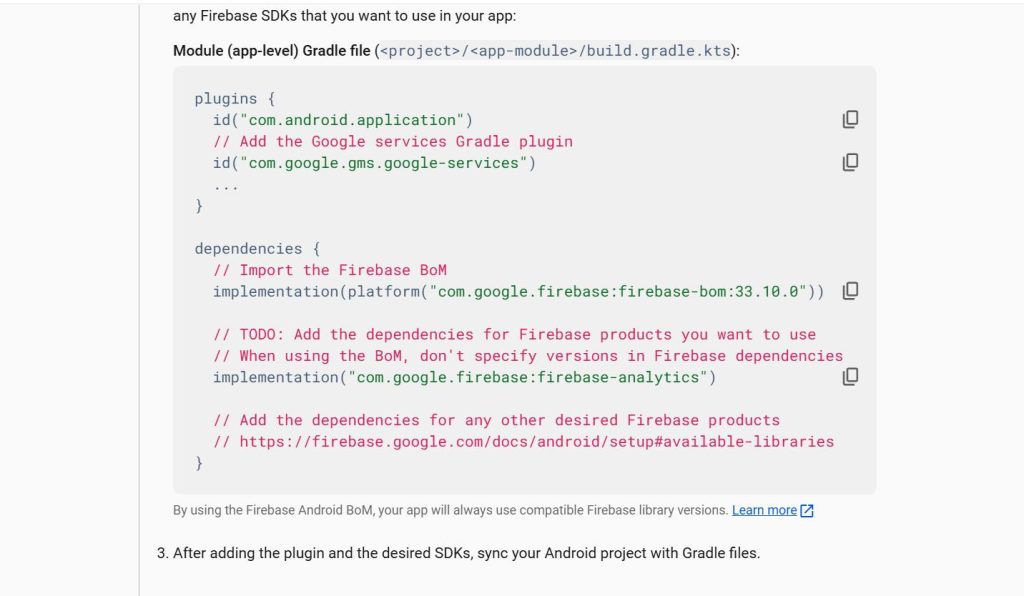
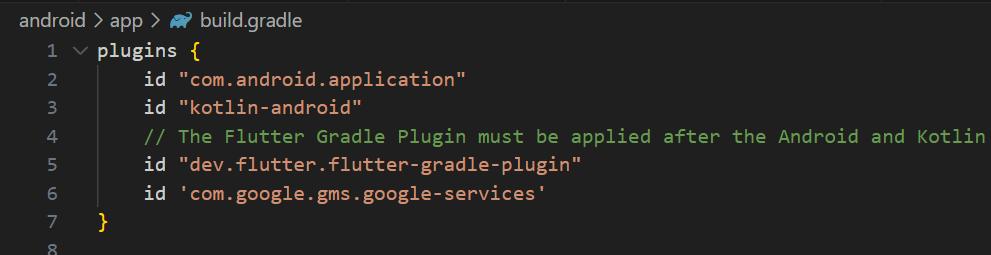
iv. Add the following at the bottom of android/app/build.gradle:
v. Ensure minSdkVersion is at least 19 in android/app/build.gradle:
b. For iOS:
- Click Add app > iOS.
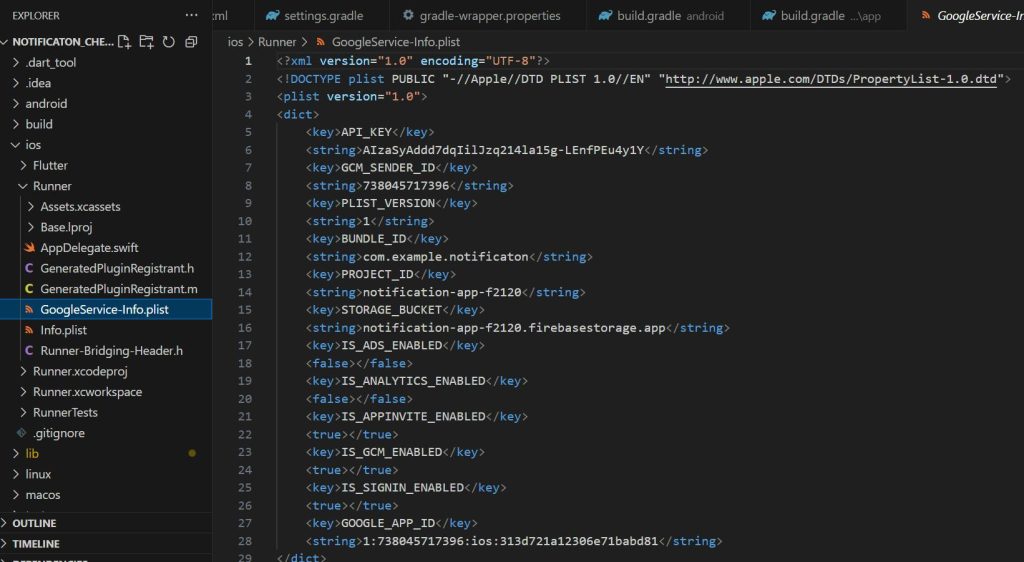
- Enter your Bundle ID (found in ios/Runner/Info.plist).
- Download GoogleService-Info.plist and place it inside ios/Runner/.
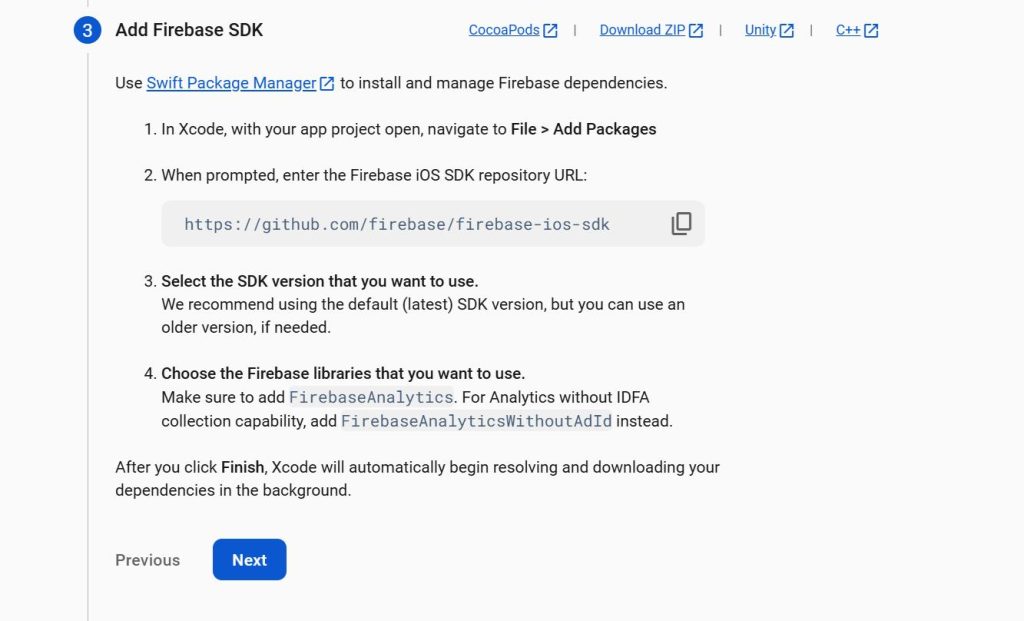
4. Open ios/Podfile and uncomment:
5. Run:
cd ios
pod install
3. Necessary dependencies and how to add them
For adding the firebase in Flutter we need to add some dependencies in our flutter app
- Add the following dependencies to pubspec.yaml:
firebase_core
firebase_messaging
flutter_local_notifications
2. After add this dependencies run :
flutter pub get
dependencies:
flutter:
sdk: flutter
# The following adds the Cupertino Icons font to your application.
# Use with the CupertinoIcons class for iOS style icons.
cupertino_icons: ^1.0.6
flutter_local_notifications: ^19.1.0
firebase_messaging: ^15.2.5
firebase_core: ^3.13.0
4. Initialize Firebase in Your Flutter App
Now that Firebase and the necessary dependencies are added, it’s time to initialize Firebase in your Flutter app.
- Modify main.dart :
void main() async {
WidgetsFlutterBinding.ensureInitialized();
await Firebase.initializeApp();
await NotificationServices.init();
runApp(const MyApp());
}
2. Implement Push Notifications in Flutter :
import 'package:firebase_messaging/firebase_messaging.dart';
import 'package:flutter_local_notifications/flutter_local_notifications.dart';
class NotificationService {
final FirebaseMessaging _firebaseMessaging = FirebaseMessaging.instance;
final FlutterLocalNotificationsPlugin _flutterLocalNotificationsPlugin =
FlutterLocalNotificationsPlugin();
Future initNotifications() async {
// Request permissions
await _firebaseMessaging.requestPermission();
// Get FCM token
String? token = await _firebaseMessaging.getToken();
print("FCM Token: $token");
// Configure foreground notification
FirebaseMessaging.onMessage.listen((RemoteMessage message) {
_showNotification(message);
});
// Handle background and terminated notifications
FirebaseMessaging.onMessageOpenedApp.listen((RemoteMessage message) {
print("Notification clicked: ${message.data}");
});
}
void _showNotification(RemoteMessage message) async {
var androidDetails = AndroidNotificationDetails(
"channelId",
"channelName",
importance: Importance.high,
);
var generalNotificationDetails =
NotificationDetails(android: androidDetails);
await _flutterLocalNotificationsPlugin.show(
0,
message.notification?.title ?? "",
message.notification?.body ?? "",
generalNotificationDetails,
);
}
}
3. Handling Different Notification States
a. Foreground message
To handle notifications while your app is in the foreground, you need to use the:
// Configure foreground notification
FirebaseMessaging.onMessage.listen((RemoteMessage message) {
_showNotification(message);
});
b. Background message
You can listen for messages in the background and handle them accordingly:
// Handle background and terminated notifications
FirebaseMessaging.onMessageOpenedApp.listen((RemoteMessage message) {
print("Notification clicked: ${message.data}");
});
}
5. Testing Push Notifications
Get FCM Token :
Before sending a test notification, you’ll need the Firebase Cloud Messaging (FCM) token. This token is used to identify your device for sending notifications.
// Get FCM token
String? token = await _firebaseMessaging.getToken();
print("FCM Token: $token");
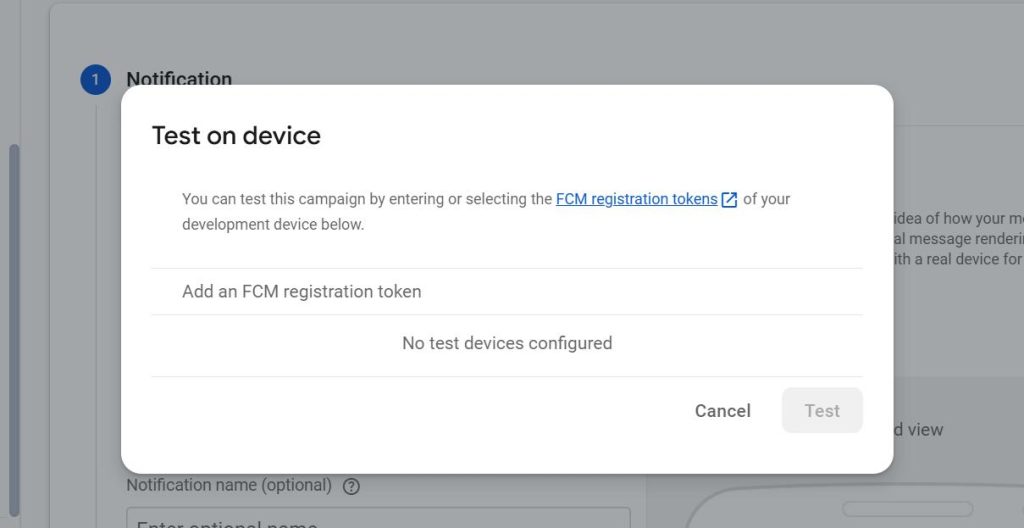
2. Send a Test Notification from Firebase Console :
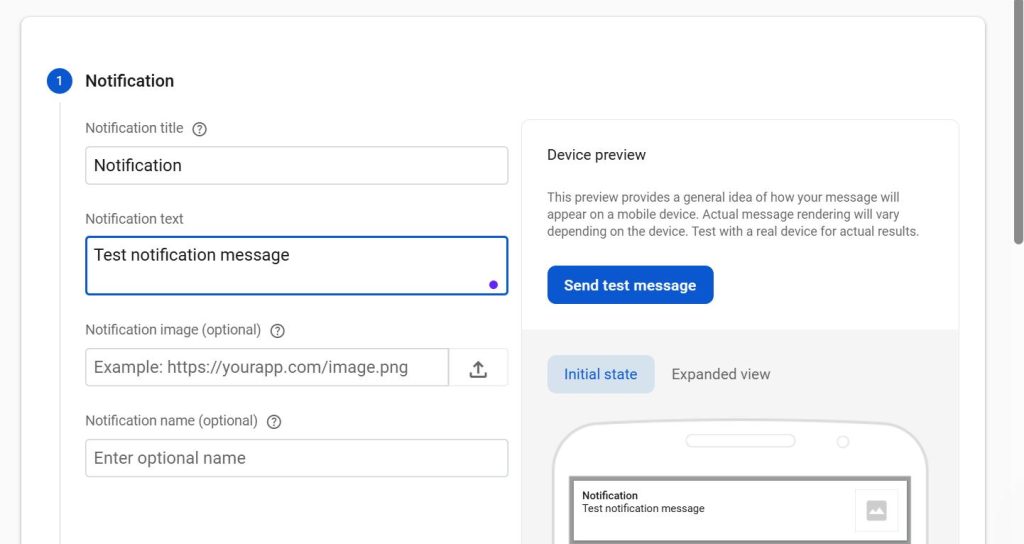
- Go to Firebase Console > Cloud Messaging.
- Click Send message.
- Enter title and message.
- Select Send to test device and paste your FCM token.
- Click Send.
You’ll receive a notification on your device if everything is set up correctly!
Push Notifications in Flutter
Implementing push notifications in your Flutter app can be a advancement. It’s not just about sending alerts – it’s about keeping your users engaged, informed, and coming back for more. By following this guide, you’ve learned how to set up Firebase, handle notifications, and customize them to fit your app’s needs. Now, you’re ready to start sending push notifications in flutter that make an impact!
“Push notifications in flutter are more than just messages – they’re your direct line to keeping users hooked and connected to your app, wherever they are!”