If you’ve been using Odoo for a while, you know how essential it is to make the most out of the data you manage daily. But how you interact with that data can make all the difference. Odoo offers some powerful customization features that go beyond basic functionality to help streamline your workflow and make your experience smoother and more insightful. One of the keys to unlocking Odoo’s full potential is visual customization—specifically through field decorations and non-relational fields.
In this first part of our “Unlocking Odoo’s Visual Potential” series, we’ll show you how to move past plain data entry and use these tools to transform your Odoo forms into visually-driven, user-friendly interfaces. With the right decorations and non-relational fields, you can create more intuitive forms, highlight important information at a glance, and ultimately improve the overall user experience. Let’s dive in!
Decorations: Elevating Your Odoo Interface with Visual Clarity
Imagine scrolling through an Odoo form, and the most important content stands out immediately instead of being buried in lines of plain text. That is the magic of the decorations. Such visual cues enable you to style the fields dynamically depending on their values and bring your data entry experience to the next level.
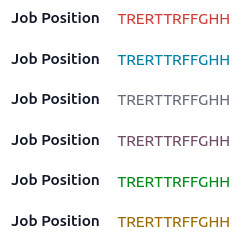
You can provide meaningful visual cues through decorations, helping you quickly interpret data. A red highlight, for instance, might indicate an important error or an issue that requires immediate action while a green tick can indicate a successful action or a task that has been completed. For more mundane details, a lighter gray could keep the attention on what’s really important. Step 3: Organize Your Workflow (Color-Coding Workflow): Using this approach we stay on track and organized, while developing a more “graphical” form enabling you to work smarter not harder.
With decorations, you can simplify your workflow and save the cognitive load required to process the data. With Odoo you can turn what used to be just another form into a visually oriented tool that can help steer your decision-making so that your experience with Odoo is as effective as it is efficient.
How to Apply Decorations: A Simple Step-by-Step Guide
Using decorate in Odoo is not complicated and will not require knowledge of many details in coding. They can easily be applied with attributes in your field definitions. Here is one simple way to make a start:
<field name=”state” decoration-danger=”amount < 10000”/>
Decoration Styles: A Palette of Visual Options
The Odoo platform has several built-in decoration styles that enable you to emphasize different kinds of information simply. These are the most used styles:
- decoration-bf: Bold text (to emphasize important information)
- decoration-it: Italic text (for subtle emphasis)
- decoration-danger: Red text (for errors or warnings)
- decoration-info: Blue text (for informational purposes)
- decoration-muted: Gray text (for less important details)
- decoration-primary: Violet text (for primary actions)
- decoration-success: Green text (for success or confirmations)
- decoration-warning: Orange text (for cautionary information)
Each one of the three styles has its own purpose, allowing you to create a clearer, more organized interface that showcases the most important pieces of information while making your data easier to dissect.
Odoo Non-Relational Fields: A Guide To Personalizing Your Data Handling
Type of fields that is itself like a tool for specific data handling is the non-relational fields in Odoo. Just as a hammer is great for nails but not for screws, Odoo uses the special field type according to the data set to provide a better user experience and data integrity. For instance, if it is a date field, a date picker will open to make date input easier, and if it is a selection field, user will see a dropdown to choose from predefined values. These field types make the inputting and viewing of data much cleaner and easier.
Since Odoo can have multiple kinds of non-relational fields each serving different purposes, therefore, we should have thorough knowledge on those available field types, and their utilization, so that no unnecessary input can be received by any field which is not at all expected, and increasing the performance as well. This not only makes the process smoother but also increases the accuracy and user-friendliness of your system. This guide will explore these fields in more detail and give you a few pointers on when to use which. It will allow you to set up a much more organized, efficient, and intuitive Odoo experience, allowing for better data management and smoother workflows.
Dates & Times:
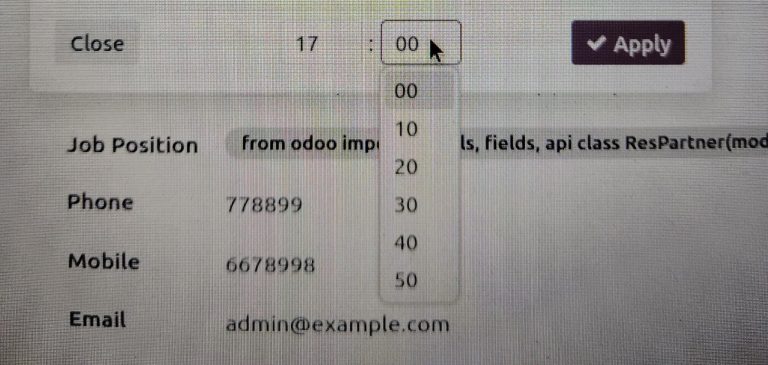
- Date & Time (datetime): For date and time values, use the datetime field. It inherits the date field options and adds rounding for time increments.
Supported field types: datetime
<field name="datetimefield" options="{'rounding': 10}"/>
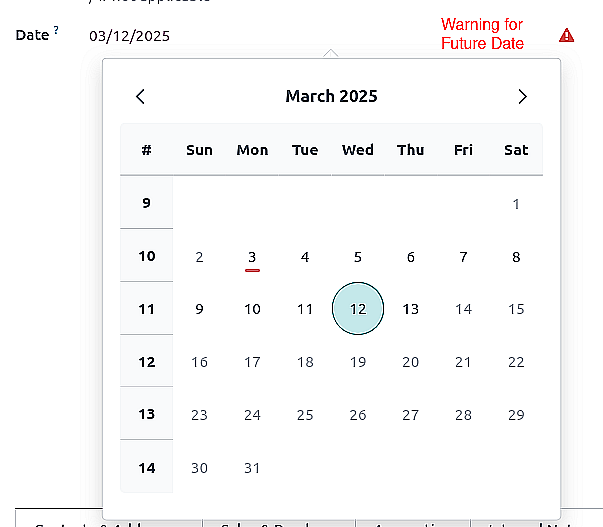
- Date (date): Use the date field type for storing dates. You can even set limits with min_date and max_date options, or warn users about future dates with warn_future.
Supported field types: date
<field name="datefield" options="{'min_date': '2025-03-03', 'max_date': '2025-03-13', 'warn_future': true}"/>
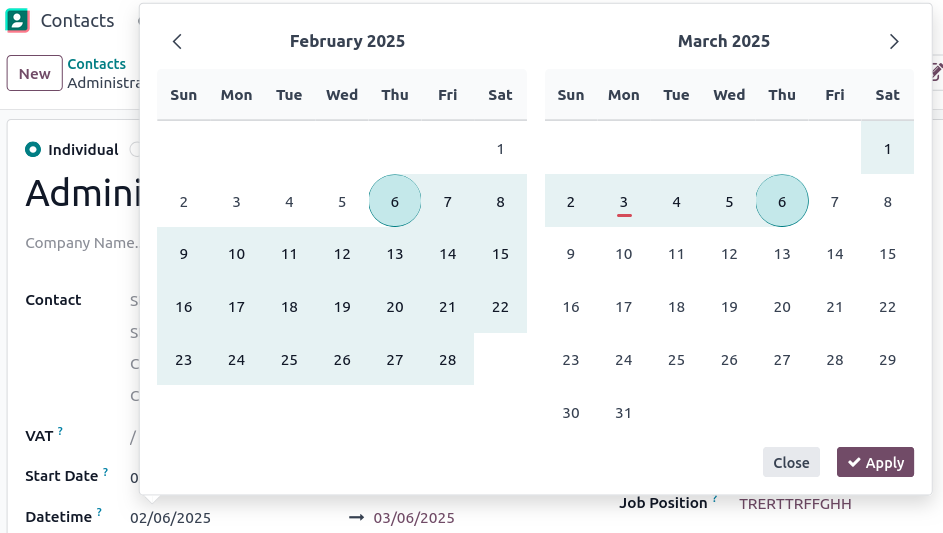
- Date Range (daterange): Need to select a start and end date? The daterange widget is your answer.
Supported field types: date, datetime
					<field name="end_date" widget="daterange"
options="{'start_date_field': 'start_date'}"/>

<field name="start_date" widget="daterange"
 	options="{'end_date_field': 'end_date'}"/>
Numbers & Currencies:
- Monetary (monetary): Display currency values beautifully with the monetary widget. Link it to a currency field using the currency_field option.
Supported field types: monetary, float
					<field name="price" widget="monetary"
 	  	options="{'currency_field': 'currency_id'}"/>

- Progress Bar (progressbar):
Watch progress in real-time! Visualize values as a progress bar. Great for tracking tasks or goals. Customize it with current_value, max_value, and make it editable if you want.
Supported field types: integer, float
					<field name="task_progress" widget="progressbar"
options="{'current_value': 'task_progress', 'max_value': 'total_tasks',
 			'editable': true}"/>

Communication & Links:
- Email (email): Tired of copy-pasting emails? This field directly shows the option to Send Email. Boom! Instant communication.
Supported field types: char
<field name="email" widget="email"/>

- Phone (phone): Make calls directly from Odoo! This field directly shows the option to Call and Message
. Talk about efficiency.
Supported field types: char
<field name="phone" widget="phone"/>

- URL (url): Link to anything! Display URLs as clickable links. Plus, you can customize the link text. No more boring ‘http://…’. Use the text attribute to make it your own. Want to link the url to your Odoo website? Set website_path to true, otherwise it defaults to ‘http://’.
Supported field types: char
<field name="website" widget="url" text="Website URL"/>

Visual Indicators & Toggles:
- Priority (priority):
Rate it with stars! A simple click lets you set priority. It’s like giving a thumbs-up, but with stars.
Supported field types: selection
<field name="priority" widget="priority"/>

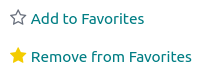
- Favorite (boolean_favorite):
Star it! A quick way to mark favorites with a star icon. Click to toggle. Simple and effective.
Supported field types: boolean
<field name="is_favorite" widget="boolean_favorite"/>
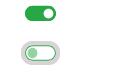
- Toggle (boolean_toggle):
Switch it on or off! A modern toggle switch for boolean values. It’s like flipping a light switch, but for your data.
Supported field types: boolean
<field name="active" widget="boolean_toggle"/>
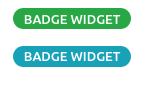
- Badge (badge): Label it with style! Display values in Bootstrap badges. Use decorations to change colors based on conditions. Make your data pop!
Supported field types: char, selection, many2one
					<field name="status" widget="badge"
		decoration-success="status == 'Done'"
		decoration-danger="status == 'Error'"/>
Code & Text Editing:
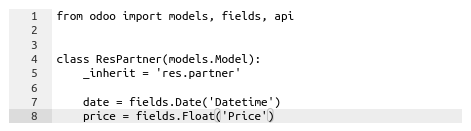
- Ace Editor (ace): Code within Odoo? Yes, please! Edit XML and Python code directly in your fields. It’s like having a mini IDE.”
<field name="evaluation_code" widget="ace" options="{'mode': 'python'}"/>
Enhance Your Odoo Experience
You’ve learned how to apply decorations and utilize non-relational fields to make your Odoo environment more intuitive and visually engaging. These tools are just the beginning! In Part 2, we’ll dive into relational fields and widgets, further expanding your Odoo customization options.