
Why Managing Product Catalog in Odoo 18 Field Service Matters
When it comes to delivering exceptional on-site services, efficiency is everything. One key area that often causes hiccups in field operations is poor inventory visibility or unorganized product catalogs. That’s why understanding how to manage product catalog in Odoo 18 Field Service can significantly boost your service performance.
Odoo 18 has innovative features customised for field technicians and service managers, but exploring its full potential requires a structured product catalogue setup and management.
In this guide, you’ll learn:
- What is the Odoo 18 Field Service product catalog, and how does it work
- Step-by-step Odoo field service product catalog setup
- Techniques for Odoo 18 Field Service Product Management
- How to handle Odoo field service inventory products
- Ways to add products to field service tasks in Odoo 18
- Best practices for Odoo 18 Field Service default warehouse settings
Getting the field service product catalogue will facilitate your on-site operations, whether you’re a technician, team leader, or business owner.
Understanding the Product Catalog in Odoo 18 Field Service
Before you begin configuring or managing your items, it’s important to understand the product catalog’s meaning within the Field Service module of Odoo 18.
A product catalog in Odoo Field Service refers to the list of services and physical products (like spare parts, tools, and consumables) that can be used or sold while completing field service tasks. These items can be billed, tracked for Inventory, or automatically reordered.
Key Features:
- Full integration with Inventory, Sales, and Invoicing
- Easy product selection when assigning tasks
- Option to link products with serial numbers or batches
- Real-time inventory adjustments
Step-by-Step Guide to Odoo Field Service Product Catalog Setup
To properly understand how to manage a product catalog in Odoo 18 Field Service, let’s walk through a step-by-step guide to setting up your product catalog correctly.
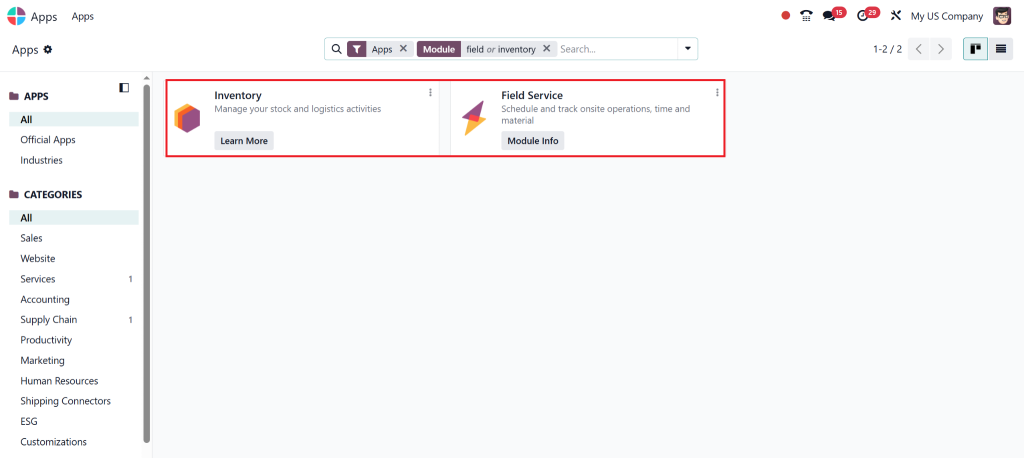
Step 1: Enable Field Service & Inventory Modules
Navigate to Apps → Install both Field Service and Inventory modules.
Step 2: Create a Product for Field Use
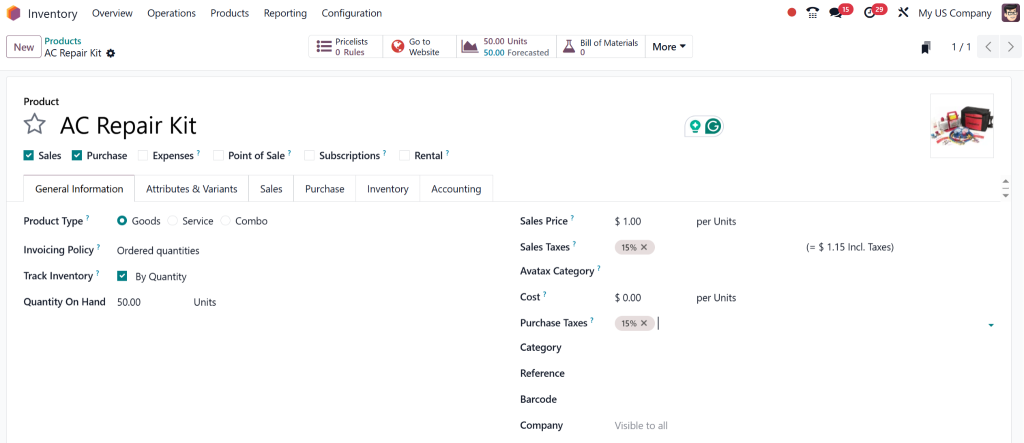
- Go to Inventory → Products → Create
- Name the product (e.g., “AC Repair Kit”)
- Assign product type: Storable or Consumable
- Under the Sales tab, tick “Can be Sold.”
- Under the Inventory tab, assign the responsible warehouse
Step 3: Assign Products to Service Tasks
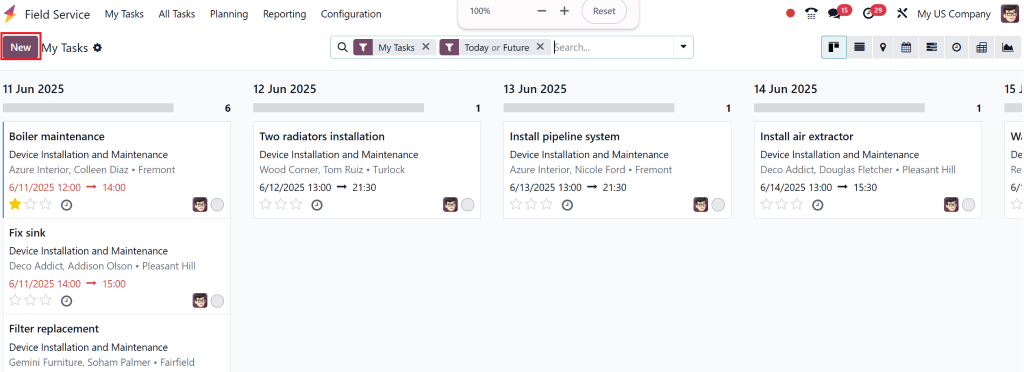
- Go to Field Service → Tasks
- Create or open a task
- Scroll to the “Products” tab and click “Add a Line.”
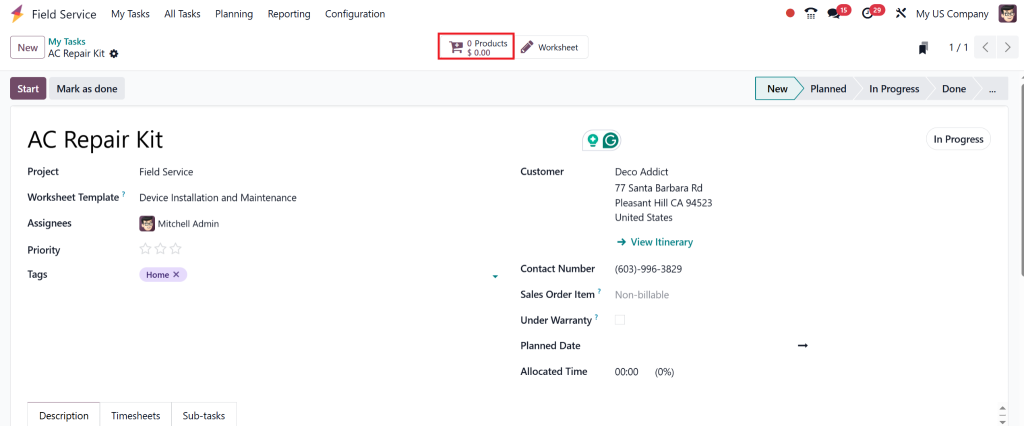
- Select the product and quantity used
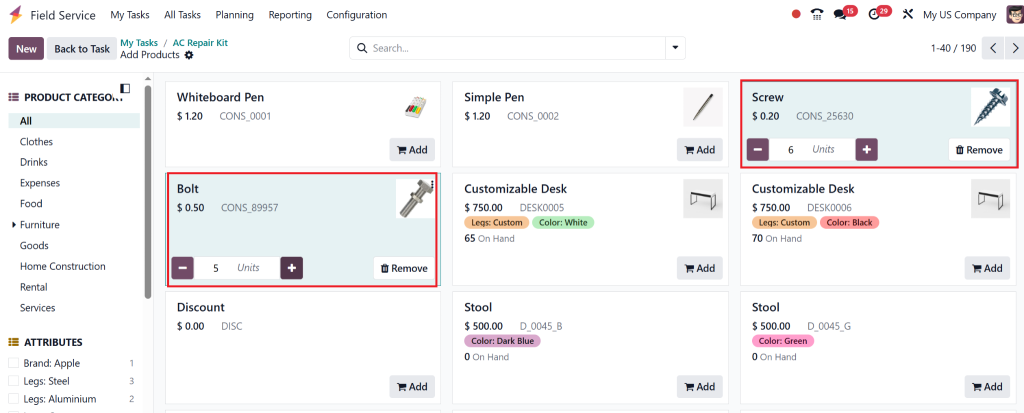
- Products added
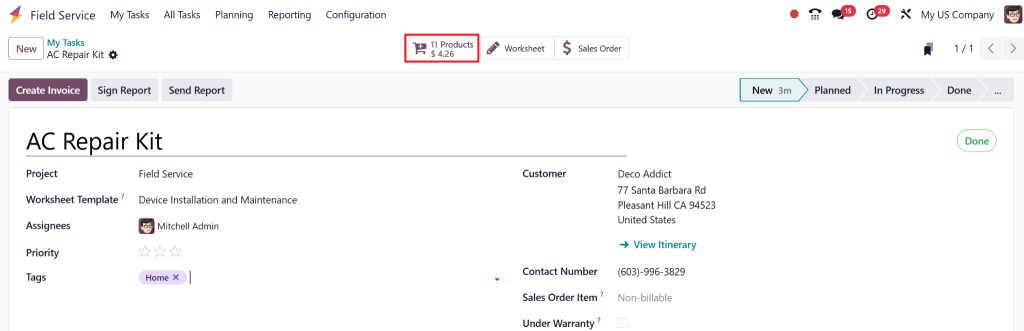
Step 4: Define Default Warehouses
Configure default warehouses for faster product retrieval:
- Go to Inventory → Configuration → Warehouses
- Choose a default warehouse for field service locations
- Sync with technician routes for automatic restocking
Following this process makes setting up your Odoo 18 Field Service product catalog seamless, reducing product misplacement and speeding up operations.
Pro Tips for Odoo 18 Field Service Product Management
Once your catalog is ready, managing it efficiently ensures sustainable field service operations.
Best Practices for Product Management:
- Use Product Categories: Organize products into categories like “Tools,” “Spare Parts,” “Consumables,” etc.
- Maintain Real-Time Inventory: Activate real-time stock updates across mobile and desktop interfaces.
- Enable Serial Number Tracking: Use serial or lot tracking to monitor usage and avoid losses for high-value items.
- Set Reordering Rules: Automate restocking by setting minimum quantity thresholds.
By adopting these practices, Odoo 18 Field Service product management becomes more predictable and less prone to human error.
How to Add Products to Field Service Task in Odoo 18
You can easily add products to field service task in Odoo 18 by integrating the products tab in your task form. Here’s how it works in real-time:
- While working on a task, the technician can open the assigned job via the mobile app or browser.
- Click on the “Products” section and hit “Add a Line.”
- Search the catalog and add the item used during the task
- Quantity and pricing auto-populate from product master settings
- After task completion, this entry feeds into invoices automatically
This feature saves time and guarantees billing accuracy.
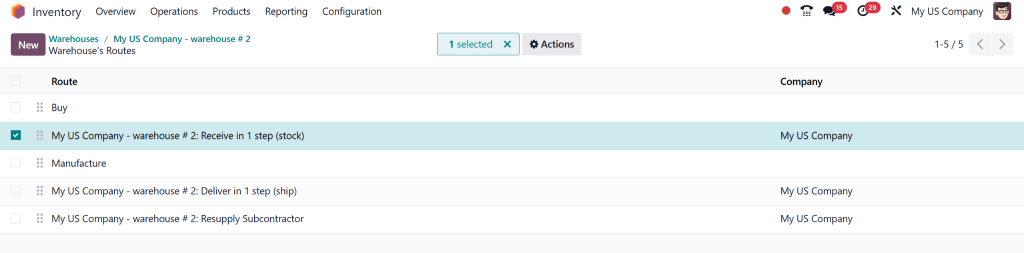
Setting Up Odoo 18 Field Service Default Warehouse Settings
Warehousing is critical for field service. Configuring the Odoo 18 field service default warehouse settings ensures technicians have fast access to necessary products.
How to Set Default Warehouses for Field Technicians:
- Go to Inventory → Configuration → Warehouses
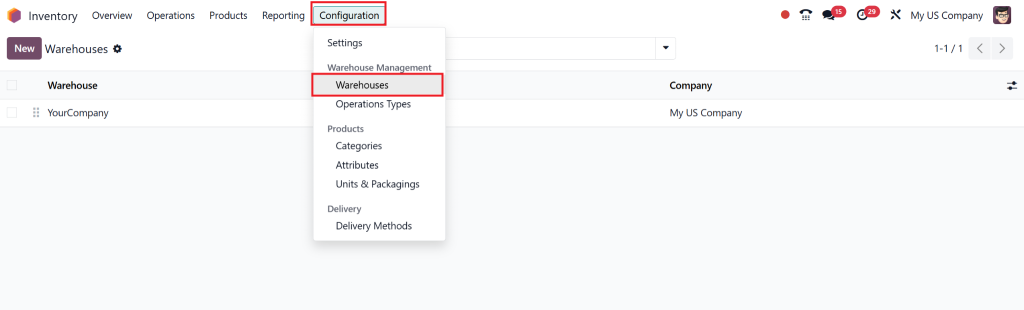
- Assign warehouses to each location or route
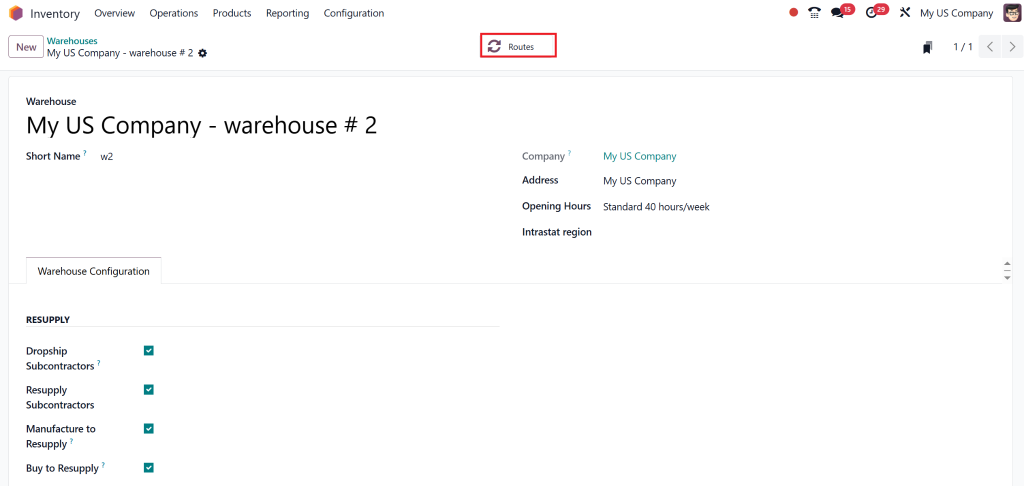
- Link warehouses with responsible users or vehicles
- Enable smart routes to ensure auto stock updates
Benefits:
- Efficient inventory movement
- Better planning of stock locations
- Faster product allocation
Syncing Field Service with Inventory for Product Catalog Accuracy
Odoo’s real power lies in integration. By syncing the Odoo field service inventory products with the inventory app, your catalog remains accurate and accessible.
Integration Benefits:
- Real-time inventory adjustments when field task products are consumed
- Instant stock reservation and replenishment
- Accurate invoicing and cost analysis
- Reduced risk of stockouts or overuse
Make sure:
- All products used in field service are also created and managed in the Inventory
- Default routes and locations are pre-assigned
This connected system drastically improves how you manage the product catalog in Odoo 18 Field Service.
How to Manage Product Catalog in Odoo 18 Field Service
By now, you should clearly understand how to manage the product catalog in Odoo 18 Field Service, from setup to day-to-day operations.
Here’s a quick recap:
- Start by installing and integrating Field Service and Inventory
- Create and categorize products properly
- Assign products directly to tasks for easy billing and tracking
- Set up warehouse routes and restocking rules
- Sync everything with real-time inventory data
At Netilligence, an official Odoo Partner, we help companies across industries solve the true potential of Odoo’s Field Service module. Whether you need implementation, customization, or training, we’ve got you covered.
Contact us today to transform your product catalog and inventory management in Odoo 18 Field Service.
Bonus Tips
- Regularly audit your product catalog for outdated or duplicate items.
- Provide mobile training to technicians on how to log products during tasks.
- Use analytical reports to track the most-used products and improve planning.
Want Expert Help?
At Netilligence, our Odoo consultants specialize in Field Service workflows. If you’re struggling with Odoo 18 field service product catalog setup or want to automate your inventory handling, we’re just one message away.