
Importance of Worksheet Template in Odoo 18 for Field Service Teams
In any business that provides services outside the office, proper documentation is essential. Whether the work involves maintenance, delivery, inspection, or installation, field teams must record important information during each visit. This is where the Worksheet Template in Odoo 18 becomes useful.
It helps service teams record information consistently, collect approvals, and submit task updates directly into the system. The Odoo 18 Field Service module features worksheets that enable businesses to create, edit, and assign digital forms to service orders.
This article explains how to create a worksheet in Odoo 18, how to customize the worksheet in Odoo, and why these tools are necessary for everyday operations. We’ll also explore how the Odoo 18 worksheet template can be utilized in various scenarios and how Odoo Field Service customization can enhance task tracking and reporting.
By the end of this article, you’ll know how to use Odoo 18 field service templates, how to edit them according to your needs, and how they help make your documentation process more reliable. Whether you’re already using Odoo or planning to start, understanding these worksheet tools can help you achieve better control and organization in your field activities.
Creating a Worksheet Template in Odoo 18 Field Service
The first step in using worksheets in field service is learning how to build one. In the Odoo 18 Field Service app, worksheet templates can be created by accessing the configuration section. This feature enables you to create a form that field staff can complete during a task.
To begin, go to the Field Service module.
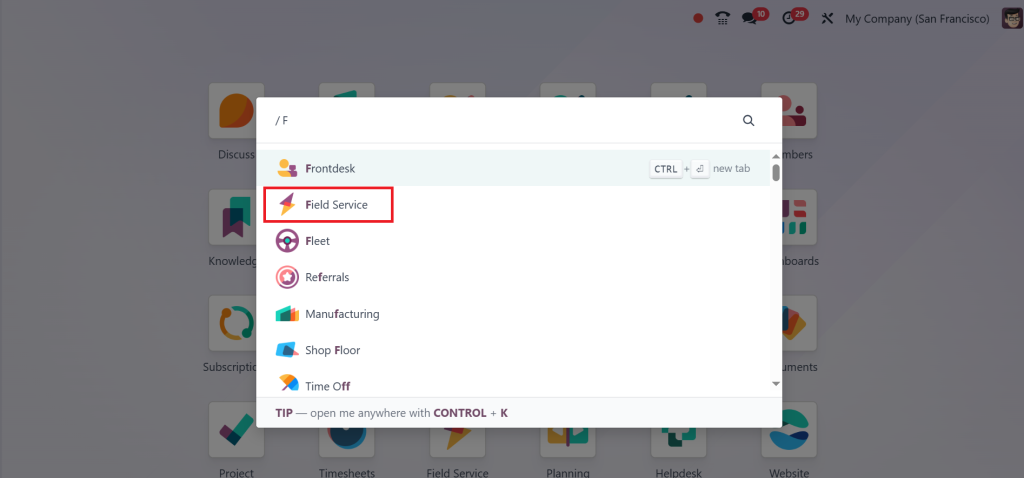
Select Configuration > Worksheet Templates.
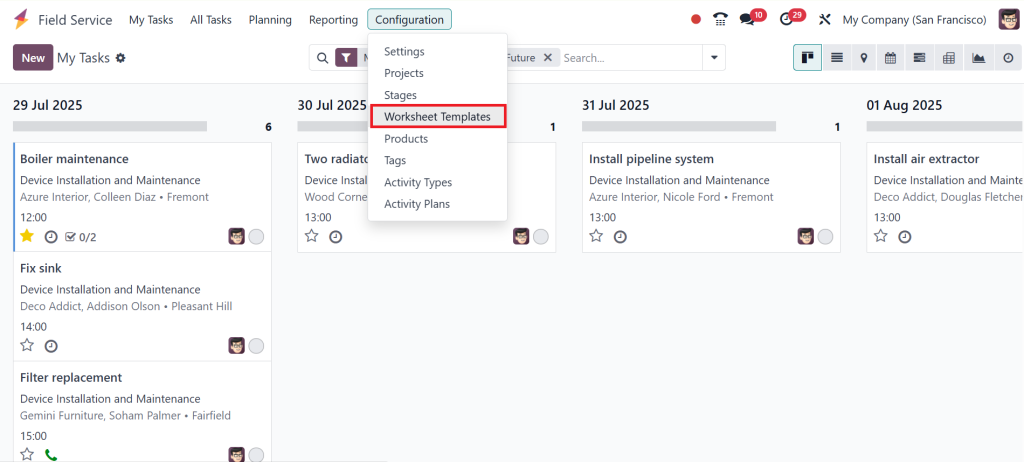
Hit the New button to launch the worksheet editor.
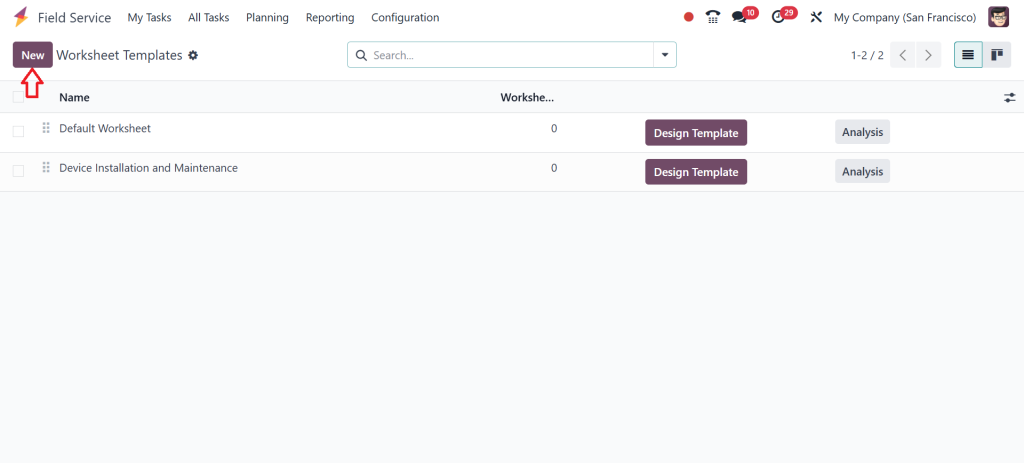
Enter the name of your worksheet (e.g., Maintenance Checklist). Then, click Design Template.
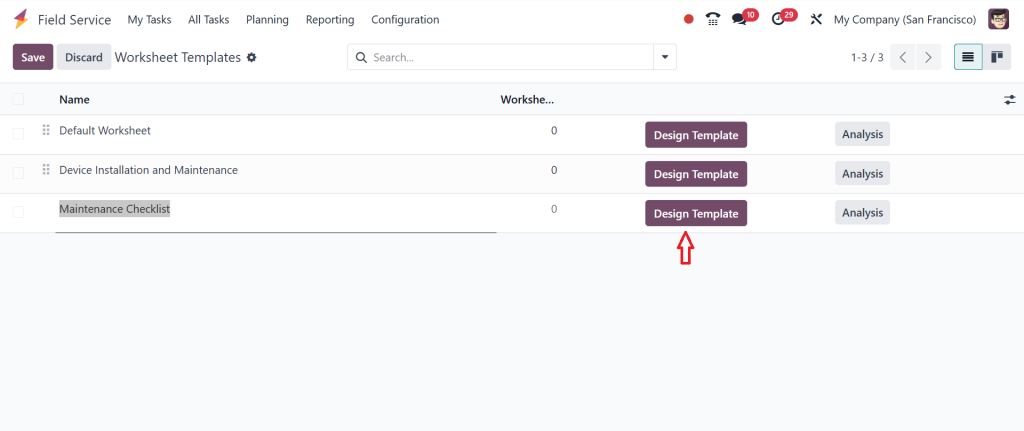
Here, you can add various types of fields such as:
- Text boxes (for notes or service descriptions)
- Checkboxes (for YES/NO tasks)
- Signature fields (for customer or technician)
- Image upload (to attach photos)
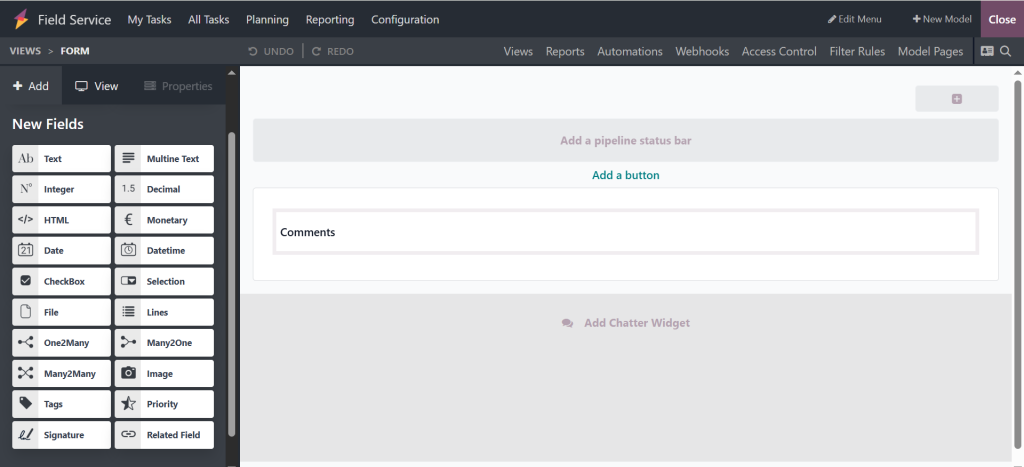
Once the fields are added, save your worksheet template in Odoo 18.
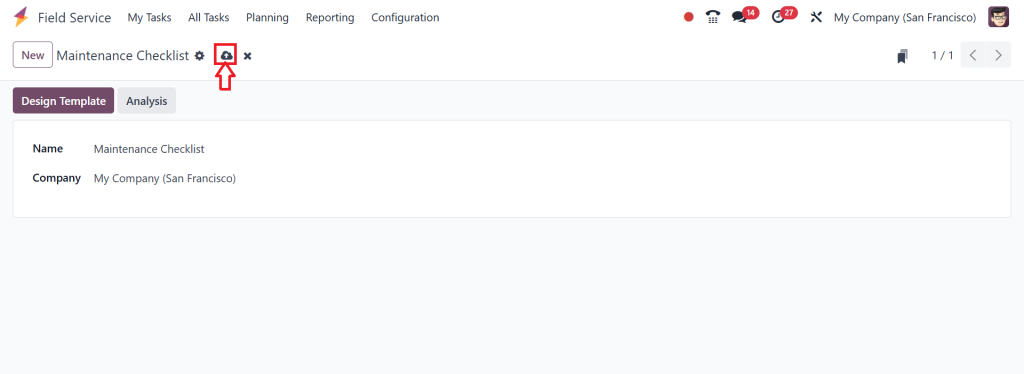
Using this approach, you can create Odoo 18 worksheet forms for different types of field jobs. For example, you might create one template for equipment inspections, another for delivery confirmations, and a different one for safety checks. This variety ensures that each task includes only the necessary fields, keeping it clear and relevant.
How to Customize Worksheet Odoo to Match Your Service Process
While creating a worksheet template is the first step, most companies also need to make changes based on their industry or type of work. That’s where the customized worksheet Odoo becomes essential. Each business may have its requirements. For example, a cleaning company might need a checklist for each room, while a repair service might need space for serial numbers or problem descriptions.
In Odoo 18, you can customize worksheets using the built-in Studio tool. Studio allows you to open any existing worksheet and make changes through a drag-and-drop interface. You can add or remove fields, rename field labels, adjust their order, and set required fields that must be filled before submission.
This level of Odoo Field Service customization enables companies to design forms that accurately reflect their workflow. You don’t need coding skills for this, and changes can be made quickly and easily. If your team finds that some questions aren’t relevant, or if new steps need to be added later, you can easily update your template at any time. The goal is to create a clear, simple, and accurate worksheet.
Assigning Odoo 18 Field Service Templates to Jobs
Once your worksheet template is created and customized, the next step is to assign it to the correct service tasks. This ensures that field workers automatically receive the proper form when they open a job in the system. In Odoo 18 Field Service, each product or task type can have a worksheet linked to it.
To do this, go to Configuration > Products.
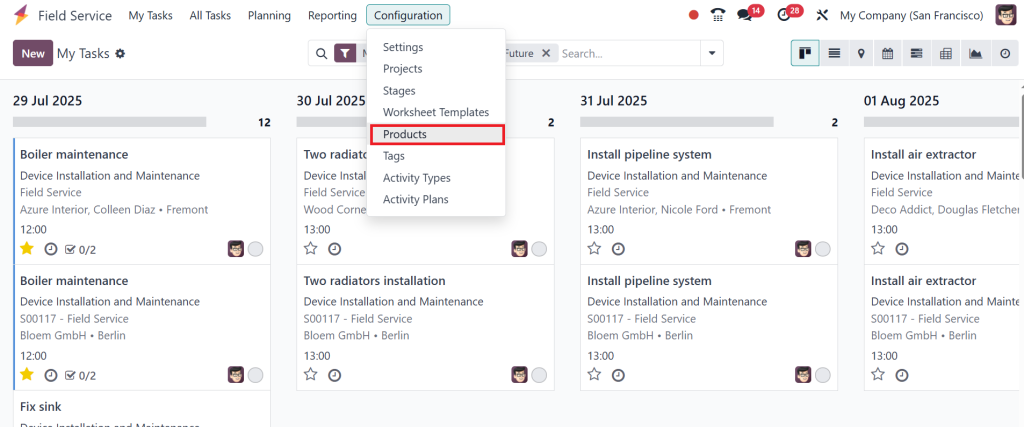
Select the relevant service, and choose your worksheet template in the “Worksheet Template” field.
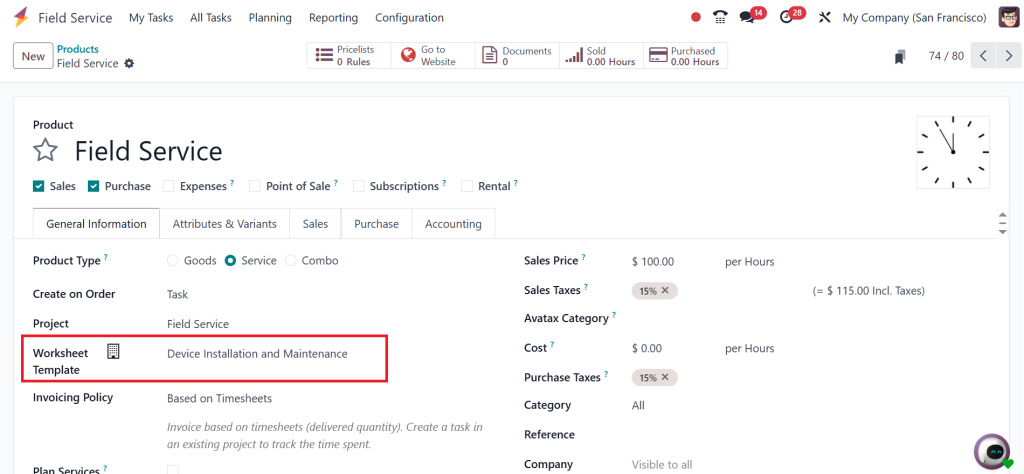
Now, every time this service is assigned to a field employee, the correct Odoo 18 worksheet template will be attached. This prevents confusion and helps workers follow the proper steps.
This feature is particularly beneficial when your business offers multiple types of services. For example, a telecom company might offer cable installation, internet troubleshooting, and modem replacements; each with different reporting needs. By linking different Odoo 18 field service templates to these services, your team receives only the relevant fields for the task.
Real-World Uses of Worksheet Template in Odoo 18
Many companies across different industries already rely on the worksheet template in Odoo 18 for their daily operations. A property maintenance company, for example, can use worksheets to document plumbing inspections. Their form might include fields for checking pipe conditions, taking pictures, and collecting a customer’s digital signature. A delivery service could use worksheets to confirm package drop-offs, including the name, signature, and delivery time.
Other businesses, such as those in medical equipment servicing, often require a history of tasks performed. Their worksheet might include service logs, safety checklists, and part replacements. Using Odoo Field Service customization, they can consist of all relevant information in a single form, which is then stored in the customer’s service history.
These practical examples demonstrate how Odoo 18 field service templates are not only useful for capturing data but also for maintaining accurate records. The ability to review previous worksheets helps managers, auditors, and clients understand what work was done and when it was completed.
Benefits of Using the Odoo 18 Worksheet Template for Field Reports
There are many reasons why companies choose to use the Odoo 18 worksheet template for field reporting. First, digital worksheets reduce paperwork and manual errors. Instead of filling paper forms or typing up notes later, field teams can enter everything directly into the app. This saves time and avoids mistakes that can occur due to memory errors.
Second, digital forms are easier to standardize. Every technician working on a specific service type sees the same form and follows the same steps. This helps improve the consistency of work across the team. Third, storing worksheets within Odoo makes them easy to find, search, and share. Managers can download them, send them to clients, or retain them for internal tracking purposes.
Finally, businesses benefit from better communication between field workers and office staff. Once a worksheet is submitted, back-office teams can review it immediately. If something is missing, they can follow up without delay. In this way, using the worksheet template in Odoo 18 helps companies keep better track of their tasks and reduce the need for follow-ups.
How to Use Odoo Field Service Customization for Different Workflows
Different companies have different working styles, and Odoo Field Service customization supports these differences by offering flexibility. You can design forms that match your service flow, add field-specific logic, or create templates for one-time projects.
For instance, you might want to create a special worksheet just for a new contract or project. Once that project ends, the worksheet can be removed or archived. You may also want to add logic that displays specific questions only when relevant. For example, if a checkbox is marked as “Issue Found,” you could reveal a new field requesting a description of the issue.
You can also control how fields behave; some might be mandatory, while others are optional. You can decide whether a technician must attach a photo, include a date, or type in a serial number before submitting the form. All of these options are part of the customised worksheet in Odoo, and they help ensure that important information is not forgotten.
Managing Multiple Odoo 18 Field Service Templates
As your company grows, the need for multiple templates becomes more likely. You might offer various services, work in different regions, or have teams with other responsibilities. With Odoo 18, field service templates allow you to create separate forms for each case.
Managing multiple templates is simple. Each template can be named clearly and assigned to a specific product or job type. When creating a new task, Odoo automatically pulls the correct worksheet. This setup helps avoid confusion and reduces the risk of using the wrong form for the job.
You can also update these templates whenever needed. If your workflow changes, such as the introduction of new safety rules or additional checks, you can return to the template, make the necessary adjustments, and apply them without affecting existing records.
Why You Should Create and Customize a Worksheet in Odoo 18 Today
To summarize, the worksheet template in Odoo 18 is a valuable feature for any business that handles field service tasks. It helps companies collect service data, keep digital records, and provide teams with clear instructions. The steps to create a worksheet in Odoo 18 are simple, and using the built-in Studio tool, you can customize the Odoo worksheet to include only the fields your team needs.
Assigning templates to tasks is easy, and managing different Odoo 18 field service templates allow you to handle a variety of service types. With the help of Odoo Field Service customization, you can improve how your team records job details and how your company uses that information for reporting and communication.
Whether your field team is small or large, adding worksheets to your service process helps improve accuracy, save time, and maintain a consistent workflow method. If you are already using Odoo or planning to switch, the worksheet feature is one of the most practical tools to consider for your team.
Looking to set up worksheets in your Odoo system?
Netilligence can help you configure, set up, and apply the right worksheet templates to your field service flow.
Reach out today and let’s start with your first custom worksheet in Odoo 18.