

Add Custom Fields to the Default Export List in Odoo 19
Exporting data is one of the most common tasks performed in Odoo. Whether you’re preparing reports, analyzing customer information, sharing records with another department, or migrating data between systems, the Export Wizard makes the process simple and efficient.
However, businesses that use custom fields often encounter a small but repetitive inconvenience. While Odoo allows custom fields to be exported, they are not included in the default Fields to Export list. Instead, users must manually search for each custom field and add it every time they perform an export.
Although this may seem like a minor task, it can become time-consuming for teams that regularly export data. Over time, these repetitive steps can reduce productivity and increase the likelihood that users will forget to include important business information in their exports.
Fortunately, Odoo 19 provides a simple way to make custom fields export-friendly through the default_export_compatible attribute. With a small enhancement, you can also ensure these fields remain selected regardless of whether the Import-Compatible Export option is enabled.
In this article, we’ll walk through the complete implementation, explain how to Add Custom Fields to the Default Export List in Odoo 19, explain how the Export Wizard works behind the scenes, and show you how to provide a better export experience for your users.
What You'll Learn
By the end of this guide, you’ll know how to:
- Understand how the Odoo 19 Export Wizard selects fields.
- Add custom fields to the default export list.
- Use the default_export_compatible attribute correctly.
- Understand why read-only fields behave differently during exports.
- Prepare for a controller customization that keeps custom fields selected across all export modes.
Why This Matters
Every organization customizes Odoo to match its business processes. Customer records may include information not found in the standard Odoo database, such as tax identifiers, customer reference numbers, credit limits, loyalty information, or onboarding dates.
Imagine your sales or finance team exports customer data several times a day. In addition to standard customer details, they need business-specific information such as GST Number, PAN Number, Customer Code, Credit Limit, and Onboarding Date.
Without customization, users must manually search for these fields and add them to the export every single time. While this only takes a few clicks, repeating the same process every day is unnecessary and can lead to inconsistent exports if someone accidentally omits an important field.
Making these fields available by default not only saves time but also creates a smoother and more reliable workflow for everyone using the system.
Default Export Behavior
Before making any changes, it’s important to understand how the Export Wizard behaves by default.
To export customer records:
- Open the Contacts module.
- Select one or more customer records.
- Click Action → Export.
- The Export Wizard opens.
You’ll notice two separate sections:
- Fields to Export – contains the fields that will be included in the exported file.
- Available Fields – contains additional fields that can be added manually.
Standard Odoo fields usually appear automatically in the Fields to Export section. However, custom fields are generally listed under Available Fields, which requires users to click the “+” icon before they can be exported.
For businesses that frequently export data, this extra step quickly becomes repetitive.
Business Requirement
Let’s consider a practical example.
A company frequently exports customer records for reporting and financial reconciliation. In addition to the standard customer information, they also need the following custom fields:
- GST Number
- PAN Number
- Customer Code
- Credit Limit
- Onboarding Date
Since these are custom fields, users currently have to add them manually each time they export.
The goal is simple: whenever the Export Wizard opens, these fields should already appear in the Fields to Export section without requiring any manual action.
Adding Custom Fields Using default_export_compatible
Odoo provides a built-in field attribute that helps developers identify fields that should be available during export operations.
The attribute is:
default_export_compatible=True
When this attribute is added to a field definition, Odoo marks that field as suitable for export. This allows the Export Wizard to recognize it as an export-compatible field whenever it builds the list of available export fields.
The following example creates multiple custom fields and enables them for default export:
					from odoo import fields, models


class ResPartner(models.Model):
   _inherit = 'res.partner'


   user_id = fields.Many2one(default_export_compatible=True)


   gst_number = fields.Char(
       string='GST Number',
       default_export_compatible=True,
   )


   pan_number = fields.Char(
       string='PAN Number',
       default_export_compatible=True,
   )


   customer_code = fields.Char(
       string='Customer Code',
       default_export_compatible=True,readonly=True,
   )


   credit_limit = fields.Float(
       string='Credit Limit',
       digits=(16, 2),
       default_export_compatible=True,
   )


   onboarding_date = fields.Date(
       string='Onboarding Date',
       default_export_compatible=True,
   )
After upgrading your custom module, Odoo recognizes these fields as export-compatible. Instead of being treated like ordinary custom fields, they become eligible to appear in the Export Wizard’s default export configuration.
This approach works for different field types, including:
- Char fields
- Float fields
- Date fields
- Many2one fields
- Many other standard Odoo field types
Simply adding this attribute is often enough to improve the export experience without writing any additional business logic.
Understanding Read-Only Field Behavior
One of the custom fields in our example is defined as follows:
					customer_code = fields.Char(
   string='Customer Code',
   default_export_compatible=True,readonly=True,
)
At first glance, you might expect this field to always appear in the default export list because it has been marked as export-compatible.
However, that’s not always the case.
When users enable the Import-Compatible Export option, Odoo prepares an export file that can be imported back into the system later.
Since import-compatible exports are designed to update existing records, Odoo primarily focuses on fields that can be updated during the import process. As a result, read-only fields may not always remain selected by default, even if they have default_export_compatible=True.
This behavior often surprises developers because the field has already been marked as export-compatible.
Some common examples of read-only fields include:
- Customer Codes
- Internal Reference Numbers
- Sequence Numbers
- Automatically Generated Values
Although these fields are frequently required for reporting and auditing, they are generally not intended to be modified through imports.
Understanding this behavior is important because it explains why simply adding default_export_compatible=True may not always produce the expected result. In the next part of this guide, we’ll explore why this happens and implement a small controller customization that ensures these fields remain selected regardless of the export mode.
Limitation of the Standard Behavior
While default_export_compatible=True helps Odoo identify export-friendly fields, the Export Wizard behaves differently depending on the Import-Compatible Export option’s state.
Internally, Odoo uses logic similar to:
‘default_export’: import_compat and field.get(‘default_export_compatible’)
When Import-Compatible Export is disabled, Odoo sets:
default_export = False
As a result, fields marked with default_export_compatible=True may no longer appear in the default export selection.
Users would again need to add those fields manually.
Lorem ipsum dolor sit amet, consectetur adipiscing elit. Ut elit tellus, luctus nec ullamcorper mattis, pulvinar dapibus leo.
Extending the Export Controller
Rather than modifying Odoo’s core files, the recommended approach is to inherit the existing Export Controller and override the get_fields() method.
This allows us to preserve Odoo’s default functionality while making a small adjustment to how export-compatible fields are handled
					from odoo import http
from odoo.addons.web.controllers.export import Export


class ExportDefaultFields(Export):


   @http.route('/web/export/get_fields', type='jsonrpc', auth='user', readonly=True)
   def get_fields(self, model, domain, prefix='', parent_name='',
                  import_compat=True, parent_field_type=None,
                  parent_field=None, exclude=None):


       result = super().get_fields(
           model=model,
           domain=domain,
           prefix=prefix,
           parent_name=parent_name,
           import_compat=import_compat,
           parent_field_type=parent_field_type,
           parent_field=parent_field,
           exclude=exclude,
       )


       if not import_compat:
           Model = http.request.env[model]
           fields_meta = Model.fields_get(attributes=['default_export_compatible'])


           for field_dict in result:
               # field_dict['id'] is "prefix/field_name" or just "field_name"
               field_name = field_dict['id'].split('/')[-1]
               if fields_meta.get(field_name, {}).get('default_export_compatible'):
                   field_dict['default_export'] = True


       return result
Once this customization is added to your module and the module is upgraded, the Export Wizard continues to respect Odoo’s standard behavior while ensuring that export-compatible fields remain selected, even when Import-Compatible Export is disabled.
How the Customization Works
Although the code is relatively short, each step serves a specific purpose.
First, the method calls Odoo’s original get_fields() function using super(). This preserves the default functionality and avoids replacing the existing export logic.
Next, the customization checks whether the export is not running in import-compatible mode.
If that’s the case, it retrieves the metadata of all fields using fields_get(). Among the available attributes, we specifically look for default_export_compatible.
The controller then loops through every field returned by the Export Wizard.
For each field, it verifies whether the corresponding model field has been marked with:
default_export_compatible=True
If it has, the customization restores:
field_dict[“default_export”] = True
As a result, the field remains selected in the Fields to Export section, regardless of whether the Import-Compatible Export option is enabled or disabled.
The overall flow can be summarized as follows:
- Calls Odoo’s original get_fields() method.
- Retrieves field metadata using fields_get().
- Checks whether the field has default_export_compatible=True.
- Restores default_export=True.
- Ensures the field appears in the Fields to Export section.
- Works in both export modes.
As a result, users no longer need to add these fields when exporting records manually.
Applying the Same Approach to Existing Odoo Fields
The same technique can also be applied to existing Odoo fields.
For example, to automatically include the Salesperson field in customer exports:
					class ResPartner(models.Model):
   _inherit = 'res.partner'


user_id = fields.Many2one(default_export_compatible=True)
In this case, we are not creating a new field. We are simply extending an existing Odoo field and modifying its export behavior.
All original field properties such as relation, label, domain, and business logic remain unchanged.
Testing the Implementation
Once the module has been upgraded, it’s a good idea to verify that everything works as expected.
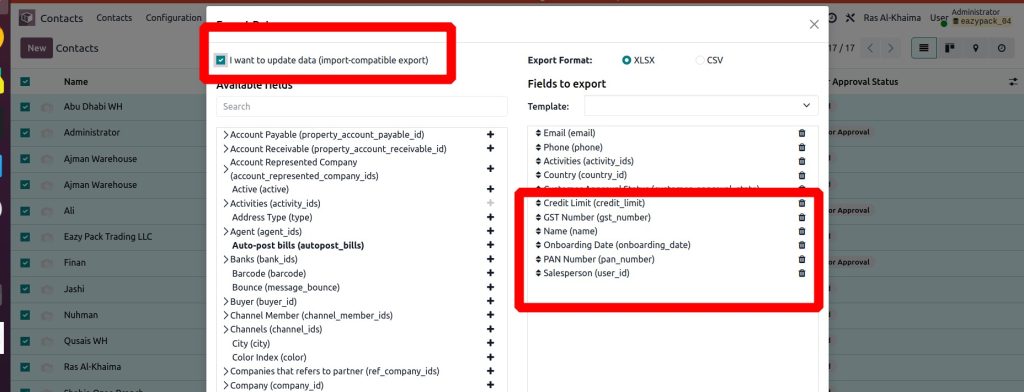
Test Case 1: Import-Compatible Export Enabled
- Open Export Wizard.
- Enable I want to update data.
Result:
The custom fields, such as GST Number, PAN Number, Customer Code, Credit Limit, and Onboarding Date, are already available in the Fields to Export section and do not require any manual selection.
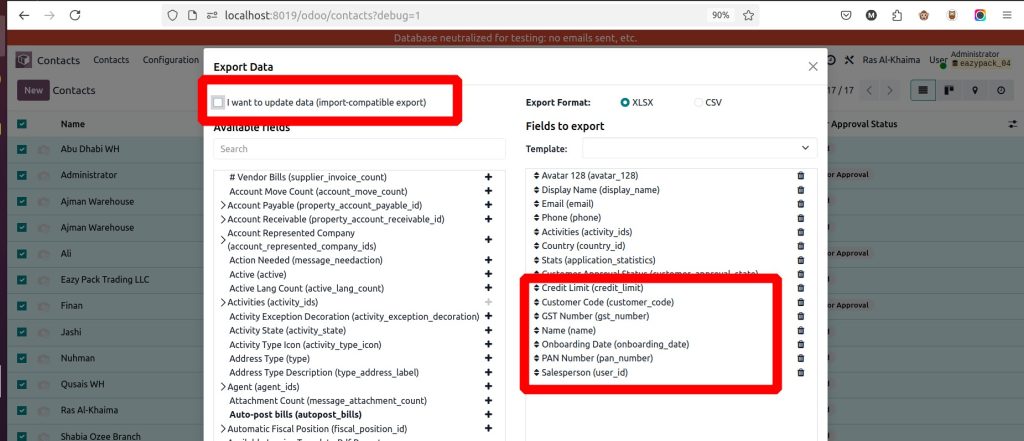
Test Case 2: Import-Compatible Export Disabled
- Open Export Wizard.
- Disable I want to update data.
Result:
Even though the export is no longer import-compatible, the same custom fields are still selected automatically due to the controller customization.
The user experiences the same export behavior in both modes, creating a more consistent and user-friendly workflow.
Benefits of This Approach
This small customization offers several practical advantages for both developers and end users.
Some of the key benefits include:
- Eliminates the need to add custom fields to every export manually.
- Saves time for teams that frequently export data.
- Ensures consistent export files across different users.
- Reduces the risk of accidentally omitting important business information.
- Supports both custom fields and existing Odoo fields.
- Works with read-only fields that are commonly required for reporting.
- Preserves Odoo’s standard functionality without modifying core files.
- Makes future maintenance and upgrades easier.
Although the implementation is relatively small, it can significantly improve the daily experience of users who rely on exported data.
Add Custom Fields to the Default Export List in Odoo 19
The default_export_compatible attribute provides a simple and effective way to Add Custom Fields to the Default Export List in Odoo 19. For many use cases, adding this attribute is enough to improve the export experience by allowing Odoo to recognize custom fields as export-compatible.
However, because the Export Wizard behaves differently depending on the Import-Compatible Export option, relying on this attribute alone may not always produce the expected results. Fields that should be available by default can disappear from the selected export list, requiring users to add them manually once again.
By extending the Export Controller and restoring the default_export property for fields marked with default_export_compatible=True, you can deliver a more consistent and user-friendly export experience. This approach works for custom fields, read-only fields, and even existing Odoo fields, all without modifying Odoo’s core code.
For businesses that frequently export customer, sales, accounting, or inventory data, this small enhancement can eliminate repetitive manual steps, improve consistency, and make everyday operations more efficient.
Whether you’re building custom Odoo modules for your organization or developing solutions for clients, this practical customization adds real value with minimal code.




