Introduction to Month-End Closing in Odoo 19
Month-End Closing in Odoo 19 becomes much easier when you know exactly where to look and what to verify inside Odoo. Instead of moving between spreadsheets and different systems, you can review sales, purchases, inventory, and accounting activities directly from Odoo.
In this practical guide, we will walk through Odoo 19 Month-End Closing step by step. You will learn how to check Odoo open purchase orders, review Odoo open sales orders, investigate Odoo 19 stock variation, verify Odoo 19 stock valuation, and use the Odoo inventory valuation report before finalizing the month.
The idea behind Month-End Closing in Odoo 19 is not simply to click a button and finish the month. You need to make sure transactions are complete, inventory records are accurate, and accounting information reflects what actually happened during the month.
This is especially important for companies using Odoo for inventory management, purchasing, sales, and accounting. A practical closing routine helps identify unfinished transactions and unusual stock movements before they create problems in financial reporting.
Let’s look at how you can actually perform these checks inside Odoo 19.
Step 1 - Check Your Accounting Activities
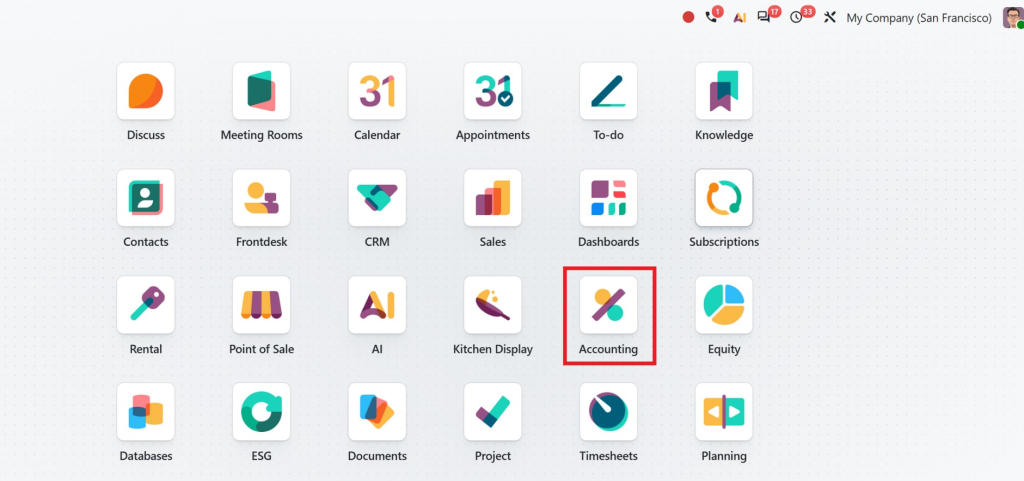
Start with the Accounting application.
From the Accounting dashboard, review the accounting activities for the month you are closing. Depending on your configuration, you may need to review customer invoices, vendor bills, payments, bank transactions, and journal entries.
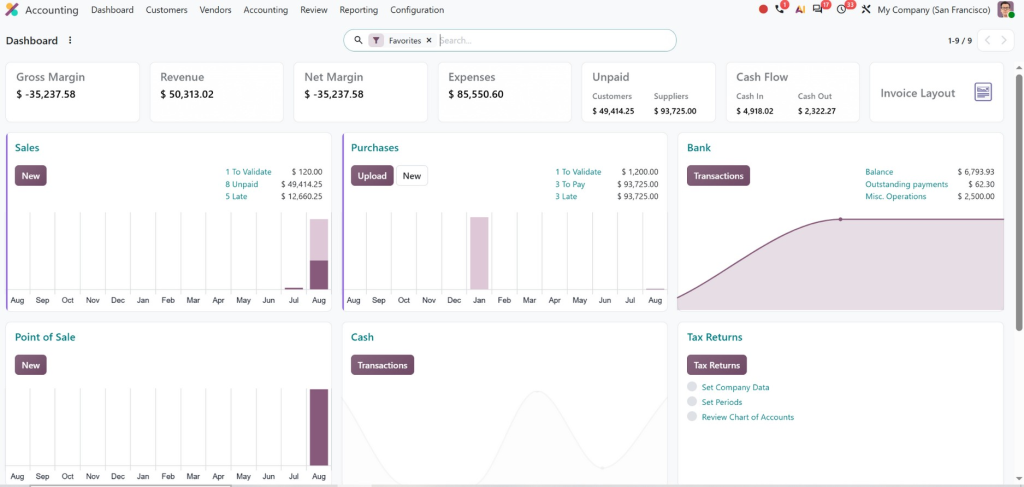
Go to the relevant accounting menus and filter transactions by the month you are closing.
For example, if you are closing August, use the date filters to review transactions from August 1 through August 31.
Look for:
- Customer invoices that are still in draft
- Vendor bills waiting for confirmation
- Payments that have not been reconciled
- Unusual journal entries
- Transactions recorded with incorrect dates
Do not immediately close the accounting period just because the month has ended. First, make sure the transactions that should belong to the month have actually been recorded.
This is one of the most important parts of Month-End Closing in Odoo 19 because incorrect dates or missing transactions can affect the final financial figures.
Step 2 - Review Odoo Open Sales Orders
Next, move to the Sales application.
Go to Sales → Orders → Orders and use the available filters to identify sales orders that are still open or not fully processed.
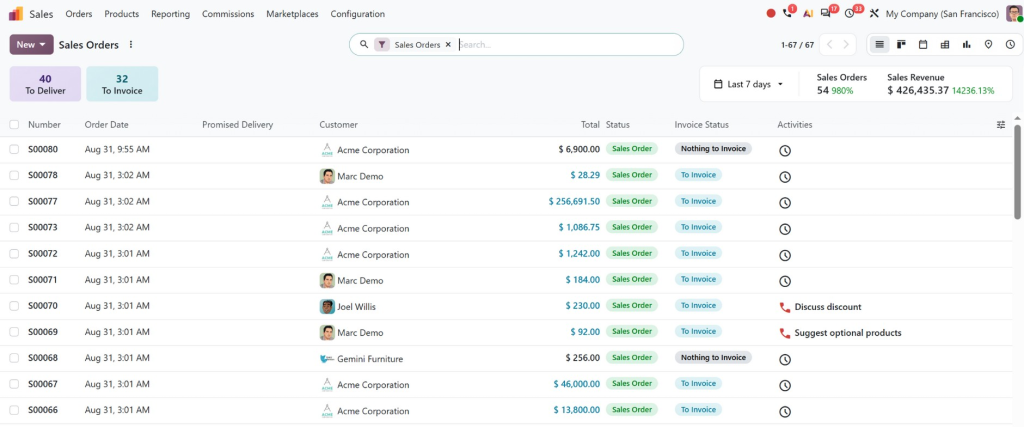
This is where you review your Odoo open sales orders.
An open order does not necessarily mean something is wrong. The customer may genuinely be waiting for delivery, or the order may have been partially fulfilled.
The important thing is to understand why the order is still open.
Check whether:
The order is waiting for delivery
If the products have not been delivered, confirm that the delivery operation is still valid and expected.
The order has been partially delivered
Check the delivery order and verify whether the remaining quantity is genuinely pending.
The order has been delivered
If the products have already been delivered, make sure the related workflow has been completed according to your company’s invoicing process.
The order is no longer required
If an old order was cancelled or is no longer expected, make sure it is handled correctly instead of leaving it indefinitely in an open state.
This simple review can prevent your month-end figures from being affected by old or incomplete sales transactions.
Step 3 - Review Odoo Open Purchase Orders
Now move to the Purchase application.
Go to Purchase → Orders → Purchase Orders and identify purchase orders that are still open.
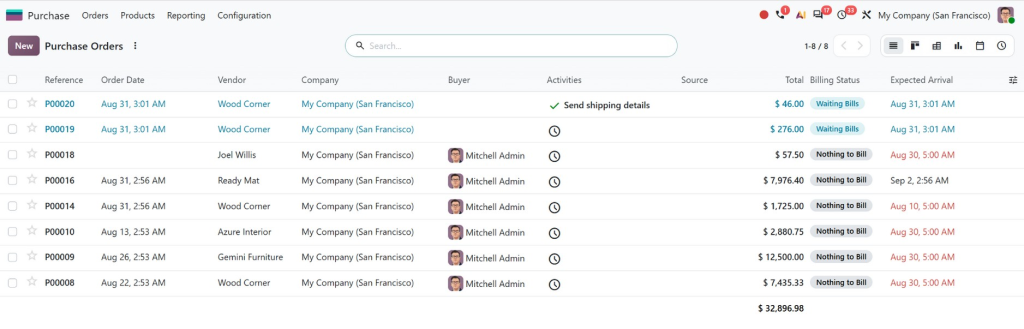
This gives you an opportunity to review your Odoo open purchase orders before closing the month.
For every important open purchase order, check its status.
Was the purchase order confirmed?
Were the products received?
Was the receipt only partially completed?
Is the vendor still expected to deliver the remaining products?
Does the purchase order need to be cancelled?
You should also open the related receipt when necessary and verify the actual quantities received.
This matters because a purchase order itself does not necessarily mean inventory has been received. The receipt is what helps you understand what physically entered the warehouse.
For example, suppose a purchase order contains 500 units, but only 300 units were received before month-end. Your month-end review should reflect that reality rather than assuming all 500 units are already in stock.
This is where connecting purchasing with Odoo inventory management becomes valuable.
Step 4 - Check Inventory Operations
Now go to the Inventory application.
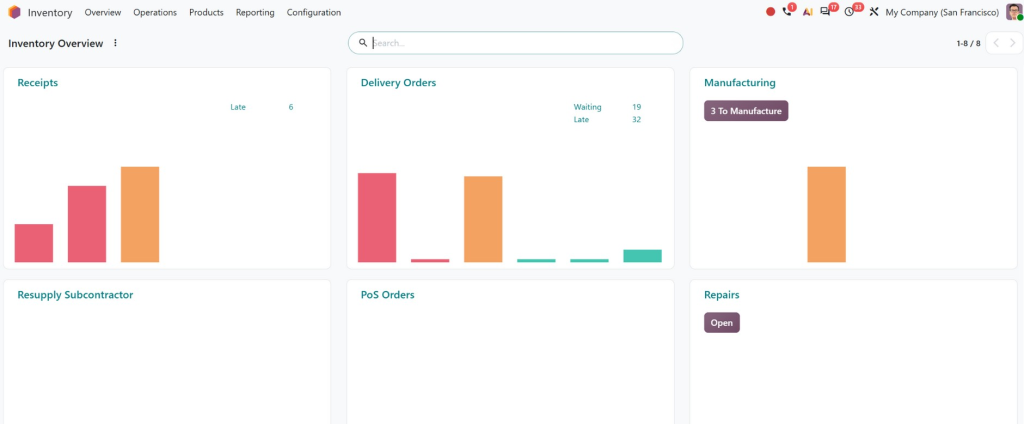
Before reviewing valuation, first check whether there are unfinished inventory operations.
Look at your inventory operations and identify receipts, deliveries, internal transfers, returns, and adjustments that may still require processing.
Pay particular attention to operations that occurred close to the end of the month.
For example, imagine goods physically arrived at your warehouse on August 31, but the receipt was not validated until September 1.
That timing can matter during month-end reporting.
Similarly, if products were shipped to a customer on August 31 but the delivery operation was not properly processed, the inventory position may not represent what actually happened.
This is why month-end closing should involve both the finance and warehouse teams.
Step 5 - Review Odoo 19 Stock Valuation
Once inventory operations have been reviewed, you can examine Odoo 19 stock valuation.
In Odoo, inventory valuation can be reviewed through the Inventory reporting and valuation features available in your database configuration.
Go to the Inventory application and open the relevant Reporting section. From there, access the inventory valuation information.
The exact options available can depend on your installed apps and inventory/accounting configuration.
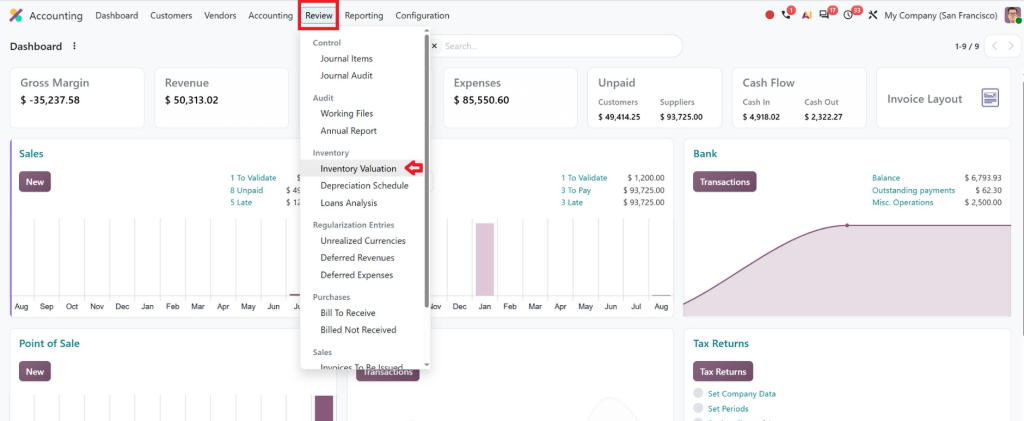
The purpose here is to answer a simple question:
Does the value of inventory recorded in Odoo make sense for the stock you actually have?
Review the valuation for the month and pay attention to significant increases or decreases.
A major change could be completely normal. For example, perhaps you received a large shipment at the end of the month.
But if the valuation changed unexpectedly, investigate it before completing the closing process.
Step 6 - Use the Odoo Inventory Valuation Report
The Odoo inventory valuation report becomes particularly useful when you need to investigate why inventory value has changed.
Open the valuation report and review the relevant products, locations, quantities, and values available in your configuration.
You can investigate individual product movements when you notice something unusual.
For example:
Opening inventory: 10,000 units
Purchases during the month: 4,000 units
Sales and other outgoing movements: 3,500 units
If the ending quantity does not appear reasonable, do not simply accept the figure.
Trace the inventory movements behind it.
Check receipts.
Check deliveries.
Check returns.
Check internal transfers.
Check inventory adjustments.
This approach allows you to move from “the number looks wrong” to “this specific transaction caused the difference.”
That is exactly what makes Odoo useful during Month-End Closing in Odoo 19.
Step 7 - Investigate Odoo 19 Stock Variation
After reviewing valuation, look for unusual Odoo 19 stock variation.
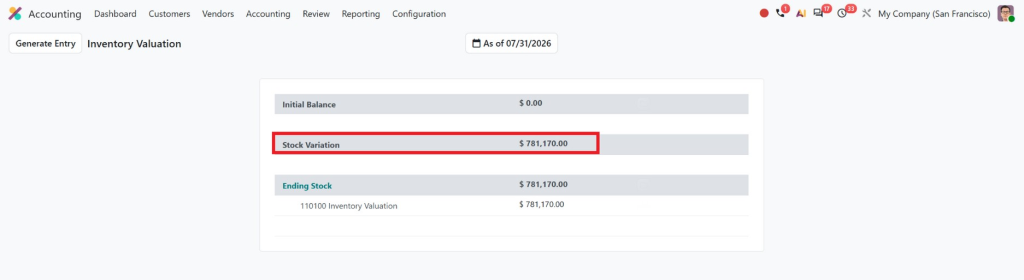
Stock differences can come from several sources, including incorrect quantities, inventory adjustments, product returns, missing receipts, incorrect deliveries, or other inventory transactions.
If you find a variation, open the related product or inventory record and trace the underlying transactions.
Ask:
What changed?
When did it change?
Which transaction caused the change?
Was the transaction legitimate?
Does the quantity in Odoo match the physical stock?
For example, if a product suddenly shows a significant quantity increase, check whether a purchase receipt was validated.
If the quantity decreased unexpectedly, check customer deliveries, returns, or inventory adjustments.
Do not make an inventory adjustment simply to force Odoo to match an expected number. First understand the reason for the difference.
This is an important principle of good Odoo inventory management.
Step 8 - Reconcile Inventory With Accounting
Once operational inventory checks are complete, finance should compare the inventory information with the accounting records.
This is where the connection between Odoo Inventory and Accounting becomes particularly important.
Depending on your inventory valuation configuration, stock movements can have corresponding accounting impact.
Review the relevant journal entries and investigate unusual values.
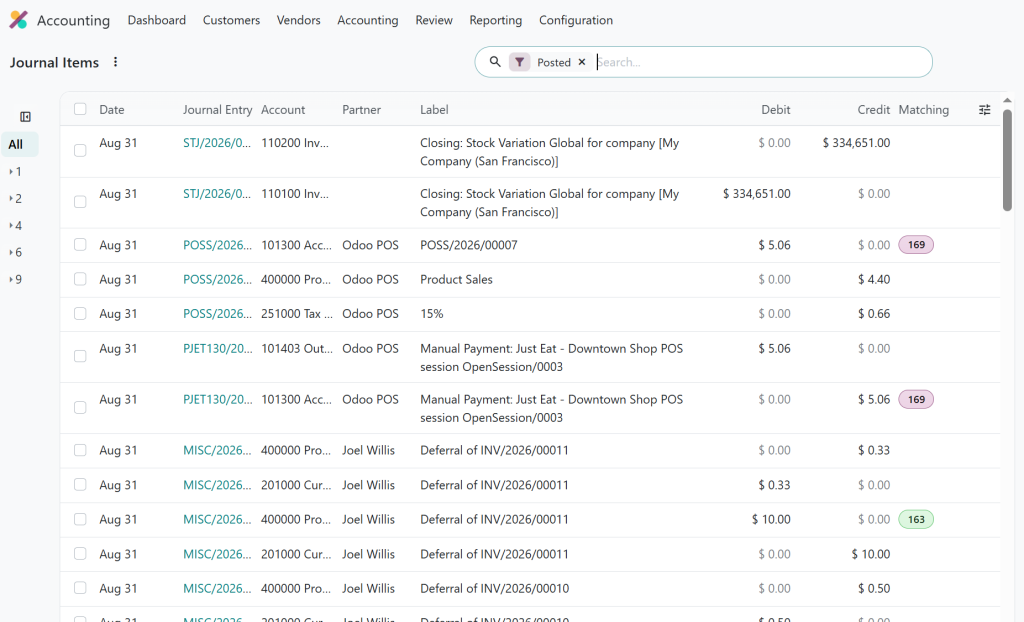
If finance sees one inventory figure while the warehouse team expects another, stop and investigate the difference before finalizing the month.
A proper month-end process should bring these teams onto the same page.
Step 9 - Review Exceptions Before Closing
Before you consider the month complete, create a final exception list.
This can include:
- Open sales orders requiring action
- Open purchase orders requiring follow-up
- Unvalidated receipts
- Pending deliveries
- Inventory discrepancies
- Unusual stock valuation changes
- Draft invoices or bills
- Unreconciled transactions
The important part is not simply identifying these items. Each exception should have an owner and a clear next action.
For example:
Open Purchase Order → Purchasing team checks vendor status.
Pending Delivery → Warehouse confirms shipment status.
Stock Variation → Inventory team investigates the movement.
Unreconciled Payment → Finance team completes reconciliation.
This makes Month-End Closing in Odoo 19 a controlled process instead of a last-minute rush.
Make Month-End Closing Easier With Odoo Experts
Odoo provides the tools needed to bring sales, purchasing, inventory, and accounting information together. But the results depend heavily on how those workflows are configured.
If your team still spends hours exporting data from Odoo into spreadsheets, manually checking stock differences, or trying to understand why inventory valuation changed, your Odoo setup may need attention.
Netilligence can help businesses configure and optimize Odoo according to their actual workflows.
From Odoo inventory management and purchasing to sales, accounting, reporting, and custom workflows, our Odoo experts can help you build a system that makes operational and financial information easier to manage.
Instead of waiting until month-end to discover problems, you can establish processes that help your team identify issues earlier.
The result is a more controlled closing process, better visibility into inventory, and greater confidence in the information management uses to make decisions.
Final Checklist for Month-End Closing in Odoo 19
Before completing your monthly closing process, make sure you have reviewed:
✓ Accounting transactions
✓ Odoo open sales orders
✓ Odoo open purchase orders
✓ Pending receipts and deliveries
✓ Inventory movements
✓ Odoo 19 stock variation
✓ Odoo 19 stock valuation
✓ Odoo inventory valuation report
✓ Inventory-to-accounting reconciliation
✓ Outstanding exceptions
Once these checks are complete, your team can move forward with much greater confidence.
Right Odoo Setup Makes Month-End Closing in Odoo 19 Easier
Month-End Closing in Odoo 19 does not have to be a complicated spreadsheet exercise. When your Odoo database is properly configured, you can review the actual transactions behind your sales, purchases, inventory, and accounting figures.
The key is to work through the process systematically.
Check your open orders. Review inventory operations. Investigate stock variations. Analyze Odoo 19 stock valuation. Use the Odoo inventory valuation report to investigate unusual changes, and make sure your financial records reflect the operational reality of the business.
If your current closing process still involves too much manual work, Netilligence can help you get more from Odoo. With the right configuration, workflows, reporting, and expert support, your month-end process can become easier to control and much easier to trust.