Automate Reminders in Odoo 18 Calendar for Continuous Workflow
Managing time and tasks efficiently is essential in today’s busy business environment. One of the most effective tools for restructuring operations is Odoo 18 calendar automation. With Automate Reminders in Odoo 18 setup, you can automate reminders and notifications, ensuring you never miss an important event, meeting, or task. Automating reminders in Odoo improves your workflow by minimizing the chances of overlooking critical deadlines or appointments.
Whether using Odoo for project management, client meetings, or internal team coordination, setting up Odoo calendar notifications is a powerful way to boost productivity. This comprehensive guide will walk you through how to automate reminders in the Odoo 18 calendar, covering everything from event notifications to scheduling and automated actions.
Why Automate Reminders in Odoo 18 Calendar?
Automation is key to optimizing time management and improving efficiency in your business. Automating reminders in Odoo ensures that essential tasks or events stay caught up. Here are a few reasons why automating reminders in Odoo is necessary:
Save Time:
Automate routine tasks and focus on high-priority activities.
Improve Efficiency:
Set up personalized reminders and notifications to stay on top of meetings, deadlines, and appointments.
Reduce Errors:
Eliminate human error by relying on automated actions to handle reminders.
Enhance Communication:
Send timely reminders and notifications to keep your team or clients informed and promote better collaboration.
Now that we understand the importance of automating reminders, let’s explore the process of setting up Odoo 18 reminders.
Odoo 18 Reminders Setup: A Step-by-Step Guide
Before enjoying the benefits of Odoo event notifications and automated actions, you must configure the Odoo calendar. The process is quite simple, even for beginners. Follow these steps to set up reminders and notifications:
Step 1: Access Odoo 18 Calendar Settings
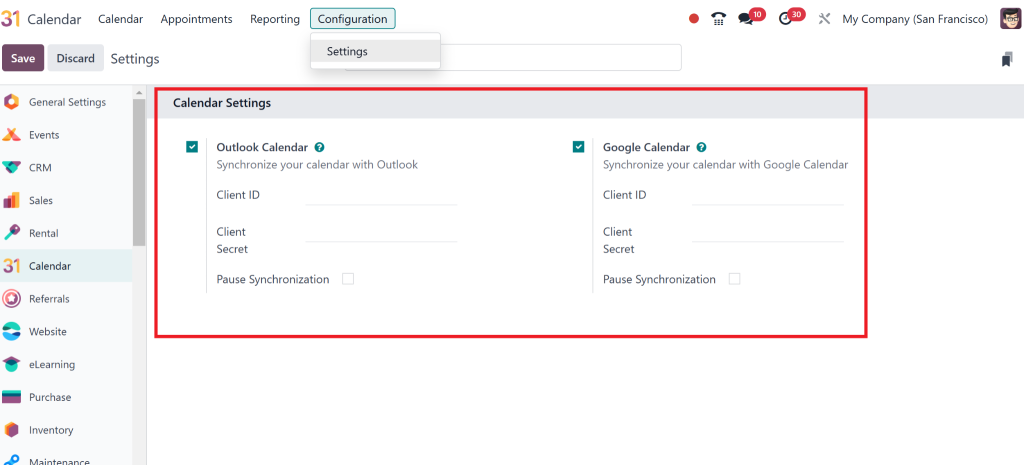
The first step in automating reminders in Odoo 18 is accessing the Odoo calendar automation settings. Here’s how:
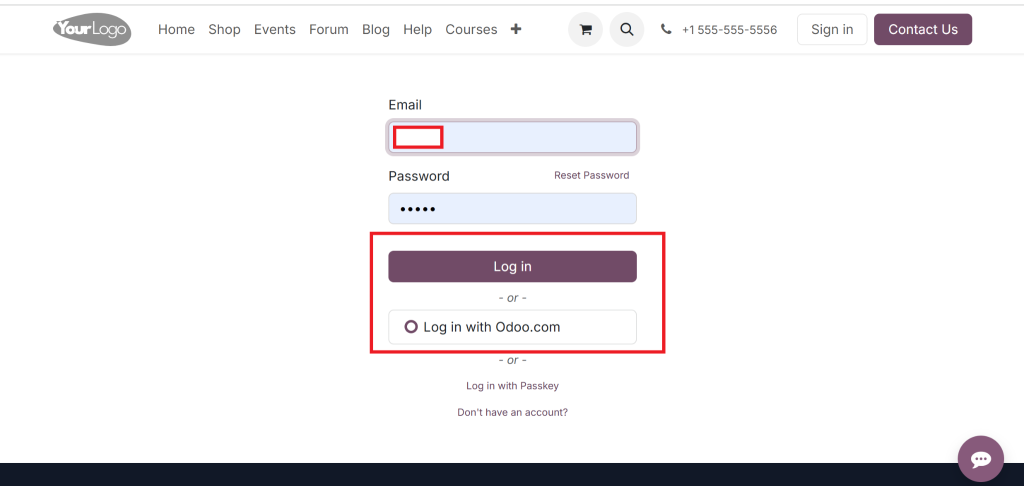
Open your Odoo 18 instance.
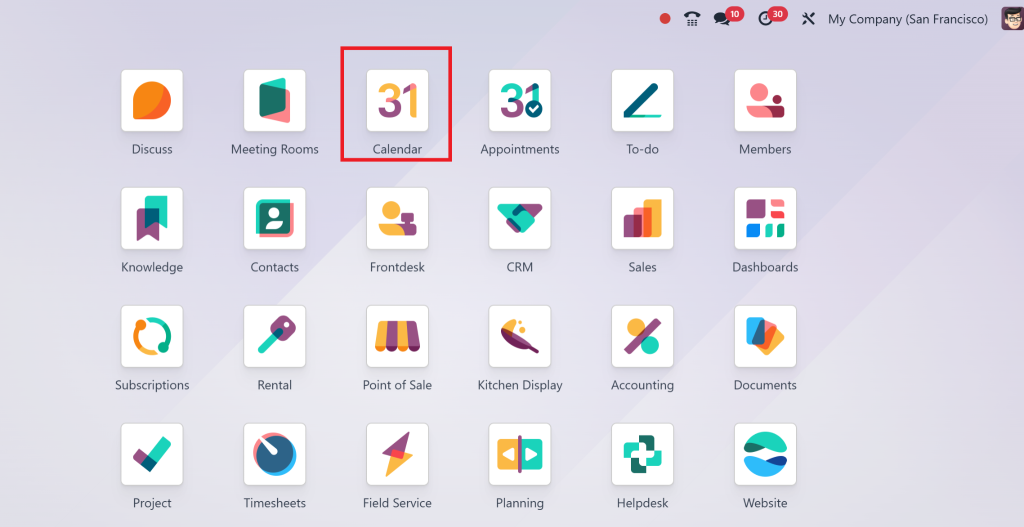
2. Go to the Calendar module.
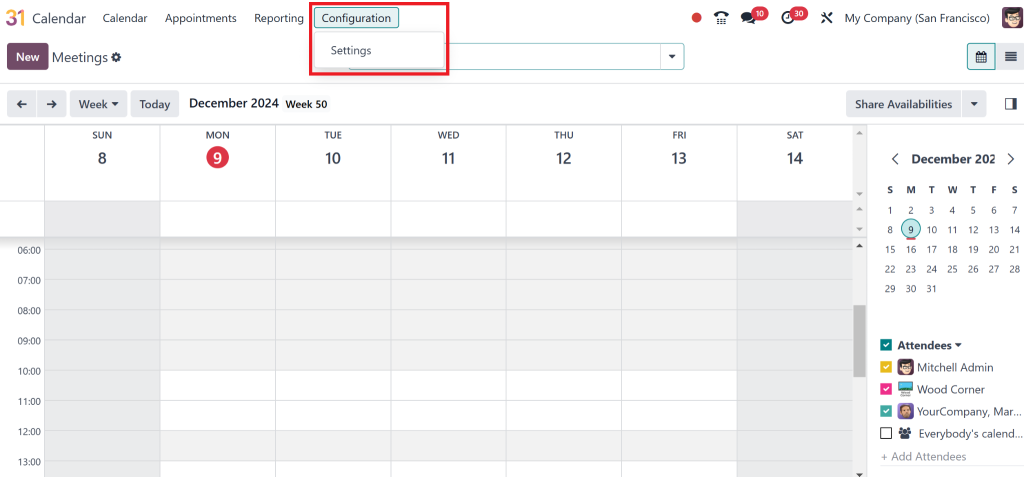
3. Click on the Configuration menu.
4. Select Settings to open the calendar configuration options.
Step 2: Configure Odoo Calender Notifications
In this step, you will configure the Odoo calendar notifications for events and tasks. This will ensure that your team members are notified of upcoming events.
On the Settings page, look for the Odoo Event Notifications section.
Select the type of notifications you want to enable (Email, SMS, or both).
You can customize the notification settings according to your preferences, such as the timing of the reminder (e.g., 30 minutes before the event).
Step 3: Use Odoo Automated Actions
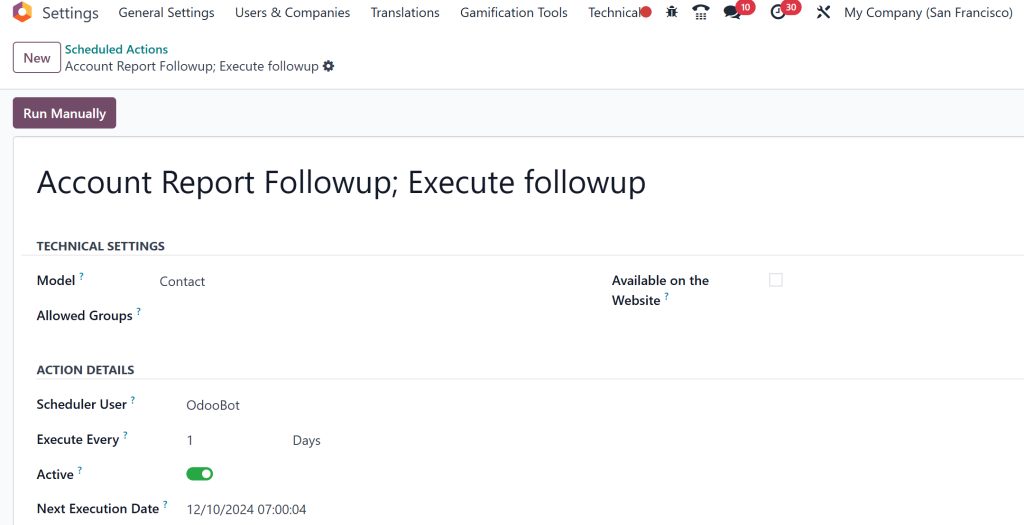
Odoo’s automated actions help smooth the reminder process by automatically triggering notifications for specific events or tasks. Follow these steps to create a computerized action:
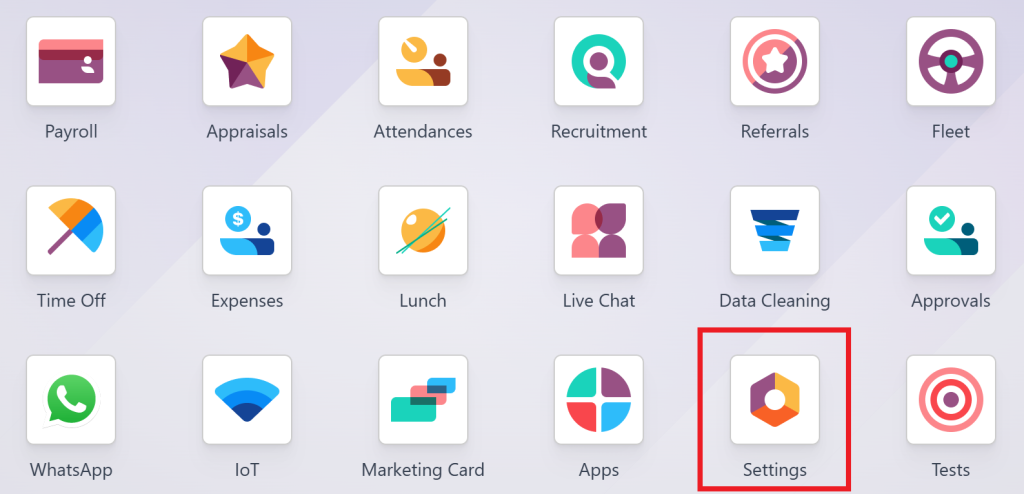
Go to the Settings menu in Odoo.
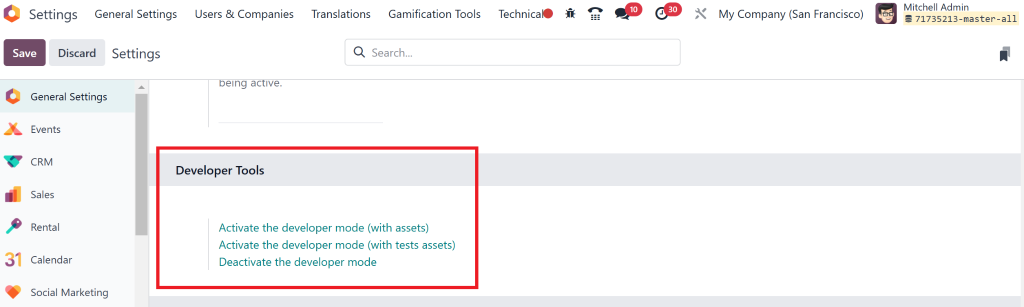
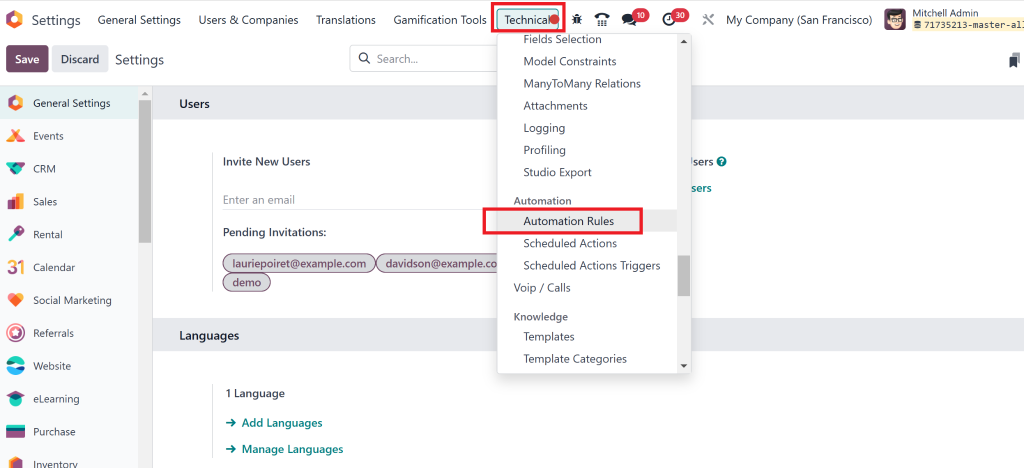
2. Enable Developer Mode.
3. Under the Automation section, click on Automated Actions.
4. Create a new automated action by defining the trigger (e.g., a calendar event or task completion).
5. In the action field, select the option to send a notification.
6. Customize the notification content to users when the action is triggered.
By automating these actions, you can ensure timely reminders without manually setting each notification.
Step 4: Scheduling in Odoo 18
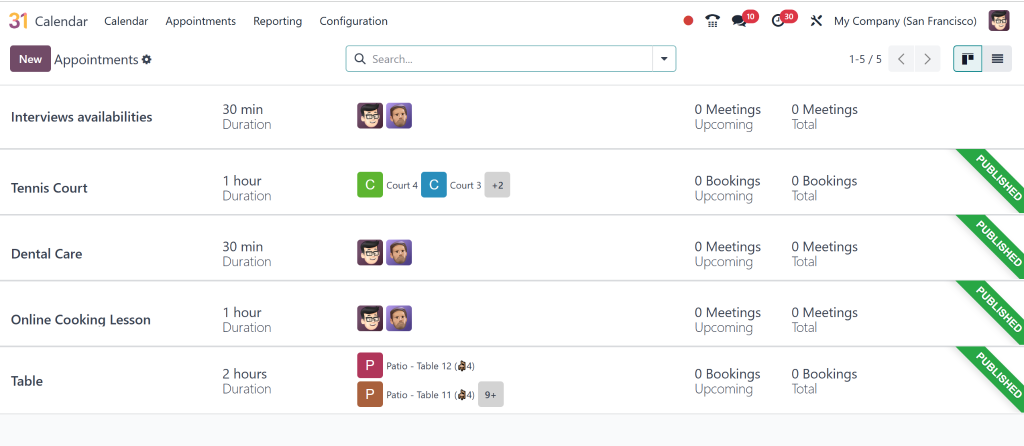
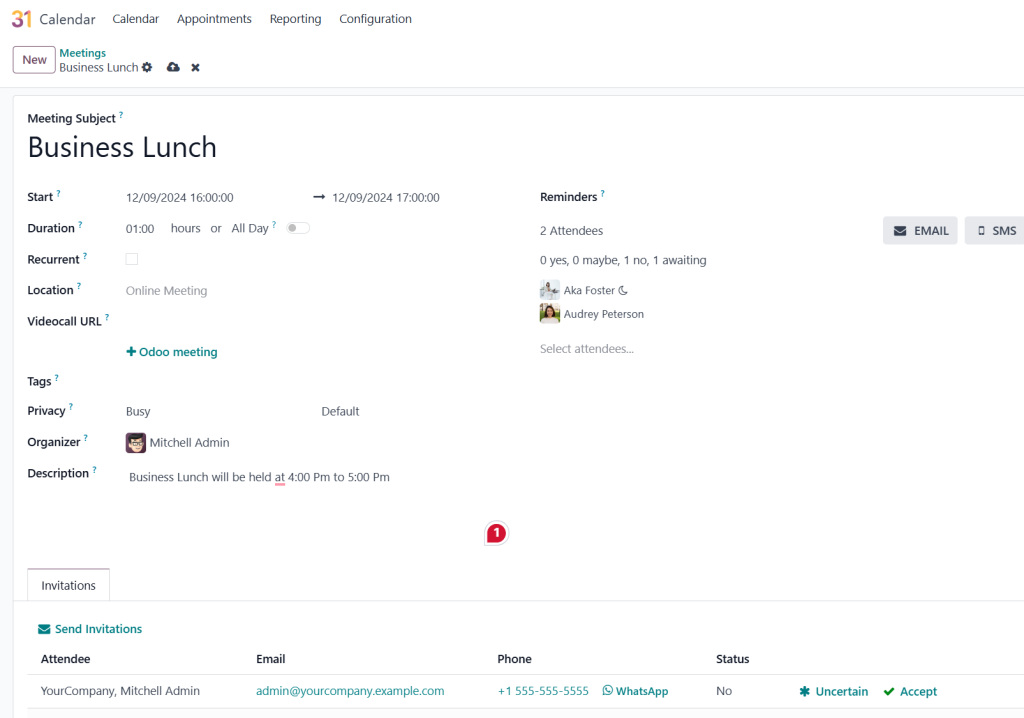
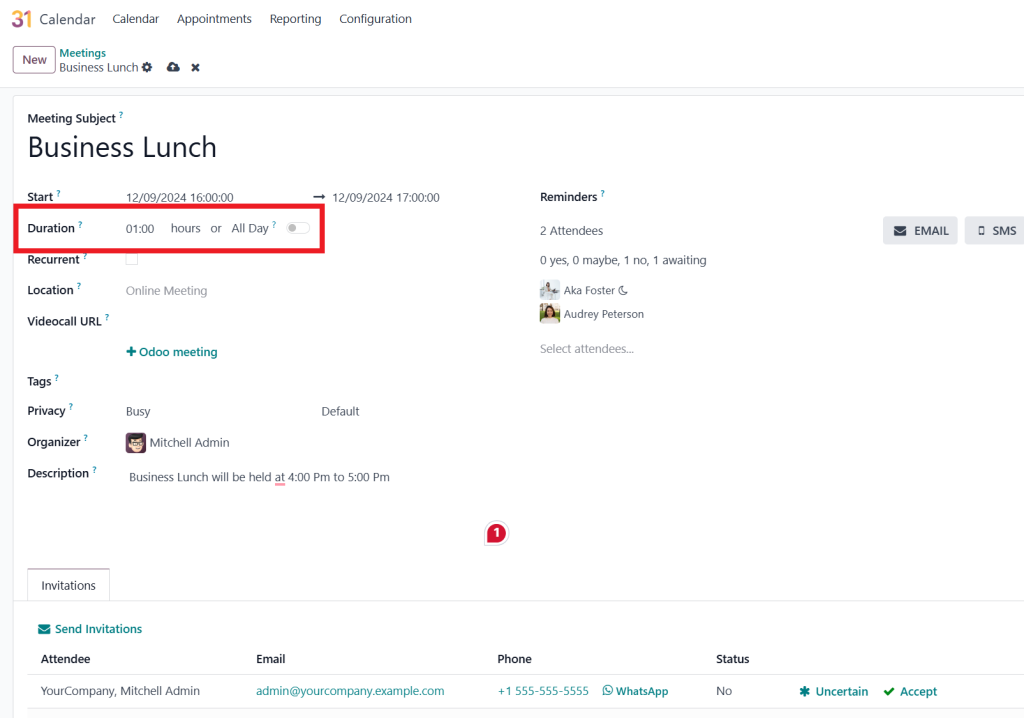
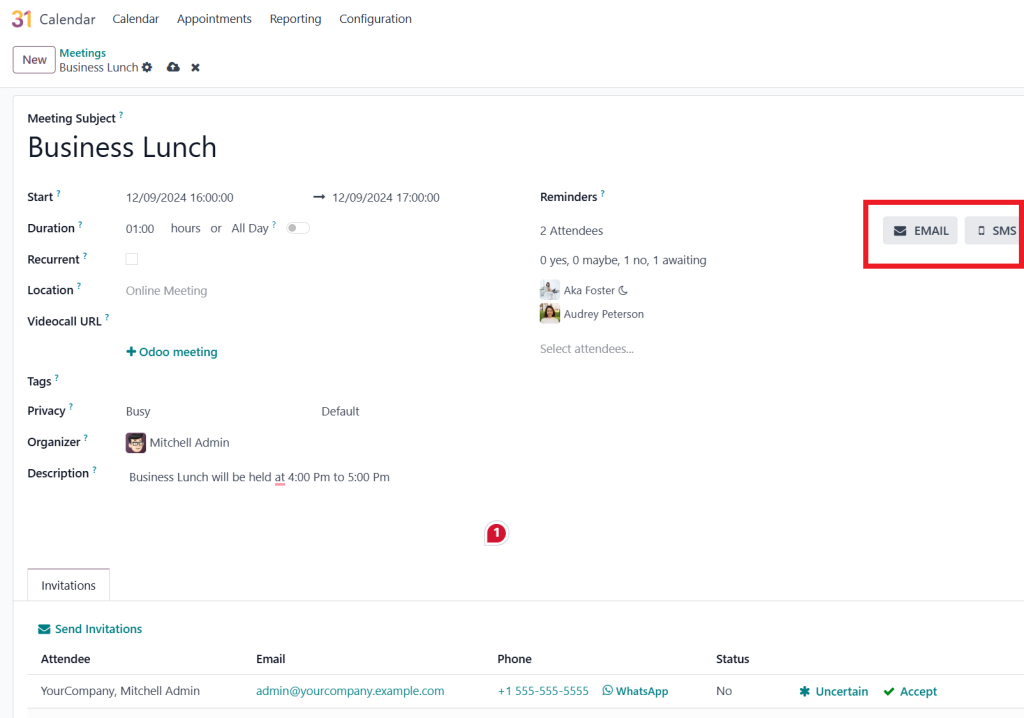
Now that the reminders and automated actions are set up, it’s time to schedule them in your Odoo calendar. You can add new events or tasks and assign specific reminder times. For example:
Click on the New button in the Odoo Calendar.
2. Fill in the event details, such as date, time, and attendees.
3. Under the Reminders section, set when you want to receive the reminder (e.g., 1 hour before the event).
4. Choose the reminder type (Email, SMS, or internal notification).
By scheduling these reminders, you can ensure that your calendar remains well-organized and that no crucial task or meeting is missed.
Maximize the Power of Odoo Calendar Automation
To fully increase the potential of Odoo calendar automation, you can enhance the reminder system with several advanced features.
Advanced Reminder Setup: Recurring Events and Customization
If your business involves recurring meetings or tasks, Odoo 18 allows you to set up recurring reminders for these events. Here’s how to configure them:
Create a new event as usual in the Odoo calendar.
Under the Recurrence tab, select how often you want the event to repeat (daily, weekly, monthly, etc.).
Define the specific times and dates for reminders.
Customize the notification for each occurrence, ensuring all attendees receive reminders automatically.
With Odoo calendar automation, you can ensure that even repetitive events are managed seamlessly without requiring manual intervention each time.
Integrating Odoo Calendar with Other Modules
Odoo 18 offers powerful integration options that make your calendar even more efficient. You can link calendar events to other modules, such as:
Sales: Automatically schedule reminders for sales meetings or follow-ups.
Project Management:Sync calendar events with project deadlines and milestones.
CRM:Set client calls, meetings, and follow-up reminders.
These integrations can help you stay organized and ensure that your team is notified of important events, regardless of which Odoo module they use.
Troubleshooting Odoo Calendar Automation
While automating reminders in Odoo 18 is generally straightforward, you may encounter some issues. Here are common problems and their solutions:
Problem 1: Notifications Are Not Sent
If you notice that Odoo event notifications are not being sent, check the following:
Ensure that the email server settings are correctly configured.
Double-check the notification settings for each calendar event.
Test the reminder function by setting up a test event and confirming whether the notification is triggered.
Problem 2: Reminders Not Triggering Automatically
If Odoo’s automated actions are not firing as expected, make sure that:
The computerized action triggers are correctly set (e.g., upon event creation or task completion).
The action rules are correctly configured to send notifications.
Review the Odoo logs to identify any errors or issues related to the automation process.
Your Workflow with Odoo Calendar Automation
In conclusion, automating reminders in the Odoo 18 calendar is a big changer for businesses that rely on punctuality and organization. With the ability to set up Odoo 18 reminders setup, automate event notifications, and schedule tasks, you can enhance your team’s productivity and efficiency. Odoo calendar automation ensures that everything is noticed, making managing client meetings, project deadlines, and internal tasks easier.
Following the steps outlined in this guide, you can take full advantage of Odoo’s automation capabilities, creating a seamless workflow for your business. Whether you’re new to Odoo or an experienced user, automating reminders is essential for staying on your schedule and boosting productivity.
Hi, I'm Nabia, an Odoo ERP functional & technical content writer. I specialize in blogs, social media content, ad copy, landing pages, service pages, and email campaigns.
We use cookies to ensure that we give you the best experience on our website. If you continue to use this site we will assume that you are happy with it.