Operating a restaurant or food business can be challenging, particularly when it comes to handling taxes for different order types like dine-in and take-out. Tax rates can differ depending on local regulations, making manual adjustments tedious and error prone.
This is where Odoo 18 POS tax configuration comes in. With its user-friendly and flexible system, Odoo 18 makes it easy to set up and adjust tax rates for eat-in and take-out orders. Whether you’re dealing with Odoo 18 restaurant tax rates or need to map taxes for specific order types, this guide will walk you through the process step-by-step.
By the end of this blog, you’ll know how to use Odoo 18 fiscal position settings and Odoo 18 POS flexible taxes to simplify your tax management and ensure compliance with local regulations.
Why Tax Configuration Matters for Restaurants
Tax management is an integral aspect of running a restaurant. Different order types, such as takeout and dine-in orders, may have differing tax rates depending on local regulations; for instance, certain areas might charge higher taxes for dine-in services than take-out orders.
Odoo 18 POS Tax Configuration allows you to automate this process, ensuring accurate tax calculations for every order and saving both time and reducing risks of mistakes, keeping you compliant with tax regulations.
Step-By-Step Guide to Setting Tax Rates for Dine-In and Takeout Orders with Odoo 18 POS
Step 1: Set Up Tax Rates in Odoo 18
Before you can configure taxes for eat-in and take-out orders, you need to set up the tax rates in Odoo 18.
- Go to Accounting > Configuration > fiscal positions.
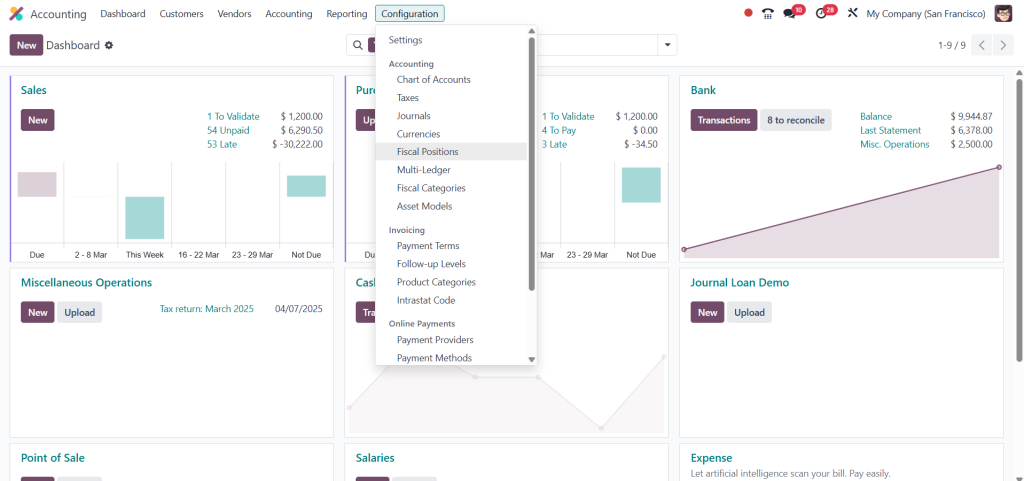
- Click on Create to add a new tax rate.
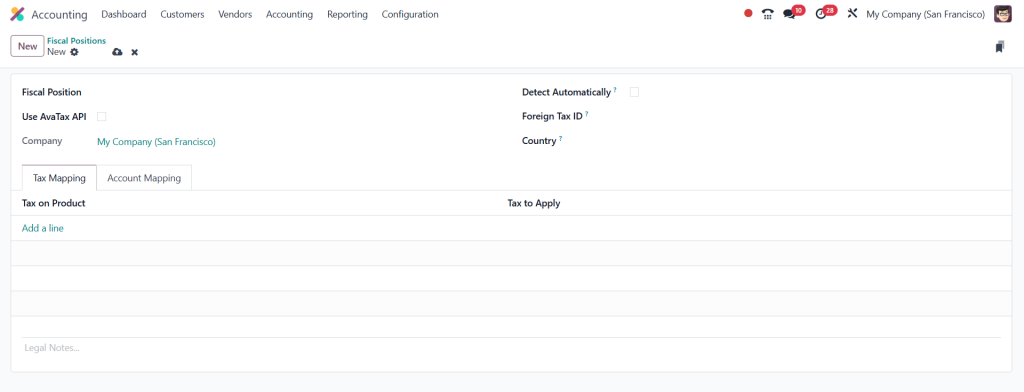
3. Enter the tax name (e.g., “Eat-In Tax” or “Take-Out Tax”) and specify the rate (e.g., 10% for eat-in, 5% for take-out).
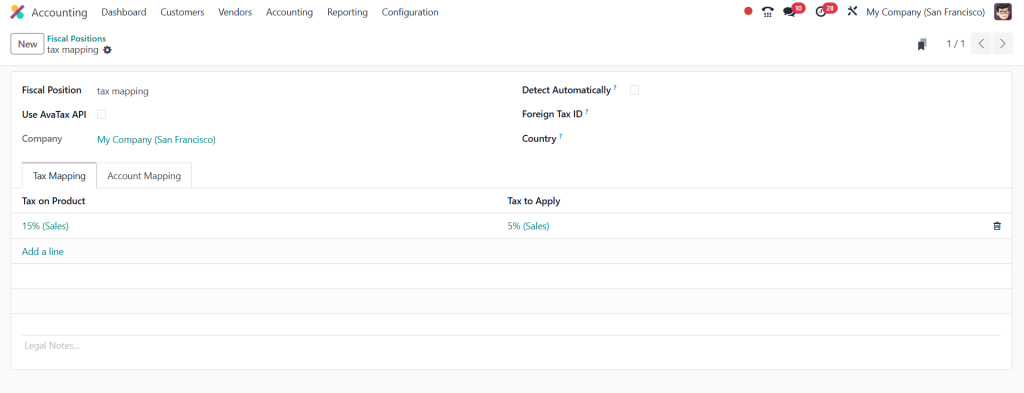
4. Save the tax rate.
Step 2: Configure Fiscal Positions for Eat-In and Take-Out
Fiscal positions in Odoo 18 allow you to map different tax rates based on specific conditions, such as order type.
- Go to Accounting > Configuration > Fiscal Positions.
- Click on Create to add a new fiscal position.
- Name the fiscal position (e.g., “Eat-In Fiscal Position” or “Take-Out Fiscal Position”).
- Under the Tax Mapping section, specify the default tax and the corresponding tax for the fiscal position.
- Save the fiscal position.
Step 3: Assign Fiscal Positions to POS Orders
Once you’ve set up the fiscal positions, you need to assign them to POS orders based on the order type.
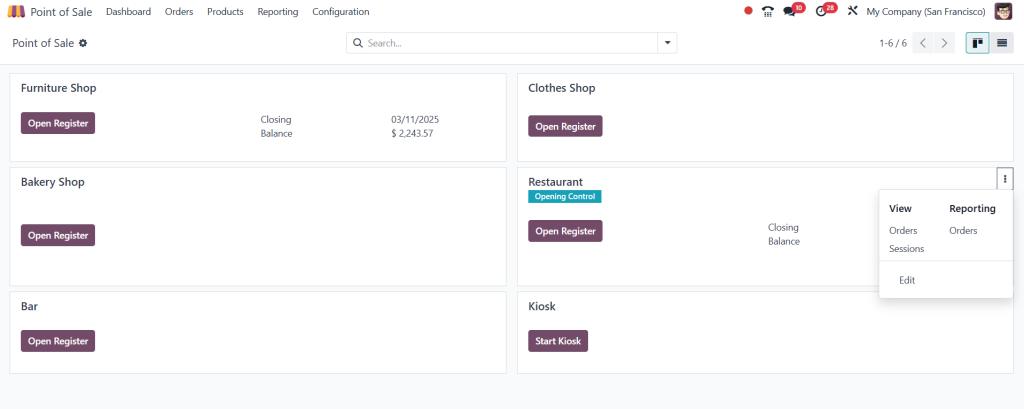
- Go to Point of Sale > dashboard > Restaurant.
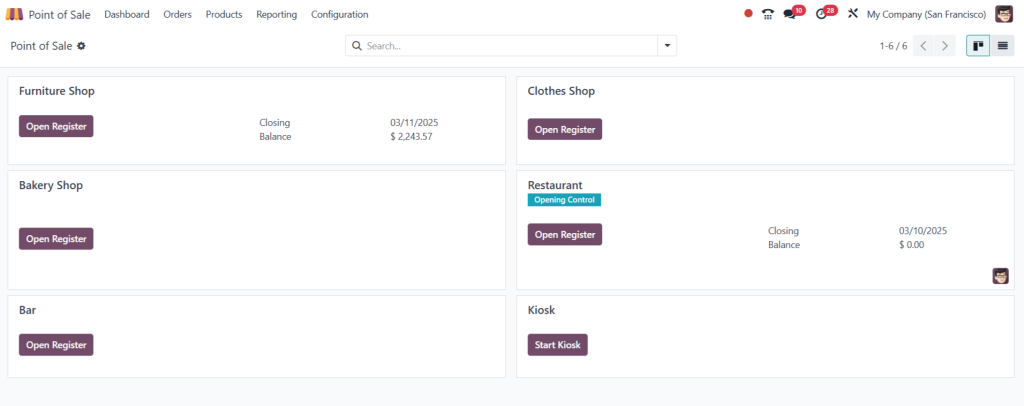
- Select your POS configuration or create a new one.
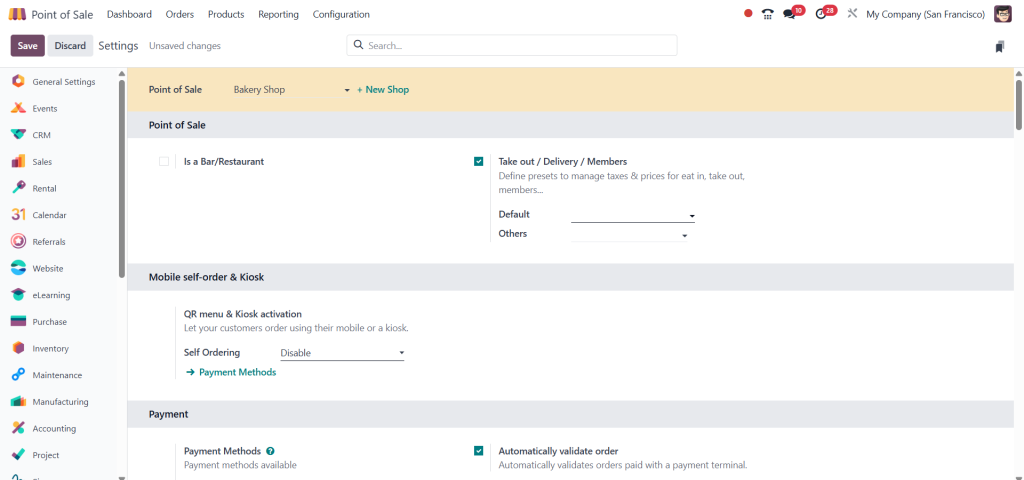
- Under the Pricing section, enable Fiscal Position.
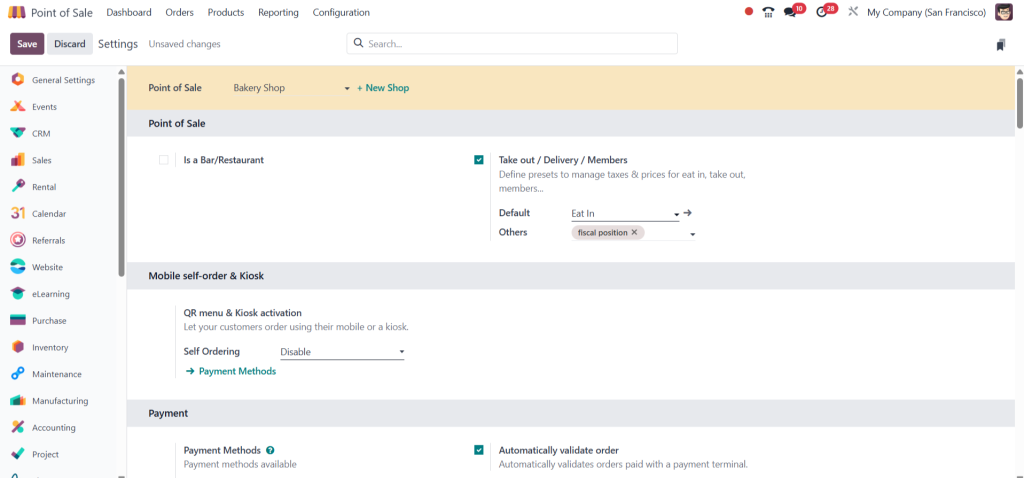
- Assign the appropriate fiscal position for eat-in and take-out orders.
- Save the configuration.
Step 4: Test Your Tax Configuration
After setting up the tax rates and fiscal positions, it’s important to test your configuration to make sure it works as expected.
- Open the Odoo 18 POS interface.
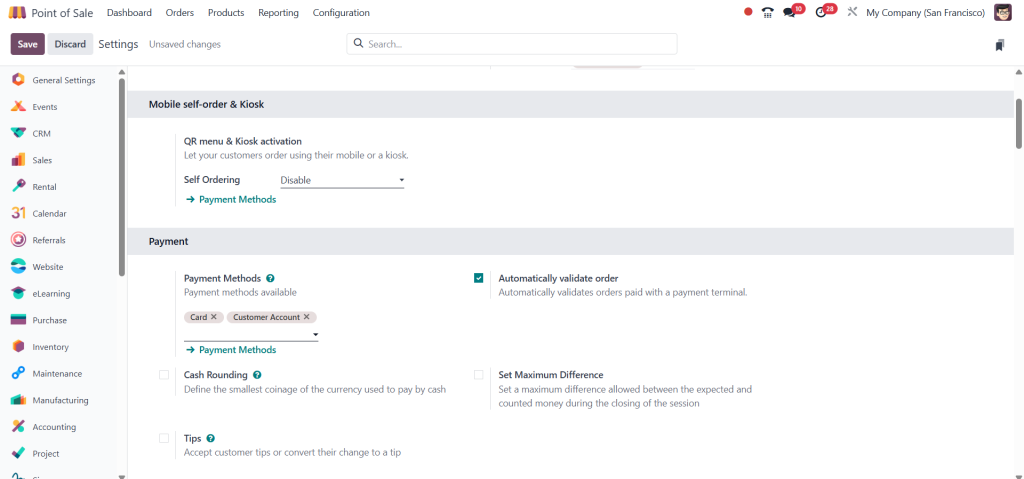
- Create a new order and select the self ordering type (QR menu + Ordering).
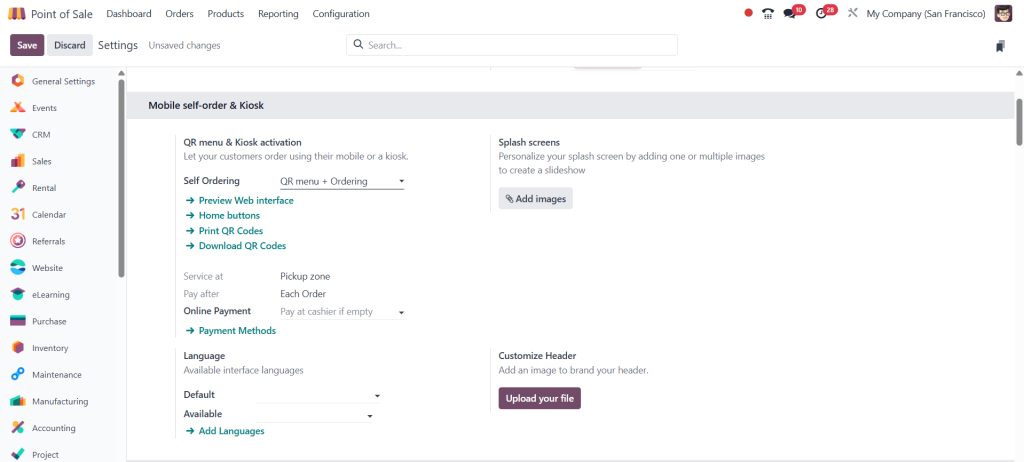
- Add items to the order and check if the correct tax rate is applied.
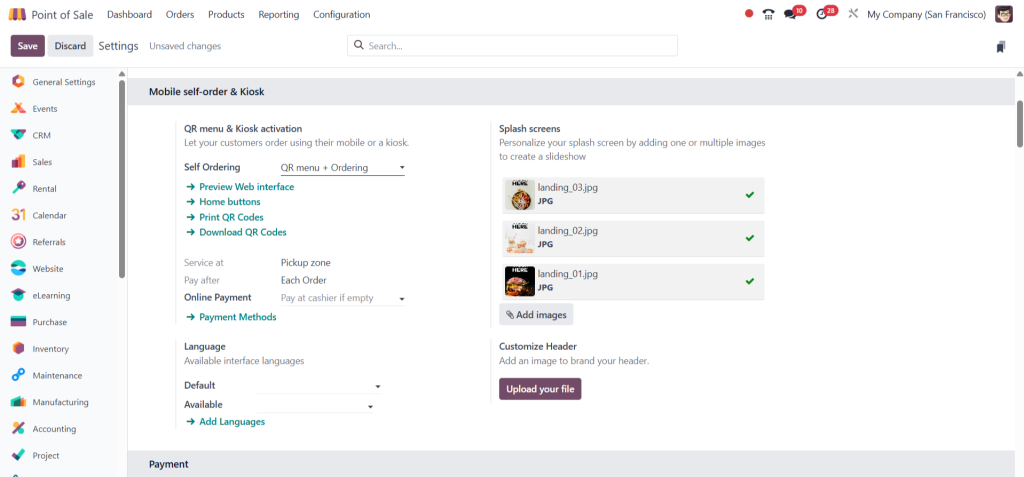
- Complete the order and verify the tax calculations in the receipt.
Step 5: Automate Tax Configuration for Operations
To make your tax management even easier, you can automate the process using Odoo 18 POS flexible taxes.
- Go to Point of Sale > product.
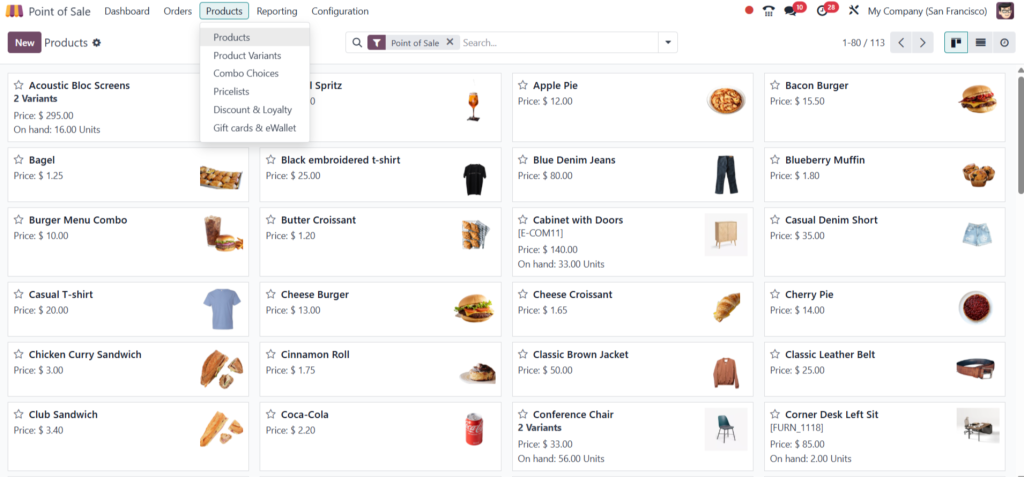
- Open any product Flexible Taxes in your POS configuration.
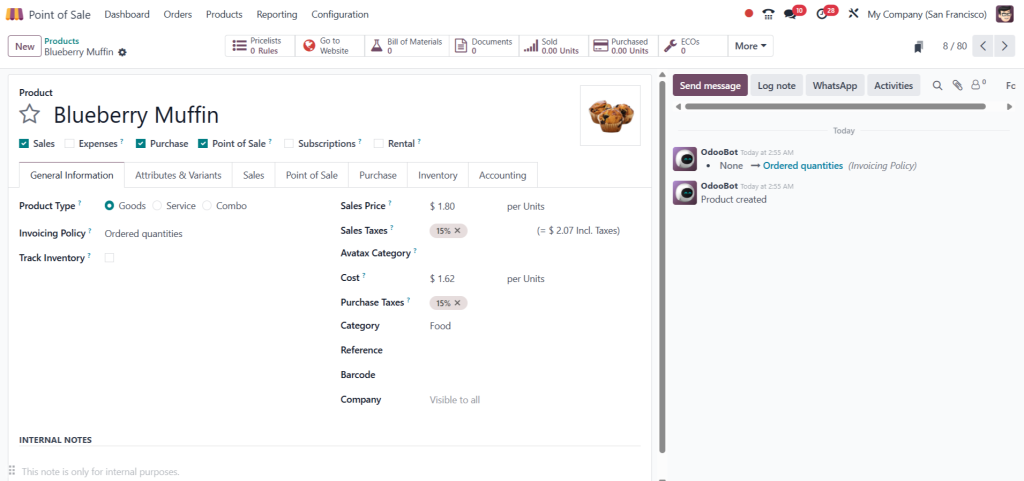
3. Set up rules to automatically apply the correct tax rate based on order type or other conditions.
4. Save the configuration and test the automation.
Benefits of Using Odoo 18 POS for Tax Configuration
- Accuracy: Ensure correct tax calculations for every order type.
- Compliance: Stay compliant with local tax regulations.
- Efficiency: Save time and reduce errors by automating tax management.
- Flexibility: Easily adjust tax rates and fiscal positions as needed.
- Insights: Get a clear picture of your tax liabilities and financial performance.
Simplify Your Tax Management with Odoo 18 POS
Taxing orders doesn’t need to be difficult with Odoo 18 POS tax configuration; simply set up, adjust and automate tax rates as necessary to ensure accuracy and compliance.
Odoo 18 provides you with everything you need to manage tax rates for Odoo 18 restaurant tax rates or map taxes to specific order types efficiently and focus on expanding your business.
Ready to simplify your tax management? Explore Odoo 18 POS flexible taxes today and take your restaurant operations to the next level.