
Odoo 18 is a powerful business management tool that simplifies inventory operations. One of the first steps in the Odoo 18 inventory setup is adding the opening stock to ensure accurate records. Whether migrating from another system or starting fresh, understanding how to add opening stock in the Odoo 18 is essential.
The Secret Sauce to Mastering Odoo 18 Inventory!
Imagine you just launched your dream business. Orders are flowing in, customers are excited, and your products are ready to roll. But then—BAM!—chaos erupts. You check your stock, and half of your products are suddenly missing. Or worse, you’re selling items you don’t even have! Sounds like a nightmare, right?
That’s precisely what happens when you don’t add opening stock in Odoo 18.
But don’t panic! You’re about to reveal the secret sauce of smooth inventory management. This isn’t just another Odoo 18 inventory management guide; this is your backstage pass to understanding how industry leaders master their stock from Day 1. Let’s get started!
Understanding Opening Stock in Odoo 18
Managing stock in Odoo 18 is crucial in ensuring smooth business operations. Whether setting up a new system or migrating from another platform, knowing how to add opening stock in Odoo 18 is essential. With the advanced Odoo 18 inventory management guide, businesses can efficiently configure inventory, adjust stock, and rationalize warehouse operations. This Odoo 18 opening stock tutorial will walk you through every step, ensuring your inventory is set up accurately.
Adding opening stock is vital because it helps businesses maintain transparency, track inventory flow, and prevent discrepancies in financial reporting. Companies may face overstocking, understocking, or even financial miscalculations without proper stock records.
Understanding Inventory Setup in Odoo 18
Before adding the opening stock in Odoo 18, it is important to understand the inventory configuration process. Odoo 18 provides a user-friendly interface that allows businesses to manage stock efficiently. With the right setup, stock adjustments in Odoo 18 become more accurate and efficient.
How to Configure Inventory in Odoo 18
To begin the Odoo 18 inventory setup, follow these steps:
Activate the Inventory Module: Go to the Apps menu and install the Inventory module if it has not already been installed.
Set Up Warehouses and Locations: Direct to Inventory app and define your storage locations.
Enable Multi-Warehouse Support: If your business operates multiple warehouses, enable multi-warehouse functionality from the settings.
Configure Product Categories: Establish product categories to rationalize stock classification and tracking.
Define Reordering Rules: Set up automated replenishment to ensure stock never runs out.
Integrate Barcode Scanning: Improve accuracy by enabling barcode-based inventory management.
Once the inventory is configured, we can add opening stock in Odoo 18.
How to Add Opening Stock in the Odoo 18: A Step-by-Step Tutorial
Adding opening stock in Odoo 18 involves creating inventory adjustments to reflect existing stock. Follow these steps to complete the process:
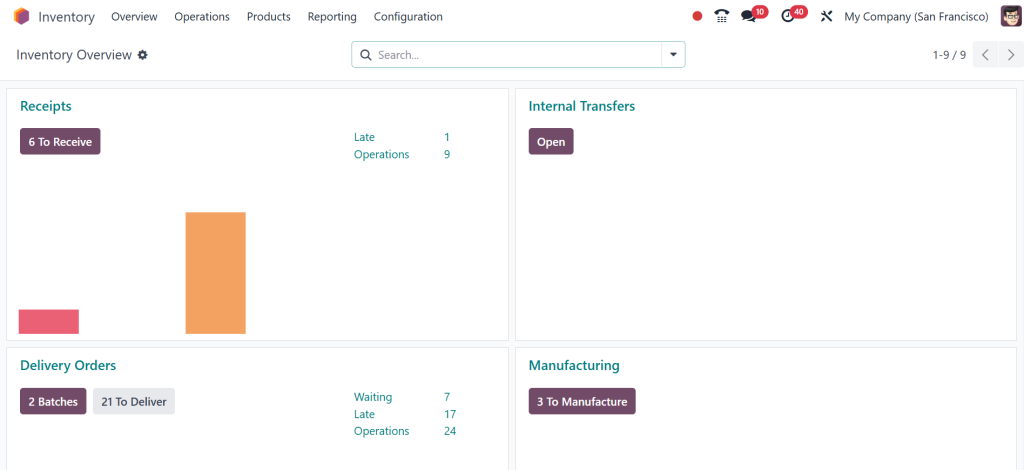
Go to the Inventory module.
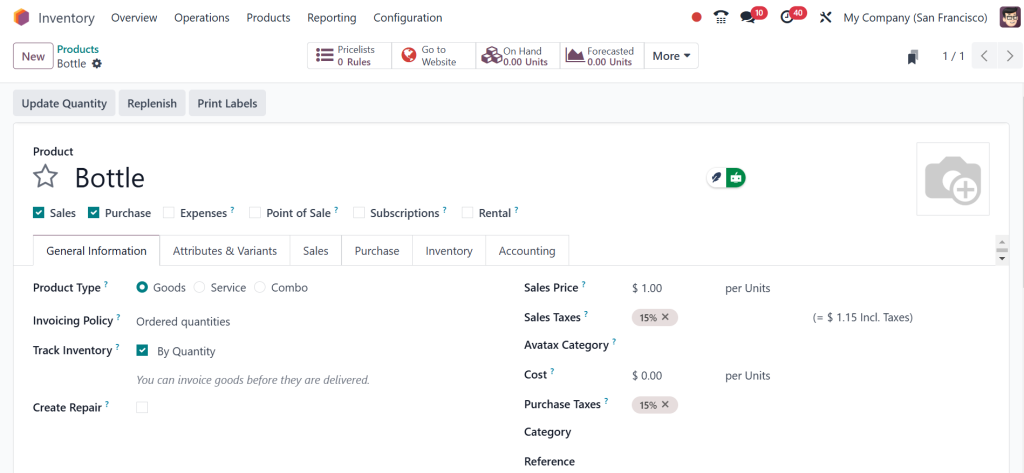
Go to the Products menu and create a new product. You must add all the details, such as the Product name, category, and type.
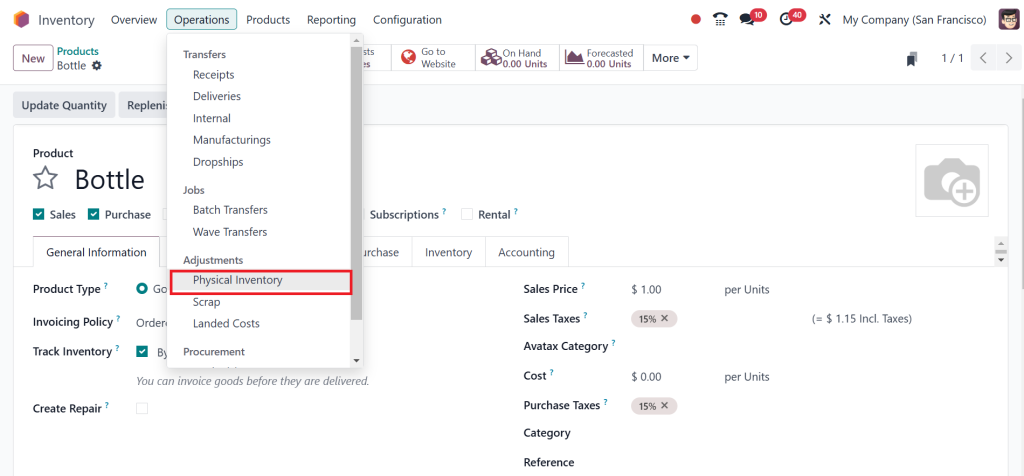
Then go to Operations > Physical Inventory.
Create a new inventory adjustment. After adding the details, click on Save.
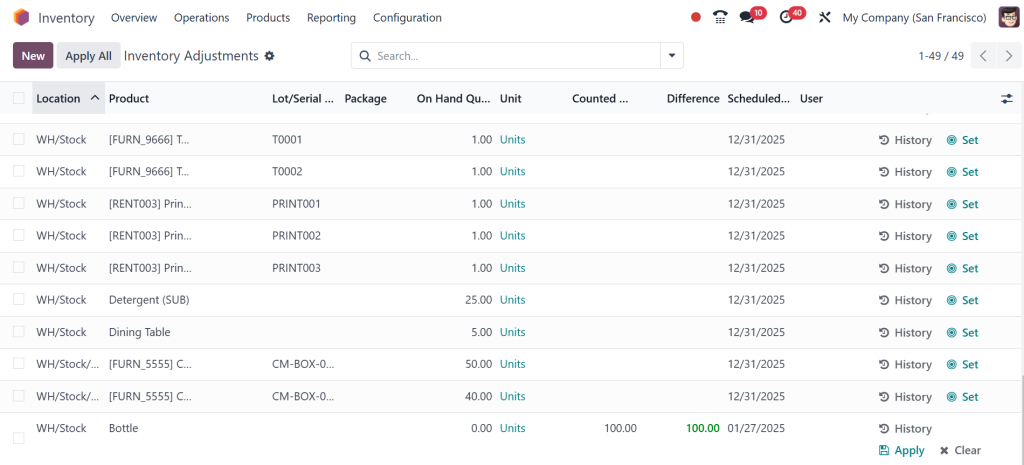
After making the necessary adjustments, click Apply to save the changes. Once saved, the On Hand Quantity will be updated accordingly. This approach illustrates how opening stock is added to Odoo through the inventory adjustment feature.
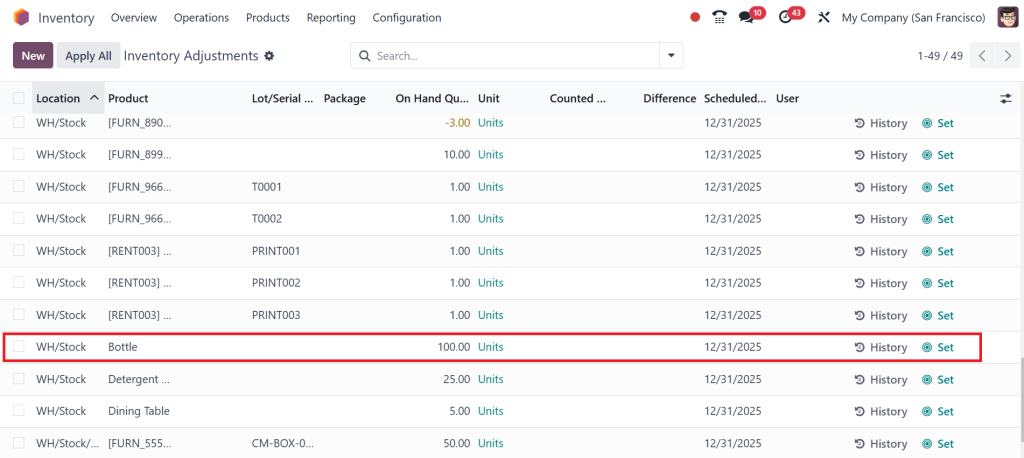
The next step involves verifying stock levels. Review the product’s inventory in the designated location to confirm that the opening stock has been accurately recorded. Then, click on the “History” button to examine the stock details.
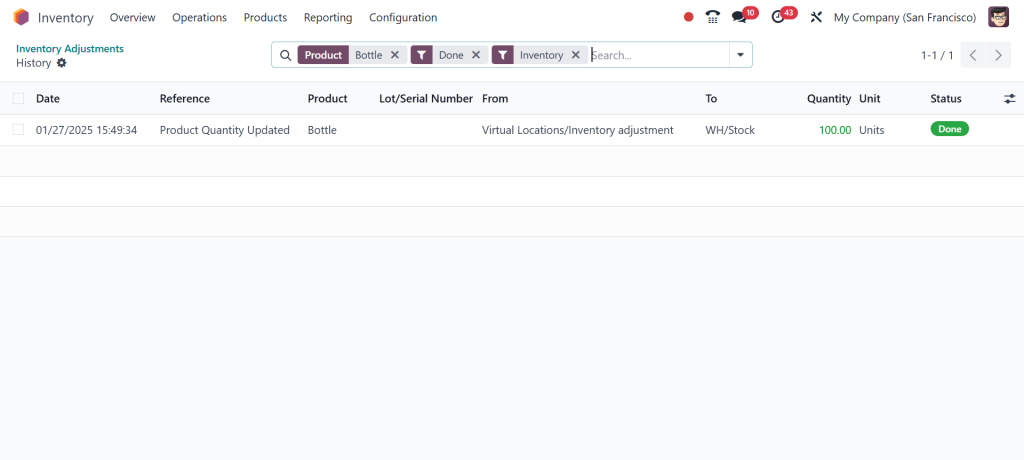
This method ensures that your stock is correctly accounted for in the system, enabling all-in-one inventory management in Odoo 18.
Managing Stock in Odoo 18 Efficiently
Stock adjustments in Odoo 18 help maintain accurate inventory records. You can make stock corrections through the following methods:
Manual Adjustments
- Helpful in fixing discrepancies in stock levels and updating quantities manually.
Automated Adjustments via Inventory Transfers
- Odoo 18 allows automated inventory updates when receiving shipments or completing sales orders.
- Ensure product moves are correctly configured in Inventory.
Real-World Success Stories of Odoo 18 Inventory Implementation
Success Story 1 – Retail Chain Boosts Efficiency
ABC Retail, a fast-growing fashion brand, struggled with stock mismanagement across multiple outlets. After implementing Odoo 18, they successfully added opening stock, automated reordering, and improved stock visibility. Within six months, they reported a 30% increase in inventory accuracy and reduced stock-outs significantly.
Success Story 2 – Manufacturing Company Streamlines Operations
XYZ Manufacturing used spreadsheets for stock tracking, leading to errors and inefficiencies. Configuring inventory in Odoo 18 and utilizing stock adjustments minimized production delays and enhanced material traceability. The result? A 25% reduction in inventory carrying costs and improved production planning.
Success Story 3 – E-Commerce Business Enhances Order Fulfillment
An online electronics store, E-Shop, faced frequent order cancellations due to inaccurate stock levels. After implementing Odoo 18 and following the opening stock tutorial, they ensured real-time inventory updates. As a result, they achieved a 40% improvement in order fulfillment speed and customer satisfaction.
Best Practices for Odoo 18 Inventory Management
To ensure efficiency, follow these best practices while managing stock in Odoo 18:
Conduct Regular Stock Audits
- Schedule periodic inventory audits to identify discrepancies.
- Use Odoo’s reporting tools to generate stock movement analysis.
Utilize Barcodes for Accuracy
- Configure barcode settings in Inventory and implement barcode scanning for precise stock tracking.
Optimize Warehouse Layouts
- Arrange storage locations strategically to minimize picking time.
- Use Putaway Rules in Odoo 18 to automate stock placements.
Automate Stock Replenishment
- Set up reordering rules to avoid stock shortages.
- Use automated purchase orders for smooth supply chain management.
Mastering Odoo 18 Inventory Setup
By following this Odoo 18 opening stock tutorial, businesses can efficiently add opening stock and maintain accurate inventory records. With effective stock adjustment in Odoo 18, managing stock in Odoo 18 becomes effortless. Ensuring proper inventory configuration in Odoo 18 will help businesses optimize their operations and enhance productivity.
The real-world success stories highlight Odoo 18’s transformative impact on inventory management. Implement these best practices and fully exploit Odoo 18 inventory management to rationalize your business processes effortlessly.