
Why Learning to Create a New Field Service Task Manually in Odoo 18 is Crucial
Every service-based business today relies on how smoothly field operations are handled. Whether it’s fixing a broken system at a customer’s location or installing a new device on-site, it all comes down to task management. That’s where Odoo 18 takes the spotlight. Among its many features, one of the most influential and often underestimated capabilities is the ability to create a new field service task manually.
Knowing how to create a new field service task manually in Odoo 18 provides businesses with the flexibility to act quickly, organize efficiently, and maintain control when it matters most. There are situations when a task isn’t generated automatically through a sales order or helpdesk ticket. A technician may identify a new issue during an ongoing job, or a customer makes a sudden call for urgent help.
That’s when the ability to create a task manually comes into play and becomes an essential tool for real-time decision-making. Odoo understands the dynamic nature of field service work, which is why this feature exists not as a fallback option, but as a core function that enables responsive service.
This guide provides a comprehensive walkthrough of Odoo 18 field service task creation, including setup, configuration, and the actual process for creating a field service task in Odoo 18.
Whether you’re working on a new implementation or customizing the flow for your team, this Odoo 18 FSM task creation tutorial will serve as your go-to resource.
Understanding the Odoo 18 Field Service Task Creation Process
When you log into your Odoo 18 interface and open the Field Service module, you’re greeted with a clean and functional dashboard. Creating a new task from this point is incredibly simple, yet deeply customizable. By clicking the ‘New’ button, you open up a form that allows you to fill in all the necessary information. This is where the real work of creating Odoo 18 field service tasks begins. You define the task title, select the customer, set a date and time, assign the technician, and write down any necessary internal notes.
What’s interesting is how intuitive this process is. Odoo 18 doesn’t overwhelm the user with complexity, but it also doesn’t limit their control. You have the freedom to shape the task according to the demands of your field operations. That’s the influence of manual task creation; it brings both structure and adaptability to your workflow. With Odoo 18, creating a task is not just a formality; it’s the first step in a larger process that includes execution, tracking, and eventual closure.
Why You Should Create Field Service Task in Odoo 18 for On-Demand Jobs
Let’s say your technician is on-site for a routine maintenance job. During inspection, they find a leaking valve that wasn’t part of the original work order. They don’t need to return to the office, call the support team, or fill out a paper request. Instead, they can create a field service task directly from their mobile device using Odoo 18. It takes just a few taps, and the new issue is registered, scheduled, and assigned.
This speed and autonomy dramatically improve response time, reduce follow-ups, and keep your customers impressed. Manual task creation in Odoo becomes not just a reaction to emergencies but a proactive strategy. You can use it to schedule internal training visits, equipment checks, client audits, or post-service inspections. And because the data is all digital and centralized, nothing gets lost in the process. Every task, even those created manually, resides within your system with full traceability.
How the Manual Field Service Task Odoo Feature Enables Operational Flexibility
The manual field service task Odoo functionality provides businesses with the flexibility that automation alone cannot offer. Automated workflows are great for routine operations, but field service work is often unpredictable. Emergencies, last-minute changes, and human judgment calls are all part of the real world. That’s why having the ability to initiate a field task manually is so vital.
It means your system doesn’t just respond; it adapts. And because the Odoo system is integrated, everything you do while creating that manual task remains connected to inventory, billing, timesheets, and reporting. It’s a manual action, but it triggers automated support in all the right places.
From the moment you create the task, Odoo starts tracking time, preparing resources, and aligning backend processes. This mix of manual input and automated execution is what makes Odoo 18 such a decisive platform for service businesses of any size.
How to Create a New Field Service Task Manually in Odoo 18: A Step-By-Step Guide
Step 1 – Access the Field Service Dashboard
Go to Field Service from your Odoo main dashboard.
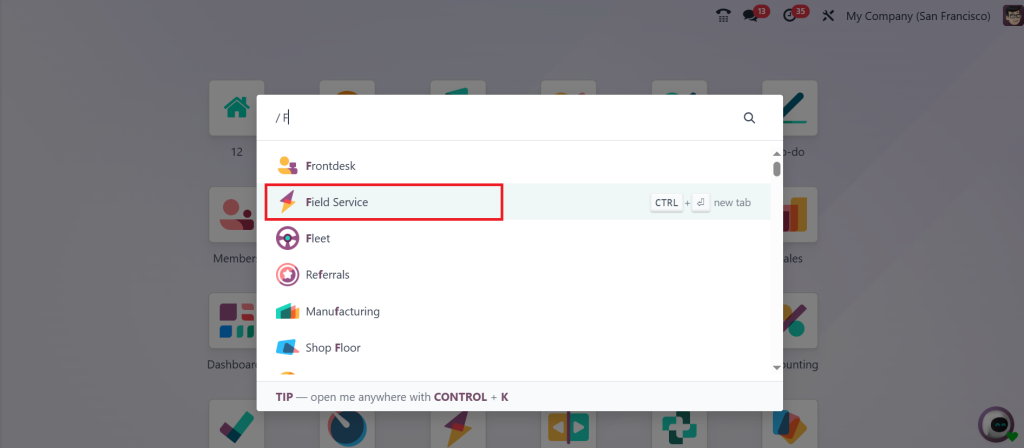
You’ll land on a Kanban view displaying existing tasks categorized by stages such as New, Planned, In Progress, and Done.
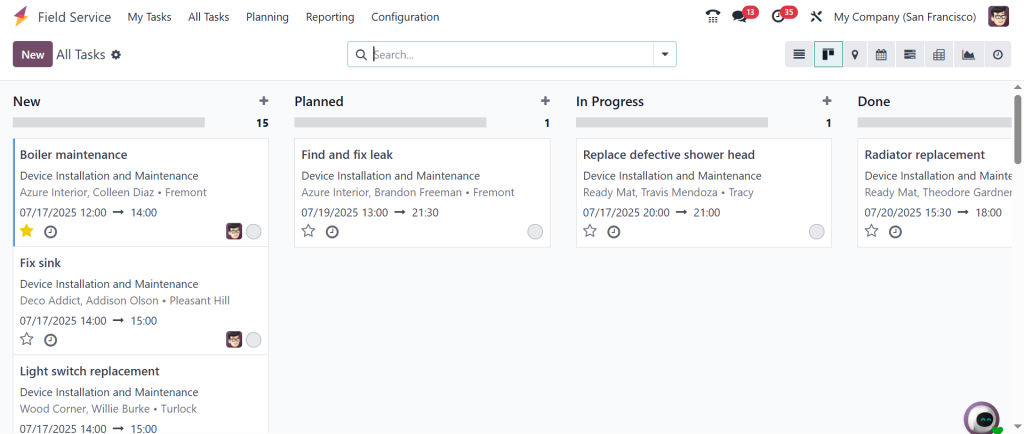
Step 2 – Click "New"
Click the New button in the top-left corner of the dashboard. This is your entry point to creating Odoo 18 field service tasks.
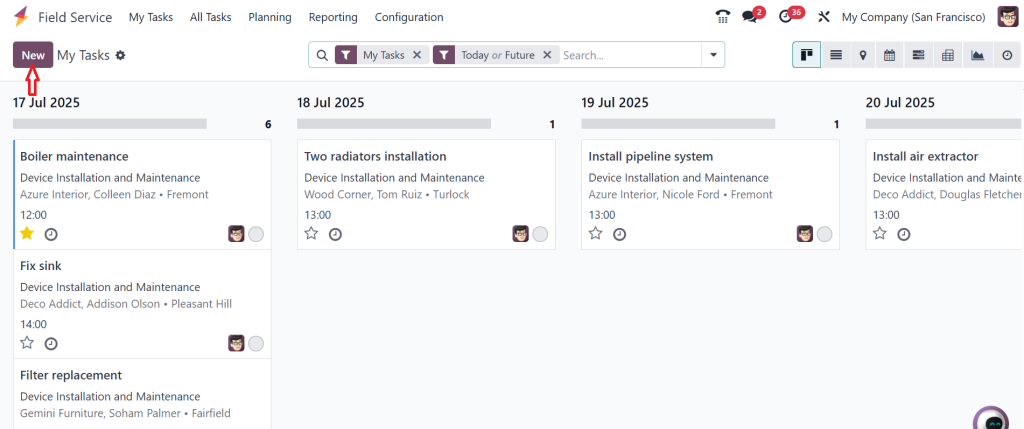
Step 3 – Fill Basic Task Information
You’ll now see a form to enter task details. For the manual field service task in Odoo, here’s what you typically fill in:
Task Title: e.g., “AC Unit Repair at ABC Corp.”
Customer: Select or create a new customer.
Project: Choose a Field Service project if applicable.
Assigned To: Assign the task to a specific field agent.
Planned Date: Schedule the date and time.
Tags: Add relevant tags for categorization.
Then, Click on Save.
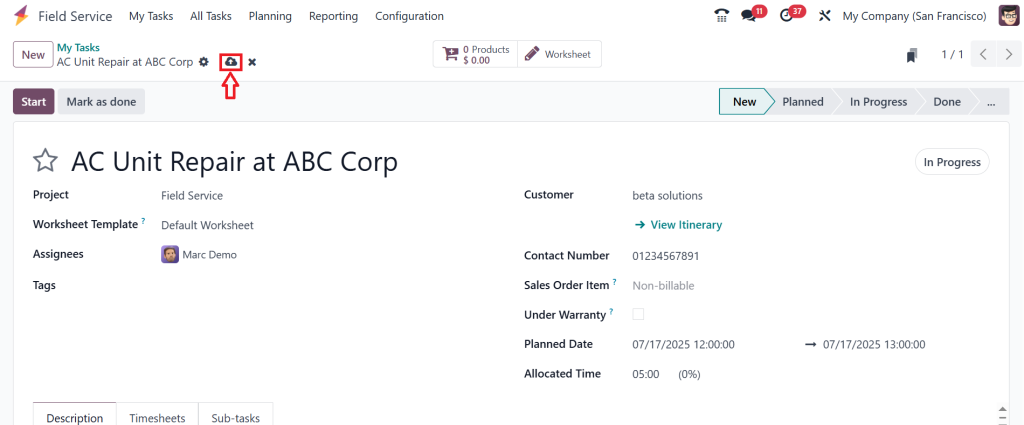
You can also add a log note. This is the essential part of setting up the Odoo field service task.
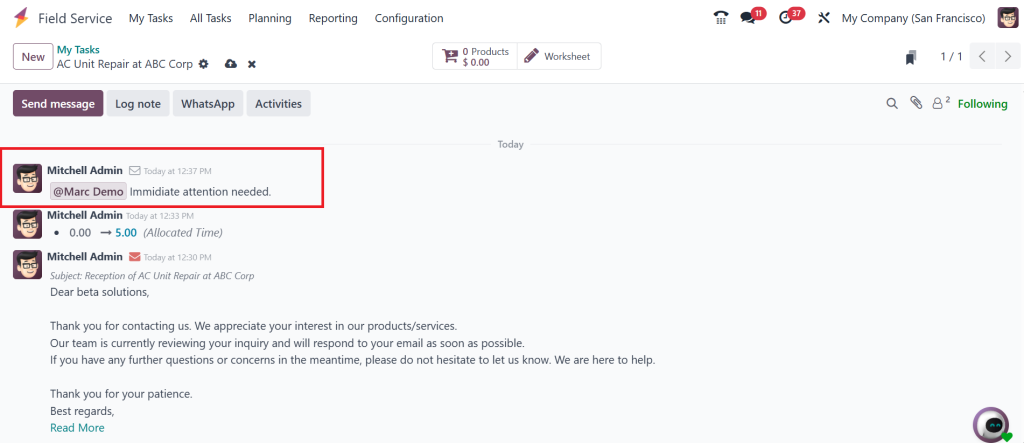
So, that’s how you can easily create a new Field Service task manually in Odoo 18.
Building a Complete Odoo 18 Field Service Manual Work Order in Minutes
Once you’ve created your manual task, the process of building a complete Odoo 18 field service manual work order is unified. You can add materials or products needed during the job directly from the task form. These items will automatically reflect in your inventory module and can also be linked to your customer invoice. If time tracking is essential, your field agent can log working hours using the integrated timesheet feature.
At the end of the job, they can even collect a digital signature from the client, confirming that the task was completed. Every bit of this is stored, analyzed, and made report-ready inside your Odoo system. What used to require several disconnected tools and manual logs can now be accomplished in one place, all stemming from the manual creation of a task. This is why learning how to create a new field service task manually in Odoo 18 isn’t only practical but also transformative.
Efficient Odoo Field Service Task Setup That Matches Real Business Needs
The setup of field service tasks in Odoo isn’t a rigid template; it’s customizable to match your business needs. During Odoo field service task setup, you can create categories, assign default teams, link tasks to specific projects, and even attach worksheets or checklists to each task type. This means that whether you’re running a plumbing company, managing IT services, or operating an industrial maintenance team, Odoo adapts to your workflow. You can go as simple or as detailed as you need.
This flexibility enables Odoo to function equally well for both startups and large enterprises. Every time you manually create a new task, you’re not just adding a job; you’re injecting intelligence into your operations. Over time, this enhances data visibility, facilitates easier forecasting, and enables you to optimize resource usage across the board.
The Ultimate Odoo 18 FSM Task Creation Tutorial in Real Life
When people search for an Odoo 18 FSM task creation tutorial, they often expect a dry step-by-step breakdown. However, here’s the truth: the best tutorial is one that demonstrates how it applies to real business scenarios.
Odoo’s design makes this incredibly easy. Open the app, click New, and begin. Enter the title something like “Emergency Generator Fix – Downtown Branch.” Add the customer. Select your project or task category. Assign your top technician. Choose a time window. Write a quick note: “Reported burning smell, possible motor issue, bring testing kit.” Then hit Save. Just like that, the whole task is live and ready.
And here’s the real kicker: because you created it manually, you personalized it precisely to the situation. It’s not generic. It’s not automated. It’s precision-built for this exact case.
Why Every Team Should Know How to Create Field Service Task in Odoo
Learning how to create a field service task in Odoo is a must for every operations manager, field technician, and service coordinator. It reveals freedom and control over scheduling, response, and task documentation. It enables teams to act fast, avoid delays, and deliver consistently high service, even in unexpected situations. The task doesn’t need to come through a helpdesk ticket or a sales order. It can begin with human intuition, created on the fly, and supported by a complete digital workflow.
And when the job is done, all the relevant metrics, including time spent, materials used, and customer satisfaction, are ready for review. The value this brings to your business over time is enormous. You start responding faster, tracking better, and serving smarter. That’s the Odoo difference. And it starts with just one task, created manually.
So, if you’re ready to leap into more innovative service scheduling, don’t just wait for tasks to come to you. Create a new field service task manually in Odoo 18 and experience the flexibility, structure, and clarity that comes with it. Your team will thank you, your clients or customers will notice the difference, and your operations will run more efficiently than ever before.
And if you ever feel the need for guidance, customization, or professional support to fine-tune your FSM workflow, Netilligence is here to help. As an Odoo Partner, we specialize in implementing, migrating, and providing custom-made solutions that precisely match your exact business needs. Let’s change your field service journey starting today.