How to Assign Multiple Employees to a Single Work Order in Odoo Manufacturing?
In the world of manufacturing, precision and productivity often go hand in hand. As factories and production units scale up, they face an increasing need to manage complex workflows more intelligently. This is where the ability to assign multiple employees to a single work order in Odoo becomes a catalyst.
Odoo, a prevailing open-source ERP platform, has consistently advanced to meet the demands of modern business operations. One area where this growth is particularly noticeable is in Odoo manufacturing, where features such as assigning employees to work orders have become more flexible and team-oriented. Gone are the days of restricting tasks to a single user per work order. Today, the real value lies in allowing teams, enabling multi-employee assignment of Odoo work orders, improved labour management, and smoother operations.
If you’ve ever struggled with managing labour-intensive tasks, complex assemblies, or overlapping operations in your manufacturing line, you’re not alone. Most production managers have faced this issue. They know how frustrating it is when a task requires more than one pair of hands, but the software doesn’t support multiple assignments. That’s why understanding how to assign multiple employees to a single work order in Odoo is more than just a technical feature; it’s a competitive advantage.
Let’s delve deeper into how Odoo ERP’s capability to manage multiple workers per work order can enhance your production lines, reduce downtime, and optimize resource allocation.
The Rise of Odoo Manufacturing Assign Multiple Employees Feature
Manufacturing is no longer a solo job. In most industries, tasks are distributed across teams; some assemble components, others test, and some perform quality control, all simultaneously. With this kind of collaborative setup, you need ERP software that allows flexibility in workforce allocation. That’s precisely what the Odoo manufacturing feature offers for assigning multiple employees to a single task.
Odoo’s earlier versions used to limit work order assignments to a single employee or work center, making it challenging to coordinate group tasks. However, with the growing need for smart labour allocation, Odoo ERP now allows multiple workers per work order, which has become standard in Odoo 17 and especially in Odoo 18 manufacturing work order team setups.
This development addresses a critical gap: the inability to reflect real-life teamwork on digital platforms. When you assign multiple employees to a single work order in Odoo, you’re not just adding names to a form; you’re enhancing visibility, improving accountability, and driving production efficiency.
Assign Employees to Work Order Odoo
Why It Matters
When you’re managing a fast-paced production floor, time is everything. Suppose having a work order that involves lifting, welding, and assembling parts simultaneously. Assigning just one employee wouldn’t be practical. This is why the ability to assign employees to work orders makes such a big difference.
Multiple employees can now collaborate on a single task. This reduces production delays, ensures safety in labour-intensive environments, and improves morale by preventing work overload. You can divide responsibilities according to skill sets, availability, and shift timings. This fine-tuned control over your workforce is what makes the Odoo manufacturing assignment feature for multiple employees so vital in modern operations.
How Odoo ERP Multiple Workers Per Work Order Enhances Productivity
Once you implement the Odoo ERP’s feature for multiple workers per work order, you’ll notice instant improvements in your workflows. Assigning employees becomes a dynamic process that you can assign based on qualifications, department, or real-time availability. Your production pipeline becomes leaner, more flexible, and highly scalable.
Instead of running multiple work orders for what is a team task, you can consolidate it into one. The benefit? Reduced administrative overhead, simpler monitoring, and centralized time tracking. You can even track individual contributions using the Odoo manufacturing work order resource’s view, which shows exactly who is doing what, when, and for how long.
This feature isn’t just about convenience; it’s about enabling agility. In times when customer demands fluctuate, materials are delayed, or employees call in sick, being able to reassign and redistribute work quickly ensures that deadlines are not missed.
Exploring Odoo 18 Manufacturing Work Order Team Setup
The Odoo 18 manufacturing work order team setup feature is one of the most exciting upgrades for production managers. It allows you to group employees into teams and assign an entire team to a single work order. That means, instead of assigning workers one by one, you assign a team once, and Odoo does the rest.
Teams can be based on department (e.g., assembly line, welding, quality control), skill level (e.g., junior, senior technicians), or even shift (morning vs night). This structured approach significantly simplifies resource planning and accelerates execution.
With team-based configuration, managers no longer have to micromanage every aspect of employee scheduling. Instead, they can trust the system to allocate based on predefined logic. This aligns entirely with the growing trend of assigning labour to work orders in Odoo through intelligent ERP integration.
How to Assign Labour to Work Order Odoo Effectively
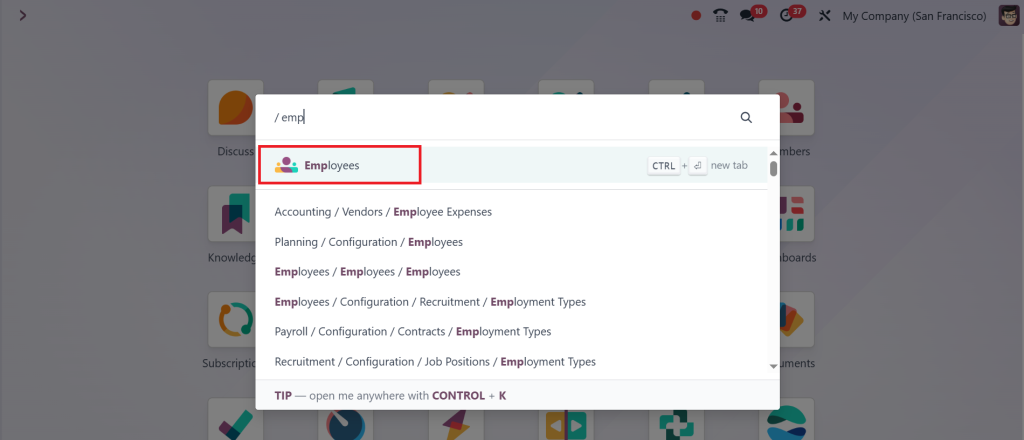
Let’s talk about practical steps. To assign labour effectively, you first need to make sure your employee database is up to date in the Odoo Employees module. Once that’s done, you can go into the Manufacturing module and create a new Manufacturing Order.
From there, direct to the Work Orders tab. This is where you’ll find the employee assignment option. In newer versions (Odoo 17 and 18), a multi-select field allows you to add several employees to the same work order. That’s your gateway to assigning labour to work orders effortlessly in Odoo.
You can also configure automatic employee suggestions based on skills, availability, or past performance. And if you’re looking to customize your assignment process further, Odoo Studio allows you to build your logic or forms. It’s flexible at its best.
Step-by-Step Guide: Assign Multiple Employees to a Single Work Order in Odoo
Step 1: Enable Work Orders in Manufacturing Settings
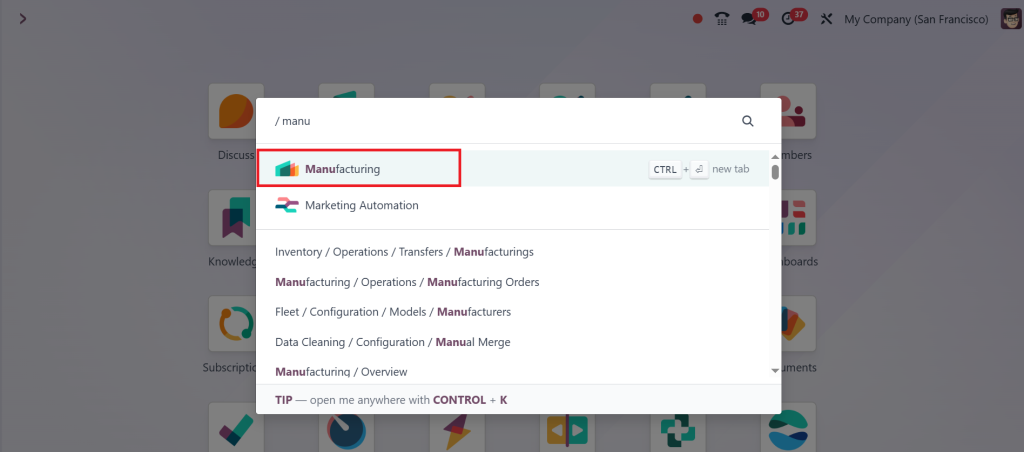
Go to the Manufacturing module.
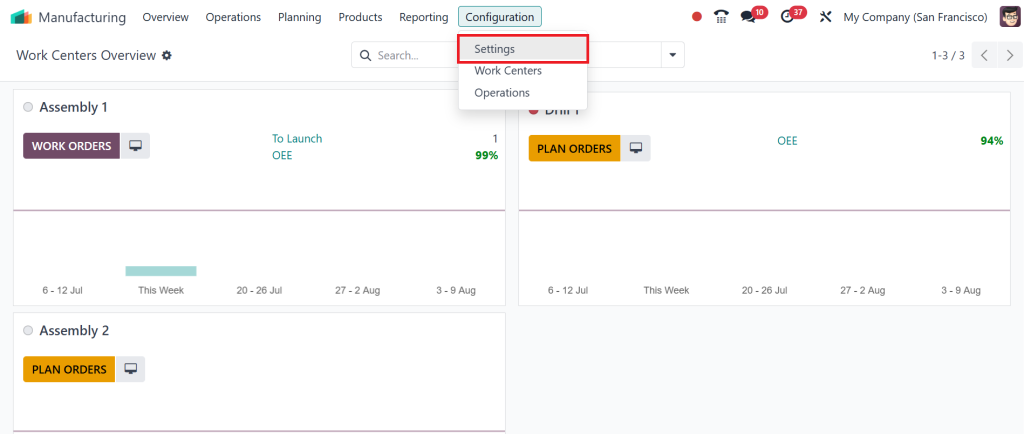
Click on Configuration > Settings.
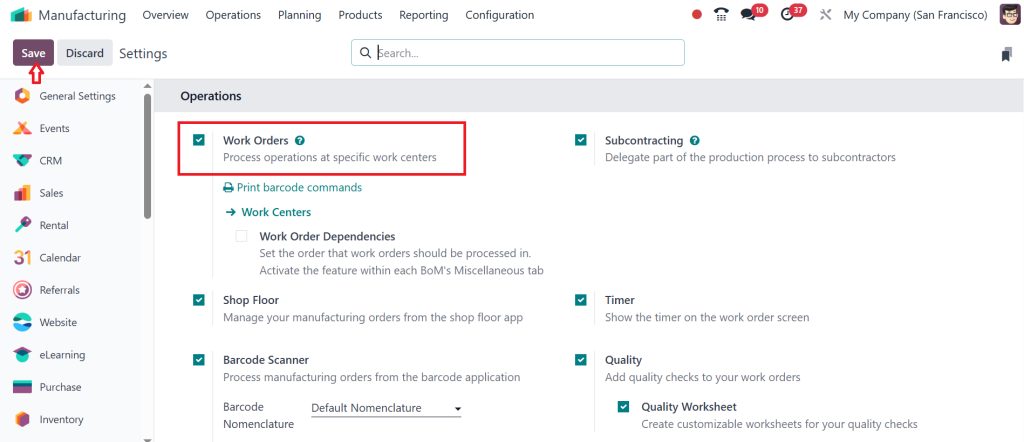
Under the Operations section, check the box for Work Orders & click Save.
Step 2: Set Up Employees in Odoo
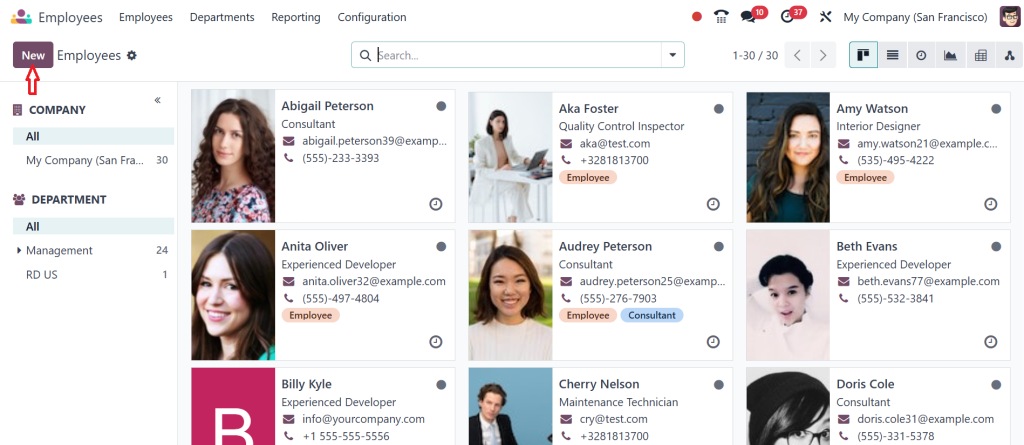
Direct to the Employees module.
Click New to add new employees (if not already added).
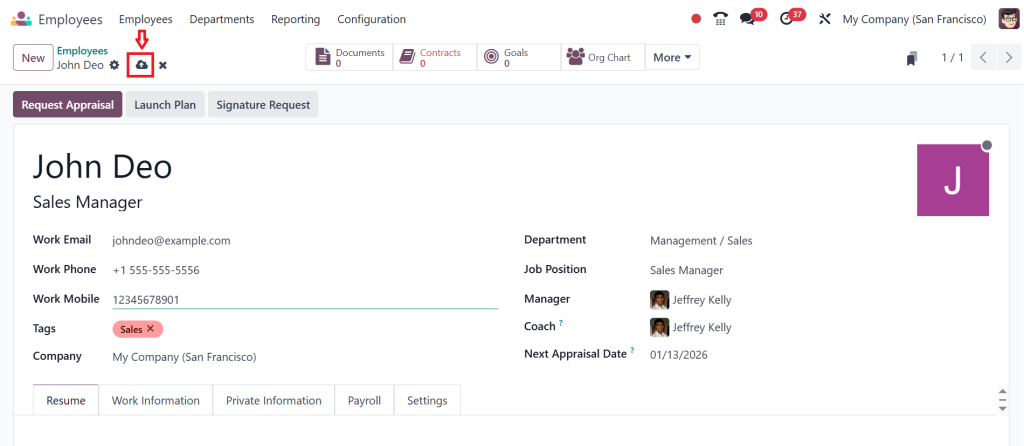
Enter employee details such as name, job title, and department & Save the records.
Step 3: Configure Your Work Centers
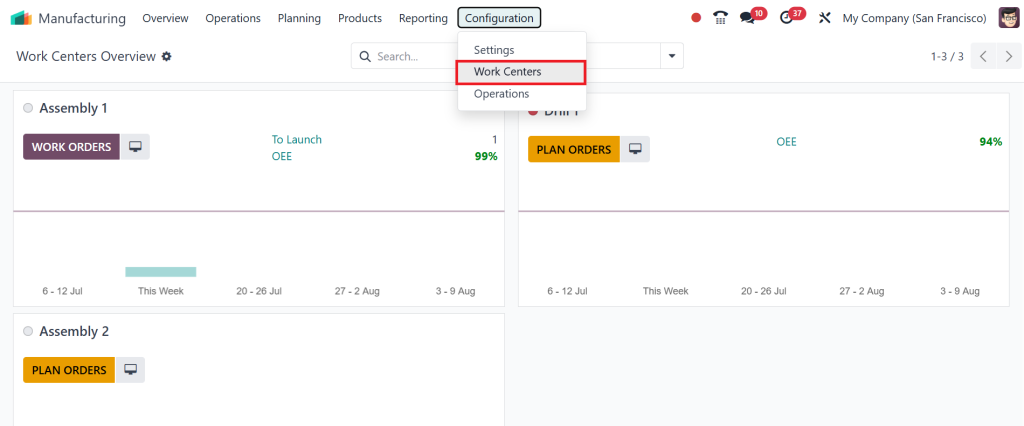
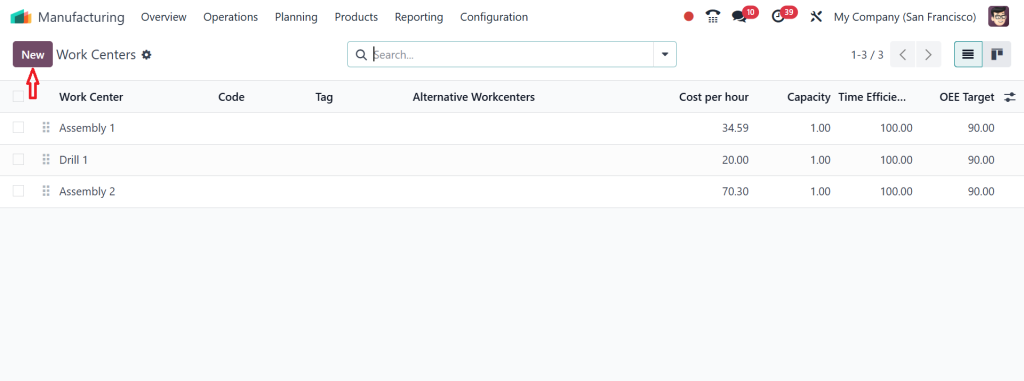
Go to Manufacturing > Configuration > Work Centers.
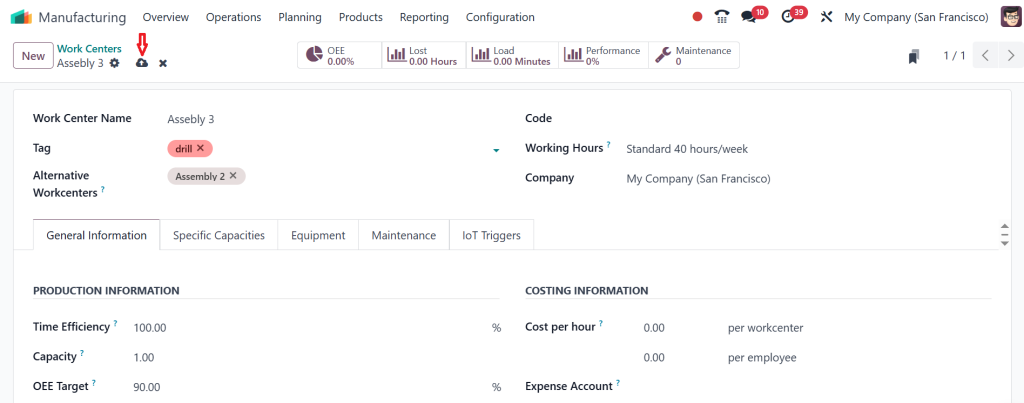
Create or edit a work center.
Optionally, you can associate a default team or employees. Save the settings.
Step 4: Create or Edit a Bill of Materials (BoM)
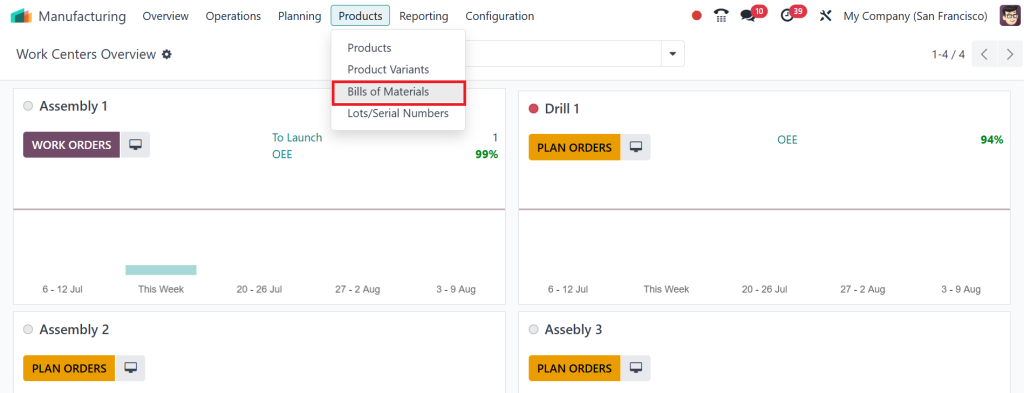
Go to Manufacturing > Products > Bill of Materials.
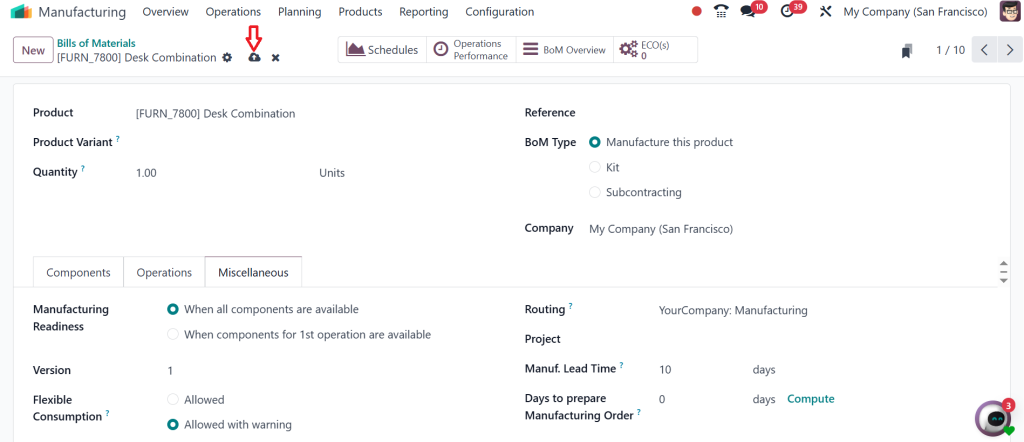
Create or edit a BoM for the product you want to manufacture. Ensure it includes a routing (so work orders are generated). Save the BoM.
Step 5: Create a Manufacturing Order (MO)
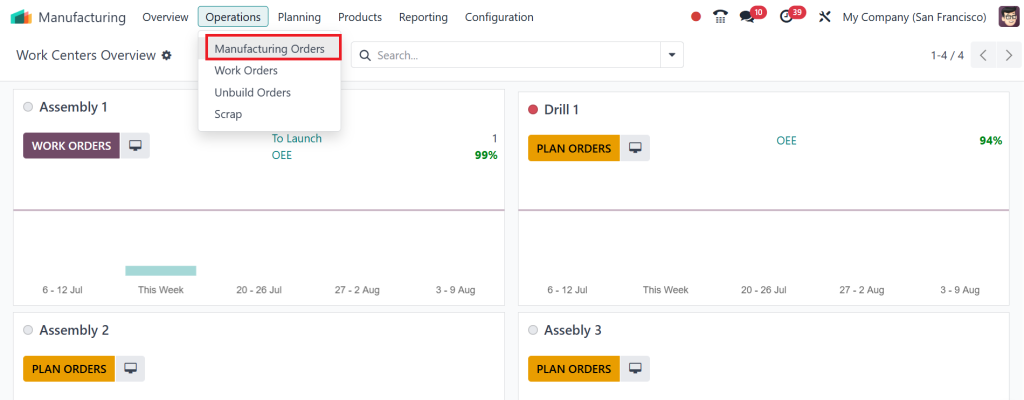
Go to Manufacturing > Operations > Manufacturing Orders.
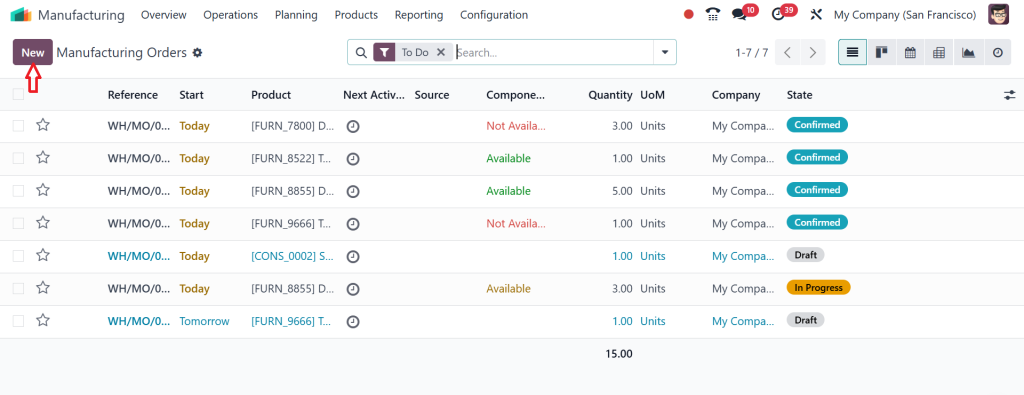
Click New.
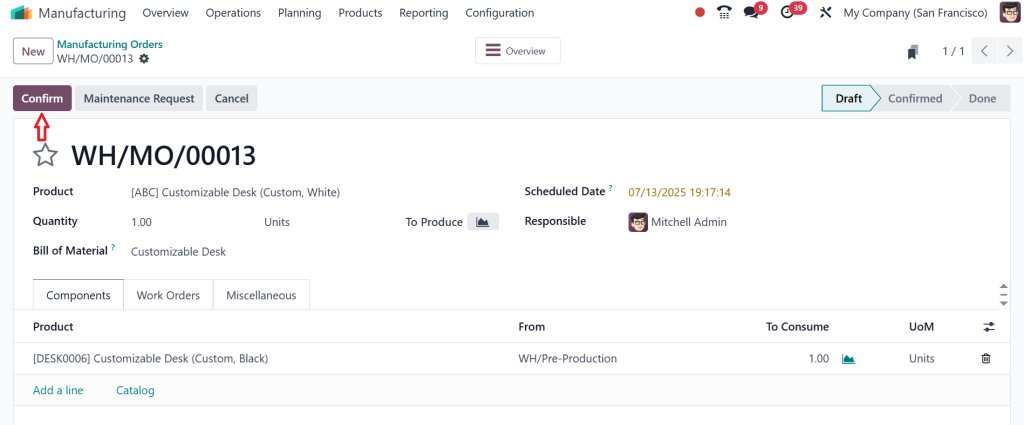
Select the product and quantity. Choose the BoM that includes routing. Click Confirm to generate work orders.
Step 6: Open the Work Order
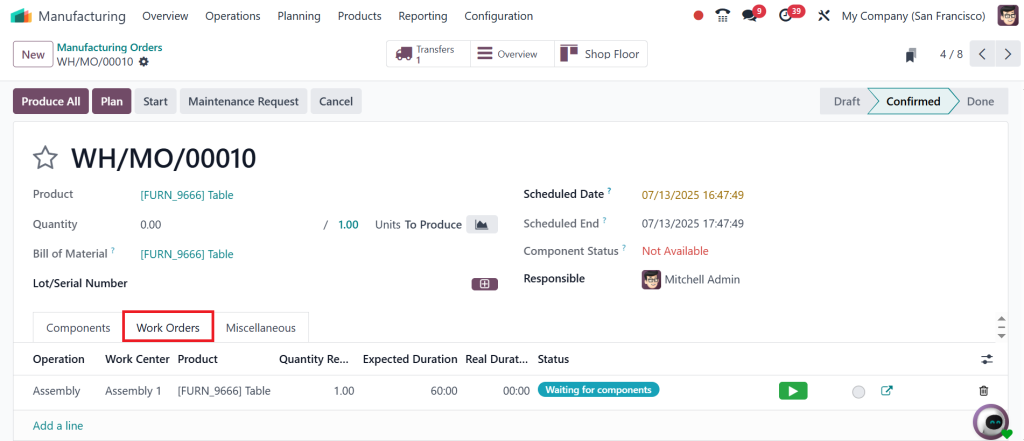
In the confirmed MO, click the Work Orders tab.
Open the generated work order.
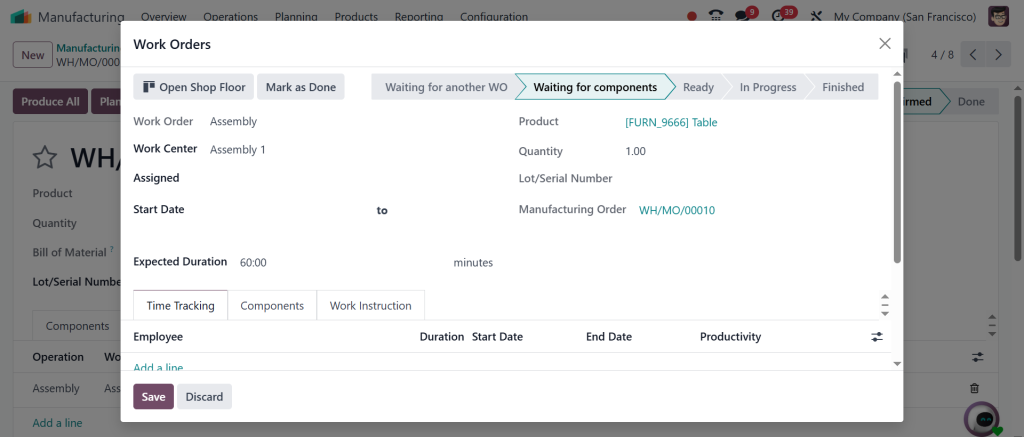
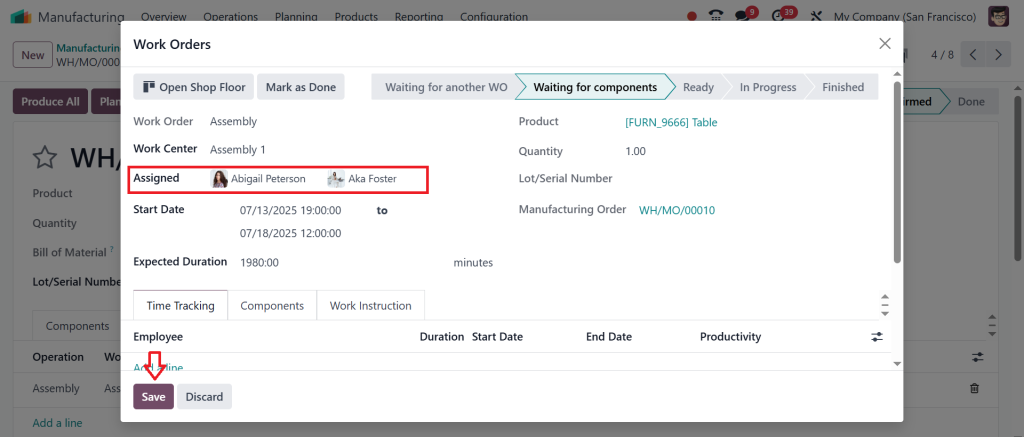
Step 7: Assign Multiple Employees
In the work order form, look for the field labeled Assigned Employees. Choose multiple employees then Save the work order.
This is how you successfully assign multiple employees to a single work order in Odoo!
Odoo Manufacturing Work Order Resources
Tracking Made Easy
The true power of multi-employee assignments lies in how well you can track and analyze them. That’s where Odoo manufacturing work order resources come in. This view displays the breakdown of work hours by employee, enabling you to understand workload distribution and labour costs.
This data is also helpful in identifying bottlenecks. For example, if two out of four assigned employees constantly finish late, you might need to review their tasks or provide more training. It also helps in performance reviews, payroll calculations, and shift planning.
With real-time visibility, Odoo’s work order multi-employee assignment becomes more than just a duty or task; it becomes a strategic technique for managing resources.
The Influence of Odoo Work Order Multi-Employee Assignment in Real-World Use
Now, let’s explore some use cases where the capability to assign multiple employees to a single work order in Odoo shines:
Automobile Assembly
Teams handling complex builds can work in parallel on engine mounting, wiring, and body assembly under a single unified work order.
Electronics Manufacturing
While one employee installs hardware components, another can perform software flashing or quality testing.
Food Production
Multiple workers simultaneously handle slicing, packaging, and labelling, thereby speeding up the workflow.
Furniture Production
Wood cutting, polishing, and upholstery can all occur simultaneously, with different employees tracked under a single work order.
In each of these scenarios, the Odoo ERP’s multiple workers per work order functionality allows the system to match the real-world collaborative nature of modern production lines.
Why Netilligence Recommends Using Assign Multiple Employees to a Single Work Order in Odoo
At Netilligence, we’ve worked with dozens of manufacturing clients implementing Odoo, and one pattern stands out: businesses that adopt the Odoo model of assigning multiple employees to a single work order see an immediate spike in productivity and morale.
It’s not just about functionality, it’s about changing how your team’s work. Allowing workers with clarity and managers with visibility creates a workplace that thrives. Our clients especially love how this feature pairs with time tracking, IoT integrations, and mobile access.
Adopt the Might of Teamwork in Odoo Manufacturing
The manufacturing world is changing fast, and so should your ERP. The ability to allocate multiple employees to a single work order in Odoo is a prime example of how software can grow to match business realities. From improving workforce planning to simplifying collaboration and tracking, this feature delivers tangible benefits from day one.
If you’re running a manufacturing operation and still handling work orders one employee at a time, it’s time to reevaluate your approach. With tools like Odoo’s manufacturing module, which allows for assigning multiple employees to a single work order, and Odoo 18’s manufacturing work order team setup, you’re equipped to scale operations, handle complexities, and stay competitive.
Let Netilligence Help You Get Started
Want to implement this innovative feature in your Odoo instance?
Netilligence specializes in custom Odoo ERP solutions personalized to your manufacturing workflow. Whether it’s setting up Odoo work order multi-employee assignment, optimizing resources, or training your team, we’ve got you covered.
Contact Netilligence today and revolutionize the way your manufacturing floor operates.
Hi, I'm Ilsa Shabbir, an Odoo ERP content writer specializing in functional blogs on Odoo modules. I simplify complex Odoo features, creating clear and engaging content to help businesses understand and optimize their ERP solutions.
We use cookies to ensure that we give you the best experience on our website. If you continue to use this site we will assume that you are happy with it.