
If you’ve ever worked in sales, you’re likely familiar with how messy things can get once an order is confirmed. Even a minor edit in a confirmed order can disrupt pricing, inventory, and even invoices. That’s why learning how to lock confirmed orders in Odoo 19 Sales is such an important skill.
When you confirm an order, that data becomes the backbone of your sales, accounting, and delivery process. But what if someone accidentally edits that record later? Or worse, changes the price or quantity after the deal is sealed? That’s where the Odoo 19 lock confirmed sales order feature comes in handy.
This feature helps you maintain control, eliminating accidental edits, confusion, and disorder. For example, you confirmed a sales order worth $10,000. Later, someone opens it, tweaks the quantity, and suddenly it’s $9,500. You might not notice it immediately, but even a slight change could cause issues with stock reports, invoices, and profits. So, instead of constantly worrying about “what if someone changes something,” you can lock confirmed orders in Odoo 19 and relax.
Why Odoo 19 Lock Confirmed Sales Order Is a Revolutionary
Locking confirmed orders is more than just avoiding mistakes. It’s about keeping your sales workflow clean and professional. When you use the Odoo 19 lock confirmed sales order feature, you make sure your team works with one version of the truth. Everyone from sales representatives to accountants sees the same confirmed data.
It’s like sealing an envelope. Once it’s sealed, no one can open it without leaving a trace. That’s how Odoo 19 handles locked orders. Once closed, the order becomes read-only. No editing. No changes. No confusion.
And you still have complete visibility. You can open the order, review its details, and verify all information. But editing? Not unless you specifically unlock it. That’s why businesses that use the lock confirmed order Odoo sales feature enjoy better data accuracy and fewer workflow headaches.
Prevent Edits in Confirmed Orders in Odoo 19 & Keep Your Workflow Error-Free
If you want to prevent edits in confirmed orders in Odoo 19, you’re basically saying, “I want my system to protect me from human errors.” And honestly, that’s a smart move.
We all make mistakes; someone updates the wrong line, changes a price, or accidentally deletes an item. But once an order is confirmed, those actions shouldn’t be allowed. By enabling the Odoo lock feature in the sales module, you’re locking that data in place. It becomes permanent until you decide otherwise.
And here’s something you don’t need to be a developer or tech expert to do this. It’s straightforward and flawlessly integrated into the Odoo 19 interface. You confirm the order and click Lock. That’s it. Your sales order instantly becomes read-only in Odoo 19.
It’s like flipping a switch that says, “No more changes allowed here.” It not only makes your life easier but also keeps your data consistent across departments, from sales to warehouse to accounting.
Restrict Sales Order Modification in Odoo Because Control Matters
Now, let’s talk about control. When your business grows, more people get access to the system. Different users handle different parts of the sales process, and that’s where things can get messy if not managed properly.
By using the restricted sales order modification in the Odoo setting, you’re putting the proper controls in place. You ensure that once a sales order is confirmed, no one can change it without permission. This simple action builds trust and transparency. Everyone knows that confirmed means confirmed, with no backdoor edits or sneaky updates.
And this isn’t just for big companies. Even if you’re a small team, having a system that locks confirmed sales orders can save you hours of confusion later. It keeps your team aligned and your numbers accurate.
Simple Yet Effective Read Only Sales Order in Odoo 19
Let’s say you’ve confirmed an order and locked it. What happens next? Well, the order becomes read-only in Odoo 19. That means anyone can view it, but they can’t touch or edit anything.
It’s like giving your team a final draft to read and review, but not to rewrite. This read-only sales order in Odoo 19 mode ensures that everyone’s looking at the same version of the confirmed deal: no unexpected changes, no accidental clicks, just clean and reliable data.
And if you ever need to make changes? No problem. You can unlock the order (if you have permission), make your updates, and lock it again. This flexibility gives you both control and convenience.
Odoo Lock Feature Sales Module Is Your Shield Against Mistakes
One of the most underrated features in the system is the Odoo lock feature in the Sales module. It’s not flashy, but it’s incredibly powerful. Think of it as a digital lock that safeguards your confirmed orders from any tampering.
Once you apply the lock, every number, price, and item stays exactly as it was when confirmed. You can’t accidentally delete a product line or update a quantity. Everything stays safe just as you intended.
In a busy sales environment, where multiple people are managing multiple orders, this kind of control is priceless. It gives you peace of mind knowing that your data will remain accurate even if multiple users access the same record.
Why Sales Data Integrity in Odoo 19 Matters More Than Ever
Data integrity means your numbers, reports, and invoices are all in sync. And that’s where the sales data integrity in Odoo 19 really shines. When you lock confirmed orders, you’re not just protecting one record; you’re protecting the entire chain that follows it.
Imagine if someone were to change a product quantity after an order is confirmed. That change can affect stock levels, delivery orders, and even your accounting reports. By using the Odoo 19 lock confirmed sales order, you ensure that confirmed sales orders remain as confirmed.
It keeps your data accurate, your reports clean, and your customers happy. Additionally, it spares you from those awkward moments when you have to explain why an invoice no longer matches the order.
How to Use Lock Confirmed Order Odoo Sales
Let’s quickly walk through how easy it is to use the lock confirmed order Odoo sales feature:
Go to the Sales module.
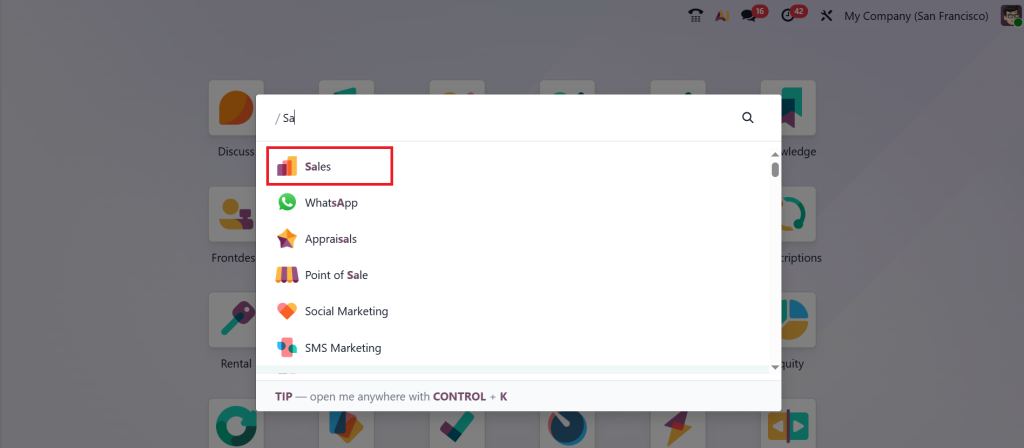
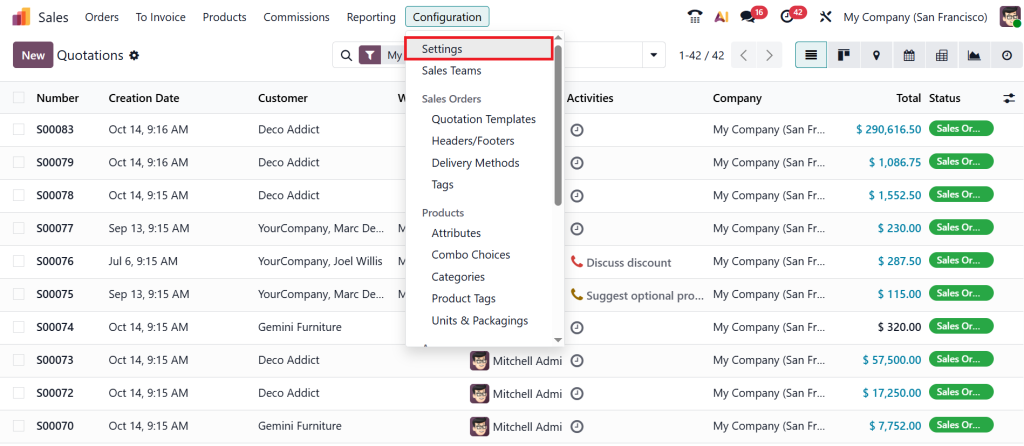
Direct to the Configuration > Settings.
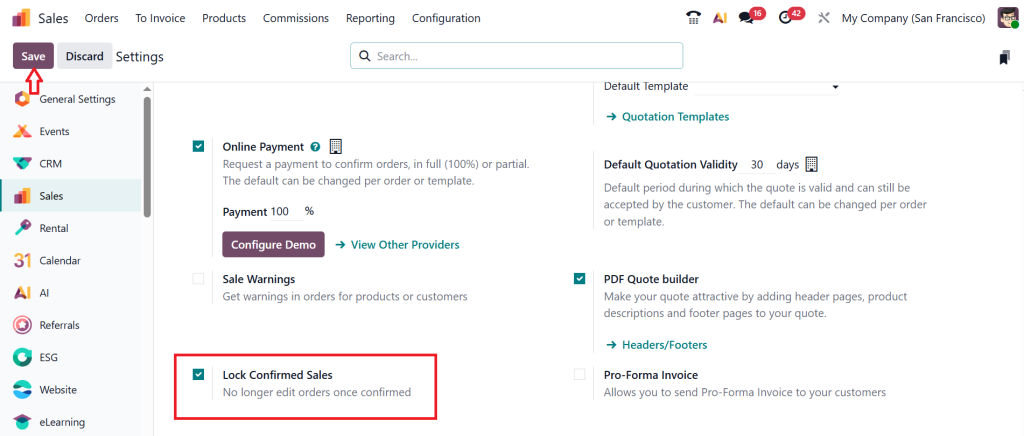
Scroll down and under the Quotations & Orders section, enable the Lock Confirmed Sales, and then click on Save.
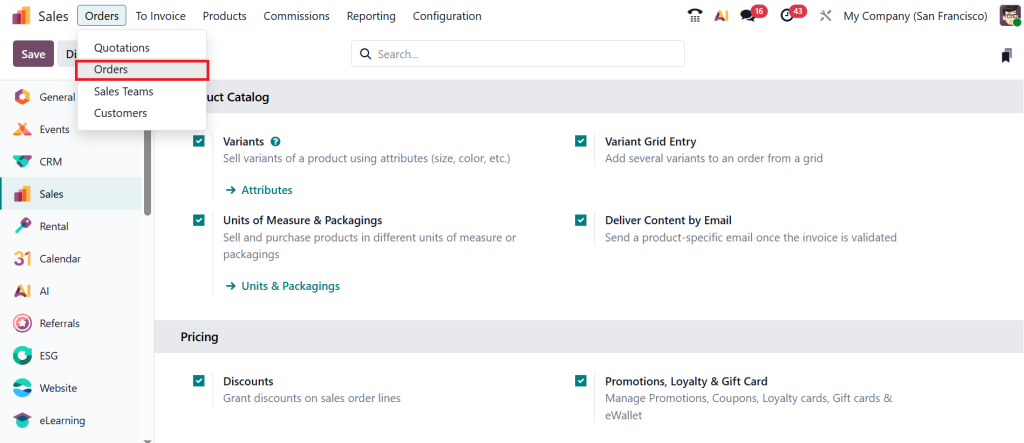
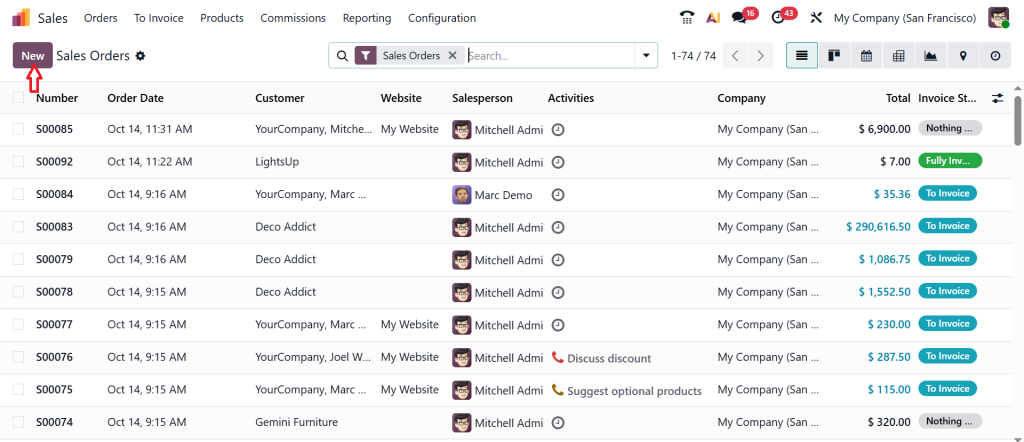
Go to the Orders > Orders.
Click New and create a new sales order.
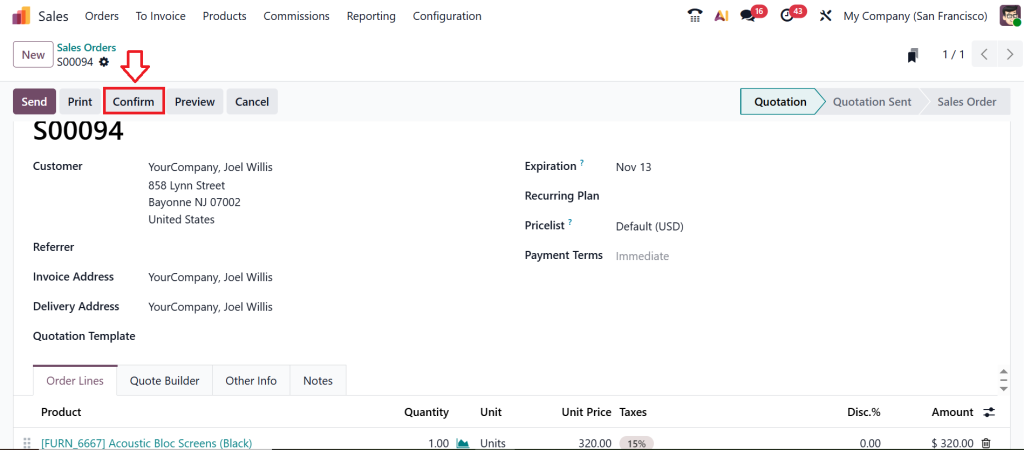
Now, specify the customer, add a product, and then click Confirm.
That’s it, the order becomes locked and read-only.
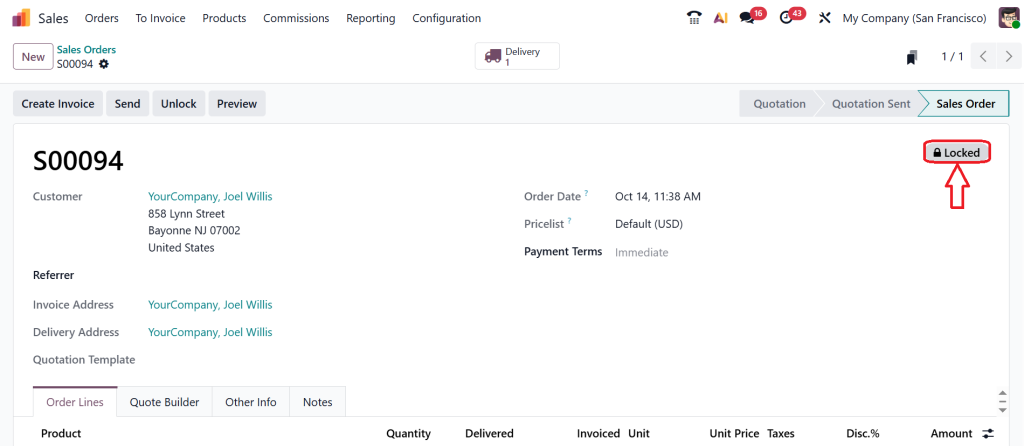
Once you do this, the system automatically prevents any modification. If someone tries to edit it, they’ll notice that everything is grayed out. That’s your confirmation that your order is now protected.
This simple process gives you complete control without adding complexity. And if you ever need to make a change, you can unlock it, but only if you’re authorized to do so.
Why I Love the Lock Feature in Odoo 19 Sales
One of the reasons I enjoy working with Odoo is how it blends simplicity with control. The lock confirmed orders in the Odoo 19 Sales feature is a perfect example of that balance. It doesn’t just stop people from editing; it creates a clear boundary between “work in progress” and “finalized data.”
It makes managing sales so much easier. You no longer need to verify if someone has mistakenly updated a confirmed order. You don’t have to second-guess your data during audits. Everything stays consistent.
In the business world, having reliable, uneditable data is not just a feature but a necessity.
Here's What We Learned About Lock Confirmed Orders in Odoo 19 Sales
To maintain clean, consistent, and trustworthy sales records, ensure that confirmed orders are locked in Odoo 19 Sales. The Odoo 19 lock confirmed sales order feature is not just a technical setting; it’s a business safeguard. It helps you prevent edits in confirmed orders in Odoo 19, restrict sales order modification in Odoo, and maintain sales data integrity in Odoo 19 effortlessly.
The next time you confirm an order, don’t just move on; lock it. That one click can save you from countless headaches later.
If you haven’t tried it yet, explore the Odoo lock feature in the sales module today. Because once you start using it, you’ll wonder how you ever managed without it.
If you want to learn how to set up, automate, or customize the lock confirmed orders in Odoo 19 Sales feature for your business, reach out to Netilligence. Our Odoo specialists can guide you through every step, from setup to automation, so your sales data always stays safe and accurate.