If you use Odoo for managing your company’s purchases, you already know how easy it is to create and confirm purchase orders. But have you ever noticed that sometimes, even after an order is confirmed, someone might edit it again? It could be a slight change in price, a quantity, or a vendor detail, but that one edit can cause confusion between your accounts, stock, and vendor agreements. That’s why it’s so important to learn how to lock confirmed purchase orders in Odoo 19.
In Odoo 19, there’s a simple and effective way to keep your confirmed purchase orders safe from any unwanted changes. This feature is not just about control; it’s about maintaining clean records, accurate data, and respected approvals. When you lock confirmed purchase orders in Odoo 19, you ensure that once an order is finalized, it remains that way unless someone with the necessary permission decides otherwise.
This blog will guide you through the process, explain how to restrict purchase order editing in Odoo, and discuss why the Odoo purchase order lock feature can make your daily purchase management easier and more reliable. We’ll also discuss purchase order approval controls in Odoo and how you can utilize them to ensure that every confirmed order remains exactly as your team approved it.
If you’ve ever dealt with last-minute order changes or inconsistent data, this is something you’ll definitely want to read until the end.
Why You Need to Lock Confirmed Purchase Orders in Odoo 19
Let’s talk about what happens when confirmed purchase orders remain open for editing. Imagine your purchase manager confirms an order for 100 items, and later someone unknowingly changes that number to 80. Now your inventory team expects 100, but your vendor only ships 80. Accounting books one thing, and the warehouse receives another.
That’s precisely why you should secure a purchase order in Odoo 19: it’s about keeping everyone on the same page. Once an order is confirmed, it should stay untouched unless there’s a valid reason to reopen it.
The Odoo purchase order lock feature enables this. Once you use it, Odoo automatically prevents any edits to confirmed purchase orders. You can still view all the information, but you won’t be able to change it unless you deliberately unlock it, and only authorized users can do that.
This simple rule helps you avoid mistakes, miscommunication, and unnecessary back-and-forth between teams. It also helps your audit and approval process stay easy to track.
How to Lock Confirmed Purchase Orders in Odoo 19: Step-By-Step
Now that we understand why it matters, let’s examine how to lock confirmed purchase orders in Odoo 19 in a few straightforward steps. You don’t need to be a developer to do this; you need access to the settings.
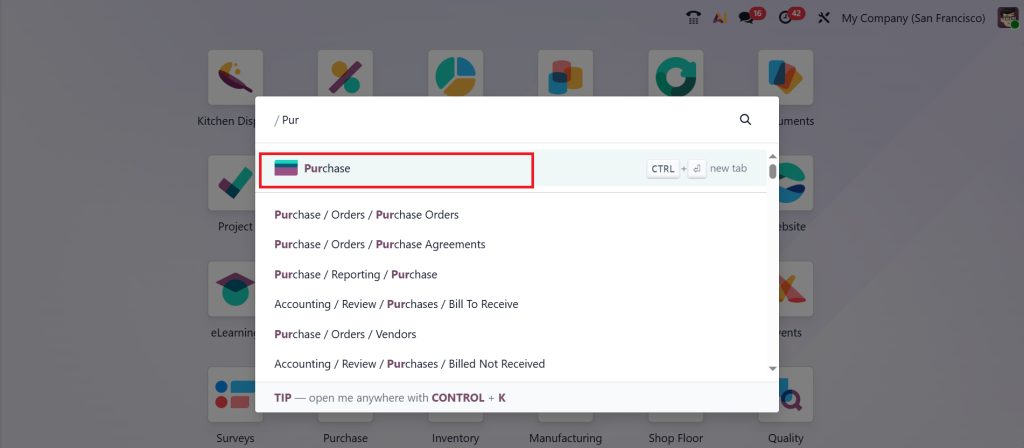
Open your Odoo dashboard and head to the Purchase module.
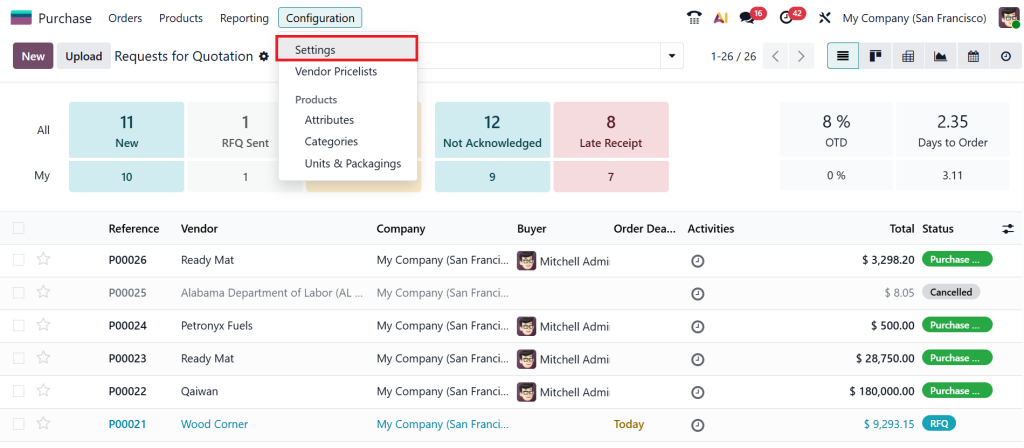
Click on Configuration → Settings inside the Purchase app.
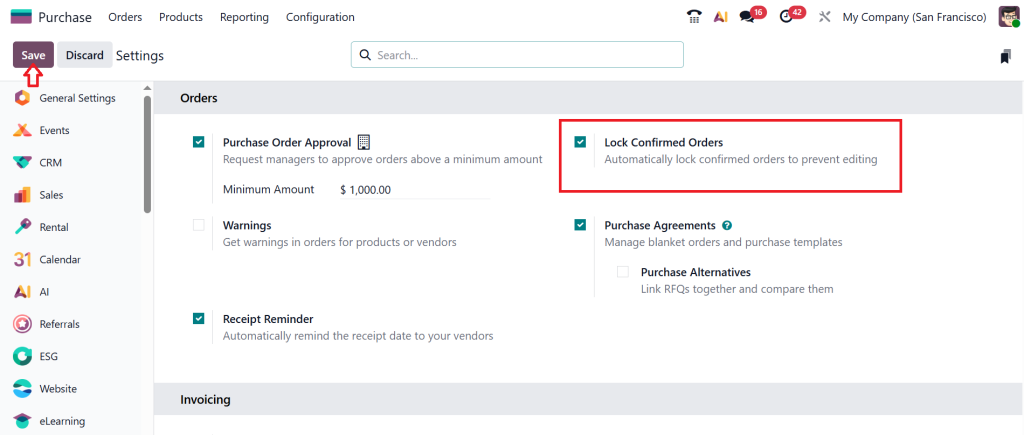
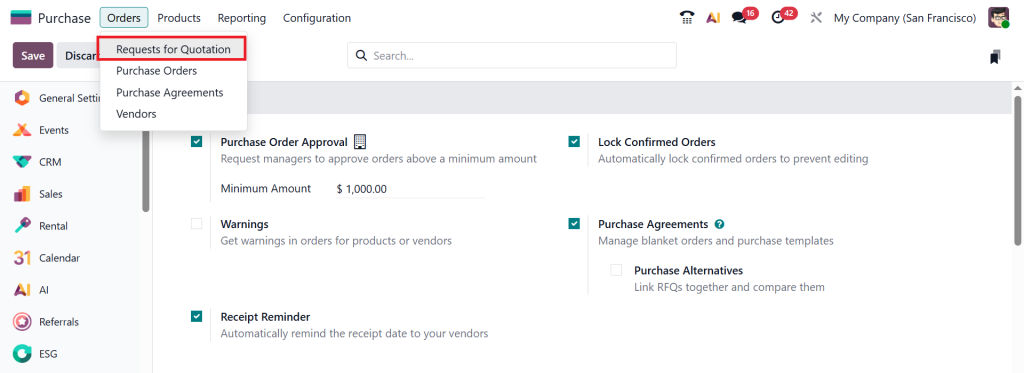
In Odoo 19, you’ll find an option called ‘‘Lock Confirmed Orders’’. Enable the setting that mentions locking or preventing editing after confirmation. Once enabled, save your settings. Now, whenever you confirm a purchase order, Odoo will automatically restrict further changes.
Go to Orders → Requests for Quotation.
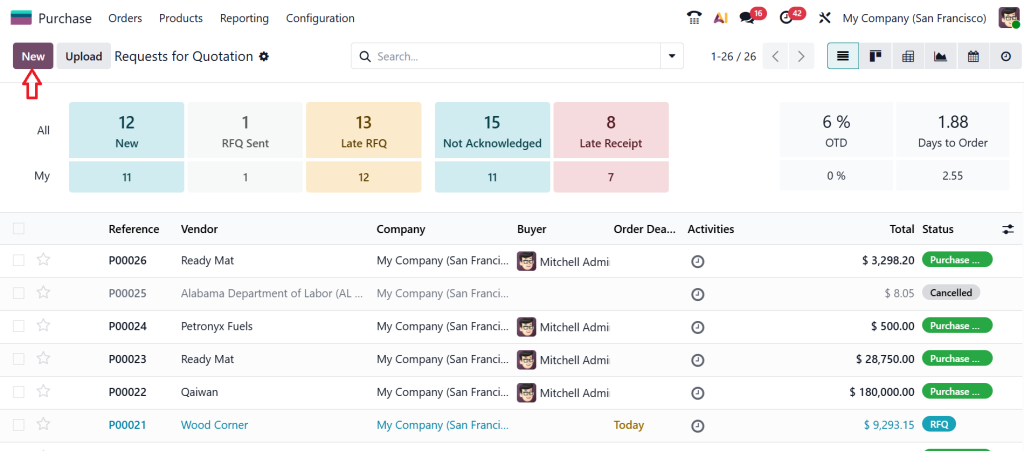
Click New.
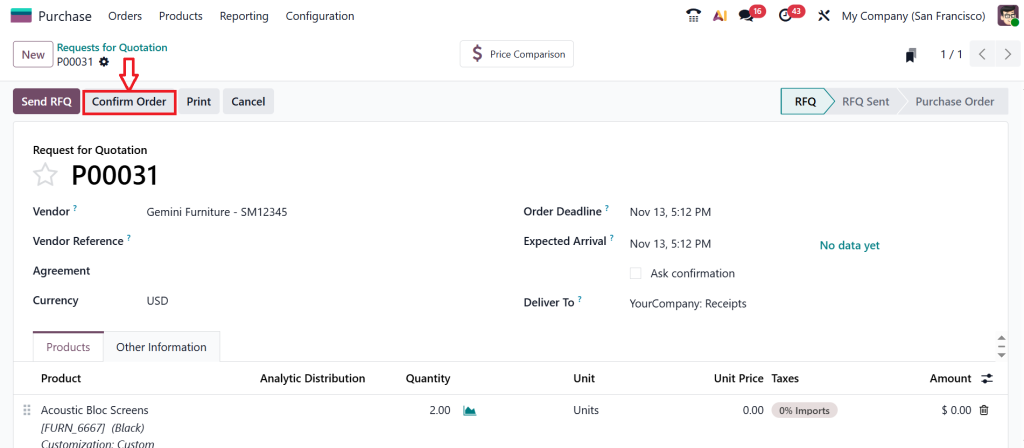
Create a test purchase order, confirm it, and then attempt to edit it.
You’ll notice the editing options are disabled. This confirms that your Odoo setup for purchase order editing restrictions is working.
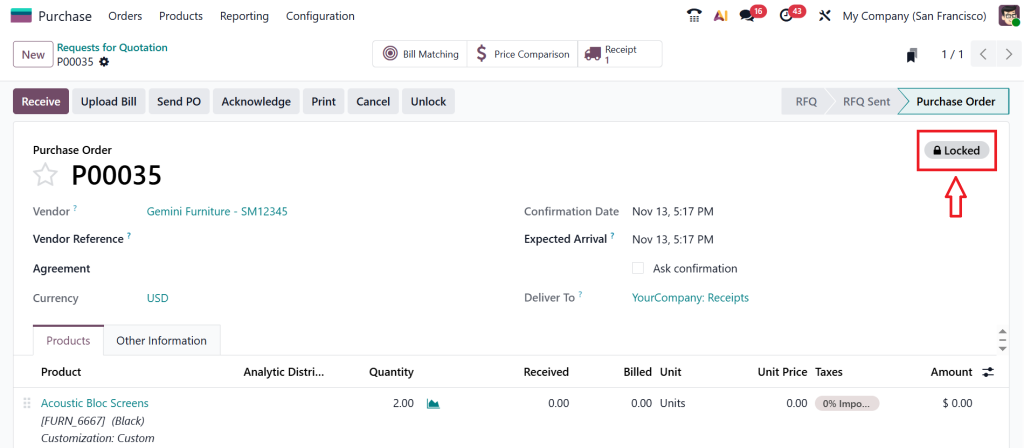
From now on, no one can modify confirmed orders without the necessary access, ensuring your purchase data remains consistent and trustworthy.
Restrict Purchase Order Editing Odoo: Why This Step Is So Useful
When you restrict purchase order editing in Odoo, you set a clear rule for your purchase process. Once something is confirmed, it’s considered final. This eliminates confusion about which version of an order is the valid one.
Your finance team doesn’t have to worry about numbers being changed after approval. Your warehouse team knows precisely what to expect from suppliers. And your procurement manager can relax, knowing that no one will alter confirmed data.
This simple purchase order editing restriction in Odoo also facilitates a more efficient workflow. Everyone focuses on new orders or approvals instead of double-checking old ones. It builds trust across teams because everyone can rely on the data they see.
Understanding the Odoo Purchase Order Lock Feature
The Odoo purchase order lock feature is not just a setting; it’s a control system that strengthens how your business handles purchase approvals.
Here’s how it works behind the scenes:
When a purchase order is in “Draft” state, all fields are editable. You can change the vendor, quantity, prices, or any other details as needed. However, once you confirm the order, Odoo updates it to a “Locked” or “Confirmed” state. In this state, you can only view the order; you cannot edit it.
If someone tries to make changes, they’ll notice the fields are disabled. This ensures that the order details stay exactly as approved.
This feature helps you secure purchase order data in Odoo 19 by protecting it from accidental edits or unauthorized updates. It’s like sealing a document after signing; everything stays as it was agreed upon.
How to Lock Purchase Order Odoo 19 and Control Who Can Edit It
Sometimes, businesses still need flexibility. For example, a senior manager or an admin might need to correct a vendor reference or change a date after confirmation. Odoo 19 allows this in a controlled way.
You can define user permissions so that only specific roles can unlock or modify confirmed purchase orders. This balance gives your company the right mix of control and flexibility.
So, if you’re wondering how to lock a purchase order in Odoo 19 without blocking your workflow, the answer is permissions. Limit editing rights for regular users and allow higher-level staff to make necessary corrections as needed. This keeps your purchase order approval controls in Odoo active, ensuring a consistent process.
Purchase Order Editing Restriction Odoo Keeps Data Consistent
When you add a purchase order editing restriction in Odoo, you’re not just stopping people from editing. You’re maintaining consistency across all your business data from procurement to accounting and stock.
Every confirmed order becomes a fixed reference point. Your reports stay accurate. Your stock levels match your purchase records. Your accounting entries remain correct.
And if any changes are needed, they go through a proper approval process. This adds a layer of responsibility to your team, as they now know that every confirmed order represents an approved, unchangeable agreement.
This approach reduces human errors and helps your business run smoothly with fewer purchase discrepancies.
Secure Purchase Order Odoo 19 That Builds Trust and Accuracy
To secure a purchase order, Odoo 19 means to protect your company’s agreements with vendors. Every confirmed purchase is a commitment to an official record of what you’ve agreed to buy and at what price.
By securing these orders, you avoid awkward vendor disputes or internal confusion about “who changed what.” You also save time during audits because every purchase record remains unchanged since it was approved.
In daily business life, these small details make a huge difference. Teams spend less time resolving data issues and more time focusing on actual work.
Purchase Order Approval Controls Odoo
Approval control is another crucial aspect of maintaining an organized purchase system. With purchase order approval controls in Odoo, you can determine who can confirm an order and who must approve it before it is confirmed.
For example, you might want:
- Regular staff to create draft orders only.
- Managers are responsible for confirming orders with a value below a specific threshold.
- Directors to approve larger orders.
When you combine Odoo’s purchase order approval controls with the Odoo purchase order lock feature, you create a workflow that’s clear, reliable, and free from confusion. Every order follows a structured path from draft to approval to confirmation, and once confirmed, it remains fixed.
Real-Life Example of Why You Should Lock Confirmed Orders
Let’s say your purchasing team confirms an order for 50 office chairs at $100 each. Later, someone from another department changes the quantity to 40 or updates the price by mistake.
When your supplier delivers 50 chairs and sends an invoice for $ 5,000, your accounts team will be surprised to see that the PO states $ 4,000. You’ll spend hours trying to figure out what went wrong.
However, if you had used the method to lock confirmed purchase orders in Odoo 19, none of this would have happened. The confirmed data would stay the same, your records would match, and your finance, procurement, and stock teams would all stay aligned.
This is why this feature is not just technical; it’s practical and saves time for everyone involved.
How Odoo 19 Makes Purchase Management More Reliable
Odoo 19 places a strong emphasis on data control and process accuracy. The Odoo purchase order lock feature is a small yet significant improvement for businesses that frequently place orders.
By adding these controls, you’re making your Odoo setup more reliable and easier to manage. Every confirmed purchase order becomes a solid record that reflects a clear business decision, with no surprises and no confusion.
When you utilize purchase order editing restrictions in Odoo, secure purchase orders in Odoo 19, and implement purchase order approval controls in Odoo, you create a stable purchasing process that supports your business growth with confidence.
Final Thoughts on How to Lock Confirmed Purchase Orders in Odoo 19
When it comes to managing purchases, accuracy is everything. Minor edits after confirmation can lead to big problems later, and fixing them always takes time. That’s why learning how to lock confirmed purchase orders in Odoo 19 is so important.
It’s not just about control; it’s about clarity. It’s about keeping your team aligned, your vendors satisfied, and your financial data accurate and up to date. The Odoo purchase order lock feature gives you precisely that.
Once you utilize purchase order approval controls and purchase order editing restrictions in Odoo, you’ll notice that your purchase process becomes more organized and dependable.
Your team will have fewer misunderstandings, your approvals will carry weight, and your confirmed orders will remain precisely as they should be final, approved, and secure.
If you haven’t tried it yet, take a few minutes today to secure your purchase order in Odoo 19. You’ll see how much smoother your purchase management becomes once you implement this simple control.
Do you need help setting up purchase order approval controls or configuring Odoo 19 correctly for your business?
Get in touch with Netilligence today. Our Odoo experts can guide you step by step to make your purchasing process accurate, efficient, and fully protected.