How to Set Up Projects and Tasks in Odoo 18 Effectively?
Manage Projects and Tasks in Odoo 18
Project management is a cornerstone of operational efficiency, and Odoo 18 brings many new features to rationalize this process. Whether you’re a small business owner or part of a large enterprise, understanding how to set up projects and tasks in Odoo 18 can enhance your workflow and productivity. This guide dives deep into Odoo 18 task management, covering the essentials of project creation, task allocation, and effective utilization of its robust features.
How to set up projects in Odoo 18 isn’t just about creating a project; it’s about implementing a structure that supports your team’s goals. With its user-friendly interface, the Odoo 18 project setup tutorial offers a unified experience. However, effective management goes beyond setup, and leveraging tools for success. Here’s a comprehensive Odoo 18 task management guide with actionable insights and best practices to help you create and manage tasks effectively. In this article, we’ll explore:
How do you create tasks in Odoo 18 for optimal performance?
Tips for managing projects in Odoo 18.
Key Odoo 18 project and task management features for enhanced results.
Dive into this Odoo 18 project setup tutorial, and you’ll soon master effective project management with Odoo 18.
Why Choose Odoo 18 for Project Management?
Odoo 18 redefines project management by offering a versatile platform with dynamic features. Here are the key reasons why it stands out:
Updated Workflow Management
Odoo 18 allows businesses to flawlessly set up projects in Odoo 18, enabling teams to focus on goals rather than administrative hurdles. Its intuitive design ensures smooth steering and task assignment.
Enhanced Collaboration Tools
Collaboration is critical for successful Odoo project management. Odoo 18’s tools foster effective communication, ensuring everyone stays updated. Odoo 18 task management guide highlights tools like real-time updates and activity tracking.
Flexibility and Scalability
With its modular design, Odoo 18 supports businesses of all sizes. Whether creating a single project or managing multiple ones, effective project management with Odoo 18 becomes effortless.
How to Set Up Projects in Odoo 18?
Setting up projects in Odoo 18 is a straightforward process. Here’s an Odoo 18 project setup tutorial to guide you:
Step 1: Enable the Project Module
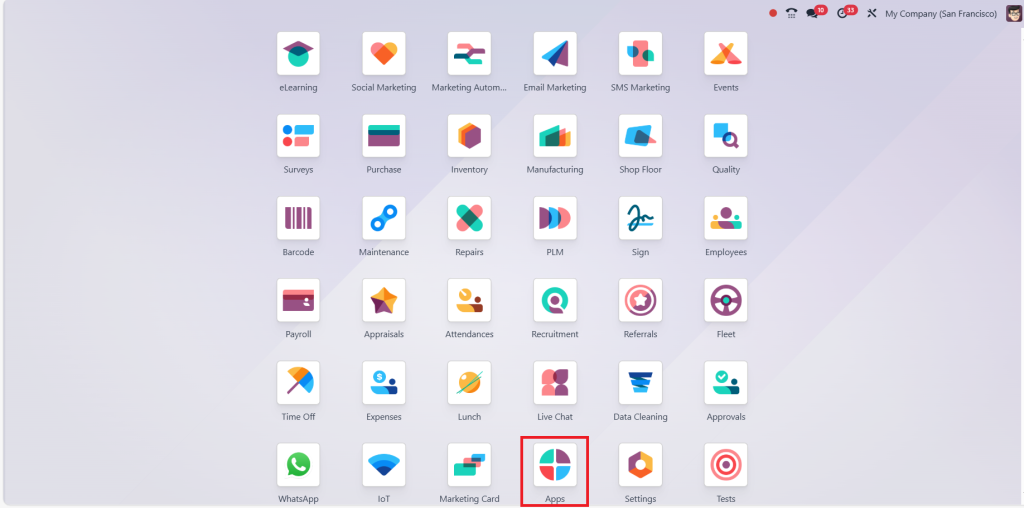
Direct to the Apps menu in Odoo 18.
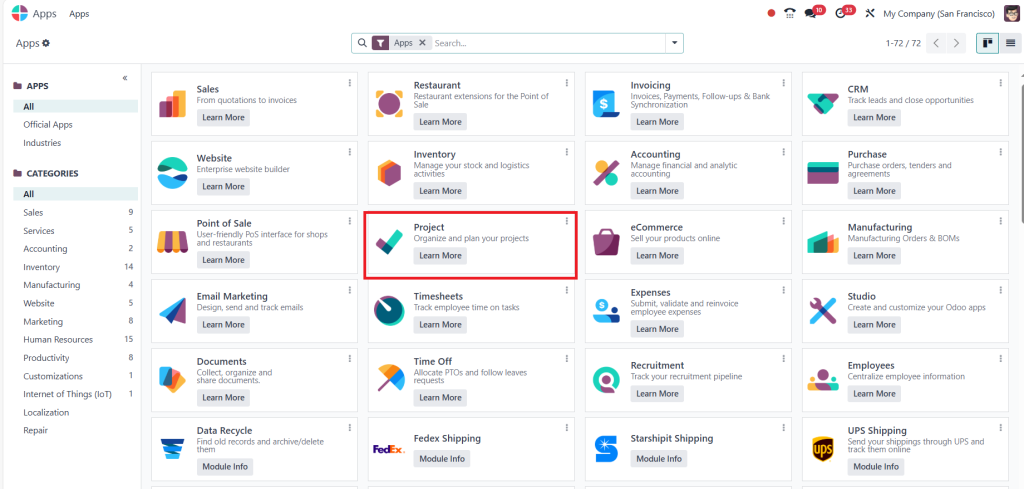
Please search for and install the Project module. After installation, open the module to begin setting up your project.
Step 2: Create a New Project
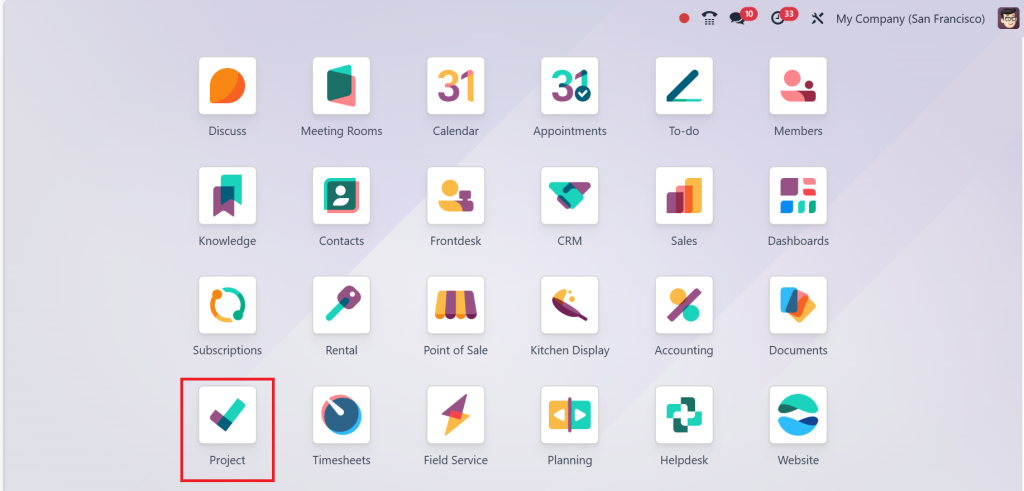
Go to the Project module dashboard.
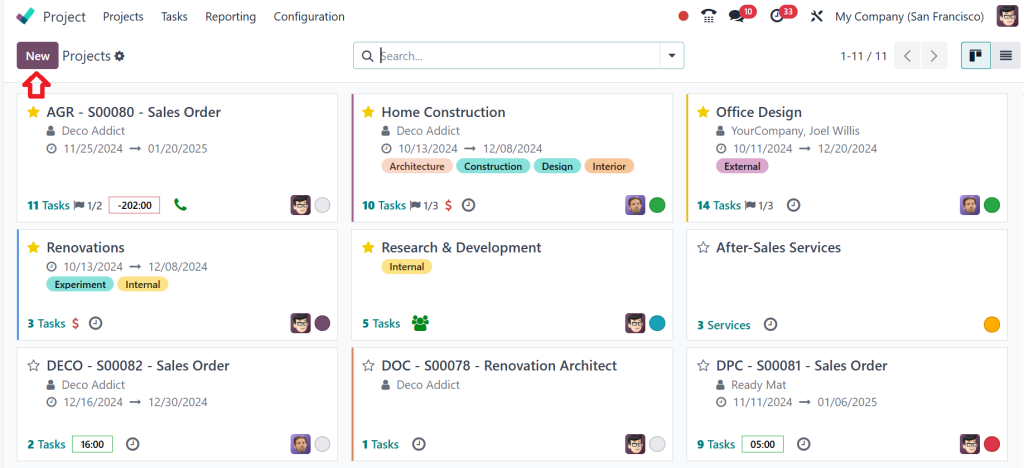
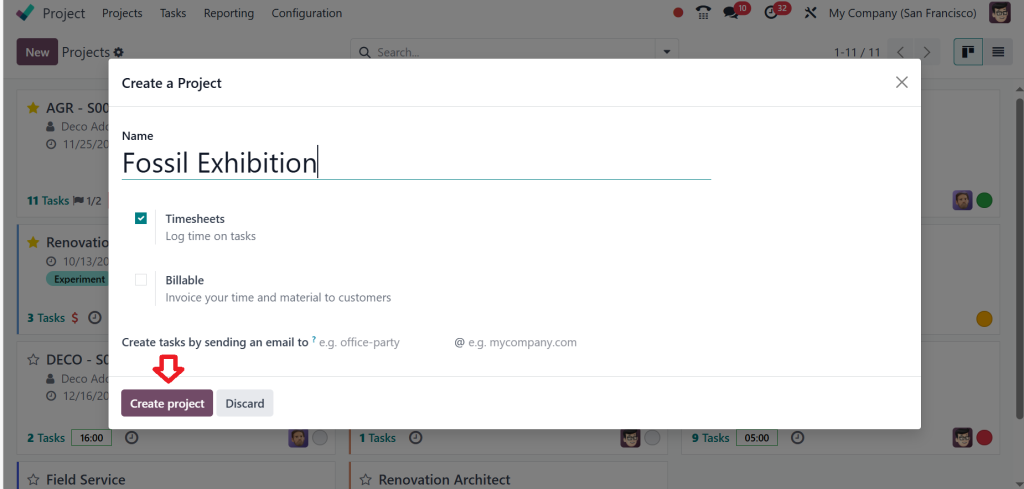
Click on “New.”
Enter the project name and description and click on ‘‘Create Project’’.
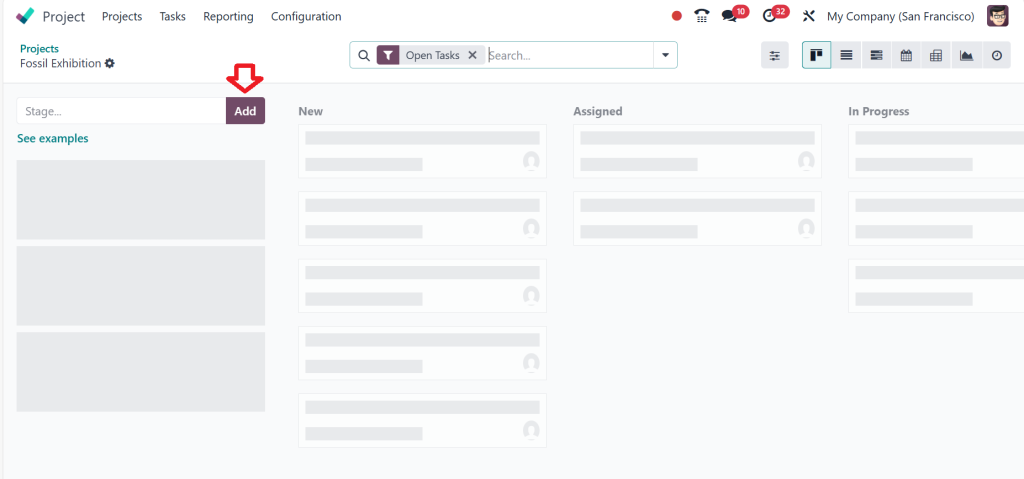
So, now we are here to Kanban view. Kanban is one of several ways to organize and view your project. It’s essentially a whiteboard that allows you to create a kind of post or a tool that presents data in the form of cards for each one of your tasks. The board is divided into stages that you can use to track the progress of your tasks with a simple drag-and-drop.
Step 3: Create Stages in Project
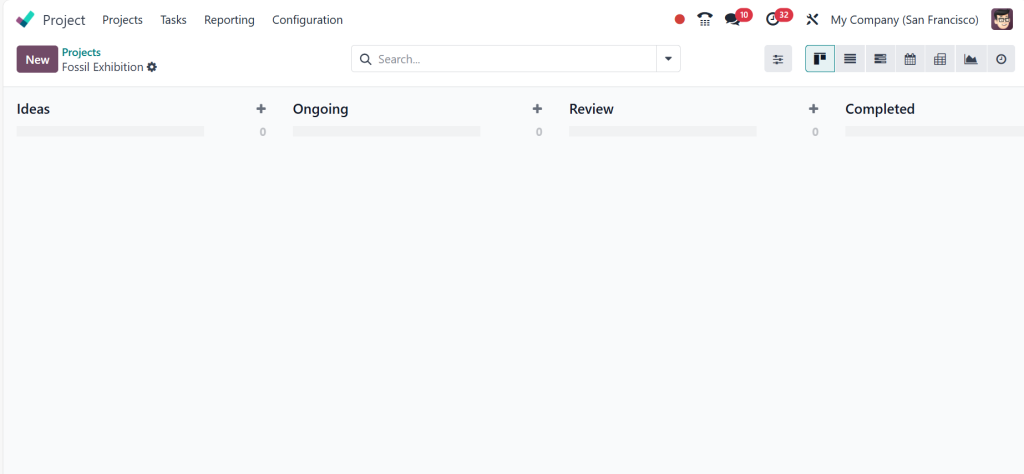
Now, let’s create our stages. To do so, click on the ‘‘Add’’ button after writing the stage name in the box.
Here, you can see all the stages. Your project is now live and ready for task creation and management.
How to Create Tasks in Odoo 18?
Tasks are the building blocks of any project. Here’s how to create them effectively in Odoo 18:
Step 1: Access the Project
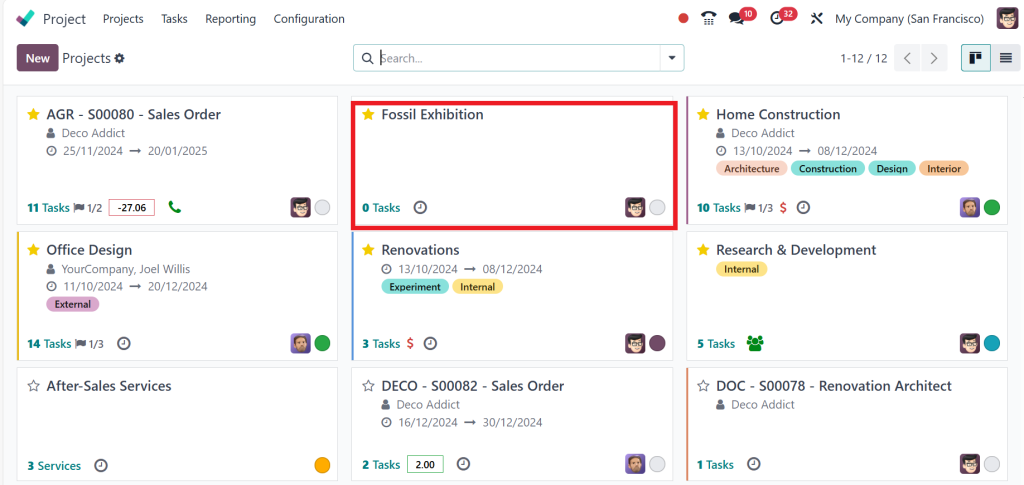
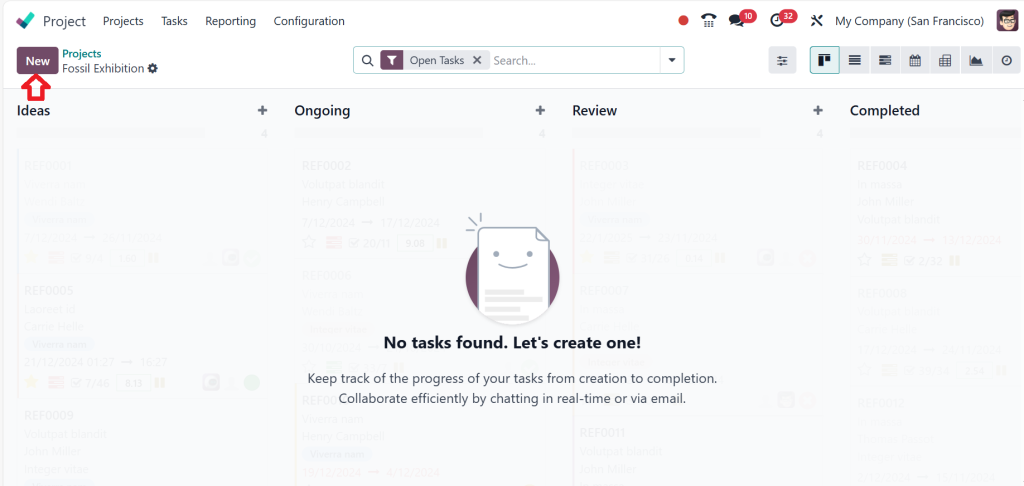
Go to the ‘‘Fossil Exhibition’’ project created above, and click on it to add tasks.
Step 2: Click on "Add a Task"
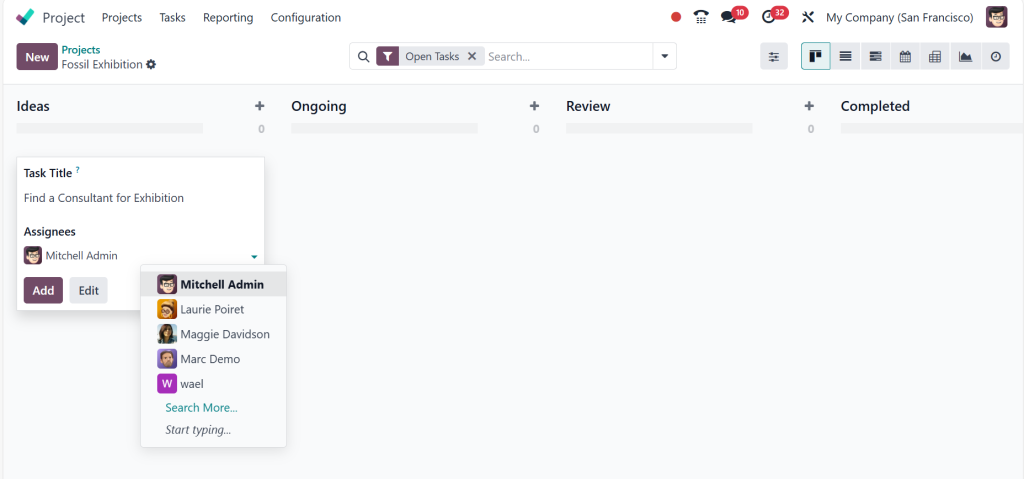
In the project dashboard, click “New” to add a task. You can also add a new task by clicking on the plus sign ‘‘+’’, as shown in the image below. Then, enter the task name and details.
Then, enter the task name and details, assign the task to a team member, and click on “Add.”
Step 3: Define Task Attributes
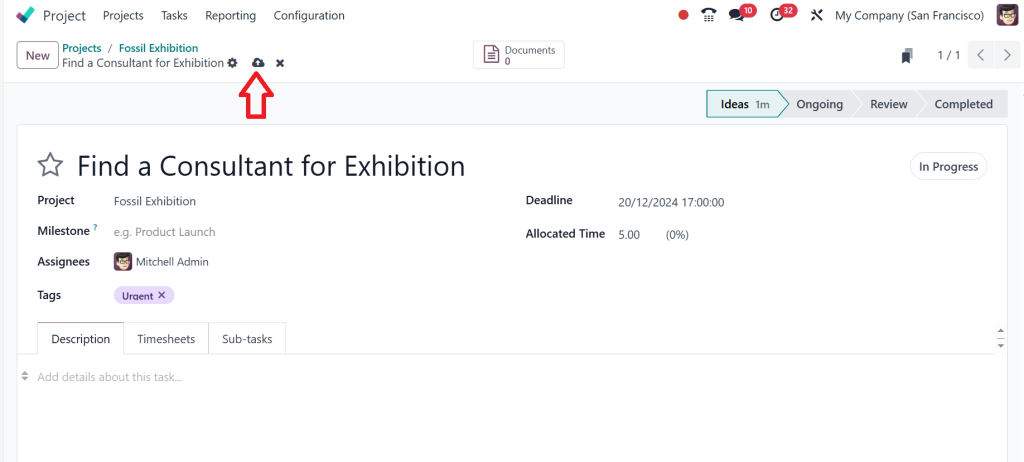
Set a deadline for the task, attach any relevant files or documents, and use tags to categorize tasks for better management. Then click on “Save.”
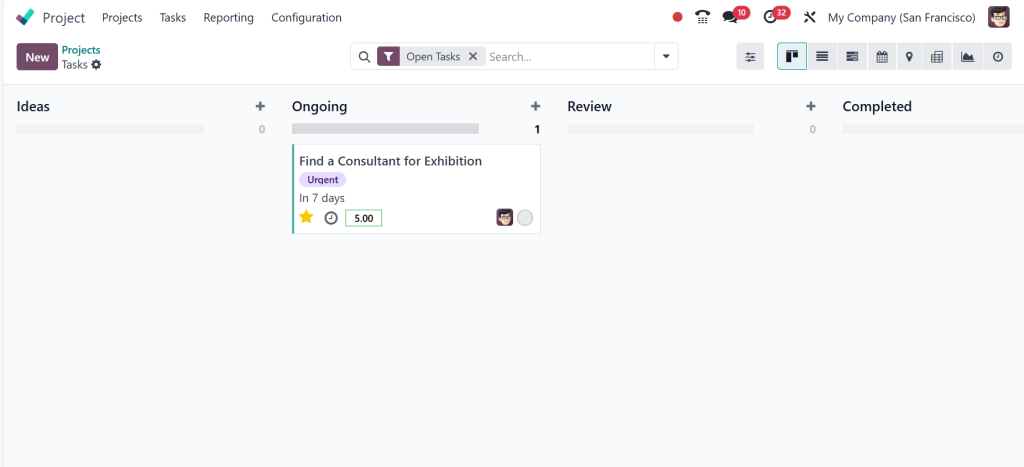
Step 4: Monitor Task Progress
Odoo 18 offers tracking tools to monitor progress. Stay updated with Kanban views, Gantt charts, and calendar integrations.
With its intuitive interface, creating tasks in Odoo 18 becomes effortless, ensuring that every task contributes to the project’s success.
Key Features of Odoo 18 Project and Task Management
Understanding Odoo 18 project and task management features is crucial for maximizing its potential. Here’s what you can leverage:
Kanban and Gantt Views
Visualize your projects and tasks with Kanban boards and Gantt charts. These tools provide a bird’s-eye view, making it easy to track progress and deadlines.
Time Tracking
Monitor the time spent on tasks to ensure projects stay on schedule. This feature is invaluable for billing and performance assessment.
Resource Allocation
Assign resources effectively to prevent bottlenecks. Odoo 18’s resource management tools optimize team productivity.
Real-Time Collaboration
Use activity logs and real-time updates to keep everyone on the same page. With Odoo 18’s features, collaboration becomes unified.
Tips for Managing Projects in Odoo 18
Efficient management goes beyond setup. Here are actionable tips for managing projects effectively:
Tip 1: Set Clear Objectives
Define the project’s goals and communicate them to your team. Clarity ensures everyone is aligned with the project’s purpose.
Tip 2: Use Tags and Filters
Organize tasks using tags and filters. This makes it easier to locate specific tasks and track their progress.
Tip 3: Leverage Reporting Tools
Odoo 18’s reporting tools offer insights into project performance. Use these reports to identify bottlenecks and implement improvements.
Tip 4: Automate Repetitive Tasks
Automation saves time and reduces errors. Use Odoo 18’s automation tools to rationalise repetitive processes.
Effective Project Management with Odoo 18: A Case Study
Consider a mid-sized IT firm struggling with project delays. After adopting Odoo 18, they:
Implemented structured workflows.
Reduced task allocation errors by 30%.
Improved team collaboration with real-time updates.
This case demonstrates the power of effective project management with Odoo 18 in transforming business operations.
Why You Should Follow This Odoo 18 Guide
Mastering how to set up projects in Odoo 18 is not merely about learning the basics; it’s about revealing your organization’s full potential for smooth project execution. Following the actionable strategies, tips, and Odoo 18 task management guide outlined here will give your team the tools to achieve higher efficiency and better results.
Whether you’re new to Odoo 18’s project and task management features or looking to optimize your existing setup, this guide equips you with everything needed for success. Odoo 18 is a reliable ally in your project management journey, from creating detailed projects to automating repetitive tasks.
So, take the first step today. Leverage the insights from this guide and transform your project management approach with Odoo 18.
Hi, I'm Ilsa Shabbir, an Odoo ERP content writer specializing in functional blogs on Odoo modules. I simplify complex Odoo features, creating clear and engaging content to help businesses understand and optimize their ERP solutions.
We use cookies to ensure that we give you the best experience on our website. If you continue to use this site we will assume that you are happy with it.