

Text-Based Watermark in Odoo 18 PDF Reports
If you are new to Odoo or ERP systems, you might be wondering what this blog is actually about.
Whenever a business creates documents like quotations, sales orders, invoices, or purchase orders in Odoo, those documents are usually downloaded or shared as PDF files. Sometimes, these PDFs need a visible label such as “DRAFT”, “CONFIRMED”, or “CONFIDENTIAL” to clearly show the document’s current status.
That visible label placed behind the content of a PDF is called a watermark.
In simple terms, this blog will teach you how to automatically display a large, light text (like “DRAFT”) in the background of a PDF report in Odoo 18, without changing any core system files or writing complex backend code.
We will use a practical example of a Sales Order to show how the watermark text can change automatically based on the document’s status. Even if you are implementing Odoo customization for the first time, this guide will walk you through the process step by step in an easy and understandable way.
By the end of this article about Text-Based Watermark in Odoo 18 PDF Reports, you will clearly understand:
- What a text-based watermark is
- Why businesses use it
- How Odoo generates PDF reports
- And how you can safely add dynamic watermarks using QWeb and CSS
Let’s get started.
What Is a Text-Based Watermark?
A Text-Based Watermark in Odoo 18 PDF Reports is semi-transparent text displayed behind the main content of a PDF report. It acts as a visual status indicator while keeping the document readable.
In Odoo 18, PDF reports are generated using QWeb templates and rendered through the wkhtmltopdf engine. Because reports are HTML-based before conversion to PDF, we can use CSS styling to insert and design watermarks easily.
Unlike image watermarks, Text-Based Watermark in Odoo 18 PDF Reports are:
- Lightweight
- Dynamic
- Easy to maintain
- Fully customizable
- Upgrade-safe
That’s why they are generally the recommended approach for Odoo report customization.
Why Businesses Use Watermarks in Odoo Reports
Text-Based Watermark in Odoo 18 PDF Reports aren’t just about aesthetics, they serve practical business purposes.
Common use cases include:
- Marking quotations as DRAFT
- Showing CONFIRMED on finalized sale orders
- Labeling internal documents as CONFIDENTIAL
- Indicating CANCELLED records
- Showing PAID or OVERDUE on invoices
These indicators reduce miscommunication and add a layer of operational clarity.
Text-Based Watermark vs Image Watermark
When customizing Odoo PDF reports, you have two main options:
Text-Based Watermark (Recommended)
- Uses HTML and CSS
- Fully dynamic (changes based on record state)
- No need for image files
- Easier to modify later
Image-Based Watermark
- Uses a background image
- Less flexible
- Harder to manage across different states
In this guide, we focus exclusively on Text-Based Watermark in Odoo 18 PDF Reports because it is cleaner and more scalable.
Example Use Case: Sale Order PDF (Odoo 18)
Let’s implement a dynamic watermark for Sale Orders.
We want:
- DRAFT when the quotation is in draft or sent state
- CONFIRMED when the order is in sale or done state
This ensures the PDF reflects the exact document status automatically.
Step 1: Inherit Sale Order Report Template
The first rule of proper Odoo customization is simple:
Never modify core files.
Instead, inherit the original Sale Order report template.
<template id="sale_order_watermark" inherit_id="sale.report_saleorder_document">
By inheriting the template, we extend it safely without breaking future upgrades.
This approach ensures your Text-Based Watermark in Odoo 18 PDF Reports customization remains stable even when Odoo updates.
Step 2: Add Text-Based Watermark (QWeb)
Watermark Logic (Text Only)
Now we inject the Text-Based Watermark in Odoo 18 PDF Reports inside the page container.
					<xpath expr="//div[@class='page']" position="inside">
   <div class="o_watermark">
       <t t-if="doc.state in ['draft', 'sent']">DRAFT</t>
       <t t-if="doc.state in ['sale', 'done']">CONFIRMED</t>
   </div>
</xpath>
What’s Happening Here?
- We locate the main page container using XPath.
- We insert a new div called o_watermark.
- We use QWeb conditional statements.
- The watermark text changes dynamically based on doc.state.
No Python code is required. Everything is handled within the QWeb template.
That’s the beauty of Odoo’s reporting system.
Step 3: Add CSS Styling for Text Watermark
Text-Based Watermark Style
Now we style the watermark so it looks professional and subtle.
					<style>
   .o_watermark {
       position: fixed;
       top: 45%;
       left: 10%;
       width: 80%;
       text-align: center;
       font-size: 90px;
       font-weight: bold;
       color: rgba(150, 150, 150, 0.25);
       transform: rotate(-30deg);
       z-index: 0;
       pointer-events: none;
   }
</style>
Why This Styling Works Perfectly
- position: fixed ensures the watermark appears on every page.
- rgba(…, 0.25) makes it semi-transparent.
- rotate(-30deg) creates a classic watermark angle.
- pointer-events: none prevents interference with report layout.
The result is clean, readable, and professional.
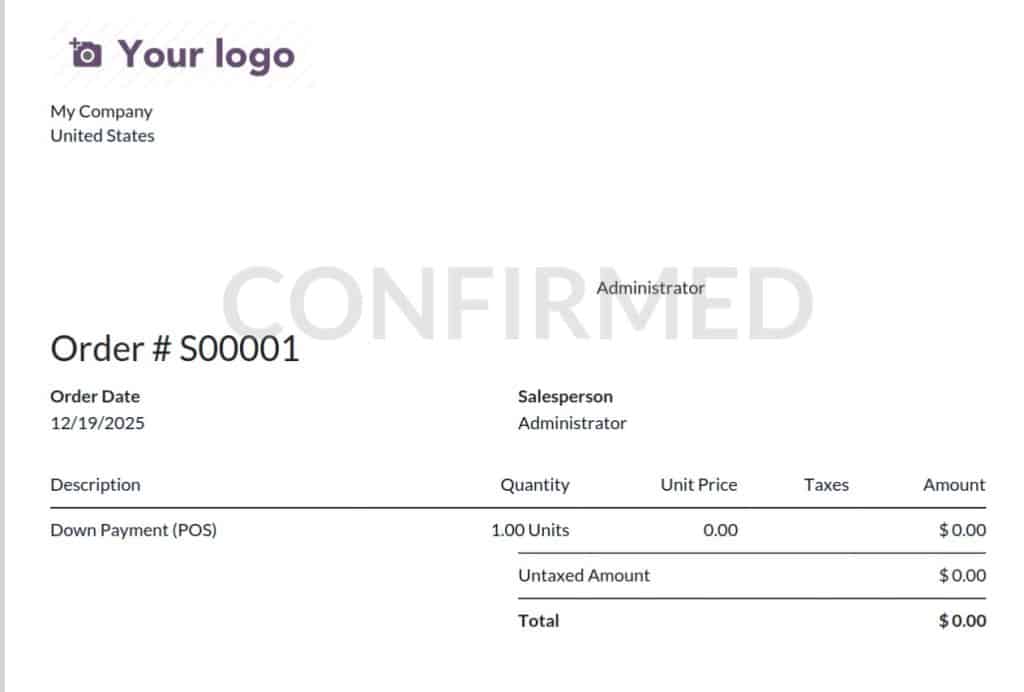
What the Final Output Looks Like
After implementation:
- Draft quotations show a large, subtle “DRAFT” watermark.
- Confirmed orders automatically show “CONFIRMED”.
- The watermark stays behind the content.
- The document remains fully readable.
- Layout integrity is preserved.
The watermark enhances clarity without affecting usability.
Extending This to Other Odoo Reports
Once you understand the logic, you can apply it anywhere.
This approach works for:
- Customer Invoices
- Vendor Bills
- Purchase Orders
- Delivery Orders
- Custom reports
- Internal HR documents
You simply inherit the respective report template and adjust the state conditions.
Best Practices for Odoo PDF Customization
To ensure clean implementation:
- Always use template inheritance.
- Avoid editing original Odoo files.
- Keep watermark opacity subtle.
- Test across multiple document states.
- Validate layout on multi-page reports.
Following these practices ensures upgrade safety and professional output.
Why This Matters for Odoo Developers
If you are offering Odoo development or ERP customization services, learning how to implement a text-based watermark in Odoo 18 is a small but powerful skill.
Clients often request:
- Document status indicators
- Custom PDF layouts
- Report branding adjustments
- Compliance labeling
Being able to implement dynamic watermarks quickly increases your development efficiency and client satisfaction.
Final Thoughts About Text-Based Watermark in Odoo 18 PDF Reports
Adding a Text-Based Watermark in Odoo 18 PDF Reports is a simple yet powerful customization that enhances document clarity and professionalism.
By utilizing QWeb inheritance and CSS styling, you can dynamically display document status without writing complex backend logic.
This method is:
- Clean
- Upgrade-safe
- Flexible
- Scalable
- Developer-friendly
Small improvements like this elevate your Odoo system from functional to professional.
And in business, clarity is everything.




