When you start using different modules in Odoo, one thing becomes very noticeable after a few days. Some menus are easy to access, while others require extra clicks and time. Sometimes the options you use daily are sitting at the bottom of the list, and the menus you rarely touch are appearing right at the top. That is why many businesses start searching for ways to organize dropdowns in Odoo 19 according to their daily work routine.
If you are trying to understand how to change the order of menu items in Odoo 19, you are not alone. Many companies want their ERP systems to feel more comfortable and easier for employees to use. A properly managed Odoo 19 menu sequence helps teams work faster because everything appears where they actually expect it to be. Small changes in menu order can save time every single day.
Another reason businesses focus on dropdowns in Odoo 19 is user experience. When employees open Sales, Inventory, CRM, or Accounting, they want to see important options first. Nobody likes scrolling through long dropdown lists just to find one action. That is why learning how to reorder menu items in Odoo becomes useful for both administrators and business owners.
In this guide, I will explain how to manage menu positions, update the sequence of Odoo menu items, handle the Odoo action dropdown order, and even change the Odoo website menu order without making things complicated.
Why Businesses Change Dropdowns in Odoo 19?
Every business works differently. Some companies rely on Inventory more than on Sales. Some teams spend most of their day inside CRM. Others work mainly in Accounting or Manufacturing. But when the menu order does not align with the actual workflow, employees keep wasting time switching between unnecessary options.
This is one of the biggest reasons companies decide to change the dropdown order in Odoo. They want the system to support their workflow rather than slow it down.
You may have noticed situations like:
- Frequently used menus appear last
- Less important actions show first
- Website menus are looking disorganized
- Dropdown actions confusing employees
- Teams are clicking the wrong options by mistake
These small issues start to create frustration over time. A cleaner sequence of Odoo menu items makes daily work smoother and reduces confusion across departments.
Understanding Odoo 19 Menu Sequence Before Making Changes
Before changing anything, it is important to understand how Odoo arranges menus internally. Every menu item in Odoo has a sequence number. This sequence decides which item appears first and which appears later. Lower sequence numbers appear at the top, while higher numbers move downward.
For example:
- Sequence 1 → Appears first
- Sequence 5 → Appears after 1
- Sequence 20 → Appears much lower
This simple numbering system governs the entire Odoo 19 menu sequence within backend modules and even affects certain frontend areas. Once you understand this logic, managing menus becomes much easier.
How to Enable Odoo Developer Mode Menu Items?
If you want full control over menu order, you first need access to Odoo developer mode menu items. Without developer mode, many advanced settings stay hidden. Odoo keeps technical options restricted because regular users usually do not need them.
Steps to Activate Developer Mode
Open your Odoo 19 dashboard and follow these steps:
Go to Settings.
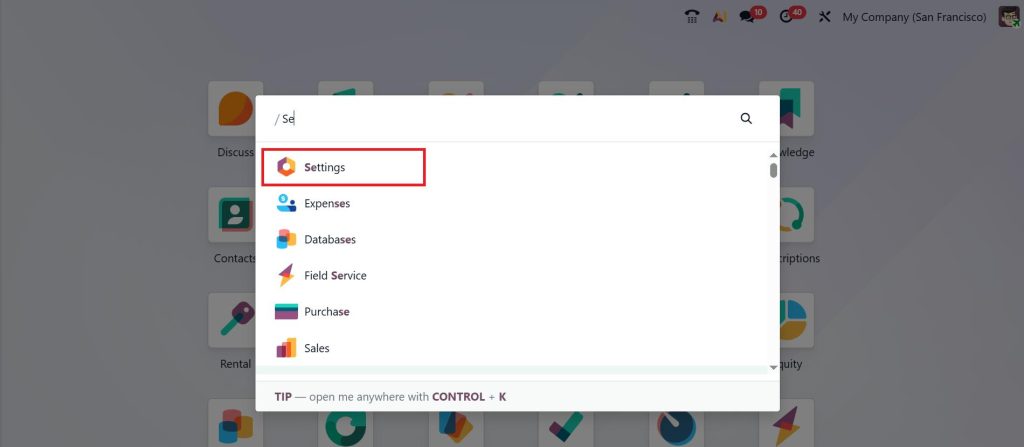
Scroll down to “Activate Developer Mode” and click Save.
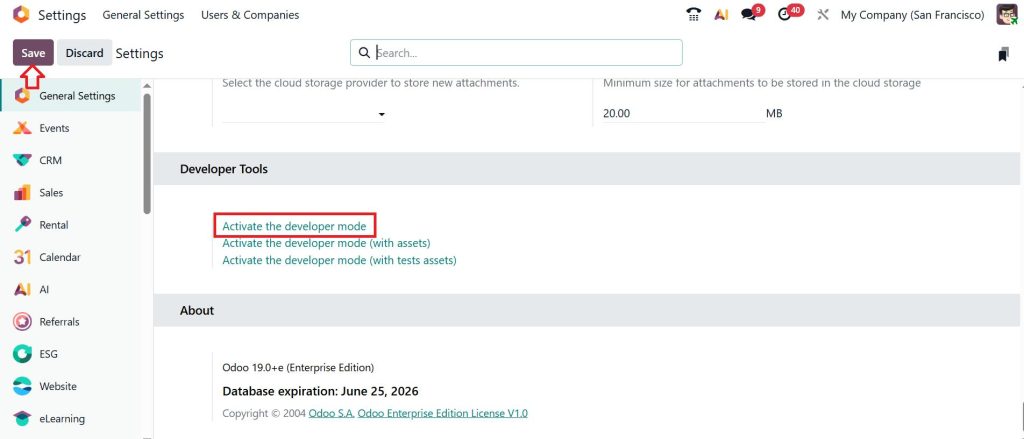
After enabling it, you will start to see additional settings in the system.
This includes:
- Technical settings
- Menu editor
- Actions
- Views
- Sequence controls
- Hidden configurations
These settings help you manage all important Odoo technical menu items from one place.
How to Change Order of Menu Items in Odoo 19?
Now let’s talk about the actual process that most users are searching for. If your menus feel disorganized, you can manually rearrange them from backend settings.
Open Odoo Technical Menu Items
After activating developer mode:
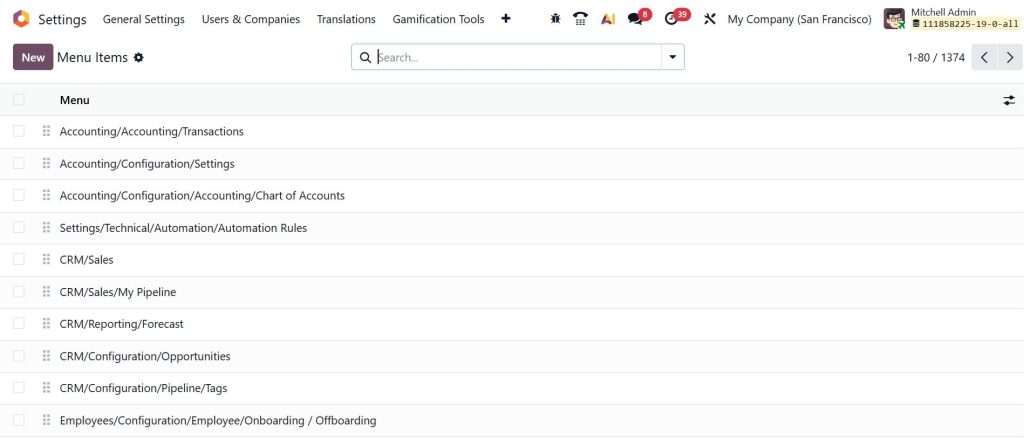
Go to Settings > Technical > User Interface > Menu Items.
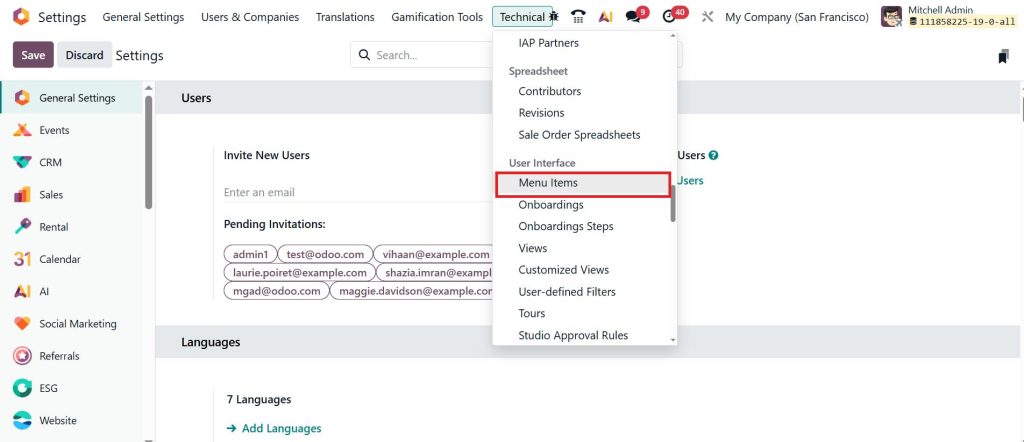
Here you will find all available menus inside your Odoo system. This section contains all module menus, submenus, and actions available in the ERP.
Search the Menu You Want to Move
Now use the search bar to find the specific menu item.
For example:
- Sales
- CRM
- Inventory
- Purchase
- Expenses
- Website
- Accounting
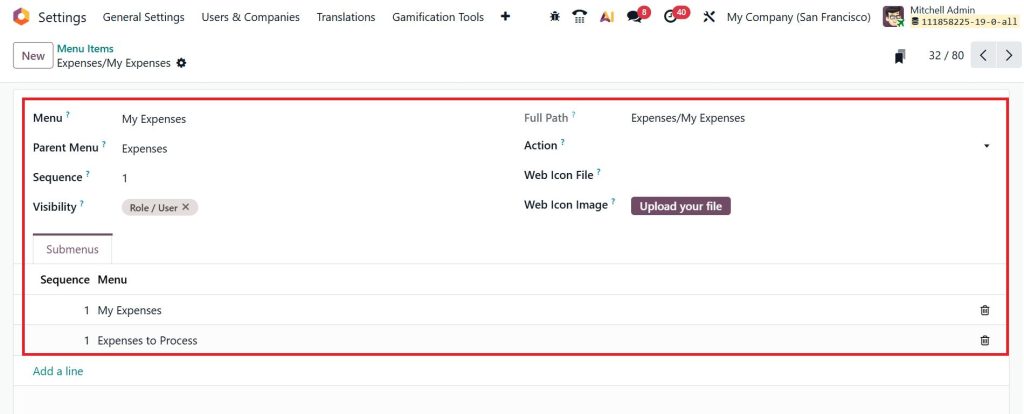
Once opened, you will see multiple fields including:
- Menu Name
- Parent Menu
- Action
- Sequence
The sequence field controls the sequence of Odoo menu items.
Update the Sequence Number
Now, simply change the number to match the position you want.
For example:
Menu | Old Sequence | New Sequence |
CRM | 10 | 1 |
Sales | 1 | 2 |
After saving:
- CRM moves upward
- Sales shifts below CRM
This is one of the easiest ways to reorder menu items in Odoo.
How to Change Dropdown Order in Odoo 19 for Better Navigation?
Menus are not the only thing businesses want to organize. Many companies also need to change the dropdown order in Odoo inside forms, workflows, and action lists.
You may notice dropdowns in:
- Sales Orders
- Purchase Orders
- CRM Pipelines
- Accounting Entries
- Inventory Operations
Sometimes these dropdown options appear in a confusing order. Employees may accidentally click the wrong action because the frequently used option is sitting too low. That is why companies customize the dropdown order according to their workflow.
Managing Odoo Action Dropdown Order
The Odoo action dropdown order becomes important when teams regularly use list views and quick actions.
For example:
- Print actions
- Export actions
- Server actions
- Contextual actions
If actions are not arranged properly, users waste extra time searching for the correct option.
How to Change Odoo Action Dropdown Order?
Follow these steps:
Open the Settings app, enable Developer Mode, go to Technical, and select Actions.
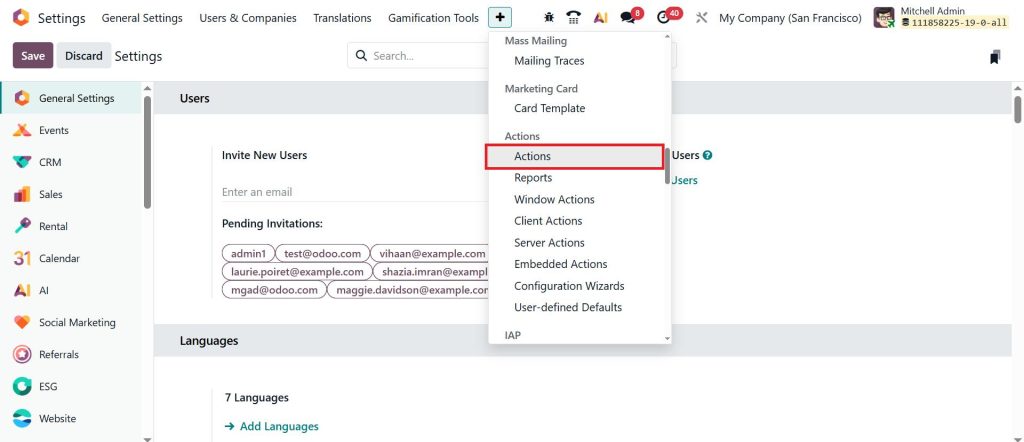
Open the required action.
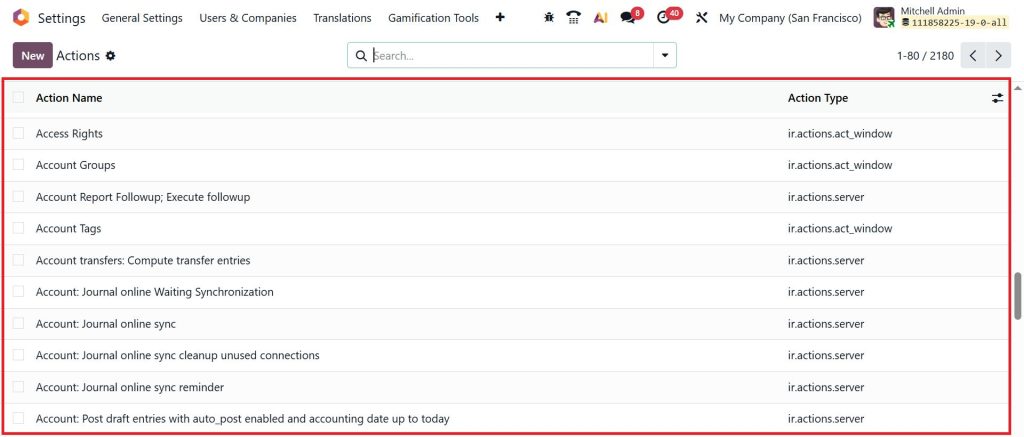
Change the sequence value. The lower number will appear first inside the dropdown.
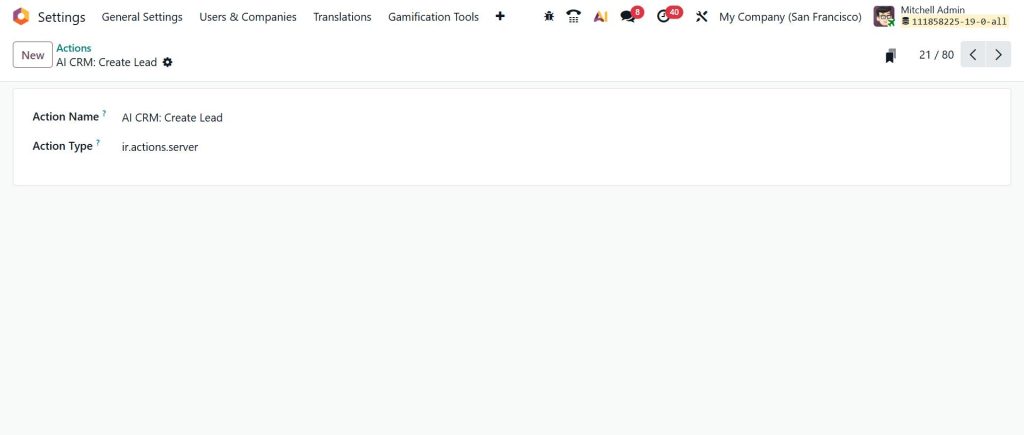
This small adjustment improves workflow speed by allowing employees to quickly access commonly used actions.
Why Odoo Technical Menu Items Matter More Than You Think?
Many people ignore the Odoo technical menu items section because it looks too advanced at first. But once you start exploring it, you realize how much control it gives over the system.
Businesses use these settings to:
- Simplify navigation
- Remove confusion
- Organize departments
- Improve employee experience
- Reduce unnecessary clicks
Sometimes employees avoid using certain modules simply because navigation feels difficult. A properly organized menu structure changes that experience completely.
How Odoo Website Menu Order Affects Visitors?
Backend menus are important for employees, but frontend menus matter for website visitors. The Odoo website menu order controls how customers move through your website pages. If the website menu looks messy, visitors struggle to find information quickly.
For example, your menu may include:
- Home
- Services
- About Us
- Blog
- Contact
If these pages appear in the wrong order, visitors may feel confused while browsing the website.
Steps to Change Odoo Website Menu Order
You can easily adjust frontend menu positions by following these steps:
- Open Website Module
- Go to Site Settings
- Open Menu Editor
- Drag and rearrange menu items
- Save changes
This instantly updates your website navigation. Businesses usually place their most important pages first because visitors often click the top menu options quickly.
Common Problems While Reordering Menu Items in Odoo
Sometimes users update the sequence but do not see changes immediately. This can happen for different reasons.
Cache Issues
Your browser may still be showing old data.
Try:
- Refreshing the page
- Clearing browser cache
- Logging in again
Duplicate Sequence Numbers
If multiple menus have the same sequence number, Odoo may display them inconsistently. It is better to use separate sequence values for cleaner organization.
Missing Access Rights
Only users with technical access can edit menus. If settings are missing, your account may not have administrator permissions.
Best Practices for Odoo Menu Items Sequence
Changing menu positions is easy, but organizing them properly makes a huge difference.
Keep Daily-Use Menus at the Top
Menus like:
- Sales
- CRM
- Inventory
- Accounting
should usually appear first because employees use them frequently.
Group Related Menus Together
When related modules are kept close together, navigation becomes easier.
For example:
- Inventory near Purchase
- Employees near Payroll
- CRM near Sales
This arrangement feels more natural during daily work.
Avoid Long Dropdown Lists
Very long dropdown menus create confusion. Keep menus simple and organized so employees can quickly find what they need.
Why Businesses Are Focusing More on Dropdowns in Odoo 19?
As businesses grow, their ERP system also become larger. More modules, more users, and more workflows create additional complexity. This is why many companies are now paying more attention to dropdowns in Odoo 19. They want employees to feel comfortable while using the system daily.
Even a small improvement in menu arrangement can help teams work more efficiently. Employees spend less time searching and more time completing tasks. That is why understanding how to reorder menu items in Odoo 19 is increasingly important for businesses with multiple modules and departments.
Organize Your Odoo 19 Menus for Faster Daily Work
A well-organized ERP system makes daily work easier for everyone. When menus, actions, and dropdowns appear in the right order, employees feel more comfortable using the system. Small changes in the Odoo 19 menu sequence can improve navigation, reduce confusion, and help teams work faster without unnecessary clicks.
Whether you want to manage the Odoo action dropdown order, update the Odoo website menu order, or organize backend modules through Odoo developer mode menu items, these changes help create a cleaner working environment inside Odoo 19.
Need Help Customizing Your Odoo 19 System?
At Netilligence, we help businesses customize Odoo according to their workflow and operational needs. From menu management to complete ERP customization, our team helps you build a system that feels easy and practical for your employees.
Get in touch with Netilligence and improve your Odoo 19 experience with professional support and customization services.