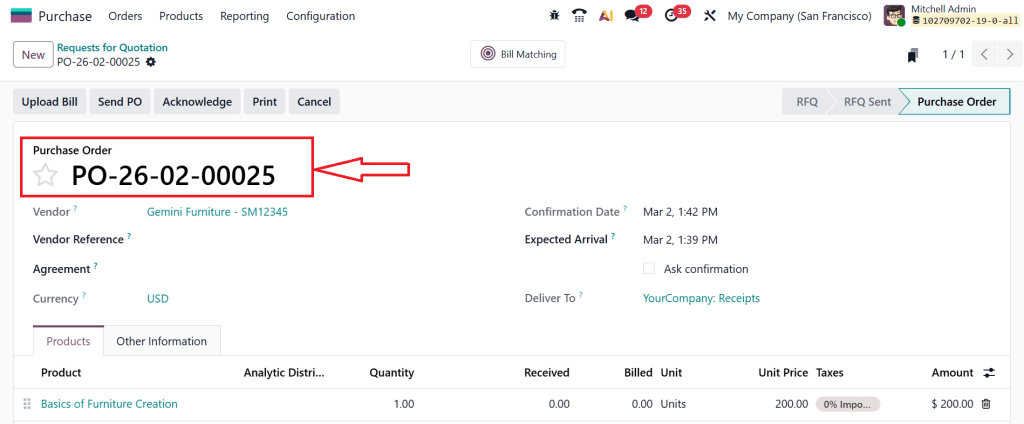
If you are searching for how to change sequence number SO and PO in Odoo 19, it means you have already realized that default numbering is not always enough for a growing business. At the start, the system-generated numbers look fine, and everything seems okay. But as your company expands, small questions begin to come up. Why is the year not visible in the order number? Why can’t we add a branch code? Why does the format not match our internal documentation style?
This is the point where order numbering becomes more than just a system setting. It directly affects how easily your team can track documents, prepare reports, and communicate with clients and vendors. A clear and meaningful number format saves time and avoids confusion during meetings, audits, and daily operations.
In this blog, I will guide you step by step so you can confidently adjust your Sales Order (SO) and Purchase Order (PO) sequences in Odoo 19. If you were unsure where to start or worried about making changes in a live database, don’t worry. I am here to explain it practically and easily so you can handle your numbering system without stress.
Understanding Odoo Sales Order Numbering Setup Before You Change Sequence Number SO and PO in Odoo 19
Before we directly jump into technical steps, let’s understand how numbering works in Odoo. In Odoo 19:
Sales Orders (SO) automatically get a sequence like:
S00001, S00002
Purchase Orders (PO) may look like:
P00001, P00002
These numbers are generated using Odoo’s built-in sequence mechanism. Every time you create a new document, Odoo picks the next number from a predefined sequence. This is part of the Odoo sales order numbering setup and purchase order configuration inside the system.
Now the question is what if your company needs:
SO-2026-0001
PK-LHR-SO-001
PO-RAW-0001
Different numbering for different branches? That’s where you need to change the sales order sequence in Odoo 19 and apply proper customization.
Why Businesses Want to Modify SO PO Sequence in Odoo 19
Every business has its own documentation standards. Here are common reasons why companies choose to modify the SO PO sequence in Odoo 19:
1. Multi-Branch Identification
Companies operating in multiple cities want branch codes in order numbers.
Example:
KHI-SO-0001
LHR-SO-0001
2. Financial Year Based Numbering
Some organizations reset numbering every year:
SO-2026-001
SO-2027-001
3. Department-Based Prefix
Manufacturing or trading companies may use prefixes like:
SO-TRD-0001
PO-IMP-0001
4. Compliance and Audit Requirements
In some industries, legal authorities require structured numbering formats. That’s why learning how to change sequence number SO and PO in Odoo 19 is not just a technical task; it’s a business necessity.
Step-by-Step Guide to Change Sequence Number SO and PO in Odoo 19
Now I will guide you practically on how to do Odoo 19 change SO sequence number. To access sequence settings:
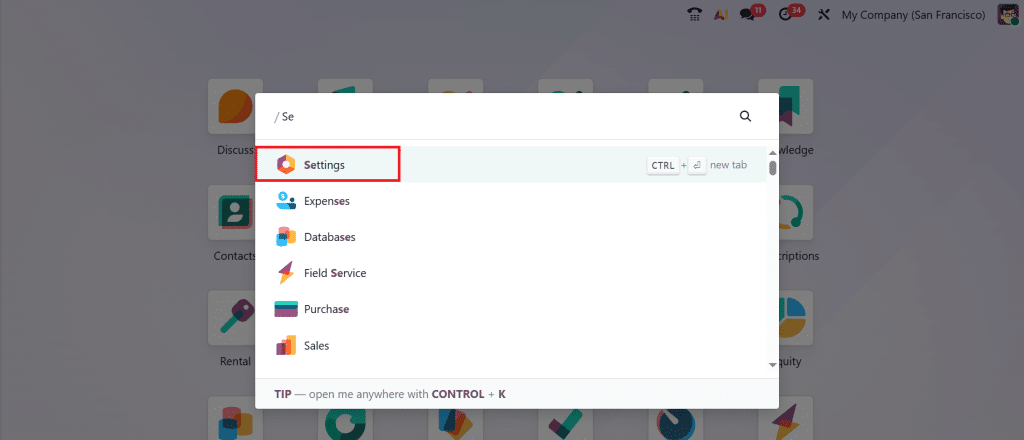
Go to Settings App.
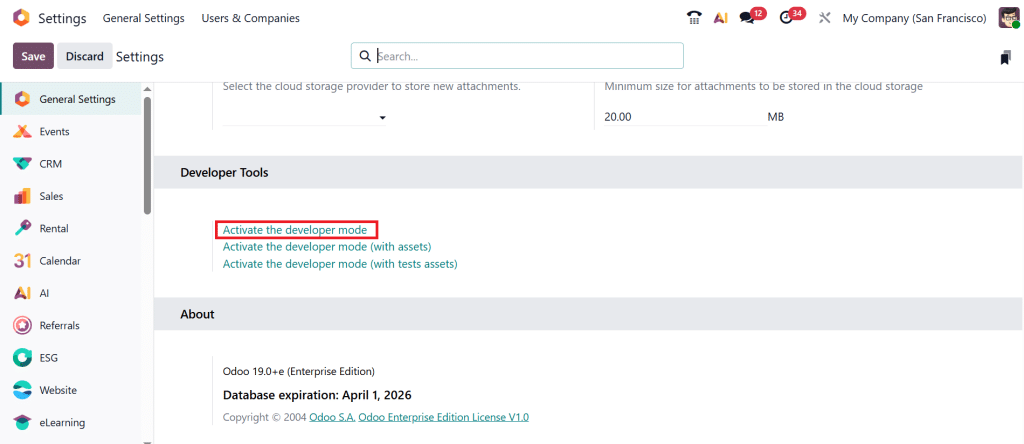
Scroll down and click on Activate Developer Mode.
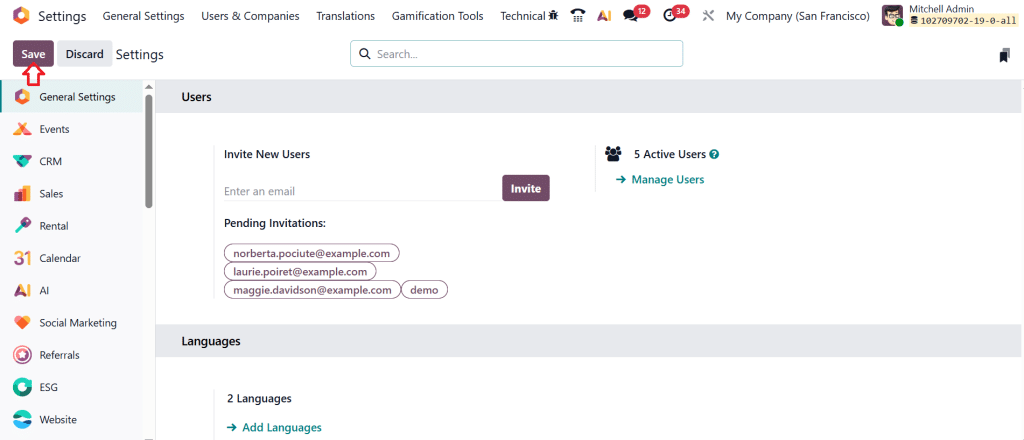
Save the settings by clicking on Save. Developer Mode allows you to see technical configurations like sequences.
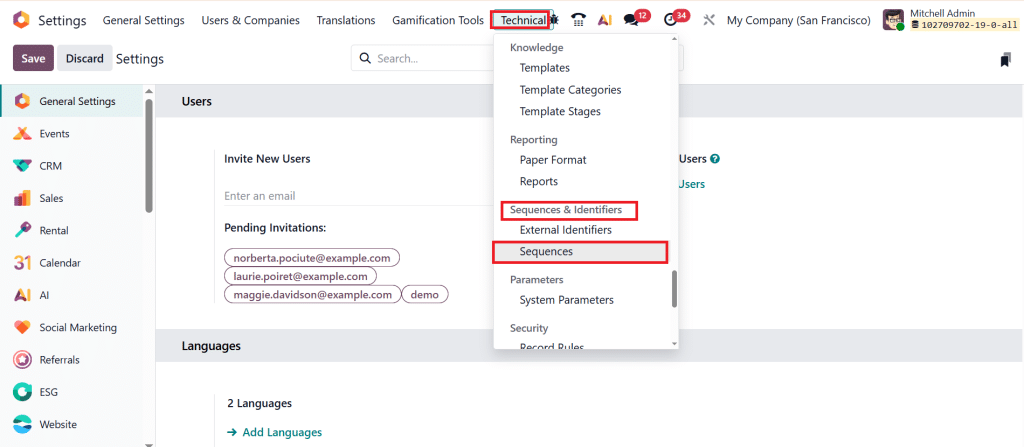
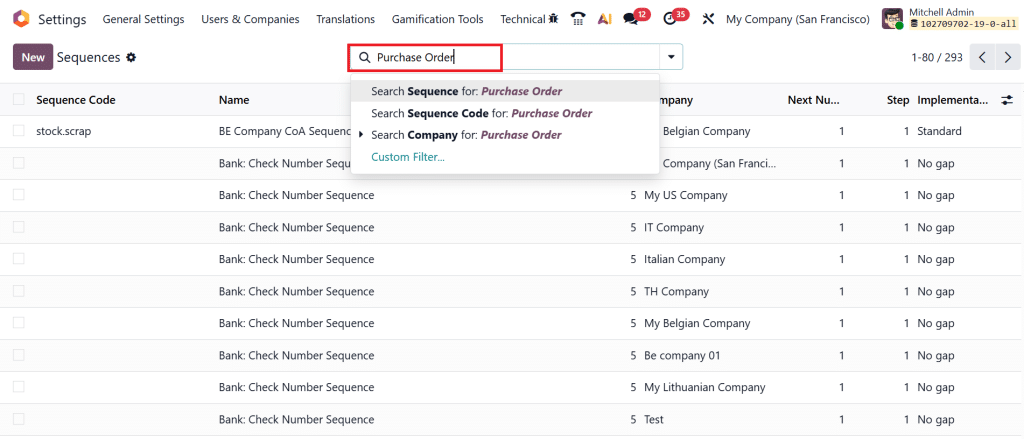
After enabling Developer Mode, click on Technical > Sequences & Identifiers > Sequences.
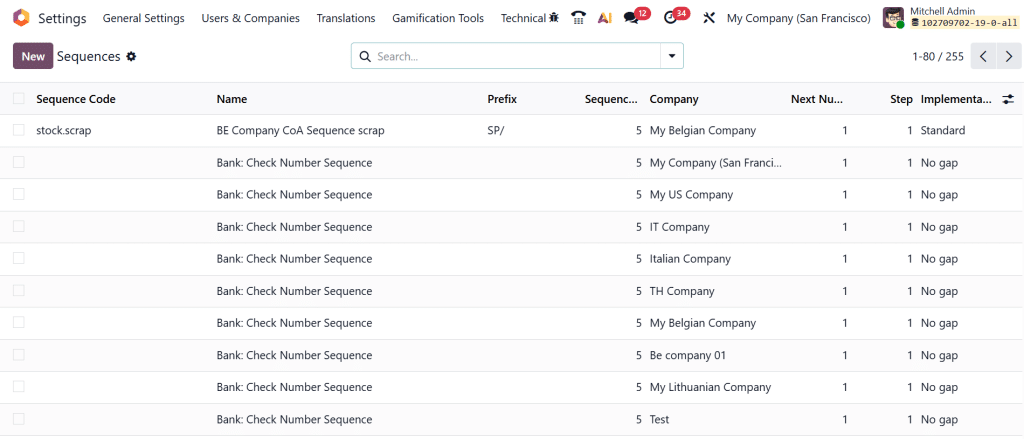
Here, you will find all sequences available in the system.
To perform Odoo 19 change SO sequence number:
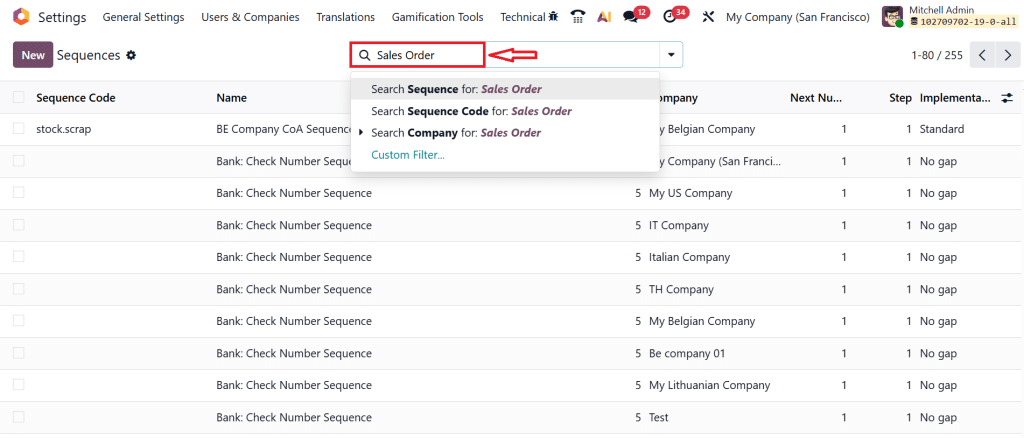
Search for “Sales Order”.
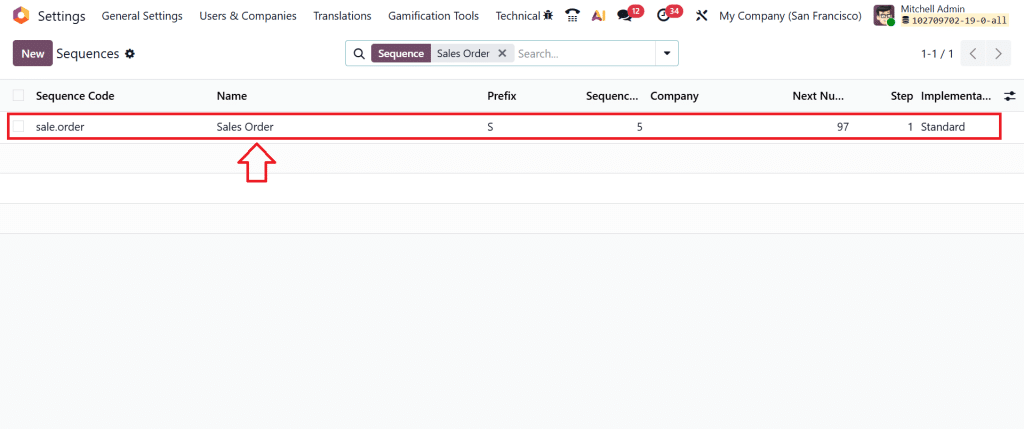
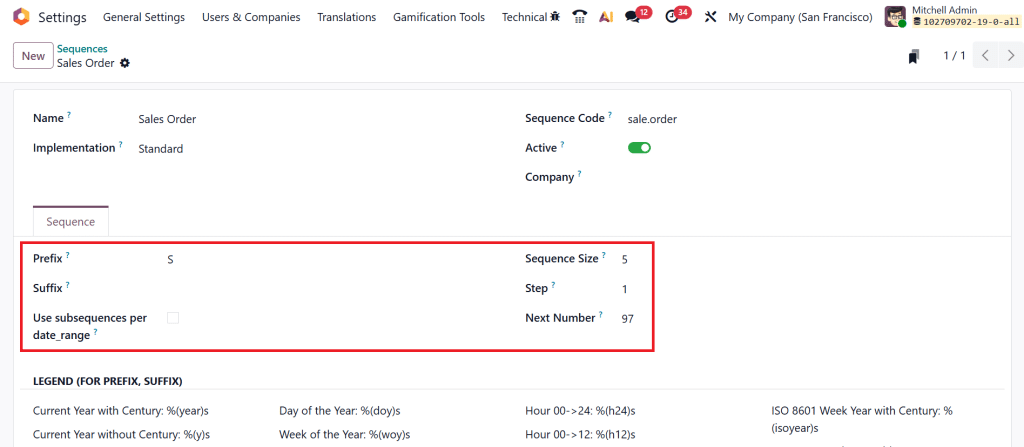
Open the Sales Order sequence.
You will see fields like:
Prefix
Suffix
Next Number
Sequence Size
Step
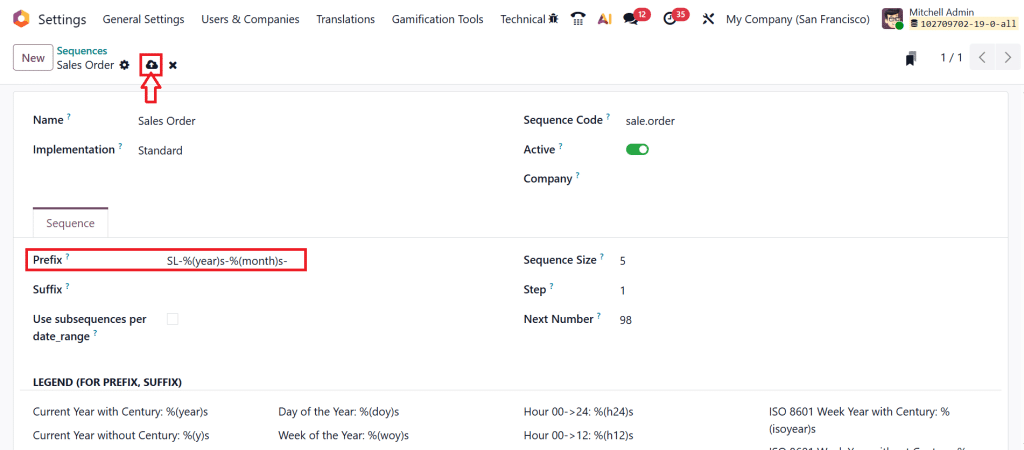
If you want to change the sales order sequence in Odoo 19, you can modify:
Prefix → Example: SL-%(year)s-%(month)s-
Next Number → Reset or adjust
Sequence Size → Number of digits (e.g., 4 digits: 0001)
This is the core part of the Odoo sales order numbering setup.
Click Save after updating.
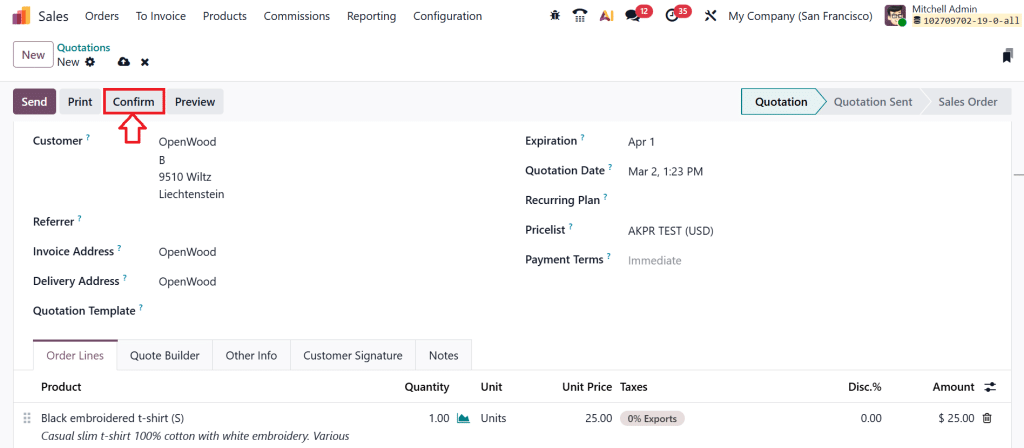
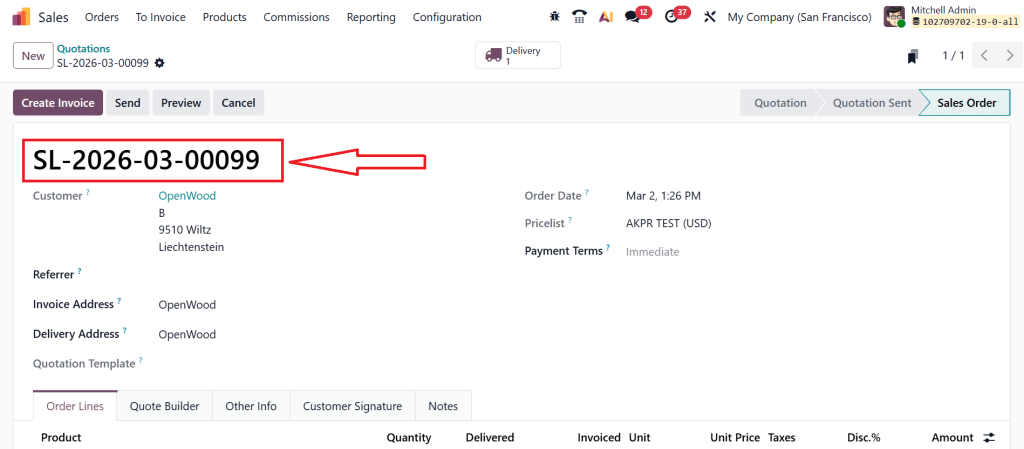
Now, create a new Sales Order and check the updated numbering. Go to Sales app > New > Select Customer > Add Product > Confirm.
Here, you can see that you have now successfully customize sales order number in the Odoo process.
Now, let’s do Odoo 19 PO sequence customization.
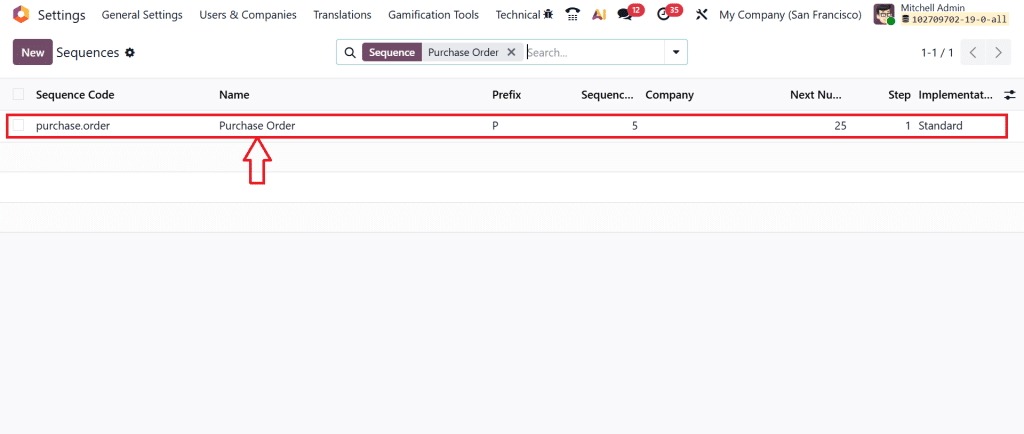
Go back to Sequences. Search for “Purchase Order”.
Open it.
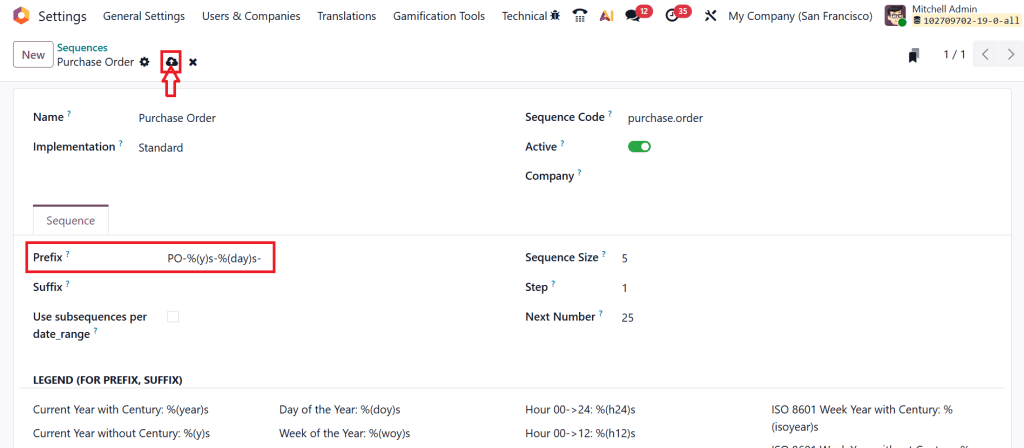
To customize purchase order number Odoo, update:
Prefix → Example: PO-%(y)s-%(day)s-
Next Number → Set desired starting point
Sequence Size → Set digit length
Save changes.
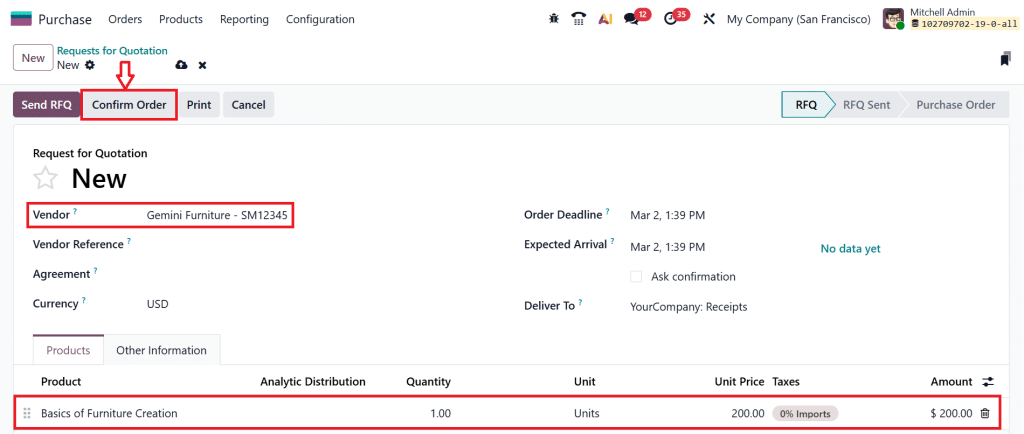
Create a new Purchase Order to test. Go to Purchase app > New > Select Vendor > Add Product > Confirm Order.
You have now successfully done customize purchase order number Odoo process.
Change Sales Order Sequence Odoo 19 According to Your Company Format
Now I want you to think about your own company. Do you need branch-based numbers like:
LHR-SO-0001
KHI-SO-0001
Or maybe you want:
NT-SO-2026-001
To change the sales order sequence in Odoo 19, you just need to modify the prefix carefully. Inside the prefix field, you can write text like:
LHR-SO-
KHI-SO-
NT-SO-%(year)s-
Odoo 19 also supports dynamic values like year and month. This is part of the Odoo 19 sequence prefix sales purchase functionality. But before changing anything in a live system, please check:
Are there already confirmed orders?
Will resetting numbers create confusion?
Planning is important before you modify the SO PO sequence in Odoo 19.
Odoo 19 Sequence Prefix Sales Purchase – Using Year and Month in Numbers
Many companies want numbering like:
SO-2026-03-0001
This is possible using Odoo 19 sequence prefix sales purchase options. In prefix field, you can use:
%(year)s
%(month)s
%(day)s
For example:
SO/%(year)s/%(month)s/
Now your Sales Order will look like:
SO/2026/03/0001
This is very helpful for reporting and tracking. But I always suggest one thing: keep numbering simple. If you add too many elements, it becomes difficult for staff to read quickly. So, when you configure Odoo 19 sequence prefix sales purchase, think from a practical daily use perspective.
Things You Should Check Before You Change Sequence Number SO and PO in Odoo 19
I want to give you practical advice here. Before you change sequence number SO and PO in Odoo 19, check these things:
First, take database backup.
Second, check if there are confirmed orders already.
Third, confirm with accounts team if numbering affects accounting reports.
Fourth, avoid changing numbering frequently. It creates confusion among staff.
Sometimes small configuration looks simple, but it affects reporting and audits later. So, always think before you modify SO PO sequence in Odoo 19.
Common Mistakes During Odoo Sales Order Numbering Setup
When people do Odoo sales order numbering setup, they often:
Change the wrong sequence.
Forgot to save.
Set the wrong padding.
Reset the next number without checking old records.
If you are changing the sales order sequence in Odoo 19, always create one test Sales Order and confirm the format before informing your team. The same goes for customize purchase order number Odoo process. Test first. Then go live.
How Proper Sequence Helps in Daily Work
Let me give you a simple example. Imagine your company name is Netilligence Business System LLC. You want:
Sales Orders:
NBS-SO-2026-0001
Purchase Orders:
NBS-PO-2026-0001
With proper Odoo sales order numbering setup and Odoo 19 PO sequence customization, you can achieve this easily. Now, when your manager checks a document, he immediately understands:
Company name
Document type
Year
Order number
That clarity helps in meetings, reporting, and communication. That is why knowing how to change the sequence number SO and PO in Odoo 19 is not just technical knowledge. It improves daily workflow.
Ready to Update Your SO and PO Numbering in Odoo 19? Here’s What You Should Do Next
Now, you clearly understand how to change the sequence number SO and PO in Odoo 19, how to handle Odoo 19 change SO sequence number, and how to complete proper Odoo 19 PO sequence customization without creating confusion in your system. Before you close this blog, I want you to take one small action.
Log in to your Odoo 19 database today.
Go to your Sales Order and Purchase Order sequences.
Check the current format carefully.
Ask yourself:
Does this numbering reflect my company structure?
Is it easy for my team to understand?
Does it support my reporting and audit requirements?
If the answer is no, then it’s time to modify SO PO sequence in Odoo 19 properly and improve your Odoo sales order numbering setup. And if your setup is complex, multi-company, multi-branch, or financial year-based, don’t experiment blindly on live data.
Contact Netilligence today and let our Odoo experts help you safely customize purchase order number Odoo and configure the right Odoo 19 sequence prefix for sales purchase for your business.
Small configuration changes can make daily operations much clearer. Now it’s your turn to implement it.
Hi, I'm Ilsa Shabbir, an Odoo ERP content writer specializing in functional blogs on Odoo modules. I simplify complex Odoo features, creating clear and engaging content to help businesses understand and optimize their ERP solutions.
We use cookies to ensure that we give you the best experience on our website. If you continue to use this site we will assume that you are happy with it.