In this guide, you will learn how to change UoM and Packaging in Odoo 19 Sales, step by step. Understanding UoM and Packaging in Odoo 19 Sales is critical because it ensures your inventory, pricing, and delivery workflows stay consistent. Many businesses struggle to set the proper units of measure in Odoo 19 or to unify their UoM and packaging logic in Odoo 19. Still, with the appropriate setup, Odoo 19 offers a much more streamlined, flexible approach than earlier versions. In this article, we cover several key topics related to Odoo 19, including UoM change, packaging setup, product UoM configuration, sales packaging management, and changing product UoM in sales orders.
You’ll walk away confident in configuring unified UoM and packaging Odoo 19, and you’ll see how to apply those configurations to your sales orders.
Why UoM and Packaging Matter in Sales
Before steps, it’s worth understanding why proper UoM and Packaging in Odoo 19 Sales is so critical:
- If your sales orders use incorrect UoM, you risk shipping wrong quantities or mispricing orders.
- Packaging definitions ensure that when you deliver goods, the system understands how many base units are inside a “package.”
- In Odoo 19, the packaging and UoM models are more tightly integrated so that a misconfiguration can propagate errors across inventory, purchase, and delivery.
- Having a correct product UoM configuration in Odoo 19 ensures your internal stock, sales, and purchase flows remain coherent.
Thus, by mastering UoM and Packaging in Odoo 19 Sales, you solidify the backbone of your order-to-delivery chain.
Key Changes in Odoo 19: Combined UoM & Packaging
Odoo 19 introduces a more unified model: Units of Measure (UoM) and packaging models are merged into a single, simplified structure.
Here’s what changes bring:
- No separate UoM categories or packaging models in the old sense, you now manage things more fluidly.
- You can define multi-level packages and let Odoo apply conversion logic automatically.
- When creating a sales order, you can pick packaging options directly on the line, and Odoo will compute how many base units are needed.
These changes make Odoo 19 packaging setup and Odoo 19 sales packaging management much more intuitive, provided you set things up correctly.
Even Retail Stores can easily manage sales and Inventory with Odoo ERP.
Step-by-Step: How to Change UoM and Packaging in Odoo 19 Sales
In this section, we’ll walk through the exact steps. Use these subtitles to jump:
- Activate UoM & Packaging in settings
- Configure base UoMs
- Define packaging types
- Assign packaging to products
- Using packaging in sales orders (i.e., change UoM in sales)
- Validate and adjust
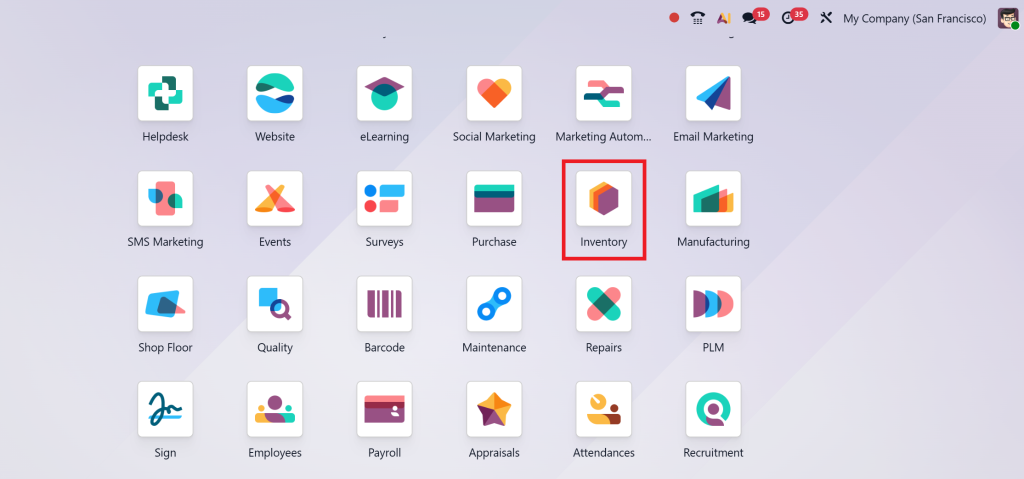
1. Activate UoM & Packaging in Settings
To begin with, you must enable the features:
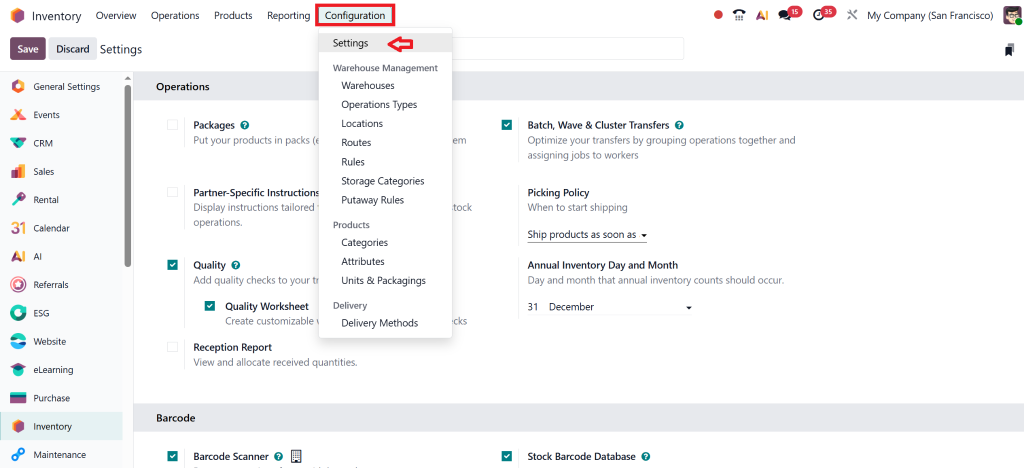
- Go to Inventory → Configuration → Settings
- Under the Products section, tick Product Packagings (or UoM & Packaging / Packagings)
- Click Save
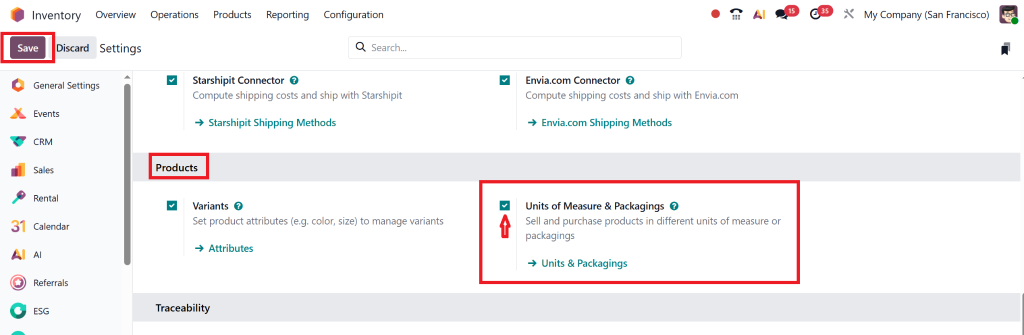
With packaging enabled, Odoo unlocks the packaging configuration fields on product forms and in the sales order lines.
2. Configure Base UoMs
Though Odoo 19 simplifies the model, you still need to define base units and conversion logic:
- Direct to Inventory → Configuration → Units & Packagings.
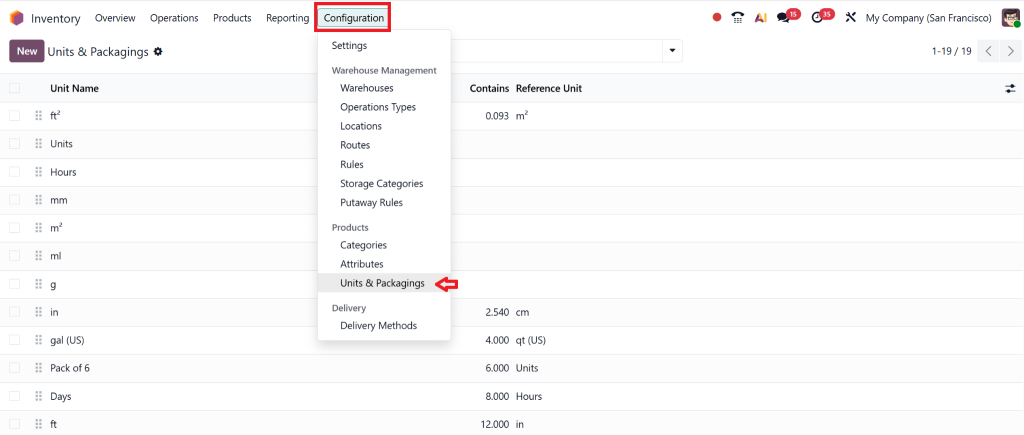
- Here, you’ll see a simplified list rather than categories; you can create new UoMs
- When you define a unit, you specify its ratio relative to the base reference unit (e.g., “Box of 20” = 20 × base unit)

- Because UoM and packaging are unified, every unit you define can act both as a simple unit measure or a package unit.
- Use rounding precision to control the smallest increment for that UoM.
This step ensures Odoo knows how to convert between different units when needed.
3. Define Packaging Types
This is where you tie packaging options to your products:
- Open Inventory → Products → Product Packagings OR you can define packaging inside the product form.
- Create a new packaging record:
- • Name (e.g., “Pack of 6”)
- • Contained quantity (e.g. 6)
- • Unit of Measure (select the UoM you defined)
- • Sales checkbox (if you want this packaging in sales orders)
- • Purchase checkbox (if supplier packaging)
- Optionally, define the barcode, company, or specific routes if the packaging has its own logistics flow.
- Save the packaging record.
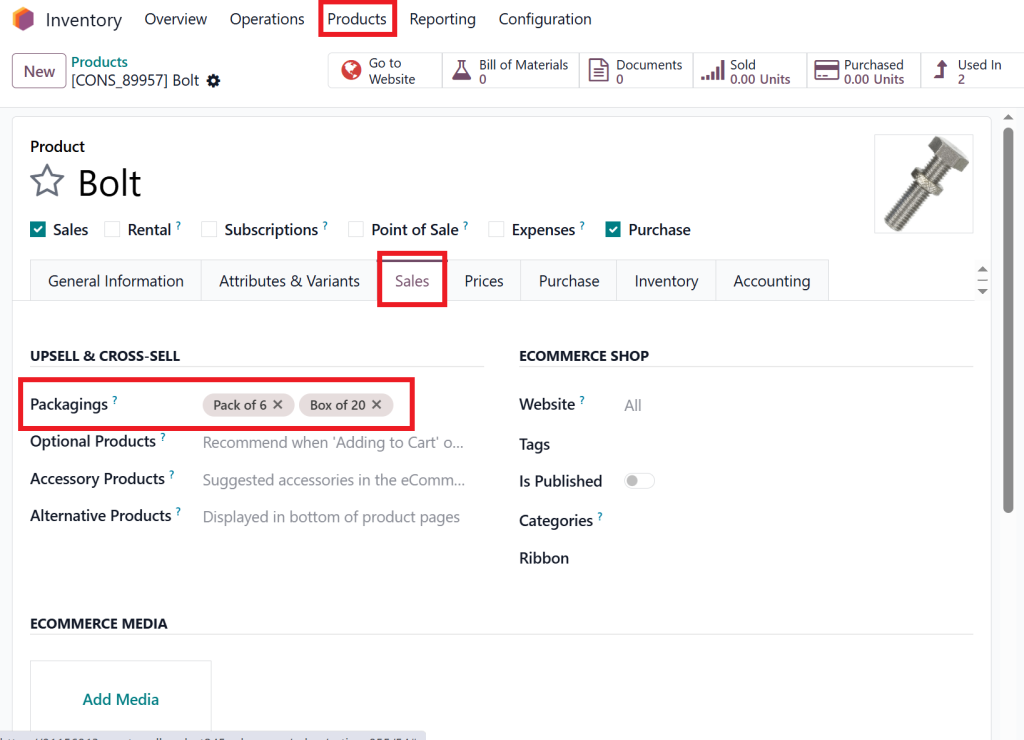
These packaging definitions will appear later when you assign them to products or select packaging in a sales order.
4. Assign Packaging to Products
Next, assign the packaging options to individual products:
- Go to Inventory → Products → Products
- Open a product (or create a new one)
- Under the Inventory tab, scroll to the Packaging section
- Click Add a line
- Choose your packaging (e.g., “Pack of 6”), set the Contained Quantity, and indicate whether it’s for sales or purchase use.
- If needed, expand “additional options” to show fields like routes, barcode, company, etc.
- Save the product
Now that the packaging options are tied to the product, they’ll appear in sales and purchase lines automatically.
5. Using Packaging in Sales Orders (Changing UoM in Sales)
This is the crucial step where changing the product UoM in the sales order in Odoo 19 comes alive:
- Go to Sales → Orders → Quotations / Sales Orders.
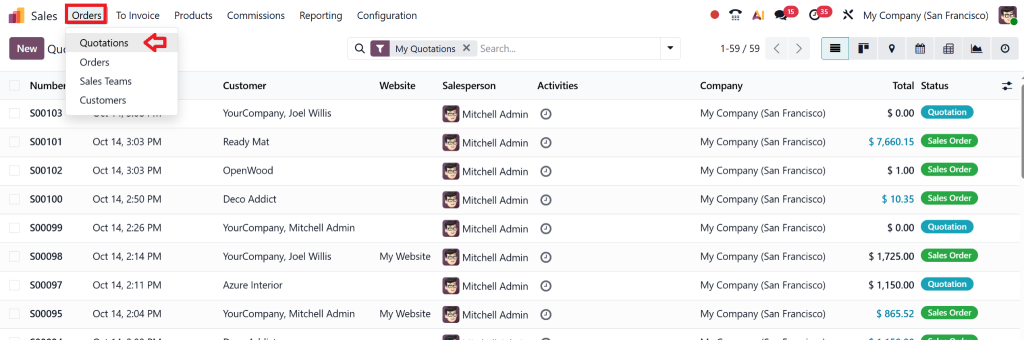
- Create a new SO or open an existing one.
- Add a product line in Order Lines.
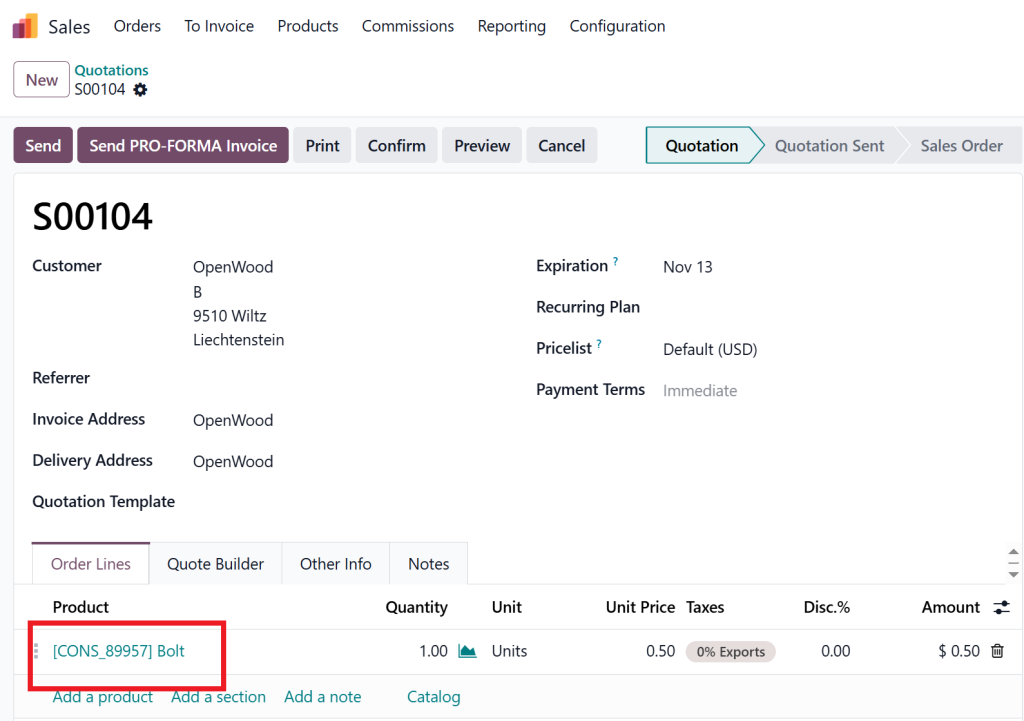
- You will see a Packaging field next to or under the product line, select the packaging option (e.g., “Pack of 6”)
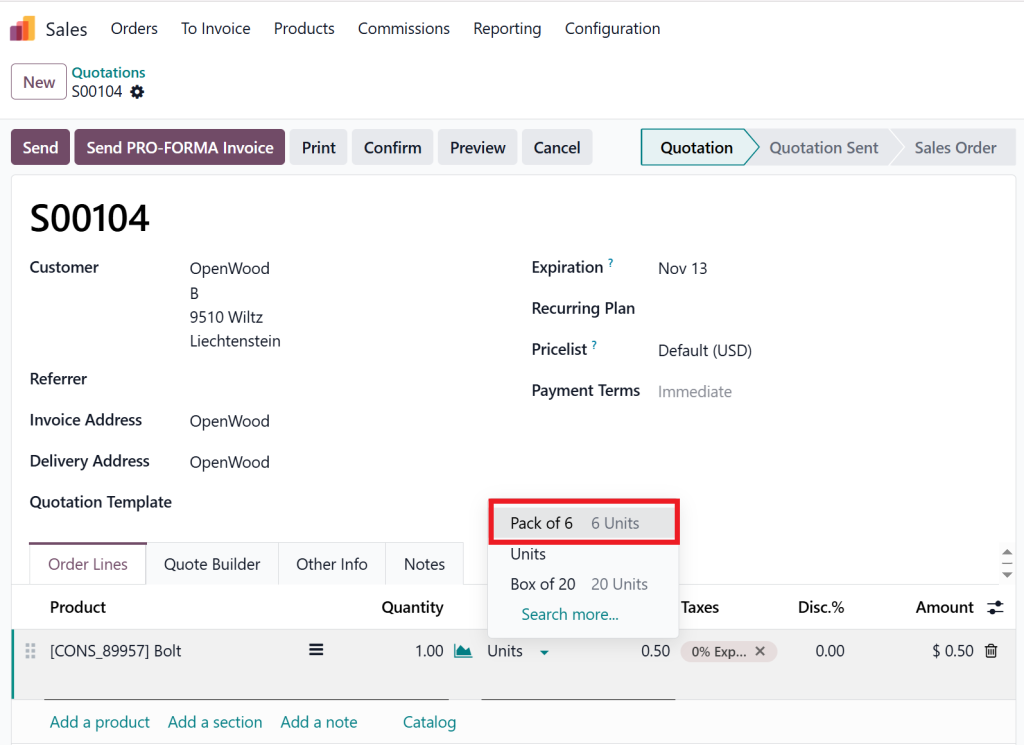
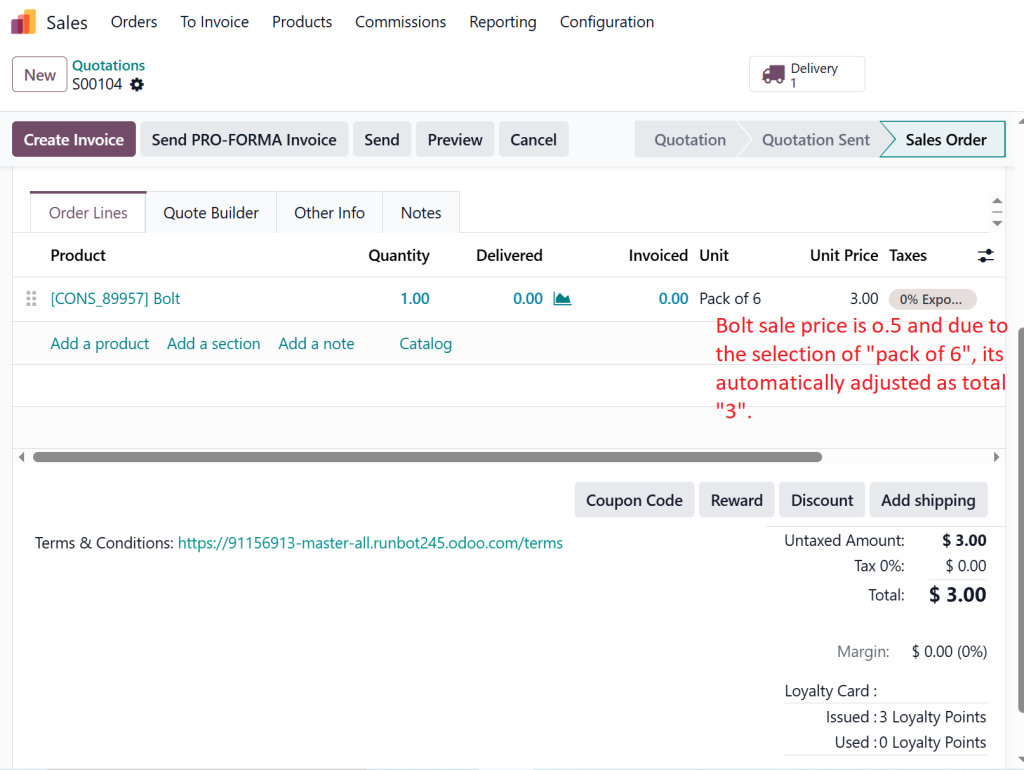
- The Quantity you enter will now be interpreted in packaging units, and Odoo will automatically compute the number of base units. For example, 3 * Pack of 6 = 18 base units
- Pricing may be adjusted automatically based on packaging vs unit pricing.
- You can change the packaging or revert to the base unit if desired.
This is how UoM and Packaging in Odoo 19 Sales come into active use; you essentially change the unit representation in the sales flow by picking the packaging.
6. Validate, Deliver & Adjust
After confirming the sales order:
- The Delivery Order generated will reflect the correct number of base units and packaging mix
- You can reserve either complete or partial packaging, depending on your current stock levels.
- Validate the delivery, and Odoo will track the movement correctly
- On the accounting side, the invoice will reflect the correct quantities and unit prices
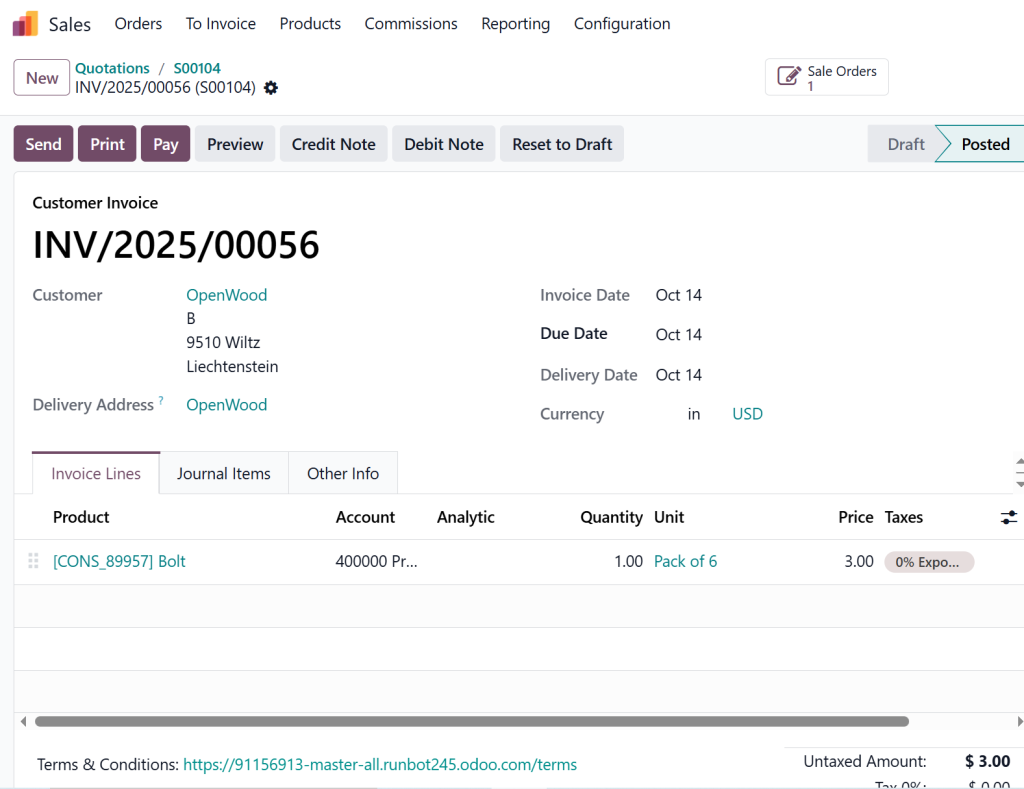
If you ever need to change UoM mid-process, you can go back to the line and adjust packaging or units; Odoo will recalculate accordingly.
Common Scenarios & Tips
Scenario: Selling in Bulk but Storing in Single Units
You might sell in “Box of 12” but store and track in single units. In Odoo 19, you can:
- Define “Box of 12” packaging
- In the sales order, set packaging = “Box of 12,” quantity = 5 → Odoo will deliver 60 units
- Internally, your inventory always remains in base units.
Scenario: Mixed Packaging & Partial Deliveries
Odoo 19 supports partial packaging reservation:
- If only 20 units are available but your packaging is 24, you can still deliver 20 units if Reserve Partial Packagings is enabled in product categories.
Best Practices & Tips
- Always maintain your base unit (e.g., “Unit / pc”) as the core reference and let packaging build up from that.
- Use rounding precision cautiously to avoid ending with fractional quantities.
- When defining pricing, define both unit price and packaging price (if applicable)
- Use barcodes on packaging types so scanning a package pulls the correct quantity.
- Test with dummy products and sales orders before switching to live.
- Train your sales & warehouse teams on the difference between quantity and packaging units.
A community tip:
“Keep the base UoM as pcs but use the packaging feature. Create a package case with its quantity. Then, in POS or Sales, scanning the package pulls the correct quantity.”
Troubleshooting & Common Pitfalls
Issue | Cause | Solution |
The packaging field is not visible on the sales order | Feature not enabled in settings | Go to Inventory → Settings → enable Product Packagings |
UoM conversion appears wrong | Unit ratios or rounding are misconfigured | Check your units of measure definitions and ratios |
Packaging is not showing on the product | Packaging not assigned to that product | Edit product → Inventory tab → add packaging lines |
Sales order shows weird quantities | Mixing incompatible UoMs | All UoMs must be convertible (in the same measure) |
Delivery shows the wrong count | Packaging reservation logic | Enable or adjust Reserve Partial Packagings in product categories |
If you encounter unexpected behaviour, review your unit definitions and packaging assignments first; almost 90% of issues stem from misaligned UoMs or missing packaging links.
Why Choose Netilligence for Your Odoo 19 UoM & Packaging Setup
At Netilligence, we’ve configured UoM and Packaging for many clients across Oman, the UAE, and beyond. We understand the subtle pitfalls and best practices when implementing UoM and Packaging in Odoo 19 Sales.
Here’s why clients trust us:
- We deliver customisation in case your business has unique packaging or UoM logic
- We ensure data integrity, migrating older UoM/packaging setups cleanly
- We train your team so they get the difference between the base unit and the packaging
- We provide ongoing support for sales, inventory, and reporting
- We optimise workflows so your sales packaging management and product UoM configuration always stay accurate
When you choose us, you’re not just getting a consultation; you’re getting a partner who ensures your ERP drives real business value.
Summary & Final Advice
Mastering UoM and Packaging in Odoo 19 Sales pays dividends across your inventory, sales, and logistics. By following these steps:
- Enable features in settings
- Define base UoMs
- Create packaging types
- Assign packaging to products
- Use packaging in sales orders (changing UoM)
- Validate deliveries and adjust
If you’d like us to assist with setup, migration, training, or customisations, feel free to reach out. Let Netilligence empower you to fully leverage UoM and Packaging in Odoo 19 Sales for seamless operations.