If you use Odoo every day, you already know how much time it takes to reply to the same messages over and over. Sometimes you type the same “Thank you for your message,” “I will check and update you soon,” or “Can you share more details?” so many times that it feels endless. This is precisely where canned responses in Odoo 19 Discuss start making life easier.
When you learn how to set them up the right way, you don’t just type faster, you work with a little more ease, a little more comfort, and a lot more clarity. Many users don’t even realize that Odoo 19 now offers an effortless way to create your own ready-made messages in Discuss. And once you start using them, you wonder why you didn’t do it earlier.
I’m talking to you like someone who has been through the same situation, replying to the same message ten times a day, wishing for a shortcut, and sometimes even missing replies because typing it all out again feels tiring. So, if you’re here because you want relief from repetitive texting, want your communication to feel more organized, or want your chats to move faster; then yes, this is precisely what you need. And don’t worry, the steps are simple, the setup is easy, and the result makes every chat feel lighter.
In this blog, I want to show you how to create and use Odoo 19 canned responses, build shortcuts that make sense to you, and turn slow chats into quick responses without stress.
Why Canned Responses in Odoo 19 Discuss Matter More Than You Think
When you start using canned responses in Odoo 19 Discuss, the way you handle conversations changes. You save time, your mind feels clearer, and your replies remain steady even on busy days. You don’t need to rewrite the same long explanation every time someone asks a repeated question. You type the shortcut, and the message appears. Your thoughts are finally catching up with your conversations.
People often tell me, “I know shortcuts exist, but I don’t know how to set them up,” or “I worry I might set them wrong.” But once they learn how to create canned replies in Odoo, they realize it’s not complicated at all. And that’s why I’m explaining it as simply as possible so you can follow along without confusion. When communication becomes easy, work becomes lighter. And when replies come more quickly, people feel heard instantly.
Another thing I’ve noticed is that canned replies help new team members feel confident. Instead of overthinking what to type, they can use ready-made, polite, and clear messages. This is why companies today prefer using Odoo Discuss shortcut responses because it keeps everyone on the same page.
How to Create Canned Replies in Odoo Without Feeling Confused
Let me walk you through the simple process. Start by opening the Discuss app in Odoo 19. This is the same place where you usually chat with your team.
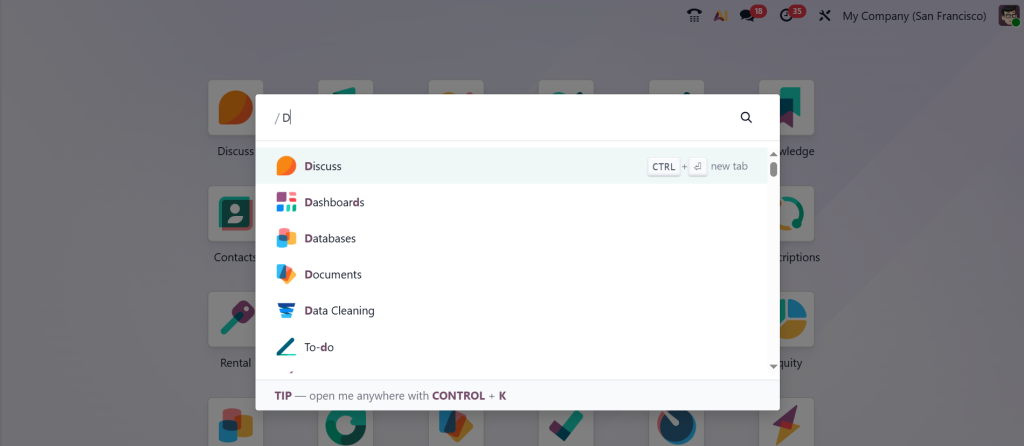
Inside Discuss, go to your Configuration > Canned Responses. This is where you create your shortcuts.
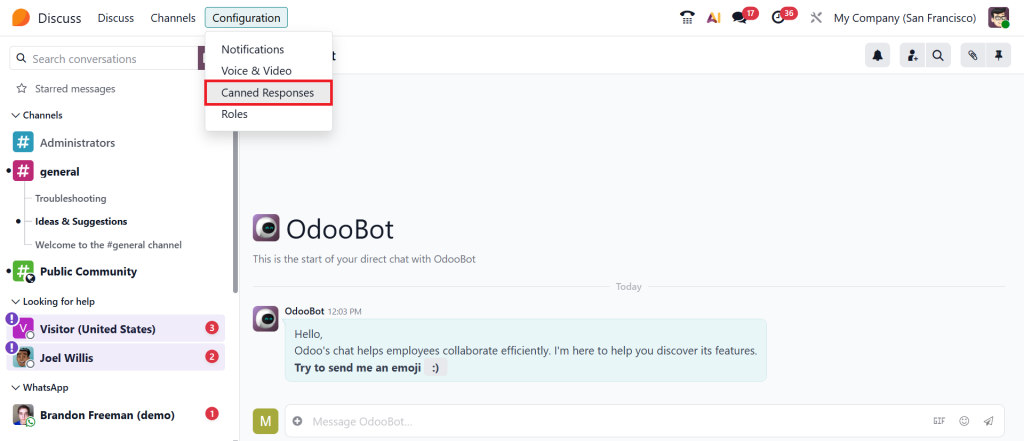
When you click “New”, you will see two boxes.
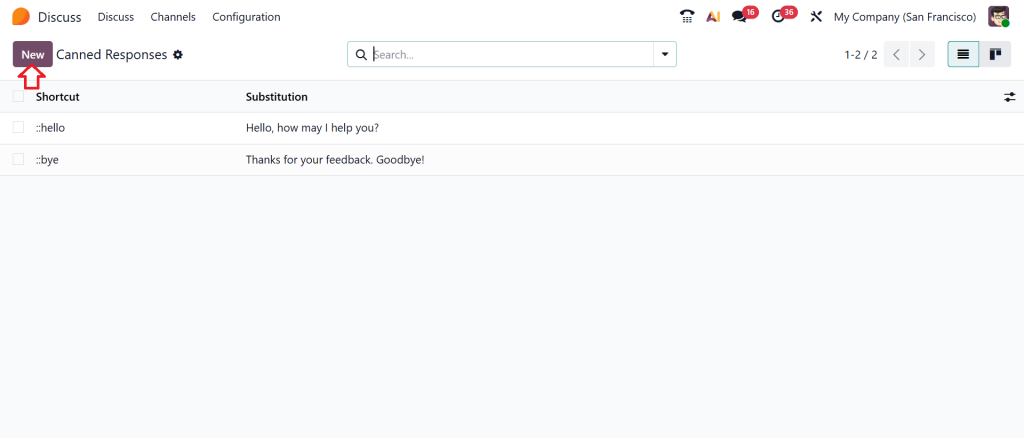
The first box is your Shortcut. This is the small word you will type, like /thanks, /update, /welcome, or anything you like. Make it short enough that you don’t forget it. The second box is your Substitution, the full reply you want Odoo to show when you type your shortcut. This message can be long, short, formal, casual, whatever you need.
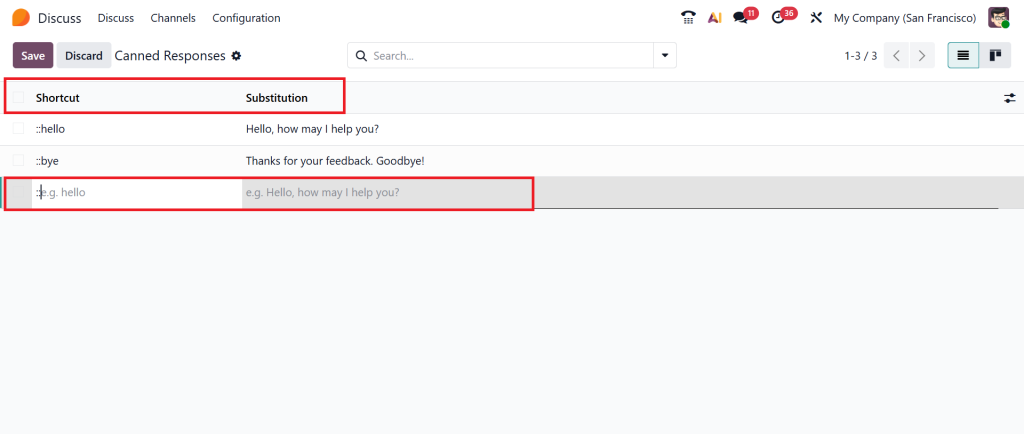
After typing both, you save it. And just like that, your canned reply is ready.
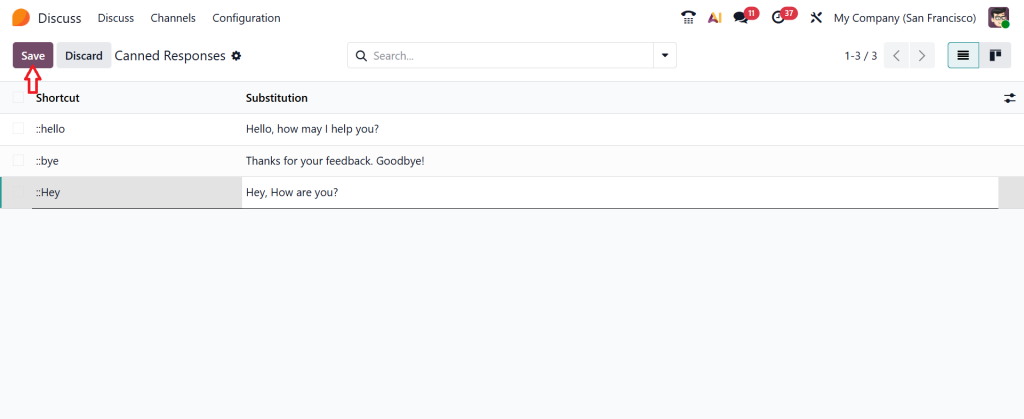
It feels simple because it is simple. Most people feel surprised that they avoided it for so long. Once you start using it, everything becomes smoother. Whenever you open a chat, you can use your Odoo 19 quick reply shortcuts by typing the slash symbol, choosing your shortcut, and sending the message instantly.
This is why so many users depend on Odoo 19 chat canned messages, which reduce the extra work that used to take so much time.
Using Odoo 19 Canned Responses Discuss in Daily Conversations
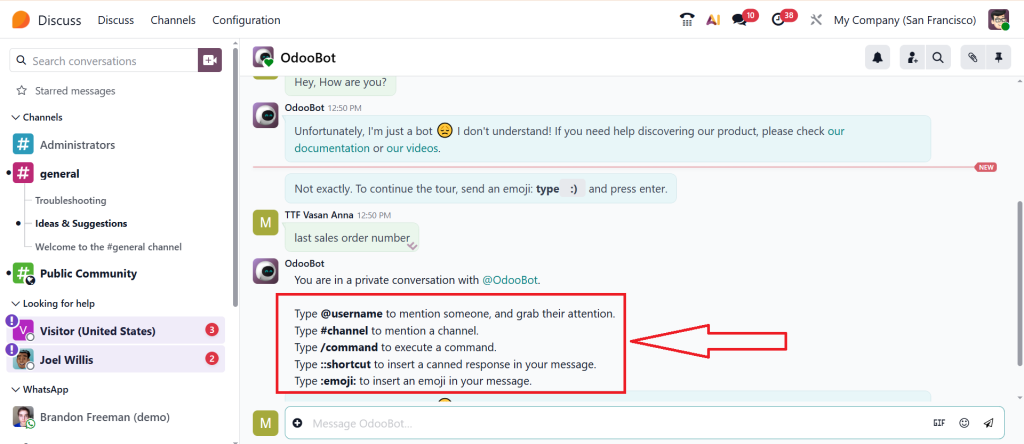
Now comes the fun part, using your canned replies in honest conversations. You can use them in private chats, team channels, customer conversations, and support replies. Imagine someone asks you for an update. Instead of typing the full explanation again, you just type /update, and your whole message appears. It feels smooth, it saves time, and it keeps your replies consistent.
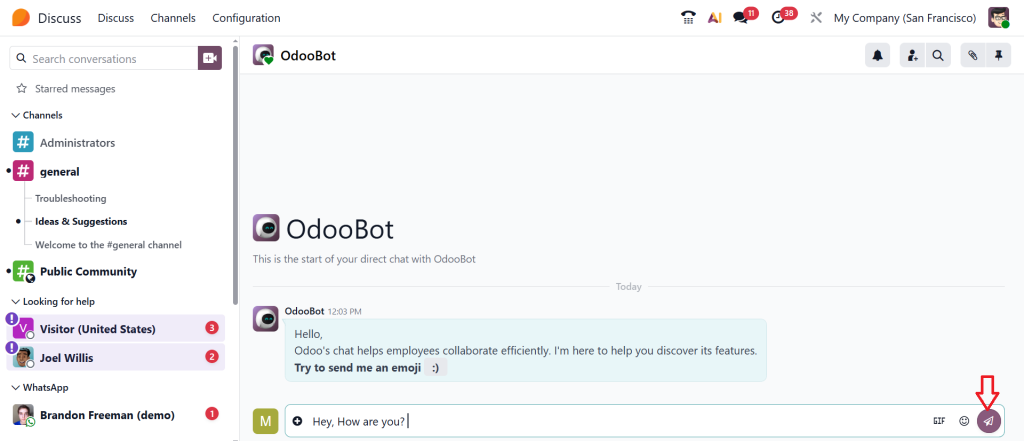
Now, if you open the chat box in Odoo 19 discuss, you can see the (+) icon, which lets you insert a canned response, which is one way to insert the message.
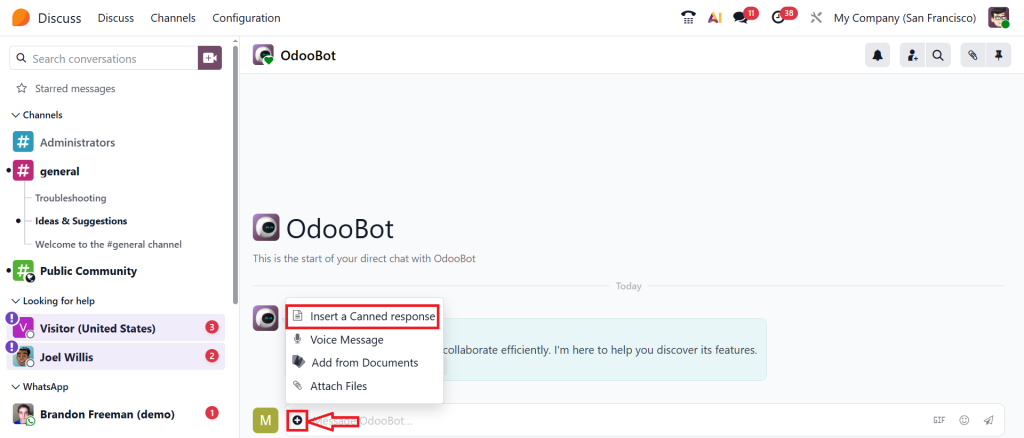
After clicking Insert a canned response, you can see all canned messages.
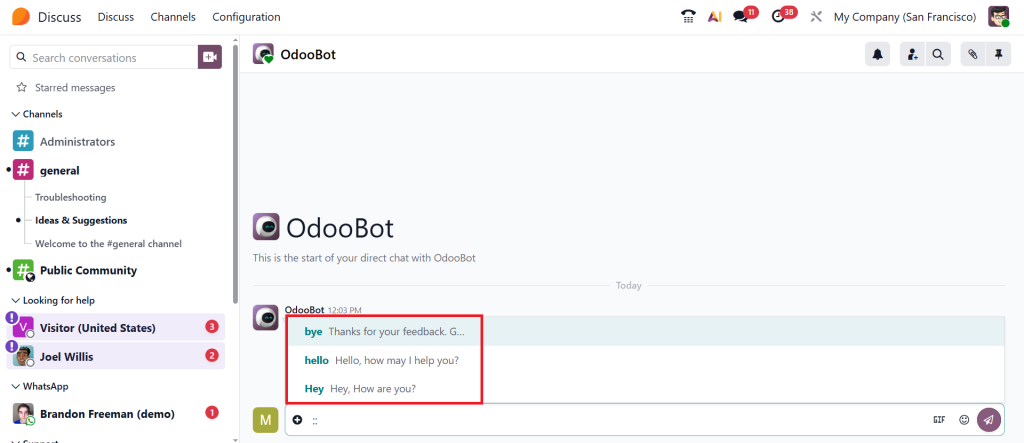
Choose any message that suits your needs, then click the Send button.
If you deal with customers or clients, this helps even more. You reply faster, your tone stays steady, and you don’t forget important details. And if you are part of a busy team, you already know how hard it is to keep up with every message. But with Odoo Discuss productivity tips like canned replies let you avoid getting buried under chat messages. Instead, you reply quickly and move on.
Once you start using these replies throughout the day, your brain feels less tired. Your hands type less. Your chats stay organized. And honestly, you feel relieved because something that used to take minutes now takes seconds.
Why Odoo Discuss Shortcut Responses Make Work Feel Lighter
When you use Odoo Discuss shortcut responses, your workday quietly changes. You don’t rush your thoughts. You don’t repeat the same lines. You communicate more smoothly. Many people tell me that their communication used to feel messy and slow, especially on stressful days, but after using canned responses, they feel more in control.
Even if you are not fast at typing, shortcuts help you stay quick. Even if English is not your first language, canned replies help you stay confident. Even if you handle a large number of chats, shortcuts allow you to stay organized.
This is why I suggest taking a few minutes to configure canned responses Odoo 19 in a way that fits your daily routine. Set shortcuts that match your work style. Save messages that you use often. Keep editing your replies whenever you feel something needs improvement.
Your messages don’t have to be fancy. They have to be clear and ready when you need them.
Building Better Conversations with Odoo 19 Quick Reply Shortcuts
The more shortcuts you create, the easier your communication becomes. Some people develop shortcuts for updates. Some for greetings. Some for follow-ups. Some apologies. And some for reminders. The freedom is yours. You can even create shortcuts for internal updates like task progress, meeting confirmations, or technical checks.
As someone who has worked with many users, I’ve seen how much calmer people feel when they don’t have to repeat themselves every day. With Odoo 19 quick reply shortcuts, your replies become predictable in a good way. You know precisely what you are sending. You don’t worry about typing mistakes. You don’t worry about forgetting details. And you don’t feel stressed when multiple people message you at once.
What makes this even better is that you can update your canned replies at any time. If your daily routine changes, adjust your message. If your company tone changes, rewrite your reply. If you start handling a new department, add new shortcuts. Odoo gives you complete freedom to build your own messaging style.
Real Benefits of Odoo 19 Canned Responses Discuss in Work Life
The more you use Odoo 19 canned responses in the Discuss app, the clearer the benefits become. Your replies stay consistent even on busy days. You respond without delay, even when multiple chats come in. You maintain a professional tone even when you’re tired. And you save minutes in every conversation, which add up to hours by the end of the week.
These replies also help your team look more organized in front of clients. People appreciate quick and clear communication. And when your whole team uses canned replies, everyone sounds aligned. No one sends confusing or unprofessional messages. Everything stays steady.
I’ve watched teams go from slow responses to quick, confident communication just by using simple shortcuts like /thanks, /noted, /checking, /follow-up, /share, and more. Small changes truly make work smoother.
Start Using Canned Responses in Odoo 19 Discuss Today
If you have been wishing for faster chats, more transparent communication, and less typing, then canned replies are precisely what you need. They fit naturally into daily work, they save time, and they help you stay focused. And now that you know how to create canned replies in Odoo, set shortcuts, and use them in honest conversations, you are ready to bring more ease into your day.
Use these replies in your chats, edit them as needed, and make them part of your routine. You’ll notice the difference in a single day.
If you want help setting this up for your team or want to learn similar time-saving features in Odoo 19, you can always reach out to us at Netilligence. We are here to guide you step by step so your work feels lighter, and your communication stays clear every day.