How to Create, Duplicate, and Delete an Odoo Database?
Odoo is a powerful open-source ERP system that helps businesses manage various operations, from inventory and sales to accounting and customer relationships. One of the fundamental aspects of Odoo is database management. Whether you are setting up a new Odoo instance, creating test environments, or cleaning up old databases, understanding how to create, duplicate, and delete an Odoo database is crucial.
This guide will walk you through the step-by-step process of managing databases in Odoo, covering creation, duplication, and deletion. We will also provide best practices to ensure smooth database management.
Understanding Odoo Database Management
Odoo operates using PostgreSQL as its database management system. Each Odoo instance is associated with a database that stores company data, configurations, user details, and modules. Efficient database management allows for smooth business operations and helps in testing new functionalities without disrupting production data.
Odoo Database Back Up
Taking a backup in Odoo from the frontend involves a few steps.
1. Login to Odoo
Log in to your Odoo instance using your IP address.
ip-address/web/database/manager
eg:- 123.456.78.9:8089/web/database/manager
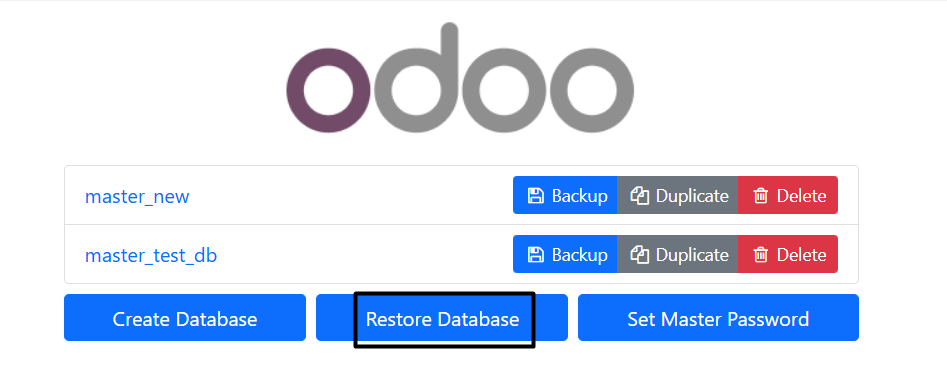
2. Click on Backup
Select the database you want to back up. If you have multiple databases, ensure you select the correct one.
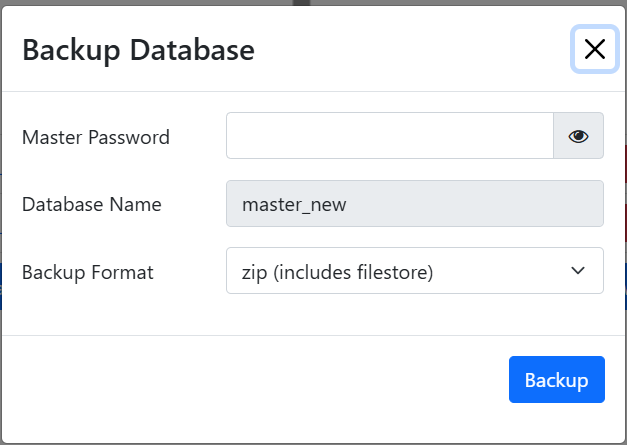
3. Enter the Credentials
Enter the master password and Select “zip(includes fiestore)” from the drop down menu.
4. Click in back up and the download begins
Click on the backup option, and the download process will automatically start without any additional steps or confirmation required.
Database Restoring
1. Login to Odoo
Log in to your Odoo instance using your IP-address.
ip-address/web/database/manager
eg:- 123.456.78.9:8089/web/database/manager
2. Click on Restore Database
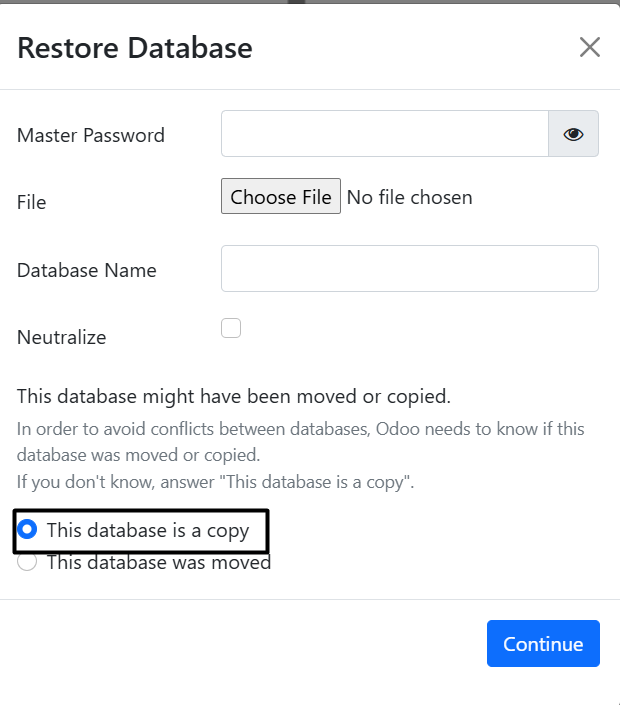
3. Enter the Credentials
Provide the master password in the field provided.
Click on choose file and select the database zip file.
Provide a new name for the data base under ‘Database Name’ tab.
Untick the Nutralize tab.
Select the ‘This database is a copy’ from the check box list.
After adding all the credentials, click on continue, and restoring begins. Please wait for the restoration to be completed.
How to Create an Odoo Database (Fresh db)
Creating a new Odoo database is the first step when setting up an Odoo instance. Follow these steps to create a database in Odoo:
1. Login to Odoo
Log in to your Odoo instance using your IP-address.
ip-address/web/database/manager
eg:- 123.456.78.9:8089/web/database/manager
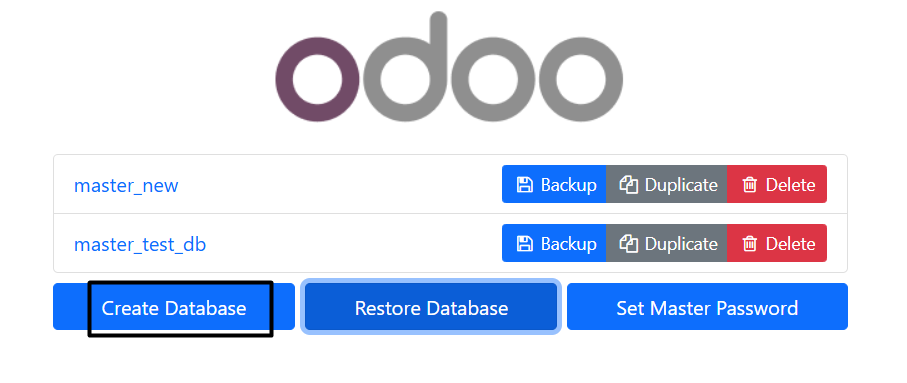
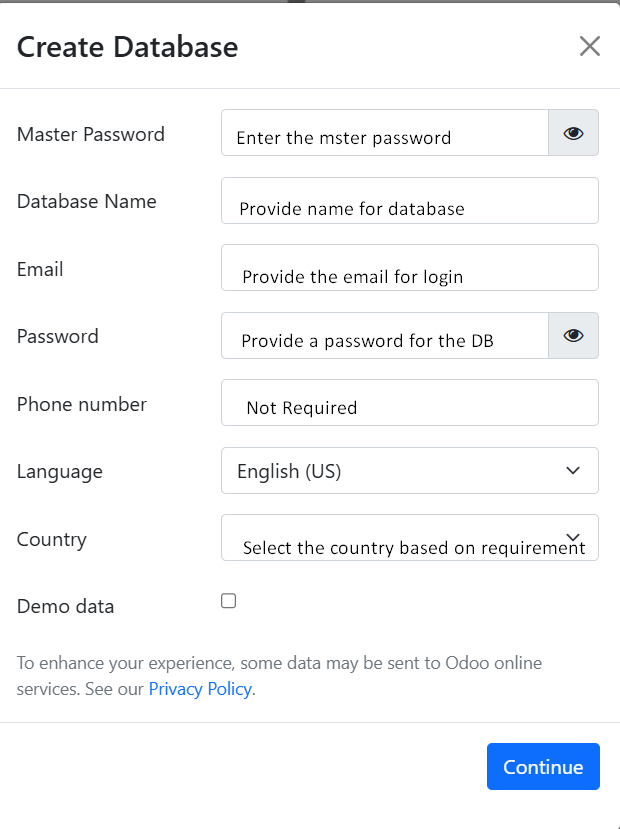
2. Click on "Create Database"
Enter the details as requested. If demo data is required, click on “Demo data.” Then click on “Continue” to create a new database.
How to Duplicate an Odoo Database
A duplicate database is used to restore the same database. Duplicating a database is useful when testing new modules, upgrading Odoo, or creating a backup.
1. Login to Odoo
Log in to your Odoo instance using your IP-address.
ip-address/web/database/manager
eg:- 123.456.78.9:8089/web/database/manager
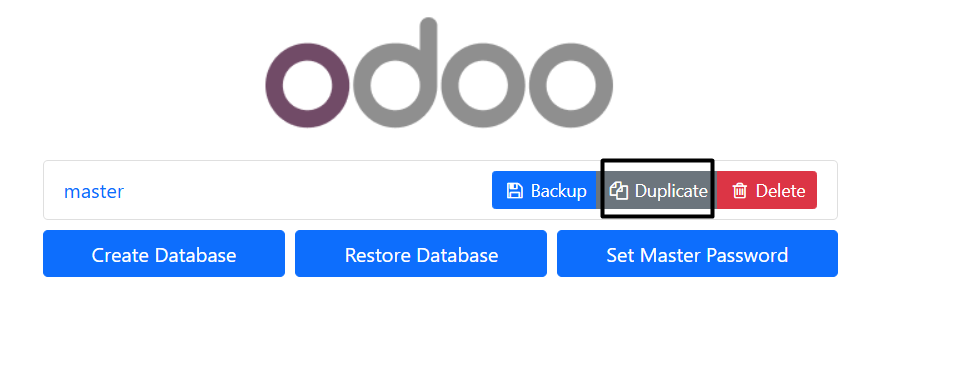
2. Click on the "Duplicate" button.
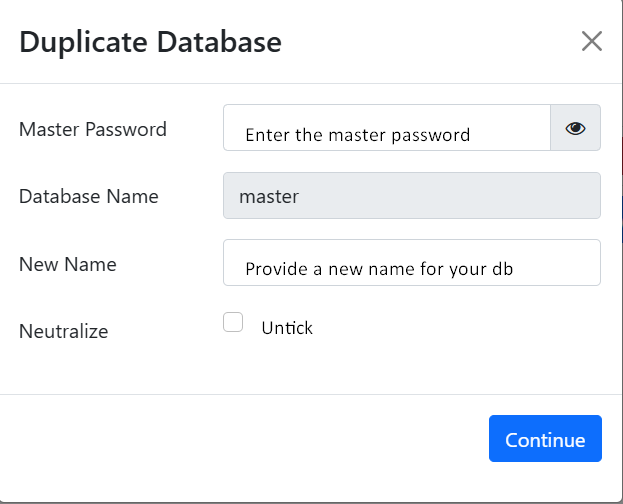
3. Enter the details and click continue
How to Delete an Odoo Database
Deleting an Odoo database is necessary to clean up unused instances, remove test databases, or free up space.
1. Login to Odoo
Log in to your Odoo instance using your IP-address.
ip-address/web/database/manager
eg:- 123.456.78.9:8089/web/database/manager
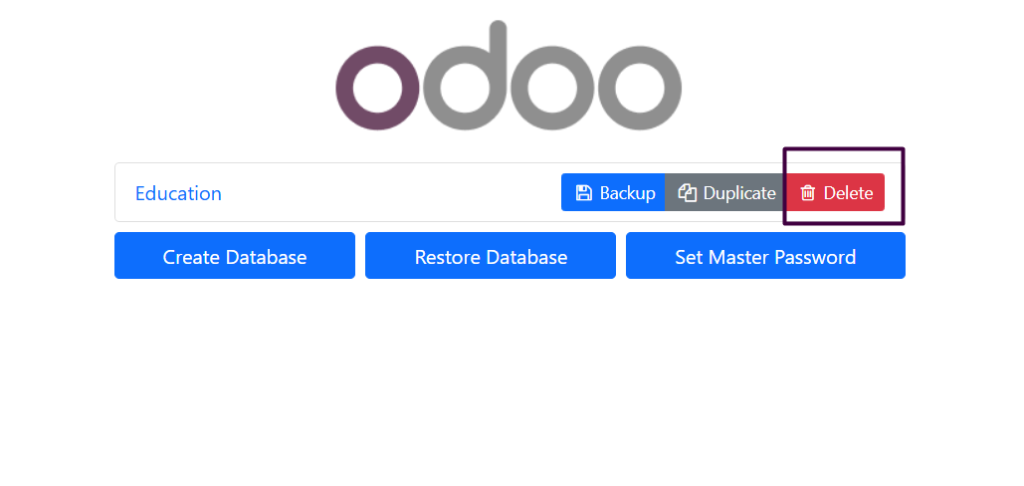
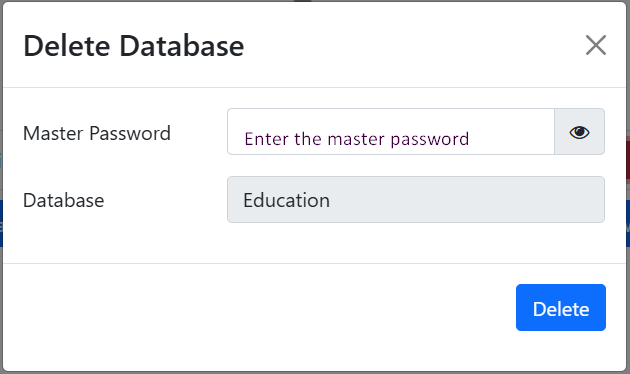
2. Click on the "Delete" button
Enter the master password and click on the Delete button.
Best Practices for Odoo Database Management
1. Regular Backups
i. Always back up your database before making significant changes.
ii. Use automated backup solutions for safety.
2. Use Test Databases
Never experiment on a production database. Duplicate it and test new features separately.
3. Manage Database Access
i. Limit access to database management to prevent accidental deletions.
ii. Use strong passwords and enable authentication measures.
4. Monitor Database Performance
Use Odoo and PostgreSQL performance monitoring tools to identify slow queries and optimize performance.
5. Keep Odoo and PostgreSQL Updated
Regular updates ensure security patches and improved functionality.
Final Thoughts on Odoo Database
Managing an Odoo database efficiently is crucial for smooth business operations. Whether creating a new database, duplicating it for testing, or deleting obsolete instances, following best practices ensures data integrity and security. By understanding and implementing these steps, you can maintain a well-optimized Odoo environment that supports your business needs.
Consider automation tools or scripts that simplify routine database operations for advanced database management. With proper management, Odoo can provide a scalable and reliable ERP solution for businesses of all sizes.
I’m Alfred Joshi, a Linux System Administrator passionate about system optimization, security, and automation. Here, I share insights and tips on Linux and open-source technologies.
We use cookies to ensure that we give you the best experience on our website. If you continue to use this site we will assume that you are happy with it.