
Why Field Service Tasks in Odoo 19 Matter for Every Service Business
Field Service Tasks in Odoo 19 are becoming the backbone of modern service operations, whether you manage technicians, offer on-site repairs, deliver inspections, or run a maintenance company. Businesses today need fast scheduling, real-time updates, geo tracking, accurate invoicing, and complete visibility. And this is precisely what field service tasks in Odoo 19, including Odoo 19’s field service management, and its powerful new tools offer.
In this guide, you’ll learn how to create a field service task in Odoo, assign technicians, use mobile tools, track time, manage geo-based operations, and generate wise Odoo 19 service task reports. By the end, you will have complete clarity on how to run smooth and profitable operations using Field Service Tasks in Odoo 19, and why thousands of companies trust Netilligence (Odoo Partner) to implement this module.
You’ll see how Field Service Tasks in Odoo 19 simplify planning, enhance technician performance, and improve customer satisfaction, making it one of the most critical business modules this year. With features such as mobile-friendly dashboards, route optimisation, real-time communication, geotracking for field service, and automated billing, the entire service cycle becomes effortless.
Whether you’re a small business or a large enterprise, there’s no doubt that Field Service Tasks in Odoo 19 help you reduce delays, avoid errors, and boost productivity. And the best part? Everything feels natural and easy to use.
What Makes Odoo 19 Field Service Management So Powerful?
Odoo has improved its field service module dramatically in version 19. The enhancements are not cosmetic; they genuinely solve operational problems that most companies face.
Here’s why Odoo 19 field service management stands out:
- A smooth interface
- Faster task creation
- Technician-friendly mobile view
- Real-time geo-tracking and route map
- Integrated scheduling
- On-site time tracking
- Automatic invoice generation
- Instant reports and analytics
If you’ve been using manual forms, WhatsApp messages, Excel sheets, or outdated systems, Odoo 19 will feel like a revolution.
Below are the key improvements in detail.
How to Create Field Service Tasks in Odoo 19 (Step-by-Step Guide)
If your business handles installations, maintenance, repairs, audits, surveys, or on-site work, you’ll be creating tasks every day. Knowing how to make a field service task in Odoo efficiently can save you hours each week.
Here’s the complete step-by-step process:
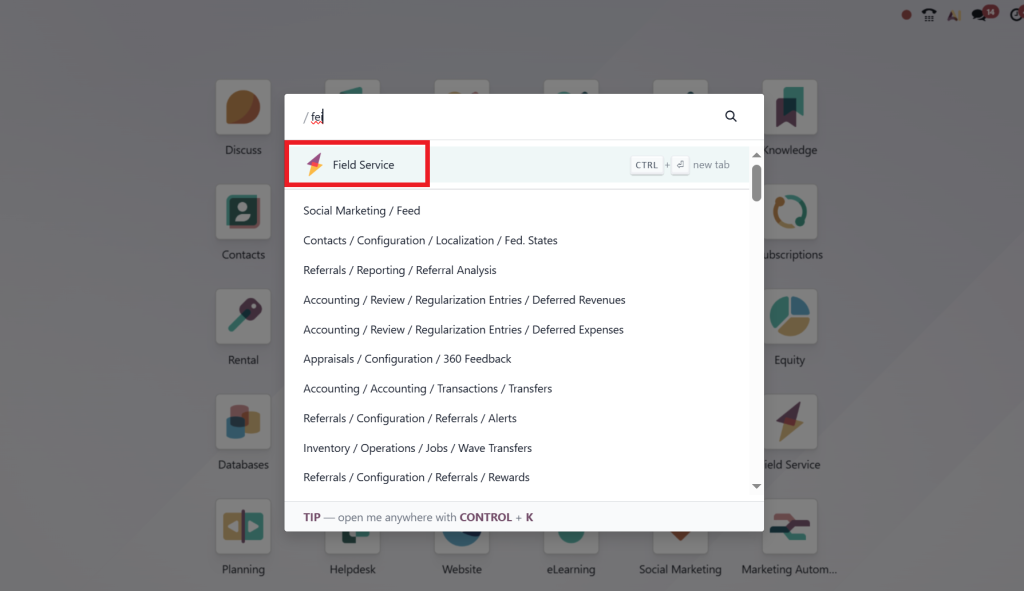
Step 1 – Open the Field Service App
After logging into Odoo 19, select the “Field Service” application.
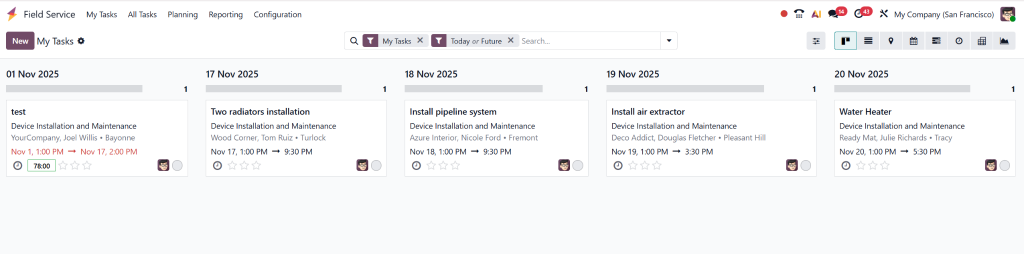
You will land on a Kanban view that shows all upcoming, in-progress, and completed tasks.
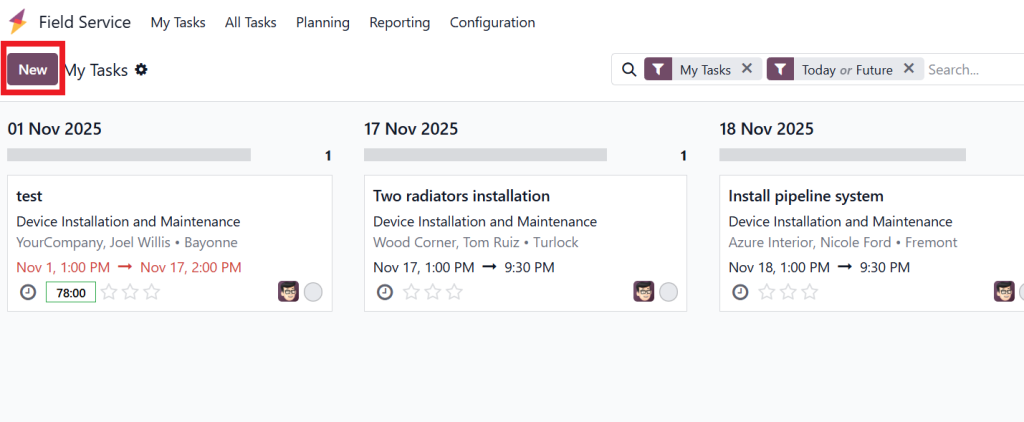
Step 2 – Create a New Task
Click “NEW.”
You will see a form where you can enter:
- Customer name
- Location
- Task title
- Task description
- Scheduled date
- Assigned technician
- Equipment used
- Time estimate
- Priority level
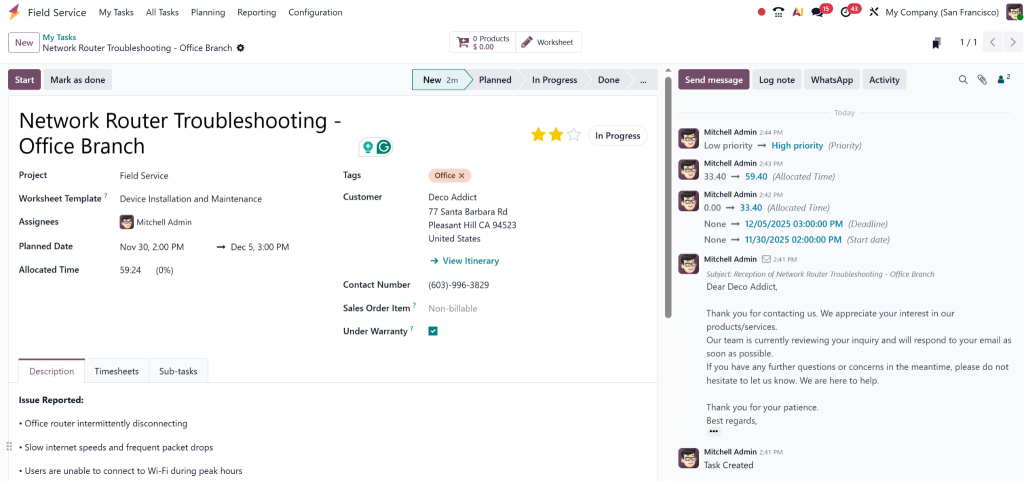
This is where Odoo’s magic begins. The interface is clean and instantly understandable. No confusion, no clutter.
When creating field service tasks, many companies also need custom worksheets for technicians. You can follow this tutorial on How to Create & Customise Worksheet Template in Odoo 18 Field Service to design your own
Step 3 – Assign a Technician
Odoo 19 introduces a more innovative Odoo 19 technician assignment feature.
You can assign a technician based on:
- Skill set
- Experience
- Current workload
- Location (geo proximity)
The system also automatically suggests available technicians.
This ensures that each job is assigned to the right person, minimising travel time and increasing efficiency.
Step 4 – Add Materials, Equipment, or Products
If your task requires spare parts or tools, include them in the task description.
Benefits:
- Products are automatically added to the invoice
- Stock levels update in real time
- No manual counting
- Zero billing mistakes
This is a significant advantage for companies offering installation or repair jobs.
Step 5 – Schedule and Plan Your Tasks
The planning screen lets you:
- Drag & drop tasks
- View technician availability
- Avoid double-booking
- Block time slots
- Balance workloads
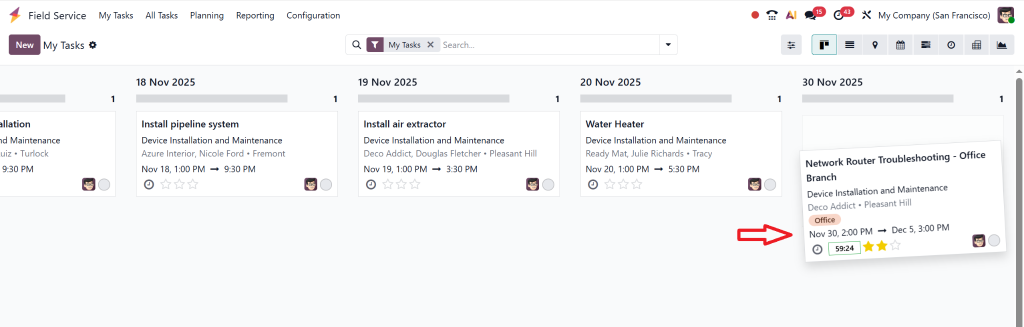
With Odoo 19, it feels natural and smooth, like placing magnets on a board that automatically align themselves.
Step 6 – Save and Start Tracking the Task
Once the task is saved, it enters your workflow. Technicians can now view it on their mobile device or tablet.
This is where the real-time tracking begins.
Real-Time Field Service Task Tracking Odoo 19
Tracking is one of the strongest features of Field Service Tasks in Odoo 19. Once a task is assigned:
- The technician receives it instantly
- They can start the timer
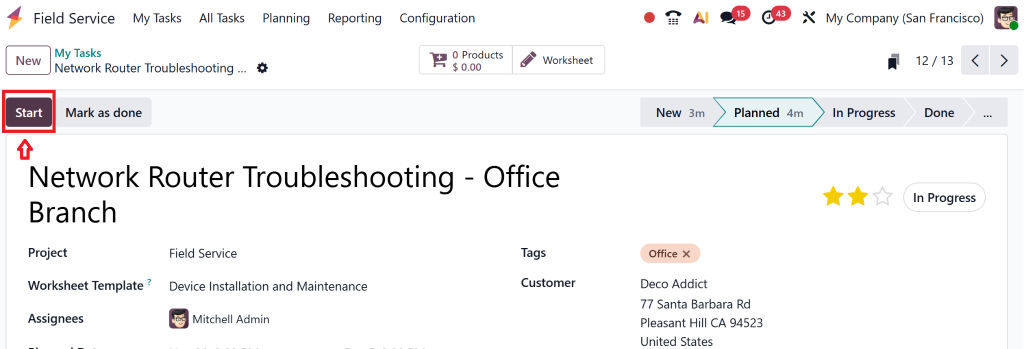
- Upload images
- Add notes
- Update status
- Mark completion
- Capture customer signature
- Generate an invoice on-site
Odoo keeps the entire timeline visible to all, reducing miscommunication and service delays.
Live Geo Tracking
One of the most significant improvements in Odoo 19 is the geotrack field service feature.
It allows managers to:
- Know where each technician currently is
- Estimate arrival time
- Monitor whether routes are optimised
- Track field efficiency
- Reduce travel costs
This is crucial for industries like:
- Telecom
- HVAC
- Security installation
- Medical equipment
- Real estate maintenance
- Cleaning services
- Home appliance service
On-Site Time Tracking
Technicians can start, pause, or stop the timer inside the mobile app. This helps businesses calculate:
- Exact working hours
- Time spent on travel
- Productivity
- Billing accuracy
After-Service Reporting & Attachments
Odoo lets technicians upload:
- Before/after images
- Notes
- Checklist responses
- Signatures
- PDF documents
This makes your reports highly professional and trustworthy.
Using Odoo 19 Service Task Reports for Smarter Decisions
Data is power, and Odoo 19 gives you plenty of it.
With Odoo 19 service task reports, you can analyse:
- Completed vs. pending tasks
- Technician performance
- Travel time vs. actual work time
- Revenue per service type
- Most common issues
- Customer satisfaction trends
- Parts used per task
- Profit margins
This enables business owners to make informed decisions and enhance their performance.
Mobile Experience
Technicians don’t need laptops. Everything works smoothly on:
- Mobile phones
- Tablets
- iPads
The mobile interface allows them to:
✔ View tasks
✔ Navigate using maps
✔ Add products
✔ Take photos
✔ Request signatures
✔ Generate invoices
✔ Send completion reports
This eliminates the need for paperwork or manual notes, thereby eliminating errors.
Integration With Other Odoo 19 Apps
Odoo 19 field service management doesn’t work alone. It integrates perfectly with:
- Inventory
- Accounting
- Project
- Sales
- CRM
- Employees
- Invoicing
- Helpdesk
Why does this matter?
Because the moment a task is completed:
✔ Invoice generated
✔ Stock reduced
✔ Customer status updated in CRM
✔ Cost calculated
✔ Manager notified
This is real automation, the kind that saves businesses thousands of dollars a year.
Field Service Tasks in Odoo 19
Managing on-site work can be chaotic, but not when you use Field Service Tasks in Odoo 19. With powerful features like geo tracking, smart assignment, mobile tools, automated invoicing, and detailed reports, businesses can transform their operations entirely.
Whether you manage 5 technicians or 500, Odoo 19 ensures:
- Higher productivity
- Reduced delays
- Better customer satisfaction
- Accurate billing
- Full visibility
If you want to take your field service operations to the next level, partner with Netilligence today. Our experts will tailor the entire system to meet your specific business needs.