How to Manage Split Delivery Orders in Odoo 18 Sales?
Why You Need to Manage Split Delivery Orders in Odoo 18 Sales
Have you ever faced a situation where your customer placed a big order, but only some of the items were in stock? You probably wanted to send whatever was available right away and deliver the rest later. That’s where the ability to manage split delivery orders in Odoo 18 Sales becomes very helpful. In today’s fast-moving business world, customers expect fast service, even if their order isn’t fully ready.
Odoo 18 makes this process very smooth. With its innovative features, you can easily handle Odoo 18 split delivery orders, manage backorders, and make sure your customers stay happy. Whether you’re selling products online or handling logistics for a warehouse, understanding how to use the Odoo sales module’s delivery splitting feature can significantly simplify your workflow.
In this blog, you’ll learn everything from how to enable split delivery, how Odoo partial shipment management works, to how to track and process backorders. We’ll also explore how Odoo 18 logistics features and Odoo delivery order management help you stay in control of every shipment. And we’ll keep it all simple, no complex words, just the way you talk to your teammates or clients every day.
Let’s dig in and see how easy it is to manage split delivery orders in Odoo 18 Sales.
Odoo 18 Split Delivery Orders – What Does It Mean?
When a customer places an order, you usually try to ship everything in one go. But sometimes, some products are out of stock. That’s where Odoo 18 split delivery orders come into play. It means breaking the delivery into parts, shipping the available products first and sending the rest later.
This benefits you in two ways: you avoid keeping your customer waiting, and you prevent your warehouse from being blocked by pending orders. It’s a win-win.
For example, imagine a customer ordered 10 phones and five chargers, but you only have six phones in stock. Instead of delaying the whole order, you send the six phones right away. Later, when the other four phones and the chargers arrive, you send them in the second delivery. This whole thing is handled smoothly with Odoo sales order split delivery.
Odoo 18 does all this without making things confusing. You don’t need extra software or add-ons; use the options already inside the system.
How Odoo Sales Module Delivery Splitting Works in Real Life
To use the Odoo sales module delivery splitting, you just need to follow some simple steps. Here’s a step-by-step guide to help you.
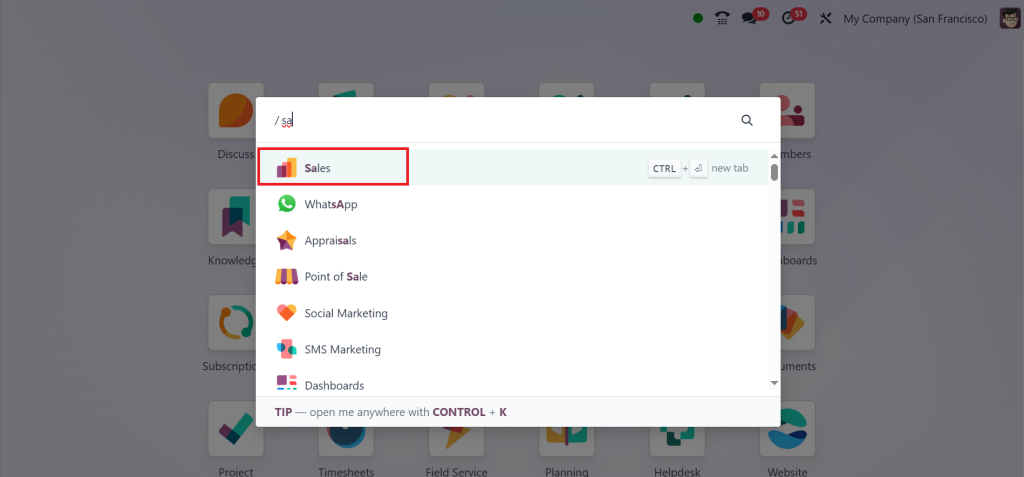
Go to your Sales module.
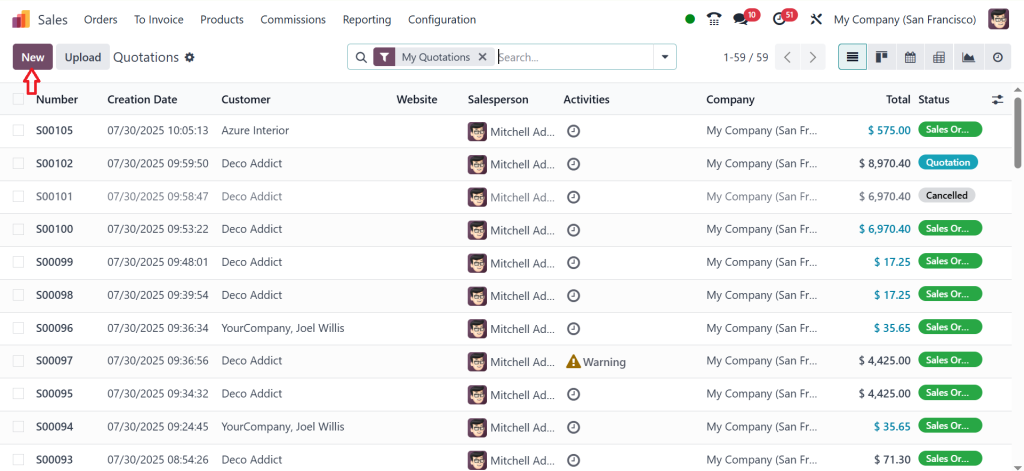
Click on New.
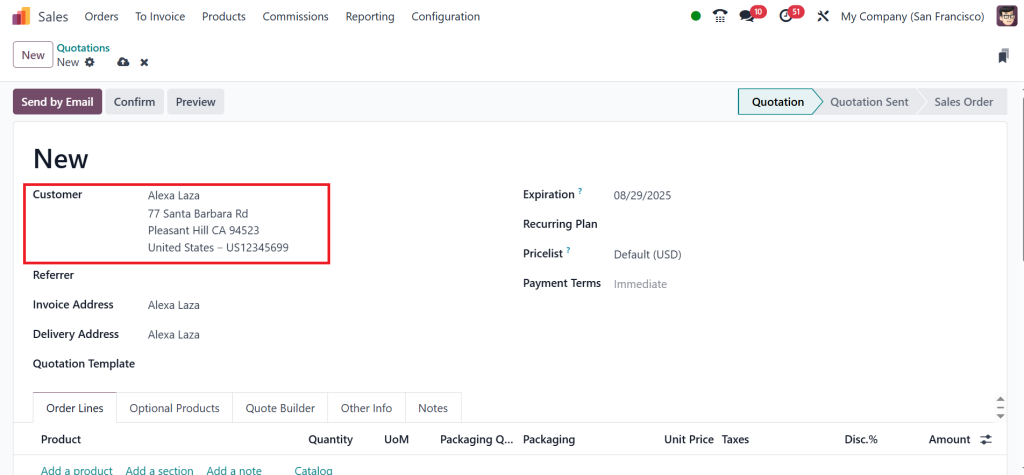
Select the Customer, I’ll choose Alexa Laza.
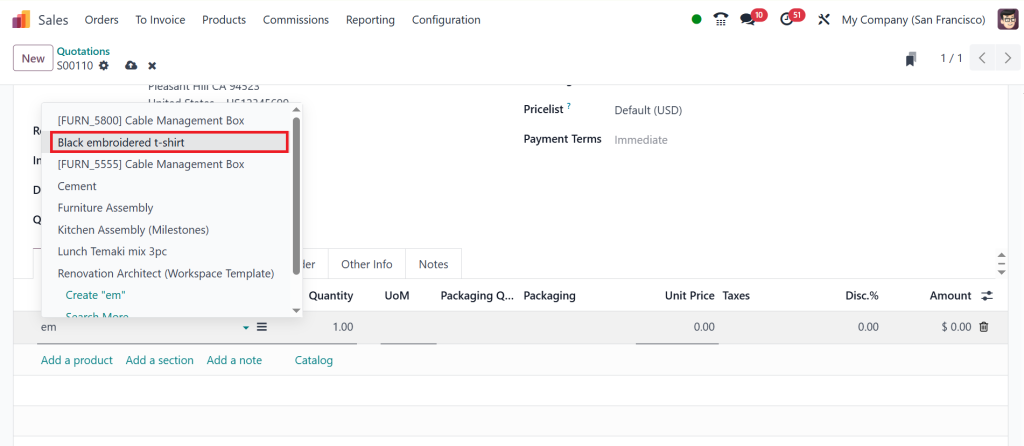
Click on Add a Product and choose the product. My Customer, Alexa Laza, wants the product Black Embroidered t-shirt.
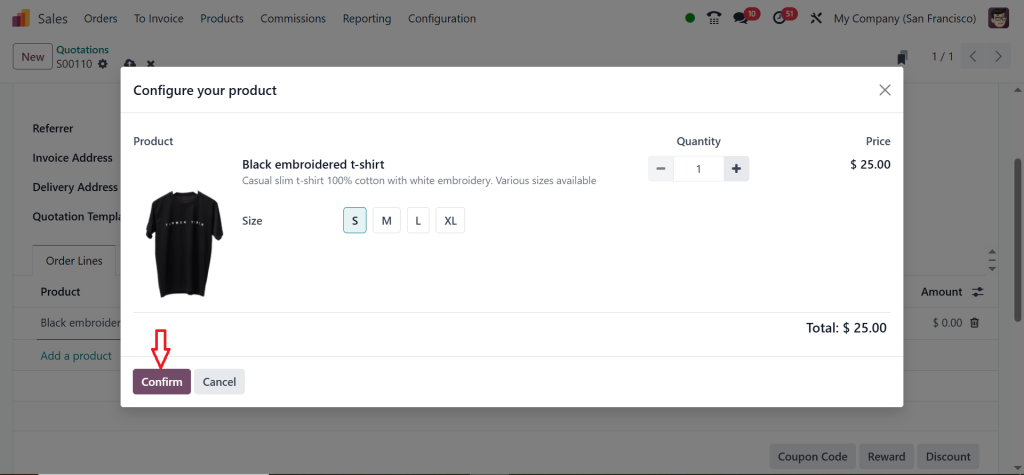
After selecting the size & quantity, click on Confirm.
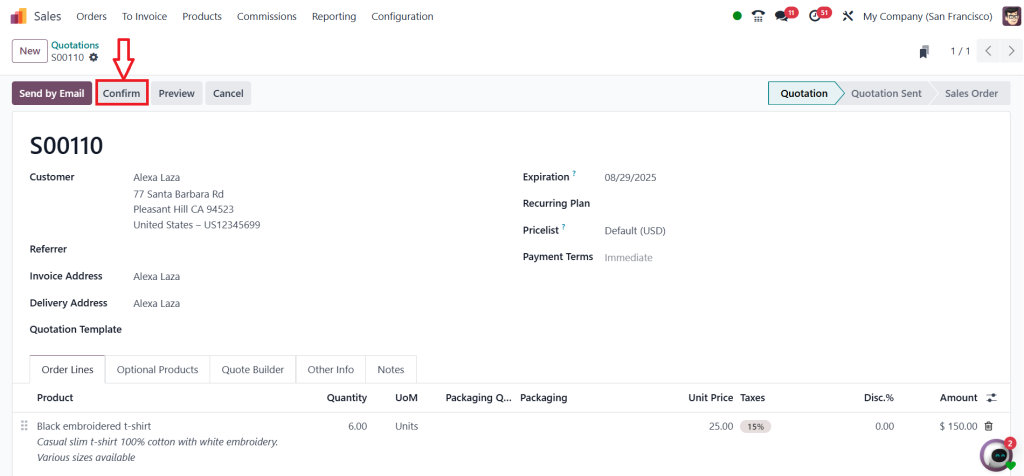
Then, I’ll set the quantity to 6 and click on the Confirm button.
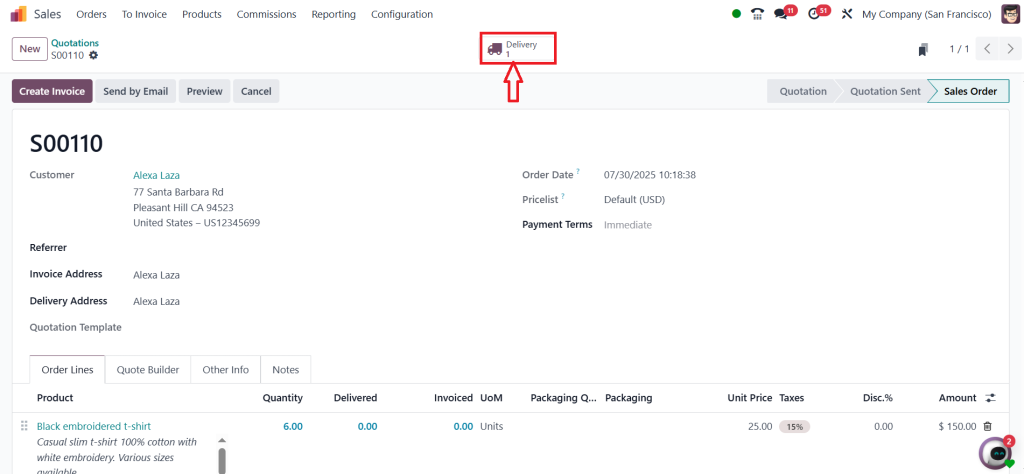
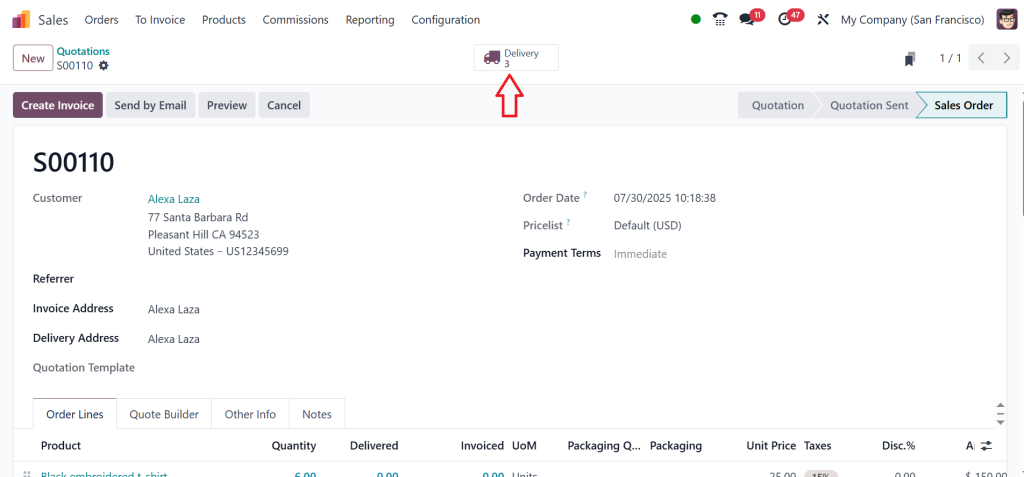
Now, click on the Delivery smart button to deliver the product.
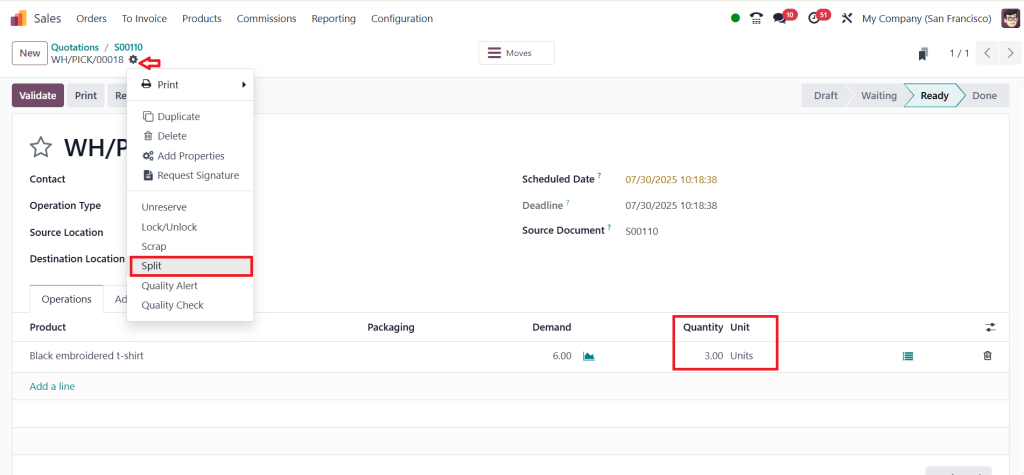
Here, you can find the demand & quantity of the product. We need to split the order, which means changing the product amount. So, now I’ll set the quantity to 3. Go to the Settings icon and click on the Split option.
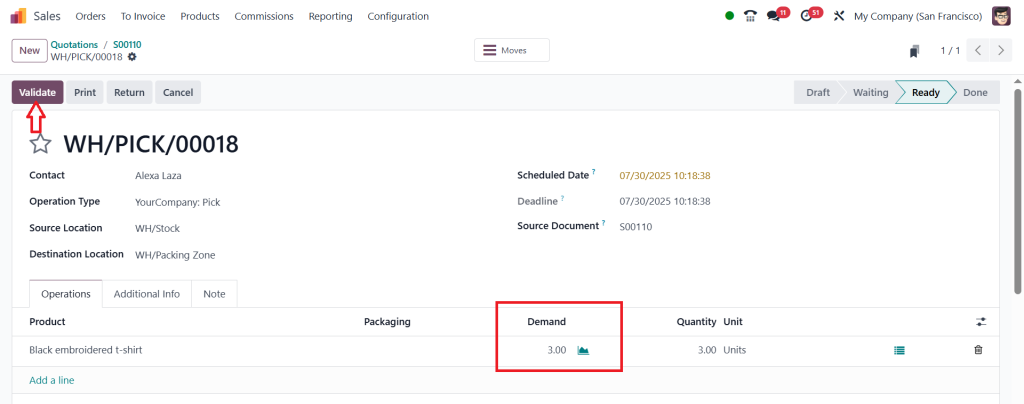
As shown in the screenshot above, before selecting the Split option, we had 6 units in Demand and 3 units in Quantity. However, after clicking on the Split option, both Demand and Quantity display as 3 units. Now, click on Validate.
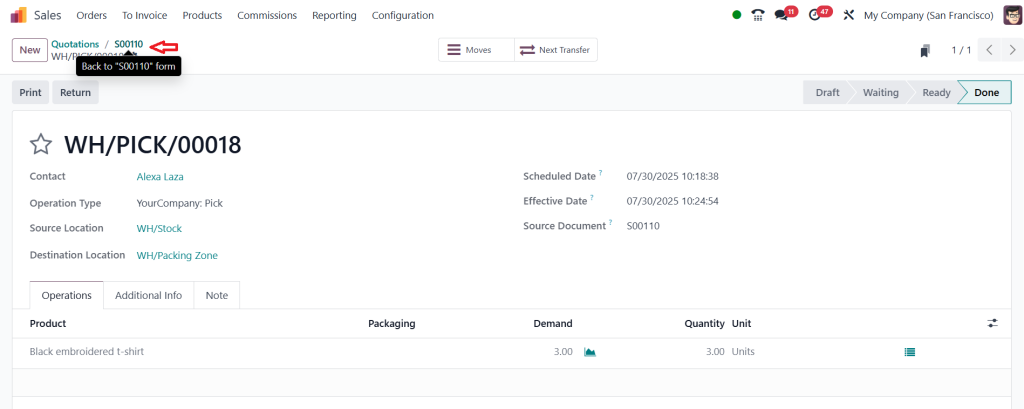
We just successfully split the order and then went back to the quotation.
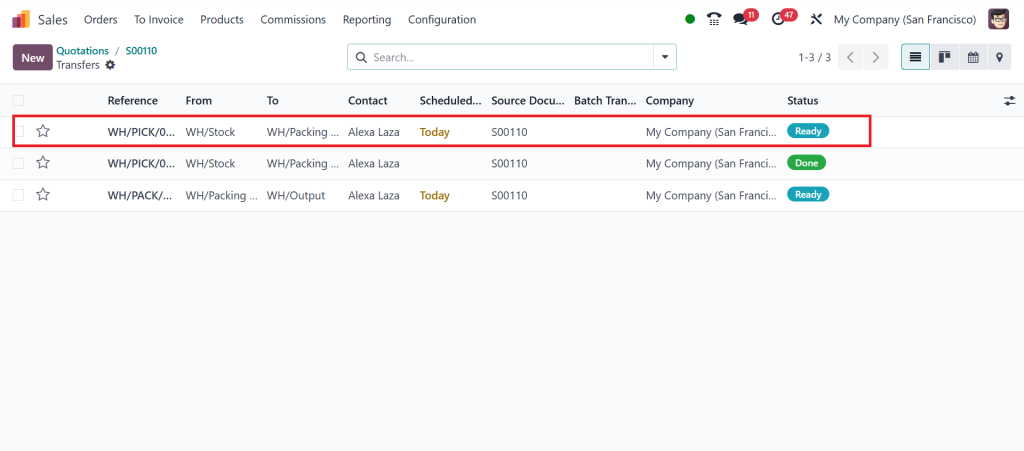
Click on the Delivery button.
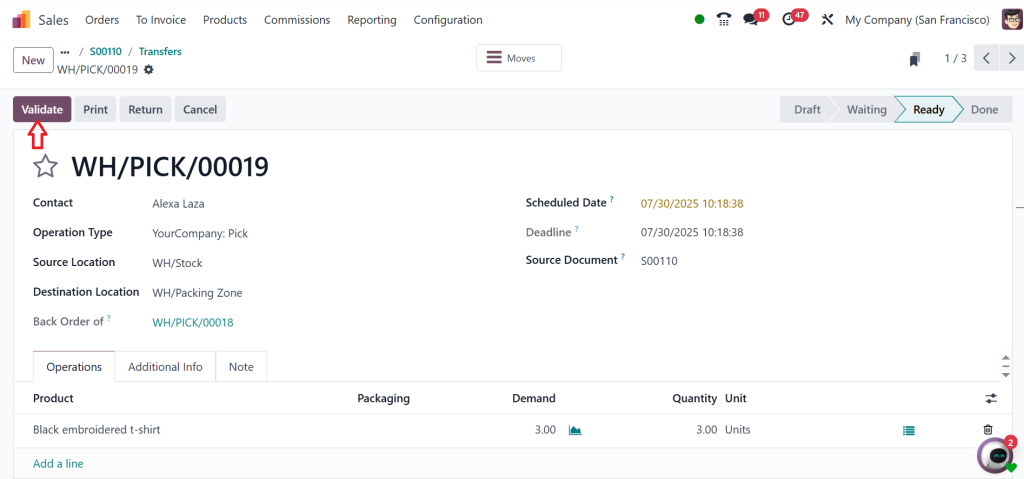
Here, you can find other deliveries that have been created. If you want to proceed with the delivery using the remaining quantity, you can do so by clicking Validate. So, let’s choose the other one.
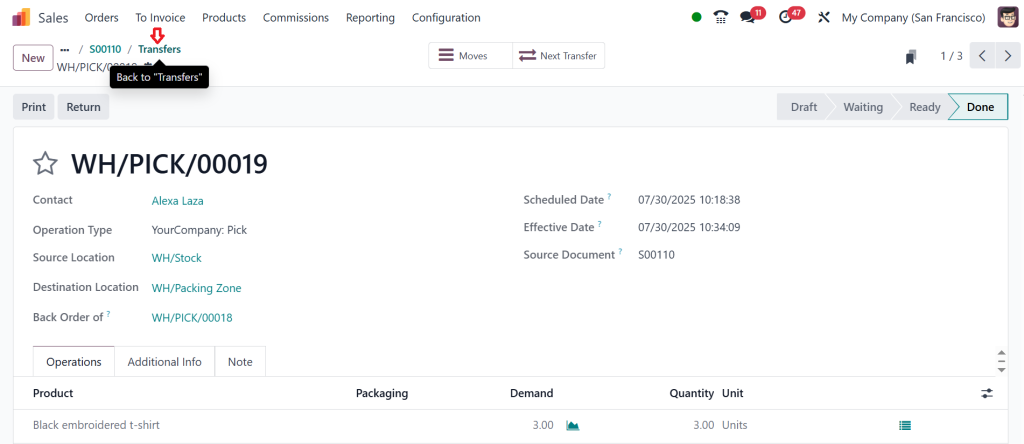
Click on the Validate.
Then go back by clicking on the Transfers.
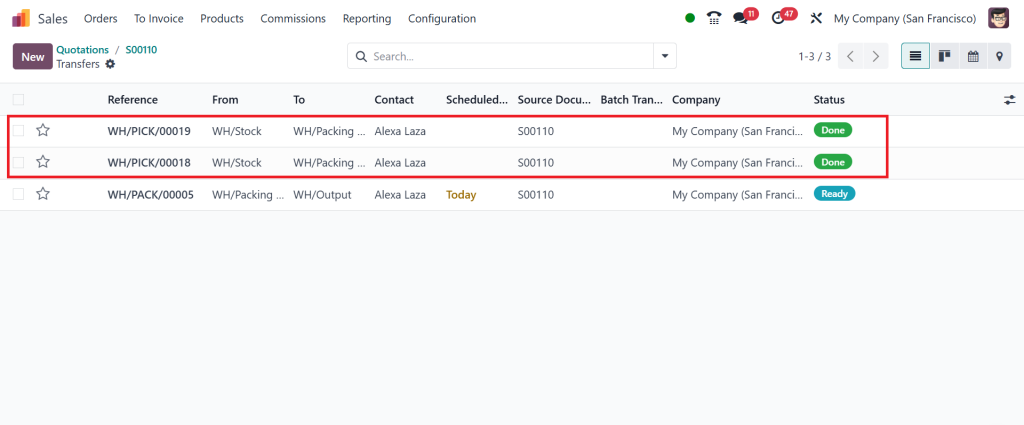
As shown in the screenshot below, we successfully split and delivered the item to the customer & Odoo marked it as Done.
So, that’s how you can smoothly manage split delivery orders in the Odoo 18 sales module.
Odoo Partial Shipment Management – Keep Your Orders Moving
One of the best things about Odoo is how it handles partial shipments. When you’re working with a big order, and only part of it is ready, Odoo gives you the option to ship now and create a backorder.
Once you validate the delivery of the available items, Odoo asks, “Do you want to create a backorder for the remaining products?” If you click “Yes,” the system will schedule another delivery for the rest. This is called Odoo 18 backorder processing, and it’s built right into the flow.
You don’t have to worry about missed deliveries, lost orders, or confusing paperwork. Everything is tracked neatly. The system even updates the sales order with both delivery statuses. So, you know exactly what went out, what’s left, and when it’s going to be delivered.
Odoo 18 Backorder Processing – Never Miss a Delivery
Backorders might sound scary, but in Odoo 18, they are super easy to manage. When you choose to create a backorder, Odoo saves the remaining items in a new delivery order and sets it up for you.
You can view both deliveries in the system. One will show as “Done,” and the other as “Waiting” or “Ready.” You can even make changes to the second delivery, such as adding notes, changing the date, or updating product quantities.
This is a huge help for businesses that deal with large or complex orders. With Odoo 18 backorder processing, nothing slips through the cracks.
Odoo Sales Order Split Delivery – Example You'll Relate To
Let’s say you’re selling laptops and accessories. A customer places an order for:
5 laptops
10 laptop bags
You only have three laptops and six bags in stock. When you confirm the sales order, Odoo will:
Create a delivery order for three laptops and six bags
Automatically create a backorder for two laptops and four bags
You deliver the first batch now and the second batch later. This is precisely how Odoo sales order split delivery makes your life easier.
Your warehouse knows what to send, your customer is happy to get what’s available, and your system tracks everything.
Odoo 18 Logistics Features – Smart Tools That Help You Every Day
Odoo 18 has many useful logistics tools built in that support split delivery. Here are a few you’ll love:
Real-time stock updates: As soon as stock changes, deliveries get updated too.
Multi-warehouse support: Odoo can split deliveries across different locations.
Alerts and notifications: Get updates when backorders are ready or when deliveries are delayed.
Manual editing: You can manually adjust the delivery if needed.
Reports: Odoo provides comprehensive delivery reports that give you the whole picture.
All of these Odoo 18 logistics features work together to make your delivery order management smooth and stress-free.
Odoo Delivery Order Management – Stay in Control of Every Package
Managing deliveries can be a headache, especially when you’re juggling multiple orders, customers, and suppliers. But with Odoo delivery order management, it becomes simple.
You can go to your Delivery Orders dashboard and see:
Which orders are done?
Which ones are waiting?
Which ones are late?
Which ones are split?
You can click on each delivery and see full details. Odoo also links everything together: sales orders, invoices, deliveries, and stock movements. That way, you’re never lost.
This is how Odoo delivery order management gives you peace of mind.
Why You Should Manage Split Delivery Orders in Odoo 18 Sales
Still wondering why you should care about managing split delivery orders in Odoo Sales? Here’s why:
You deliver faster: No need to wait for the whole order to be ready.
You keep customers happy by sending available items early.
You reduce errors: No manual entries. Odoo handles it all.
You save time: Everything is automated from split to backorder.
You stay updated: Odoo tells you what’s pending and what’s delivered.
Grasp the Art of Split Delivery with Odoo 18
In simple terms, if you’re using Odoo 18 without the split delivery features, you’re missing out. The ability to manage split delivery orders in Odoo 18 Sales gives your business a huge advantage.
You don’t need special training or tools to follow the steps; you’ll be managing Odoo 18 split delivery orders like a professional. With strong support from Odoo sales module delivery splitting, Odoo partial shipment management, and Odoo 18 backorder processing, you’re always in control.
Whether you’re sending out shoes, laptops, food products, or industrial parts, you can count on Odoo 18’s logistics features to handle the load. And with innovative Odoo delivery order management, every product reaches the customer the right way.
Need help with setup or training?
Netilligence is here to guide you every step of the way. Let us help you take your Odoo journey to the next level.
Hi, I'm Ilsa Shabbir, an Odoo ERP content writer specializing in functional blogs on Odoo modules. I simplify complex Odoo features, creating clear and engaging content to help businesses understand and optimize their ERP solutions.
We use cookies to ensure that we give you the best experience on our website. If you continue to use this site we will assume that you are happy with it.