Why You Must Move History Dashboard in Odoo 18 Inventory
Managing inventory is no easy task. Whether you’re running a small business or a large warehouse, keeping track of stock movement can become overwhelming without the right tools. That’s where Odoo 18 inventory move history comes into play.
Odoo 18 introduces an amazing feature: the move history dashboard in Odoo 18 inventory, which enables you to track and monitor every change in your inventory efficiently. Whether you’re handling incoming shipments, outgoing deliveries, or internal transfers, Odoo’s inventory history tracking ensures you never miss a movement. In this blog, we will explore exactly how to move history dashboard in Odoo 18 inventory, how to customise it, and how it can streamline your inventory management process.
You’ll discover how to set up your Odoo inventory dashboard customization, track inventory movement reports in Odoo 18, and optimise your workflow to make informed decisions based on Odoo 18 stock move history.
What is Move History in Odoo 18 Inventory and Why Does It Matters?
Odoo Inventory History Tracking: The Backbone of Effective Inventory Management
The move history dashboard in Odoo 18 inventory is essentially a detailed record of every stock movement within your system. From stock receipts to deliveries and internal stock transfers, this dashboard tracks it all. Understanding Odoo inventory history tracking is crucial for businesses of all sizes because it offers:
- Visibility into the stock’s current location at any given time.
- Accountability for each movement, showing who moved the stock and why.
- Accuracy in tracking stock for inventory audits, reports, and replenishment.
Tracking these movements in real-time allows you to make more informed business decisions. With the inventory movement report in Odoo 18, you can see trends and insights on how inventory flows through your system. This is key for both operational efficiency and maintaining accurate stock records.
How to Move History Dashboard in Odoo 18 Inventory: Step-by-Step Guide
1. Access the Inventory Module in Odoo 18
Before customising your move history dashboard in Odoo 18 inventory, the first step is to access the Inventory module.
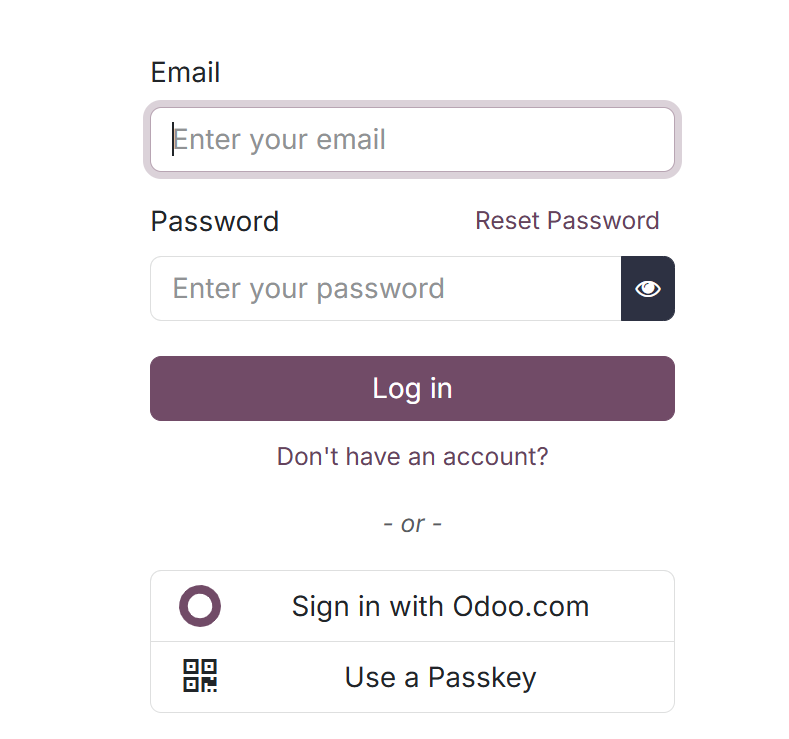
- Log in to your Odoo 18 system.
- In the main dashboard, navigate to the Inventory module, where you’ll find a complete set of tools for managing your warehouse and stock.
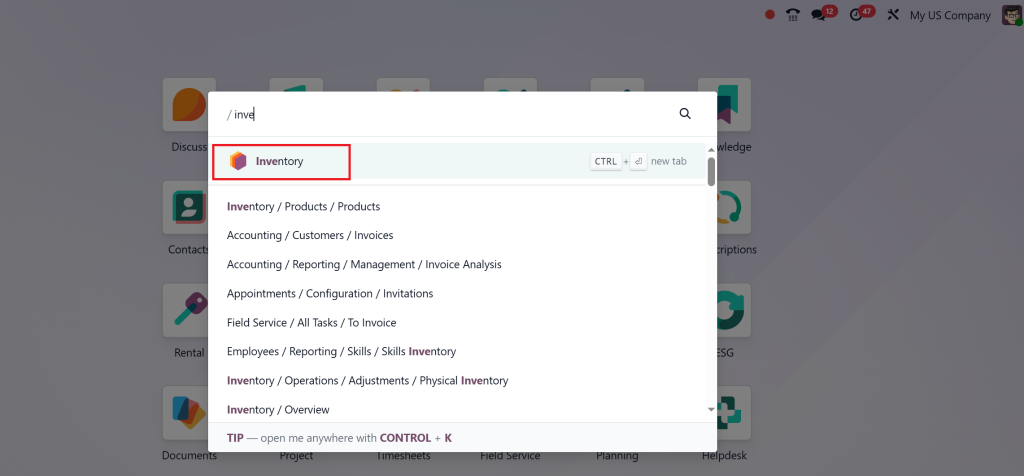
Once you’ve accessed the Inventory module, you’ll see several options related to stock, including the Move History section.
2. Go to the Move History Section
In the Inventory module, the Move History tab holds all the data on your stock movements. Here’s how to access it:
- Go to the Moves section, which tracks every single movement, including incoming, outgoing, and internal stock transfers. Ensure you have admin access; otherwise, you will not be able to view this history.
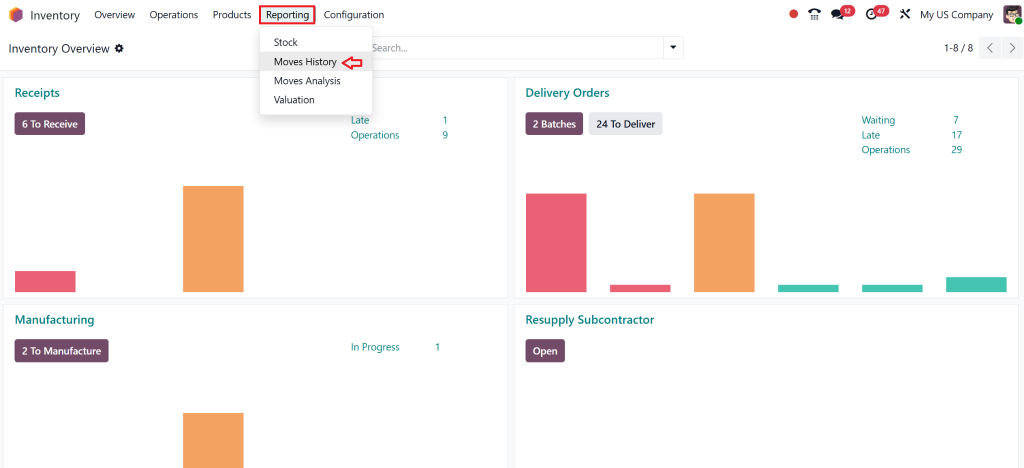
- That is where you’ll find the full Odoo 18 stock move history.
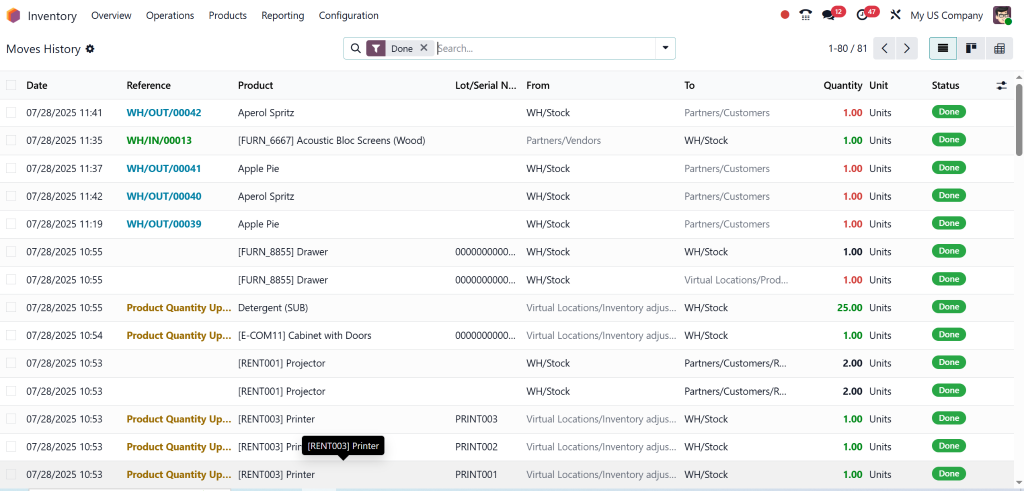
- Currently, it is showing only the Done stage, but You can filter by dates, product categories, locations, or even employees who were responsible for the movement.
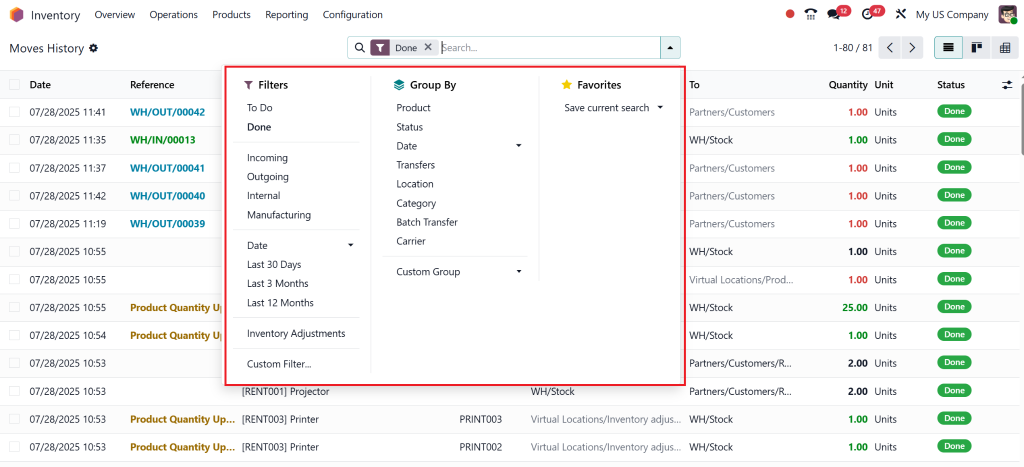
3. Customizing Your Move History Dashboard in Odoo 18
Now that you’ve accessed the move history dashboard in Odoo 18 inventory, let’s talk about customization. Customizing this dashboard allows you to tailor it to your business needs and focus on the data that matters most to you.
Custom Filters for Better Tracking
With Odoo inventory history tracking, you can apply various filters to narrow down the information you need. Some filters you might use include:
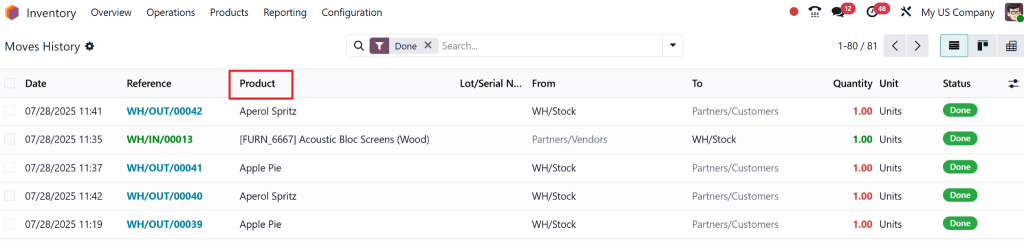
- Product Name or SKU: Easily locate a specific product’s placement.
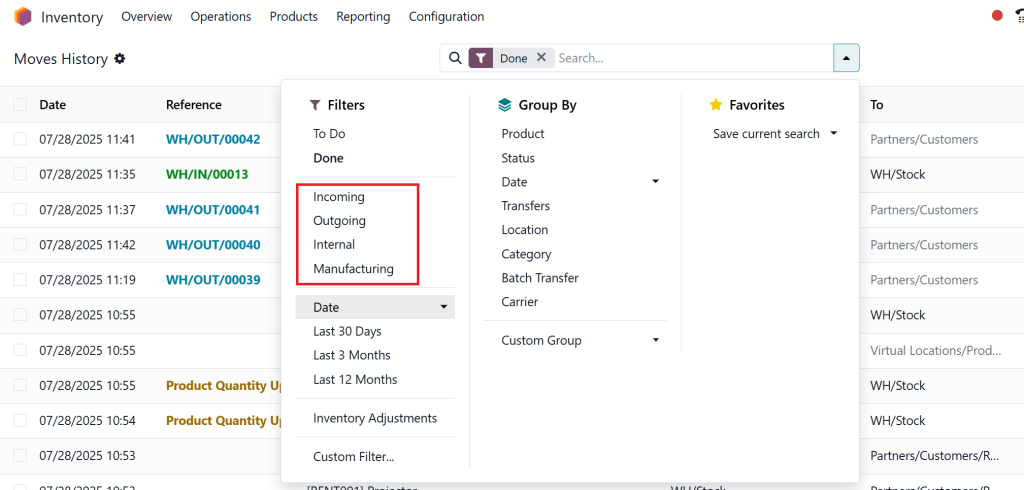
- Movement Type: Filter by incoming, outgoing, or internal stock movements.
- Date Range: Track movements over particular periods, such as the last week or month.
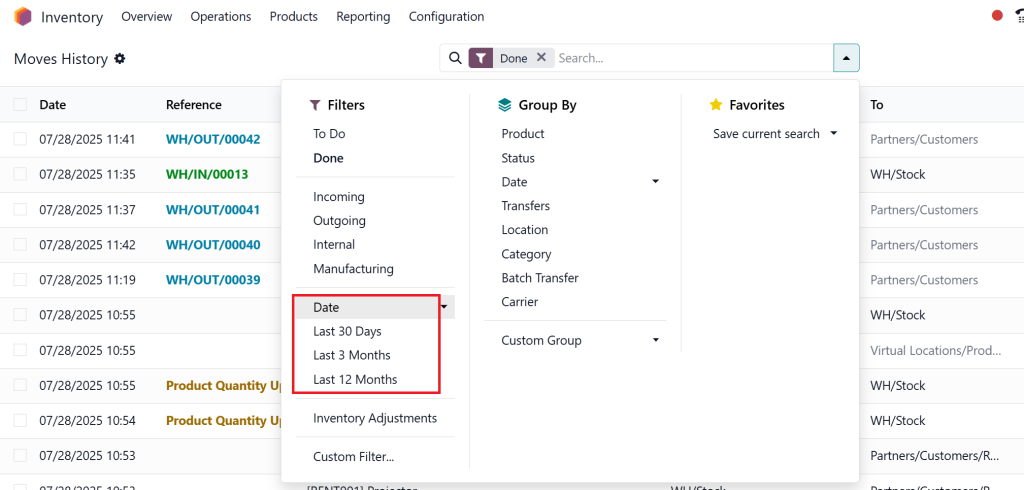
- Warehouse Location: Track movements at specific warehouses or locations within your inventory system.
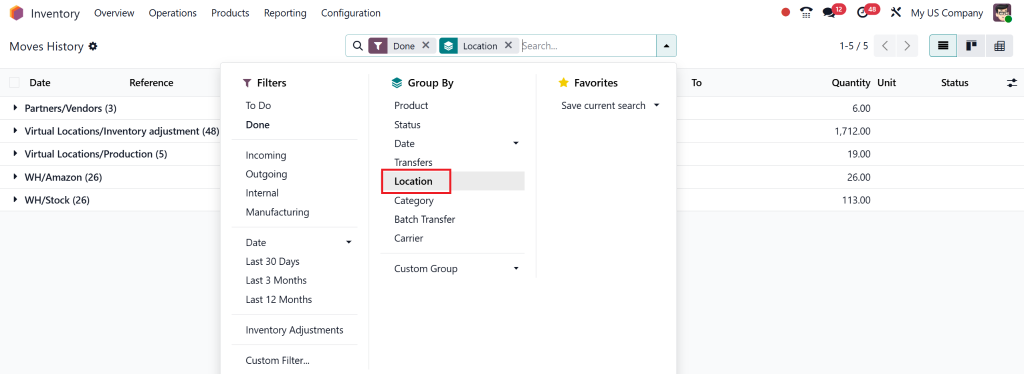
Custom Columns for In-Depth Reports
You can add custom columns to your Odoo inventory dashboard customisation to display additional details. These might include:
- Employee Responsible: Who performed the move?
- Reason for Movement: Was it a regular transfer, a stock correction, or something else?
- Customer or Supplier Info: Useful for tracking incoming and outgoing stock related to specific transactions.
Saving Custom Views for Future Use
Once you’ve customized your move history dashboard in Odoo 18 inventory, save this layout so you can access it rapidly in the future without needing to reconfigure everything.
How to View Move History in Odoo Inventory
1. Accessing the Move History Reports
To view the full move history in Odoo inventory, head to the Reporting section within the Inventory module. Here you can generate reports based on:
- Stock Moves: Full history of products that have moved, including quantities and dates.
- Product Availability: A clear picture of stock levels after each movement.
- Warehouse Status: See the flow of stock within different warehouse locations.
By tracking these movements, you can make informed decisions about which items need to be restocked or adjusted.
2. Tracking Stock Movements by Product or Category
Want to know the movement of a particular product? It’s simple with Odoo inventory history tracking. Just search by product name or SKU, and you’ll instantly pull up a complete history of movements related to that product. This is ideal for businesses that need to monitor their most popular or high-value items.
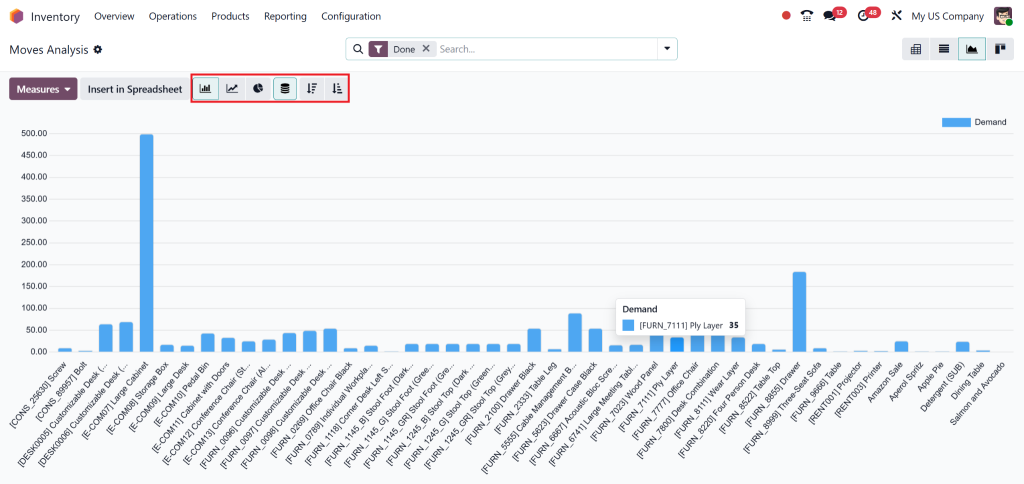
3. Using Graphs for Inventory Movement Insights
Odoo’s powerful reporting tools allow you to visualise your Odoo 18 stock move history in graphs and charts. This can help you better understand trends, such as which products are selling fast or which warehouse is experiencing more stock turnover.
Why Track Inventory Movement History?
The ability to view and manage Odoo 18 stock move history offers several advantages:
1. Reduce Errors and Improve Accuracy
By tracking all movements, the risk of errors decreases. Whether you’re receiving products, delivering goods to customers, or transferring stock between warehouses, Odoo inventory history tracking ensures that nothing gets overlooked.
2. Transparency and Accountability
Having clear records of who is responsible for each move creates transparency and accountability. You can see precisely when and where stock has moved, making it easier to pinpoint any issues if they arise.
3. Data-Driven Decision Making
The inventory movement report in Odoo 18 provides actionable insights. By customizing your move history dashboard in Odoo 18 inventory, you can quickly access the data that drives decisions, whether that’s reordering stock, adjusting pricing, or optimising warehouse space.
Best Practices for Using Odoo 18 Move History Dashboard
1. Automate Your Reports for Regular Tracking
To stay updated without manually checking, set up automatic reports. Odoo allows you to schedule reports that are automatically sent to your email at specified intervals. Whether it’s daily, weekly, or monthly reports, you’ll always be in the loop.
2. Integrate with Other Odoo Modules
Odoo is a highly integrated system. You can link your move history dashboard in Odoo 18 Inventory with other modules, such as Odoo Sales or Odoo Accounting. This way, you’ll have a seamless connection between sales orders, stock movements, and accounting data.
3. Forecasting Stock Needs Based on Historical Data
One of the most valuable uses of Odoo inventory history tracking is its ability to help predict future inventory needs. By analysing past stock movement history, Odoo can forecast when stock levels are likely to fall low, allowing you to reorder and avoid stockouts proactively.
Making the Most of Odoo 18 Inventory History Tracking
The move history dashboard in Odoo 18 Inventory is an invaluable tool for any business seeking to enhance its inventory management processes. By utilising Odoo 18’s stock move history, inventory movement reports, and inventory history tracking, you can streamline operations, reduce errors, and make more informed decisions.
At Netilligence, we specialise in customising Odoo to meet the unique needs of your business. Whether you need help setting up your Odoo inventory dashboard customisation or optimising your move history dashboard in Odoo 18 inventory, we’ve got you covered.
Ready to take control of your inventory? Contact us today to discover how Odoo 18 can transform your business.