

Posting Messages to Chatter in Odoo 18
Odoo is well known for integrating business processes, from sales and CRM to inventory and project management. One of its lesser-celebrated but compelling features is Chatter, a communication tool embedded within most Odoo models.
Whether you’re tracking a deal in CRM, moving tasks across stages in a project, or reviewing an invoice, Chatter helps your team stay in the loop. With every change logged and visible, communication becomes contextual and traceable.
In Chatter in Odoo 18, it plays a key role in driving collaboration. But what if you want to post messages to Chatter automatically, without manual input? In this blog, we’ll walk you through exactly how to do that, using a custom example, and explain why this feature is a valuable part of your development toolkit.
What is Chatter in Odoo 18?
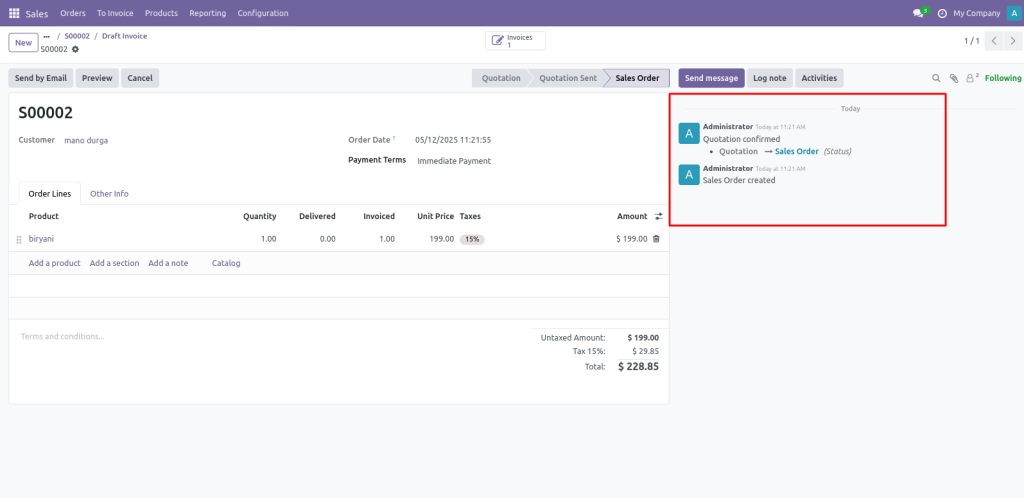
Before discussing the technical aspects, let’s briefly explain Chatter and its usefulness.
Chatter is Odoo’s built-in messaging and activity tracking system. It appears as a threaded communication log on most form views, showing:
- System-generated logs (like stage changes or status updates)
- Manual user messages and comments
- Scheduled activities
- Email threads
- File attachments
This creates a centralised history of interactions and changes for each record. It’s beneficial for teams working remotely or across departments.
Why Post Messages to Chatter Programmatically?
There are many scenarios where you might want to post messages automatically using code:
- Automated workflows: Notify stakeholders when a task progresses without manual input.
- Custom buttons: Trigger communication on specific user actions like approving a quote or updating a course status.
- Reminders and updates: Push alerts based on time triggers or business conditions.
- Status tracking: Log state transitions, like moving from “draft” to “approved.”
This improves transparency and ensures key updates don’t go unnoticed.
How to Post a Message to Chatter in Odoo 18
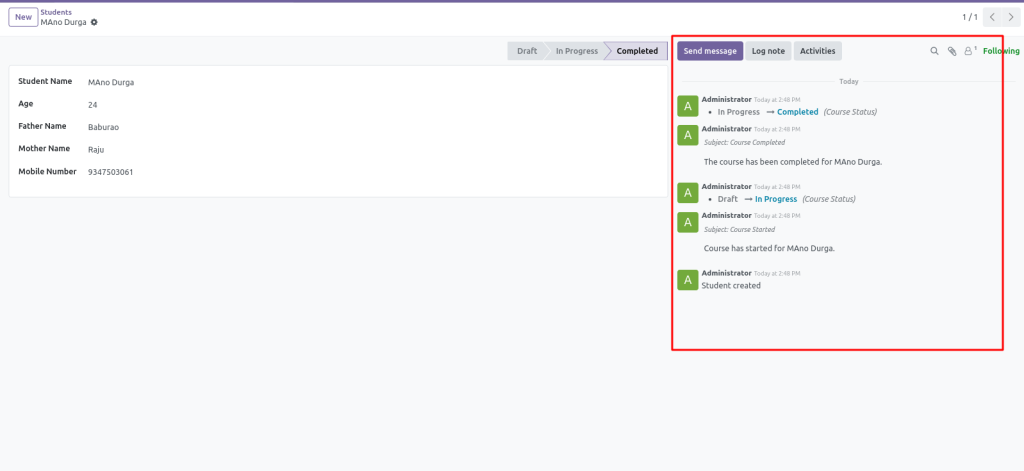
We create a model student, for instance, to keep track of a student’s course status (such as “draft,” “in_progress,” or “completed”). When users click the “Start Course” or “Complete Course” buttons, the course status and a message are immediately sent to the chatter to inform them of the change.
- start_course method: This method sends a message stating that the course has begun and changes the state to “in_progress”.
- _course method: Sends a message stating that the course changes the status to “completed”.
This tweak makes sure that everyone is notified whenever the course status changes by posting a notice in the discussion.
To add the feature where you post a message to the relevant student in Odoo 18 when the course status changes (using self.message_post()), here’s how you can modify your model and methods to support the functionality as you described.
Key Steps:
- Post the message to the student’s Chatter (using self.message_post()).
- Customise the message with HTML content, attachments, and email (if required).
- Track the conversation between the student and the course updates.
Below is a detailed approach with the necessary changes for posting a message in Chatter when the course status changes, with all the specifications you mentioned.
					Updated Model Definition with message_post()
from odoo import models, fields, api
from odoo.tools import html2plaintext
class Student(models.Model):
	_name = 'academy.student'
	_inherit = ['mail.thread', 'mail.activity.mixin']  	   _description = 'Student'
	name = fields.Char(string='Student Name', required=True, tracking=True)
	course_state = fields.Selection([
    	('draft', 'Draft'),
    	('in_progress', 'In Progress'),
    	('completed', 'Completed')
	], default='draft', string='Course Status', tracking=True)
	def start_course(self):
    	for rec in self:
         	rec.course_state = 'in_progress
         	message_body = f"📘 Course started for <b>{rec.name}</b>."
        	rec.message_post(
            	body=message_body,
            	message_type='notification',
            	subtype_xmlid='mail.mt_note',
            	partner_ids=[rec.user_id.partner_id.id],            	         body_is_html=True	)
        	# Optionally, send an email notification (if you want to notify via email)
        	rec.message_post(
            	body=f"Course has started for {rec.name}.",
            	message_type='email',
            	email_from=self.env.user.email,
            	subject="Course Started"
        	)
	def complete_course(self):
    	for rec in self:
        	rec.course_state = 'completed'
        	message_body = f"🎓 Course completed for <b>{rec.name}</b>."
        	rec.message_post(
            	body=message_body,
            	message_type='notification',
            	subtype_xmlid='mail.mt_note',
            	partner_ids=[rec.user_id.partner_id.id],
            	body_is_html=True  # Allow HTML content
        	)
        	# Optionally, send an email notification
        	rec.message_post(
            	body=f"The course has been completed for {rec.name}.",
            	message_type='email',
            	email_from=self.env.user.email,
            	subject="Course Completed"
        	)
Button Configuration in the Form View (XML)
You can create Start Course and Complete Course buttons in the student form view. These buttons will trigger the start_course() and complete_course() methods.
					<record id="view_form_student" model="ir.ui.view">
	<field name="name">academy.student.form</field>
	<field name="model">academy.student</field>
	<field name="arch" type="xml">
    	<form string="Student">
<header>
    <button name="start_course" type="object" string="Start Course" class="btn-primary" invisible = “course_state != 'draft'"/>
	<button name="complete_course" type="object" string="Complete Course" class="btn-success" invisible = “course_state != 'in_progress'"/>
<field name="course_state" widget = “statusbar” statusbar_visible=”draft,in_progress,completed” />
	</header>
        	<sheet>
            	<group>
                	<field name="name"/>
             	</group>
            	        	</sheet>
 				<chatter/>
        	    	</form>
	</field>
</record>
Graphical View of the Student Model Chatter Section
Understanding message_post() Parameters
Here’s a quick breakdown of useful arguments in the message_post() method.
Parameter | Description |
body | The message body (can be plain text or HTML). |
body_is_html | Set to True to allow HTML formatting. |
message_type | Use ‘notification’ for internal logs or ’email’ for external emails. |
subtype_xmlid | Defines the subtype; ‘mail.mt_note’ is common for logs. |
partner_ids | Send message to specific users (optional). |
subject | Subject line when sending as an email. |
email_from | Sender address (usually from self.env.user.email). |
Benefits of Using Chatter in Odoo 18 for Status Updates
Why go through the trouble of integrating message_post() in your models?
Here’s what you gain:
- Automated communication: Reduce manual steps while keeping the team informed.
- Full traceability: Every state change and action is logged with a timestamp and user ID.
- Improved UX: Users can scroll through the Chatter to get the full history of a record.
- Integrated collaboration: Combine messages, activities, and attachments in one unified interface.
This kind of automation ensures that no important update slips through the cracks, especially in multi-user systems or team-based workflows.
Keep your team informed.
Integrating Chatter in Odoo 18 significantly enhances collaboration and traceability by allowing users to log changes, share updates, and schedule activities directly within a record. In this blog, we discussed how to post messages to Chatter when a student’s course status changes, using the message_post() method with dynamic content.
By inheriting mail.thread and mail.activity.mixin in our custom model and including the <chatter/> section correctly in the form view (outside the <sheet> tag), we ensure the Chatter renders correctly and functions as expected. This setup allows team members to stay informed about important events like the start or completion of a course, improving transparency and efficiency.




