Effective time management is crucial for success in today’s fast-paced business environment. The calender module in odoo 18 is a powerful tool designed to enhance productivity and scheduling. This Odoo calendar tutorial will guide you through the essential features and functionalities of the Odoo calendar, ensuring you can leverage its capabilities to optimize your workflow. From Odoo 18 schedule events to Odoo calender synchronization, this comprehensive guide will give you everything you need to know about the calender module in odoo 18.
Understanding the Odoo 18 Calender Features
The Odoo 18 calendar module has features catering to various scheduling needs. Some of its standout functionalities include:
- Event Management: Create, edit, and delete events quickly. Set reminders and notifications to ensure you never miss an important meeting or deadline.
- Multiple Calendar Views: Choose from daily, weekly, and monthly views to visualize your schedule in the way that best suits you.
- Integration with Other Odoo Modules: flawlessly integrate your calendar with other Odoo applications, such as CRM and Project Management, to enhance collaboration and efficiency.
- Customizable Settings: You can customize the calendar settings to your preferences, including time zones, working hours, and event colors.
- Synchronization Capabilities: Sync your Odoo calendar with external calendars like Google Calendar or Outlook, ensuring all your appointments are in one place.
These features make the Odoo 18 calendar module an indispensable tool for any organization looking to improve its scheduling processes.
Setting Up the Calender Module in odoo 18
Step-by-Step Odoo Calendar Setup
To get started with the Odoo calendar configuration, follow these simple steps:
- Access the Calendar Module: Log in to your Odoo account and navigate to the Calendar application from the dashboard.
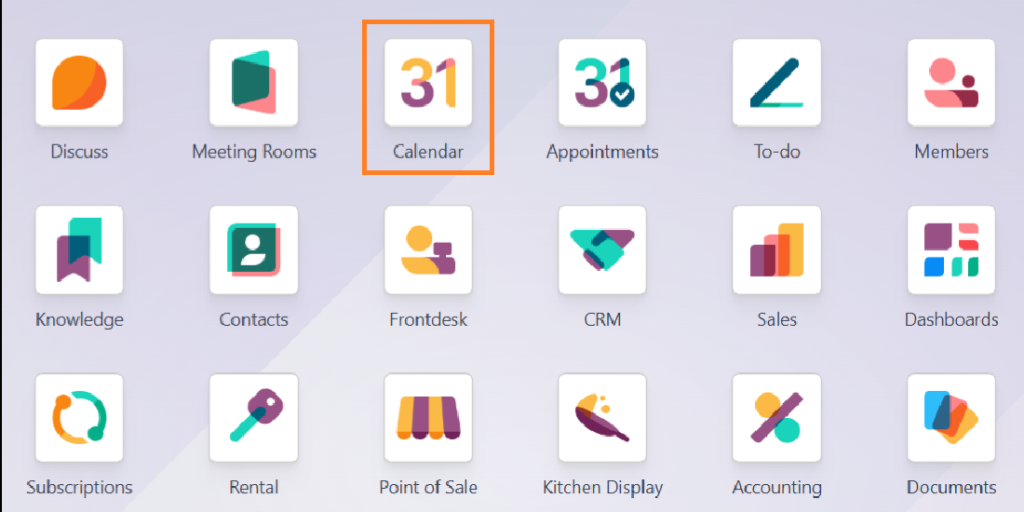
- Configure Your Calendar Settings:
– Click on the settings icon to customize your calendar according to your preferences.
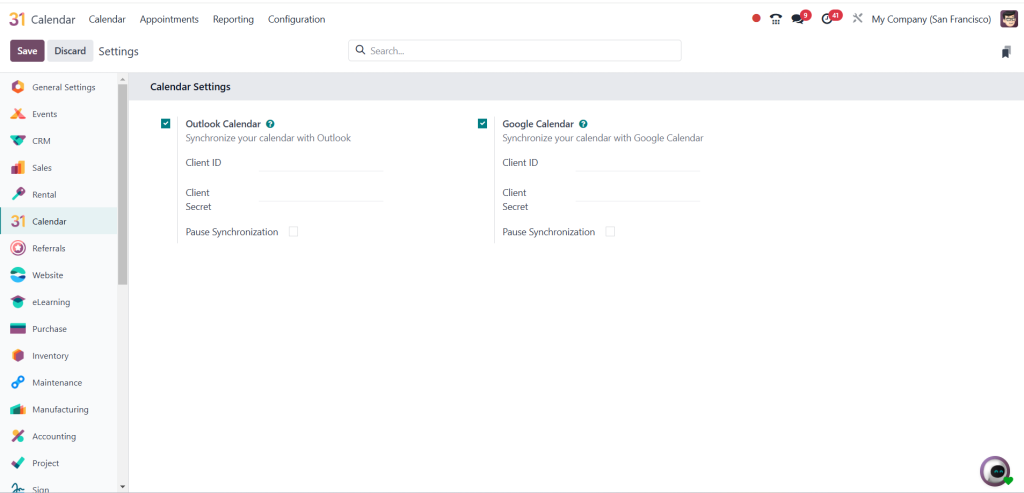
– Set your working hours, time zone, and event colors to enhance your user experience.
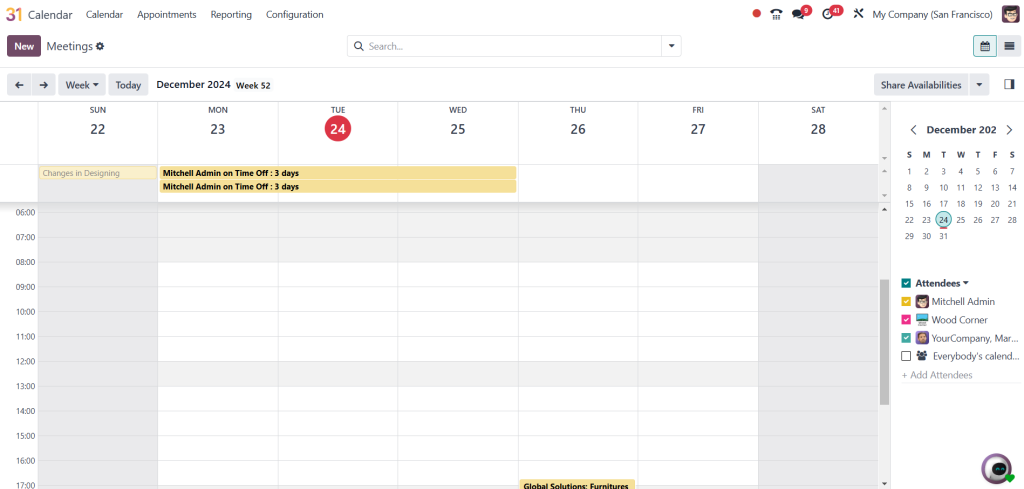
- Create Your First Event:
– Click on the “Create” button to initiate a new event.
– Fill in the necessary details, such as the event title, date, time, and location.
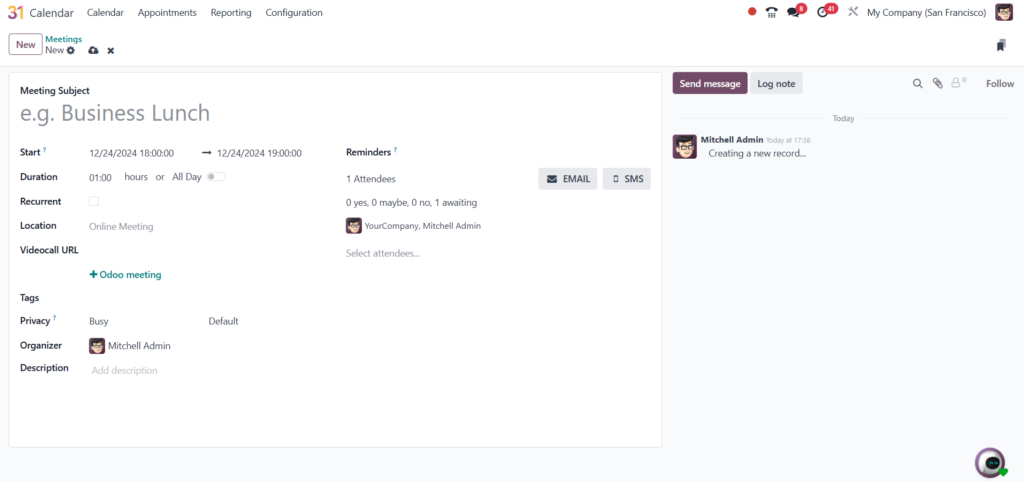
- Invite Attendees: You can invite participants by adding their email addresses in the attendees section. This feature simplifies meeting coordination.
- Save and Notify: Once you have filled in all the details, click “Save.” The system will automatically send out notifications to all attendees.
Utilizing the Odoo 18 Calendar View
The Odoo 18 calendar view is designed to provide users with an intuitive interface for managing their schedules. Here are the different views available:
Daily View
The daily View allows users to focus on daily tasks, ideal for detailed planning and time management.
Weekly View
The weekly View provides a broader perspective, allowing users to see their schedule for the entire week. This View is handy for planning meetings and events that span multiple days.
Monthly View
The monthly View offers an overview of the entire month, making it easier to identify upcoming events and deadlines quickly.
Custom Views
Odoo also allows users to create custom views based on their specific needs. You can filter events by categories, such as personal, work-related, or project-specific events.
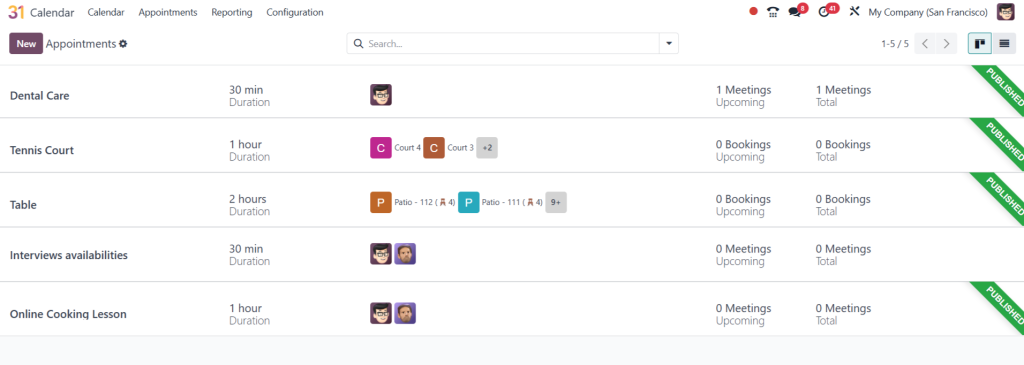
Synchronizing the Odoo Calendar with External Applications
One of the most significant advantages of the Odoo calendar integration is its ability to synchronize with external applications. Here’s how to set up synchronization:
- Go to Calendar Settings: Access the calendar settings from the main menu.
- Select Synchronization Options: Choose the option to sync with Google Calendar, Outlook, or any other compatible calendar application.
- Authenticate Your Account: Follow the prompts to authenticate your external calendar account.
- Choose Synchronization Preferences: Decide whether you want one-way or two-way synchronization based on your needs.
This synchronization feature ensures you can manage all your appointments from a single platform, reducing the risk of double bookings and missed events.
The Odoo 18 calendar module is a robust tool
Significantly enhance your scheduling capabilities by Following the steps outlined in this Odoo calendar user guide. You can set up, configure, and utilize the calendar to its fullest potential. Whether managing personal appointments or coordinating team meetings, the Odoo 18 calendar features will help you stay organized and efficient.