Managing product categories effectively is critical for businesses using Odoo 18. Whether you’re updating inventory or restructuring data, understanding how to import and export product category in Odoo 18 can save time and simplify operations.
The Secret Sauce to Product Category Wizardry in Odoo 18
Ever wondered if there’s a magic trick to handling hundreds or thousands of product categories without breaking a sweat? What if I told you there’s a way to upload, update, teleport, or export your product categories across systems in just a few clicks? Sounds like the dream of every inventory manager, right?
Well, buckle up because today, we’re diving into the untapped superpower of how to import and export product categories in Odoo 18. Forget about endless spreadsheets, data entry nightmares, and that sinking feeling when you realize you missed a critical category in your hierarchy. With Odoo 18 import product category and Odoo 18 export product category, you’re not just managing data; you’re arranging a work of order and efficiency.
But wait, there’s more. What if I told you that by mastering Odoo 18 PRODUCT CATEGORY import-export, you’d not only save time but also turn your inventory management into a jaw-dropping display of precision and control? Yep, it’s like revealing a hidden level in the game of business success.
Curious? Intrigued? Dying to know the step-by-step secrets to harness the power of Odoo 18 data import export? Keep reading because what’s coming next might transform your thinking about product category management!
Why Product Category Management is Important in Odoo 18
Product categories are the backbone of efficient inventory and product data management. Odoo 18 offers robust tools for categorizing and organizing product information, allowing businesses to:
- Ensure consistency in product data.
- Modernize reporting and analysis.
- Improve decision-making based on accurate data.
The import and export product category in Odoo 18 functionalities enables businesses to handle bulk data tasks effectively, saving time and reducing errors.
Why Focus on Import and Export of Product Categories in Odoo 18?
Time-Saving Operations
With Odoo 18, you can quickly import product data and handle large datasets. This eliminates manual data entry, freeing up time for strategic activities.
Data Consistency and Accuracy
The ability to import and export product categories in Odoo 18 ensures that your data remains consistent across departments and systems. Errors due to manual processes are significantly reduced.
Scalability
As your business grows, managing an extensive inventory becomes challenging. The Odoo 18 product category management tools offer scalable solutions for unified data handling.
Integration with Other Modules
Efficient Odoo 18 data import export supports integration with Odoo’s accounting, sales, and inventory modules, ensuring a smooth workflow.
Preparing for Import and Export of Product Categories in Odoo 18
Preparation is key before diving into the process. Follow these steps to ensure an all-in-one experience with Odoo 18’s import product category and Odoo 18’s export product category functionalities.
Backup Your Data
Always create a database backup to avoid accidental data loss during the Odoo 18 product category import-export process.
Use Odoo Templates
Odoo provides default templates for imports and exports. These templates simplify the process and ensure your data is formatted correctly.
Organize Your Files
Prepare your CSV or Excel file by:
- This includes essential fields like category name, parent category, and attributes.
- Validating the data to remove duplicates or errors.
User Permissions
Ensure you have the required user permissions to access the Odoo 18 import product data and Odoo 18 export product data tools.
Step-by-Step Guide to Export Product Categories in Odoo 18
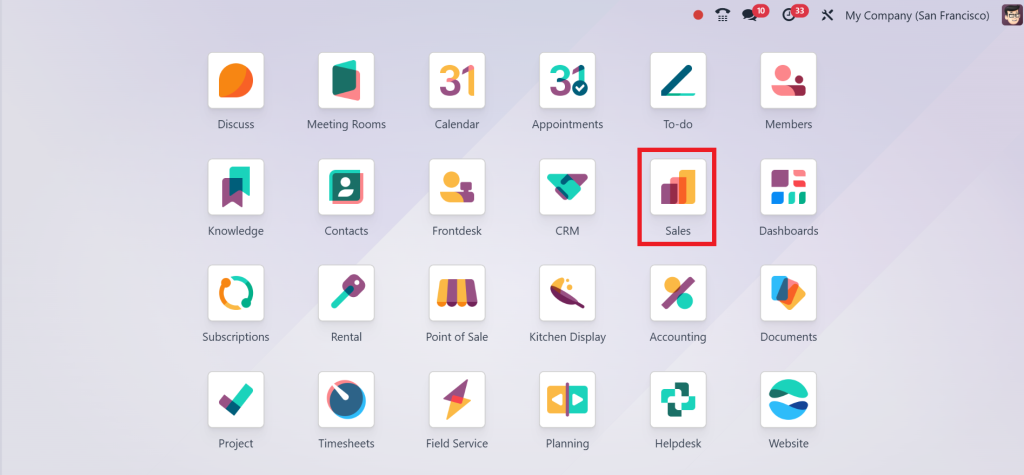
Open the Sales Module.
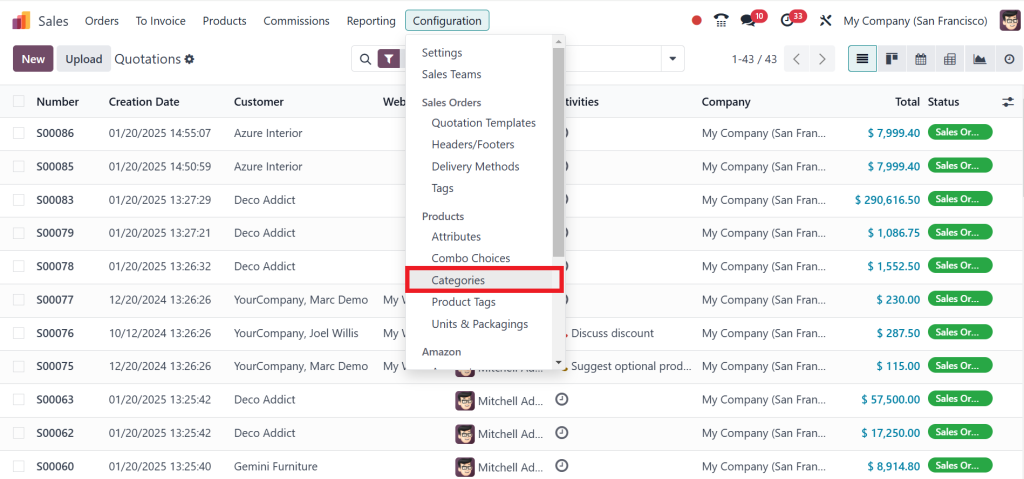
Go to Configuration > Categories.
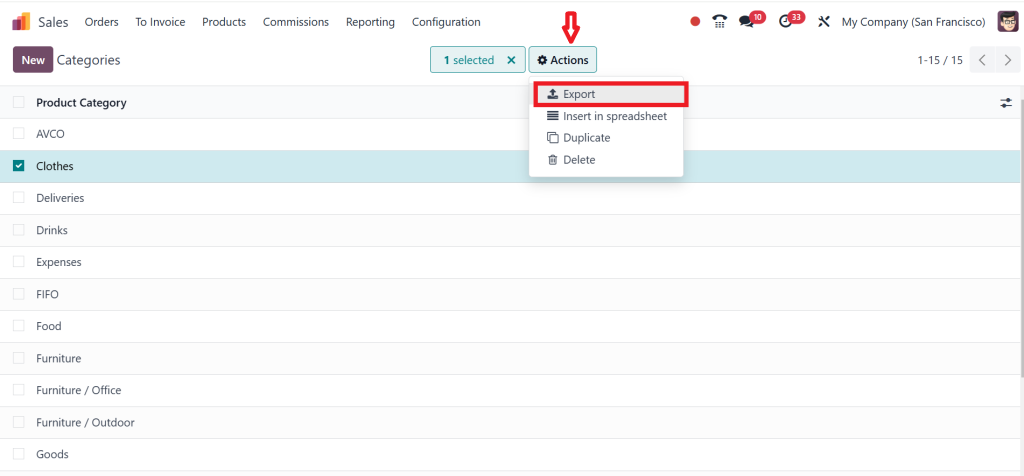
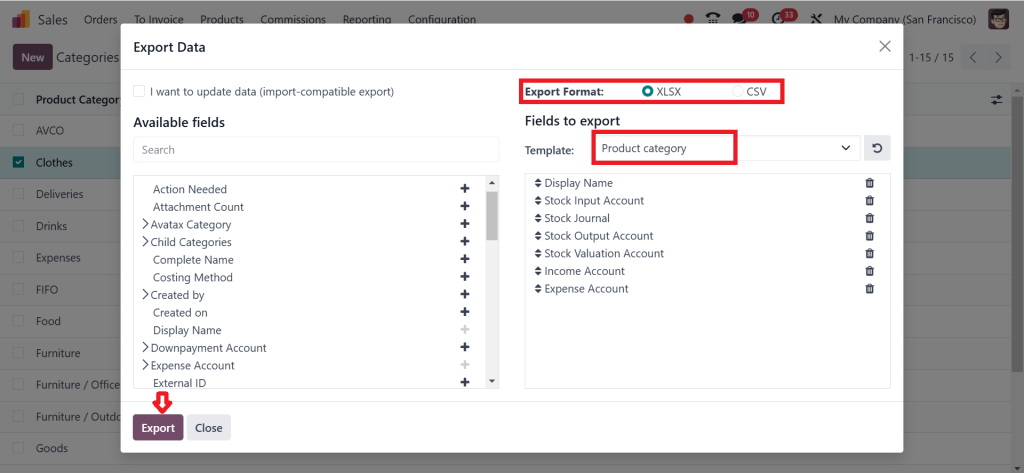
Choose the Product, then click on the Actions button and click Export. This will open the export configuration window.
Select the fields you wish to include, such as Category Name, Parent Category, and additional attributes. Choose between CSV or Excel as the file format. Click Export to generate and download the file.
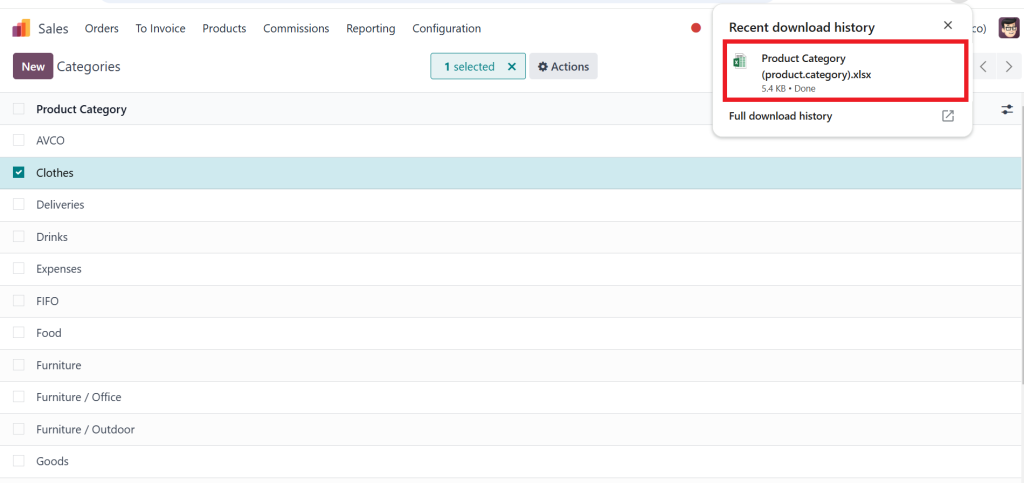
As you can see in the screenshot below, the file is saved.
Step-by-Step Guide to Import Product Categories in Odoo 18
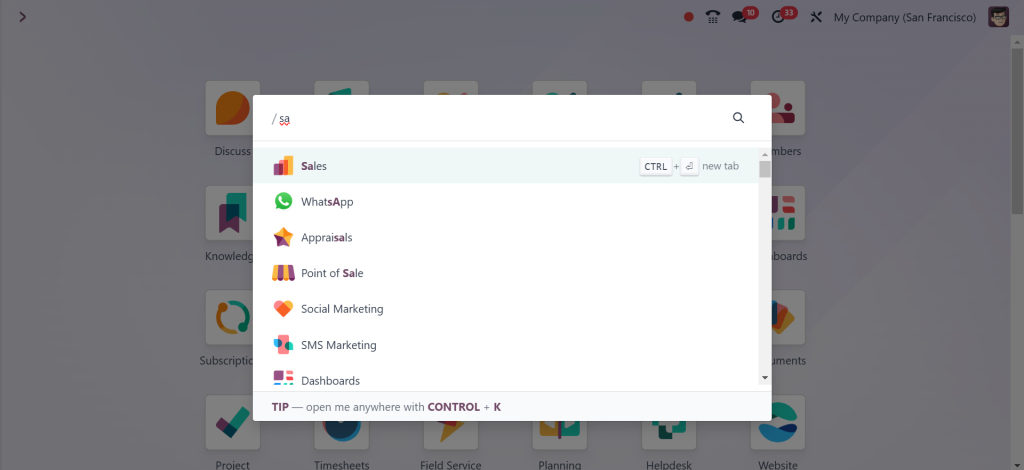
Open the Sales module in Odoo 18 and go directly to Configuration > Categories.
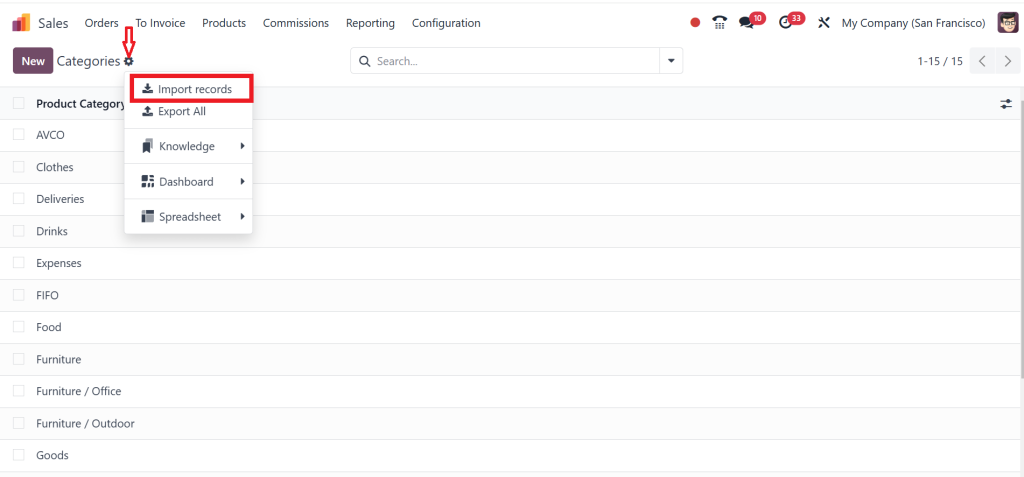
Click on the Settings icon and select the Import Records option.
Now, choose the file you need to Import, set the field name, and click the ‘‘Test’’ button. If you see a note in your window like ‘‘Everything Seems Valid’’, click the Import button. Then, you can see the notification on your screen that is ‘‘1 record successfully imported’’.
This process ensures the efficiency of data entry and also provides data accuracy. So, that’s how you can easily import and export product categories in Odoo 18.
Pro Tips for Effective Product Category Management in Odoo 18
Leverage Parent-Child Relationships
Organize categories hierarchically to simplify direction-finding and reporting.
Automate Updates
Utilize the Odoo 18 import product data tool to automate category updates in bulk.
Monitor Duplicate Entries
Regularly review and clean your data to prevent duplicate product categories.
Train Your Team
Ensure your team effectively uses Odoo 18 product category management tools.
Common Challenges and Troubleshooting
Challenge 1: Import Errors Due to Incorrect Format
Solution: Use Odoo’s template files and ensure mandatory fields are included.
Challenge 2: Missing Data in Exported Files
Solution: Verify that all necessary fields are selected during export.
Challenge 3: Overwritten Data During Imports
Solution: Test the import file on a sandbox environment before applying changes to the live database.
Best Practices for Odoo 18 Product Category Management
Use Consistent Naming Conventions: Ensure product category names are unique and descriptive.
Regularly Back Up Data: Always back up your database before performing bulk operations.
Validate Data Before Importing: Use the Test Import feature to identify errors.
Organize Categories: Use parent-child relationships for better organization.
Why Odoo 18 is Perfect for Product Category Management
Odoo 18 offers a comprehensive suite of tools for managing product categories, making it ideal for businesses of all sizes. Its import and export product categories in Odoo 18 functionalities are user-friendly, ensuring all-in-one data handling.
Whether you’re importing product categories to update your inventory or exporting data for integration with other systems, Odoo 18 product category import export tools guarantee efficiency and accuracy.
Empower Your Business with Odoo 18
Mastering importing and exporting product categories in Odoo 18 is crucial for effective data management. The Odoo 18 import product category and Odoo 18 export product category features allow businesses to handle large datasets effortlessly.
Following the steps outlined in this guide can rationalize your operations, maintain data consistency, and enhance overall productivity. Hold the power of Odoo 18 product category management to take your business to the next level.
With this detailed guide, you’ll be well-equipped to leverage Odoo 18 data import and export tools for all-in-one product category management.