How to Manage Product Sales in Different Units in Odoo 18?
Why Managing Product Sales in Different Units in Odoo 18 Matters
What if you run a growing business with a range of products, some sold by weight, others by volume, and a few in unique units? Whenever you receive an order, you must manually calculate quantities, track inventory, and convert between units. This process is time-consuming, prone to mistakes, and frustrates you. But what if there was a way to automate the entire process, ensuring accuracy, saving time, and freeing you to focus on scaling your business?
Enter Managing Product Sales in Different Units in Odoo 18, the turning point in the ERP platform that allows you to manage product sales in different units with just a few clicks. Whether you’re selling bulk quantities by weight but need to track them in pieces or handling complex unit conversions for international markets, Odoo 18’s intuitive units of measure configuration can handle it all.
In this article, we’ll walk you through using Odoo 18’s powerful sales management tools to update your operations and eliminate the guesswork in your sales processes. From understanding units of measure in Odoo 18 to setting up and configuring your system for success, we’ll guide you step-by-step. By the end, you’ll know exactly how to make Odoo 18 work for your business, ensuring you can sell, track, and manage inventory in any unit you choose with Product Sales in Different Units in Odoo 18 zero hassle.
So, keep reading to see if you can simplify your sales, automate your inventory, and boost your operational efficiency. This guide has actionable tips and insights to transform product sales and help your business thrive in today’s fast market.
What Are Units of Measure in Odoo 18?
Before we discuss the specifics of configuring and managing units, let’s examine the units of measure in Odoo 18.
In Managing Product Sales in Different Units in Odoo 18, a unit of measure quantifies your products for sales and inventory. For example, if you sell fabric, you might buy it in rolls but sell it by the meter. Alternatively, you could sell in bulk (like purchasing a box of items) but sell them individually. Odoo 18 allows you to track products in these different units easily.
Types of Units of Measure in Odoo 18
There are typically two types of units you’ll be dealing with:
Purchase Unit of Measure:
This is where you purchase or stock your products. Depending on how you buy the item, it could be anything from a kilogram (kg) to a box of 12 units.
Sales Unit of Measure:
This is how you sell your product to customers. For example, you may buy products by weight (e.g., kilograms) but sell them in pieces or boxes.
The beauty of Managing Product Sales in Different Units in Odoo 18 is that it allows you to set these units separately for each product. This units-of-measure setup ensures that inventory is tracked accurately and conversions between units happen automatically when you make sales or purchases. That prevents mistakes like accidentally selling 10 kilograms instead of 10 boxes.
How to Set Up Units of Measure in Odoo 18
In Odoo 18, the Units of Measure (UoM) system is critical, especially for businesses that handle products sold and purchased in different quantities or units. Let’s break it down Product Sales in Different Units in Odoo 18 step-by-step so you can set it up without any confusion:
Step 1: Access the Inventory Module
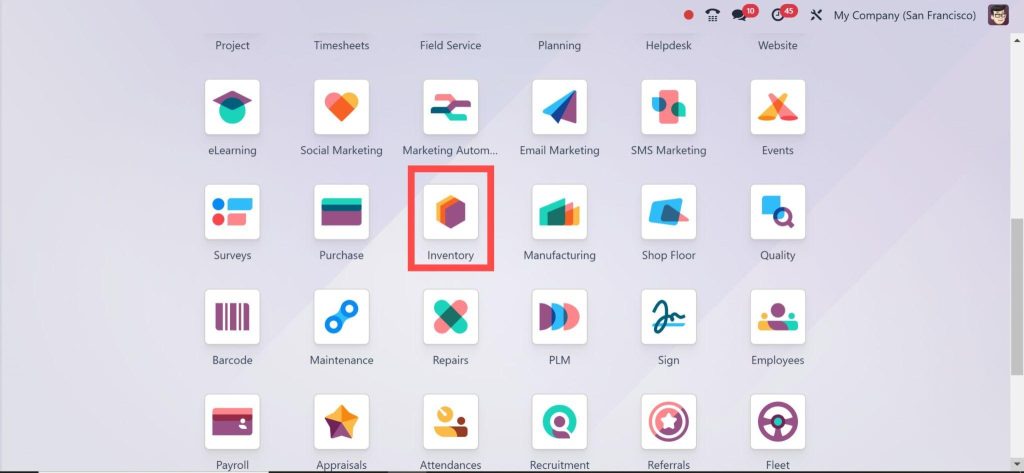
To begin, you must go to the Inventory module within Odoo 18.
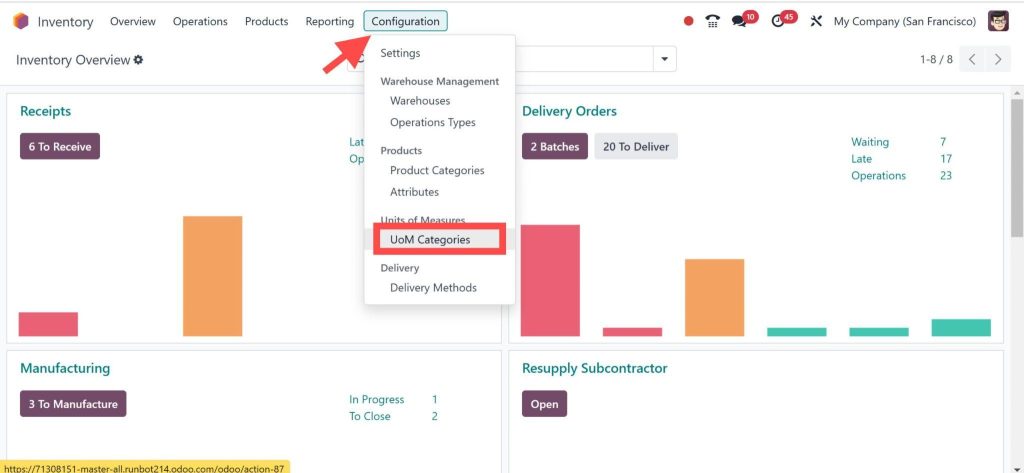
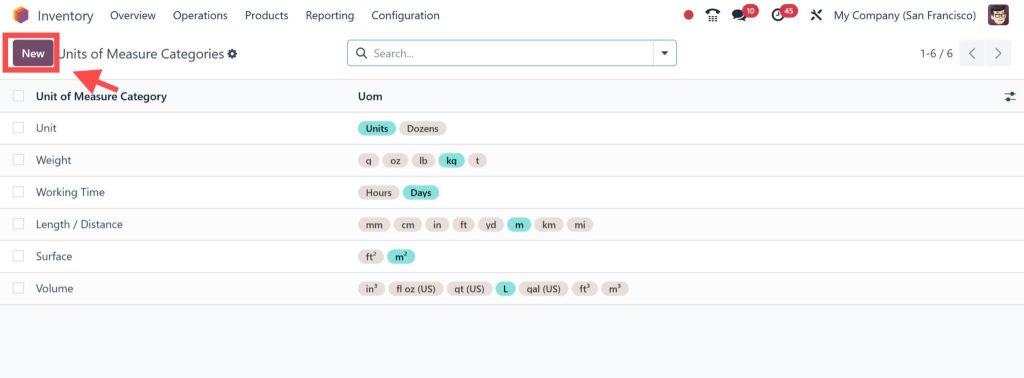
From the main dashboard, Go to Configuration and select Units of Measure.
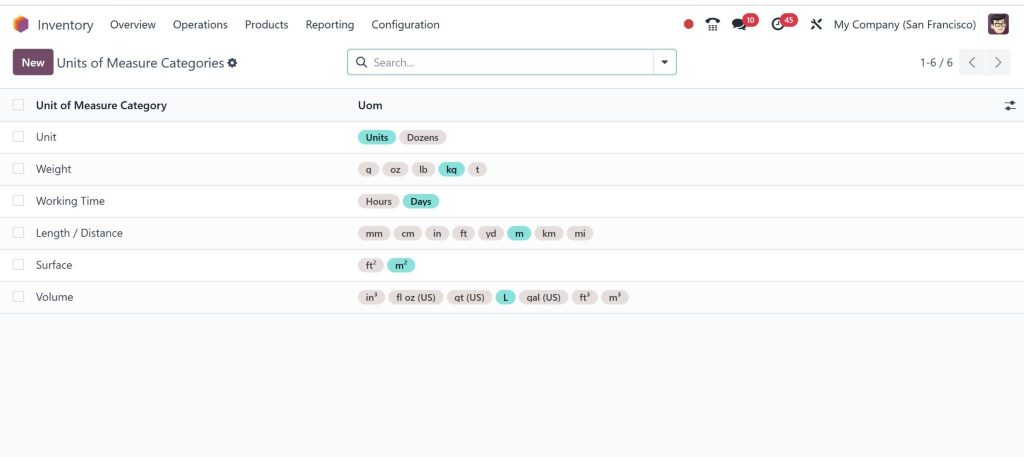
That will open up the page where you can create and manage your units.
Step 2: Create New Units
In the Units of Measure section, you can either edit the existing units or add new ones.
To add a new unit, click on New.
And then:
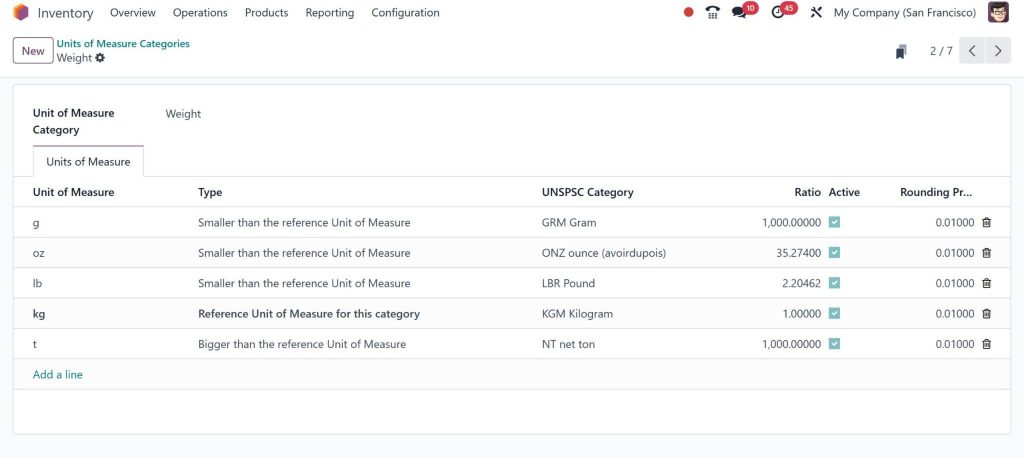
Name the Unit: This could be “Box,” “Kilogram,” “Piece,” “Liter,” or any unit that makes sense for your product.
Category: Choose the category that best fits the unit. For example, if it’s a measurement, you’d select “Weight.” If it’s volume, you’d choose “Volume.”
Reference Unit: This is the base unit to which all other units will convert. For instance, if your reference unit is Kilograms, all different units, such as grams, pounds, etc., will be based on this standard.
Once you’ve filled in the details, click Save. You can now use this unit across your products.
Step 3: Assign Units of Measure to Products
Now that you’ve set up your Product Sales in Different Units in Odoo 18, it’s time to assign them to products:
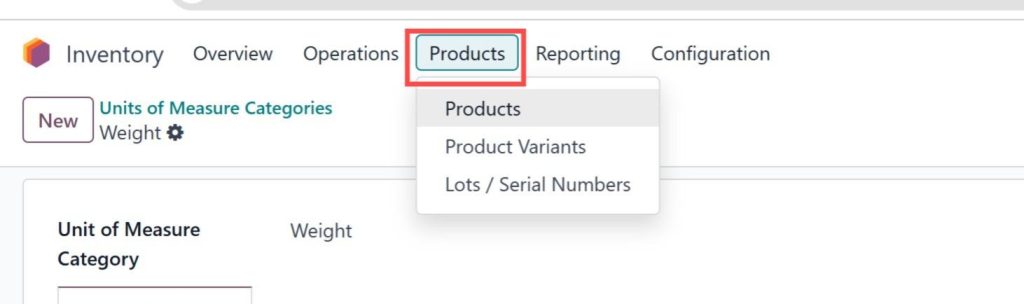
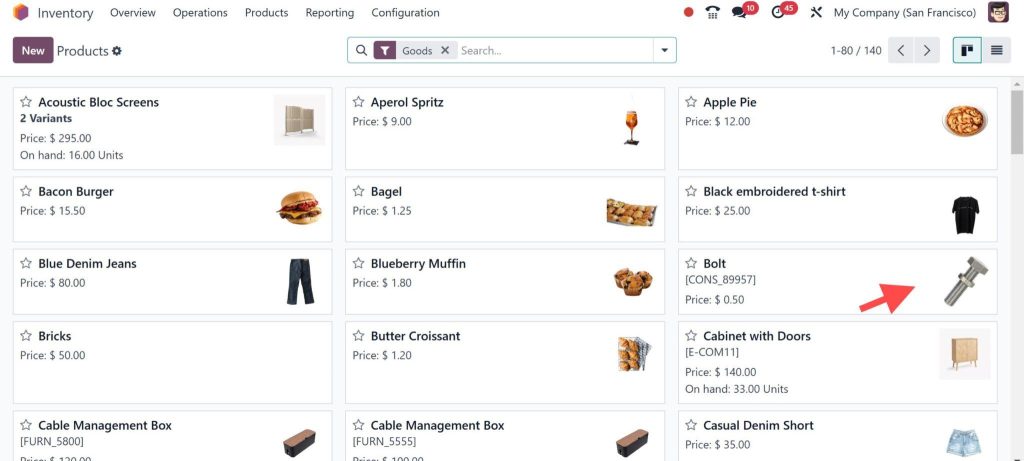
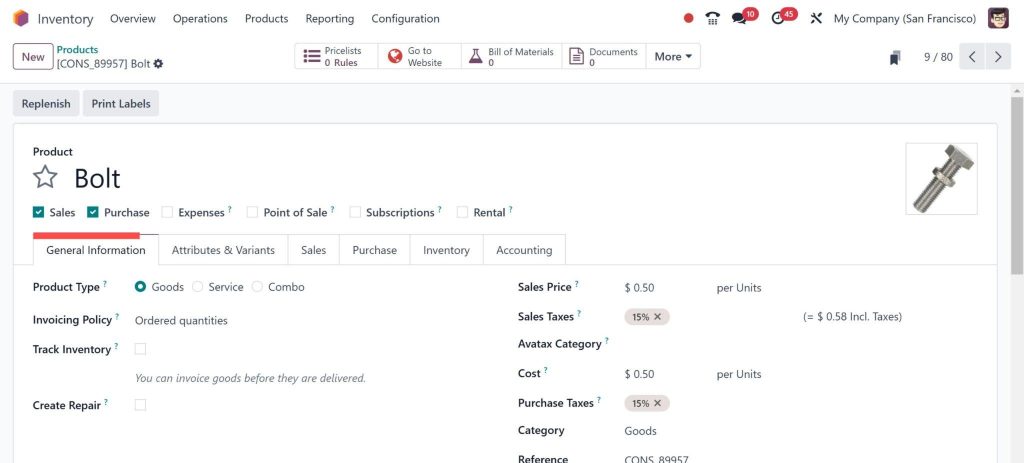
Go to the Products section in the Inventory module.
2. Select a product you want to edit.
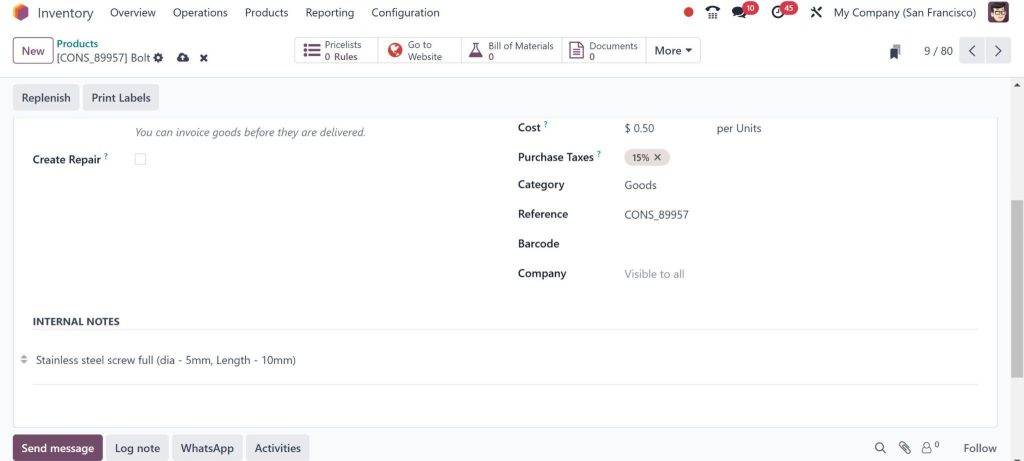
3. Under the Inventory tab, look for the Unit of Measure field.
4. For the purchase, select the unit you use to receive the product (e.g., box, kilogram, etc.).
5. For the Sales, choose the unit where you sell the product (e.g., pieces, boxes).
That’s it! Odooautomatically manages the conversion between these units whenever you purchase or sell.
Managing Product Sales in Odoo 18
Now that your Units of Measure or Product Sales in Different Units in Odoo 18 are set up let’s get into managing product sales in Odoo 18. Whether you’re selling in bulk or individual units, Managing Product Sales in Different Units in Odoo 18 simplifies the process with these critical steps:
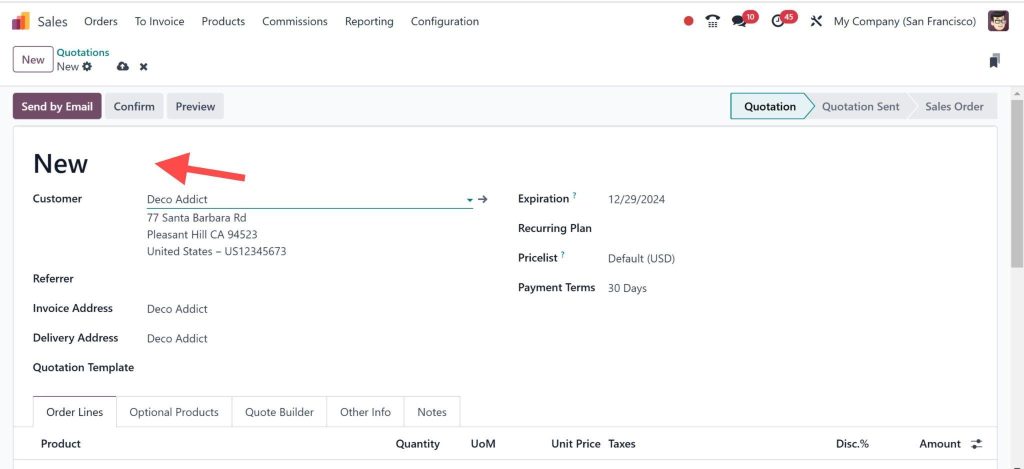
Step 1: Create a Sales Order
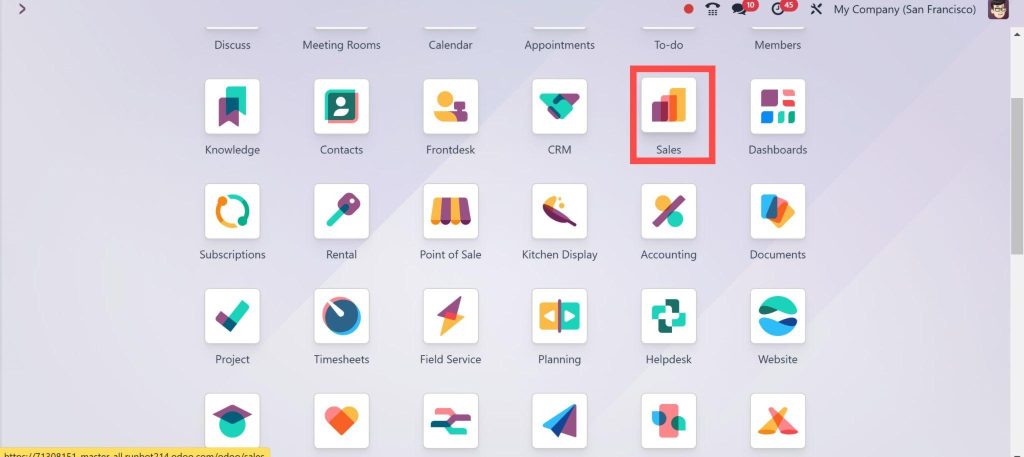
Go to the Sales module
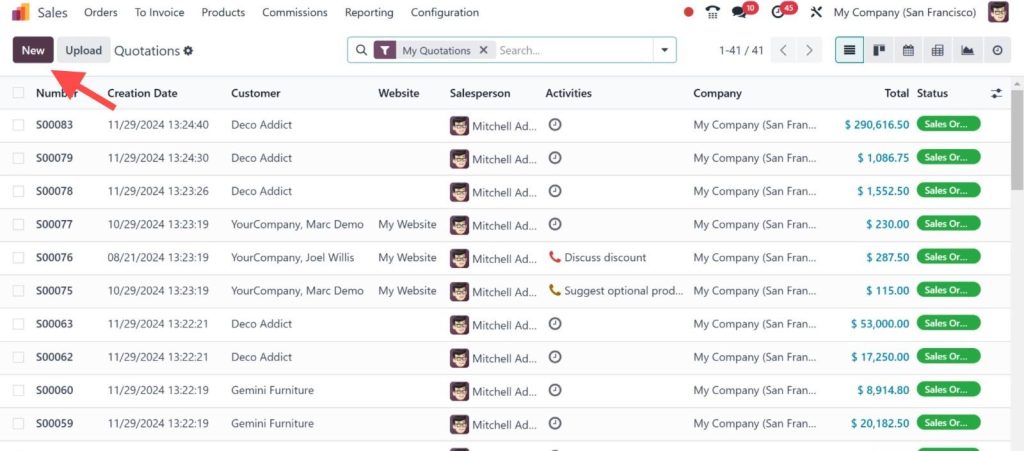
2. Click on Create to start a new sales order.
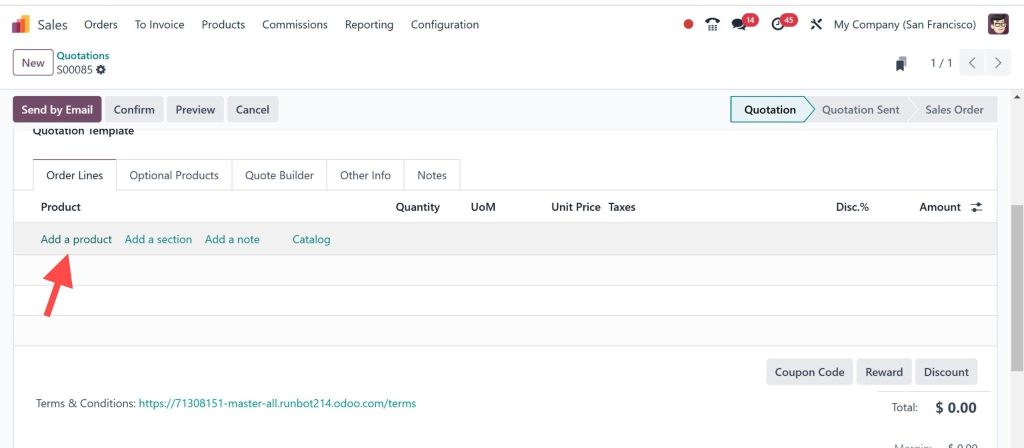
3. Select your customer and add products to the order.
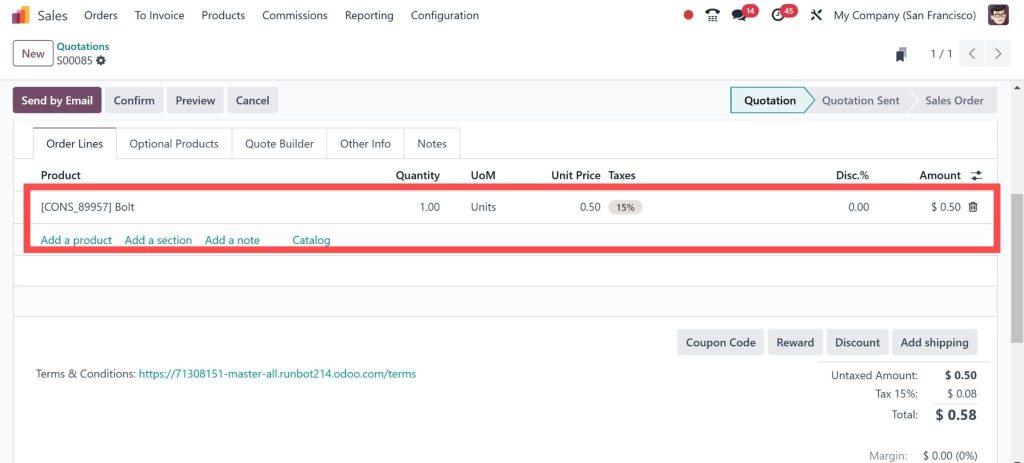
4. Odoo will automatically show the Sales Unit you’ve set up for each product.
For example, if you buy product A in boxes but sell it individually, you’ll see “Pieces” as the sales unit while your inventory is tracked in “Boxes.”
Step 2: Automating Conversions
The great thing about Odoo is that it automatically handles conversions between your purchase and sales units. So, if you purchased Product A in boxes but the customer orders it in pieces, Odoo will calculate the number of pieces in one box and adjust the order accordingly.
You don’t need to figure out conversions manually. Odoo does it for you!
Step 3: Invoicing and Delivery
Once the sales order is confirmed, you can move to Invoice and Delivery. Odoo ensures that the units of measure are consistent, meaning your invoice will reflect the correct number of units based on what’s being sold.
Step 4: Real-Time Inventory Updates
When a sale is completed, Odoo automatically updates your inventory levels. The stock of Product A decreases based on the sales units, and Odoo keeps everything in sync.
Benefits of Managing Product Sales in Different Units in Odoo 18
There are many reasons why Managing Product Sales in Different Units in Odoo 18 is a Innovation for businesses. Let’s break down some of the most significant benefits:
Enhanced Accuracy
By configuring Product Sales in Different Units in Odoo 18 or to handle multiple units of measure, you can ensure the accuracy of your sales and inventory records. That reduces human error and prevents problems like over-selling or under-selling stock.
Improved Efficiency
Odoo’s automation of handling different units of measure frees your team from performing manual calculations and adjustments. It ensures that the correct quantities are sold, purchased, and tracked without your input.
Better Inventory Management
With Odoo 18, your inventory levels are automatically adjusted based on the unit of measure for each product. You’ll always know how much stock is available, and Odoo will keep your records up-to-date.
Flexibility for Different Business Models
Whether you sell products in bulk or by individual unit, Odoo 18 allows you to customize each product’s sales and purchase units. This Product Sales in Different Units in Odoo 18 flexibility means that no matter what type of product you’re selling, Odoo can accommodate your business needs.
Troubleshooting Common Issues in Units of Measure Setup
Issue: Incorrect Unit Conversion
Solution: Double-check the conversion factors defined in the unit configuration to ensure accuracy.
Issue: Inconsistent Product Data
Solution: Ensure every product has a default unit assigned and review configurations regularly.
Issue: Difficulty in Sales Order Management
Solution: Train your team to understand how to use or implement Product Sales in Different Units in Odoo 18 or to switch between units during order creation for smoother transactions.
Hi, I'm Nabia, an Odoo ERP functional & technical content writer. I specialize in blogs, social media content, ad copy, landing pages, service pages, and email campaigns.
We use cookies to ensure that we give you the best experience on our website. If you continue to use this site we will assume that you are happy with it.