The process of manual scheduling creates disorganisation through conflicting work hours, exhausted personnel and decreased operational output. The absence of proper planning systems creates overwhelming challenges for even the most experienced planners when managing complex operations. Thats why the Shift in Odoo 18 Planning act as a solution to address these challenges.
This guide demonstrates how to implement Odoo 18 shift features for scheduling management, operational efficiency improvement, and reducing operational challenges. This blog provides complete information about team coordination and flexible shift template creation.
The Shift in Odoo 18 planning module shift tutorial provides your team with clarity and control through its implementation.
What is Shift in Odoo 18 Planning and Why Does It Matter?
The main issue stems from irregular scheduling, which produces delays and unhappy staff members, and additional expenses for rework.
The core function of resource management depends heavily on shift planning, particularly for logistics and retail, healthcare and manufacturing industries. The Planning module in Odoo 18 provides users with an enhanced, user-friendly system to handle shift management.
The Odoo create shift planning app enables users to:
Staff members receive designated roles and periods for their assignments
The system allows users to establish recurring shift templates for future use
The system provides intelligent scheduling recommendations to prevent scheduling conflicts
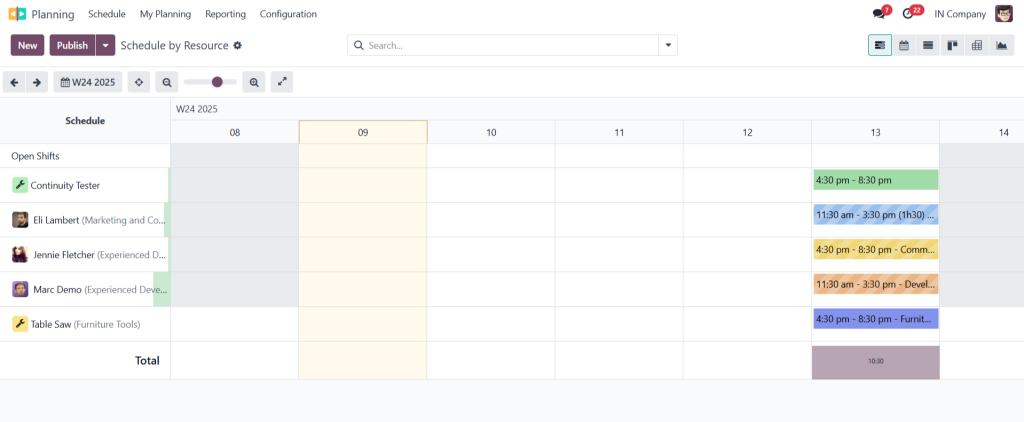
The drag-and-drop interface enables users to plan their shifts visually
Netilligence provides optimized Odoo 18 setup services for these planning features which shortens the learning process and prevents setup mistakes.
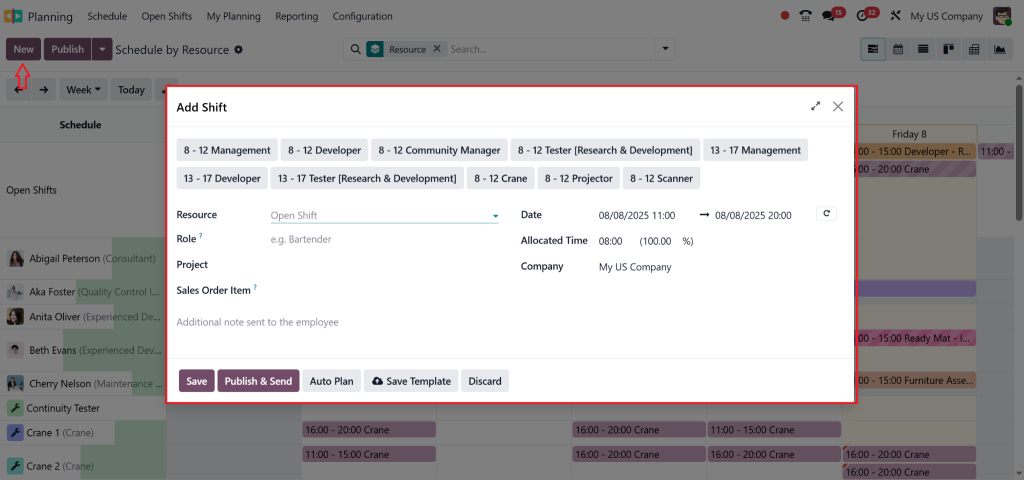
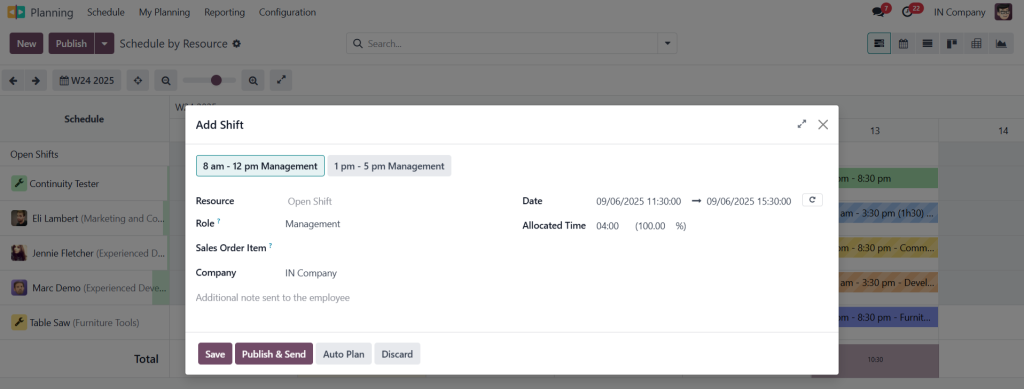
If you select a template, the shift details will be auto-filled, saving time.
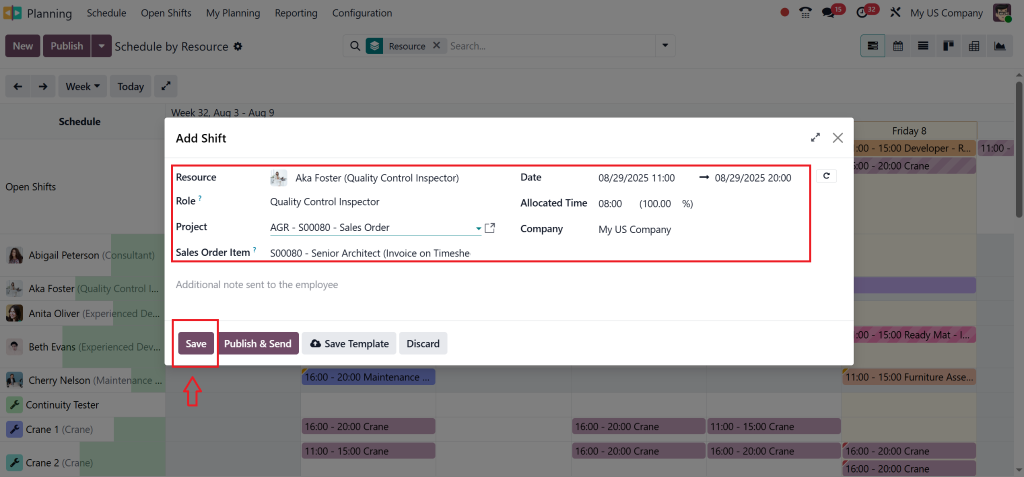
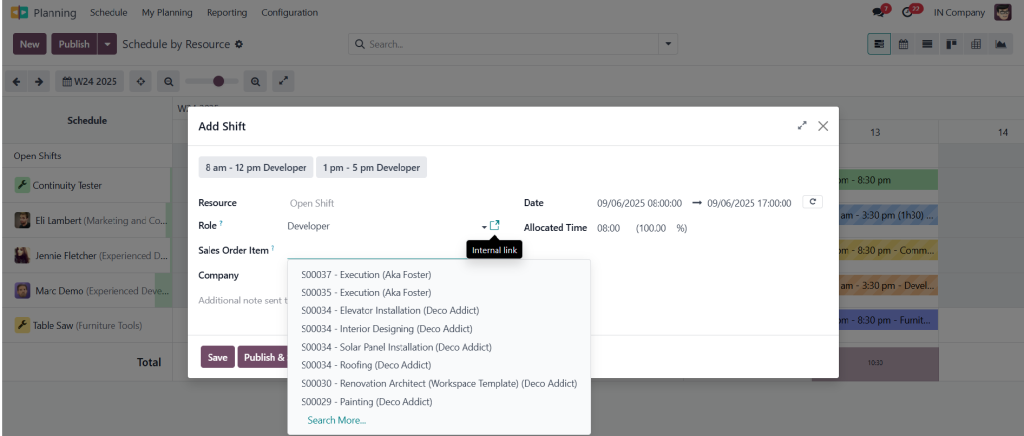
2. Link to Project or Sales Order (If Modules Installed)
Project:
How to add shift Odoo 18: Link the shift to a specific project if the Project app is installed.
Sales Order Item:
Link the shift to a sales order if the Sales app is installed.
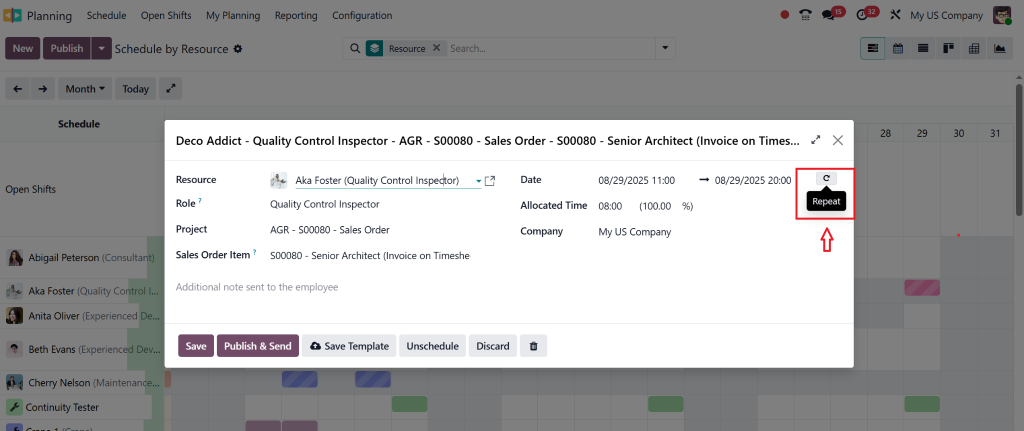
3. Set Recurrence (Optional)
To create regularly repeating shifts, tick the “Repeat” checkbox.
Configure the “Repeat Every” field for frequency (e.g., every week, every month).
Odoo will plan recurring shifts six months in advance by default (this can be changed in Planning App settings).
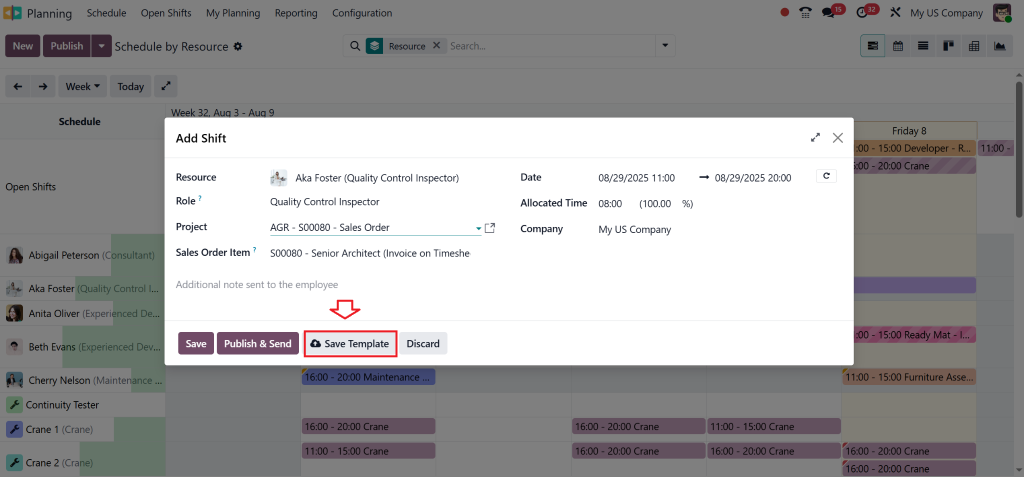
4. Save as Template (Optional)
Click “Save as Template” if you want to reuse the current shift configuration in the future.
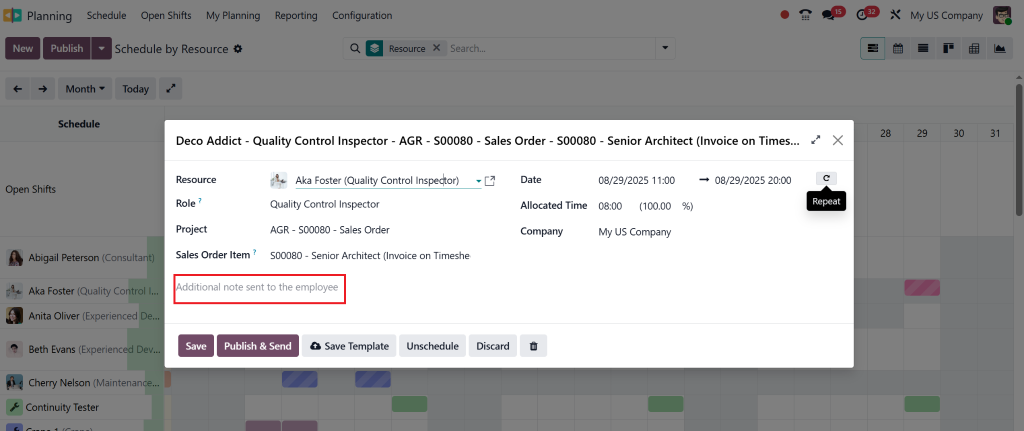
5. Add Additional Notes (Optional)
Use the “Additional Note” field to send specific information to the assigned employee.
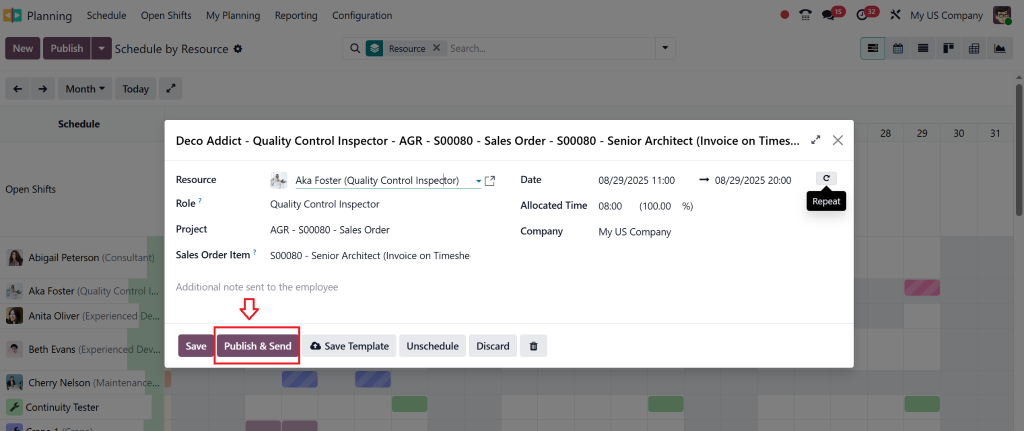
6. Publish or Save
After entering all necessary details, click “Publish and Send” or “Save”.
Publishing will confirm the shift, add it to the schedule, and automatically send a notification/email to the assigned employee.
Shifts are initially saved as drafts and only visible to administrators until published.
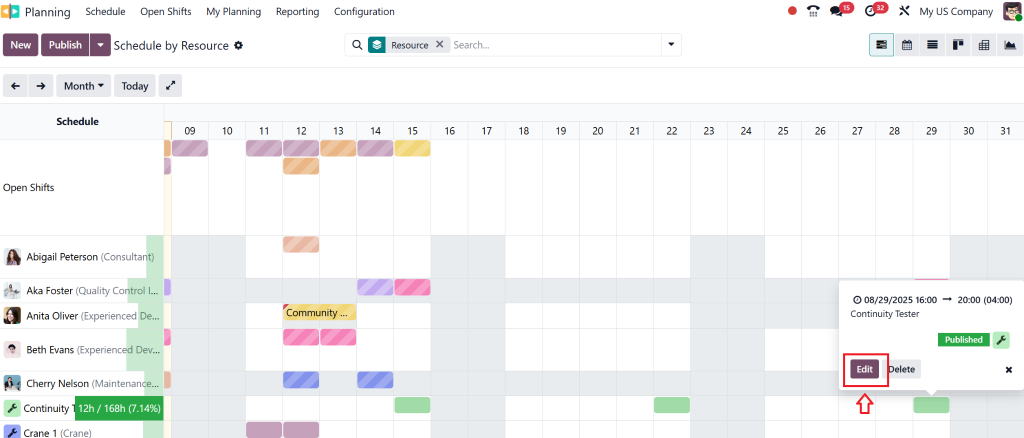
7. Edit or Split Shift
Odoo Planning schedule shift : To edit a shift, click the “Edit” button.
For long shifts that need to be split into segments, use the “Split Shift” tool in the schedule view.
Benefits of Create Shifts Odoo Planning
The current traditional methods fail to provide visibility, speed, and integration capabilities.
The benefits of shift creation in Odoo 18 become available right after implementation.
Clarity for Employees
All employees receive clear information about their assignments and schedule,s which minimizes misunderstandings.
Real-Time Adjustments
Users can instantly reassign or reschedule shifts through drag and drop functionality.
Integrated Notifications
The system connects with employee calendars and automatically sends email notifications about any modifications.
Smart Conflict Resolution
The system identifies both shift conflicts and unassigned shifts which enables immediate problem resolution.
Reports and KPIs
The built-in dashboards allow you to monitor planning efficiency and view unfilled roles and hours worked reports.
We assist Netilligence clients to create customized reports which align with their KPIs and industry requirements.
Best Practices for Creating Shifts in Odoo 18
The implementation of good tools does not eliminate the inefficiencies that result from poor practices.
The following expert-approved methods will help you maximize Odoo 18 planning schedule shift features:
Standardize Templates – Create shift templates for commonly repeated schedules to reduce repetitive tasks.
Use Role Tags – Apply tags like “Weekend”, “Night Shift”, or “Remote” to filter shifts quickly.
Block Overlaps Proactively – Configure rules in Odoo to prevent assigning employees to two shifts at the same time.
Integrate with Attendance Module – Validate planned vs actual working hours for payroll accuracy.
Automate Publishing – Set shift plans to auto-publish weekly or monthly, reducing manual workload.
At Netilligence we provide proprietary shift optimization scripts together with training workshops to help your team learn new skills.
Using Odoo 18 to Plan Shifts for a Retail Chain
A regional retail brand operated with spreadsheets to handle employee shift management for more than 100 workers across 12 different locations. The company experienced operational losses together with customer dissatisfaction because employees frequently failed to show up and scheduling errors occurred.
The company deployed the Odoo 18 Planning module to establish shift templates for roles and implemented a customized shift approval process.
Results:
90% reduction in scheduling errors
Improved employee accountability
Faster shift creation using reusable templates
Integrated attendance sync with payroll
Make Shift Planning Smooth with Odoo 18
The correct implementation of Odoo 18 creates shift features enable your business to transform its workforce planning and management processes. The entire system includes visual templates, intelligent automation, and integrated notifications and reports ,which work together to save time and reduce chaos.
The process of beginning becomes challenging when you lack professional guidance.
Netilligence will assist you in achieving the complete potential of Odoo 18’s Planning module. Our customized setup, training, and optimisation services enable effortless and error-free shift management.
Hi, I'm Nabia, an Odoo ERP functional & technical content writer. I specialize in blogs, social media content, ad copy, landing pages, service pages, and email campaigns.
We use cookies to ensure that we give you the best experience on our website. If you continue to use this site we will assume that you are happy with it.