Manage Finances with Bank Reconciliation in Odoo 19 Accounting
Managing finances can be complex, especially when it comes to matching every transaction with your bank statement. That’s where Bank Reconciliation in Odoo 19 Accounting becomes essential.
This feature enables businesses to verify that the records in their books accurately reflect the balances in their actual bank accounts. Whether you’re a small startup or a growing enterprise, mastering Odoo 19 bank reconciliation keeps your accounts transparent, accurate, and stress-free.
In this Odoo bank reconciliation tutorial, we’ll guide you through the complete process, from setup to automation. You’ll learn how to reconcile bank statements in Odoo, use Odoo reconciliation models, handle manual bank reconciliation in Odoo, and even automate the entire process with Odoo auto bank reconciliation.
At Netilligence, a trusted Odoo Partner, we believe smart accounting isn’t just about recording numbers, it’s about building financial confidence. With the proper setup, Odoo Accounting reconciliation can save you hours every month, enabling you to make faster and more intelligent business decisions.
Let’s break it all down step by step and see how Bank Reconciliation in Odoo 19 Accounting can completely transform the way you manage your finances.
What is Bank Reconciliation in Odoo 19 Accounting?
Simply put, Bank Reconciliation in Odoo 19 Accounting means comparing your company’s accounting records with your bank statements to ensure everything matches.
Think of it as your financial “truth check.” Every payment received, bill paid, or fee deducted is verified in detail. If there’s any mismatch, you’ll identify and correct it before it causes more significant problems.
Odoo 19 makes this process smoother than ever. It allows you to import statements, automatically match transactions, and review everything from a clean dashboard.
Why It Matters:
- Saves Time: Reconcile hundreds of transactions in minutes.
- Ensures Accuracy: No more guessing or manual errors.
- Improves Visibility: Track real-time cash flow with precision.
- Supports Audits: Maintain clean and compliant records.
- Simplifies Accounting: Odoo’s built-in tools handle complexity for you.
In short: Reconciliation is the backbone of healthy accounting, and Odoo 19 gives you all the tools to make it effortless.
Step-by-Step: How to Do Bank Reconciliation in Odoo 19 Accounting
Now, let’s go step by step through the process. Whether you prefer automation or manual control, Odoo 19 gives you both options to ensure nothing slips through the cracks.
Step 1: Set Up Your Bank Journal
Everything starts with configuring your bank journal correctly.
Go to:
Accounting →
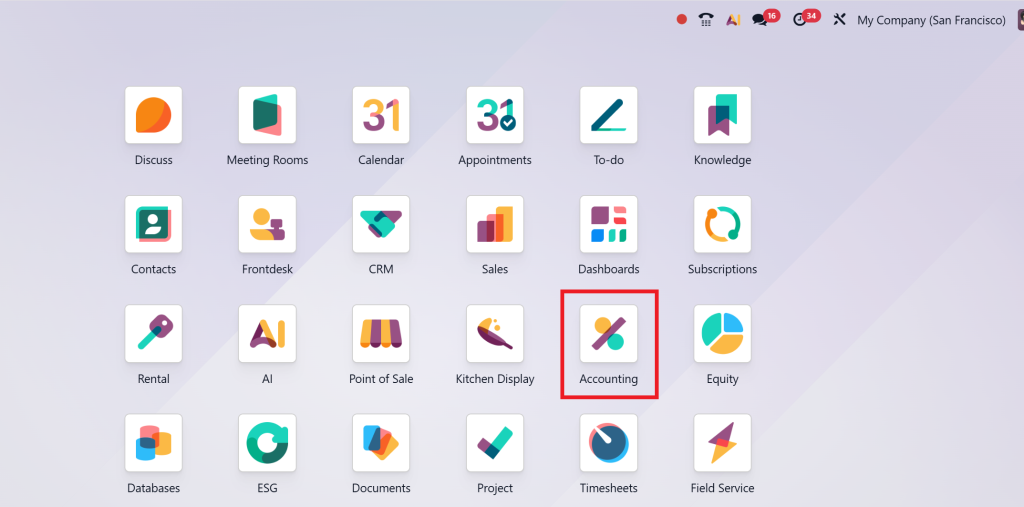
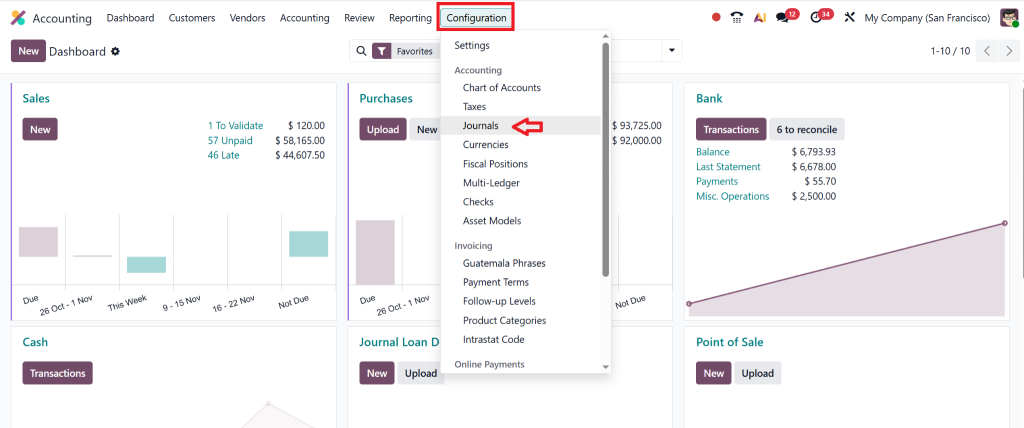
Configuration → Journals → Create (or Edit your existing Bank Journal).
Add:
- The Bank Account Number
- Bank Name
- Currency
- And enable Bank Feeds (if supported)
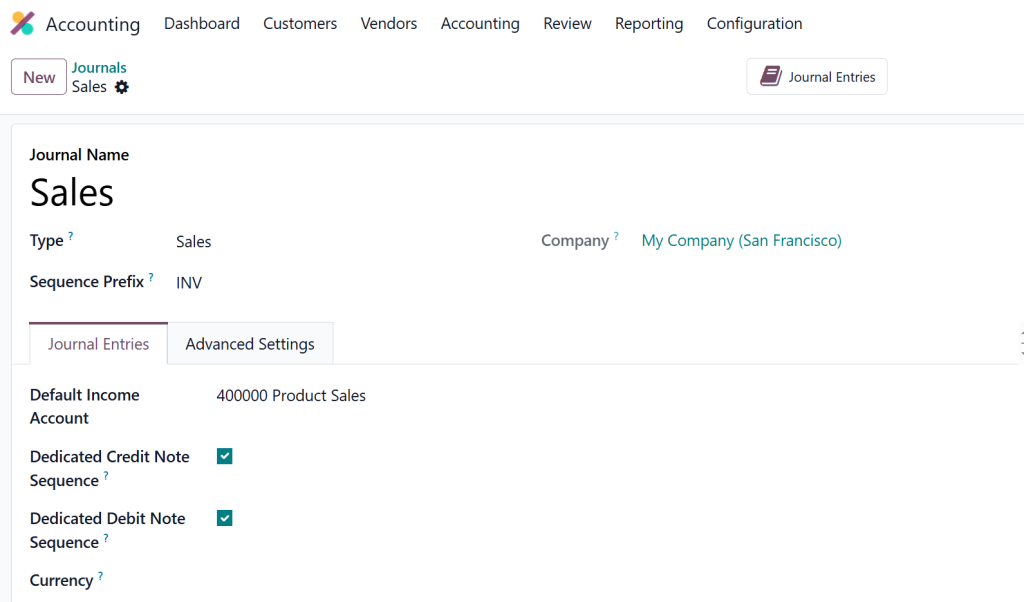
This setup connects Odoo to your bank account, allowing it to fetch statements directly or import them manually at a later time.
Step 2: Import Your Bank Statements
Next, bring your actual transactions into Odoo.
Head to Accounting → Bank → Import Statement and choose the format (CSV, OFX, or QIF). Odoo will read your file and display all transactions neatly.
If your bank supports it, you can connect it directly for Odoo auto-bank reconciliation, which means your statements will automatically appear inside Odoo, eliminating the need for uploads.
Pro Tip: Utilize this feature on a weekly or monthly basis to keep records up-to-date and error-free.
Step 3: Let Odoo Match Transactions Automatically
This is where the magic happens.
Once the statement is imported, Odoo automatically tries to match each line with invoices, payments, or journal entries, thanks to its innovative Odoo reconciliation models.
To do this:
- Open your reconciliation dashboard.
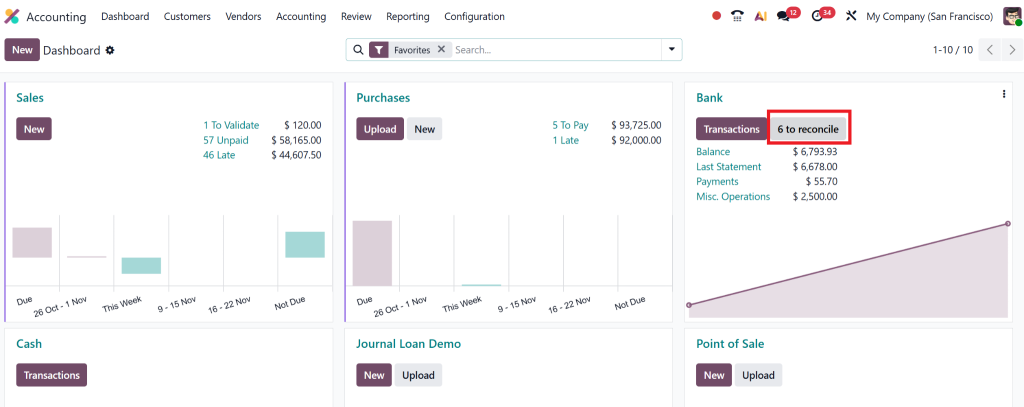
- Click Auto Match.
- Review the suggested matches.
- Validate when you’re satisfied.
Odoo learns from your previous reconciliations, making future ones even faster. That’s the power of AI built into Odoo Accounting reconciliation.
Step 4: Handle Manual Bank Reconciliation in Odoo
Automation is great, but sometimes, human review is essential.
If Odoo can’t find a match, you can handle it manually:
- Select the unmatched transaction.
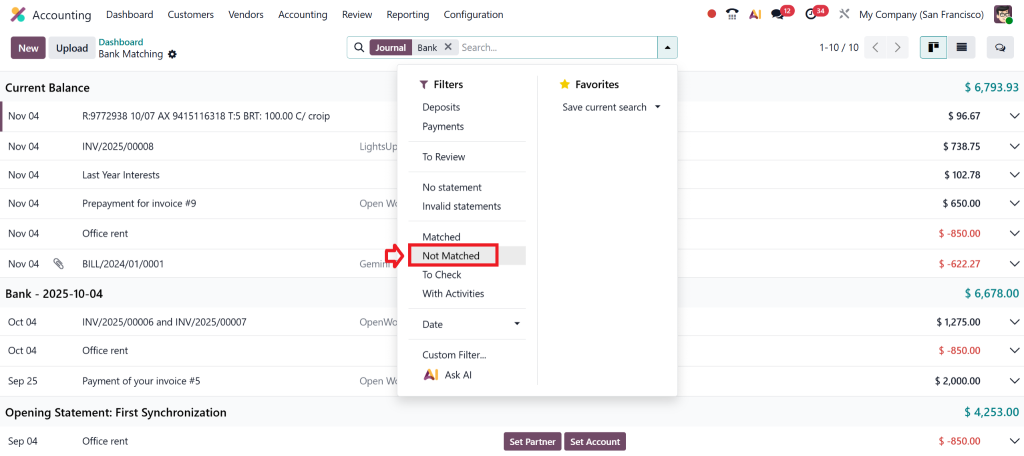
- Click Create or Match Manually.
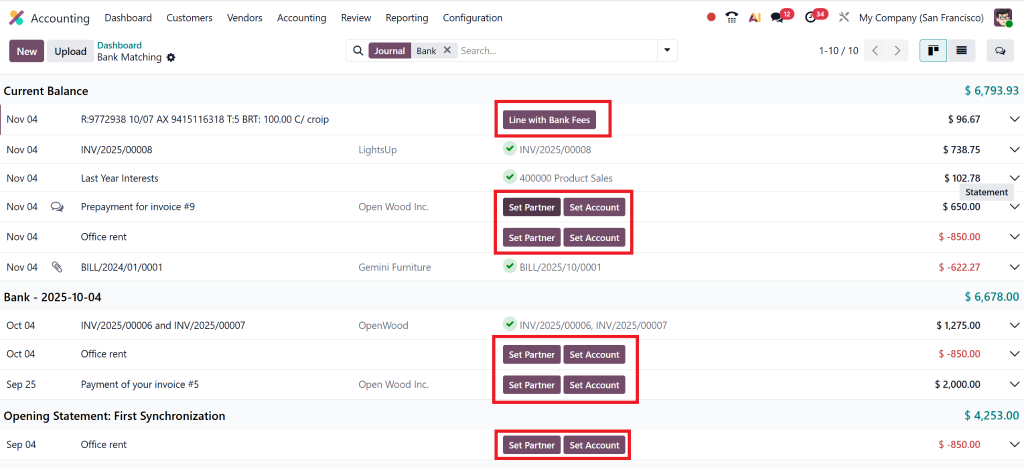
- Select the correct entry (such as an expense, invoice, or adjustment).
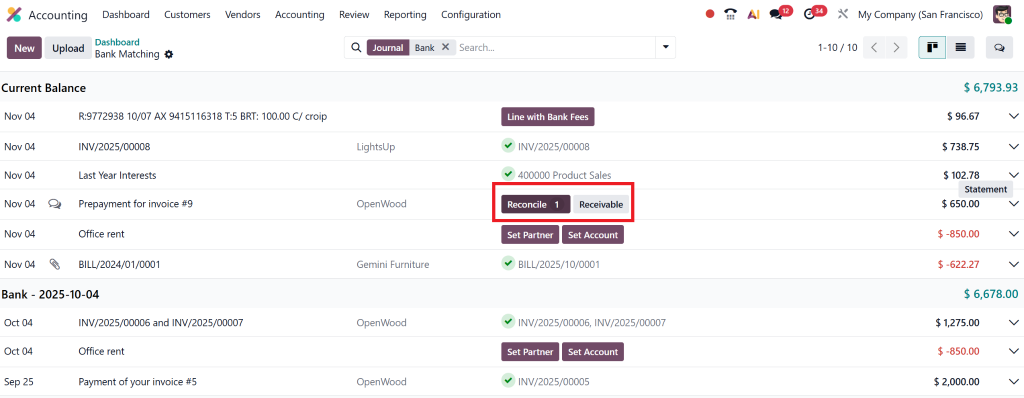
- Confirm to validate.
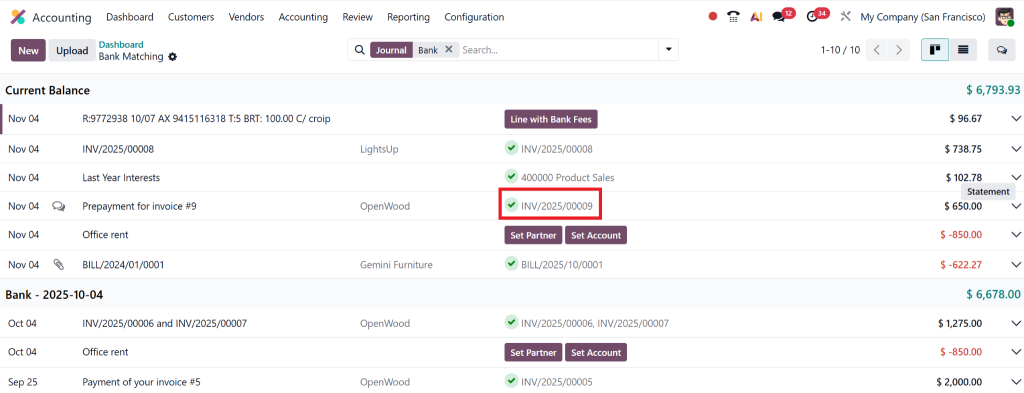
You might use manual bank reconciliation in Odoo when:
- The customer paid a slightly different amount.
- The bank charged unexpected fees.
- A reference or label is missing.
Manual review ensures no transaction is left unrecorded.
Step 5: Review and Validate Your Reconciliation
Once all matches are confirmed, you can validate and close the reconciliation.
Double-check that:
- The bank balance equals your journal balance.
- All statements are marked as reconciled.
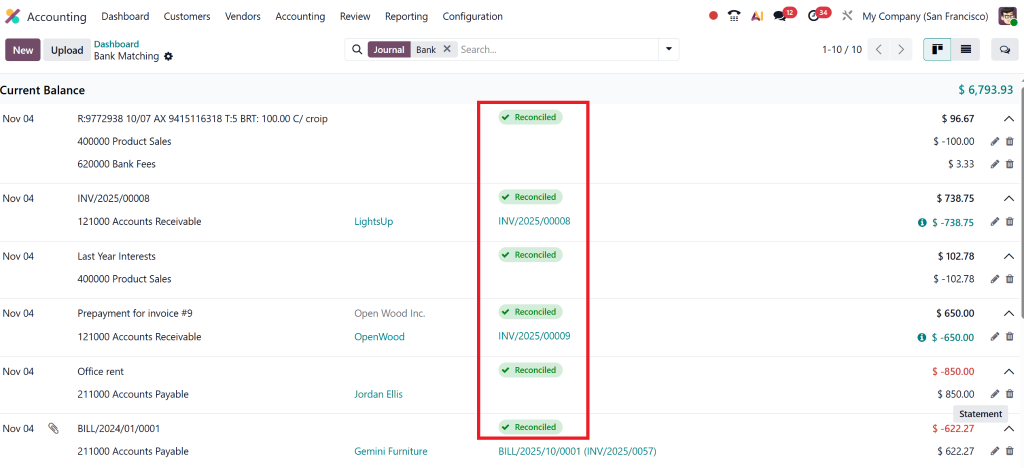
- No pending entries remain.
That’s it! You’ve completed your Bank Reconciliation in Odoo 19 Accounting, clean, quick, and reliable.
You can check our detailed guide on How to Record Expenses in Odoo 18 Accounting Module to learn how expense management connects smoothly with your reconciliation process.
Advanced Tips to Get More Out of Odoo 19 Bank Reconciliation
Odoo 19 isn’t just efficient, it’s intelligent. Here’s how you can unlock more advanced features:
1. Use Odoo Reconciliation Models for Speed
Reconciliation models in Odoo are like templates or rules that automate repetitive matching tasks.
For example, if you always incur a $10 monthly bank charge, you can create a model that automatically recognizes and reconciles it.
How to do it:
- Go to Accounting → Configuration → Reconciliation Models
- Click Create
- Set conditions (like amount, partner, or label)
- Assign an account
- Save and apply
From then on, Odoo will automatically reconcile all similar transactions.
2. Enable Auto Bank Reconciliation in Odoo 19
If you’re ready to save significant time, enable Odoo auto bank reconciliation.
This feature automatically matches transactions using your defined models and machine learning.
It learns patterns, identifies recurring payments, and suggests likely matches; you approve them.
Why It’s Important:
- Reduces manual effort by up to 80%
- Improves accuracy over time
- Speeds up month-end closings
- Keeps your cash position constantly updated
No more spending hours on spreadsheets, Odoo handles it for you.
Common Mistakes to Avoid During Bank Reconciliation
Even with great tools like Odoo, small mistakes can lead to significant confusion later. Here are common ones to avoid:
- Ignoring minor mismatches: Tiny differences add up; always investigate.
- Not checking auto-matches: Odoo’s smart, but human verification matters.
- Using wrong reconciliation models: If not configured carefully, they may misclassify transactions.
- Delaying reconciliations: Do it regularly to avoid a backlog.
- Forgetting currency adjustments: Always update exchange rates for multi-currency accounts to ensure accurate transactions.
Avoiding these ensures your Odoo accounting reconciliation stays clean and trustworthy.
Lorem ipsum dolor sit amet, consectetur adipiscing elit. Ut elit tellus, luctus nec ullamcorper mattis, pulvinar dapibus leo.
Why Businesses Love Bank Reconciliation in Odoo 19 Accounting
Odoo 19 isn’t just another accounting tool; it’s built for modern businesses that need speed, accuracy, and flexibility.
Here’s what makes it special:
- Unified dashboard to manage everything in one place.
- Real-time updates for every transaction.
- Smooth link between invoices, sales, and bank entries.
- Both manual and automated reconciliation options.
- Insightful reports for more intelligent decision-making.
With Bank Reconciliation in Odoo 19 Accounting, you can close books faster, detect errors early, and always know where your money stands.
How Netilligence Makes Reconciliation Even Easier
At Netilligence, we specialize in helping businesses unlock the full potential of Odoo Accounting.
As an Odoo Partner, we’ve implemented accounting systems for clients across industries, making complex reconciliation processes simpler, faster, and fully automated.
Our Odoo Accounting Services Include:
- Full Odoo Accounting setup and customization
- Auto bank reconciliation configuration
- Creating custom reconciliation models
- Training your team to manage finances efficiently
- Ongoing support and maintenance
Our goal is simple: to help you save time, reduce errors, and gain real-time control over your finances. Whether you need manual bank reconciliation in Odoo or a fully automated setup, we’ve got you covered.
Client Tip: Businesses that automate reconciliation with Odoo through Netilligence report saving up to 60% of their monthly accounting time.
Build Financial Confidence with Odoo 19 Accounting
In today’s business world, financial clarity is everything.
With Bank Reconciliation in Odoo 19 Accounting, you can say bye to messy spreadsheets and endless manual checks.
Odoo brings automation, accuracy, and simplicity together, helping you reconcile in minutes instead of hours.
If you’re ready to take your accounting to the next level, let Netilligence be your partner in success.
Our expert team will set up, customize, and optimize your Odoo environment, ensuring every reconciliation is effortless and error-free.