If you want to schedule and Track Activities in Odoo 19 CRM, you’re about to discover a powerful, business-boosting approach that transforms how your sales team manages follow-ups and tasks. Every lead, call, and meeting counts, and with the right system, you can schedule tasks in Odoo 19, watch real-time updates, and use Odoo CRM activity tracking to never miss a beat. Whether you’re running a small team or a whole enterprise, mastering how to schedule and Track Activities in Odoo 19 CRM means you’ll get ahead of the competition, increase conversion rates, and ensure consistent CRM follow-ups in Odoo 19. We’ll also cover how to set up Odoo 19 sales activity automation, Odoo reminders and notifications, and craft the best Odoo CRM workflow tutorial so your team stays on top.
Why It Matters to Schedule and Track Activities in Odoo 19 CRM
When your team uses the CRM just for capturing leads, you’re missing a huge opportunity. The magic happens when you schedule tasks in Odoo 19 proactively, including calls, meetings, emails, and follow-ups, and then track those activities to ensure they’re completed, escalated, or triggered next. With Odoo CRM activity tracking, you gain complete visibility into what has been done, what’s pending, and what’s overdue.
Want to strengthen your foundation before getting into Odoo 19 activity tracking? Read our comprehensive article on How to Track & Manage Leads Effectively in Odoo 18 CRM to learn essential lead management workflows.
Setting Up Activity Types for Tracking
Before you get into live scheduling, define your activity types. In the world of Odoo CRM activity tracking, activity types are the building blocks. In Odoo 19, you’ll navigate to:
CRM app → Configuration → Activity Types.
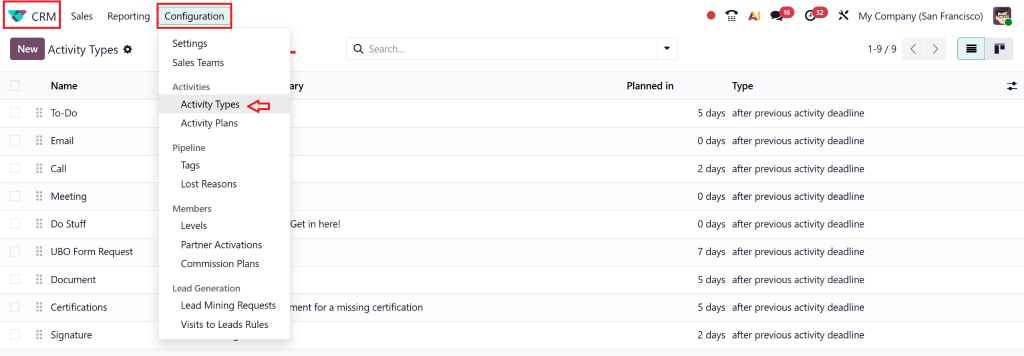
There, you can create or edit activity types such as:
- Call
- Meeting
- To-Do
- Upload Document
- Request Signature
- These types appear when you schedule tasks in Odoo 19.
Additionally, note that in Odoo 19, there are enhancements (compared to earlier versions) to make this process smoother, including one-click meeting scheduling, clearer icons, and improved workflow.
How to Schedule Activities in Odoo 19 CRM
Now comes the action: how do you actually Schedule and Track Activities in Odoo 19 CRM on leads or opportunities?
Step-by-step:
- Open the lead or opportunity record in the CRM app.
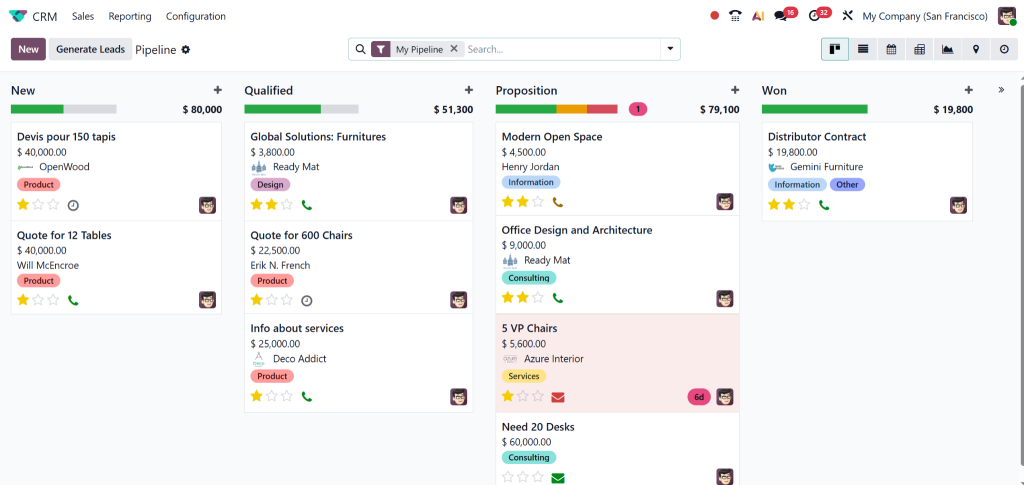
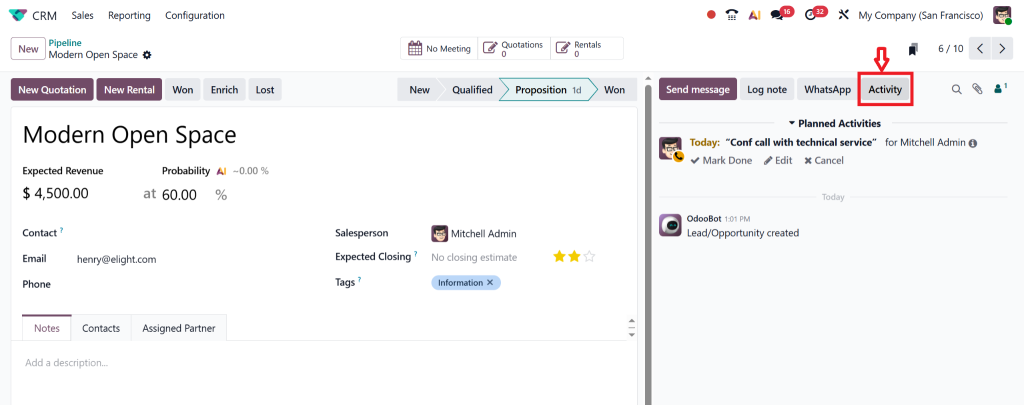
- In the chatter or top right, click the Activity button (in Odoo 19, it’s now labelled “Activity” for clarity).
- Choose “+ Schedule An Activity”. In the form, pick the Activity Type, enter a Summary, select a Due Date, and choose the Assigned To user. Optionally add a note.
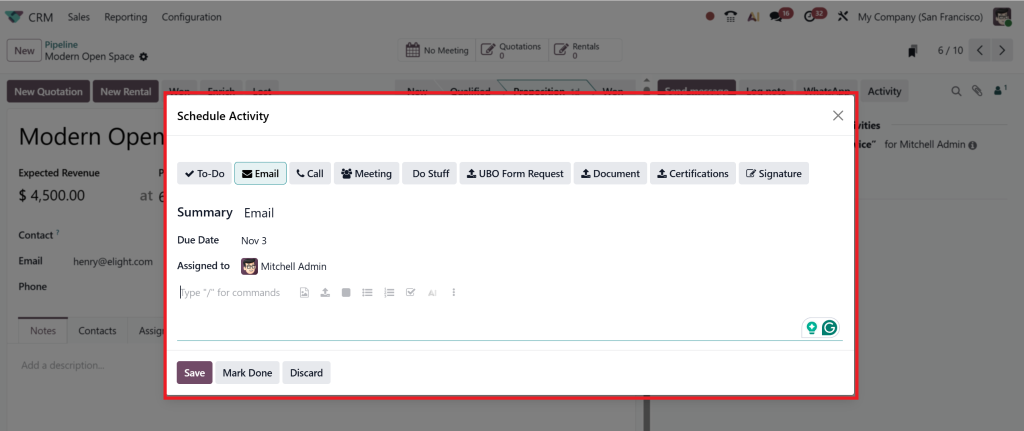
- If you select ‘Meeting’ or ‘Call’, you may see a button to open the calendar. In Odoo 19, this flow is optimised: selecting ‘Meeting + Schedule’ opens the calendar directly.
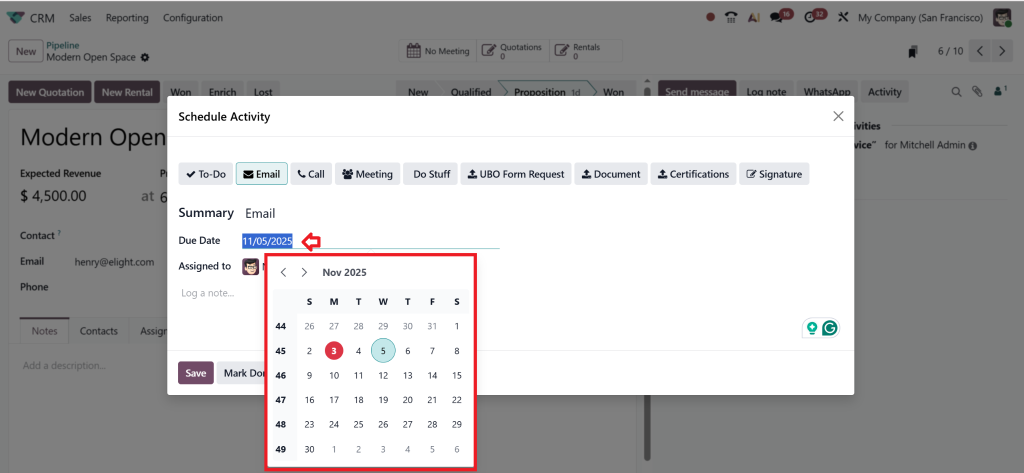
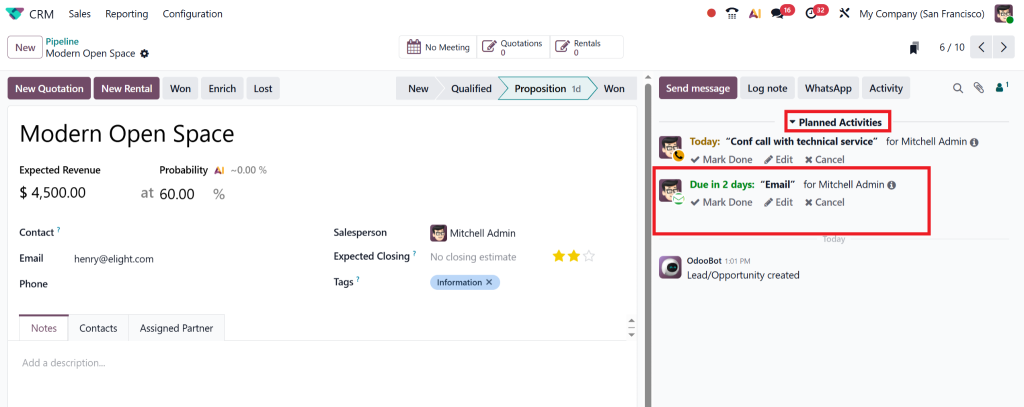
- Click “Schedule” (or “Save”) to confirm. The activity now appears under the “Planned Activities” section in the chatter.
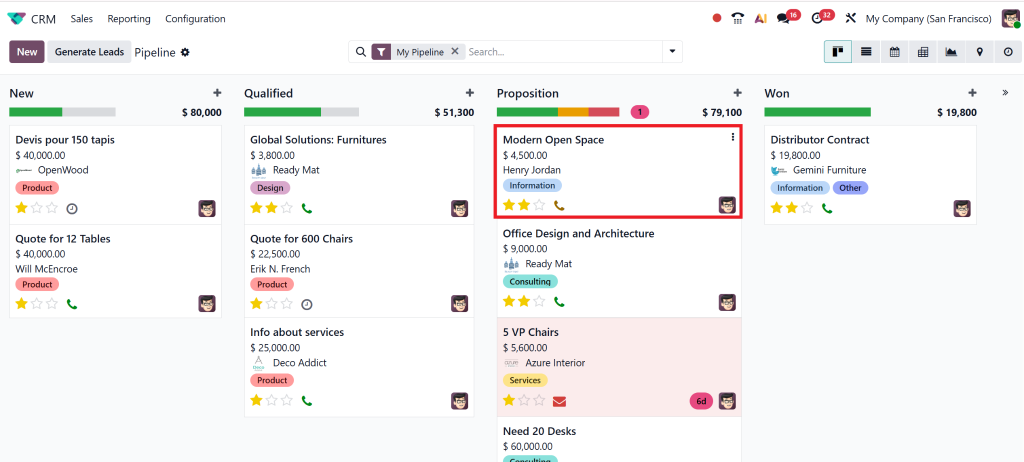
- In the Kanban view of the pipeline, you’ll see a clock icon (or the specific type icon) on the card. The colour indicates status: green = upcoming, orange = due today, red = overdue. This is how you visually track tasks in Odoo 19 CRM.
Useful Tips During Scheduling
- Always set the due date and user assignment; this ensures proper tracking and accountability.
- Encourage your team to add concise notes (“Log a note” field) so context is preserved.
- Use the “Schedule & Mark as Done” or “Done & Schedule Next” buttons where appropriate (especially when chaining tasks).
- Use filters like “My Activities”, “Due Today”, and “Overdue” to maintain high visibility.
- Train your team to click the clock icon in Kanban so they never skip scheduling an activity.
Tracking Activities and Ensuring Follow-Ups
Scheduling is one side; tracking is equally crucial. To schedule and Track Activities in Odoo 19 CRM, you need to build a mindset and dashboard that makes follow-ups automatic and reliable.
Visual Tracking in Pipeline
As noted above, in the Kanban view for opportunities, you’ll see icons representing scheduled activities. Colour coding flags those items that are due or overdue.
This gives your sales managers a quick “at a glance” sense of pipeline health: how many opportunities have no next activity, how many are overdue, etc.
Activity View & My Activities Dashboard
The CRM module also provides a dedicated Activities (clock) view, where you can see all planned tasks across records, including those due today, upcoming, or late.
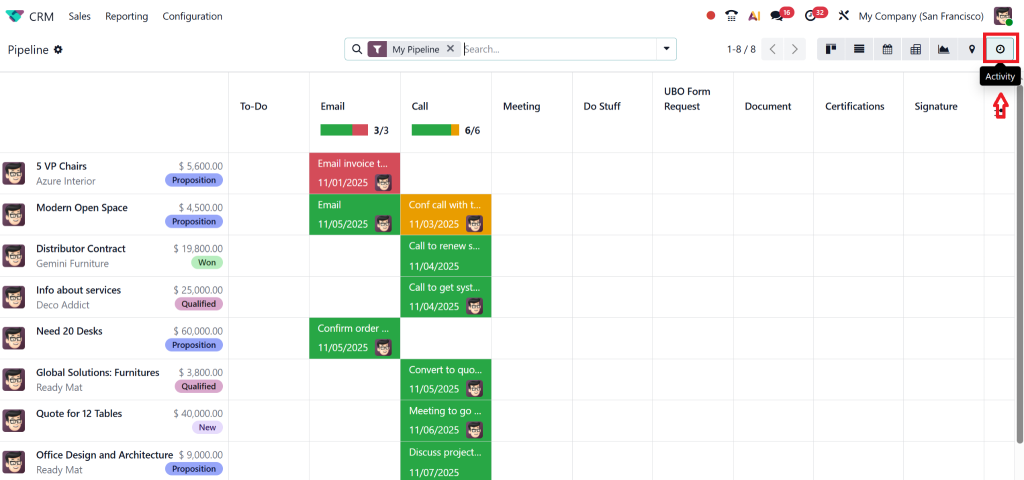
In your tracking toolkit, make sure you use:
- A “My Activities” filter for each salesperson.
- A “Team Activities” view for managers to monitor assignments and statuses.
- Export or report of overdue activities so action can be taken.
Automating Follow-Ups (CRM Follow-Ups)
One of the most potent aspects of Odoo 19 schedule activities is built-in automation for follow-ups. Through activity plans and chaining, you can define a sequence: call → meeting → quote → follow-up email. When the prior task is done, the next is suggested or triggered.
For example:
- After the initial birth-lead, schedule a “Demo meeting” within 2 days.
- After the meeting is done, auto-schedule “Send Quote” 1 day later.
- Then, “Follow-up email” 5 days later if no response.
This is how you build consistent, high-quality CRM follow-ups in Odoo 19. And once that is live, your tracking becomes hands-free: nothing is skipped.
Reminders & Notifications in Odoo 19
One of the most common holes in a sales process is forgetting tasks. When you schedule and Track Activities in Odoo 19 CRM, you want reminders and notifications to help close that gap.
How Reminders Work
When you schedule an activity, the assigned user will see it:
- In their chatter under the record.
- On their My Activities dashboard.
- In the calendar, type “Meeting” or “Call” to create a new entry.
- Odoo will flag overdue items with red and send notifications depending on your system configuration.
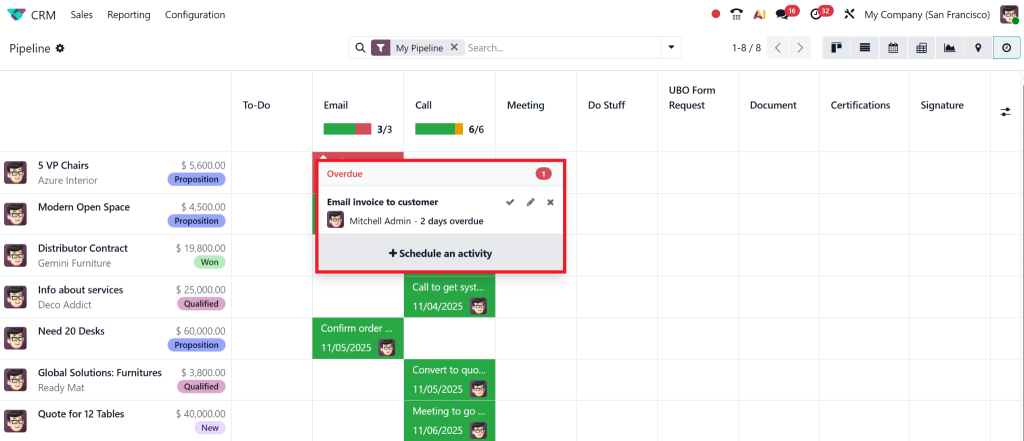
Best Practices for Notifications
- Set up email reminders for critical tasks: e.g., follow-ups after quotes.
- Link the activity with calendar invites when relevant (meetings) so reminders appear in the user’s calendar.
- Configure mobile/user push notifications if your team uses the Odoo mobile app.
- Use report dashboards to enable managers to receive alerts when tasks become overdue.
- Encourage your team to mark tasks as done, thereby triggering the next activity if you automate sequences.
Workflow Tutorial: Real-World Example in Odoo 19
Let’s bring it all together with a practical workflow, applying a schedule and tracking activities in Odoo 19 CRM from lead generation through closing.
Step 1: Lead Capture
A new lead is entered: “Company X – interest in product Y”. Immediately, in CRM, you schedule an activity: Type = Call, Due Date = within 24 h, Assigned to Sales Rep.
Step 2: First Contact
Sales Rep makes a call. Marks the activity as Done. Because you set up automation (chaining), the next activity “Send Demo Meeting Invite” is triggered: Meeting, Due Date = 2 days, Assigned to Rep.
Step 3: Demo Meeting
The meeting happens. Rep marks it as Done. Next auto-task triggers: “Prepare Quote” (To-Do), Due Date = 1 day. Meanwhile, in the pipeline, you see the opportunity card displaying an icon for an upcoming activity, making it easy to track.
Step 4: Quote Follow-up
Quote sent. You schedule a “Follow-up Email” activity to be sent in 3 days if no response is received. You configure a reminder notification for the rep 1 day before the due date.
Step 5: Closing or Nurturing
If the quote is accepted, mark the opportunity as ‘Won’. If not, you schedule a nurturing cycle, such as a “Check-in Call,” “Offer Update,” or “Re-Quote,” etc. Each is tracked visibly and reported.
Throughout this entire workflow, you are using:
- Schedule tasks in Odoo 19 for each step.
- Odoo CRM activity tracking via icons and dashboards.
- CRM follow-ups in Odoo 19 through automation and reminders.
- Odoo 19 sales activity automation via chaining of tasks.
- Odoo reminders and notifications ensure nothing slips through the cracks.
And because your team is consistent, your pipeline stays clean, opportunities don’t stall, you get better conversion, and you build a reputation of reliability.
Advanced Tips to Maximise Activity Tracking
To elevate your usage of Schedule and Track Activities in Odoo 19 CRM, consider these advanced tactics:
Use Activity Plans for Standardised Processes
Go to CRM → Configuration → Activity Plans to define sequences of activities for different types of leads (hot leads, cold leads, renewal leads). When launched, all tasks are scheduled automatically.
Customise Views & Reports
Create custom list views that show: Activity Type, Due Date, Assigned To, and Status. Use reed alerts and filters for “Overdue”. Use heat maps or dashboards for managers.
Integrate with Calendar and External Tools
For Meetings and Calls, ensure your team’s calendars are synced so that availability is displayed and reminders are sent. Leverage links inside the activity form to open Calendar.
Utilise Chatter for Context
Encourage users to use the “Log a note” field when scheduling activities. This preserves history, ensures transparency, and supports tracking.
Monitor and Optimise
Review monthly: what percentage of opportunities had no scheduled activity? How many were overdue? Use the data to coach your team and optimise your sales process.
Why Netilligence (Your Odoo Partner) Is the Best Choice
At Netilligence (an Odoo Partner), we specialise in helping organisations schedule and track activities in Odoo 19 CRM from the very beginning. Here’s why trusting us makes a difference:
- Deep expertise in Odoo-CRM workflow setup and automation.
- Customisation: We tailor activity types, reports, dashboards, and notifications to align with your sales process.
- Rapid deployment: Get up and running fast so your team starts benefiting right away.
- Training & adoption: We don’t just set it up; we train your team to use it effectively.
- Ongoing support: We monitor, tweak, and help you scale your usage as your business grows.
When you partner with us, you’re not just buying software; you’re acquiring a streamlined system that turns processes into profits. If you’re serious about improving how your team schedules tasks in Odoo 19, how they track activities in Odoo 19 CRM, and how you drive consistent CRM follow-ups in Odoo 19, we’re ready to help you get there.