Conquer Your Time with the Odoo 19 Calendar
Your business depends on time as its most important asset because effective time management between growth and chaos determines success. The Odoo 19 Calendar offers firms a comprehensive scheduling platform that integrates meeting organisation, reminder functions, and team activity coordination. Whether you’re managing a growing team or running multiple projects, setting up Odoo 19 Calendar is the foundation of efficient time management.
At Netilligence, an Odoo Partner, we’ve helped hundreds of businesses update their operations using Odoo’s innovative tools. The Odoo 19 Schedule stands out as one of the most practical, user-friendly, and advanced features in Odoo 19.
Throughout this guide, we’ll explore:
- How to perform your Odoo 19 Calendar setup
- Step-by-step Odoo calendar tutorial
- How to schedule meetings in Odoo 19
- The magic of Odoo calendar Google sync
- Upcoming Odoo calendar features 2025
- Using Odoo Scheduler reminders effectively
- Best practices for Odoo 19 activity scheduling
The final result will demonstrate why implementing Odoo 19 Calendar represents a complete transformation of your time management and team coordination systems.
Why Choose Odoo 19 Calendar for Business Productivity
The Odoo 19 Schedule functions as a scheduling assistant that goes beyond traditional date-book functionality. The tool enables you to manage your business schedule by uniting all departmental schedules under one platform.
Key Advantages of Odoo 19 Calendar Setup:
Unified View of All Events:
Manage all company activities, tasks, and meetings from one dashboard.
Automated Syncing:
Through Odoo calendar Google sync, your events stay up-to-date across devices and accounts.
Intelligent Reminders:
Never miss an important meeting again with smart Odoo Schedule reminders via email or pop-up.
Team Collaboration:
Share schedules and availability with colleagues instantly.
Integrated Activity Management:
Link tasks, projects, or opportunities directly within the Odoo 19 activity scheduling interface.
The beauty of Odoo 19 Calendar lies in its simplicity; it empowers users without requiring technical expertise.
If you’ve used earlier versions of Odoo, you may recall how Odoo 18’s Calendar simplifies event planning. You can revisit our detailed guide on how to plan and organise events in Odoo 18 Calendar to see how Odoo 19 builds upon those strong foundations.
Step-by-Step: Odoo 19 Calendar Setup
Setting up the Odoo 19 Calendar is quick and intuitive. Let’s go step by step to get you started.
Step 1: Enable the Calendar Module
- Log in to your Odoo dashboard.
- Go to the Apps section.
- Search for Calendar.
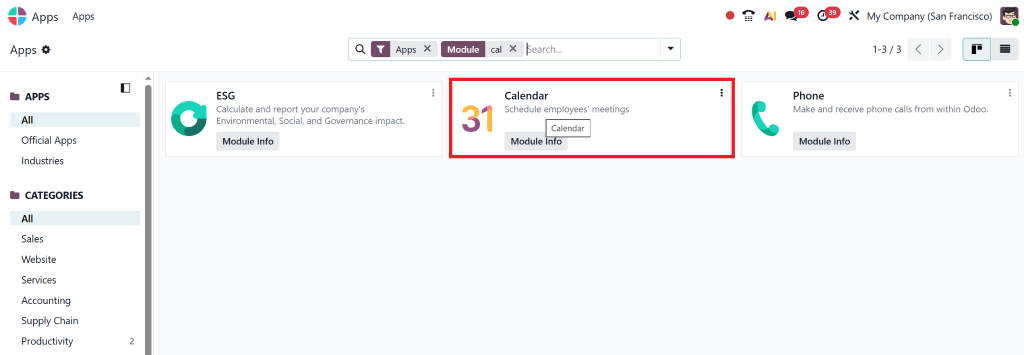
- Click Install next to the Odoo 19 Calendar module.
Once installed, you’ll find the Calendar icon on your main navigation bar.
Step 2: Configure Your Preferences
- Open Settings > Calendar
- Set your preferred timezone and default event duration.
- Enable Google Calendar Sync if you wish to link accounts (we’ll explain this next).
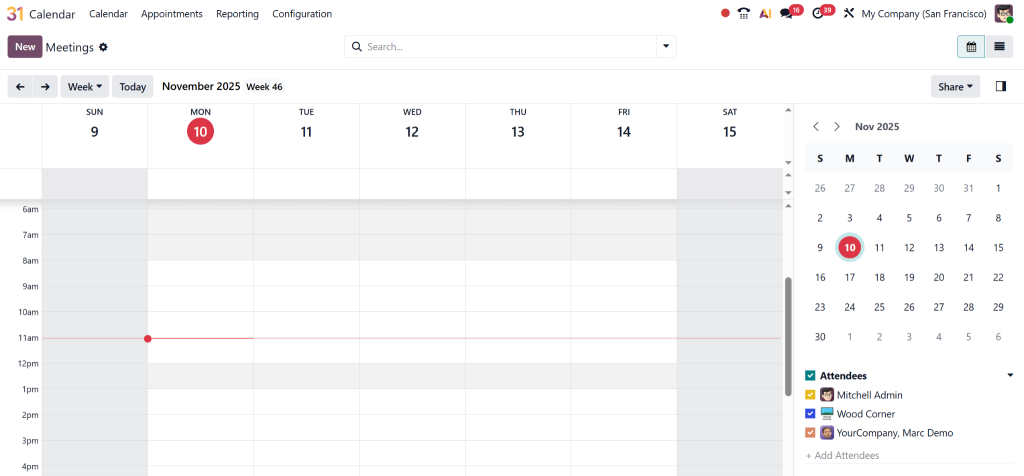
Step 3: Invite Team Members
Users from your organisation can access your Schedule view through collaboration features. The feature enables all team members to maintain project schedule alignment through shared access to meeting and timeline information.
Step 4: Customise Your View
Select between:
- The Day View enables users to create detailed plans for each day.
- The Week View function allows users to develop short-term schedules.
- Users can view their schedule through the Month View interface for strategic planning.
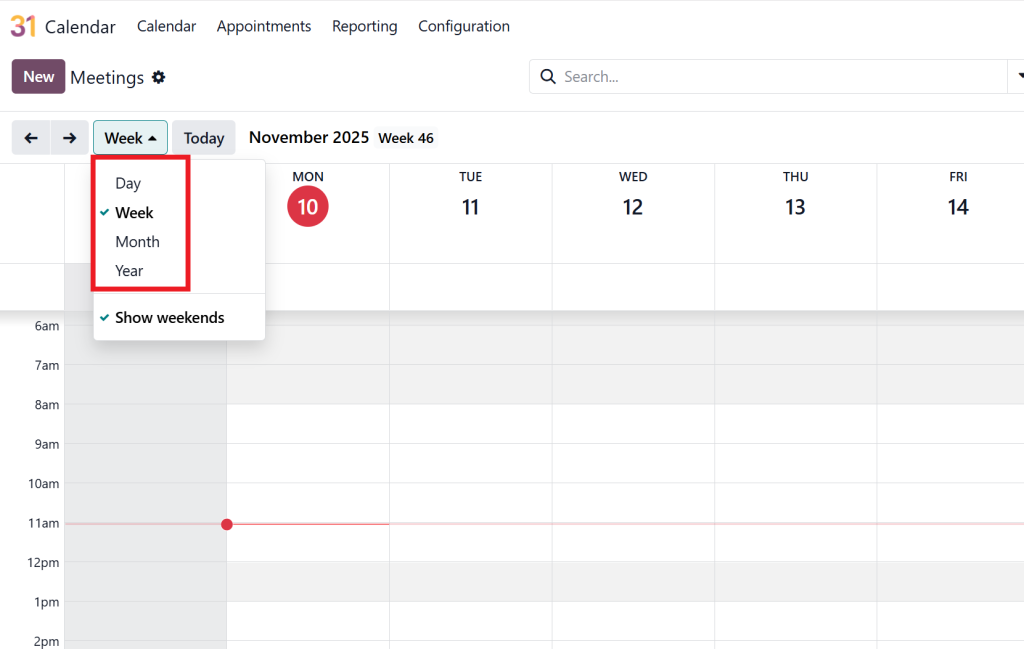
Each view helps you manage your time visually and efficiently.
By now, your Odoo 19 Schedule setup should be complete, and you’re ready to schedule, manage, and track all events in one place.
Odoo Calendar Tutorial: How to Schedule Meetings in Odoo 19
Scheduling meetings is one of the most common and powerful uses of the Odoo 19 Schedule.
Here’s how to schedule meetings in Odoo 19:
Open App → Click on any time slot.
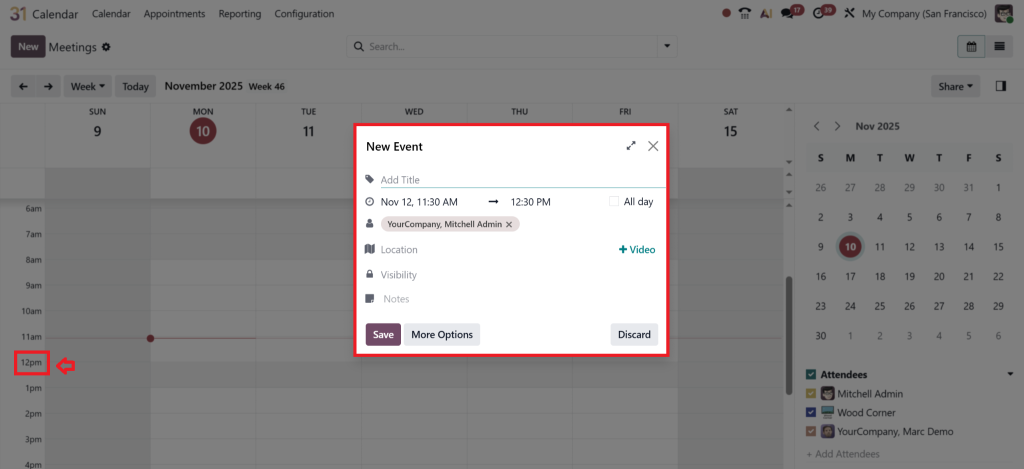
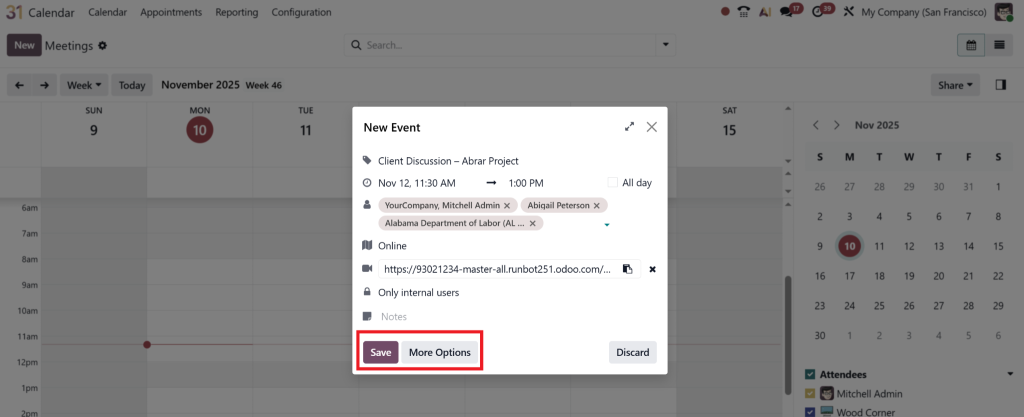
Add Event Details:
- Event name (e.g., “Team Strategy Meeting”)
- Start and end time
- Attendees
- Location or online meeting link
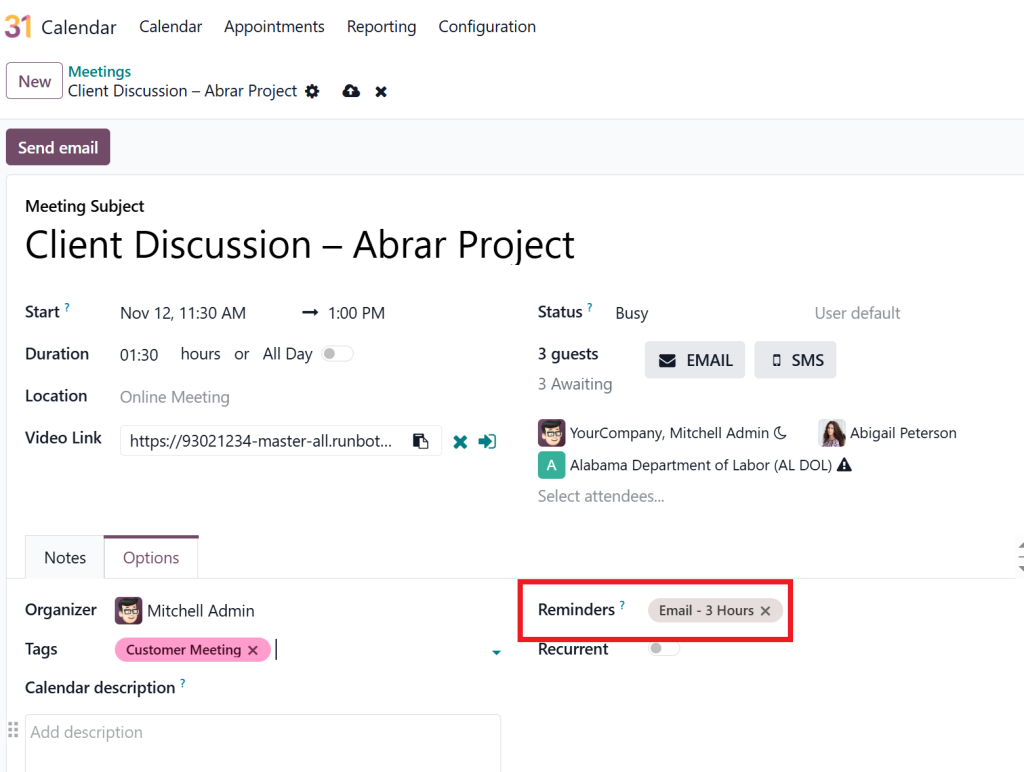
Add Reminders:
Select how far in advance you want notifications; this activates Odoo Schedule reminders.
Link to a Task or Opportunity:
Integrate with CRM or Project Management modules for a more efficient workflow.
Save and Share.
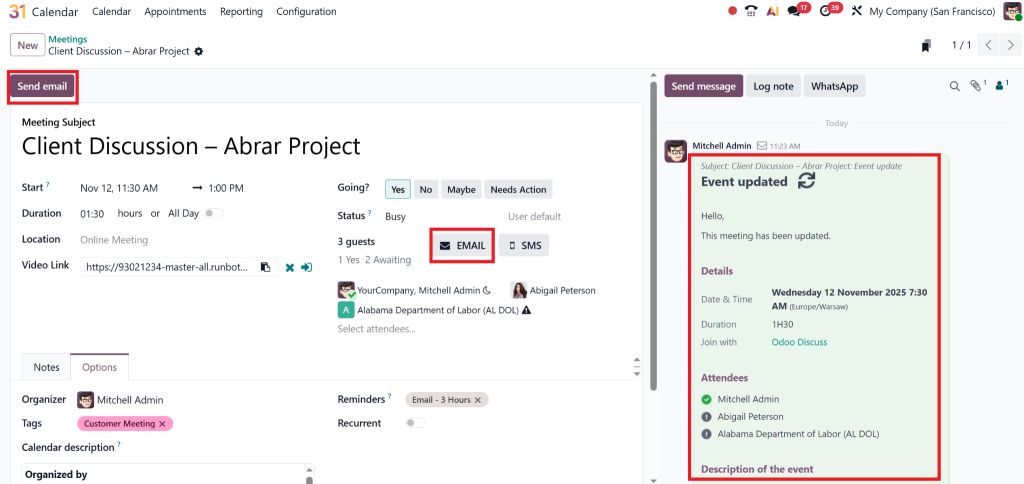
Once done, Odoo automatically sends meeting invites to participants and updates everyone’s calendar. The Odoo 19 Schedule keeps teams synchronised in real time.
Pro Tip: You can drag and drop meetings to new times or days directly on the calendar, eliminating the need for manual editing.
How to Enable Odoo Calendar Google Sync
If you use Google Workspace or personal Gmail, syncing is a must. The Odoo calendar Google sync feature ensures that meetings added in either system appear in both.
Steps to Activate Sync:
- Go to Settings > Calendar > Google Synchronisation.
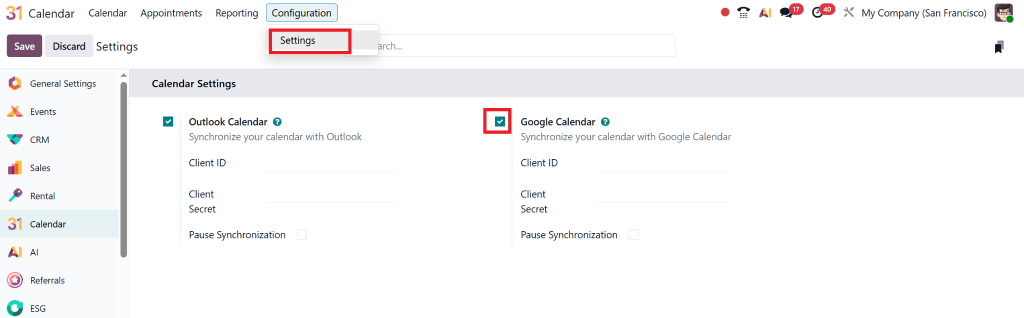
- Log in with your Google credentials.
- Grant Odoo permission to access your calendar.
- Set synchronisation direction (Odoo → Google, Google → Odoo, or bidirectional).
- Click Sync Now.
This integration ensures you’re always up-to-date, whether you check your Schedule from your laptop, mobile device, or tablet.
Benefits of Odoo Calendar Google Sync:
- One unified calendar view
- No double-booking errors
- Real-time updates across platforms
- Simplified management for mobile teams
With this, your Odoo 19 Calendar setup becomes a truly connected system.
Exploring Odoo Calendar Features 2025: What's New and Exciting
The Odoo team continuously enhances its tools, and Odoo Schedule features 2025 take scheduling to the next level. Here’s what to look forward to:
AI-Based Scheduling Suggestions:
Odoo 19 utilises pattern recognition to determine the optimal meeting times for users.
Smart Conflict Detection:
The system detects appointment conflicts through automatic scheduling analysis.
Enhanced Mobile Interface:
The mobile calendar application offers a desktop-like interface, allowing users to access it from their mobile devices.
Advanced Reminder Settings:
Customise multiple Odoo calendar reminders for different notification types (email, SMS, in-app alerts).
Activity Insights Dashboard:
A new analytics view for Odoo 19 activity scheduling helps managers track meeting frequency and time usage trends.
These updates make Odoo 19 Calendar not only a scheduler but also a performance management tool.
If you’re curious about how event planning and organisation looked in the previous version, check out our detailed guide on how to plan and organise events in Odoo 18 Calendar (see our past blog here).
Using Odoo Calendar Reminders and Activity Scheduling
A standout feature of the Odoo 19 Calendar is its powerful reminder and activity scheduling system.
Odoo Calendar Reminders
Reminders can be configured to:
- Notify attendees before an event starts
- Send email reminders
- Pop-up alerts within the Odoo dashboard
For example:
“Remind me 15 minutes before the sales meeting.”
“Send reminder emails to attendees one hour before kickoff.”
These Odoo calendar reminders ensure that no one misses an important event again.
Odoo 19 Activity Scheduling
The Odoo 19 Schedule system operates as a unified system with Odoo’s CRM, Project, and HR modules. The system enables users to perform the following functions:
- Users can create follow-up appointments directly from their opportunity records.
- Users can use the calendar to schedule project milestones, which include specific due dates and times.
- The system generates tasks for users after they complete their meetings.
The Odoo 19 Calendar serves as a vital productivity tool, supporting sales teams, project managers, and executives through its integrated functionality.
Best Practices to Get the Most Out of Odoo 19
Always Enable Google Sync:
It ensures complete visibility and prevents scheduling conflicts.
Use Colour Coding:
Assign different colours for projects, clients, or teams to simplify visual organisation.
Leverage Activity Links:
Connect every meeting to an Odoo record, such as a CRM lead, task, or project, to ensure seamless integration.
Review Weekly Reports:
Use the analytics dashboard to track where your team’s time is being spent.
Automate Reminders:
Configure default reminders for recurring meetings or important events.
When implemented strategically, these practices maximise the power of the Odoo 19 Schedule setup and boost productivity across your organisation.
Why Work with Netilligence for Your Odoo 19 Calendar Setup
Netilligence operates as an Odoo Partner, delivering Odoo implementation and customisation services for over ten years. The team at Netilligence helps organisations utilise Odoo 19 Schedule and other tools to achieve peak operational performance.
What Makes Us Different:
- Certified Odoo Experts
- End-to-End Services
- Custom Integrations
- Proven Track Record
- Continuous Support
Make 2025 the year your business masters time, with Odoo 19 Calendar and Netilligence.