Backdate Inventory Operations in Odoo 19 – A Real Problem You’re Probably Facing
If you are working with inventory in Odoo, I already know what’s bothering you. Stock moved yesterday, but the entry was done today. A delivery went out last week, but someone forgot to validate it on time. A physical stock count was done earlier, but Odoo shows a different date. And now your reports don’t match, your valuation looks off, and you’re stuck explaining things to your finance team.
This is exactly why people keep searching for how to backdate inventory operations in Odoo 19. Many businesses using Odoo face this same issue daily. The system works well, but real business doesn’t always move at system speed. Delays happen. Human mistakes happen. And when they do, you need a proper way to backdate inventory operations in Odoo 19 without breaking reports or creating confusion.
In this blog, I’m not going to talk like a manual. I’m going to talk to you like someone who understands your situation. By the end of this, you’ll clearly know what you can do, what you can’t, and how to handle inventory dates without stress.
Why Odoo 19 Backdate Inventory Operations Matter More Than You Think
When inventory dates are wrong, the problem doesn’t stay limited to inventory. It quietly moves into valuation, accounting, and reporting. You may not notice it today, but sooner or later, it shows up in monthly reports, stock aging, or audits.
This is where Odoo 19’s backdate inventory operations become essential. Businesses don’t always record stock movements at the exact moment they happen. Warehouse teams focus on physical work first. System entries come later. And when Odoo records everything on the validation date instead of the actual movement date, things start to feel off. Backdating isn’t about changing history. It’s about accurately recording the truth. To backdate inventory operations in Odoo 19, follow this process:
Open the Inventory module from your Odoo 19 dashboard.
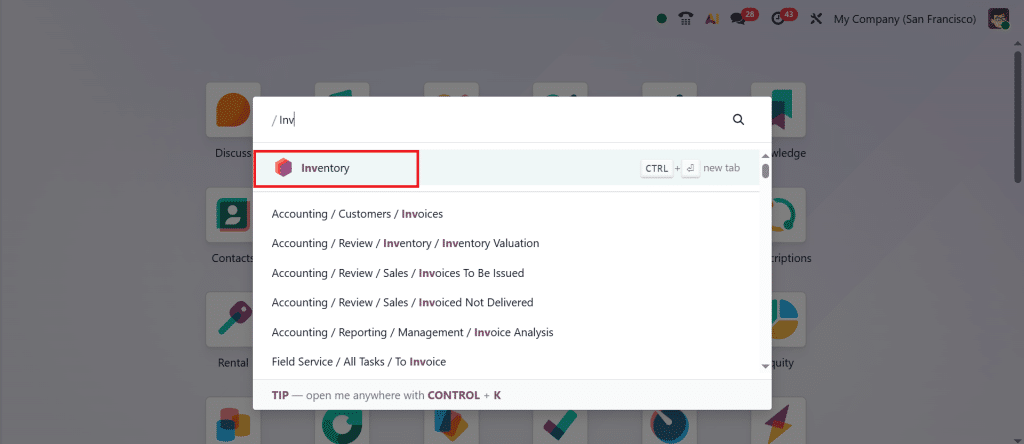
Go to Configuration > Settings.
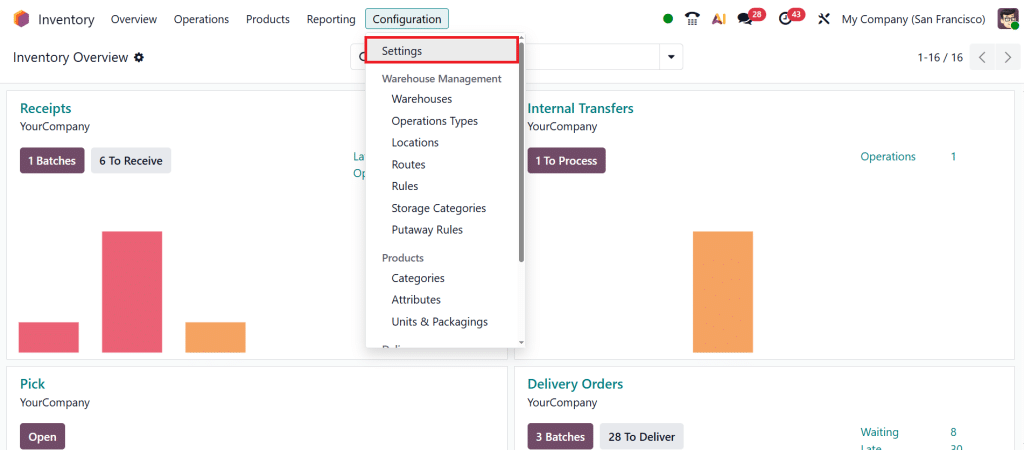
Enable all Inventory Backdate Settings, then click Save.
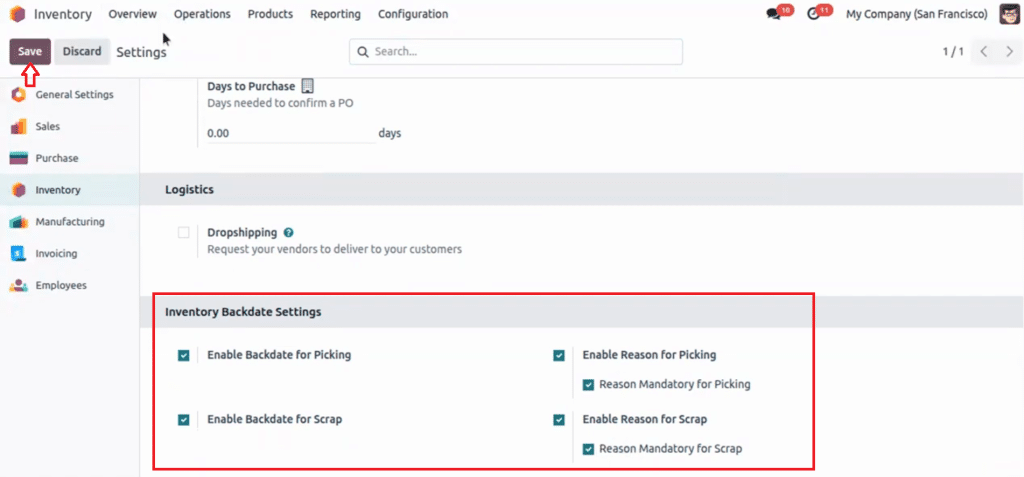
Then, go to Operations > Receipts.
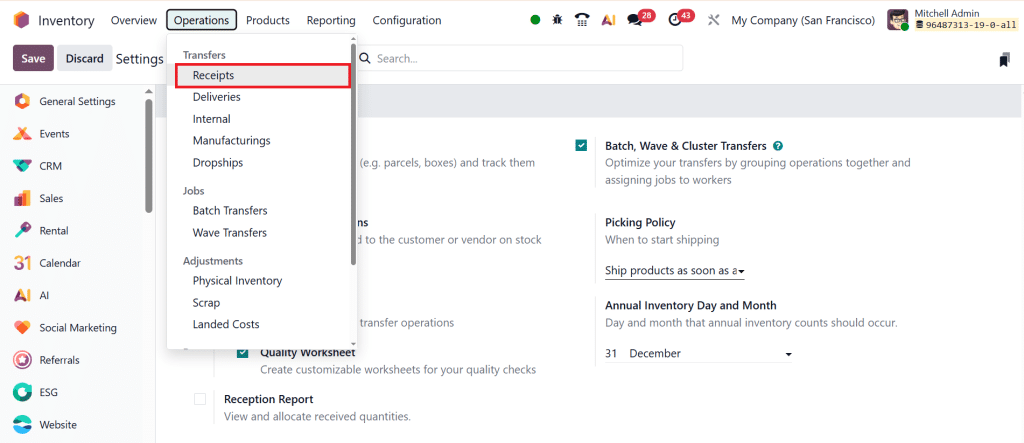
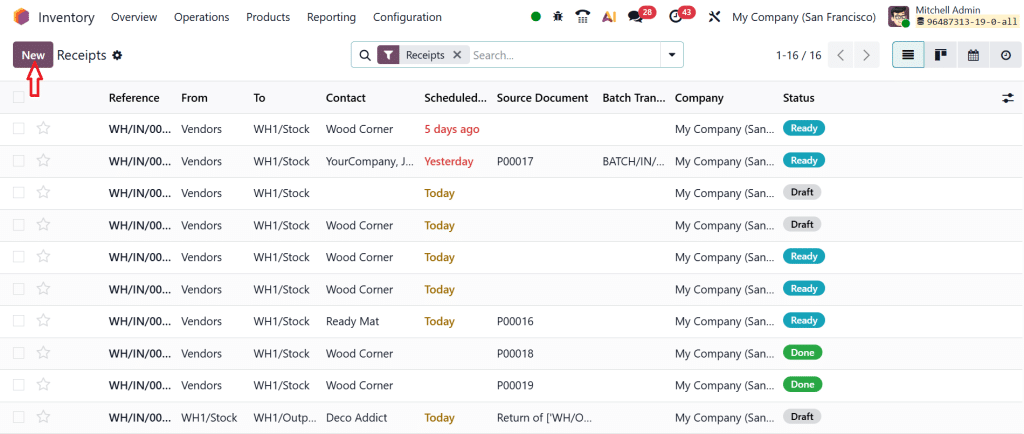
Click New.
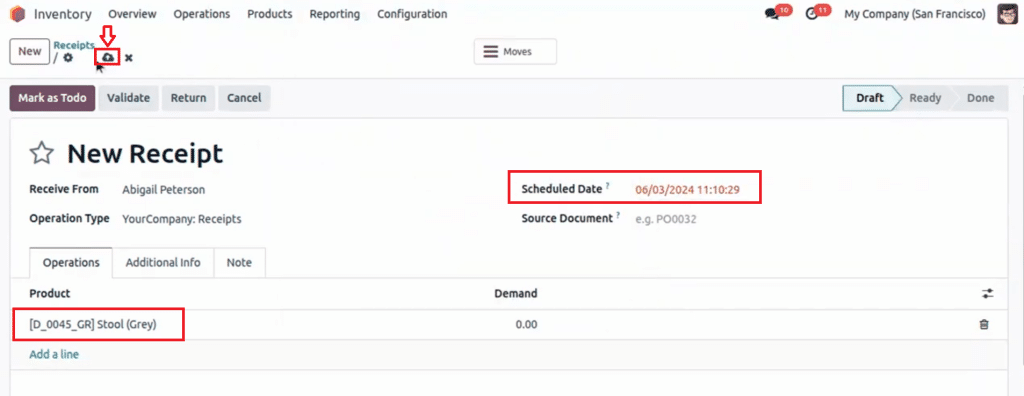
Fill out the details like receive form, operation type, schedule date, add product, and then click Save.
Backdate Stock Moves Odoo 19 – What Really Happens Behind the Screen
Understanding How Stock Moves Work in Odoo 19
When you try to backdate stock moves in Odoo 19, the first thing you notice is that Odoo shows different dates. You see a scheduled date, a creation date, and then the validation date. Most users assume changing the scheduled date is enough, but later they realize reports still follow the validation time. This is where confusion starts.
In Odoo 19, stock valuation and accounting entries mainly depend on when the move is validated. So even if your stock physically moved earlier, the system treats it as if it happened later. That’s why users feel stuck even after updating dates.
Backdating stock moves is possible to an extent, but understanding their limits is vital before relying on them entirely.
Odoo Backdate Effective Date Stock – The Date That Actually Matters
Why Changing the Visible Date Is Not Always Enough
Many people don’t know this, but the Odoo backdate adequate date stock is what really controls inventory impact. This effective date decides when stock levels change in reports and when valuation hits accounting.
In standard Odoo 19, you don’t always get complete control over this effective date from the interface. That’s why users often say, “I changed the date, but the numbers still don’t match.” You’re not doing anything wrong. This is just how Odoo works by default.
Odoo Inventory Adjustment Backdate – Fixing Stock After Physical Counts
When Reality and System Numbers Don’t Match
Inventory adjustments are usually done after physical stock checks. And let me be honest here: most of the time, those checks happen before the system update.
With the Odoo inventory adjustment backdate, you try to align the system with what actually happened on the warehouse floor. Odoo allows you to set inventory dates, especially when developer mode is active, but again, valuation timing may still follow the confirmation time. This is where businesses start thinking, “There has to be a better way.” And you’re right to feel that way.
Odoo 19 Backdate Pickings Scrap – Handling Waste Without Messing Reports
Scrap Happens, But Late Entries Create Problems
Scrap is part of daily operations, especially in manufacturing and quality control. Items are damaged, expired, or unusable. But scrap entries are often done later, not at the exact moment.
With Odoo 19 backdate pickings scrap, users try to record scrap on the correct date so inventory and valuation stay clean. Odoo lets you edit dates before validation, but the system may still consider the validation time when calculating the financial impact. That’s why scrap backdating needs extra attention if accounting accuracy matters to you.
Mass Backdate Inventory Odoo – When One-by-One Is Not an Option
Why Manual Backdating Becomes a Headache
If you’re dealing with a few records, manual backdating might feel manageable. But when you have dozens or hundreds of stock moves, receipts, deliveries, or adjustments, manual changes become tiring and risky.
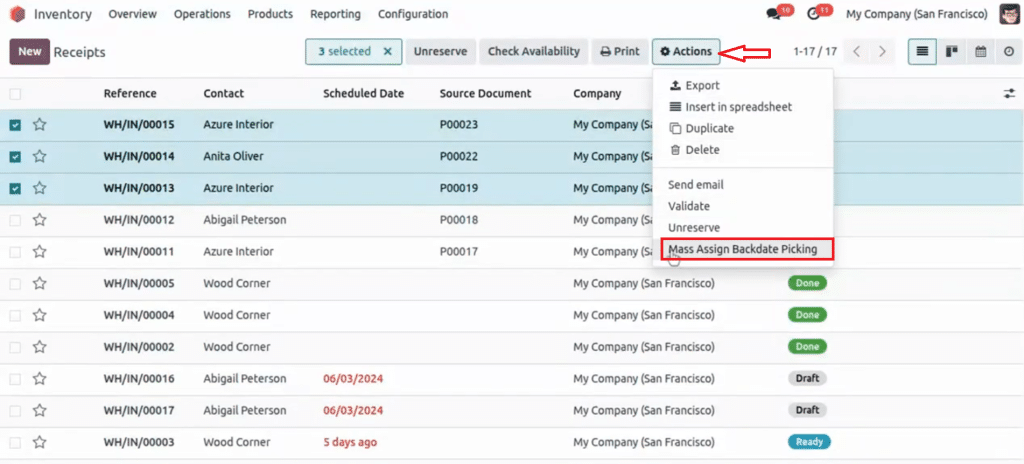
This is where mass backdate inventory Odoo becomes a real need, not a luxury. Businesses often face this situation during audits, migrations, or month-end corrections. Doing it one record at a time not only wastes time but also increases the chances of mistakes. At this stage, most companies start looking beyond standard Odoo features.
Inventory Backdate App Odoo 19 – When Standard Odoo Is Not Enough
Why Businesses Choose a Dedicated Solution
An inventory backdate app, Odoo 19, exists for a straightforward reason: standard Odoo does not fully cover real-life inventory timing needs.
These apps let you properly control effective dates, apply backdates in bulk, and ensure that inventory, valuation, and accounting all speak the same language. Instead of resorting to workarounds, businesses prefer a straightforward, controlled approach.
If your inventory data affects financial decisions, relying only on surface-level data changes is risky. That’s when a dedicated backdate solution makes sense.
How All of This Affects Your Accounting Without You Noticing
Here’s something many users realize very late. Inventory backdating doesn’t stay inside the inventory module. It quietly affects the cost of goods, closing stock, and profit figures.
When dates don’t match reality, reports start raising questions. And once questions start, fixing historical data becomes stressful. That’s why understanding backdate inventory operations in Odoo 19 early saves you from bigger issues later.
How Netilligence Helps You Handle Backdating the Right Way
At Netilligence, we don’t believe in forcing you to adjust your business just to fit the system. We look at how your inventory actually moves, then set up Odoo to reflect that reality.
Whether you’re struggling with backdate stock moves, Odoo 19, Odoo inventory adjustment backdate, Odoo 19 backdate pickings scrap, or need a proper inventory backdate app Odoo 19, we guide you with clarity: no confusion, no risky shortcuts, and no unclear reports.
Our goal is simple. When you open your inventory reports, they should make sense without lengthy explanations.
What You Should Remember About Backdating Inventory in Odoo 19
If you’ve reached this point, it means one thing: inventory backdating is not just a minor issue for you. It affects how your reports look, how your accounting feels, and how confidently you can explain numbers when someone asks questions.
Wanting to backdate inventory operations in Odoo 19 doesn’t mean you’re trying to change facts. It simply means you want your system to reflect what actually happened on the ground. Odoo 19 gives you some flexibility, but knowing where that flexibility ends is just as important. When dates are handled carefully, inventory stays clean. When they are ignored or forced, problems quietly build up.
If you’re unsure about stock move dates, inventory adjustments, scrap entries, or mass backdating, it’s better to fix the setup now than to correct reports later. A minor correction today can save lengthy discussions tomorrow.
If you want your Odoo inventory to show the correct numbers on the right dates, talk to the Netilligence team today. We’ll help you set things up clearly, safely, and in a way that actually works for your daily operations.