If you use Odoo daily, you already know this feeling. You open a sales order, quotation, or invoice, and suddenly the screen feels messy. Too many lines, repeated information, old notes that no longer make sense, or sections that should have been reused instead of rewritten again. This is exactly where knowing how to duplicate or delete section and notes in Odoo 19 starts saving your time and patience.
I’m writing this because many users keep asking the same thing. How do I copy a section instead of creating it from scratch? How do I remove notes without breaking the document? How do I organize long orders in a clean way? If you’ve searched for duplicate or deleted sections and notes in Odoo 19, you’re not alone, and yes, there is a simple way to handle it.
In this blog, I’ll walk you through real situations you face while working in Odoo. I’ll explain the Odoo 19 duplicate section sales order, show a clear delete notes Odoo 19 tutorial, and discuss Odoo 19 section notes management in the UAE, since many businesses here work with detailed documents. We’ll also cover how to add a section invoice in Odoo 19, use Odoo 19 drag-and-drop sections, hide prices in the section in Odoo 19, and properly handle duplicate delete order lines in Odoo 19 without confusion.
So, think of this as a friendly conversation where I help you clean up your Odoo documents and make your daily work easier.
Understanding Sections and Notes Before You Duplicate or Delete Section and Notes in Odoo 19
Sections and notes are not just extra lines in Odoo. They help you tell a story in your sales order or invoice. A section explains what group of products or services is coming next, and notes explain details that products alone cannot.
When you don’t manage them properly, documents look confusing. Customers ask questions. Internal teams make mistakes. This is why learning how to duplicate or delete sections and notes in Odoo 19 is not just a feature lesson; it’s a daily working habit.
Odoo 19 Duplicate Section Sales Order – How Repeating Work Can Finally Stop
Let me guess. You create similar sales orders every week. Same service structure, same headings, same notes, just different customers. Still, you end up typing the same sections again and again. This is where Odoo 19 duplicate section sales order helps you a lot.
When you duplicate a section in a sales order, Odoo copies the section heading along with all its related order lines. This means your services, descriptions, and structure stay exactly the same. You only change what’s needed, not rewrite everything.
Using this properly reduces errors and keeps documents consistent. Once you get used to duplicating sections, you’ll wonder why you didn’t do it earlier.
Delete Notes Odoo 19 Tutorial – Cleaning Up Without Stress
Notes are helpful until they are not. Old delivery timelines, outdated terms, or internal comments sometimes stay in documents longer than they should. This is why many users look for a simple delete notes Odoo 19 tutorial.
Deleting notes in Odoo 19 is simple, but you should always be careful. One click removes the note completely. Before deleting, always read it once more. Ask yourself whether this note is still useful or just adding noise.
Once you remove unnecessary notes, documents become easier to read, and customers understand them faster. Clean notes mean fewer follow-up questions and fewer misunderstandings.
How to Duplicate or Delete Section and Notes in Odoo 19: A Step-By-Step Guide
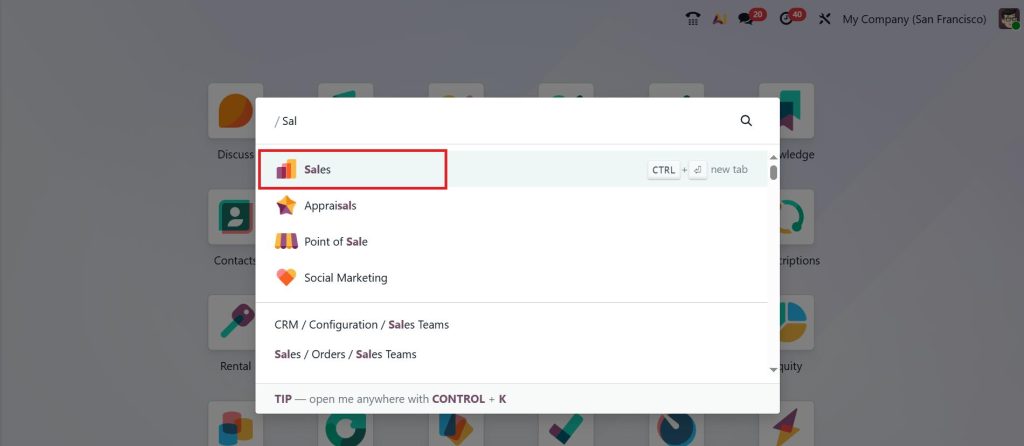
Duplicating or deleting sections is useful when you repeat similar structures across orders. So, let’s open the Sales module.
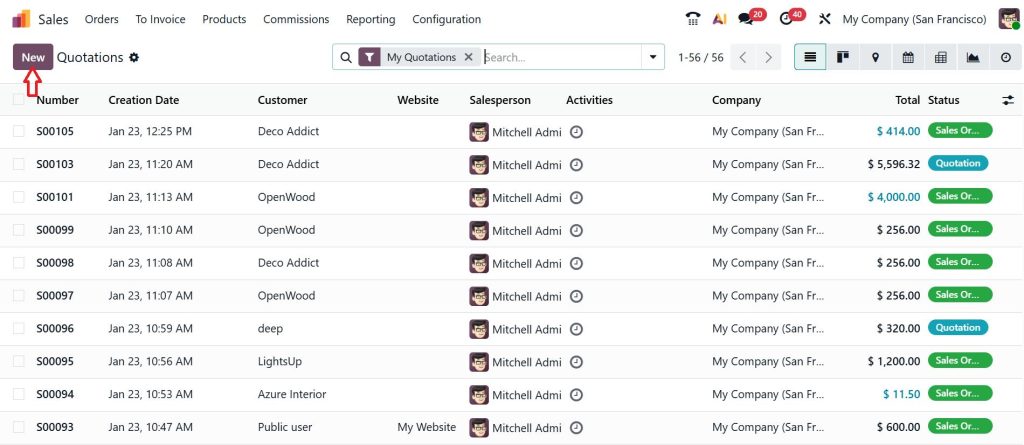
To create a new quotation, click New.
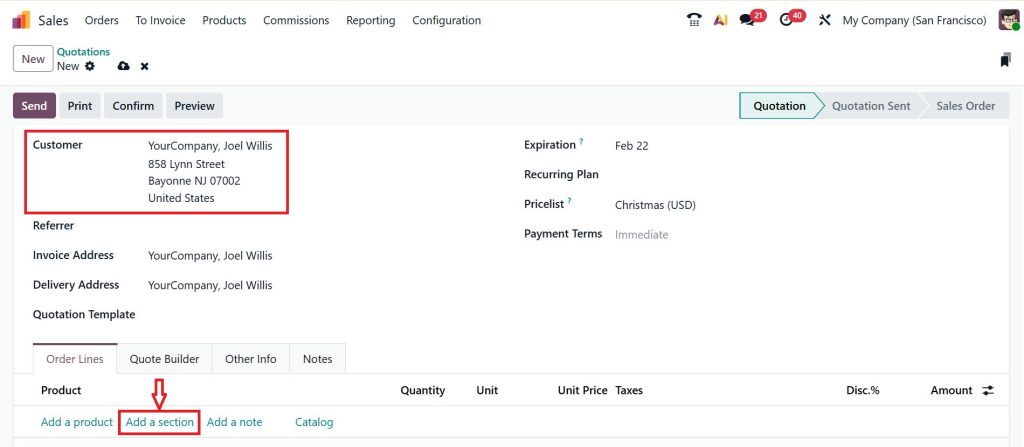
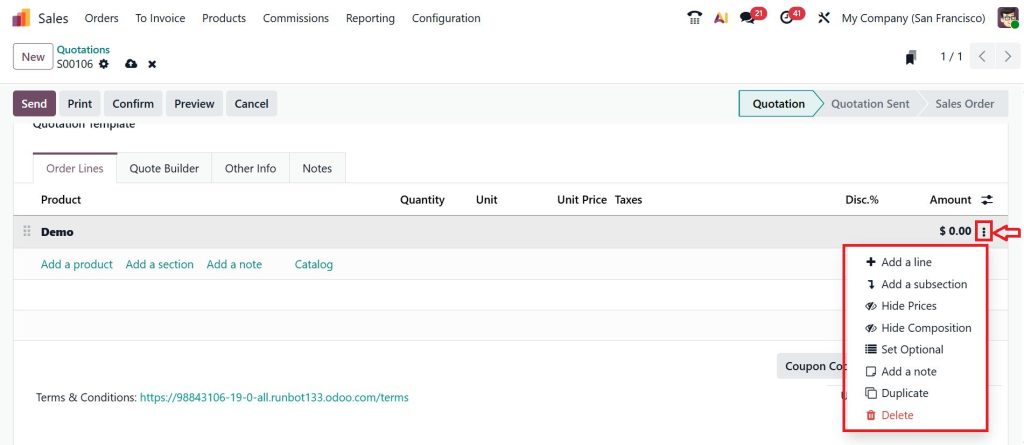
Enter the customer details and select Add Section.
Give the section name, for example, ‘Demo’, and click the three dots (፧), and you can easily add a product, line, subsection, and note, etc.
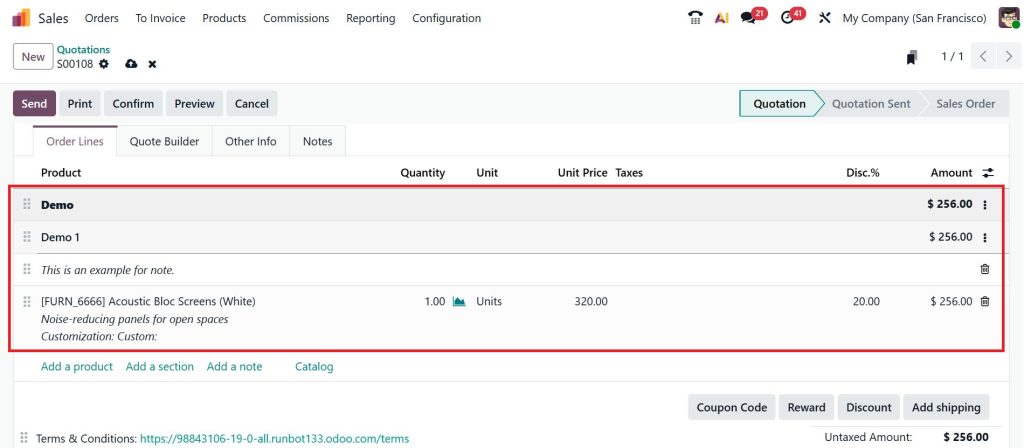
Now, let’s add a subsection as ‘Demo 1’, add a note, and then add a product.
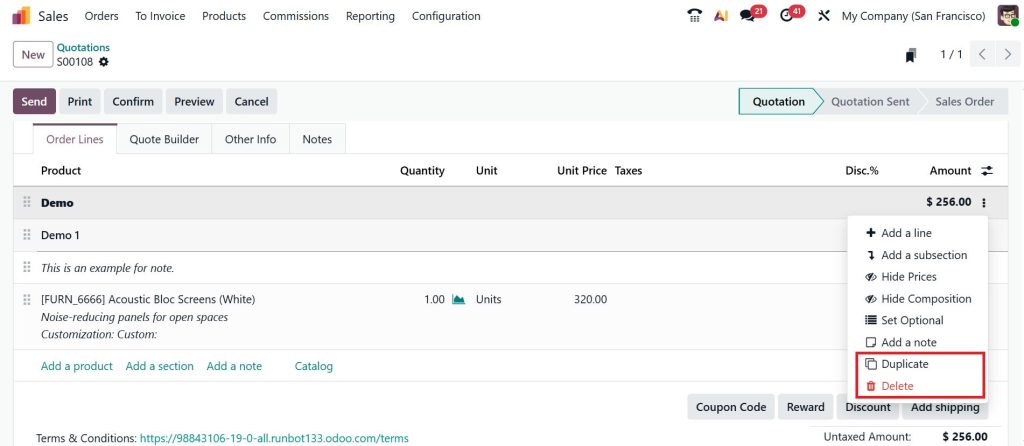
After that, if you want to duplicate or delete this section, you can easily do that just by clicking on three dots (፧) and then choosing the option according to your requirements.
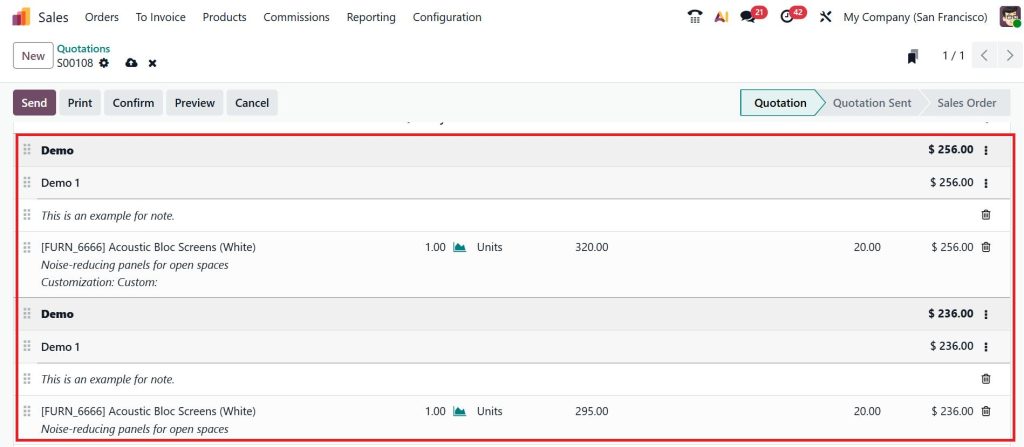
In the screenshot below, you can see what happened after you click on the Duplicate button. If you want to delete the extra section, just choose the Delete button.
These features will be available for sales quotations and in the purchases app after you click Request for Quotation to create a new one.
Odoo 19 Section Notes Management UAE – Why Structure Matters in Real Business
In UAE-based businesses, documents are often shared with multiple stakeholders. Sales teams, finance teams, and clients all see the same quotation or invoice. That’s why businesses in the UAE take Odoo 19 section notes management seriously.
Well-organized sections show professionalism. Clear notes explain services properly. Poor structure, on the other hand, creates confusion and delays approvals. Properly managing sections and notes helps businesses stay organized and present their work clearly, especially when dealing with high-value clients.
Add Section Invoice Odoo 19 – Making Long Invoices Easy to Read
Invoices without sections are hard to follow, especially when many services or products are involved. When you add a section invoice in Odoo 19, you guide the reader through the document step by step.
Adding sections to invoices helps separate service types, work phases, or billing categories. It makes invoices feel structured instead of overwhelming. Customers understand what they are paying for, and finance teams find it easier to verify details.
Once you start adding sections to invoices, you’ll notice fewer questions from clients and smoother payment follow-ups.
Odoo 19 Drag Drop Sections – Reordering Without Rewriting Anything
Sometimes the structure is right, but the order is wrong. Maybe a section should come earlier, or maybe the summary should be at the end. With Odoo 19 drag-and-drop sections, you don’t need to delete and recreate anything.
You simply move sections up or down until the flow feels right. This is especially useful when customer requirements change at the last moment. Instead of rebuilding the document, you adjust it quickly and move on. This small feature saves more time than people realize, especially when working with long sales orders.
Hide Prices Section Odoo 19 – When You Don’t Want Everything Visible
There are times when you don’t want prices visible in certain sections. Maybe it’s an internal quotation, or maybe you want to discuss pricing later. Knowing how to hide the prices section in Odoo 19 helps in such situations.
Hiding prices does not remove them from calculations. It only controls visibility. This helps businesses share documents internally or with selected stakeholders without exposing pricing details everywhere. Used correctly, this keeps communication clear and avoids confusion.
Duplicate Delete Order Lines Odoo – Small Actions That Make a Big Difference
Order lines change often. Maybe a customer wants an extra service. Maybe one line needs to be removed. Knowing how to duplicate or delete order lines in Odoo helps you quickly adjust documents.
Duplicating order lines saves time when services repeat. Deleting unnecessary lines keeps the totals accurate. The key here is to always review the final document after making changes so nothing important is missed. These small actions, done daily, add up to smoother work and fewer mistakes.
How All of This Comes Together in Daily Odoo Work
When you combine everything, duplicating sections, deleting notes, managing order lines, adding sections to invoices, reordering with drag and drop, and hiding prices where needed, your Odoo documents start making sense.
You stop fighting with the system. Instead, it starts supporting the way you work. That’s the real point of learning how to duplicate or delete sections and notes in Odoo 19.
Make Your Odoo 19 Documents Clear and Easy to Manage
If you’ve reached this point, one thing should be clear: managing sections and notes in Odoo 19 doesn’t have to feel confusing or time-consuming. Once you know when to duplicate a section, when to delete a note, and how to arrange everything properly, your sales orders and invoices start making more sense. You spend less time fixing documents and more time focusing on real work.
Learning how to duplicate or delete sections and notes in Odoo 19 is not about advanced features. It’s about using Odoo in a practical way that supports your daily tasks. Clean sections, meaningful notes, and well-managed order lines help your team work smoothly and help your customers understand documents without back-and-forth.
If you want help setting this up correctly or need guidance on using Odoo 19 more confidently, connect with Netilligence today. Our team can help you organize your documents, improve your workflows, and make Odoo work the way your business actually needs it to.