Import Products in Odoo 19 Made Simple for Beginners
Import Products in Odoo 19, sounds technical? Complicated? Maybe even a little scary?
What if we told you that in less than 30 minutes, you could upload hundreds of products into your system without typing them one by one?
Yes, really.
If you are new to Odoo and wondering how to import products in Odoo for beginners, you are not alone. Many business owners and startup teams feel overwhelmed the first time they see Excel sheets, mapping fields, variants, and import buttons. But here’s the secret: once you understand the logic behind Import Products in Odoo 19, it actually becomes one of the most powerful and time-saving tools in the entire system.
Imagine this:
You have 500 products to upload.
Each product has price, cost, barcode, category, and maybe even variants.
Doing it manually would take days.
But with the right Odoo 19 import products tutorial, you can complete a bulk import products Odoo 19 process in minutes. That’s the magic of using the correct Odoo product import Excel template.
And what about variants? Sizes? Colors? Different configurations? Don’t worry, we’ll also show you how to handle Odoo 19 import products with variants without confusion.
Worried about mistakes? We’ll guide you step-by-step on how to fix Odoo product import errors so you never feel stuck or frustrated.
In this beginner-friendly guide, you’ll discover:
The exact steps to Import Products in Odoo 19
The smart way to prepare your Excel sheet
How to avoid common beginner mistakes
How to handle product variants easily
And when it’s better to let experts step in
So if you’ve ever thought, “Is there an easier way to upload my products?” or “What if I mess up the import?”
Keep reading.
Because once you master how to Import Products in Odoo 19, you’ll wonder why you ever did it manually.
Why Import Products in Odoo 19 Is a Big Change
Before jumping into the technical steps, let’s understand why businesses prefer to import products instead of creating them manually.
1. Saves Time
Imagine adding 500 products manually. It may take hours or even days. With the import feature, you can upload everything in minutes.
2. Reduces Human Errors
Manual data entry often leads to mistakes. Using a structured Excel template ensures consistent and accurate data.
3. Ideal for Growing Businesses
If you are migrating from another system or launching a new store, bulk import products Odoo 19 is the fastest way to get started.
4. Easy Updates
Need to update prices or stock for hundreds of products? Just export, edit, and re-import.
This is why learning how to import products in Odoo for beginners is essential for every new Odoo user.
Step-by-Step Odoo 19 Import Products Tutorial
Now let’s move into the practical section of this Odoo 19 import products tutorial.
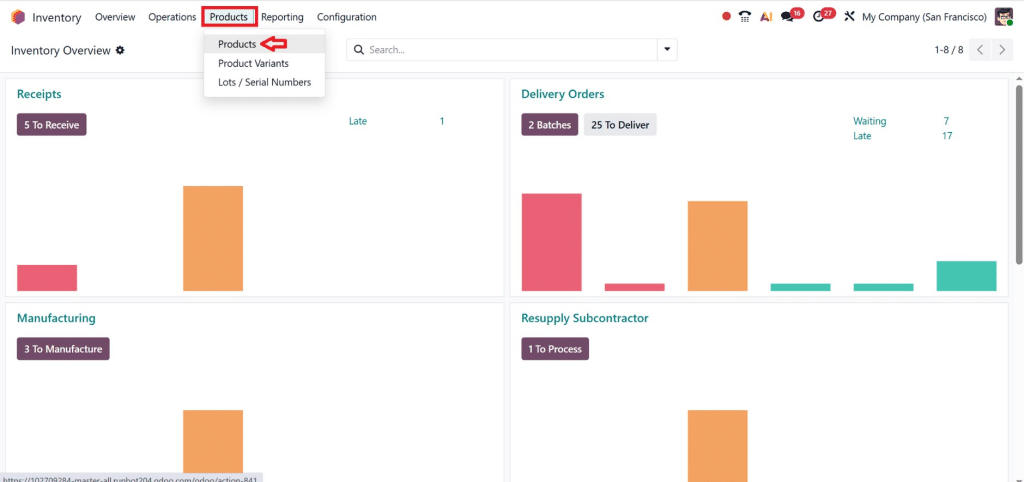
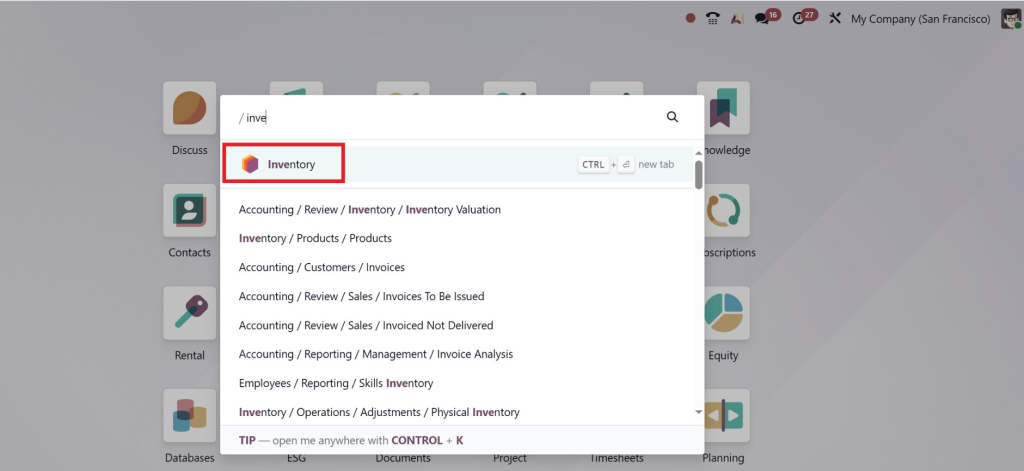
Step 1: Go to the Products Menu
Log in to your Odoo 19 dashboard.
Open the Inventory or Sales module.
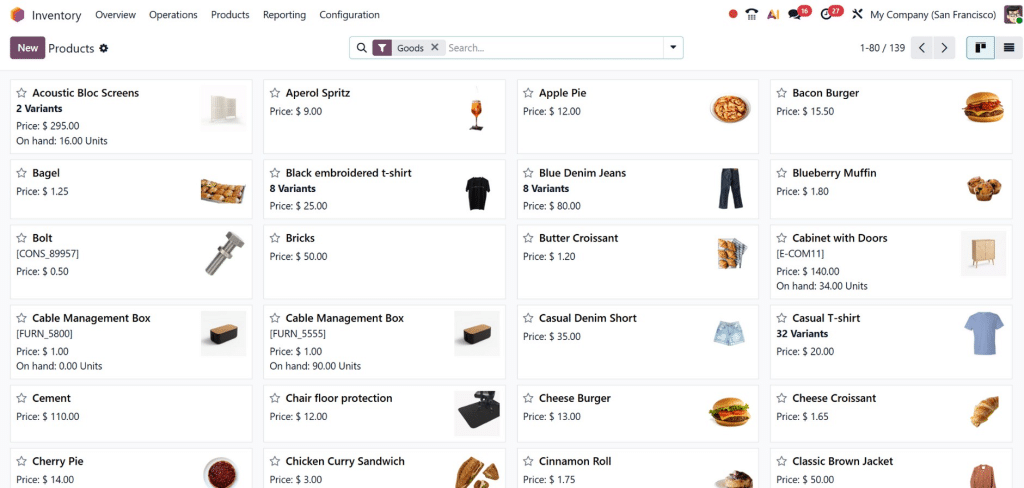
Click on Products → Products.
You will see the list of existing products.
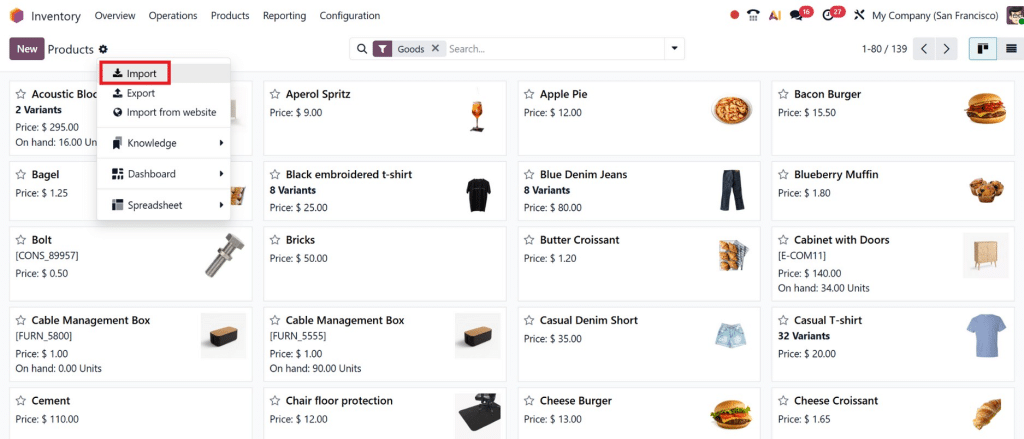
Step 2: Click on the Import Button
In the top-left corner, you will find the Import button.
Click on it.
This will open the import screen where you can upload your file.
Step 3: Download the Odoo Product Import Excel Template
Before uploading your data, you need to use the correct format.
On the import screen:
Click on Templates for Import
Download the sample file
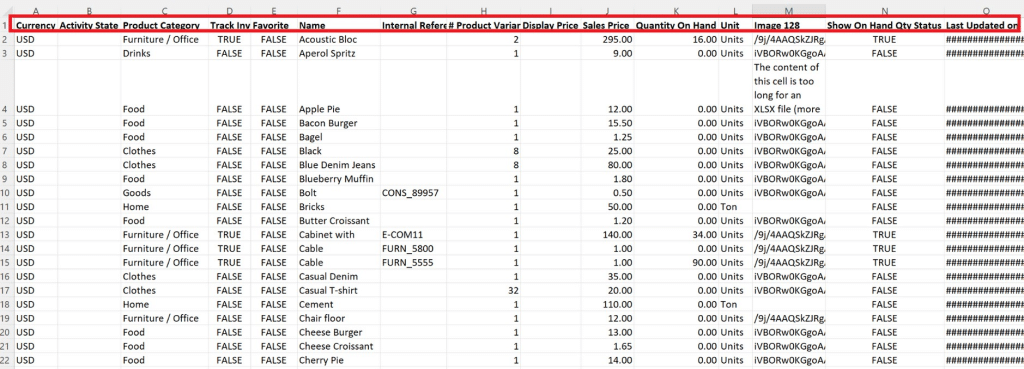
This file is your official Odoo product import Excel template.
It includes important columns like:
Product Name
Internal Reference
Product Type
Sales Price
Cost
Category
Unit of Measure
You can edit this file and add your own product data.
Step 4: Prepare Your Excel File Correctly
This is where most beginners make mistakes.
Follow these tips:
Do not delete mandatory columns.
Keep column headers exactly as Odoo provides.
Avoid special characters.
Make sure product categories already exist in Odoo.
If you follow this format correctly, Import Products in Odoo 19 becomes extremely smooth.
Step 5: Upload and Test Import
Click Upload File
Select your completed Excel or CSV file
Odoo will auto-match fields
Before clicking import, always use the Test button.
This helps you identify potential errors before final import.
If everything looks correct, click Import.
Congratulations! You have successfully learned how to import products in Odoo for beginners.
How to Bulk Import Products Odoo 19 Like a Pro
Bulk import products Odoo 19 is perfect for:
E-commerce businesses
Wholesalers
Manufacturing companies
Retail stores
Here’s how to do it efficiently:
Use Clean Data
Ensure:
No duplicate product names
Unique internal references
Correct product categories
Import in Batches (If Needed)
If you have 10,000+ products:
Break them into smaller files (1000–2000 each)
Import gradually
Maintain Consistent SKU Codes
Internal reference (SKU) must be unique. This helps avoid duplication and confusion.
Update Instead of Creating Duplicates
When updating products:
Include the “External ID” or “Internal Reference”
Odoo will update instead of creating a new product
This makes bulk import of products in Odoo 19 safe and efficient.
Our experienced Odoo consultants understand business logic, not just technical steps.
Instead of struggling for days, let our experts handle everything smoothly.
We don’t just import data, we optimise it for improved performance and future growth.
Ready to Import Products in Odoo 19 Without Stress?
Now you know how to Import Products in Odoo 19 step by step.
From understanding the Odoo product import Excel template to handling Odoo 19 import products with variants and learning how to fix Odoo product import errors, you are fully equipped to manage product imports like a professional.
But remember:
Clean data = smooth import
Proper template = fewer errors
Expert guidance = faster success
If you are just starting and want everything done perfectly, Netilligence is here to help.
Let us simplify your Odoo journey and make your business operations smarter, faster, and more powerful.
Ready to import your products without stress? Contact Netilligence today and experience seamless Odoo implementation like never before.
Hi, I'm Nabia, an Odoo ERP functional & technical content writer. I specialize in blogs, social media content, ad copy, landing pages, service pages, and email campaigns.
We use cookies to ensure that we give you the best experience on our website. If you continue to use this site we will assume that you are happy with it.