Add QR Codes to Invoices in Odoo 19 Accounting for Modern, Faster Payments
Imagine sending an invoice where your client scans a QR code and pays, no long banking details, no confusion, no delays. That’s the magic of implementing the Odoo 19 payment QR code on invoices.
In this guide, we’ll walk you through everything you need to know: how QR invoices work, how they improve your accounting process, how to enable them, how to generate QR codes in Odoo 19, and how Netilligence (as an Odoo Partner) can help you integrate this feature beautifully.
Throughout this guide, you’ll see why more companies than ever are choosing to add QR Codes to Invoices in Odoo 19 Accounting and how this simple upgrade can dramatically improve your invoicing and cash flow cycle.
Add QR Codes to Invoices in Odoo 19 Accounting
Adding QR codes to your invoices isn’t just a feature; it’s a strategic advantage. Gone are the days when customers had to manually type out long account numbers, reference codes, or payment amounts. With a single scan, they can pay instantly.
And that’s precisely why businesses want to add QR Codes to Invoices in Odoo 19 Accounting. Odoo 19 supports multiple QR formats, integrates with online payment systems, and provides a clean, professional PDF layout with a scannable QR code.
The smoother your billing process, the faster you get paid, and the more trust your brand builds with customers.
How to Enable QR Codes in Odoo 19
Activating the QR code option in your system is simple and takes just minutes. Below is the exact method to add QR Codes to Invoices in Odoo 19 Accounting.
Step 1 – Go to Accounting Settings
Navigate to Accounting.
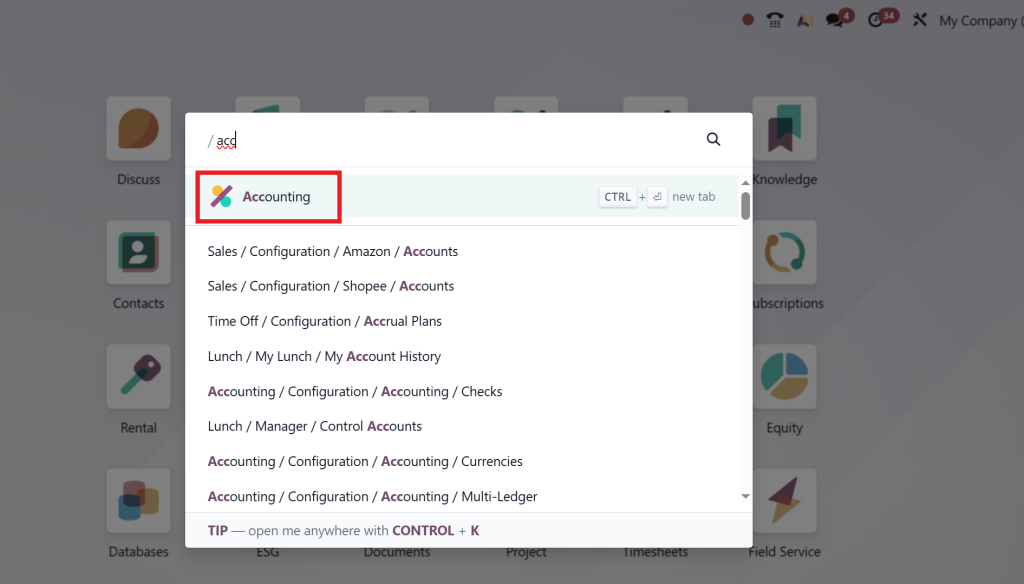
Accounting → Configuration → Settings
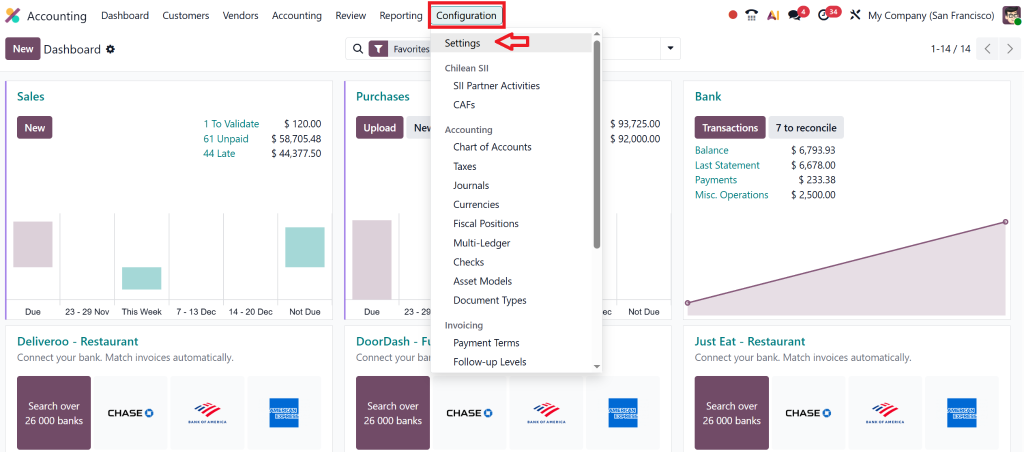
Scroll to the “Customer Payments” section.
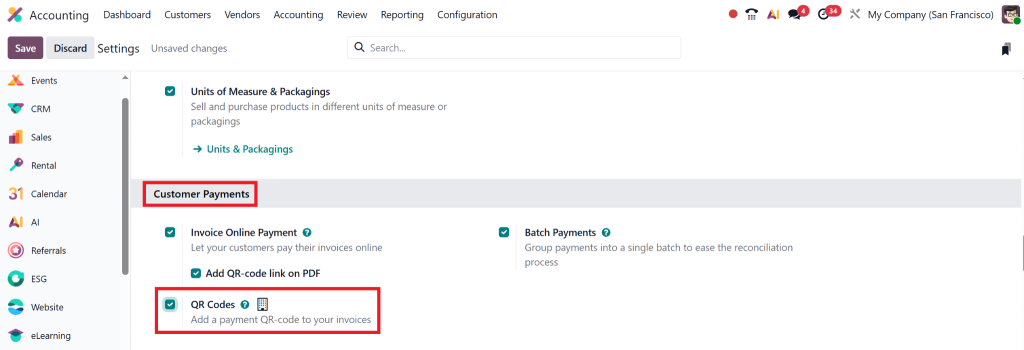
Step 2 – Enable QR Code on Documents
Look for the option labelled:
“QR Code on Invoices” or “Payment QR Code on PDF”
Click the checkbox.
Step 3 – Select Your QR Format
Depending on your region, you may see:
- SEPA QR (Europe)
- UPI QR (India – if supported)
- Generic Payment QR
- Custom QR with payment link
Choose the one that suits your payment cycle.
Step 4 – Save the Settings
Once saved, your Odoo 19 system is fully ready.
From this point on, every posted invoice will automatically include a scannable QR code in the PDF. This is the moment where your invoice system evolves into a modern, customer-friendly tool.
How QR Payment Codes Are Generated in Odoo 19
One of the best parts of Odoo 19 is that QR code generation is fully automated. Once you’ve enabled the feature:
1. Create an Invoice
Go to:
Accounting → Customers → Invoices → Create
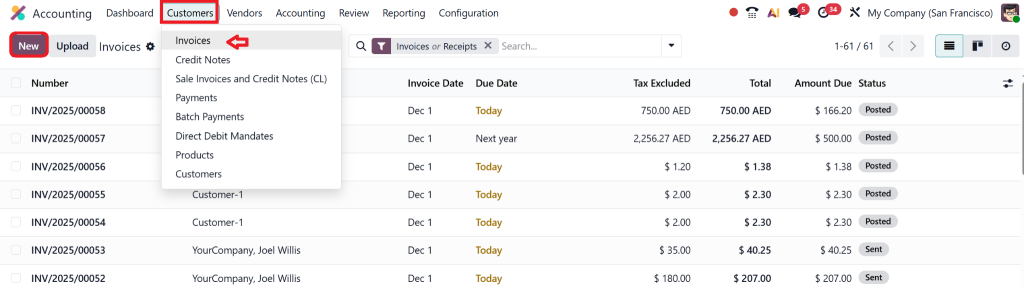
Add all invoice details.
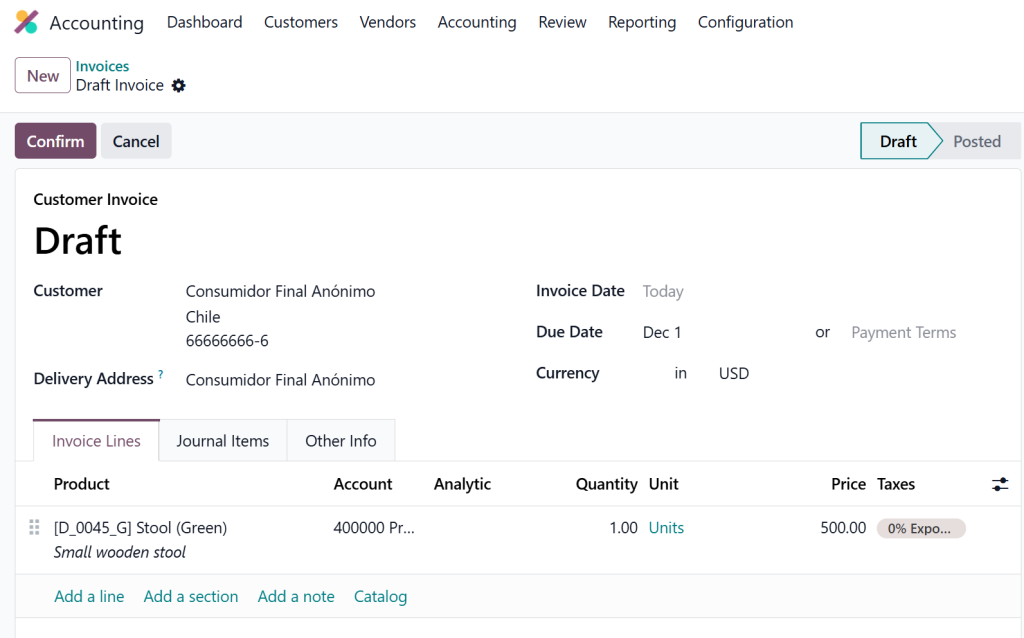
2. Post/Confirm the Invoice
When validated, Odoo instantly generates the QR code.
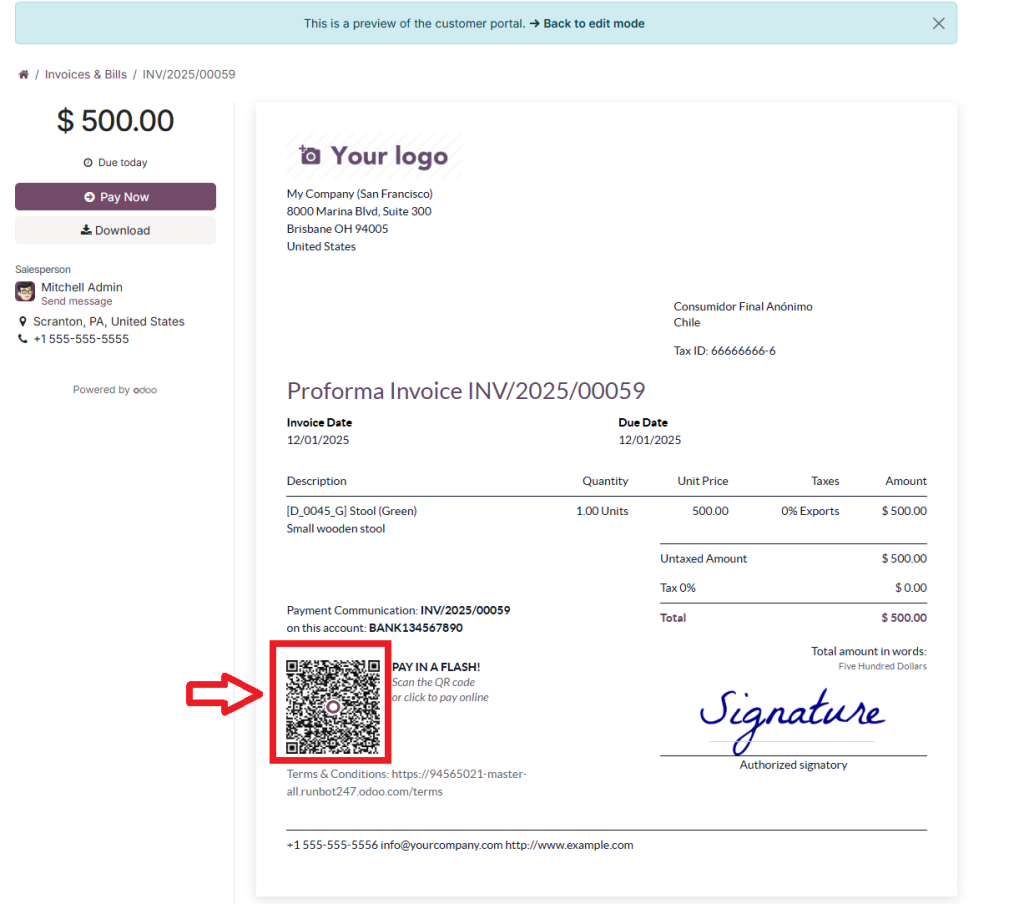
3. Print or Send the Invoice
Click Print or Send & Print, and the final PDF will include the:
QR code link on the PDF Odoo invoice
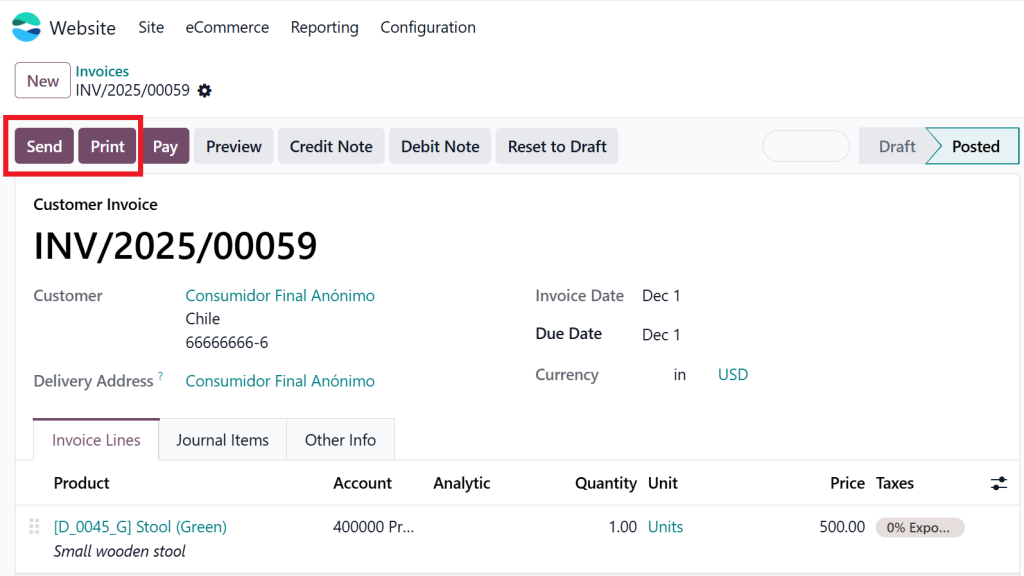
Your customers can now open their phone camera, scan, and pay.
This automation makes the new accounting system powerful; you don’t need to set up anything every time you issue an invoice manually.
Why QR Code Invoices Are Becoming the New Payment Standard
Today’s customers expect convenience. They’re used to mobile banking, UPI apps, digital wallets, and instant payments. With this shift, businesses must evolve too, and QR-enabled invoices are one of the easiest, most effective improvements you can implement.
Here’s why companies choose to add a QR code to the invoice in Odoo 19:
Lightning-Fast Mobile Payments
Clients scan and pay instantly. No typing, no errors, no delays.
This alone accelerates cash flow significantly.
Eliminates Manual Errors
QR codes remove the risk of wrong account numbers, incorrect amounts, or mismatched payment references.
Professional, Trustworthy Invoices
Invoices with QR codes look modern, organised, and customer-friendly.
Guaranteed Payment Accuracy
The QR stores payment details, amount, invoice reference, and due date, so the system knows precisely which invoice is being paid.
Ideal for Remote & International Billing
Whether your client is across town or across the world, QR scanning makes payment effortless.
This is why companies upgrading to Odoo 19 immediately ask how to enable QR codes, because the benefits are too good to ignore.
Customising QR Codes in Odoo 19
Odoo provides a default QR code format, but many companies want their invoices to look unique, polished, and aligned with their brand. As an Odoo Partner, Netilligence helps businesses customise QR invoice layouts to deliver a premium billing experience.
How You Can Customise Your QR Code Area
- Change QR code size
- Move QR to the header, footer, or right section
- Add a label like “Scan to Pay.”
- Add payment instructions
- Use custom colours
- Add branding elements
- Make QR clickable for online payment
These minor design improvements make your invoice look sophisticated, straightforward, and user-friendly, while keeping the payment process as simple as possible.
If you want your invoice layout to truly stand out, custom QR code integration is one of the best upgrades.
Supported QR Code Types in Odoo 19
Understanding QR formats helps you choose the best one for your business. Odoo 19 supports multiple QR rules based on localisation and enabled payment methods.
SEPA QR (European Region)
Used for instant European bank transfers.
UPI QR (India – if activated)
Perfect for apps like PhonePe, Google Pay, Paytm, etc.
Generic QR Code for Online Payment Page
Odoo generates a link that opens your online payment gateway.
Customised QR Formats
Netilligence can create custom QR code fields for:
- Payment gateways
- Subscription billing
- App-based payments
- Wallets and fintech integrations
This flexibility is one of the reasons businesses choose Odoo 19.
The Real Business Impact of Adding QR Codes to Odoo 19 Invoices
Adding QR codes to invoices doesn’t just look good; it makes a measurable difference in your financial operations.
Faster Payments and Better Cashflow
QR invoices often lead to same-day payments. Customers find it so convenient that they settle the invoice immediately.
Reduced Payment Errors
Everything is encoded inside the QR, including:
- Payment amount
- Reference number
- Invoice ID
This means fewer human errors and fewer reconciliation headaches.
A Smoother Customer Experience
Your clients no longer feel frustrated by long wait times at the bank. They get a simple, clean, and modern payment process.
Lower Collection Workload
Your team spends less time chasing payments, sending reminders, or correcting errors.
A Digitally Transformed Invoice Workflow
By choosing to add QR Codes to Invoices in Odoo 19 Accounting, you are upgrading your billing process into a fully digital, automated system.
This creates a strong competitive advantage.
When you choose Netilligence, you’re choosing a team that knows how to optimise Odoo for real-world business results.
Let QR Codes Convert Your Odoo 19 Invoicing Experience
Adding QR codes to invoices may seem like a minor feature, but it creates a huge impact. With faster payments, fewer errors, a more professional look, and a far better customer experience, businesses that choose to add QR Codes to Invoices in Odoo 19 Accounting are taking a decisive step toward digital transformation.
Odoo 19 makes the process simple. Netilligence makes it exceptional.
If your company is ready to enhance its invoicing process, strengthen customer trust, and speed up payment cycles, our team is here to help you implement QR-powered invoices with precision and style.
Upgrade your invoicing today.
Your customers and your finance team will thank you.