

Easily Change Messaging Icon in Odoo 18
When working in Odoo 18, users often rely on the messaging feature to receive notifications, internal messages, and system updates. This feature is represented by a small icon located in the top-right corner of the Odoo interface, commonly known as the systray. By clicking this icon, users can quickly view conversations, alerts, and important notifications without navigating to another page.
By default, Odoo displays this messaging feature using a chat bubble icon (💬). While this works well for general communication, some businesses prefer to customize the icon to reflect their internal communication style better or match their company’s interface design. For example, organizations that use messaging primarily for notifications or email-like communication may find a mail or envelope icon more intuitive for their users.
Fortunately, Odoo allows developers to customize many parts of the interface without modifying the core system. Using QWeb template inheritance, you can replace the default chat icon with a different one while keeping the rest of the functionality unchanged.
In this blog, we will walk through a simple method to change the messaging icon in Odoo 18 from the default to a mail envelope icon. Even if you are new to Odoo customization, this guide will help you understand the concept and implement the change step by step.
Objective of This Customization
The main goal of this customization is straightforward:
- Replace the default chat icon (fa-comments)
- Display a mail or envelope icon (fa-envelope)
- Maintain compatibility with the existing Odoo interface
- Implement the change safely without modifying core Odoo files
To achieve this, we will extend the existing messaging template using QWeb inheritance, the recommended method for customising Odoo’s frontend components.
Technical Overview
Odoo 18 uses a combination of OWL (Odoo Web Library) and QWeb templates to render user interface components. These templates define how different parts of the UI are displayed, including menus, icons, buttons, and widgets.
The messaging icon that appears in the systray is rendered through the template:
mail.MessagingMenu
Instead of editing this core template directly, we will create a custom XML file that inherits from it to Change Messaging Icon in Odoo 18. This allows us to modify only the specific element we want, the messaging icon, while keeping the rest of the system unchanged.
This approach offers several benefits:
Keeps the customization upgrade-safe
Avoids modifying core Odoo files
Allows developers to extend functionality easily
By using an XPath expression, we can locate the existing chat icon and replace its class attribute with a mail icon.
Code Implementation
To implement this customization, create an XML file inside your custom module.
The recommended file location is:
static/src/xml/messaging_menu.xml
Then add the following code:
					<?xml version="1.0" encoding="UTF-8"?>
<templates xml:space="preserve">
   <t t-name="sale_report_watermark.MessagingMenuInherit" t-inherit="mail.MessagingMenu" t-inherit-mode="extension">
       <xpath expr="//i[contains(@class, 'fa-comments')]" position="attributes">
           <attribute name="class">fa fa-lg fa-envelope</attribute>
       </xpath>
   </t>
</templates>
This code extends the existing messaging menu template and modifies the icon displayed in the systray.
How This Code Works
Let’s break down the code step by step to understand how the customization works.
1. Template Inheritance
t-inherit=”mail.MessagingMenu”
This line tells Odoo that our template should extend the original messaging menu template instead of replacing it entirely.
Using template inheritance ensures that the customization integrates smoothly with the existing UI.
2. XPath selector
//i[contains(@class, 'fa-comments')]
The XPath expression is used to locate the icon element that contains the default chat icon.
In the original template, the messaging menu uses the Font Awesome class fa-comments to display the chat bubble icon.
By targeting this element, we can modify its properties.
3. Modifying the Attribute
					position="attributes"
 	→ Replaces only the class attribute
This instruction tells Odoo to update the attributes of the selected element rather than replacing the entire element.
This is a safer approach because it preserves the rest of the messaging component’s functionality.
4. Applying the New Icon
fa fa-lg fa-envelope
Here we replace the existing icon class with a Font Awesome envelope icon.
This simple change updates the visual representation of the messaging menu in the systray.
User Interface Result
After implementing the customization and updating the module, the icon displayed in the Odoo systray will change.
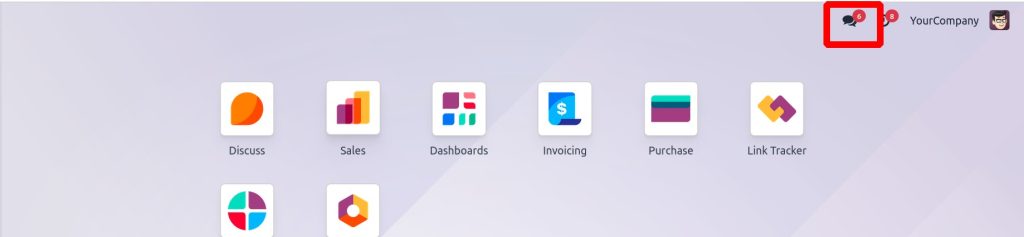
Before the Customization
➡ Chat bubble (💬) icon shown in systray
🔹 After Change
➡ Envelope (✉️) icon shown in systray
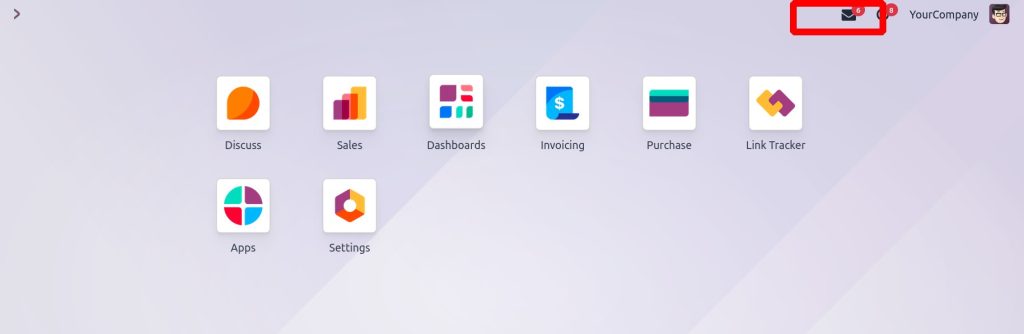
This subtle change improves visual clarity, especially for users who associate notifications with email rather than chat.
Practical Use Cases
Although the customization to change the messaging iconin Odoo 18 is small, it can be particularly useful in several real-world scenarios.
1. UI Branding Customization
Many companies customize their Odoo interface to align with their internal design guidelines or branding standards. Changing icons is one of the easiest ways to personalize the interface.
2. Improved User Experience
Some users find the envelope icon more intuitive when the messaging system is used primarily for notifications, alerts, or email-like communication.
3. Client-Specific Customization
When implementing Odoo for clients, developers often tailor the interface according to client preferences or workflow requirements.
4. Cleaner Backend Interface
Replacing icons with more meaningful visuals can make the interface cleaner and easier to understand, especially for new users.
Best Practices for Odoo UI Customization
When making UI changes in Odoo, it is important to follow certain best practices to ensure system stability and maintainability.
Always use template inheritance instead of modifying core files to change the messaging iconin Odoo 18
Keep customizations modular and organized
Use XPath expressions carefully to avoid breaking templates
Test changes across different modules to ensure compatibility
Document customizations for future maintenance
Following these practices helps ensure that your customizations remain upgrade-safe and easy to manage.
Change Messaging Icon in Odoo 18
Change Messaging Icon in Odoo 18 is a simple yet effective way to improve the user interface and align the system with your organization’s design preferences.
By using QWeb template inheritance, developers can safely modify the default chat icon and replace it with a more suitable icon, such as a mail envelope. This approach avoids changes to core Odoo files while ensuring compatibility with future updates.
Although the modification only Change Messaging Icon in Odoo 18, small UI enhancements like this can significantly improve usability and make the system feel more tailored to business needs.
Odoo’s flexible architecture makes it easy to implement such improvements, allowing organizations to create a more intuitive and visually consistent ERP environment for their teams.




