
Increase Your Productivity With the Top 5 Odoo Keyboard Shortcuts
When it comes to managing business operations efficiently, Odoo keyboard shortcuts can be a real game-changer. If you are using Odoo 19, mastering the Top 5 Odoo Keyboard Shortcuts can save you hours, simplify navigation, and make your workflow seamless. Many Odoo users struggle with slow navigation or repetitive tasks, which is where the power of the best Odoo keyboard shortcuts comes into play.
In this article, we will explore the Top 5 Odoo Keyboard Shortcuts, explain how to use them effectively, and show you why these Odoo 19 keyboard shortcuts are essential for every professional. By the end, you’ll be equipped to work faster, smarter, and more productively in Odoo.
Why You Need to Use Odoo Keyboard Shortcuts
Every business professional using Odoo 19 knows that efficiency is key. While the Odoo interface is user-friendly, navigating manually through menus and modules can slow down your daily tasks. By using Odoo keyboard shortcuts, you can:
- Reduce time spent on repetitive tasks
- Navigate through modules without a mouse
- Quickly save and manage records
- Access tools and actions instantly
The Top 5 Odoo Keyboard Shortcuts we will cover are tried, tested, and designed to boost productivity for everyone – from ERP beginners to advanced users.
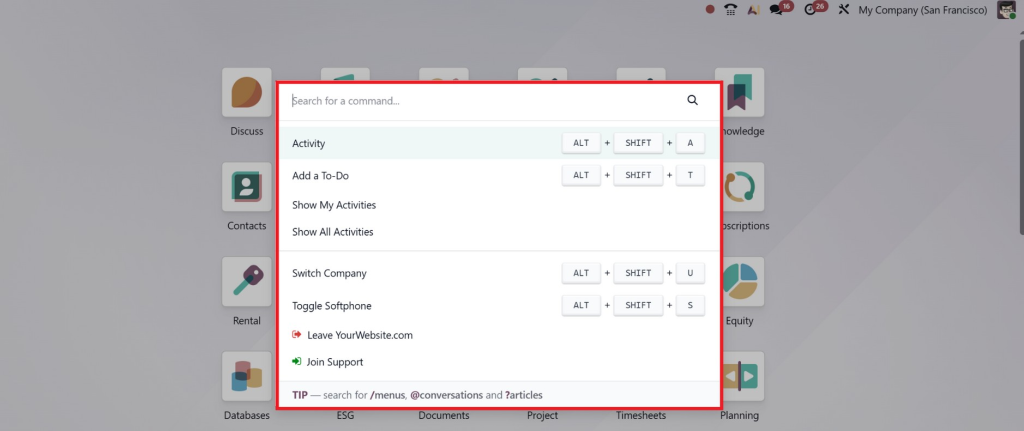
1. Odoo Command Palette Shortcut: Ctrl + K
The first and one of the most powerful Odoo keyboard shortcuts is the Odoo command palette shortcut Ctrl K. This shortcut allows you to search and navigate any action within Odoo 19 in a matter of seconds.
Instead of clicking through multiple menus, press Ctrl + K, type the module or action you need, and hit enter. It’s like having a search engine built into your ERP.
Benefits:
- Instantly find actions or modules
- Saves time compared to manual navigation
- Improves workflow efficiency for users managing multiple modules
2. Odoo Save Record Shortcut: Alt + S
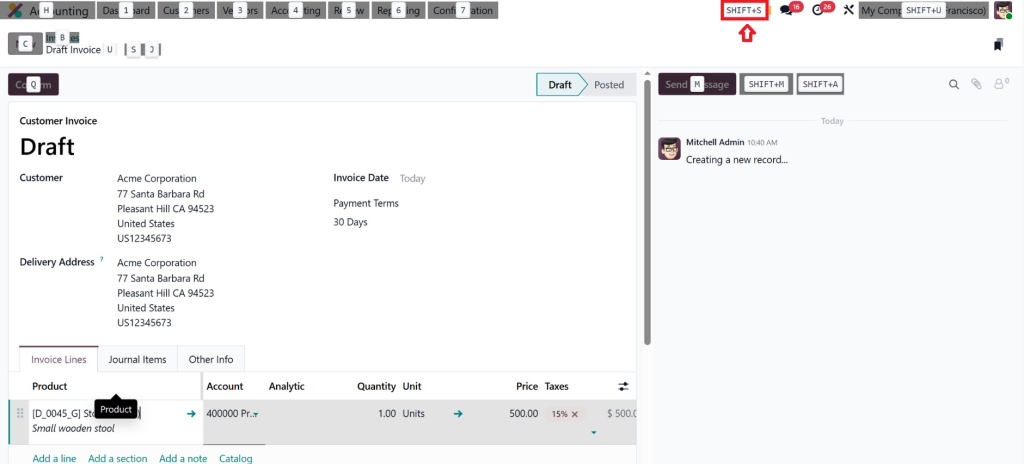
Another essential shortcut is the Odoo save record shortcut Alt S. Anyone who works extensively with records knows that saving data quickly can prevent mistakes and improve productivity.
With Alt + S, you can save forms, invoices, or any record instantly without reaching for the mouse. Combine this with other shortcuts, and you have a workflow that is both fast and reliable.
Why it matters:
- Reduces errors by saving data promptly
- Enhances efficiency in high-volume data entry
- Supports faster client and internal communications
3. Odoo Navigation Shortcuts: Alt + 1 to 9
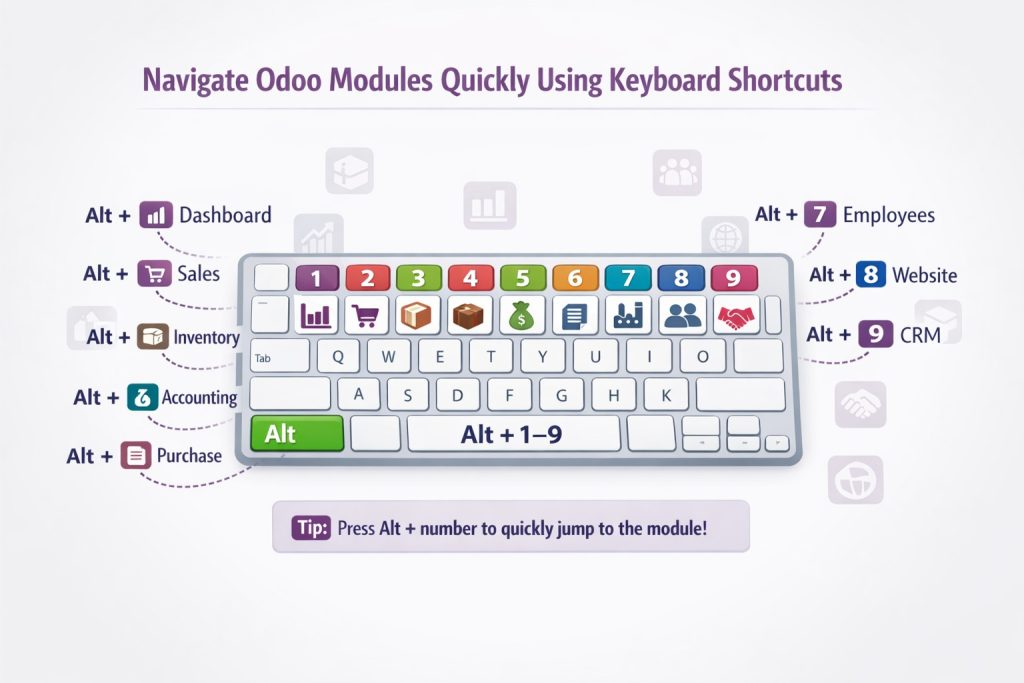
Navigating between different Odoo apps and modules becomes effortless with the Odoo navigation shortcuts Alt 1–9. These shortcuts allow you to switch instantly between modules like Sales, Accounting, Inventory, or CRM.
For example:
- Alt + 1: Dashboard
- Alt + 2: Sales
- Alt + 3: CRM
- …and so on.
The Top 5 Odoo shortcuts include this because navigation is a frequent task, and reducing mouse clicks means more time for strategic work.
Benefits:
- Fast switching between Odoo modules
- Ideal for multitasking users
- Minimizes disruption and keeps workflow continuous
4. Quickly Access Favorites & Filters: Ctrl + F / Shift + F
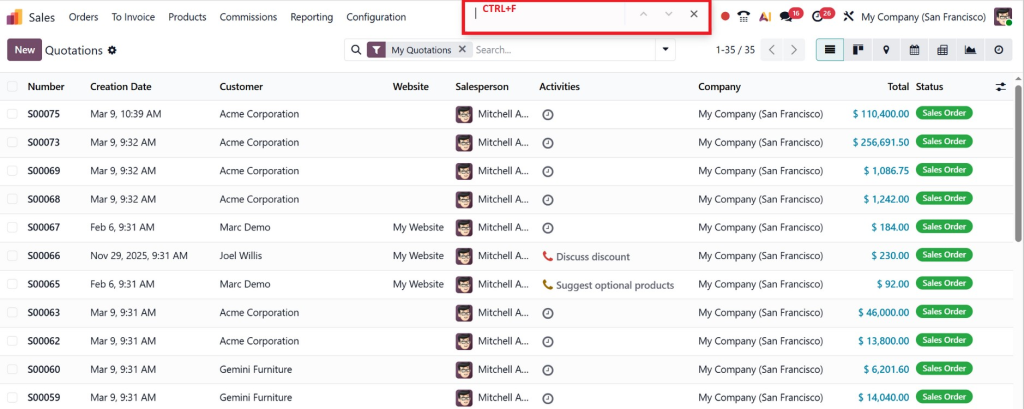
One of the overlooked but highly effective Odoo 19 keyboard shortcuts is using Ctrl + F for searching records within a module and Shift + F for filters.
Why this is a changer:
- Quickly locate customers, invoices, or products
- Use filters without multiple clicks
- Optimize your Odoo experience with minimal effort
By integrating this shortcut into your routine, you’ll handle massive datasets without wasting time scrolling through lists manually.
5. Switch Between Views: Ctrl + Alt + Left/Right Arrow
Finally, the fifth of our Top 5 Odoo Keyboard Shortcuts is switching between views using Ctrl + Alt + Left/Right Arrow. Odoo allows different views like Kanban, List, Calendar, and Form. Instead of clicking each view, this shortcut lets you toggle instantly.
Advantages:
- Compare data across different views efficiently
- Quick overview of projects, tasks, or sales pipelines
- Saves time for users who frequently analyze data
This shortcut is especially helpful for managers and analysts who rely on visual data representation.
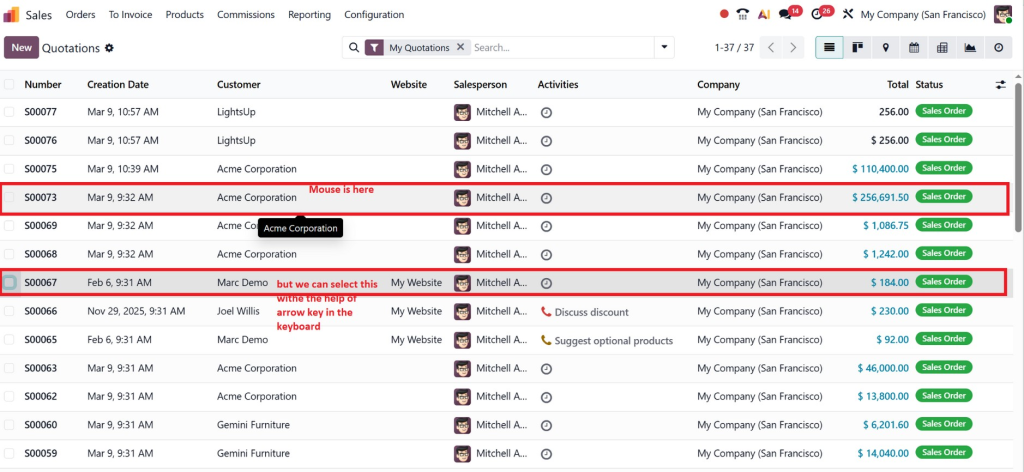
Additional Odoo Keyboard Shortcuts You Should Know
While the Top 5 Odoo Keyboard Shortcuts give you the fastest access to essential functions, Odoo 19 actually has many more useful shortcuts that can make your work even smoother. Using these regularly will help you navigate, create, and manage records much faster.
Here’s a handy table of other important Odoo 19 keyboard shortcuts for Windows/Linux and macOS:
Action | Windows / Linux | macOS |
Previous breadcrumb | Alt + B | Ctrl + B |
Create new record | Alt + C | Ctrl + C |
Odoo Home Page | Alt + H | Ctrl + H |
Discard changes | Alt + J | Ctrl + J |
Save changes | Alt + S | Ctrl + S |
Next page | Alt + N | Ctrl + N |
Previous page | Alt + P | Ctrl + P |
Search | Alt + Q | Ctrl + Q |
Create a new To-Do | Alt + Shift + T | Ctrl + Shift + T |
Share a Knowledge article | Alt + Shift + S | Ctrl + Shift + S |
Pro Tip: These shortcuts, along with the Top 5 Odoo Keyboard Shortcuts, can drastically reduce mouse clicks and speed up your daily tasks. Spend a few minutes practicing them each day, and you’ll notice a huge increase in productivity.
Tips to Maximize Efficiency With Odoo Keyboard Shortcuts
Now that you know the Top 5 Odoo keyboard shortcuts, here are a few tips to make them work even better for you:
- Practice daily: Shortcuts become instinctive after consistent use.
- Combine shortcuts: Use Ctrl + K and Alt + S together to search and save instantly.
- Personalize your workspace: Odoo 19 allows you to customize the dashboard and module shortcuts.
- Train your team: Encourage employees to adopt these shortcuts to improve overall productivity.
- Keep a cheat sheet: Place a list of the best Odoo keyboard shortcuts near your workstation for quick reference.
Why Businesses Should Adopt Odoo Keyboard Shortcuts
Many businesses underestimate the power of keyboard shortcuts. By mastering Odoo keyboard shortcuts, companies can:
- Improve employee productivity
- Reduce operational time in ERP tasks
- Minimize errors in data entry
- Enhance the overall ERP experience
Netilligence, being a leading Odoo Partner, can implement and train your team to use the Top 5 Odoo Keyboard Shortcuts effectively, ensuring your business runs at maximum efficiency.
Start Using the Top 5 Odoo Keyboard Shortcuts Today
In today’s business environment, saving time is equivalent to saving money. The Top 5 Odoo Keyboard Shortcuts – including Odoo command palette shortcut Ctrl K, Odoo save record shortcut Alt S, Odoo navigation shortcuts Alt 1–9, and others – are not just small hacks; they are productivity tools that transform how you use Odoo 19.
Whether you are managing sales, inventory, CRM, or accounting, integrating the best Odoo keyboard shortcuts into your daily routine ensures efficiency, accuracy, and speed.
Start practicing these shortcuts today, and watch your workflow transform into a streamlined, highly productive experience. And if you want professional guidance, Netilligence is ready to help your business implement these shortcuts and more to get the most out of Odoo 19.