If your stock runs out unexpectedly or your warehouse stays overloaded, the problem usually isn’t sales; it’s poor replenishment logic. That’s why learning how to change reordering rules in Odoo 19.1 is so important for growing businesses. When you understand how to change reordering rules in Odoo 19.1, you gain control over inventory, purchasing, and cash flow. Many businesses struggle simply because they don’t know how to change reordering rules in Odoo 19.1 correctly.
In reality, changing reordering rules in Odoo 19.1 is not just a technical task; it’s a business decision. Once you learn about changing reordering rules in Odoo 19.1, you can automate stock replenishment, avoid shortages, and reduce overstock. Whether you’re dealing with sudden demand or slow-moving items, knowing how to change reordering rules in Odoo 19.1 helps you respond faster and smarter.
In this blog, I’m not just explaining features. I’m walking you through the same problems you’re facing and showing you how to change reordering rules in Odoo 19.1 so your inventory starts making sense. Once you understand this, you’ll stop guessing and start controlling your stock with confidence.
This guide will help you understand why Odoo 19.1’s reordering rules changed, how replenishment works now, and what to adjust to avoid daily inventory stress.
Understanding Reordering Rules Before You Change Them
Before we talk about changes, let’s clear one thing first. Reordering rules are not just numbers you randomly fill in. They are instructions you give to Odoo, telling it when to order products and how much to order.
In Odoo 19.1, these instructions depend heavily on forecast quantities, routes, and product settings. That’s why many users say inventory worked fine before, but now it feels confusing. This confusion usually starts after Odoo 19.1, when the reordering rules changed the internal logic.
How Odoo 19.1 Reordering Rules Changed and Why Users Feel Confused
If you upgraded from an earlier version, you probably noticed something strange. You set the minimum and maximum quantities correctly, yet Odoo no longer creates purchase orders the way it used to. This happens because Odoo 19.1 reordering rules changed how stock is calculated.
Earlier, Odoo primarily considered on-hand quantity. Now, it looks at the forecast quantity. That means incoming shipments, reserved stock, and outgoing deliveries are all counted before any replenishment decision is made. This change is helpful, but only if you understand it and adjust your rules properly.
Once you accept that Odoo 19.1 reordering rules changed, the next step is learning how to work with the new logic instead of fighting it.
How to Change Reordering Rules in Odoo 19.1 Step by Step
When someone asks me how to fix inventory issues, I always start with this: check your reordering rules. So, let’s talk clearly about how to change reordering rules in Odoo 19.1 without overcomplicating things. Changing reordering rules is not about blindly increasing numbers. It’s about understanding demand, delivery time, and how much stock you actually need.
In Odoo 19.1, the order and order to max option is now merged into a single option. It’s a very easy and smart tool for the reordering rule. So, let’s understand what changed and why this is so useful. Open the Inventory module from your Odoo 19.1 dashboard.
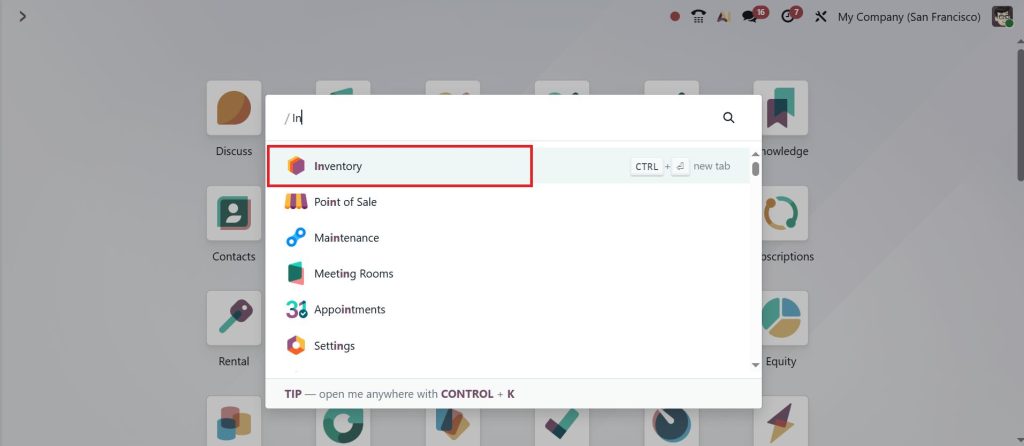
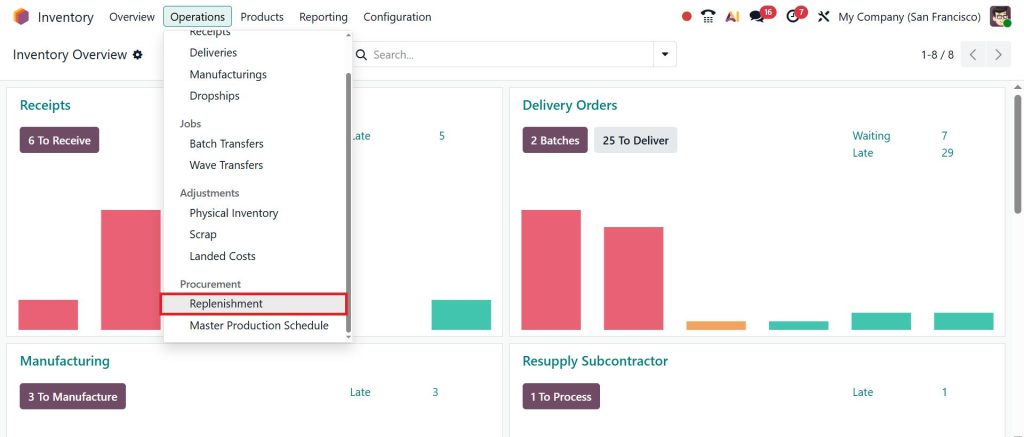
Go to the Operations > Replenishment.
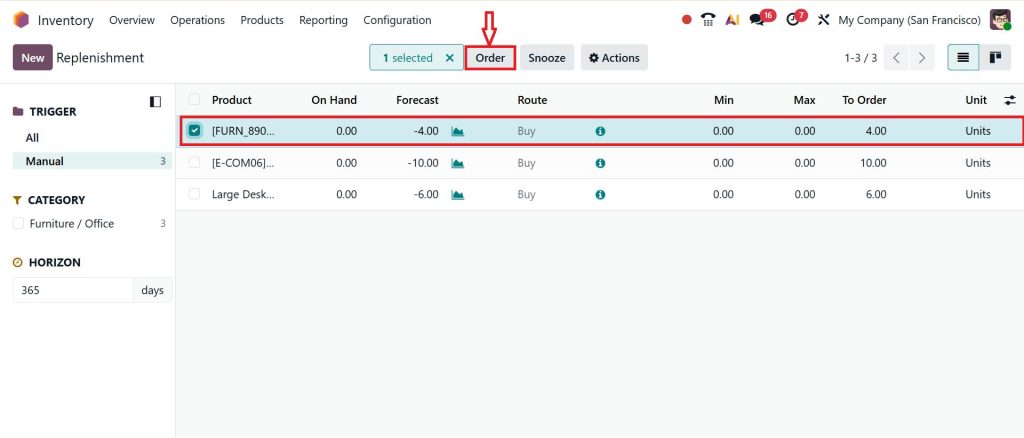
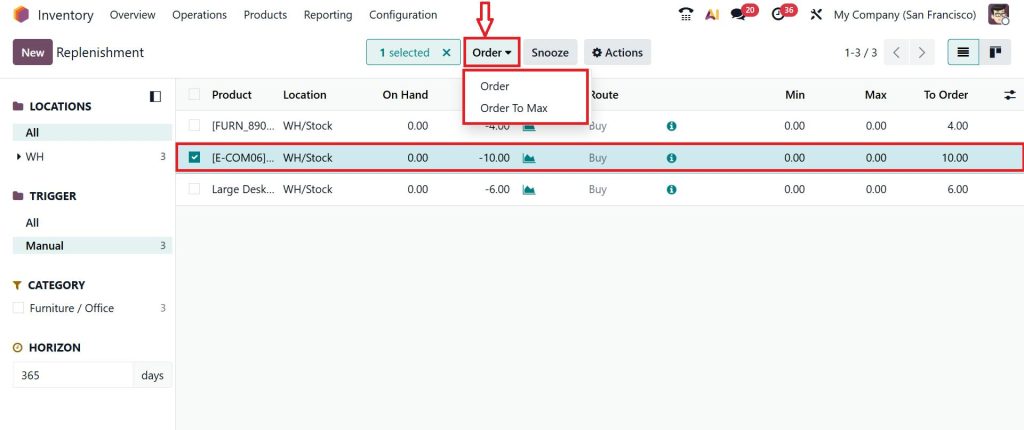
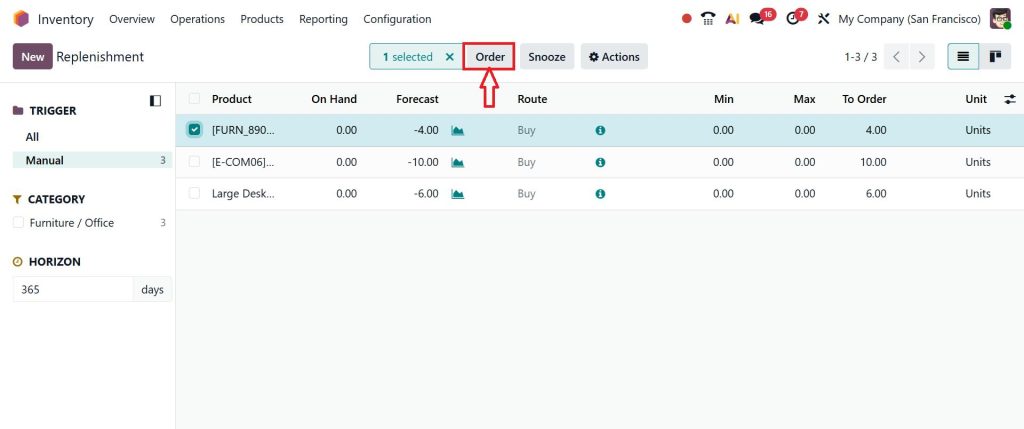
Moving to the replenishment dashboard in Odoo 19.1, you can only find it once you select a specific product to replenish. There, you can only find one option: Order. Replenish the products up to the maximum quantity set. If a quantity To Order has been manually forced, this quantity will be ordered instead. This is the main update to the Odoo 19.1 inventory module.
But if I want to compare that between Odoo 19 and Odoo 19.1, I can simply show you that by moving on to the Odoo 19 Inventory. Go to the Operations > Replenishment. It actually works in earlier versions of Odoo. When using the reordering rule, you have two different behaviors: once you select a particular product and move to the Order option, you can find two options: Order & Order To Max.
You can order a fixed quantity or up to the maximum quantity, which can sometimes confuse new users. So, because you had to clearly understand which option to choose and how quantities were calculated, you can now use Odoo 19.1 in an updated version. There is only one option: order. You can simply click on the order or order to max inside Odoo 19. But you have an update in Odoo 19.1 that is similar to an order.
Once you can see a specific product in Odoo 19.1, click the Order button.
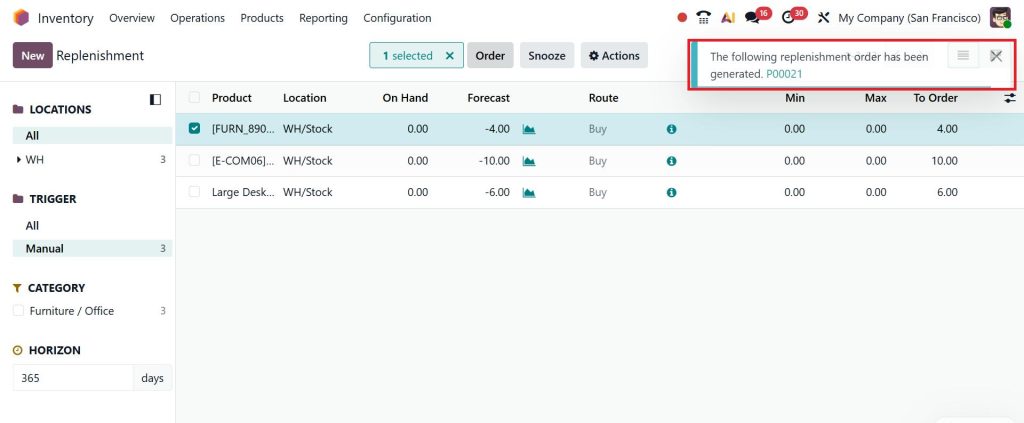
The following replenishment has been completed, and the purchase order has been created.
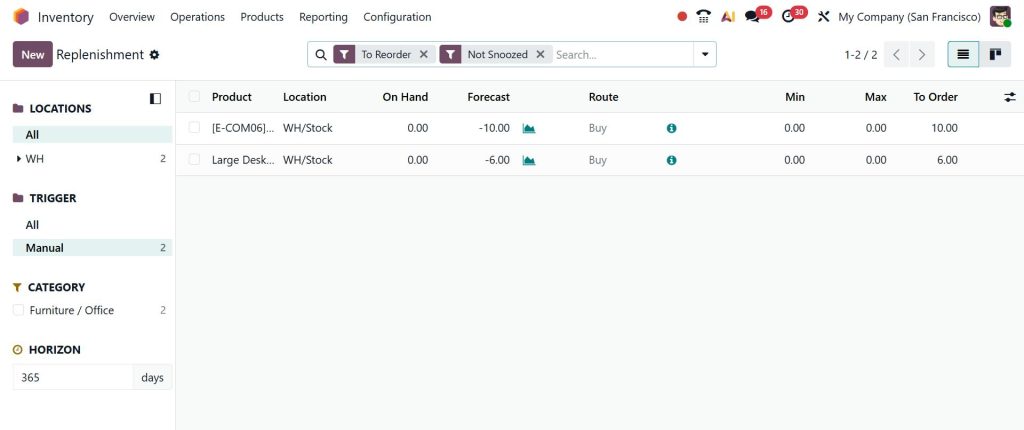
If you are providing any particular quantity to the order section, you can simply see that particular quantity inside the purchase order as well. So, now you can define the minimum quantity and the maximum quantity, and you can simply select that particular product, and you can click on the order option as well.
So, now Odoo automatically calculates how much to order. So, there is no separate order for the maximum option anymore. Odoo always orders enough stock to reach the maximum level when the stock falls below the minimum as well.
Configure Min Max Reordering Rules Odoo 19 the Right Way
One of the most common mistakes I see is wrong min and max values. That’s why learning how to configure min-max reordering rules in Odoo 19 properly can solve half of your inventory problems.
Minimum quantity means the lowest stock level you’re comfortable with. Maximum quantity is the amount of stock you want after replenishment. If your minimum order quantity is too low, you’ll experience stockouts. If your maximum is too high, your warehouse stays full for no reason.
When configuring min-max reordering rules in Odoo 19, always consider daily sales, supplier lead times, and storage capacity. These rules should match your real business, not random numbers.
Odoo 19.1 Inventory Replenishment Order to Max Explained Simply
Many users ask why Odoo orders a specific quantity instead of just ordering what’s missing. The answer lies in Odoo 19.1 inventory replenishment order to max logic.
Odoo doesn’t order to reach a minimum. It orders to reach maximum. That means if your forecast stock drops below the minimum, Odoo checks how much is needed to reach the maximum quantity and creates an order for that amount.
This approach keeps inventory stable instead of constantly ordering small quantities. Once you understand Odoo 19.1 inventory replenishment orders to max, the purchase quantities start making sense.
Odoo 19.1 Forecast Quantity vs Max Quantity Order Logic
This is the section where most people get stuck, so let me explain it in simple words. Odoo 19.1 forecast quantity vs max quantity order logic decides whether Odoo will reorder or not.
Forecast quantity is not just what you have today. It includes what is coming in and what is going out. If the forecast quantity is still above the minimum, Odoo won’t order anything even if your on-hand stock looks low.
When the forecast quantity drops below the minimum, Odoo calculates how much is needed to reach the maximum level. This is why understanding Odoo 19.1 forecast quantity vs max quantity order logic is necessary before changing reordering rules.
Odoo 19.1 Replenishment Order Button Behavior and Why It Sometimes Does Nothing
Many users click the replenish button and then wonder why nothing happens. This confusion stems from the behavior of the Odoo 19.1 replenishment order button.
The button does not force an order. It only checks whether replenishment is actually needed based on your rules. If the forecast quantity is fine, Odoo will simply do nothing. This is not an error. This is how the system is designed.
Once you understand Odoo 19.1 replenishment order button behavior, you’ll stop expecting instant purchase orders and start checking the real reason behind each replenishment decision.
How Odoo 19 Automatic Purchase Orders from Reordering Rules Actually Work
Now let’s talk about automation, because this is what most businesses want. Odoo 19 automatic purchase orders from reordering rules work only when everything is configured correctly.
The product must have a vendor. The route must be set to Buy. The reordering rule must be active. If any one of these is missing, no purchase order will be created.
When stock falls below the minimum, and all conditions are met, Odoo automatically creates a draft purchase order. This saves time and reduces manual work, but only if rules are realistic and updated regularly.
Common Problems After Changing Reordering Rules
Sometimes, users change rules but still face issues. This usually happens when changes are made without verifying the forecast quantity, vendor setup, or routes.
Another common problem is setting the same rules for fast-moving and slow-moving products. Each product behaves differently, so each reordering rule should reflect that reality.
If something feels wrong after changes, don’t panic. Reordering rules often require minor adjustments before they function smoothly.
How Proper Reordering Rules Reduce Daily Inventory Stress
When reordering rules are correct, inventory stops being a daily headache. You don’t need to check stock repeatedly. You don’t need emergency purchases. You don’t worry about delayed deliveries.
Understanding how to change reordering rules in Odoo 19.1 gives you control instead of confusion. You start trusting the system because you understand how it thinks.
Why Businesses Need Expert Help with Odoo 19.1 Inventory Setup
Even though Odoo gives flexibility, inventory setup is not something you should rush. A minor error in the rules can affect purchasing, sales, and cash flow.
That’s why many businesses work with experienced Odoo partners like Netilligence, who understand how Odoo 19.1’s reordering rules have changed and how to adjust their systems accordingly.
Take Control of Inventory Planning in Odoo 19.1
If your stock levels still feel unpredictable, the issue isn’t Odoo; it’s how the reordering rules are configured. If you take one thing from this blog, let it be this, because inventory issues are rarely system problems. They are setup problems. Once you clearly understand how reordering rules work in Odoo 19.1 and adjust them according to real demand, inventory stops being confusing and starts becoming reliable.
At Netilligence, we help businesses review, adjust, and optimize reordering rules so inventory stays balanced, purchase orders make sense, and stock shortages are avoided. If you want your Odoo 19.1 inventory to work the way your business actually operates, our team is here to guide you step by step.
Talk to Netilligence today and get your reordering rules set up correctly.