how-to-create-and-configure-server-actions-in-odoo-17

How to Create and Configure Server Actions in Odoo 17?

Server Actions in Odoo serve as a dynamic mechanism for automating processes without the need for extensive custom development. These actions enable users to define a sequence of operations or tasks that the system executes automatically under specific conditions. From creating records and updating fields to triggering complex business logic, Server Actions empower users to automate routine activities and respond intelligently to various scenarios within the ERP environment.

In this blog, we will explore the steps to create and configure Server Actions in Odoo 17, using a practical example to demonstrate their application.

Understanding Server Actions in Odoo 17

Server Actions enable automation without requiring extensive custom development. A server action can perform the following types of actions.

  1. Execute a python code
  2. Create new record
  3. Update new record
  4. Sent an email
  5. Sent SMS message
  6. Add followers
  7. Create next activity
  8. Execute multiple actions

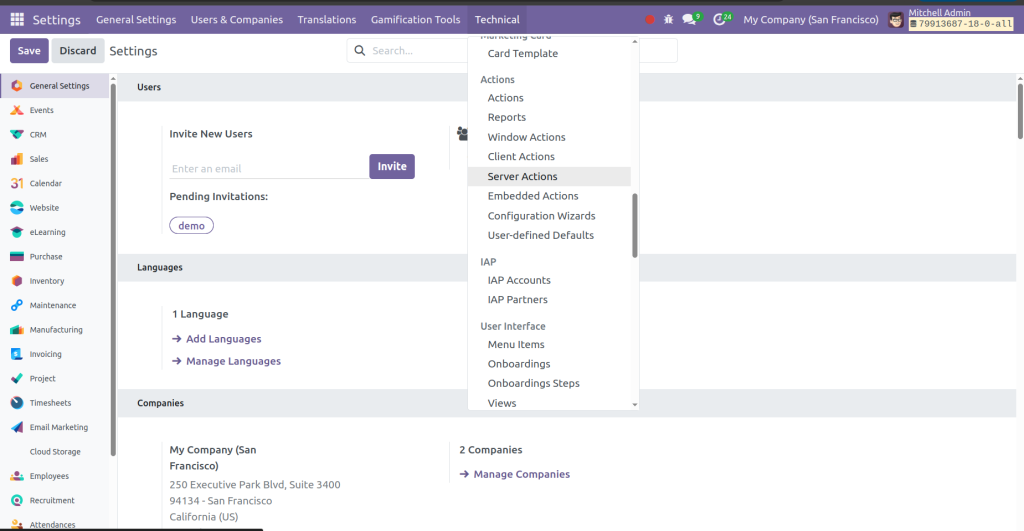
To view all the server actions available in the Odoo system, enable debug mode, then go to Settings -> Technical -> Server Actions.

how-to-create-and-configure-server-actions-in-odoo-17

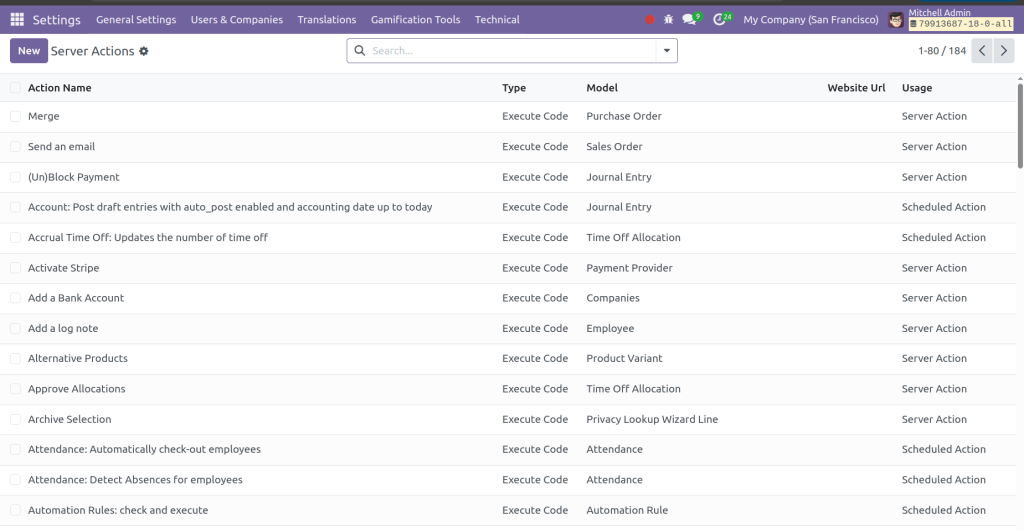
This is the list of existing server actions in Odoo 17.

how-to-create-and-configure-server-actions-in-odoo-17

Steps to Create and Configure Server Actions in Odoo

Let’s create a Server Action that copies data from the phone field to the mobile field in the ‘res.partners’ model. This action will update records dynamically when executed.

Step 1: Define the Server Action in XML

The server action should be defined in the “ir_action_data.xml” file inside the “data” directory of your module. Add the following code:


   Copy phone to mobile
   
   
   list
   code
   action = records.action_copy_phone_to_mobile()


Here’s what each field in the XML represents:

  • name: specifies the name of the server action, which shows on the server actions menu.
  • model_id: is the model linked to the server action, it should be in this form <module>.model_<model_name>
  • binding_model_id:  It specifies that the action is bound to the referencing model.
  • binding_view_types: specifies the action is intended to be available in which views of the associated model.
  • state: It specifies the type of server action we discussed above, in our case, we choose it as “code” for executing a Python script.
  • code: specify the Python script to be executed.

Step 2: Define the Python Function

After adding the XML code, next, include the Python function referenced in the XML within the res.partner model. You should include the function “action_copy_phone_to_mobile()” in the res.partner model, as mentioned in the server action.

				
					def action_copy_phone_to_mobile(self):
   for record in self:
       if record.phone and not record.mobile:
           record.write({'mobile': record.phone})


This function checks if the phone field is filled and the mobile field is empty. If both conditions are met, it copies the value from the phone field to the mobile field.

Step 3: Use the Server Action

Now, we can use this server action on the contacts list view.

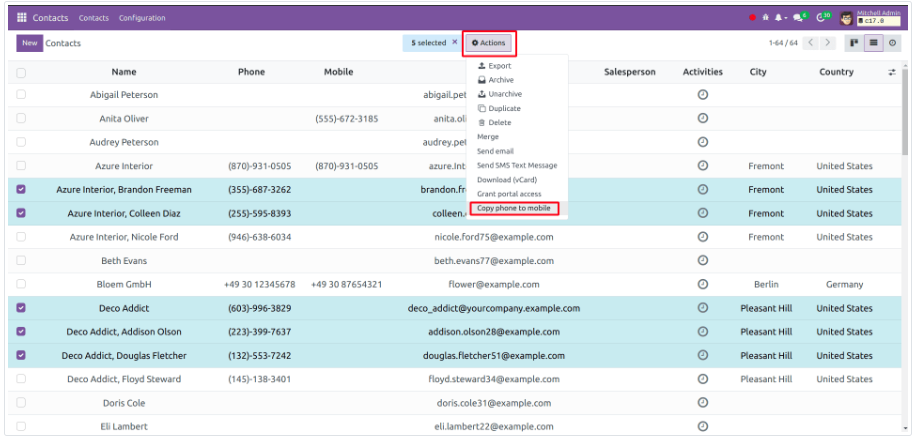
Select some contacts that do not have mobile fields and have phone fields, then under the “Actions” menu, there will be a newly created server action “Copy phone to mobile” button.

how-to-create-and-configure-server-actions-in-odoo-17

Step 4: Verify the Results

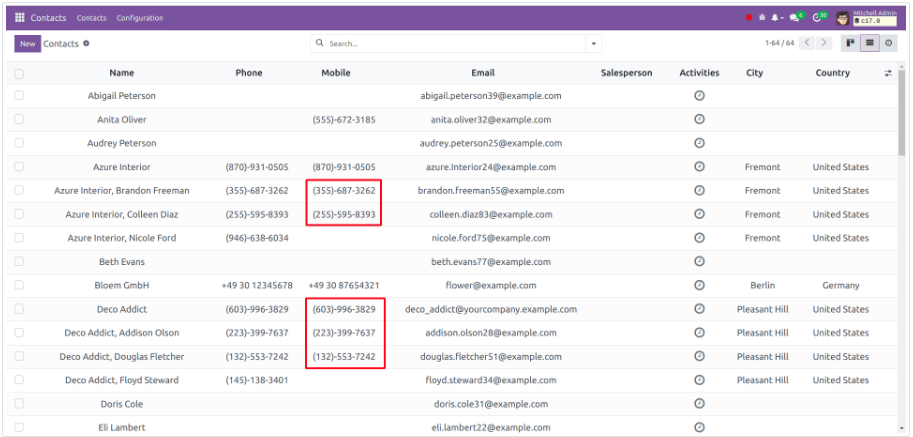
When the Server Action is executed, the selected records will be updated. The values from the phone field will be copied to the mobile field. You can verify this by checking the updated records in the list view. The result would be.

how-to-create-and-configure-server-actions-in-odoo-17

Accessing Server Actions

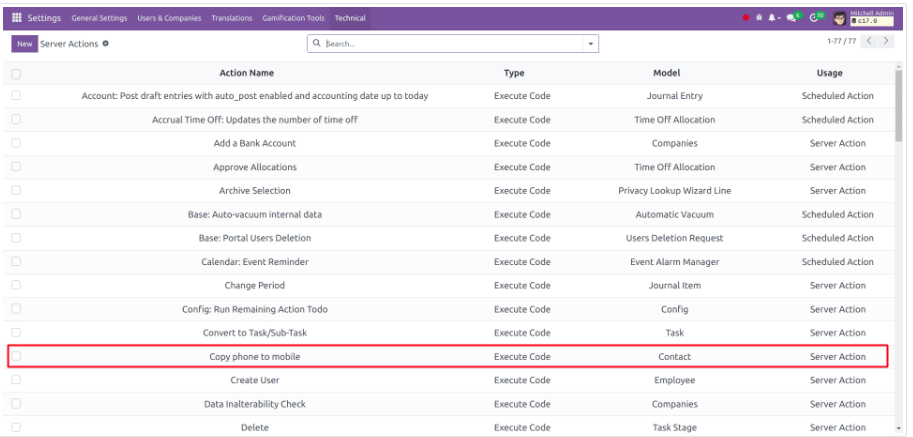
The newly created server action is also visible in Server actions in the Technical menu from settings.

how-to-create-and-configure-server-actions-in-odoo-17

Simplifying Automation with Server Actions

In summary, Odoo Server Actions empower users to automate diverse processes, enhancing efficiency and reducing manual intervention, thereby optimizing operations within the ERP environment.

By following the steps outlined in this blog, you can create a custom Server Action to address your specific business needs. Whether it’s automating updates, triggering workflows, or sending notifications, Server Actions simplify the process and optimize operations within the ERP system.

With the example above, you can explore the limitless potential of Server Actions to streamline your workflows and reduce manual effort.

Picture of Lakshmi R Nair

Lakshmi R Nair

I’m Lakshmi R Nair, a Junior Odoo Developer passionate about Odoo ERP development, customization, and integration. I love problem-solving and exploring new advancements in Odoo and open-source technologies. Here, I share my insights and experiences to help others in the ERP ecosystem.

Get a free quote