Suppose you’re running a business where pricing varies from one customer to another, or you offer discounts, special offers, or bulk pricing. In that case, setting up a pricelist in Odoo 19 Sales can make your life much easier.
In this guide, I’ll explain everything you need to know about creating a price list in Odoo 19 in a simple, practical way. We’ll go through how to manage multiple prices per product in Odoo, how to set up your Odoo price rules setup, and how to handle Odoo 19 discount pricing effectively. You’ll also learn how to configure product pricelists in Odoo and how to use dynamic pricing in Odoo 19 for real business situations.
By the end, you’ll be confident about creating your own price lists and setting prices that make sense for your customers and your business goals.
Why You Need a Pricelist in Odoo 19 Sales
Every business owner has faced this challenge: how to sell the same product at different prices to different customer types without getting confused or losing track. This is where the pricelist in Odoo 19 Sales helps. It’s a simple feature that allows you to set specific prices for each customer, region, or situation.
For example, you can sell your product at one price to retail customers and another to distributors. Or you may want to give discounts when someone buys in bulk. Instead of manually adjusting prices each time, you can let Odoo handle it with Odoo 19 pricelist creation.
Once you understand how this works, pricing stops being a headache. You’ll have complete control and clarity over who gets what price, and your sales team will save time and effort.
Odoo 19 Pricelist Creation – The First Step to Organized Pricing
To start your Odoo 19 pricelist creation, the first thing you need to do is enable the pricelist feature in your Odoo settings. Here’s how:
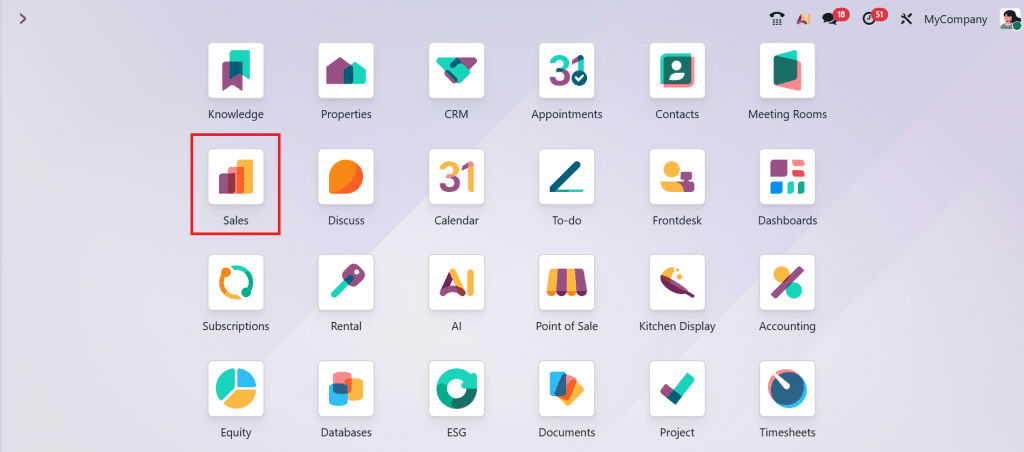
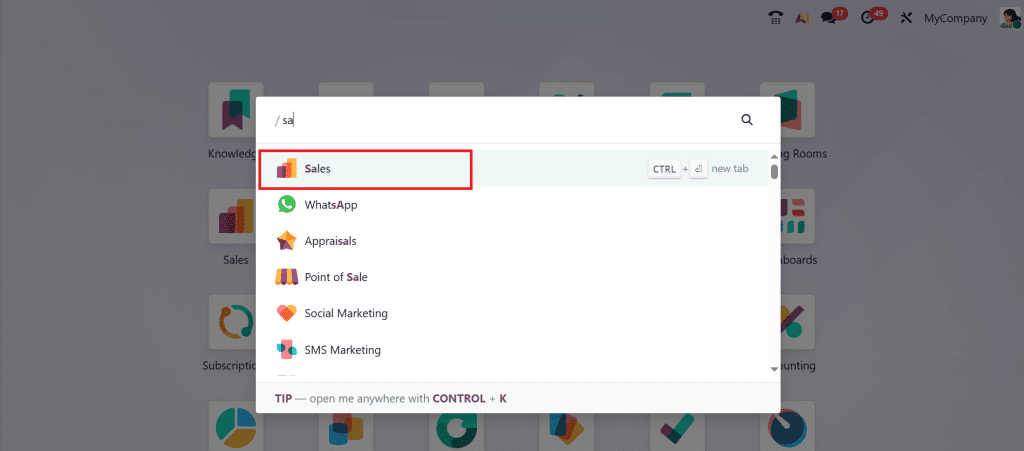
Go to the Sales app in Odoo.
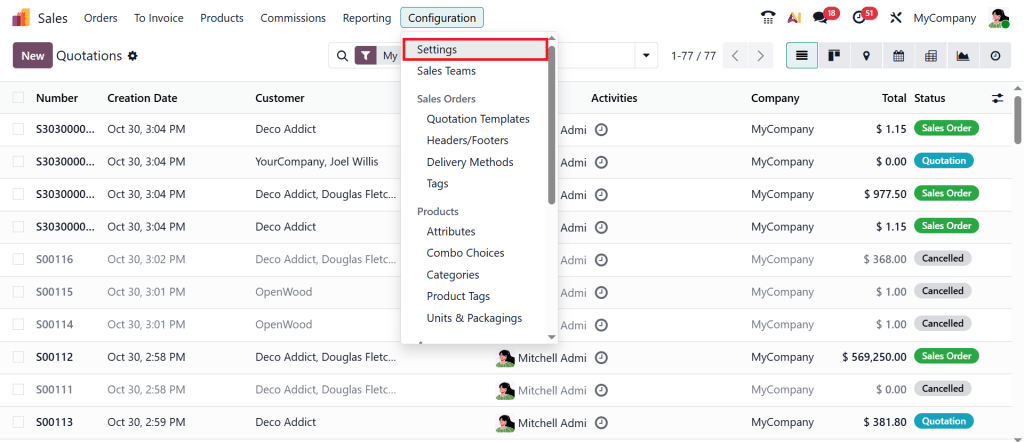
Open Configuration → Settings.
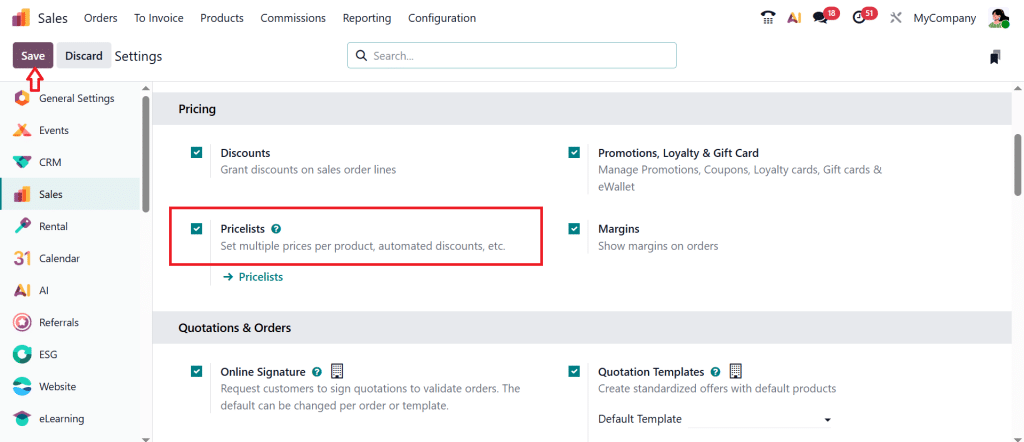
Under the Pricing section, enable the Pricelists option and click Save.
Now you’ve unlocked the core feature that lets you manage different prices for different products or customers.
This step is essential because Odoo offers two approaches: fixed prices or flexible rules. If you only need to assign different prices per product, use the multiple prices per product option in Odoo. But if your business requires discounts, date-based pricing, or quantity-based offers, you’ll prefer to work with Odoo’s price rule setup.
Odoo Sales Price List Tutorial – Setting Up Your Pricelist
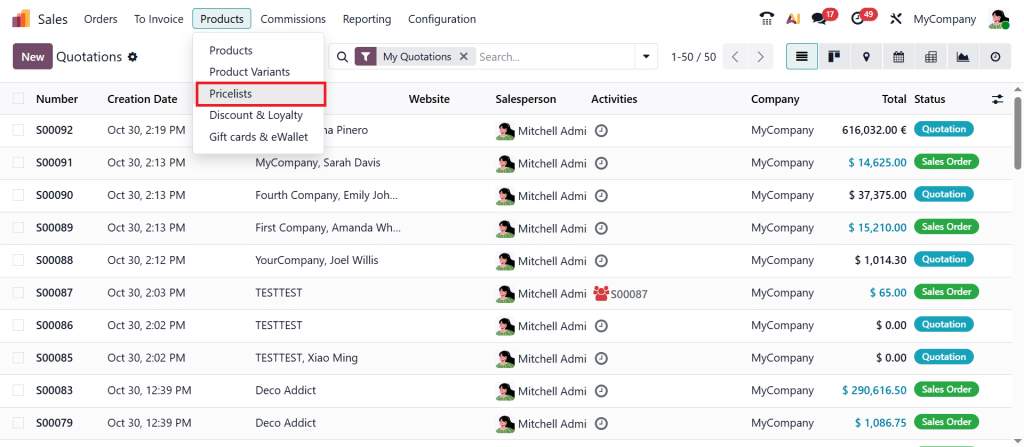
Once the pricelist feature is active, go to the Sales app.
Direct to Products → Pricelists.
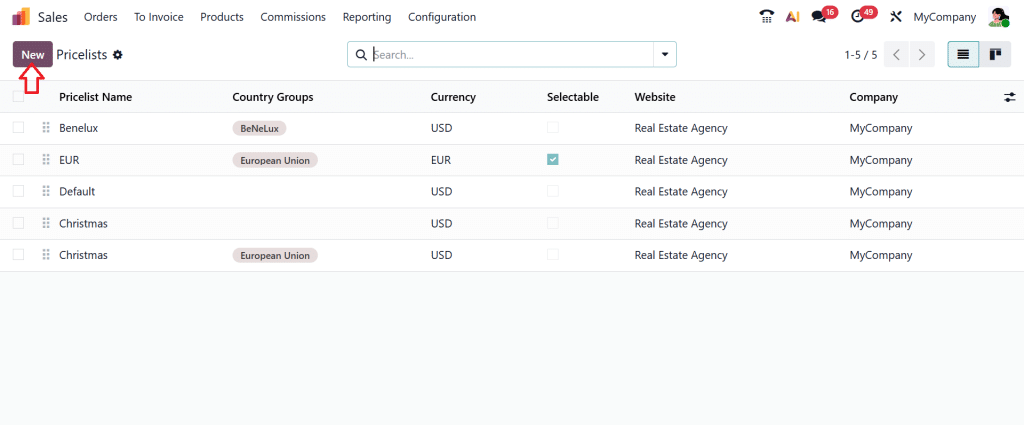
Click New.
Here’s what you need to do next:
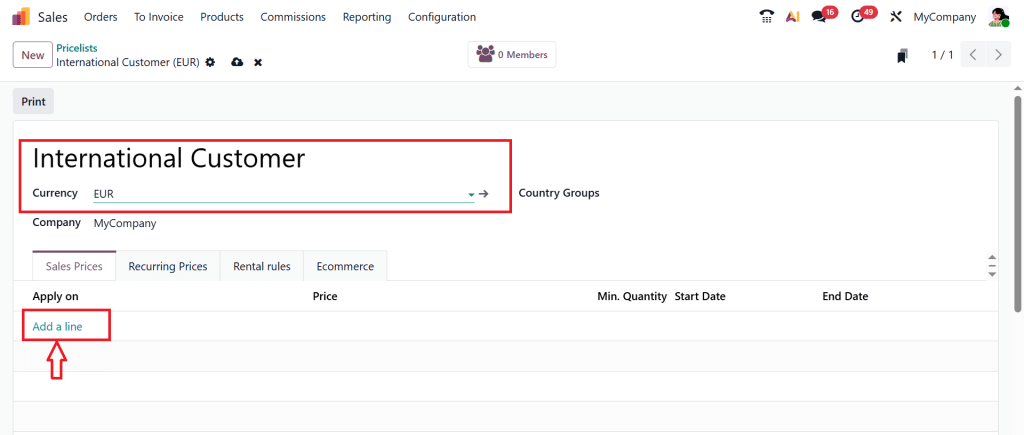
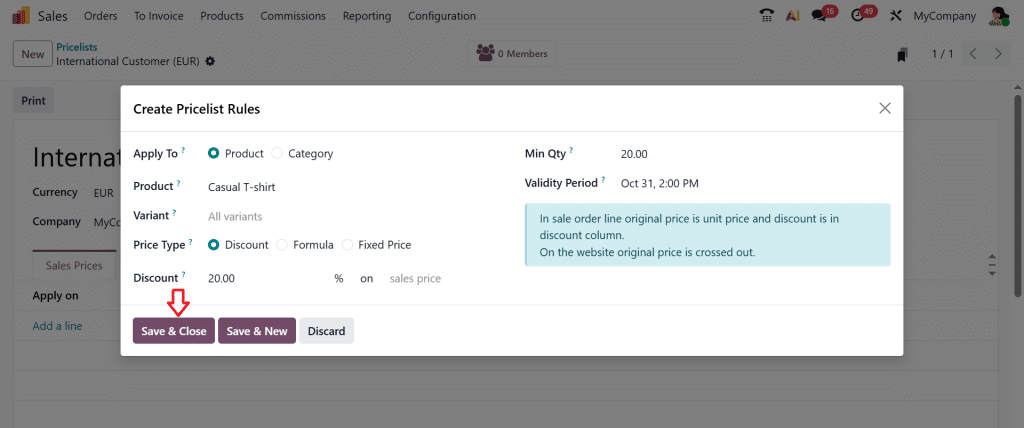
Give your pricelist a clear name, like “International Customer”. Select the currency and company (if applicable) and click on Add a line.
Select the Product, apply price rules and click Save & Close.
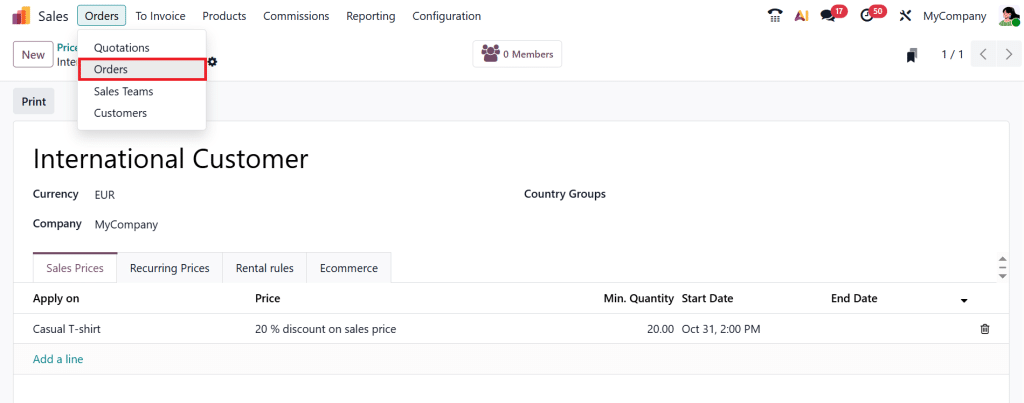
Now, I want to add this price list under customer sale order. So, let’s move to Orders → Orders.
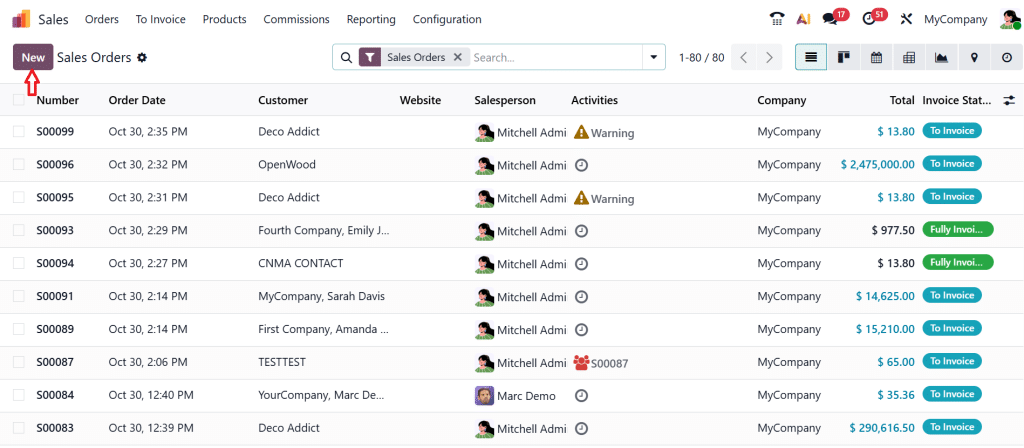
Create a New order.
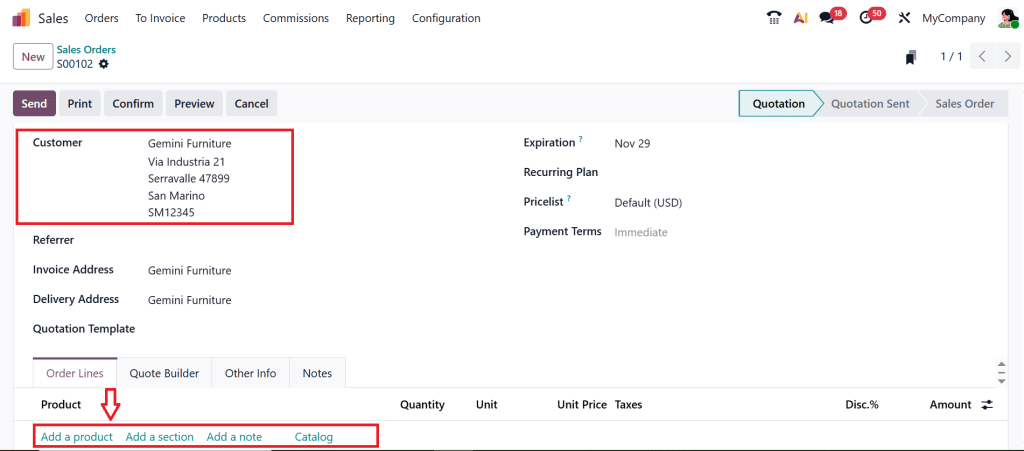
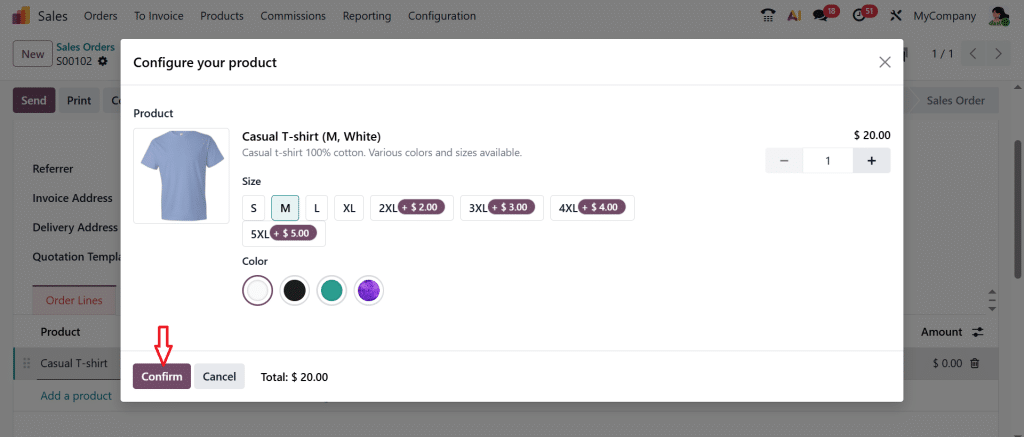
Select the Customer and click on Add a product.
Specify the attributes of the product and click on Confirm.
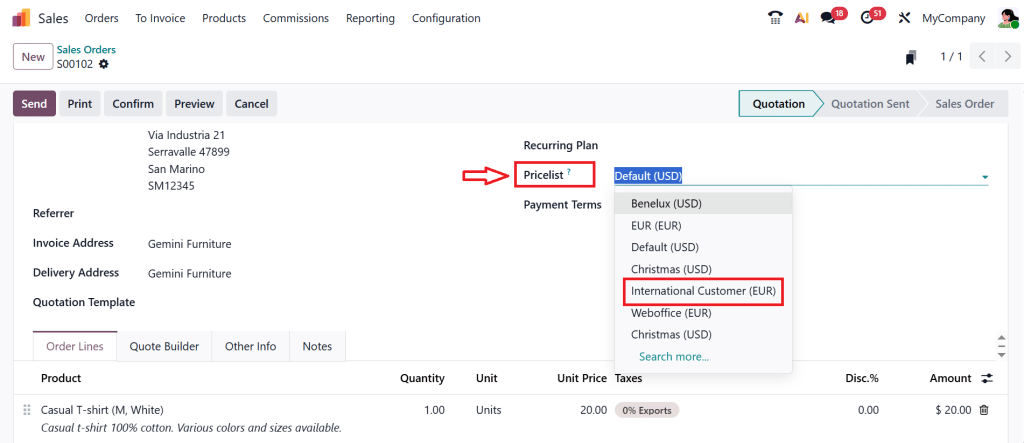
As you can see an option called Pricelist and under the drop-down menu find the pricelist which we created above (International Customer).
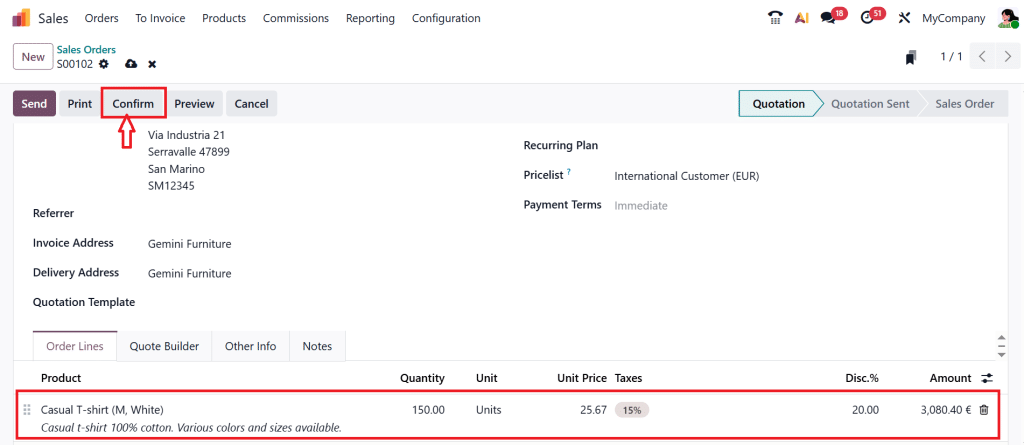
Specify the product quantity and click on Confirm.
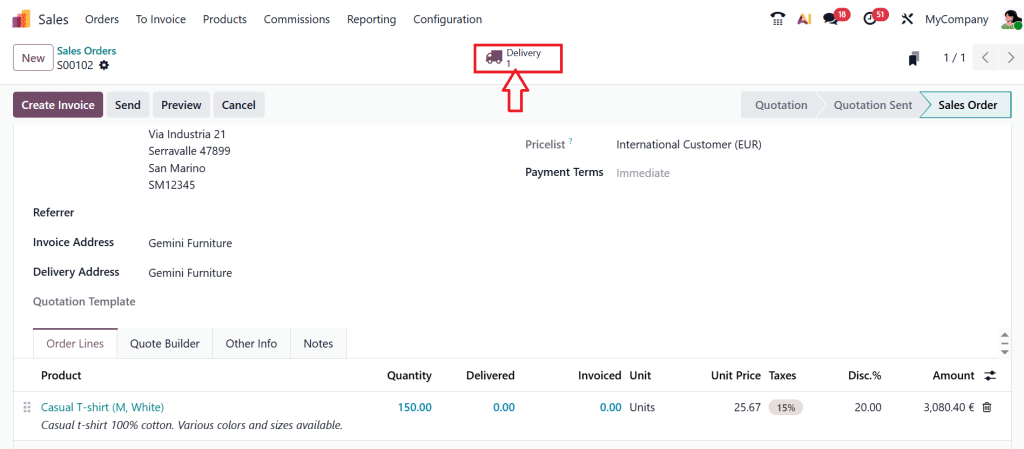
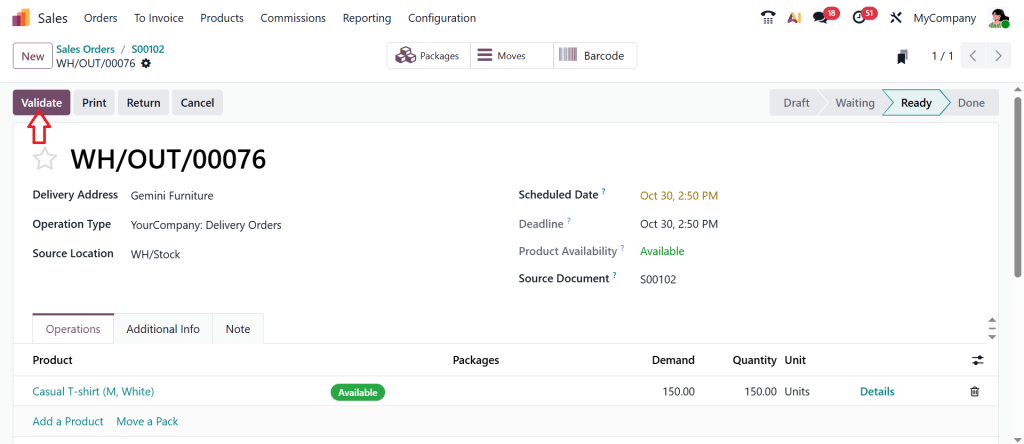
Then, click on the Delivery smart button.
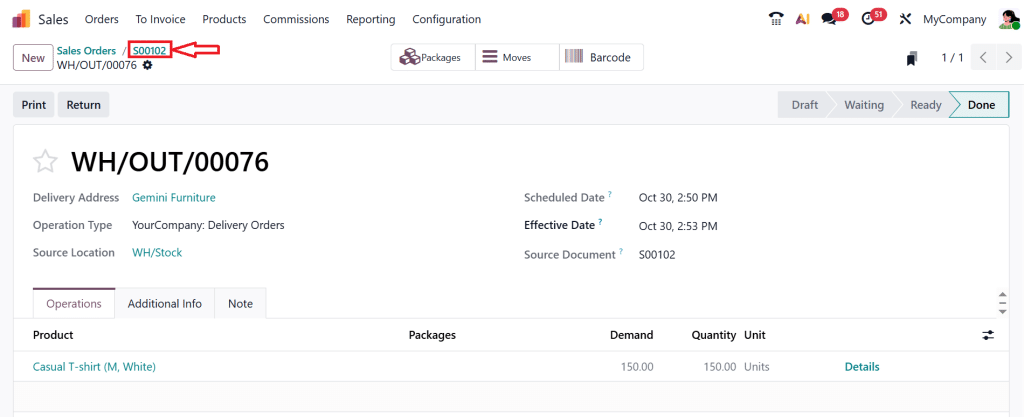
Let’s Validate.
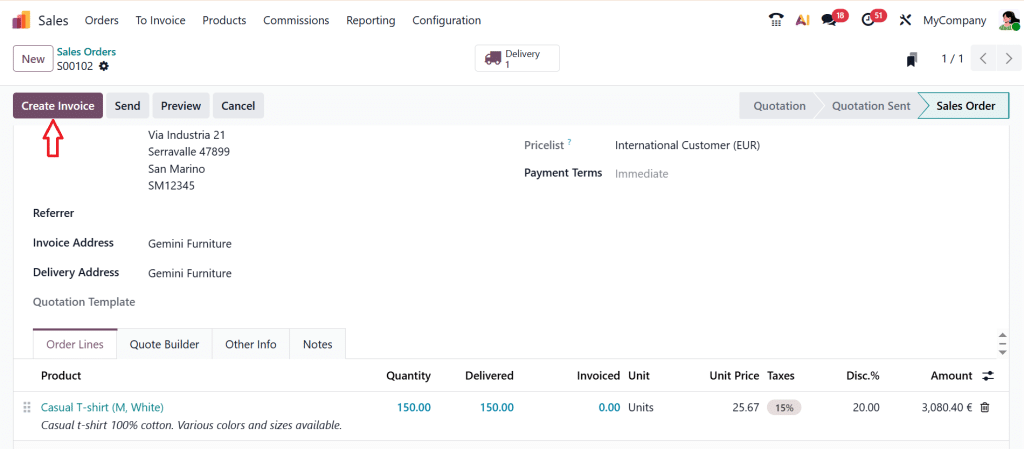
And move to the sale order.
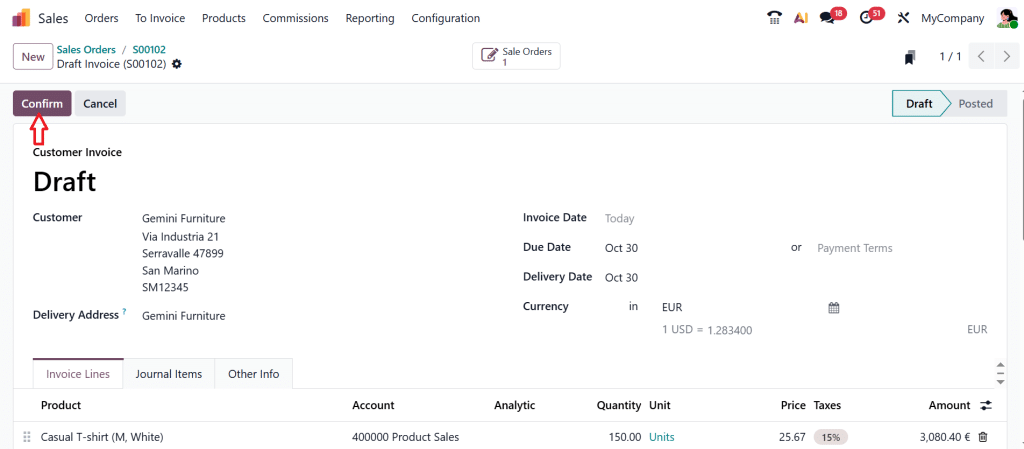
Now, Create an Invoice based on the product.
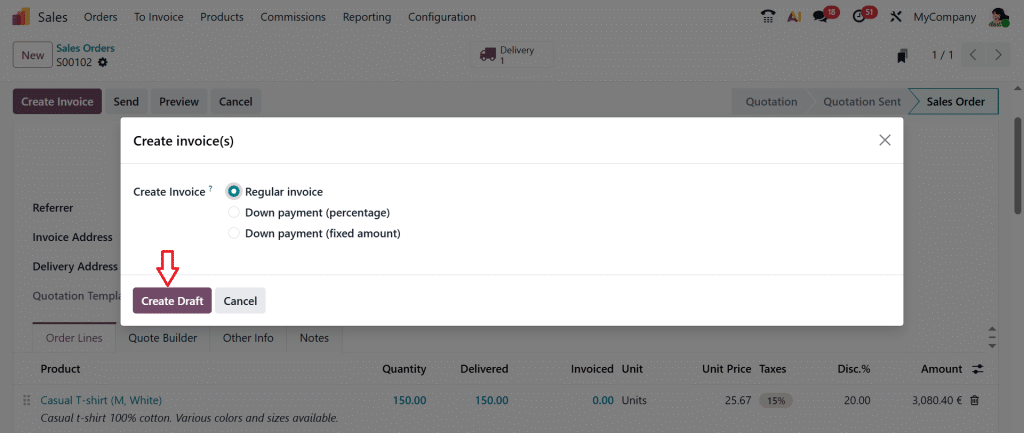
Select regular invoice and click on Create Draft.
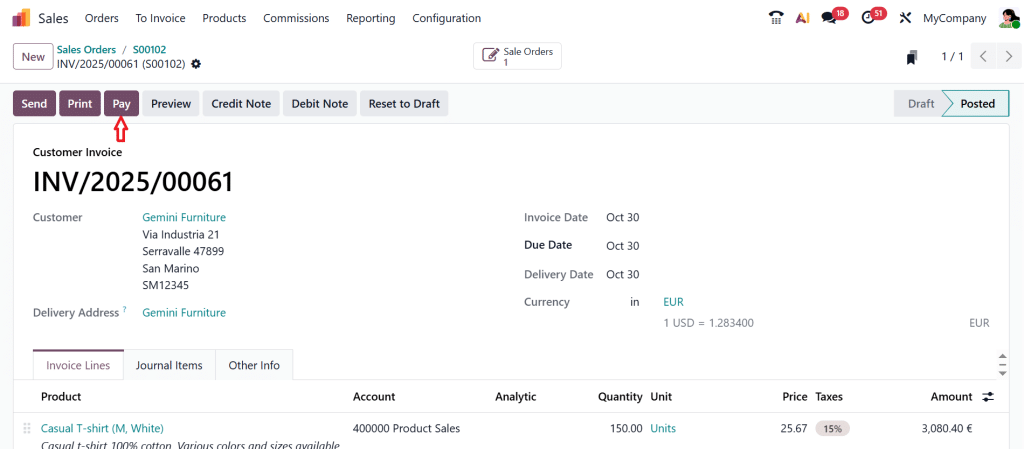
Let’s Confirm the invoice.
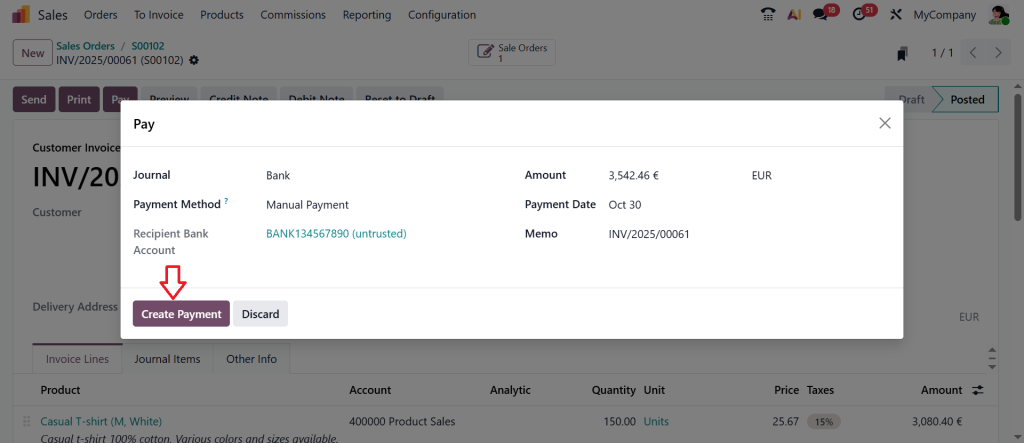
Click on Pay button.
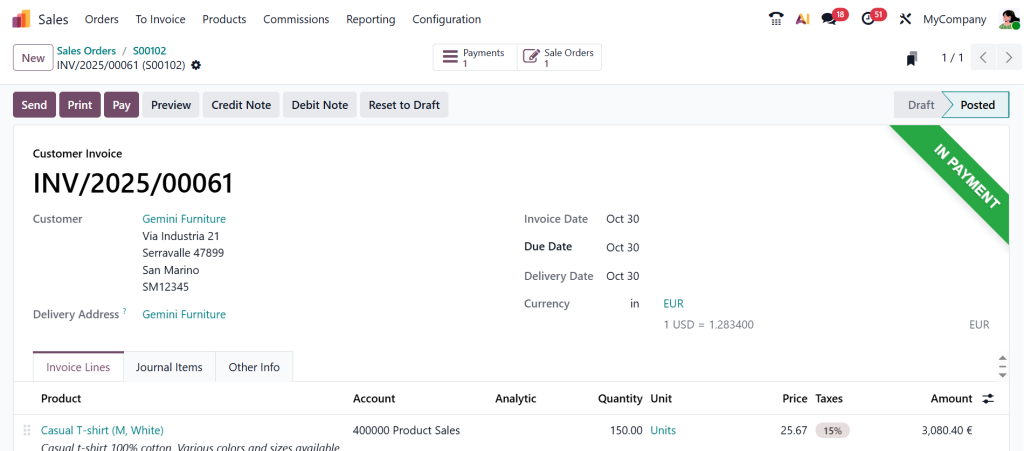
The Customer is ready for the payment. So let’s Create Payment for this product.
Just in few clicks we are done with the pricelist and we successfully sold our product to the customer.
That’s how you can create a pricelist inside the Odoo 19 Sales app and you can apply that on different kinds of customers as per your requirements.
How Multiple Prices Per Product in Odoo Work
The concept of multiple prices per product in Odoo is simple: it means you can sell the same item at different prices without duplicating your product entries.
Let’s say you have a single product called “Organic Apple Juice.” You might want to set:
$5 per bottle for retail buyers
$4 per bottle for distributors
$3.5 per bottle for large quantity purchases
All of this can be done from one product record using different pricelists. So, when your sales team creates a quotation, Odoo automatically selects the correct price based on the customer they’re selling to.
This not only saves time but also reduces mistakes. You’ll never have to remember which customer gets which discount; Odoo handles that for you.
Adding Flexibility to Your Pricing with Odoo Price Rules Setup
Now, let’s talk about Odoo price rules, which are the heart of smart pricing.
Price rules let you define how prices are calculated. You can set them based on:
A fixed amount
A discount percentage
A formula (for advanced pricing logic)
For example, suppose you want to apply a 10% discount to a product category or set a new price for a specific quantity. In that case, you can create a rule that automatically adjusts prices when those conditions are met.
You can also control the start and end dates of each rule. So, if you’re running a New Year’s sale or a festive discount, Odoo can handle it without you having to change the price back later manually.
The Odoo price rules setup is beneficial when you’re managing extensive product catalogs or frequently changing your pricing strategy.
Odoo 19 Discount Pricing that Gives Smart Offers Without Extra Work
Discounts are part of almost every business strategy. But managing them manually often leads to confusion. With Odoo 19 discount pricing, you can automate discounts directly through your pricelist.
You can create percentage-based discounts or special offers that only apply to certain products, customers, or order quantities.
For example:
“Buy 10, get 10% off”
“20% discount for premium customers”
“Flat $2 off on each item during the weekend”
These discounts can be visible on customer invoices or hidden depending on how you configure them. It gives you control over how transparent you want to be with your clients.
This feature ensures you never miss applying a discount and keeps your promotions consistent across all sales channels.
Product Pricelist Configuration in Odoo – Keeping Everything Organized
The product price list configuration in Odoo helps you manage your pricing structure efficiently. Once you’ve created your price lists and rules, you can assign them directly to customers.
Here’s how:
Go to Sales → Customers.
Select the customer you want.
In the “Sales & Purchase” tab, set the pricelist that applies to them.
Now, whenever this customer places an order, Odoo automatically applies the correct pricing without any manual changes.
This step ensures consistency and saves your sales team time. You don’t have to worry about applying the wrong discounts or sending incorrect quotes anymore.
Dynamic Pricing in Odoo 19 – Real Pricing Flexibility
Now, this is where Odoo starts to feel truly helpful. Dynamic pricing in Odoo 19 lets your prices change automatically based on predefined logic such as cost, season, or customer segment.
For example, if your product cost changes, you can configure Odoo to calculate the sales price by adding a fixed margin to the cost. So even if your cost fluctuates, your profit margin stays safe.
This approach gives you pricing flexibility while keeping everything organized. Instead of manually updating prices whenever costs change, Odoo’s dynamic setup handles it for you.
Dynamic pricing is also ideal for businesses that operate across multiple regions or run frequent promotions. You can maintain consistency while remaining competitive across different markets.
A Simple Example of How It Works
Let’s say you run a small company that sells both online and offline. You have retail customers, wholesale buyers, and seasonal promotions.
Here’s how you can use a pricelist in Odoo 19 Sales to handle all of it:
Create a “Retail Pricelist” with standard prices.
Create a “Wholesale Pricelist” with discounts for bulk quantities using Odoo’s price rule setup.
Add a “Festival Offer” with a temporary Odoo 19 discount valid for 1 week.
Assign each pricelist to the right customer or website.
When your team creates quotations or when customers buy online, Odoo automatically applies the correct prices: no confusion, no manual updates, and no need to cross-check everything.
Mistakes You Should Avoid While Creating the Odoo 19 Pricelist
While setting up price lists, a few mistakes can confuse later.
Don’t mix unrelated price rules into a single list.
Always name your pricelists clearly (like “Retail-PK” or “Wholesale-UAE”) to avoid mistakes.
Double-check the validity dates and currency before assigning to customers.
Test the setup by creating a few sample orders to confirm the pricing works as expected.
Taking a few extra minutes to review your Odoo 19 pricelist creation setup can save hours of confusion later.
Why Pricelist in Odoo 19 Sales Is a Smart Business Move
Once you start using pricelists, you’ll see how much time they save and how clearly, they organize your pricing structure. The price list in Odoo 19 Sales doesn’t just manage prices; it gives you the freedom to design pricing strategies that actually work for your business model.
You can sell confidently knowing every customer is charged the right price, every offer is applied correctly, and your pricing remains consistent across your team and online platforms.
Using Odoo 19 pricelist creation, you can set up multiple prices per product, add flexible Odoo price rules, use automatic Odoo 19 discount pricing, manage your product pricelist configuration, and maintain dynamic pricing effortlessly, all from one place.
Your Pricing, Your Way with Odoo 19
At the end of the day, creating a Pricelist in Odoo 19 Sales gives you complete control over how you want to price your products. Whether it’s Odoo 19 discount pricing, managing multiple prices per product, or configuring Odoo price rules, everything works together to make selling easier.
Product pricelist configuration in Odoo keeps your prices clear, consistent, and competitive. You no longer need to rely on manual changes or spreadsheets with dynamic pricing in Odoo 19; everything adjusts to your needs.
Want to experience how Odoo 19’s pricelist creation can simplify your sales?
Reach out to Netilligence, we’ll help you build a pricing structure that saves time and increases sales efficiency.
Hi, I'm Ilsa Shabbir, an Odoo ERP content writer specializing in functional blogs on Odoo modules. I simplify complex Odoo features, creating clear and engaging content to help businesses understand and optimize their ERP solutions.
We use cookies to ensure that we give you the best experience on our website. If you continue to use this site we will assume that you are happy with it.