How to Create Storage Categories in Odoo 18 Inventory?
Any product-based business relies on warehouses as its central operations, but internal disorganization quietly reduces profits. The common problems of navigating through maze-like shelves, combining incompatible products, and exceeding storage capacity result in wasted labour, misplaced stock, and expensive errors. The root cause? Poorly defined storage categories.
Odoo 18 enables users to define storage categories, which transform inventory location management through a structured system. This guide explains how to establish and enhance Odoo inventory storage categories while demonstrating their importance and how Netilligence.io’s digital expertise will transform your warehouse disorganisation into an efficient system.
What Are Storage Categories in Odoo 18 Inventory?
The main issue affects numerous businesses because they use either standard or random inventory locations, which results in poor putaway efficiency, delayed retrieval operations, and incorrect stock identification.
Odoo 18 provides storage categories, which serve as custom attributes for storage locations. The categories establish specific rules for each location which determine where products should be placed.
How It Works:
Storage Category functions as an additional attribute for locations to enable automatic optimal product placement.
The system allows users to create categories for locations through criteria such as temperature requirements, accessibility needs and product compatibility standards.
The system uses Odoo to analyse available storage options before suggesting the most suitable location during warehouse transfer operations.
The system enables users to create customised storage categories for heavy items requiring ground-level racks with weight restrictions of 500kg and for fragile goods requiring climate-controlled storage.
Why Categorising Storage Locations Matters
The absence of defined storage categories leads to:
The warehouse experiences both excessive stock in certain areas and underused space in other areas.
The risk of product damage and regulatory non-compliance becomes higher.
The search process for misplaced items becomes longer.
The implementation of Odoo 18 warehouse storage categories establishes a controlled system based on rules. The system prevents expensive mistakes while providing immediate inventory tracking and safety standard compliance.Our team at Netilligence.io will customize your Odoo storage area setup 18 to match your business operations while creating operational categories and providing staff training for smooth implementation.
How to Add Storage Category Odoo Inventory: Steps to Set up
The main issue arises when users experience confusion from Odoo’s complex configuration options which results in unfinished setups and overlooked automation possibilities.
The following step-by-step guide shows how to establish storage categories in Odoo 18 Inventory for expert users:
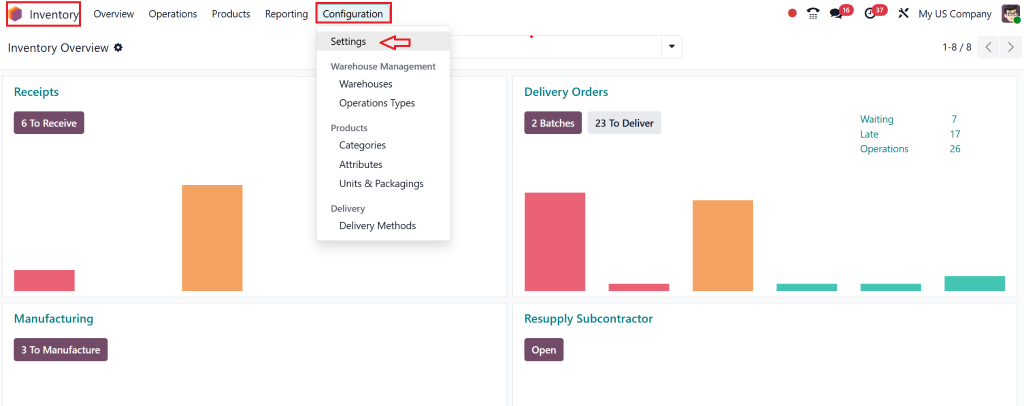
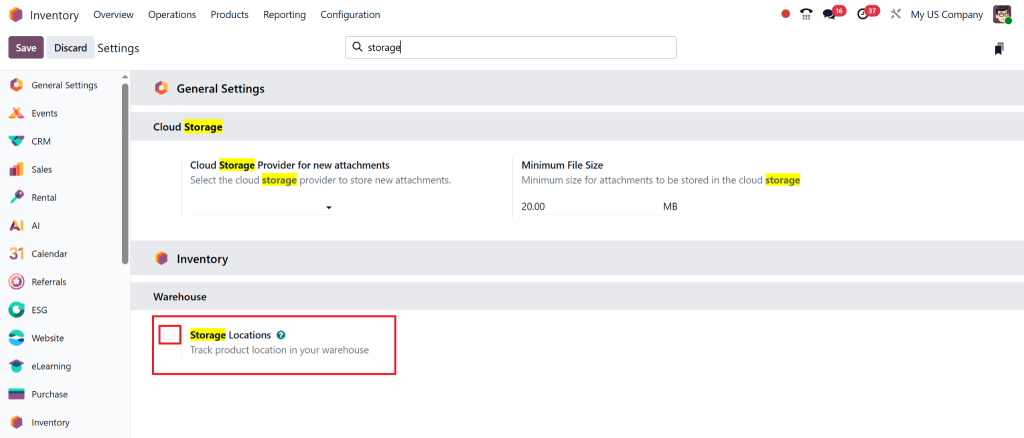
Step 1: Enable the Storage Category feature
Go to Inventory Module → Settings.
Enable the Storage Category option.
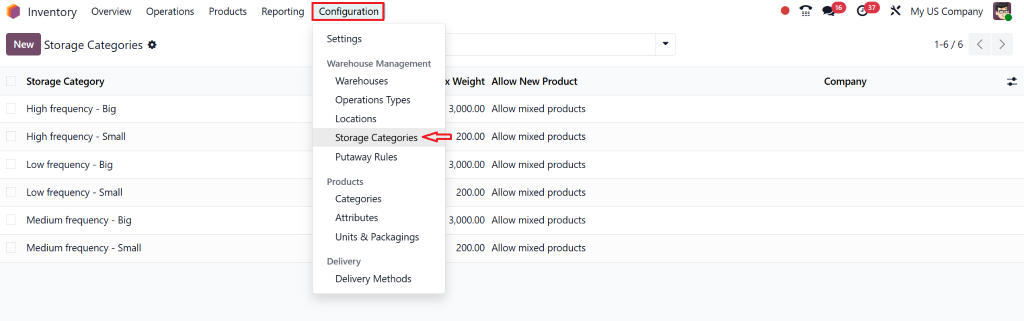
Step 2: Odoo 18 Create Storage Categories
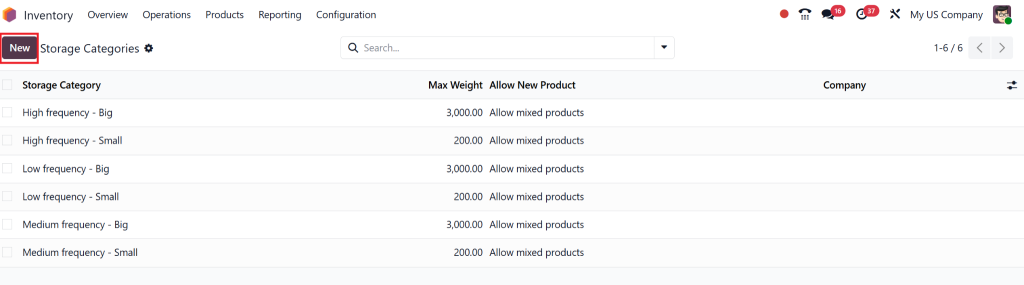
Go to Inventory → Configuration → Storage Categories.
Click New to create a category.
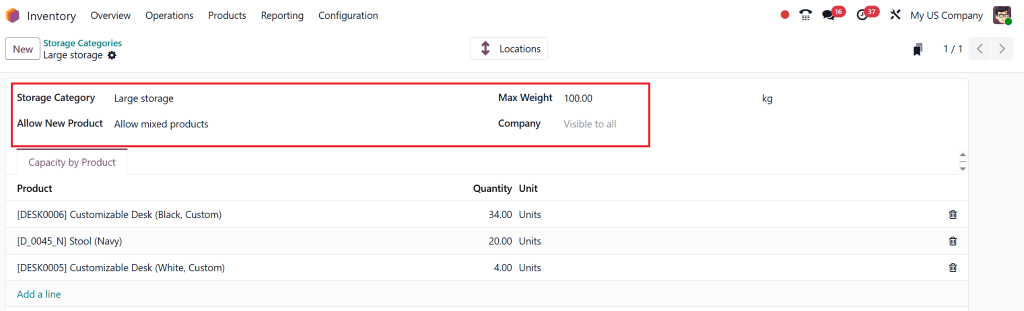
Fill in:
Name of the Storage Category.
Max Weight to restrict the weight capacity.
Allow New Product option:
If the location is empty
If products are the same
Allow mixed products
(Optional) Define Capacity by Package and Capacity by Product as per warehouse requirements.
Step 3: Odoo 18 Inventory Categorize Locations
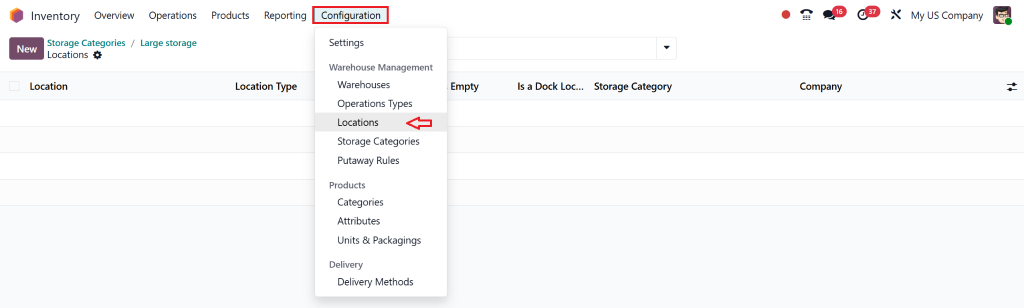
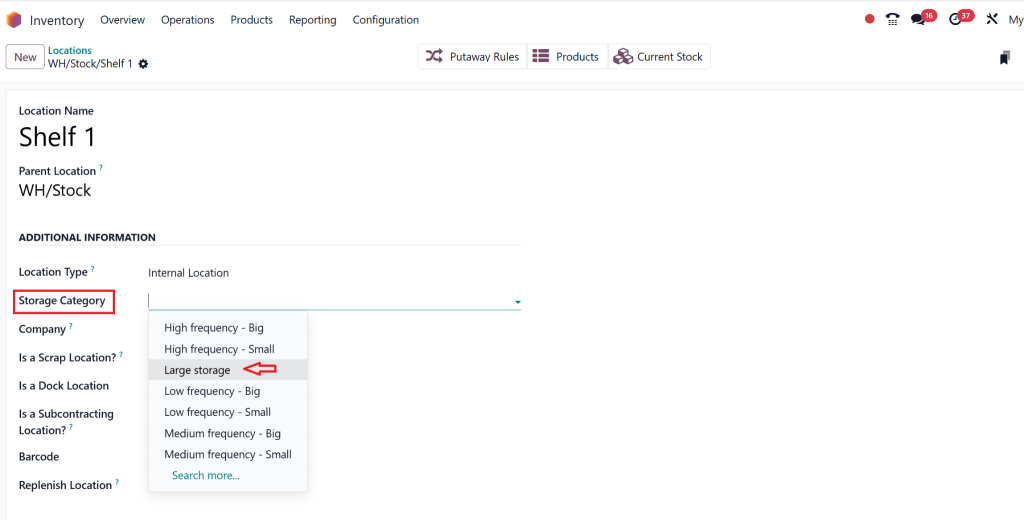
Go to Inventory → Configuration → Locations.
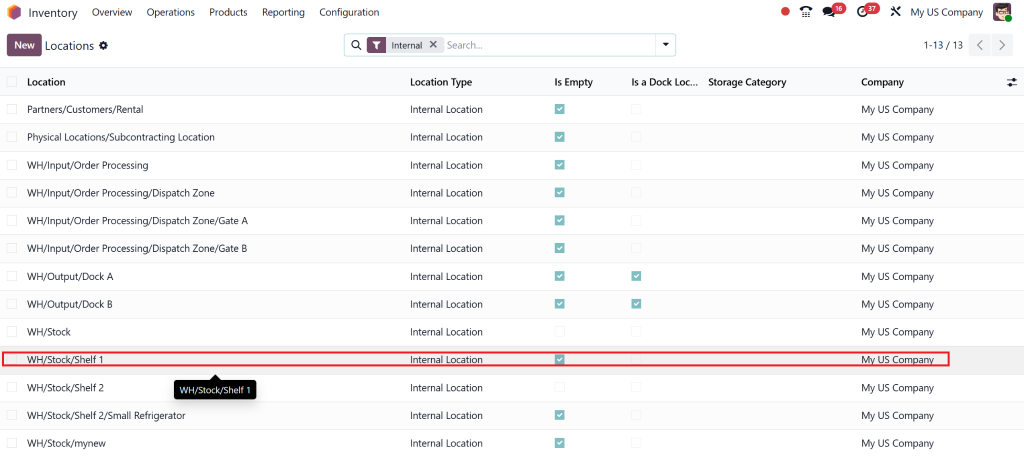
Create or select a location (e.g. WH/Stock/Shelf1).
Under its settings, set the newly created Storage Category.
Step 4: Create Putaway Rules
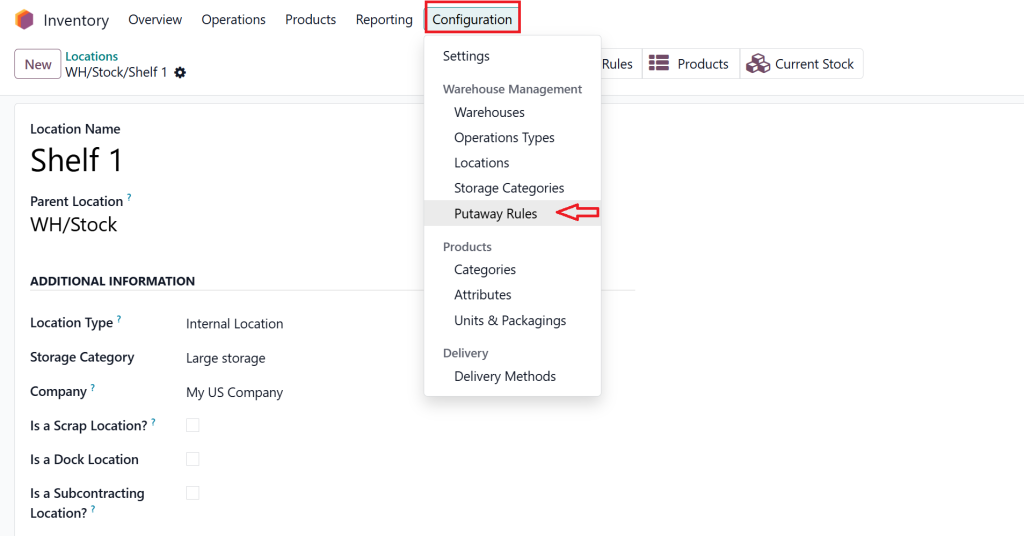
Go to Inventory → Configuration → Putaway Rules..
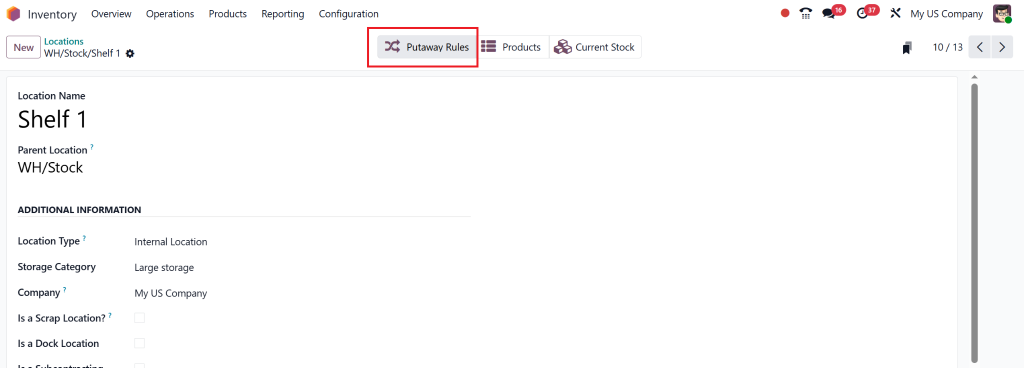
Or click on the smart button.
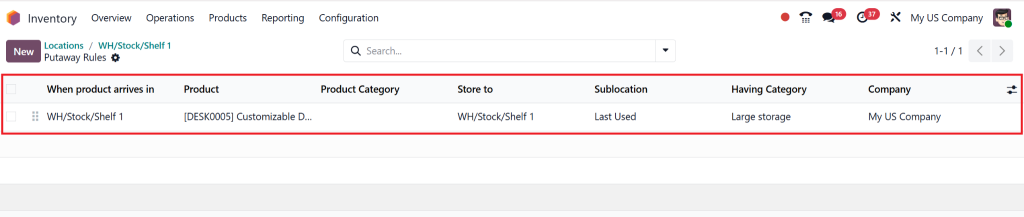
Click Create:
Under Having Category, select the Storage Category.
Set the To Location where products will be directed.
Save the putaway rule.
Step 5: Test the Setup with Products
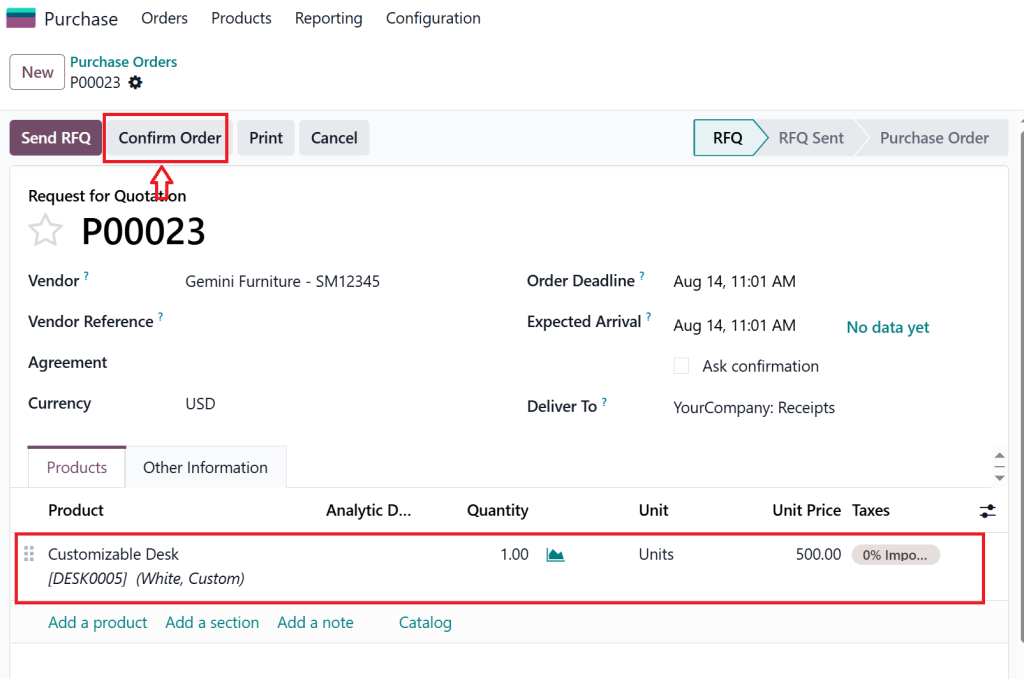
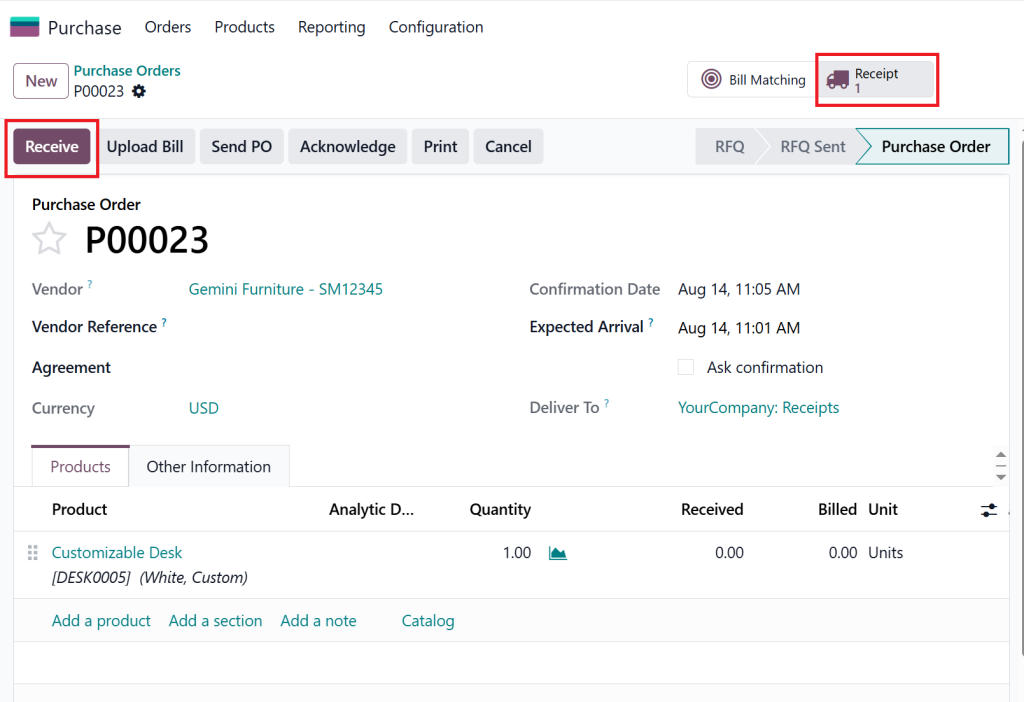
Create a purchase order for a product that matches the putaway rule. To proceed, navigate to the Purchases module, select the purchase order option, and add the necessary details, including customers, products, or product quantities. Then, confirm the order.
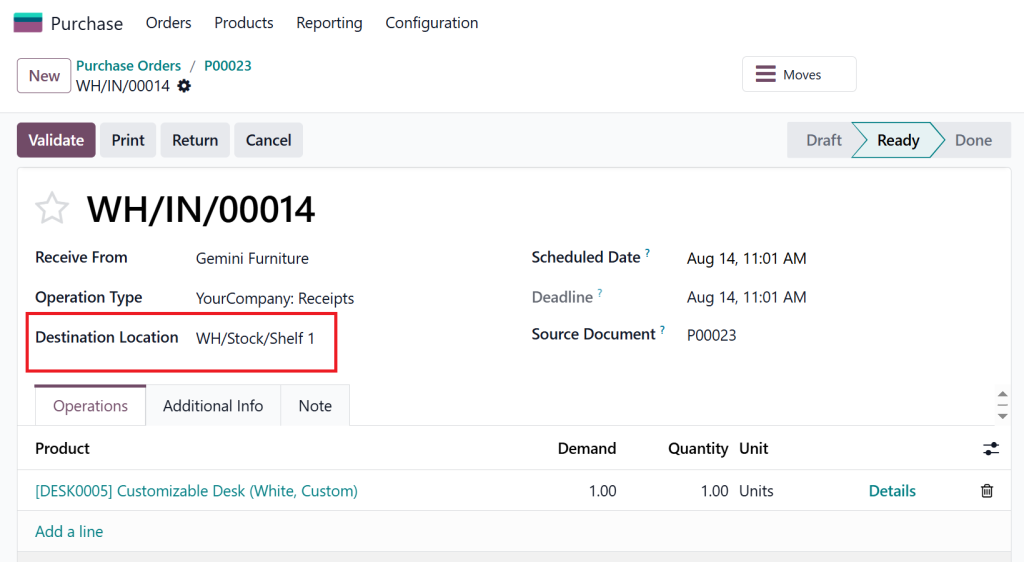
Receive the product into the warehouse.
The system will automatically move the product to the assigned location based on the putaway rule and category setup.
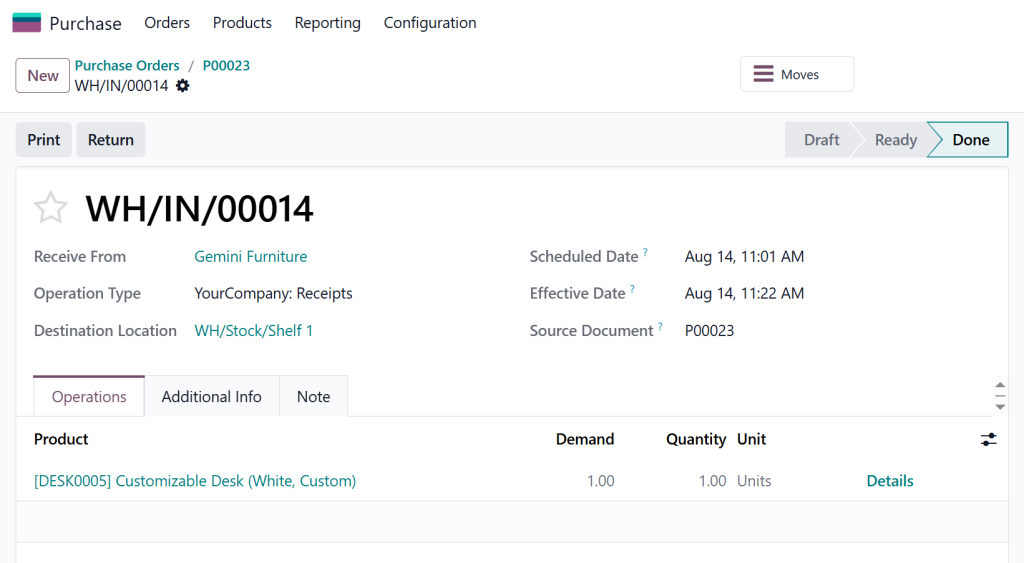
After receiving, we can also check the Destination location.
Final warehouse check.
Categorising Locations for Maximum Efficiency
The lack of specific business requirements in generic examples creates confusion among users about implementing best practices.
A mid-sized electronics distributor requires separate storage areas for hazardous batteries, high-value items and bulk goods that use pallet storage.
Implementation:
Create Storage Categories:
The “Hazardous Materials” category has a 200kg weight restriction and requires empty storage only.
“Secure Storage” (limited by product type, restricted access)
“Bulk Pallet” (limited by pallet count)
Assign Categories:
Map these to specific warehouse zones
All incoming batteries must be directed to “Hazardous Materials” storage locations, and high-value items must be placed in “Secure Storage”.
The putaway process becomes faster while errors decrease and safety regulations become easier to follow.
Our digital mapping solutions and workflow automation enable you to create a customised Odoo 18 Inventory categorisation process that avoids errors.
Benefits to Create Storage Category Odoo 18
Businesses fail to recognise the efficiency advantages that result from proper setup procedures.
Optimised Space Utilisation: Prevent overloading and maximise the use of every square meter
Faster Inventory Operations: Reduce search time and speed up putaway and picking
Error Reduction: Automated checks prevent misplacement or overstocking
Regulatory Compliance: Easily enforce rules for hazardous or sensitive goods
Scalability: Effortlessly adapt as your inventory grows or changes
Our proprietary audit and optimisation services ensure you unlock all these benefits, not just the basics.
Digital Tools & Best Practices for Odoo Storage Area Setup 18
How to Set Up Odoo 18 Security Lead Time
Manual processes and a lack of digital integration lead to slow, error-prone operations.
Best Practices:
Odoo’s barcode features enable fast and accurate location assignment through barcode and RFID integration
Odoo’s centralised document storage system allows you to store location maps, SOPs, and compliance documents in one place
Automated Alerts: Set up notifications for capacity thresholds or compliance breaches
Continuous Improvement: Regularly review and refine categories as your business evolves
Netilligence.io’s Proprietary Services:
Custom Digital Dashboards: Visualise storage utilisation and bottlenecks in real time
Automated Reporting: Generate actionable insights for continuous improvement
Expert Training: Upskill your team with hands-on workshops and digital resources
How to Add a Storage Category in Odoo Inventory: Quick Reference
Users need a brief checklist which they can use or distribute to others.
Quick Steps:
Enable Storage Categories in Inventory Settings
Create a new storage category with capacity and product rules
Assign the category to relevant storage locations
Set up putaway rules for automated product placement
Train staff and monitor results
.
Maximum Efficiency with Expert Odoo 18 Storage Category Setup
The operation of unorganized warehouses leads to both financial losses and damage to customer trust. The creation of storage categories through Odoo 18 enables you to achieve control and efficiency while maintaining peace of mind. Expert setup combined with continuous optimization represents the actual source of power.
Ready to transform your warehouse?
Reach out to Netilligence.io for a customized Odoo storage area setup 18 consultation. Our digital tools, proven best practices, and proprietary services ensure your inventory is always in the right place, every time.
Don’t let clutter cost you. Netilligence.io helps you master Odoo 18 warehouse storage categories to establish a smarter operation that generates higher profits.
Hi, I'm Nabia, an Odoo ERP functional & technical content writer. I specialize in blogs, social media content, ad copy, landing pages, service pages, and email campaigns.
We use cookies to ensure that we give you the best experience on our website. If you continue to use this site we will assume that you are happy with it.