Manage Upselling in Odoo 18 Sales App and Turn Each Sale into an Opportunity
If you’re in the sales or eCommerce world, you already know how tough it is to grow revenue without constantly chasing new customers. That’s where upselling comes in, and the most innovative businesses learn how to manage upselling in the Odoo 18 Sales app to get more from every single deal.
But this isn’t just about pushing products; it’s about strategy, timing, and understanding your customers better than ever before. The beauty of Odoo 18 is that it offers tools specifically designed to do all this without overwhelming your sales team or the buyer.
Managing upselling in Odoo 18 Sales is like adding a sales assistant who knows exactly what your customer might want next. It doesn’t wait for your team to make suggestions. It automates the process, embeds logic into product listings, and changes simple checkouts into meaningful opportunities.
From the very first step, the Odoo 18 upselling setup is built to anticipate customer needs. The moment you enable upselling Odoo 18 features, the system begins weaving upsell prompts into sales quotations, online purchases, and even B2B negotiations.
Now, imagine selling a standard laptop. The Odoo 18 sales upsell feature can suggest an extended warranty, a higher RAM variant, or even a premium laptop bag on the product page. What’s even better? It does this intelligently based on how you’ve set it up. The Odoo 18 upsell module tutorial shows how intuitive this system is: everything is at your fingertips, from selecting optional products to configuring advanced conditions.
But this isn’t just a feature checklist. What makes this entire process exciting is how flexible and influential Odoo 18 becomes when you apply it to real business situations. Whether running a boutique eCommerce store or managing wholesale clients, learning how to manage upselling in the Odoo 18 Sales app can change your game completely. You don’t need to be a tech genius. Odoo’s interface and workflows guide you like a silent partner, aligning your product strategies with upselling best practices that Odoo 18 sales experts already follow.
Odoo 18 Upselling Setup that Feels Effortless Yet Dominant
Getting started with the Odoo 18 upselling setup is easy and rewarding. When you activate the upselling feature under Sales settings, Odoo lets you link optional products to your main items. These are not just random suggestions. Each optional product can be selected based on customer history, product category, or even seasonal demand. And once you enable upselling Odoo 18, every quotation or sales order becomes a potential goldmine of added value.
The magic happens silently in the background. As your team creates orders, Odoo automatically prompts them with related upsell items. You can customize which products show up, in what situations, and even based on customer segmentation. The result? It is a personalized experience that feels like it was curated manually, but in reality, it’s completely automated. That’s the real power of managing upselling in Odoo 18 Sales.
How to Manage Upselling in Odoo 18 Sales App: Step-by-Step Guide
Upselling is a great way to encourage customers to choose higher value options or add extra items to their order. When done right, it’s an effective way to increase both revenue and customer satisfaction. So, let’s see how to manage upselling step by step.
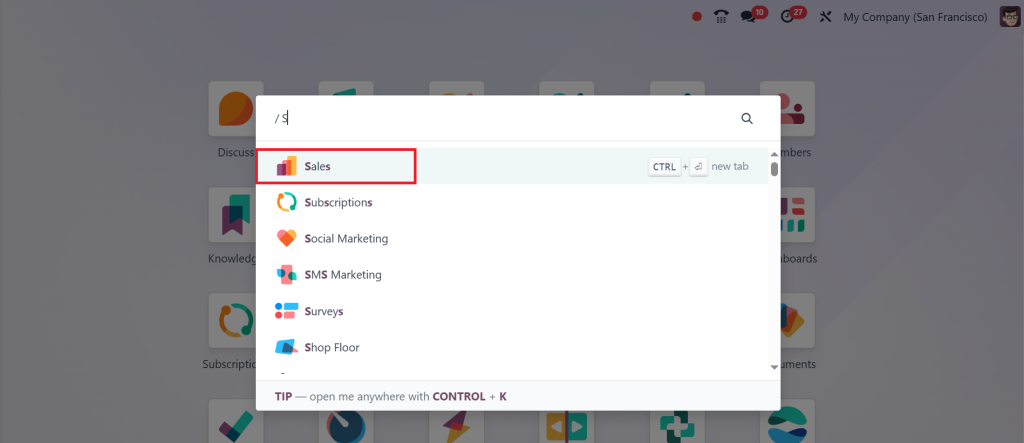
Open the Sales App.
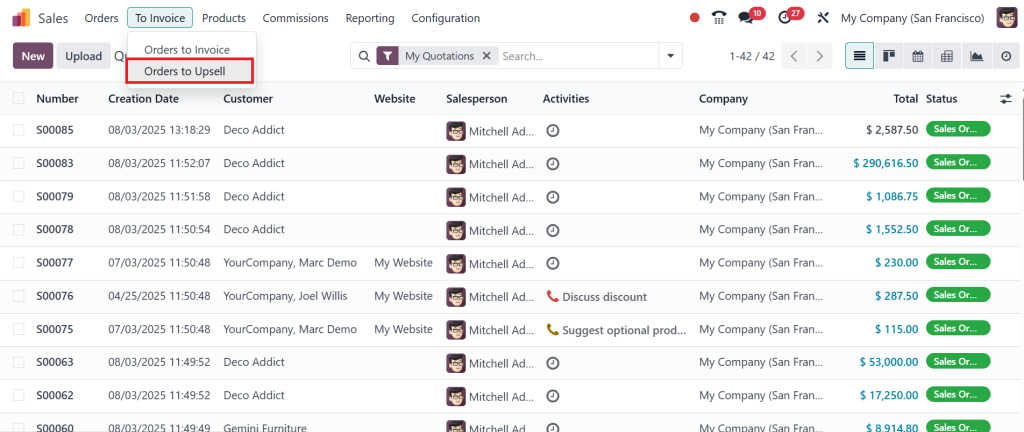
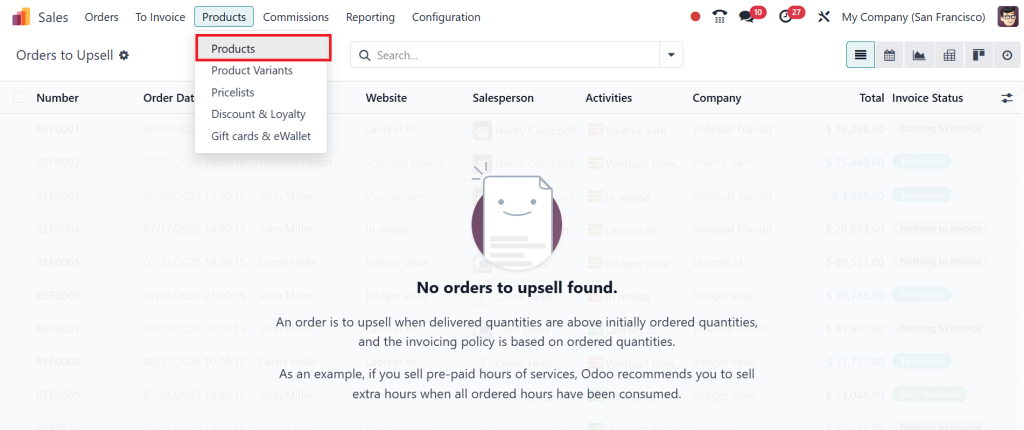
Click on the To Invoice menu and choose Orders to Upsell.
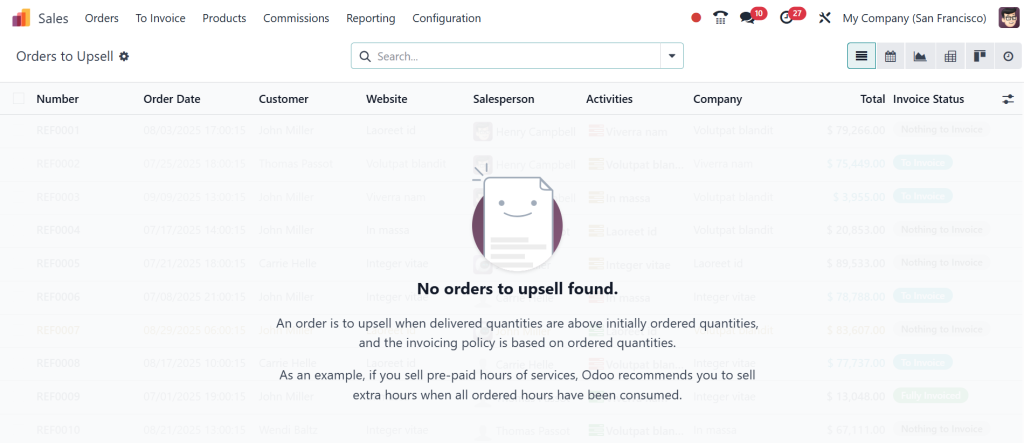
This is where Odoo shows you any sales orders that have been delivered more than what was initially ordered, allowing you to invoice the extra amount. This feature is only triggered when the delivered quantity exceeds the ordered quantity and the invoicing policy for the product is set to ordered quantities. It’s beneficial for prepaid services.
Suppose a customer buys 12 hours of service but ends up using 14 hours, instead of creating a new sales order for the additional two hours. In that case, we can invoice the extra hours directly using the upsell feature. As you can see in the screenshot below, our list of Orders to Upsell is empty.
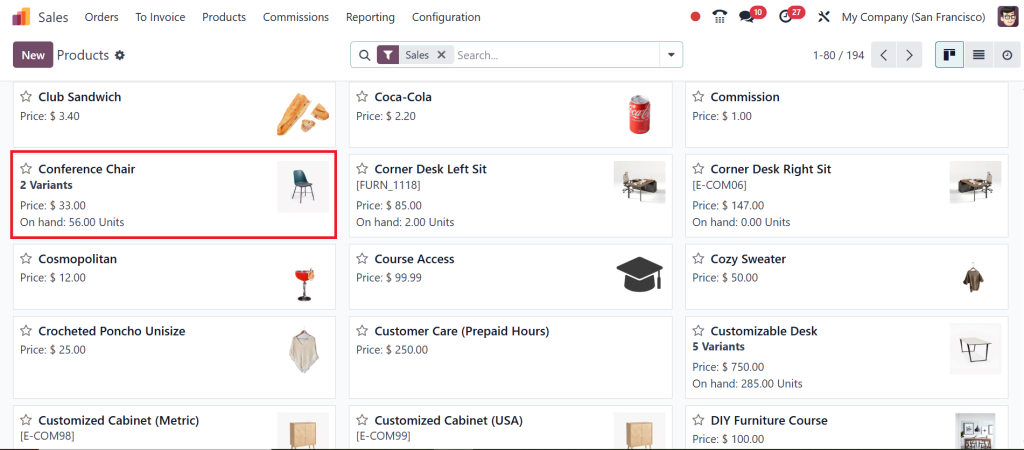
Let’s create an example from scratch. But before we do that, we need to make sure that our product is properly configured for this feature to work. Go to Products > Products.
Open up a product you would like to use. In this example, let’s click on the Conference Chair.
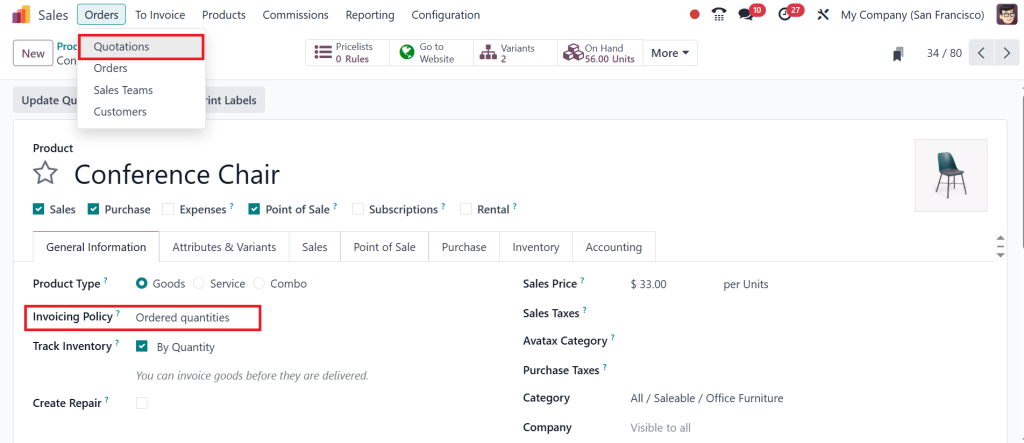
In the product form, make sure the invoicing policy is set to Ordered quantities. Once that’s set, let’s go to Orders > Quotations.
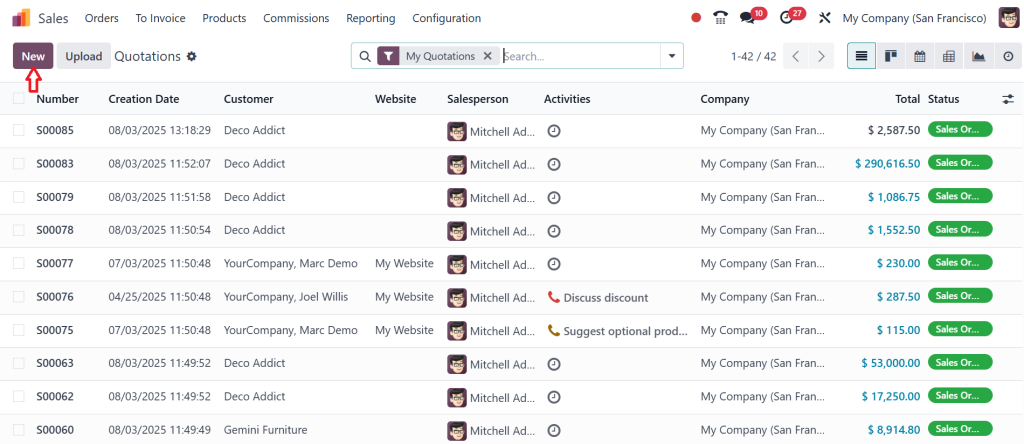
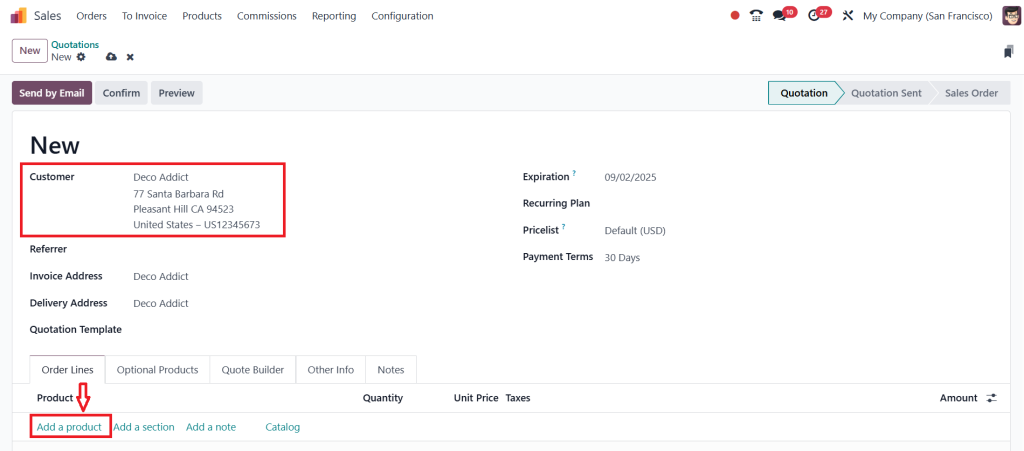
Click on New.
Select the Customer and click on Add a product.
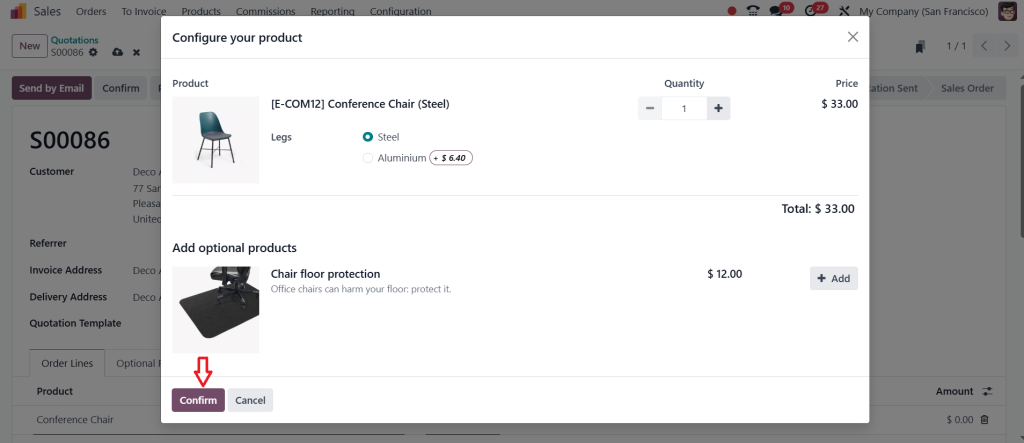
Choose the product and click Confirm.
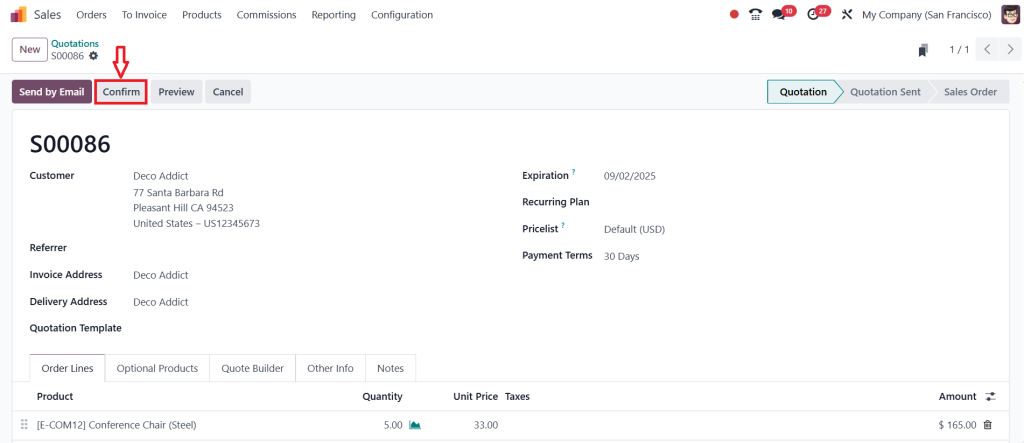
Set the quantity to 5 and then confirm thesales order.
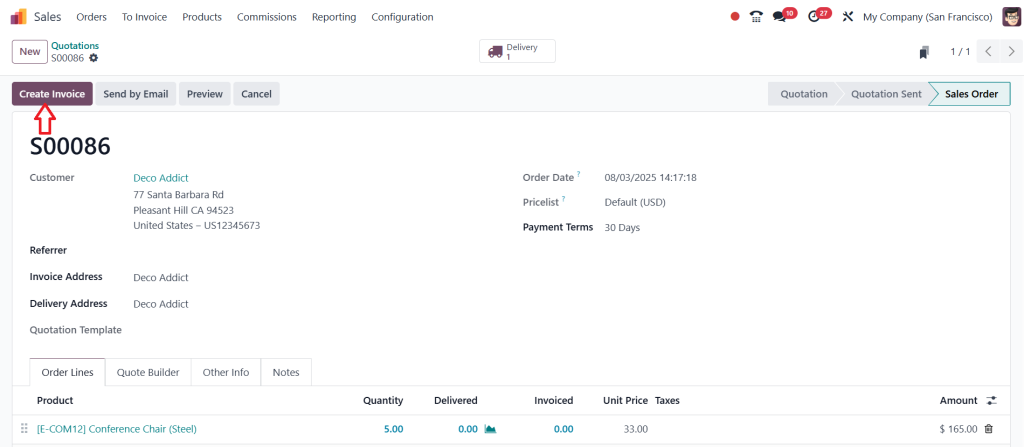
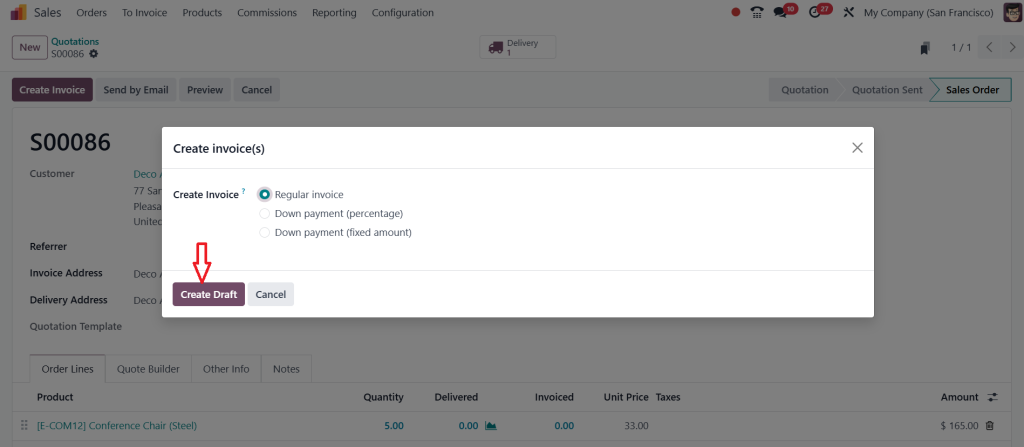
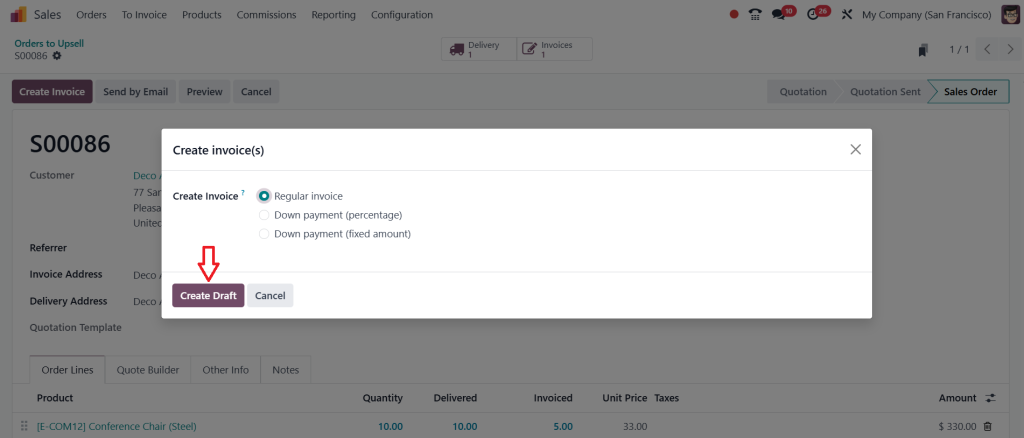
Then, click on Create Invoice.
Remember, since our invoicing policy is based on ordered quantities, this Invoice will only cover the original five units, regardless of what we deliver. Let’s click on Create Draft.
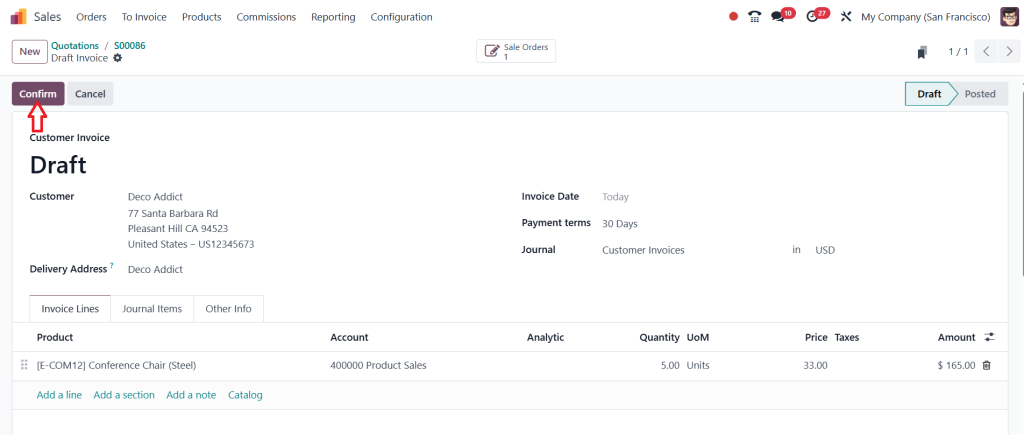
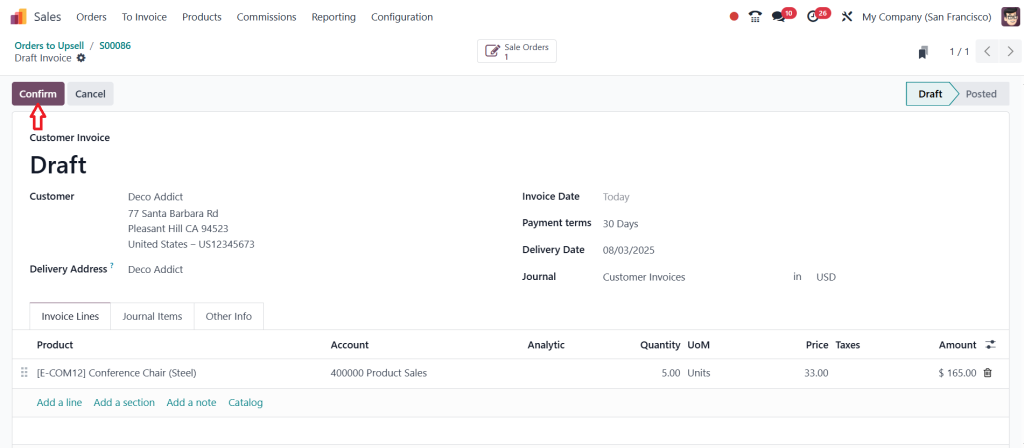
Once the invoice is created, click on Confirm.
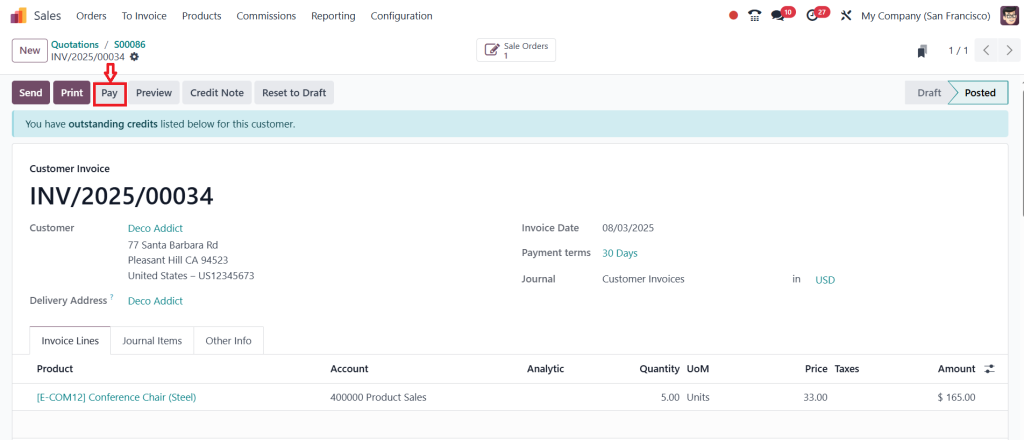
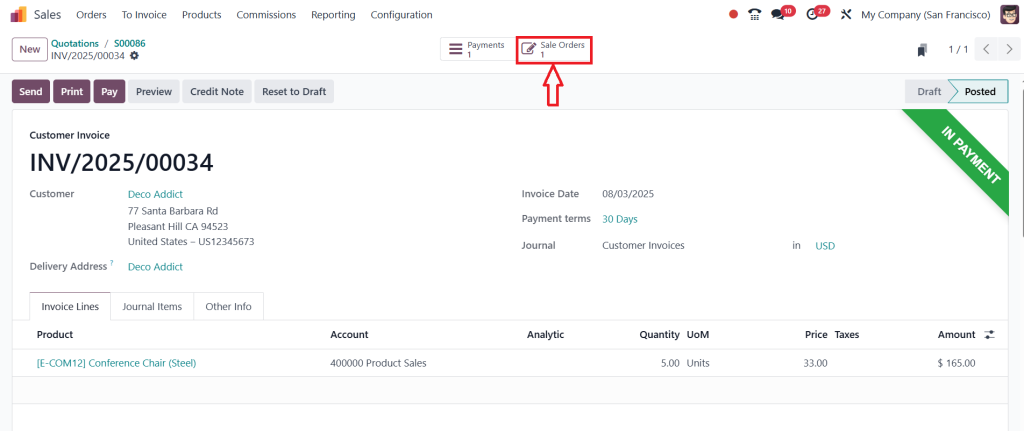
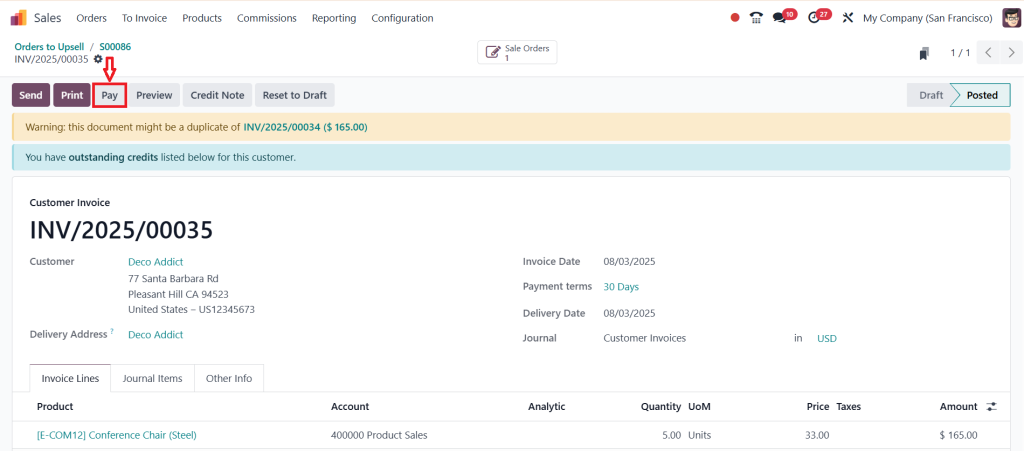
Then, click on Pay.
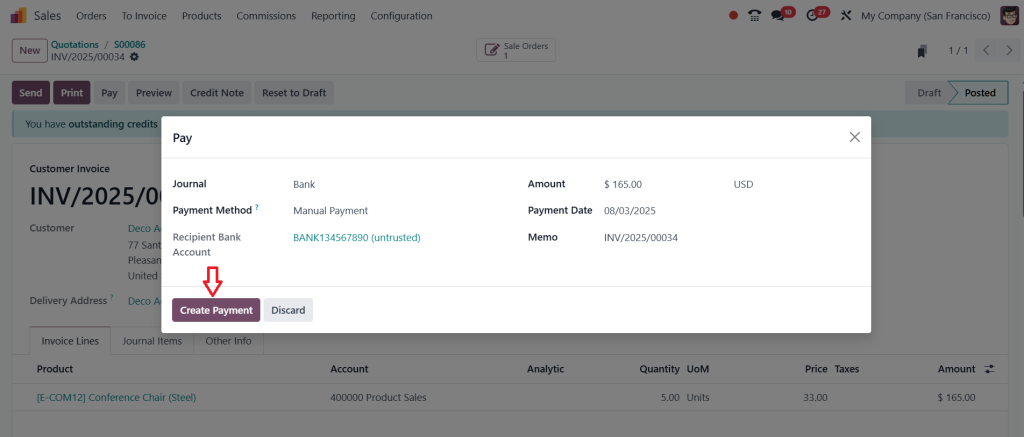
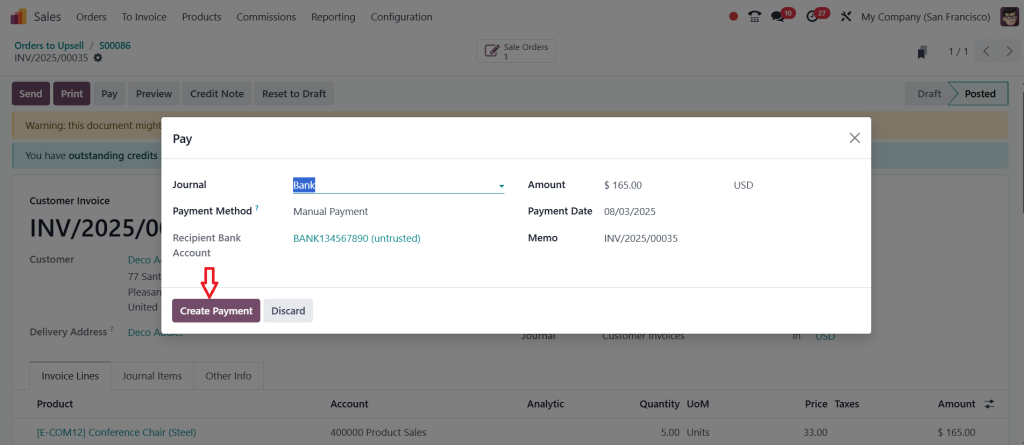
And finally, click Create Payment.
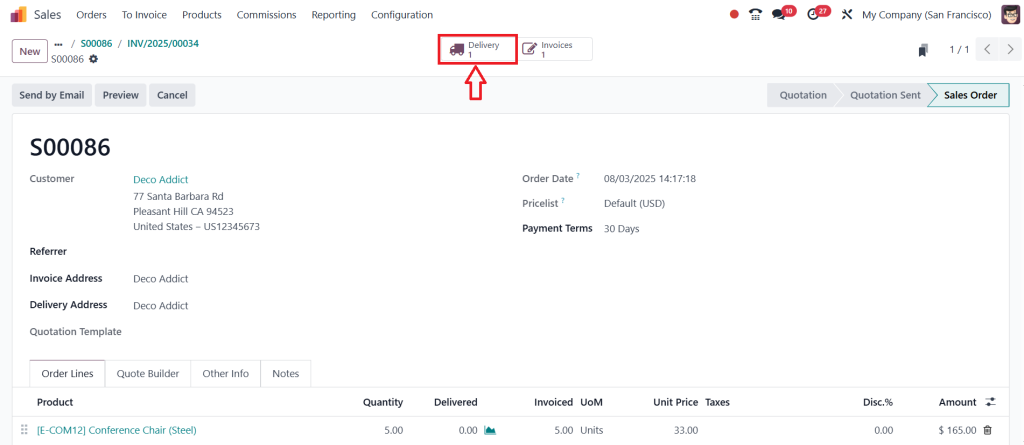
Now, here’s where the upselling part comes in. Let’s return to the Sales Orders.
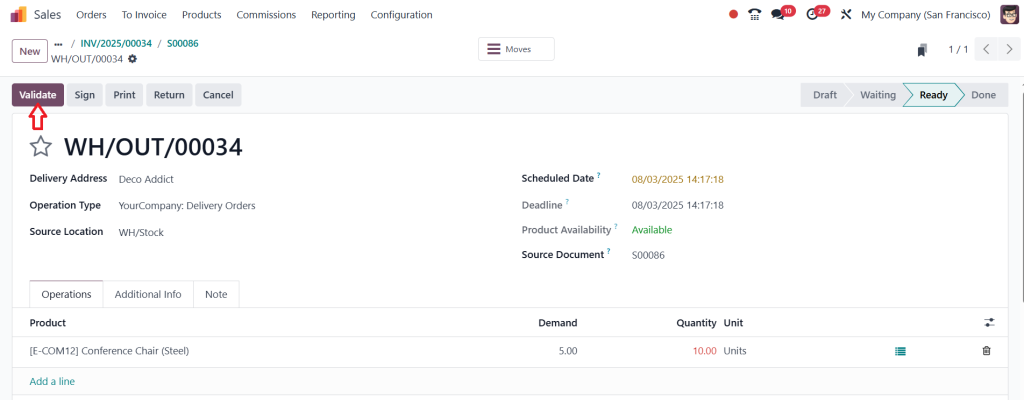
And open the linked Delivery.
Now, assume the customer just reached out and said they want 10 chairs instead of the 5 that were already invoiced. So, we’ll update the delivered quantity to 10 and click Validate to confirm the delivery.
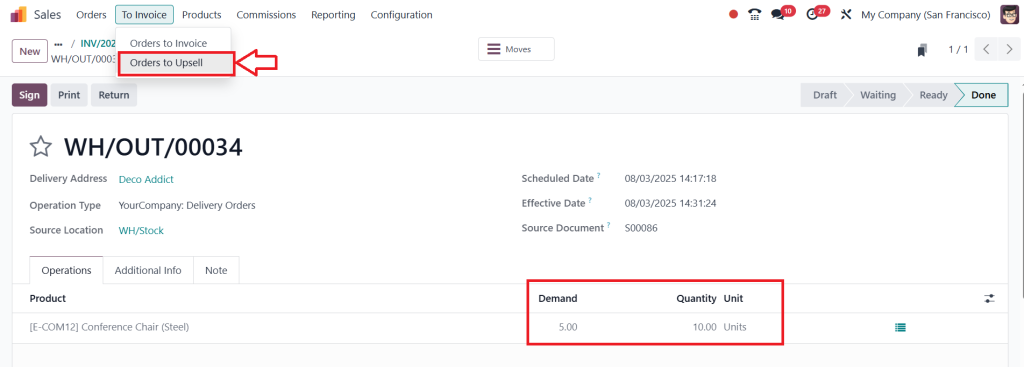
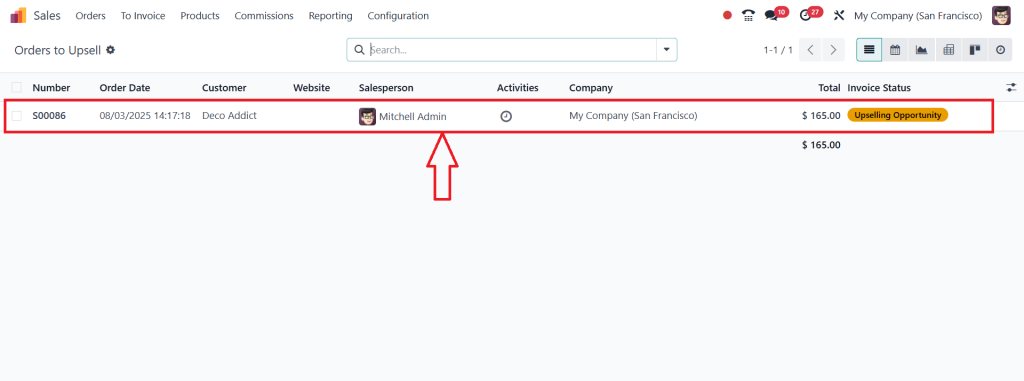
Now, we have delivered more than what was invoiced initially, which is precisely when Odoo marks the order as to upsell. Let’s again click on the To invoice tab and select Orders to Upsell.
And here you will see our Sale Order, click on it.
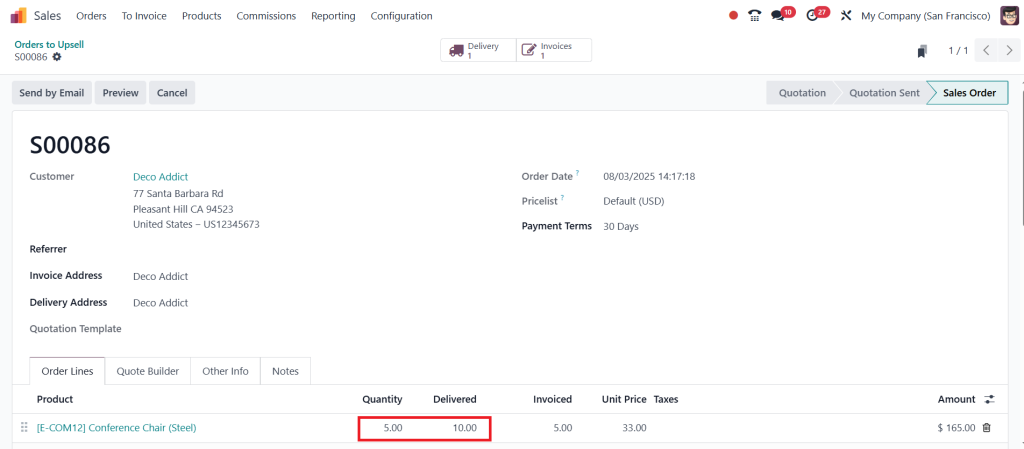
And you will see that the delivered quantity is 10, while the original invoice only covered 5.
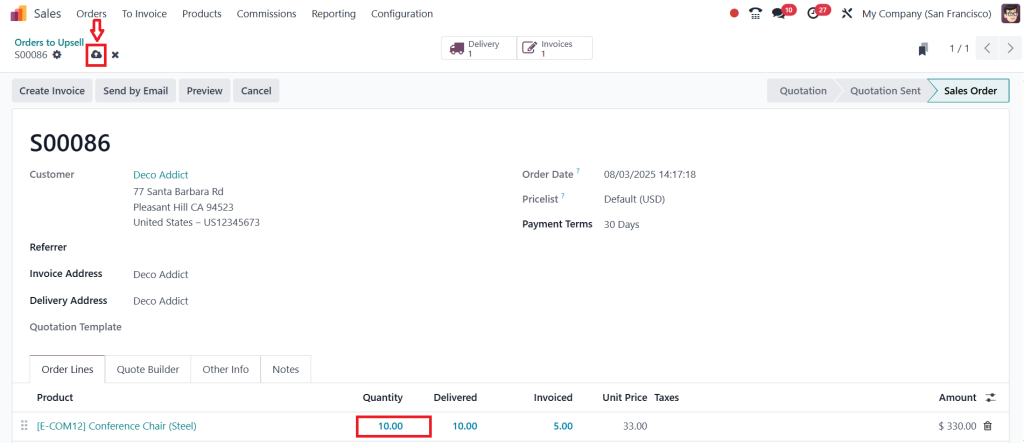
To get the remaining five, we will first update the order quantity to match the delivered quantity. So, let’s change it to 10 and click Save.
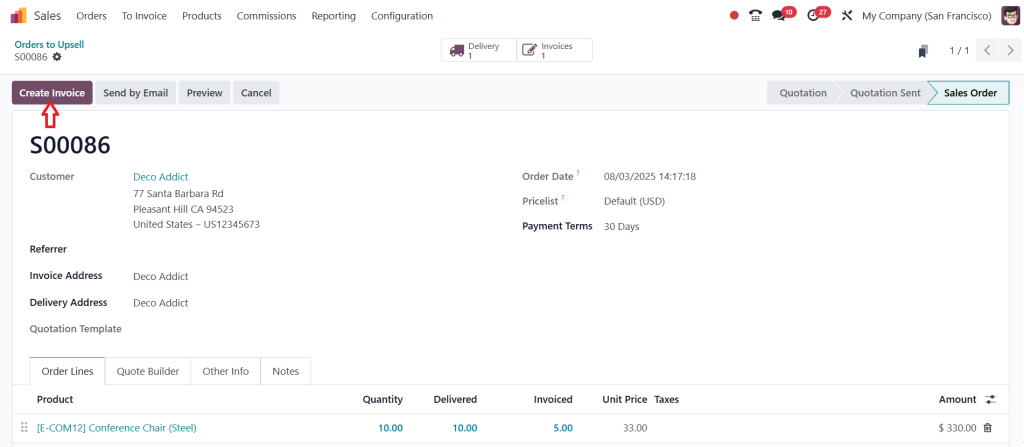
That will trigger the Create Invoice button. Let’s click it.
In this case, we will go with a Regular Invoice. Then, click Create Draft.
And just like before, we will Confirm the invoice.
Then, click on Pay.
And click Create Payment to register the payment and complete the process.
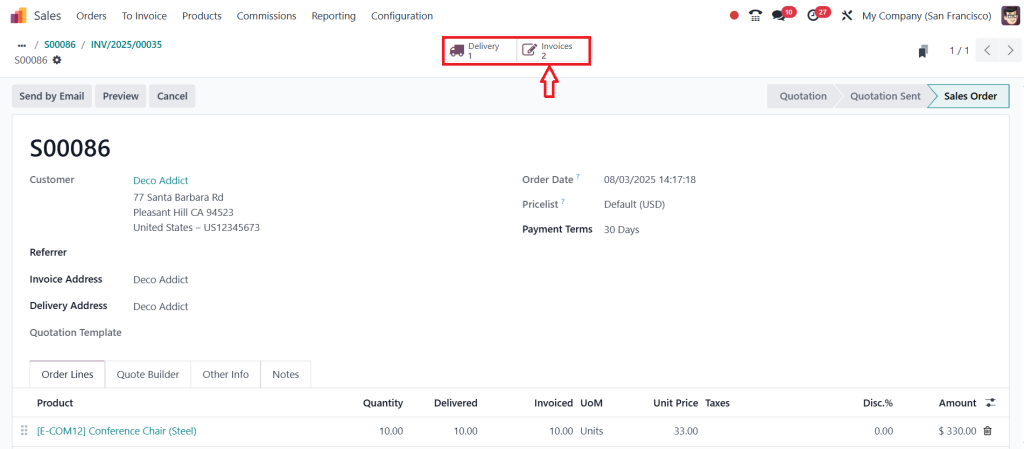
If you go back to the Sales Orders.
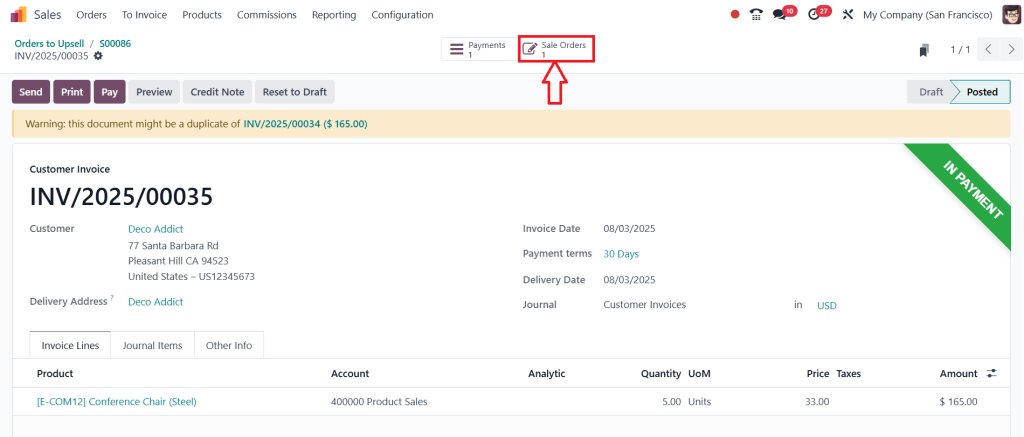
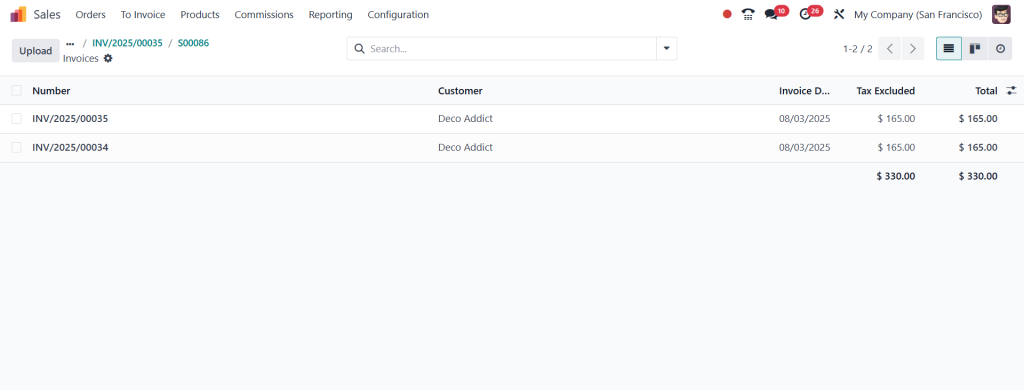
You will see that we made one delivery, but we have two invoices linked to this order.
The first Invoice was created for the original five chairs. The second one was generated after we delivered more than ordered, and it covers the extra five units that were upsold to the customers.
That’s how the Order to Upsell feature works. It’s the simplest way to handle additional product deliveries without creating a new order, keeping your records accurate and your revenue on track.
How the Odoo 18 Sales Upsell Feature Turns Clicks into Conversions
There’s something uniquely satisfying about watching your sales increase without additional marketing spend. That’s what the Odoo 18 sales upsell feature offers. It takes every interaction and turns it into a strategic opportunity. When someone adds a basic service plan to their cart, Odoo doesn’t just stop there. It gently pushes them toward a more valuable plan, maybe with faster support or more features. These indirect signs feel like natural suggestions, not aggressive sales tactics.
What makes it even more exciting is how these upsells aren’t limited to eCommerce. Even traditional sales teams preparing quotations can access upsell recommendations based on predefined rules. It’s intelligent, contextual, and highly adaptable. That’s how you upsell in the Odoo 18 Sales app like a seasoned professional by letting the system work quietly and effectively behind the scenes.
Odoo 18 Upsell Module Tutorial for Real-World Sales Teams
The brilliance of Odoo isn’t just in what it can do; it’s in how easily it teaches you to do it. The Odoo 18 upsell module tutorial is more than documentation; it’s a roadmap to smarter selling. You’ll learn to add optional products directly to your inventory listings, define upsell logic, and align those suggestions with your overall strategy. But the magic begins when the system reacts dynamically to real customer behavior.
With just a few configurations, you’ll create bundles, automate upsell paths, and integrate upselling logic into promotions and pricing rules. It’s not about more clicks; it’s about more meaningful clicks. It’s about creating an environment where customers genuinely discover better options and thank you for it later. If you aim to manage upselling in Odoo 18 Sales without complicating your workflow, this module gives you everything you need.
Cross-Sell and Upsell Odoo 18 eCommerce Features That Keep Customers Engaged
Let’s talk about the online store experience. You’ve worked hard to get a visitor to your product page. What’s next? This is where cross-sell upsell in Odoo 18 eCommerce comes alive. When customers explore a product, Odoo gives you the power to offer a slightly better variant (upsell) or complementary products (cross-sell) on the screen. These pushes happen without interrupting the flow, like a smart shop assistant guiding you in a physical store.
Suppose a customer checks out a mobile phone on your site. Odoo can immediately suggest a better model with more memory (upsell) and recommend a protective case and earphones (cross-sell). The beauty lies in the smoothness; it doesn’t feel like a pitch; it feels like a helpful suggestion. When you upsell in the Odoo 18 Sales app across both the backend and front, the experience becomes smooth for both the seller and the buyer.
Upselling Best Practices Odoo 18 Sales That Drive Real Results
If you want to go beyond just turning on the features, there are some key upselling best practices Odoo 18 Sales users should follow.
First, know your customers. Use the built-in reporting tools to analyze purchase patterns. What do people buy together? What upgrades are they choosing most? The more you know, the better your upsell offers will perform.
Second, don’t overwhelm. Offering just two or three more options can make your upsell confusing rather than helpful.
Third, create visible value. If you’re asking a customer to spend more, make sure they see why it’s worth it. Highlight extra features, show side-by-side comparisons, and use descriptions that focus on benefits, not spectacles.
Fourth, test everything. Odoo 18 gives you all the analytics you need to compare upsell performance across products and customer types. Don’t guess; let the data tell you what’s working. And finally, make it personal.
Use customer segmentation and CRM data to modify your upsell offers to the individual. When you upsell in the Odoo 18 Sales app with this level of attention, you don’t just increase sales; you build loyalty.
Final Thoughts on How to Manage Upselling in Odoo 18 Sales App
Managing upselling in the Odoo 18 Sales app is not just a feature; it’s a strategy. It’s about giving your sales team innovative tools and letting automation work for you in the background. Whether you’re upselling via quotations, live chats, or an eCommerce store, Odoo gives you the flexibility and intelligence to do it right.
From the first steps in the Odoo 18 upselling setup to understanding the Odoo 18 sales upsell feature, everything is designed to guide your customers gently toward better decisions that benefit them and boost your bottom line. With the help of the Odoo 18 upsell module tutorial, even newcomers can get up and running quickly. When you explore the full potential of cross-sell upsell in Odoo 18 eCommerce, the results speak for themselves: higher cart values, more satisfied customers, and fewer abandoned checkouts.
The upselling best practices Odoo 18 Sales has made easy to follow are at the heart of it all. So whether you’re offering add-ons, upgrades, or bundles, this is your chance to convert the sales experience. It’s not just about selling more; it’s about selling smarter. And with Odoo 18, smart selling has never been more within reach.
Ready to take the next step? At Netilligence, we help businesses like yours implement winning upsell strategies using Odoo 18. Reach out today to learn how we can modify Odoo for your success.
Hi, I'm Ilsa Shabbir, an Odoo ERP content writer specializing in functional blogs on Odoo modules. I simplify complex Odoo features, creating clear and engaging content to help businesses understand and optimize their ERP solutions.
We use cookies to ensure that we give you the best experience on our website. If you continue to use this site we will assume that you are happy with it.