Internal Inventory Transfers in Odoo 19
If you’re looking to optimise your warehouse operations, streamline stock movements, and eliminate confusion around product movement, learning Internal Inventory Transfers in Odoo 19 is essential. In Odoo’s latest version, inventory management becomes smarter, faster, and more accurate, making it the preferred choice for businesses that prioritise efficiency and transparency.
Whether you want to perform an Odoo 19 stock transfer, transfer inventory between locations, or handle multi-warehouse management, mastering this process will elevate your operational performance.
Businesses often face issues like misplaced inventory, delayed orders, and inaccurate stock counts. Odoo eliminates these problems through a structured, error-proof system for inventory movement in Odoo 19.
In this powerful guide, you will learn:
✔ How to configure locations
✔ How to perform internal transfers
✔ How to track stock movement
✔ Best practices for clean warehouse operations
Before we begin, note that the focus keyword, Internal Inventory Transfers in Odoo 19, will appear throughout this article (as required) to ensure complete SEO optimisation. We will also integrate supporting keywords such as ‘Odoo move stock warehouse’, ‘Odoo 19 inventory transfer steps’, and more.
Understanding Internal Inventory Transfers in Odoo 19
Internal transfers refer to moving products inside your own warehouses, from one location to another, such as:
- Stock to Quality Control
- Warehouse A to Warehouse B
- Picking Area to Packing Zone
- Manufacturing Input Stock to Production Floor
These movements do not involve customers or vendors. Instead, they help maintain operational flow and keep your internal stock levels accurate.
Odoo 19 makes this process easy and user-friendly, thanks to improved location mapping, updated routing logic, and enhanced multi-warehouse capabilities.
This guide to Internal Inventory Transfers in Odoo 19 shows you how to achieve flawless stock movement in just a few clicks.
Why Internal Inventory Transfers Are Important for Modern Businesses
Efficient inventory movement is at the heart of any successful warehouse operation. Poor tracking or manual processes often lead to:
- Overstocking or understocking
- Misplaced or missing items
- Operational delays
- Increased carrying costs
- Reduced customer satisfaction
With Odoo’s move stock warehouse functionality, organisations ensure that every internal movement is documented, timed, and traceable.
Key benefits:
- Real-time stock accuracy
- Improved warehouse staff productivity
- Zero manual errors
- Smoother order fulfilment
- Clear visibility across multiple warehouses
Odoo’s automated workflows and smart rules make it simple to execute Odoo 19 stock transfer operations at scale.
Prerequisites Before Performing Internal Inventory Transfers in Odoo 19
Before performing Internal Inventory Transfers in Odoo 19, you must complete some basic configurations.
These include:
1. Enable Multi-Locations
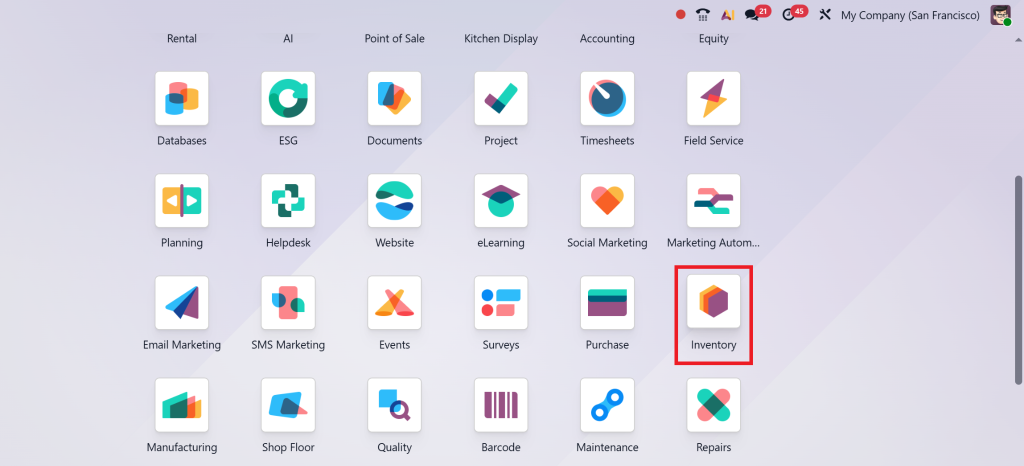
Go to:
Inventory →
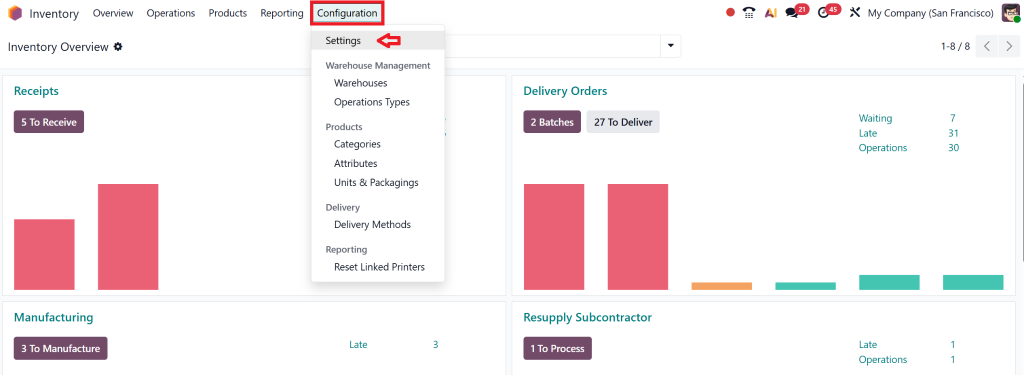
Configuration → Settings →
Warehouse → Storage Locations
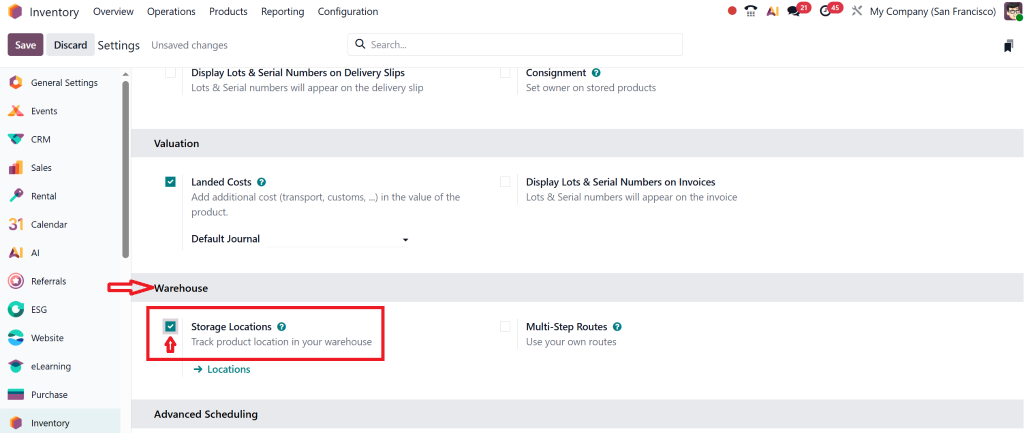
Turn on “Storage Locations”.
This enables internal routing inside the warehouse.
2. Enable Multi-Warehouse (if needed)
Go to:
Inventory → Configuration → Settings → Warehouse → Multi step routes
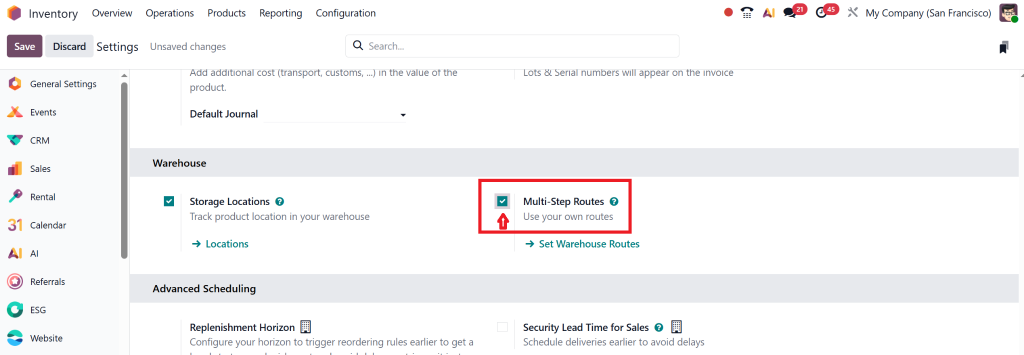
This helps you activate multi-warehouse management in Odoo.
3. Check Product Tracking Settings
Verify if your product uses:
- Lots
- Serial numbers
- Units of measure
Correct product settings ensure accurate Odoo 19 stock transfer speeds and traceability.
Odoo’s streamlined configuration steps make it ready for scalable operations within minutes.
Step-By-Step Guide to Internal Inventory Transfers in Odoo 19
Here’s the central part: a complete breakdown of Odoo 19’s inventory transfer steps.
With these steps, you can flawlessly transfer inventory between locations in Odoo.
Step 1 – Navigate to Internal Transfers Menu
Go to:
Inventory → Operations → Transfers
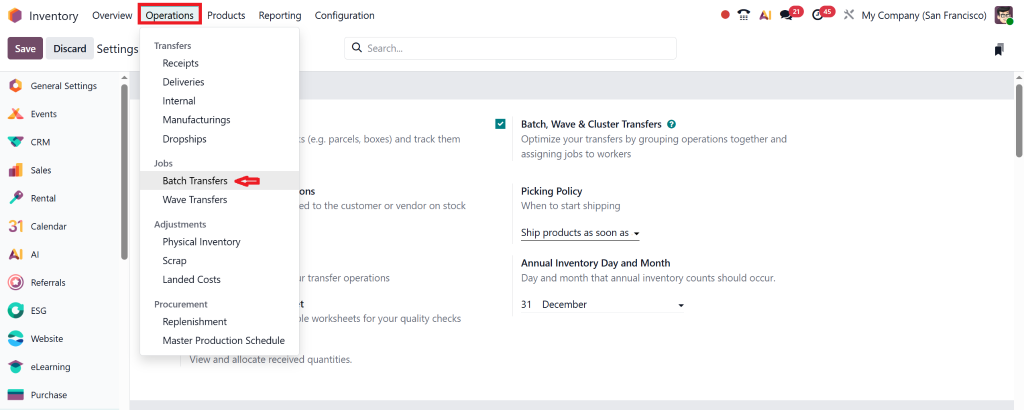
Here, you can view:
- Incoming shipments
- Outgoing deliveries
- Internal transfers
- Other stock movements
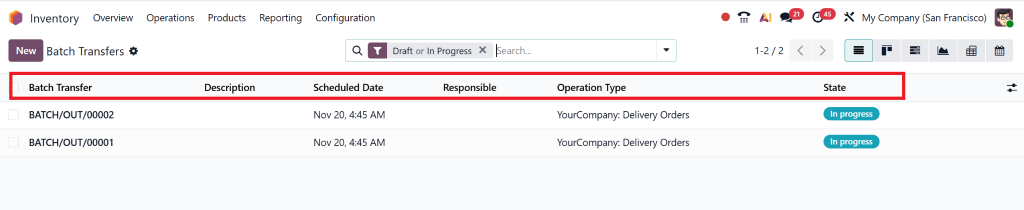
Click “New” to create a fresh internal transfer record.
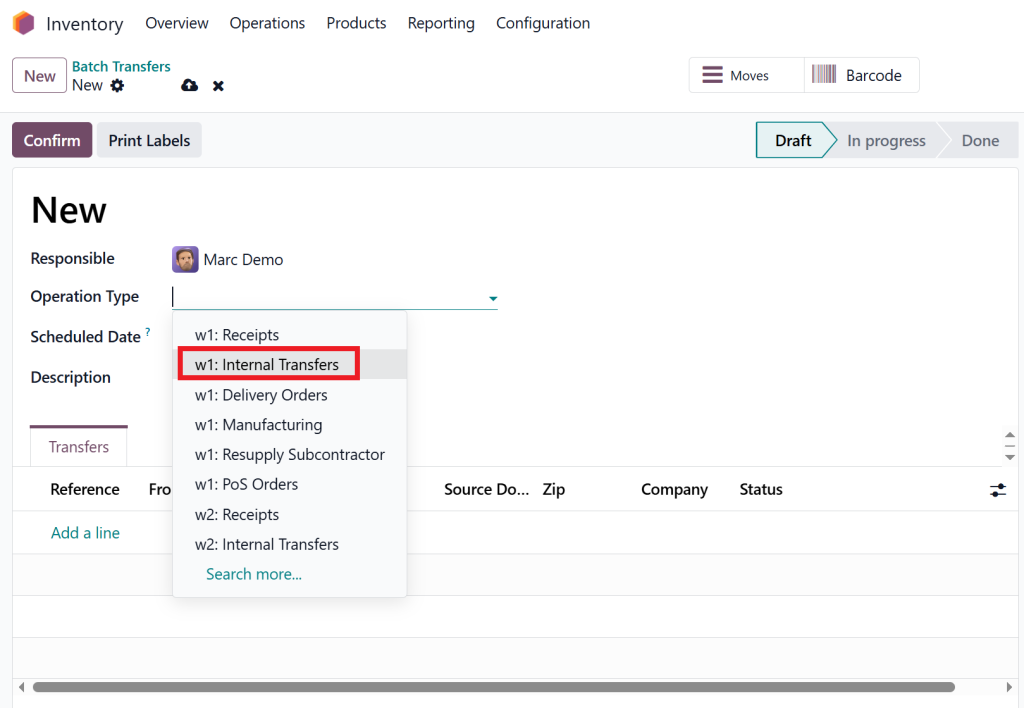
Step 2 – Select Operation Type (Internal Transfer)
Choose the operation type as Internal Transfer. This ensures that Odoo understands the movement is occurring within your organisation, not outside it.
Step 3 – Select the Source Location
Choose the location where the product currently exists, such as:
- Stock
- Finished Goods
- WH/Stock/Shelf 1
- WH2/Stock
This allows accurate tracking and prevents errors.
Step 4 – Select the Destination Location
Choose where the stock should move to:
- Quality Check
- Return Area
- Production Floor
- Packing Zone
In Odoo, for multi-warehouse management, you can select a different warehouse entirely.
This step is crucial for maintaining structured internal movement.
H2: Step 5 – Add Products to the Transfer
Click “Add a Line” and select the product you want to move.
Enter:
- Quantity
- Lot or Serial Number (if required)
- Units of Measure
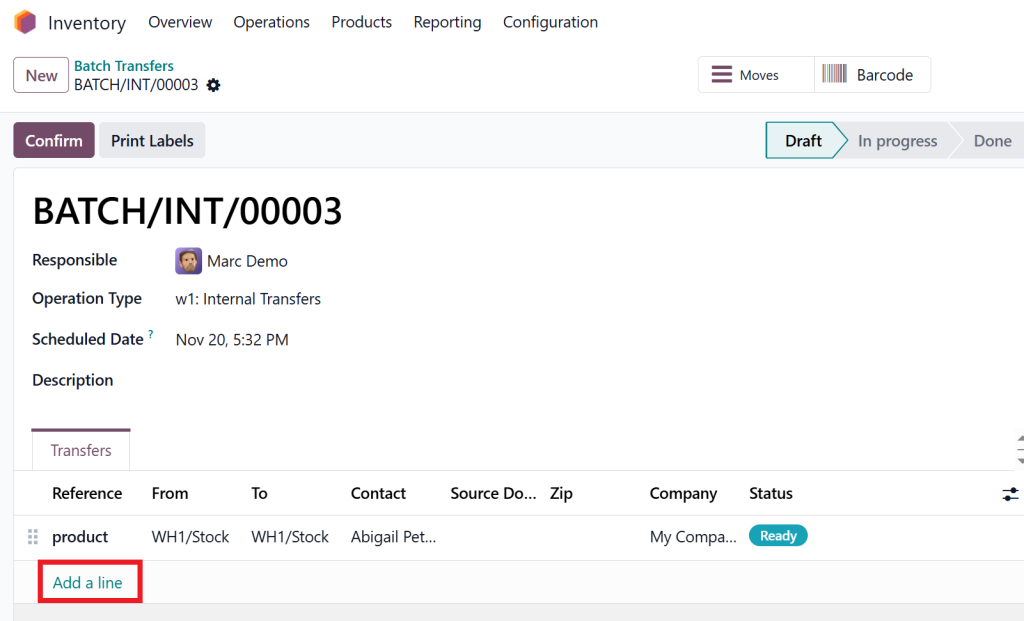
These details ensure Odoo properly executes an Odoo move stock warehouse operation.
Step 6 – Validate the Transfer
Once all details are added:
- Click “Mark as To Process”
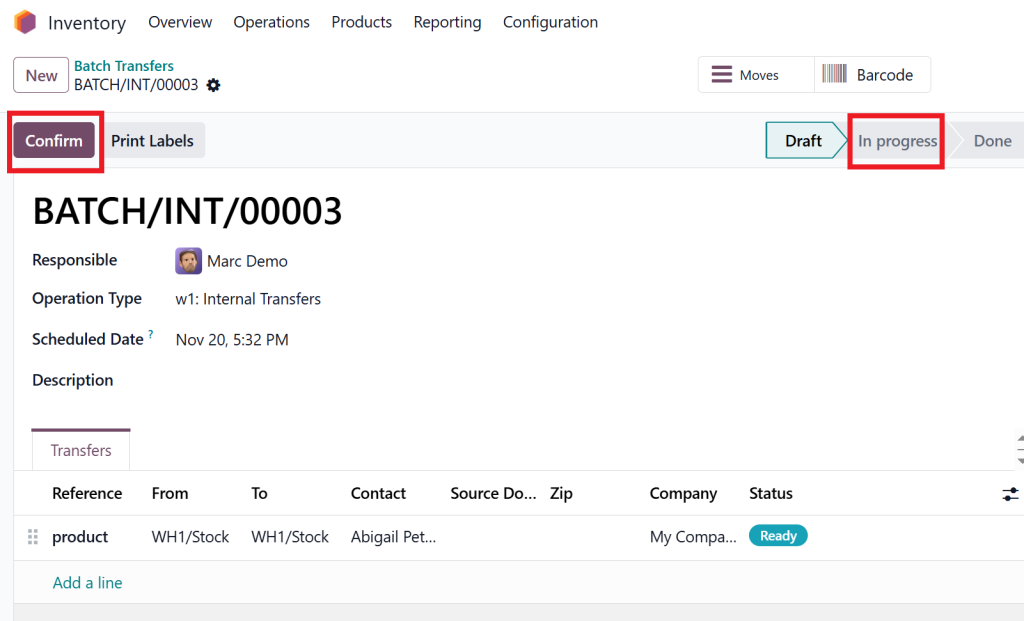
2. Then click “Validate”
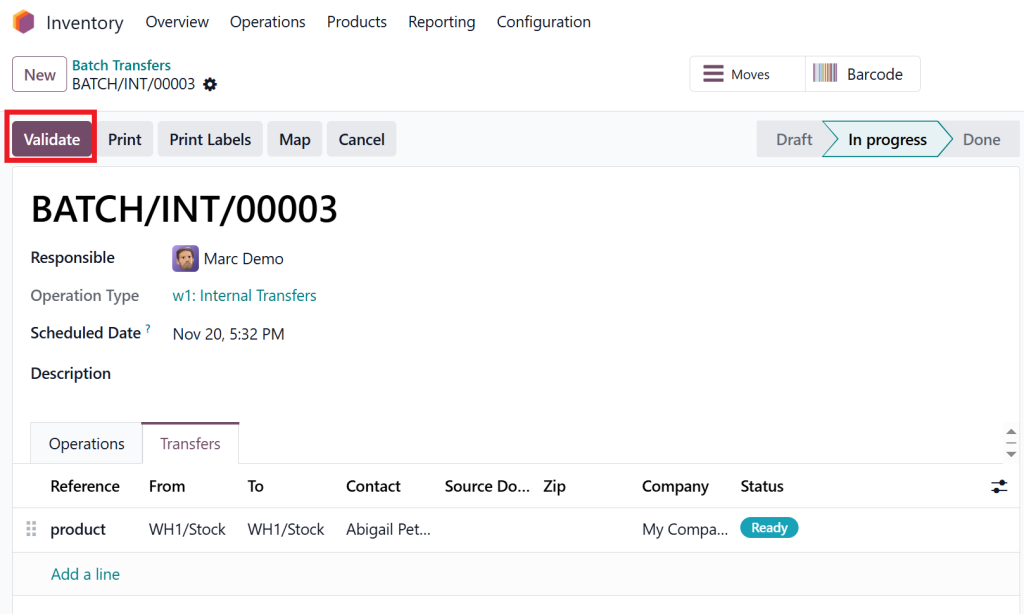
Your stock now moves instantly from source to destination.
This completes one cycle of Internal Inventory Transfers in Odoo 19.
Best Practices for Smooth Internal Inventory Transfers
Significant warehouse operations rely on consistent best practices. Here are some expert tips to ensure smooth stock flow:
1. Use Barcodes for Faster Transfers
Odoo 19 supports barcode-based operations, including:
- Internal transfers
- Pickings
- Moves
- Batch transfers
Using a barcode scanner dramatically speeds up your Odoo 19 stock transfer workflow.
2. Create Transfer Rules for Automatic Movements
You can automate movements using Routes and Rules, such as:
- Putaway Rules
- Push Rules
- Pull Rules
This reduces manual intervention and keeps your inventory movement in Odoo 19 consistent.
3. Maintain Location Hierarchies
Use logical structures like:
- WH/Stock/Shelf/Box
- WH/Production/Raw Materials
- WH2/Stock/Pallet Area
Clear location structure improves visibility and reduces picking errors.
4. Enable Real-Time Inventory Alerts
Odoo can notify you when:
- Stock falls below a minimum level
- Transfers are pending
- Products need replenishment
This eliminates operational delays and improves forecasting accuracy.
5. Train Warehouse Staff on the Odoo App
Odoo 19’s mobile interface lets staff perform:
- Internal transfers
- Picking
- Packing
- Stock checks
Directly from handheld devices.
This is essential for large-scale multi-warehouse management in Odoo.
Real-World Use Cases of Internal Inventory Transfers in Odoo 19
Different businesses use internal transfers differently. Here are common scenarios:
Manufacturing Industry
Move raw materials from:
- Warehouse → Production Input
- Quality Check → Production Floor
24/7 traceability ensures quality and efficiency.
Retail
Transfer items between:
- Stores
- Shelves
- Back-Office Storage
This improves store availability and reduces lost sales.
E-Commerce
Move fast-moving items to:
- Picking zone
- Packaging area
Ensures faster delivery times.
Distribution
Use transfers to:
- Move between central and regional warehouses
- Manage heavy and fragile goods
- Prepare goods for bulk shipments
This enhances routing and handling processes.
All of these scenarios rely heavily on Internal Inventory Transfers in Odoo 19 for accuracy and operational efficiency.
Common Mistakes and How to Avoid Them
Here’s what businesses often do wrong, and what you can do better.
Mistake 1 – Not Enabling Storage Locations
Without enabling locations, you cannot perform internal transfers.
Always turn it on first.
Mistake 2 – Incorrect Location Mapping
Wrong mapping causes the stock to disappear digitally.
Double-check every new location added.
Mistake 3 – Missing Product Tracking Details
Avoid inconsistent stock data by ensuring:
- Lots
- Serials
- Units
They are always correct before transfers are validated.
Mistake 4 – Not Validating Transfers
Transfers only complete after validation.
Ensure all staff know this step.
Mistake 5 – No Standard Operating Procedures
Create SOPs for:
- Stock movement
- Transfer creation
- Location updates
This ensures consistent inventory movement in Odoo 19.
Internal Inventory Transfers in Odoo 19
Mastering Internal Inventory Transfers in Odoo 19 is vital for businesses that want complete control over their stock movement. From simple shelf-to-shelf transfers to complex multi-warehouse logistics, Odoo provides powerful tools to streamline operations.
By implementing the steps and best practices shared above, you’ll gain:
- Accurate inventory
- Faster stock movement
- Better warehouse organisation
- Reduced operational costs
- Improved customer satisfaction
If you want expert assistance implementing or optimising Odoo Inventory, Netilligence, your trusted Odoo Partner, is ready to help you transform your warehouse into a high-performance operation.