Expert How to Perform Inventory Adjustments in Odoo 19
If you are wondering how to perform inventory adjustments in Odoo 19, you are not alone. Businesses of all sizes struggle with inventory discrepancies, lost stock, and inaccurate records. Inventory adjustments are essential to keep your operations smooth, reduce costs, and maintain customer satisfaction.
In this Odoo 19 inventory adjustment tutorial, we will guide you through every step of performing inventory adjustments, including:
Odoo 19 inventory adjustment account setup
Virtual locations
Bulk updates
Physical inventory
Cycle count automation
Whether you are a small retailer or a large enterprise, mastering how to perform inventory adjustments in Odoo 19 ensures that your stock records always match reality. Accurate inventory management improves business efficiency, enhances financial accuracy, and helps make strategic decisions.
By the end of this guide, you’ll not only know how to perform inventory adjustments in Odoo 19, but also how to optimize the process to save time, reduce errors, and maximize profitability.
Why Inventory Adjustments Are Essential for Business Success
Inventory adjustments are more than just a back-office task, they are a critical business process. Incorrect stock levels can lead to:
Stockouts, resulting in lost sales
Overstocking, increasing storage costs
Financial mismatches, leading to audit issues
Inefficient warehouse operations are causing delays in order fulfillment
With Odoo 19, businesses can avoid these problems. Learning how to perform inventory adjustments in Odoo 19 allows you to:
Maintain accurate stock records
Automate repetitive tasks
Reduce manual errors
Improve reporting and analytics
Gain a competitive advantage
Example: A retail store using Odoo 19 discovered discrepancies during a physical inventory. With the system’s adjustment features, they corrected stock, updated accounts, and prevented a potential $10,000 loss in overstocked inventory.
Step-by-Step Guide: How to Perform Inventory Adjustments in Odoo 19
Here’s a comprehensive step-by-step tutorial to help you understand how to perform inventory adjustments in Odoo 19.
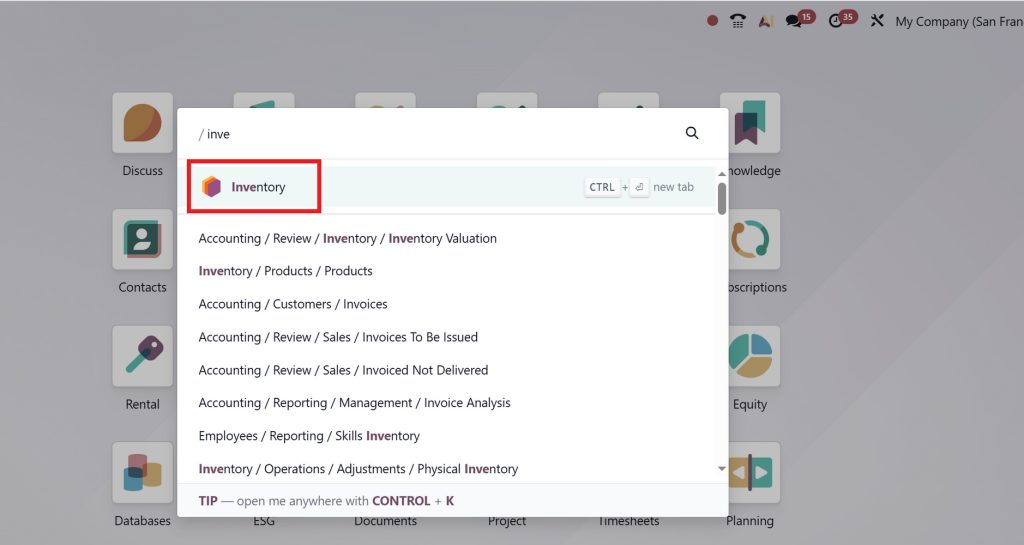
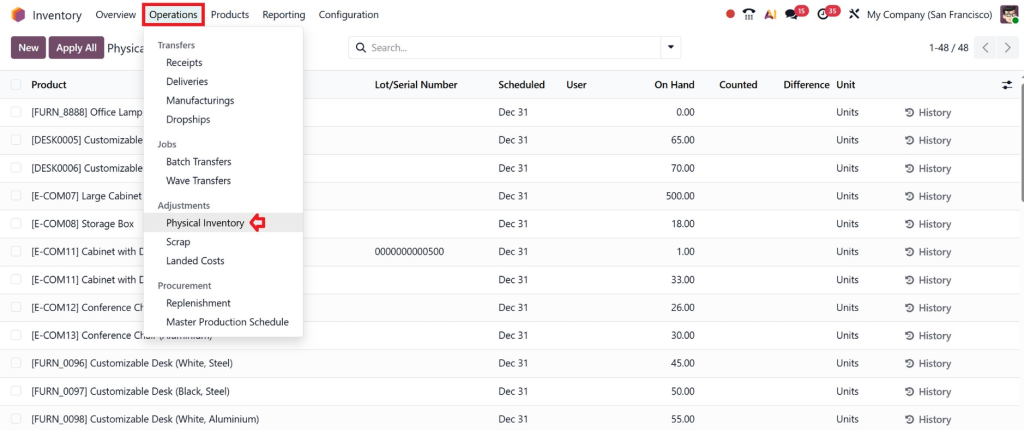
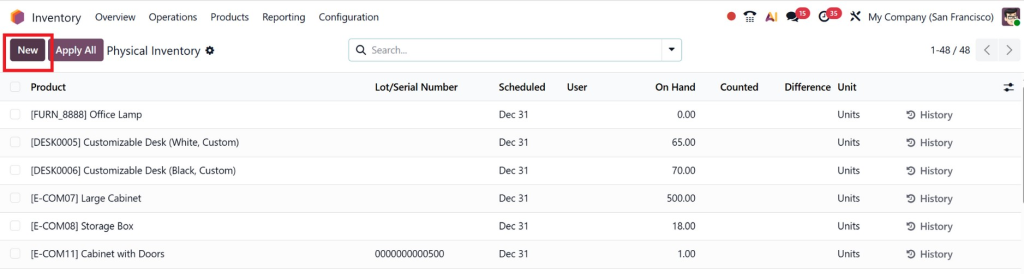
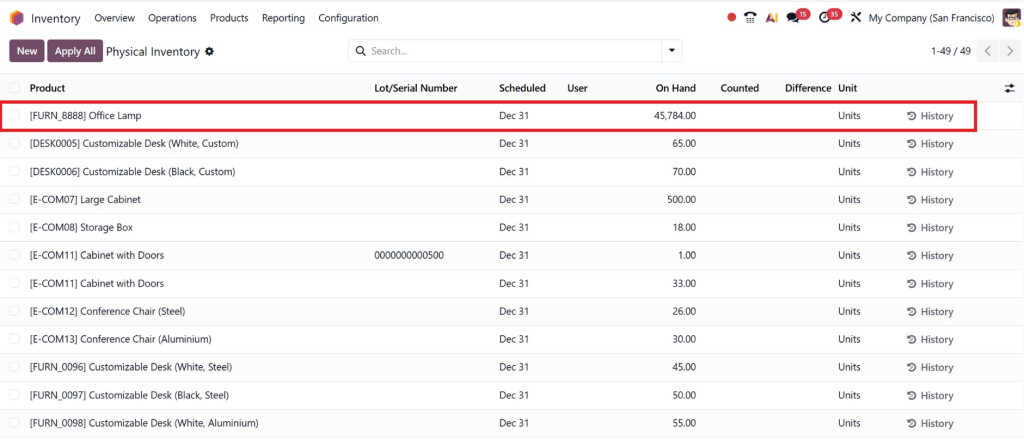
Navigate to Operations → Inventory Adjustments → Physical Inventory.
Click Create to initiate a new inventory adjustment.
You can select products individually or by category and define the location where the adjustment will take place.
Pro Tip: Plan adjustments during low-activity hours to reduce disruption in warehouse operations.
Odoo 19 Inventory Adjustment Account Setup
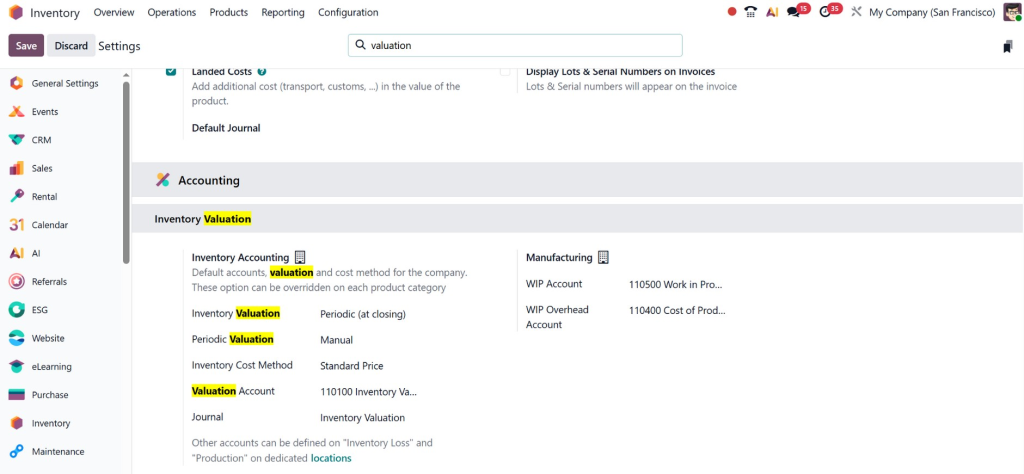
Before adjusting inventory, set up proper accounting. Odoo 19 inventory adjustment account setup ensures that every stock change reflects correctly in your financial statements.
Steps:
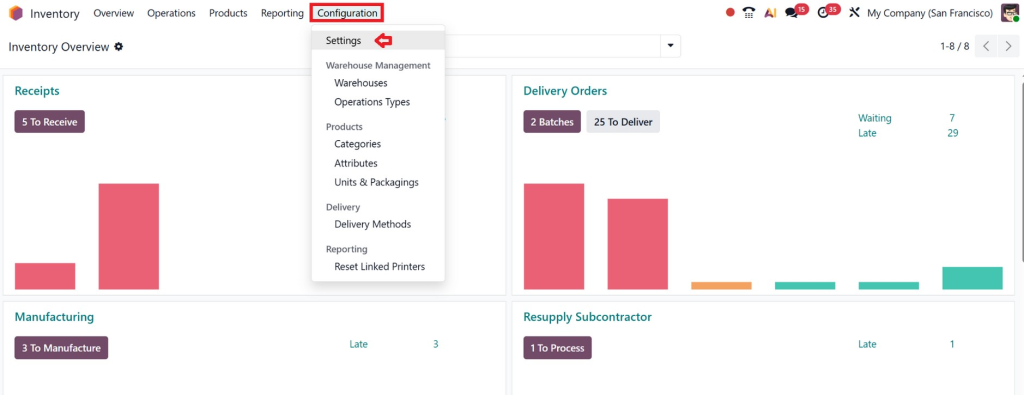
Go to Inventory → Configuration → Settings.
Enable Valuation & Accounting.
Assign an Inventory Adjustment Account.
Map products to their correct valuation accounts.
Example: When stock decreases due to theft or damage, Odoo automatically updates the inventory account, preventing discrepancies in financial reporting.
Proper account setup is vital for accurate reporting, and it’s a key step in any Odoo 19 inventory adjustment tutorial.
Physical Inventory Adjustments
Performing a physical inventory is one of the most important steps in how to perform inventory adjustments in Odoo 19.
Steps:
Click Create under Inventory Adjustments.
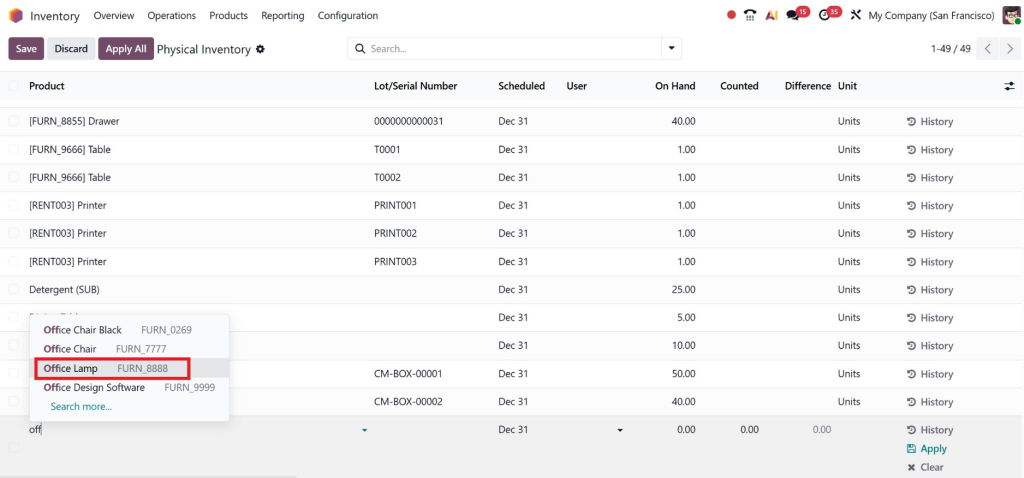
Select products or categories.
Choose the warehouse or location.
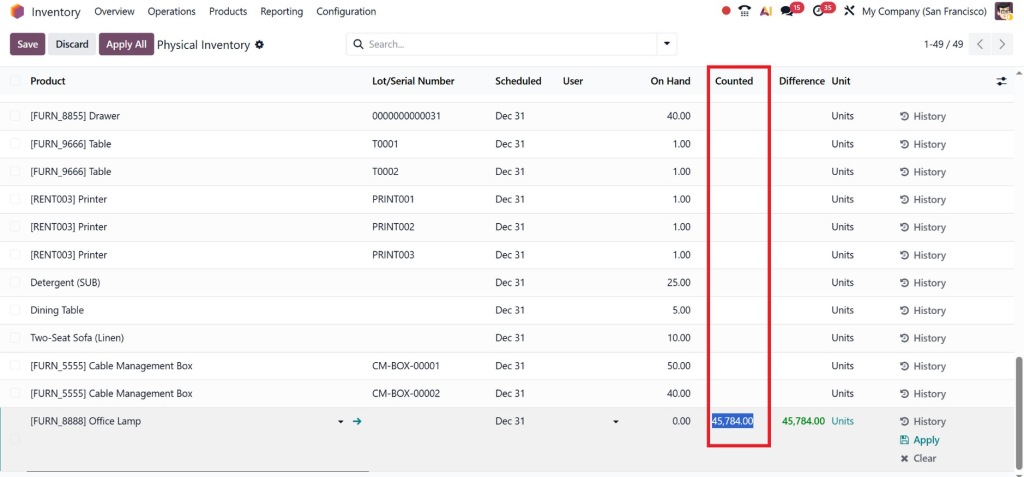
Enter the counted quantity.
Validate the adjustment.
Real-World Scenario: A warehouse receives new stock shipments but finds some items missing. By performing a physical inventory adjustment, the system reflects accurate quantities, helping managers reorder missing items promptly.
Using Virtual Locations
Odoo 19 inventory adjustment virtual locations allow businesses to manage inventory in transit, staging areas, or reserved stock.
Example: A product shipped from a supplier is in transit. Using a virtual location, you can adjust its inventory in Odoo 19 without waiting for a physical receipt, improving planning and reporting.
Virtual locations also simplify Odoo 19 inventory adjustment bulk update for businesses with multiple warehouses.
Bulk Updates in Odoo 19
Odoo 19 inventory adjustment bulk update is ideal for businesses managing large inventories.
Steps:
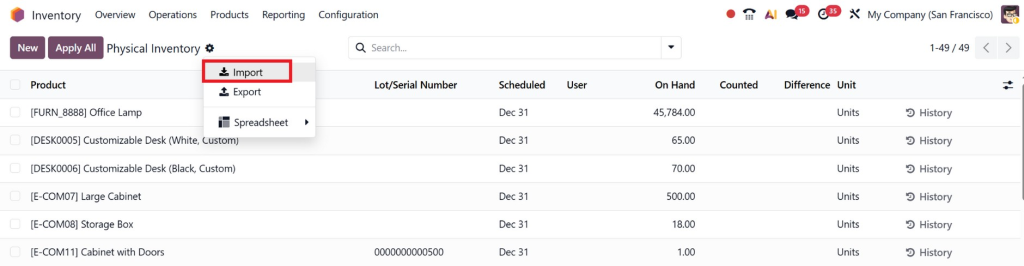
Export the inventory list to Excel or CSV.
Update quantities or locations in the spreadsheet.
Import the updated file back into Odoo 19.
Validate the adjustment.
Pro Tip: Bulk updates save hours of manual data entry and ensure consistency across multiple warehouses.
This process is a crucial part of how to perform inventory adjustments in Odoo 19 for large-scale operations.
Automating Cycle Counts
Cycle counts are smaller, frequent inventories that ensure continuous accuracy. Odoo 19 inventory adjustment cycle count automation simplifies this process.
Business Example: A pharmacy uses automated cycle counts for high-value medications, reducing losses due to expired or misplaced stock.
Cycle counts reduce errors and prevent costly stock discrepancies, making them a must in the Odoo 19 inventory adjustment tutorial.
Industry-Specific Use Cases
Retail:
Adjust seasonal stock for promotions.
Use bulk updates during sales.
Manufacturing:
Track raw materials in production.
Use virtual locations for in-progress goods.
E-commerce:
Handle multiple warehouses efficiently.
Use cycle counts to prevent overselling.
These examples show how to perform inventory adjustments in Odoo 19, which is relevant across industries.
Common Mistakes to Avoid
Even with Odoo 19, errors can occur. Avoid these pitfalls:
Skipping inventory account setup
Ignoring virtual locations
Not validating bulk updates
Manual counting without documentation
Failing to automate cycle counts
Correcting these mistakes ensures accuracy and smooth operations.
Best Practices for Inventory Adjustments
To maximize efficiency and accuracy:
Schedule regular adjustments – monthly, quarterly, or as needed.
Leverage cycle count automation – continuous accuracy without disruptions.
Validate each adjustment – avoid unapproved changes.
Use virtual locations for complex logistics scenarios.
Document adjustments – ensure compliance and transparency.
Train your team – ensure everyone understands the Odoo 19 inventory adjustment tutorial steps.
Analyze historical data – identify patterns in stock discrepancies.
Benefits of Mastering Inventory Adjustments in Odoo 19
When businesses understand how to perform inventory adjustments in Odoo 19, they benefit from:
Accurate stock levels
Reduced operational costs
Faster order fulfillment
Improved reporting and audit compliance
Optimized warehouse efficiency
Case Study: A retail chain reduced stock discrepancies by 70% after implementing Odoo 19 inventory adjustments, saving $50,000 annually in lost sales and overstocking.
Facilitate Your Business with Odoo 19
Mastering how to perform inventory adjustments in Odoo 19 ensures operational efficiency, accurate financial reporting, and better decision-making.
With Odoo 19 inventory adjustment account setup, virtual locations, bulk updates, and cycle count automation, businesses can maintain stock accuracy effortlessly.
Partnering with Netilligence allows you to implement these best practices professionally. Our team ensures that your Odoo 19 setup is optimized for your unique business needs, helping you save time, reduce errors, and enhance profitability.
Final Tip: Treat inventory adjustments not as a task but as a strategic tool. Accurate inventory leads to smarter business decisions and sustainable growth.
Hi, I'm Nabia, an Odoo ERP functional & technical content writer. I specialize in blogs, social media content, ad copy, landing pages, service pages, and email campaigns.
We use cookies to ensure that we give you the best experience on our website. If you continue to use this site we will assume that you are happy with it.