Flutter has quickly become an effective cross-platform framework, yet developers often encounter issues when using Android Studio. One such issue occurs when Android Studio does not display errors in Flutter projects resulting in confusion and wasted time for developers. We will explore this cause further here before offering practical solutions to restore your development environment back on track.
1. Check Your Flutter SDK Installation
First, ensure that your Flutter SDK is correctly installed and configured in Android Studio:
- Open Android Studio and go to File > Settings > Languages & Frameworks > Flutter.
- Verify the Flutter SDK path. If it’s incorrect, update it to the correct location where Flutter is installed.
2. Update Flutter and Dart Plugins
Outdated plugins can cause issues. Make sure both the Flutter and Dart plugins are up to date:
- Go to File > Settings > Plugins.
- Search for Flutter and Dart, and update them if necessary.
3. Invalidate Caches and Restart
Sometimes, Android Studio’s cache may become corrupted, leading to unexpected behavior. You can resolve this by:
- Clicking on File > Invalidate Caches / Restart.
- Select Invalidate and Restart. This will clear the cache and restart Android Studio.
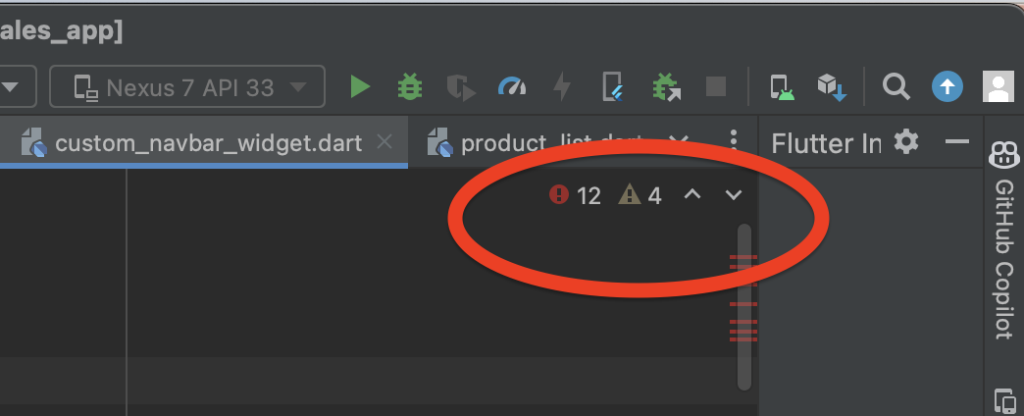
Today we will learn this solution that how you can see errors of your flutter project in Android studio if it’s not coming by default.
So, let’s begin.
First of all, open your project in Android Studio. Then click on Dart Analysis positioned at the bottom of Android Studio.

After clicking, a window will expand like below.
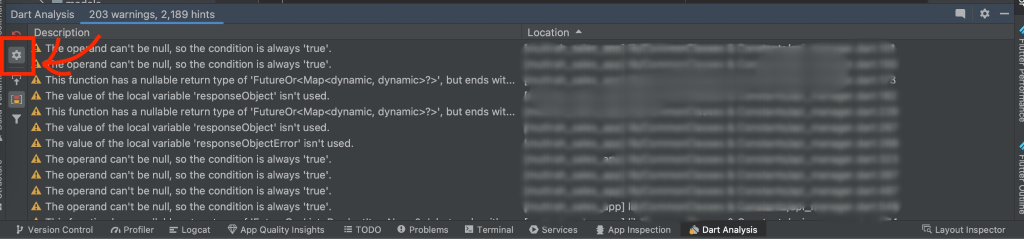
Now, in that window click the settings icon positioned on the left side of that window. Follow above image’s marked area.
next, click checkBox “Scope Analysis to the current package”
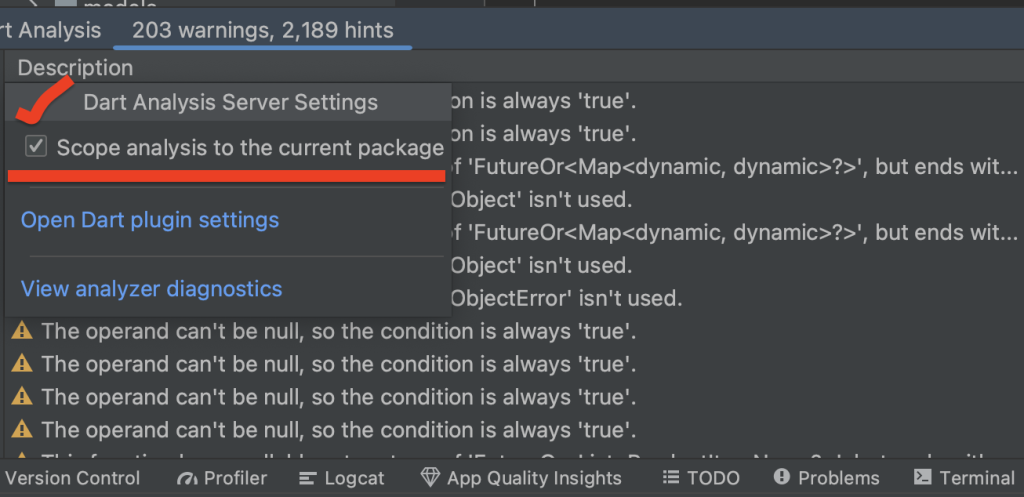
That’s it. Now, Android Studio’s gonna show all the warnings and errors of this project.
Enhancing Your Flutter Development Experience
Addressing error visibility issues in Android Studio is key to improving your Flutter development experience. By following the outlined steps—checking your SDK installation, updating plugins, using Dart Analysis, and running diagnostics—you can quickly identify and fix problems. This approach saves time and helps you maintain a smooth workflow. With a properly set up environment, you can focus on building great apps.