Running out of stock is a common challenge for businesses, but it doesn’t need to be seen as a reason for customer loss. Thanks to Odoo 18’s manage backorders capabilities, stock shortages can turn into opportunities by efficiently overseeing backorders and guaranteeing customer satisfaction. From partial delivery handling capabilities through split delivery orders – Odoo 18 offers tools designed specifically to streamline order fulfillment processes.
In this blog, we’ll explore how Odoo 18 inventory management can help you handle backorders effectively, reduce delays, and maintain smooth operations. By the end, you’ll have a clear understanding of how to use Odoo 18 stock shortage solutions to keep your business running seamlessly.
What Are Backorders and Why Do They Matter?
Backorders occur when customers place an order for an out-of-stock product. Instead of canceling it immediately, businesses can fulfill it once their stock replenishes and continue processing orders instead of canceling them immediately. Backorders may indicate high demand for particular products; their effective management can prevent customer dissatisfaction and operational delays.
Odoo 18 backorder management provides an efficient way of handling backorders, helping ensure customers receive their orders quickly while building trusting relationships with them.
Key Features of Odoo 18 for Backorder Management
Partial Delivery Handling
Odoo 18 inventory management stands out from its competition with its ability to accommodate partial deliveries, meaning you can ship out available items immediately and fulfill any remaining orders once all stock arrives.
– How It Works: Odoo 18 automatically divides an order into partial deliveries depending on stock availability.
– Customer Communication: The system can notify customers about the partial delivery and expected timelines for the remaining items.
Split Delivery Orders
Sometimes, it’s more efficient to split an order into multiple shipments. Odoo 18 split delivery orders allow you to do this seamlessly.
– Flexible Shipping: Split orders according to product availability, shipping locations or customer preferences.
– Cost Efficiency: Cut shipping costs by grouping items together strategically.
Automated Backorder Creation
With Odoo 18 backorder management, backorders are created automatically when stock levels are insufficient to fulfill an order.
– Real-Time Updates: The system updates backorders in real-time as stock levels change.
– Prioritization: Prioritize backorders based on customer importance, order date, or other criteria.
Stock Shortage Solutions
Odoo 18 stock shortage solutions help you address stock shortages proactively.
-Reorder Points: Set Reorder Points to automatically restock when inventory levels fall.
-Supplier Coordination: Coordinate with suppliers in order to expedite deliveries and minimize delays.
Enhanced Order Fulfillment Process
Odoo 18 order fulfillment process ensures that backorders are integrated seamlessly into your workflow.
– Order Tracking: Track backorders from creation to fulfillment.
– Customer Notifications: Keep customers informed about their order status through automated notifications.
Step-by-Step Guide to Managing Backorders in Odoo 18
Step 1: Enable Backorder Management
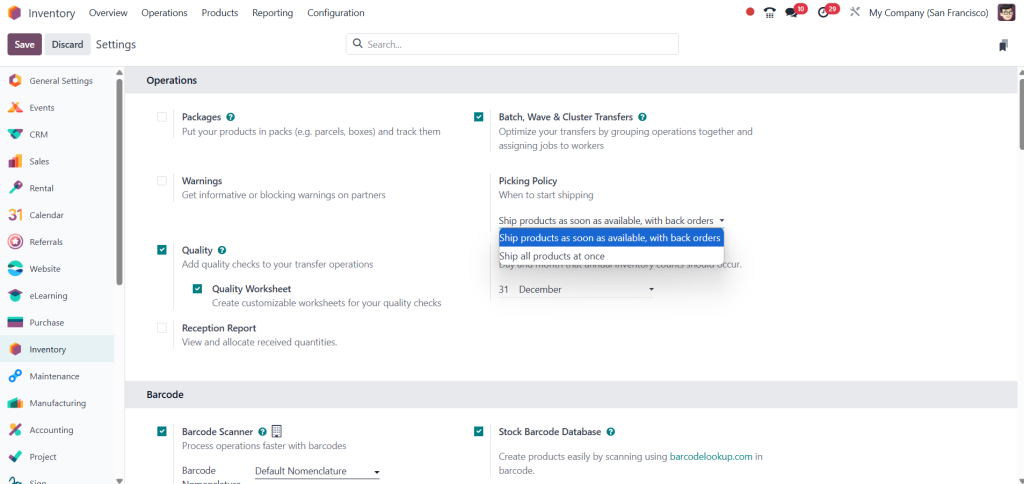
Before you can manage backorders, you need to enable the feature in Odoo 18.
- Go to Inventory > Configuration > Settings.
- Enable Backorder Management.
- Save the settings.
Step 2: Set Up Reorder Points
To avoid frequent backorders, set up reorder points to trigger automatic restocking.
- Go to Purchase module > create a purchase order .
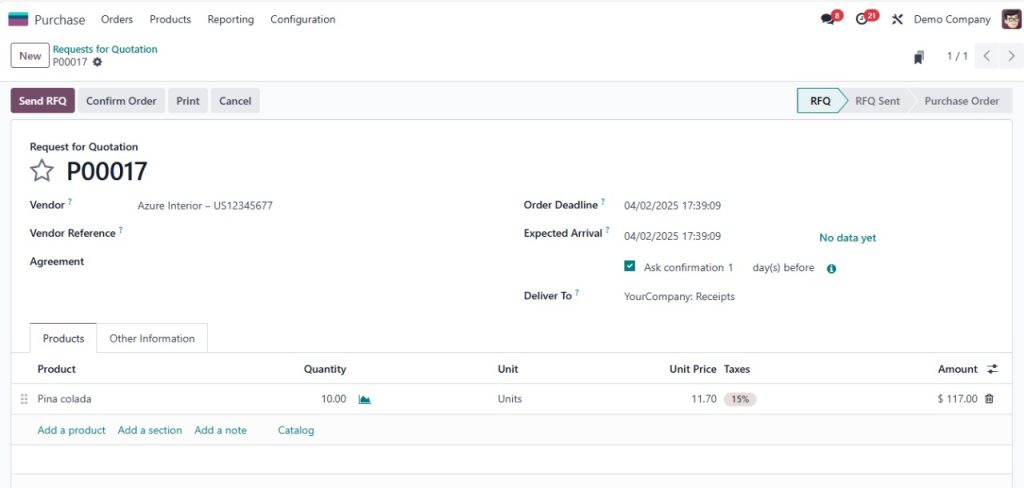
2. Create a new purchase for product.
3. Specify the minimum and maximum stock levels.
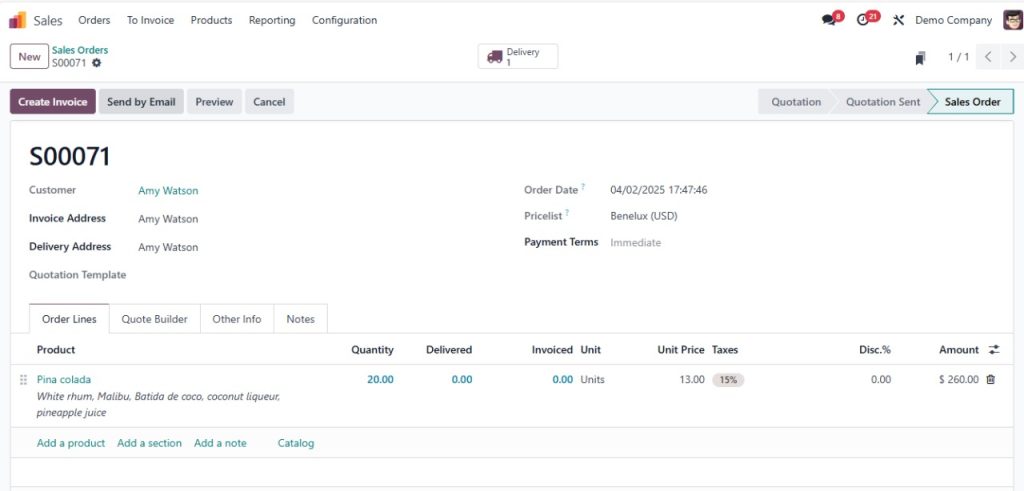
Step 3: Handle Partial Deliveries
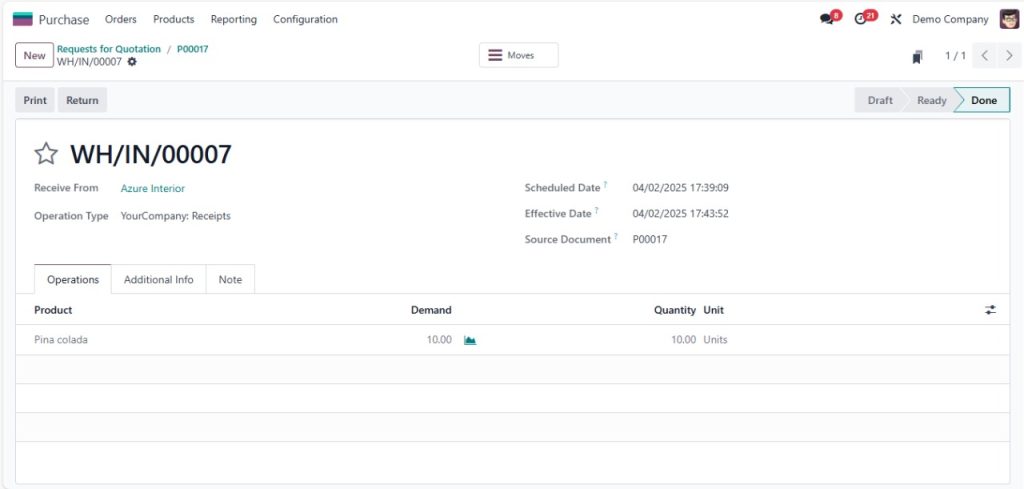
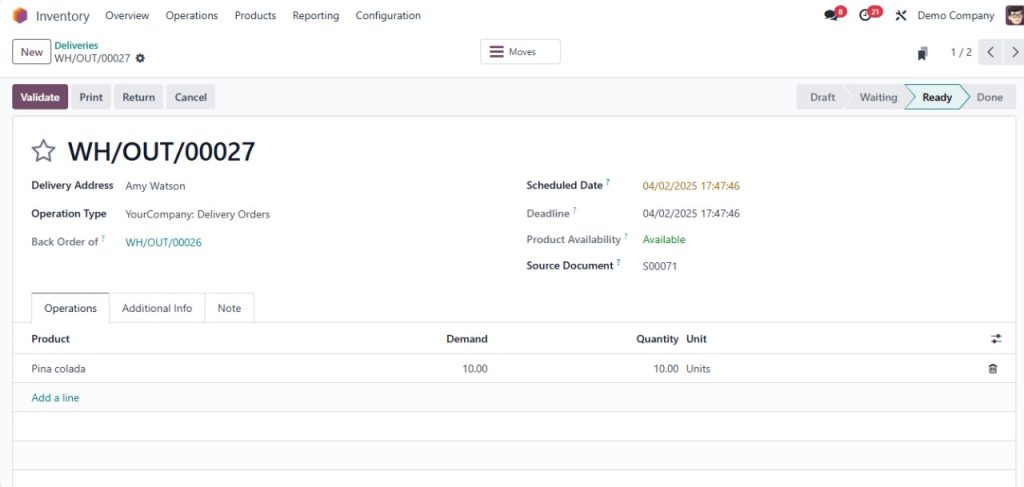
When an order cannot be fully fulfilled, Odoo 18 automatically creates a partial delivery.
- Go to Sales > Orders.
- Select the order and click on Deliver.
- Confirm the partial delivery and notify the customer.
Step 4: Monitor Backorders
Keep track of backorders to ensure timely fulfillment.
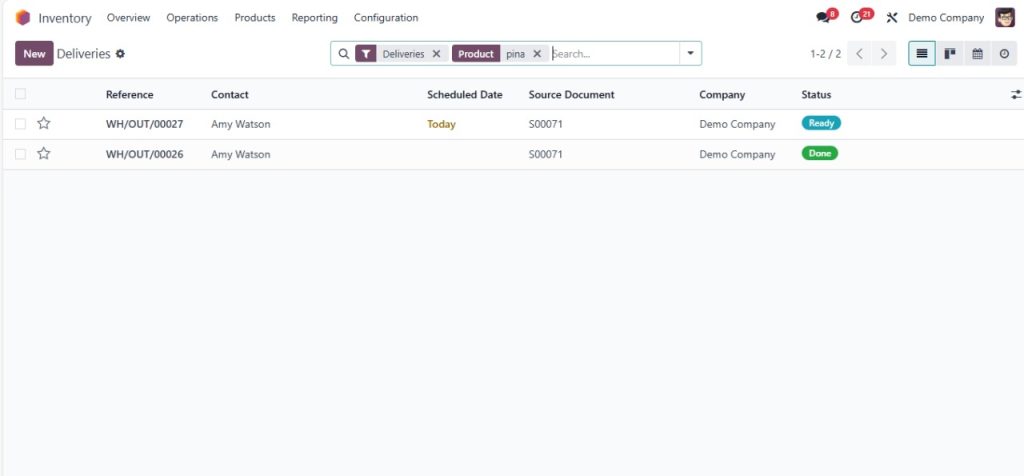
- Go to Inventory > Backorders.
- Review the list of backorders and prioritize them as needed.
- Update customers on the status of their orders.
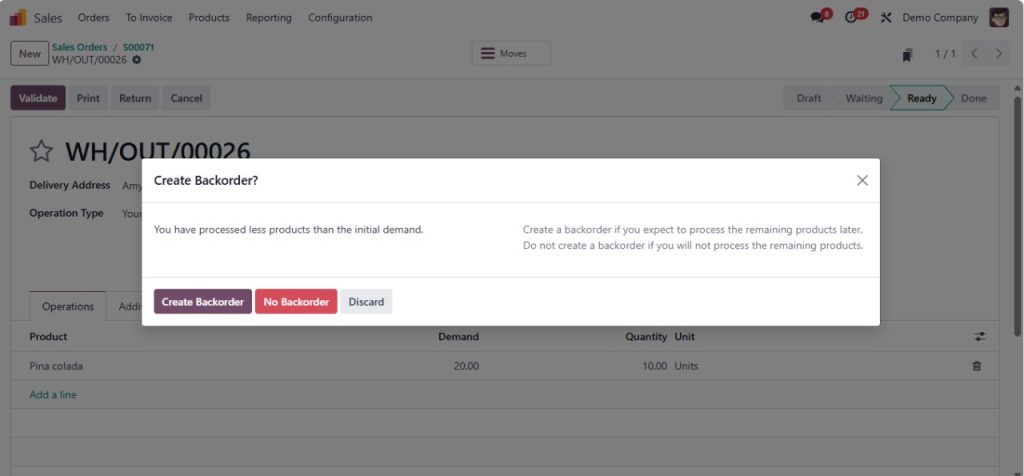
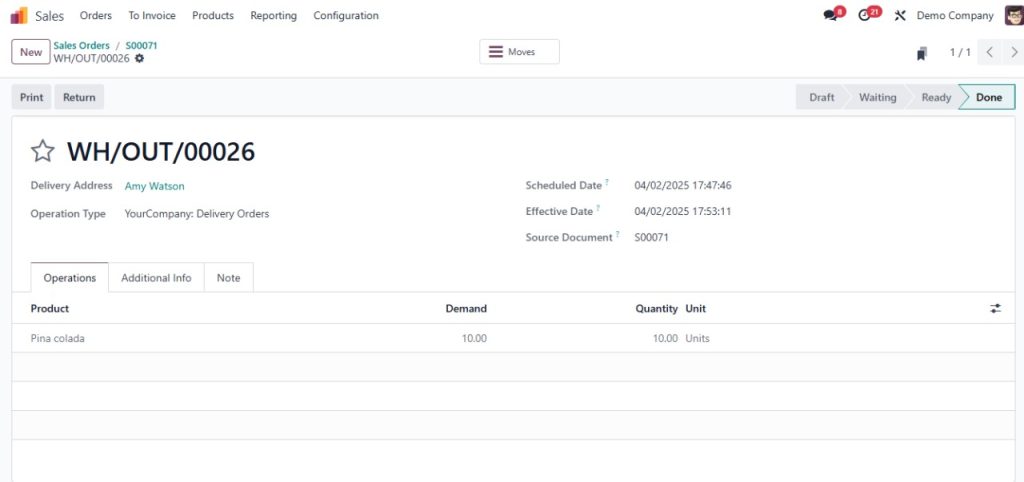
Step 5: Fulfill Backorders
Once stock is replenished, fulfill the backorders promptly.
- Go to Inventory > Backorders.
- Select the backorder and click on Fulfill.
- Confirm the delivery and notify the customer.
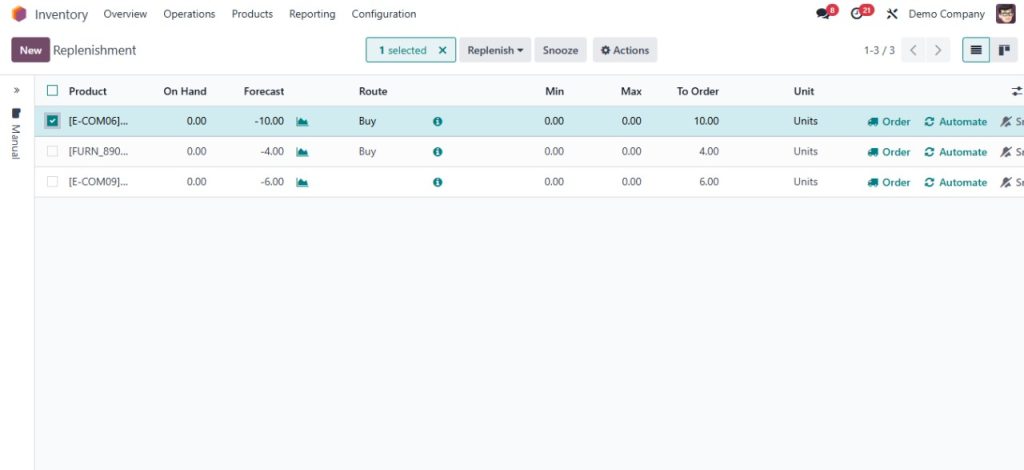
Benefits of Using Odoo 18 for Backorder Management
- Improved Customer Satisfaction: Keep customers informed and deliver orders as soon as possible.
- Operational Efficiency: Streamline the order fulfillment process and reduce delays.
- Cost Savings: Optimize shipping and inventory management to reduce costs.
- Proactive Stock Management: Avoid stock shortages with reorder points and supplier coordination.
- Scalability: Handle increasing order volumes without compromising efficiency.
Efficient Your Backorder Process with Odoo 18
Managing backorders doesn’t have to be a headache. With Odoo 18 backorder management, you can handle stock shortages efficiently, keep customers informed, and maintain smooth operations. From partial delivery handling to split delivery orders, Odoo 18 provides the tools you need to stay ahead of the game.