
Managing tasks can become overwhelming, especially when some of them happen repeatedly. If you’ve ever wished that Odoo could remember and create your repeating tasks without you doing it each time, then you’re going to love this blog. We’re about to talk about how you can set recurring tasks in Odoo 18 Projects and make your work-life simpler, smoother, and more productive.
Just think about those tasks that come up every Monday morning: weekly meetings, progress reports, daily standups, client check-ins, or even monthly reviews. It can be an annoyance to create these tasks manually every time. But what if you could make Odoo do it for you? That’s where the might of Odoo 18 recurring functions arrives. With a few smart settings and clicks, you can automate your projects and give your team more time to focus on real work.
If you’re someone who values efficiency or wants to save time by avoiding repetitive tasks, stick with us. In this guide, we’ll take a friendly walk through everything you need to know about the Odoo 18 project task scheduler, how to create recurring project tasks in Odoo, and the steps necessary to complete the Odoo project recurring task setup. Don’t worry, we’ll keep it simple, practical, and even a bit exciting!
Why You Need to Set Recurring Tasks in Odoo 18 Projects
In any project, there are always specific tasks that keep showing up. And if you’re doing them manually, it not only wastes time but also increases the chances of forgetting something important. That’s why learning how to set recurring tasks in Odoo 18 Projects is a turning point. It saves you from repetitive work, helps keep your team organized, and keeps the whole project moving like a well-oiled machine.
Odoo 18 provides the tools to automate tasks of this nature. So instead of reminding yourself every Friday to create the next task, Odoo will take care of it. And the best part? Once it’s set up, you don’t have to worry about it again. That’s the strength of Odoo 18 recurring tasks; they make things happen without you having to lift a finger every time.
Understanding the Odoo 18 Project Task Scheduler
The real thing happens with the Odoo 18 project task scheduler. This feature is like your personal assistant inside Odoo. It helps schedule when and how tasks will be created. With this scheduler, you can control whether a task repeats daily, weekly, monthly, or even yearly. You can also set up precisely what should happen when a task is created, like assigning it to a specific user, adding a deadline, or moving it to a particular stage of the project.
This level of control gives you the freedom to design the ideal work process for your team. Let’s say you run a marketing team and you have a weekly email campaign. Instead of manually creating the task every week, set it up once using the Odoo 18 project task scheduler and let Odoo handle the rest. It’s all about working smarter, not harder.
Create Recurring Project Tasks in Odoo Without Stress
The actual process to create recurring project tasks in Odoo is surprisingly simple once you know how. First, you need a “template” task. This is a standard task that includes basic details such as title, description, assignee, and project name. This template is what Odoo will copy repeatedly based on your schedule.
Once your template task is ready, you proceed to automation. This is done using Odoo’s built-in tools like Automated Actions and Scheduled Actions (also known as crons). These tools tell Odoo what to do and when to do it. For example, you can say: “Every Monday at 9 a.m., create a new task using this template.” It’s that easy.
Once you’ve done this setup, you’re officially automating. You’ve successfully managed to create recurring project tasks in Odoo, and now you’ve got one less thing to worry about every week.
Odoo Project Recurring Task Setup That Works for You
The process of setting up recurring tasks in Odoo projects might sound technical, but it’s really about breaking things down into small, manageable steps. First, make sure that you have developer mode enabled in your Odoo settings. Don’t let the name scare you; it simply grants access to some additional features that are incredibly useful for automation.
Next, create an Automated Action that tells Odoo to make a new task based on your template. You can set the conditions, like how often the task should be repeated and what information should be included. Once your action is created, link it to a Scheduled Action. This is like the clock that keeps track of when the task should be made.
What’s great is that this setup is flexible. Need a task every 2 days? Done. Every 1st of the month? Easy. Do you need to assign it to a different person each time? You can do that too with a bit of logic in the action. The Odoo project recurring task setup is not just functional; it’s effective.
Step-by-Step Guide: How to Set Recurring Tasks in Odoo 18 Projects
Let’s go through a detailed walkthrough on how to set recurring tasks in Odoo 18 Projects from start to finish.
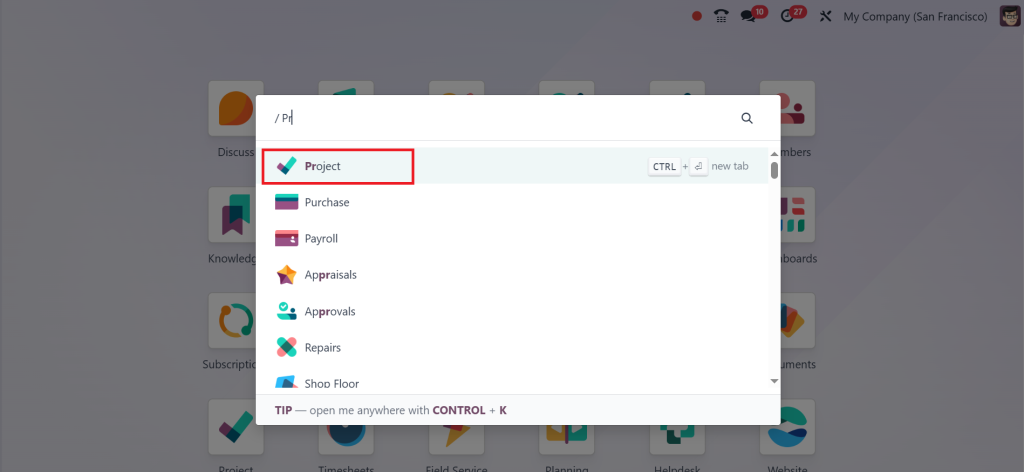
Open the Project module.
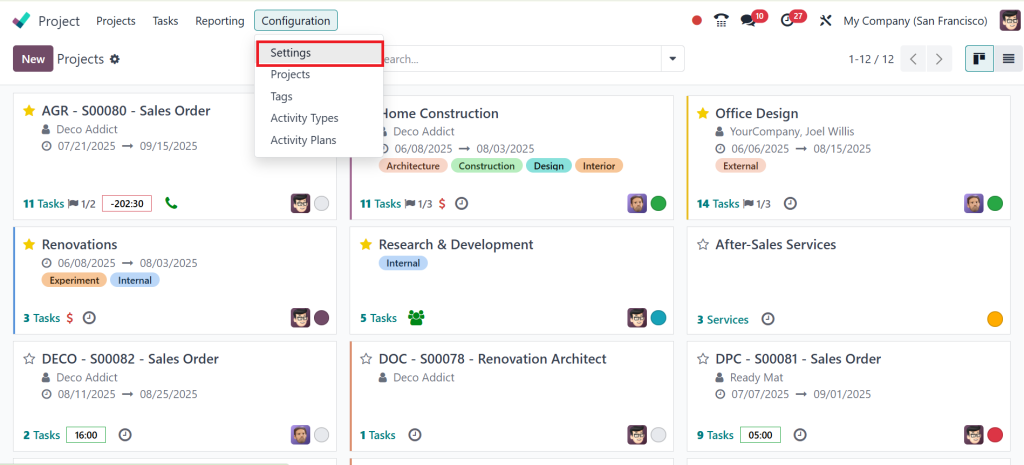
Go to Configuration > Settings.
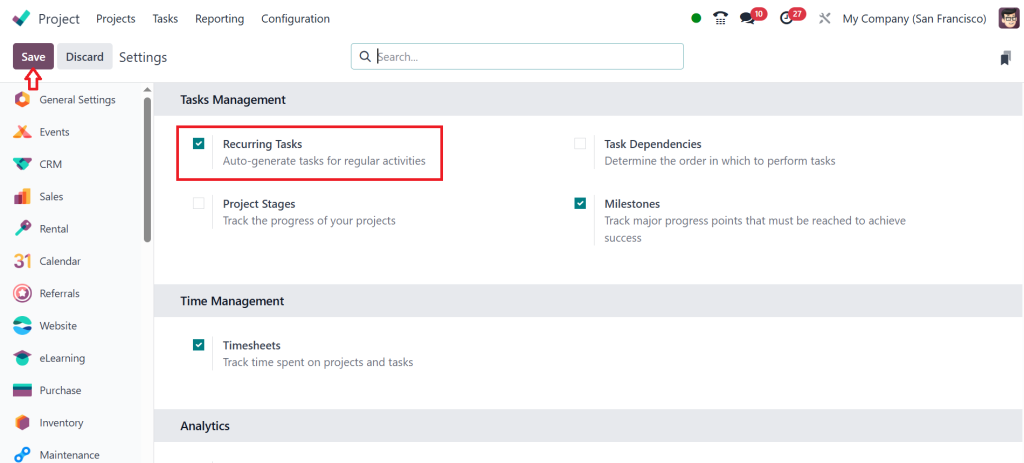
Enable Recurring Tasks and click Save.
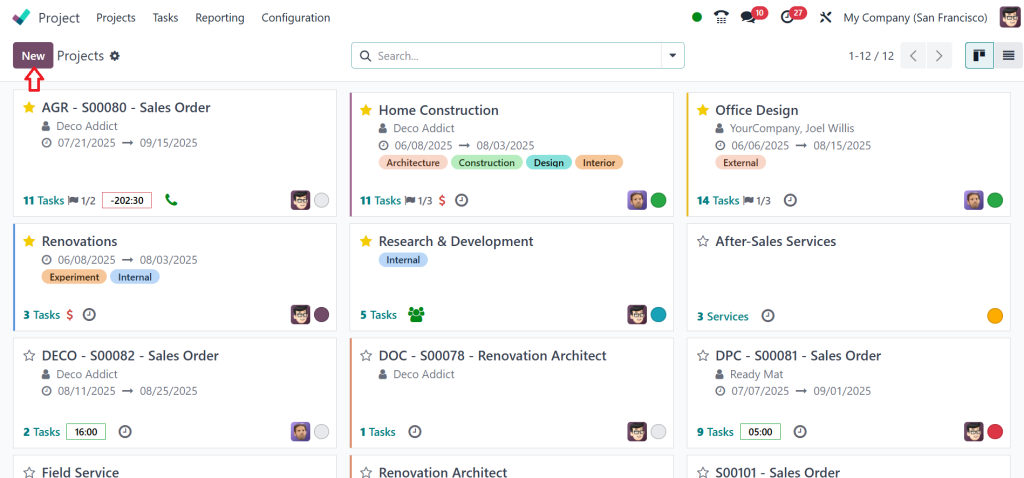
Now go back to the Projects and click New.
Add the project name and click on Create Project.
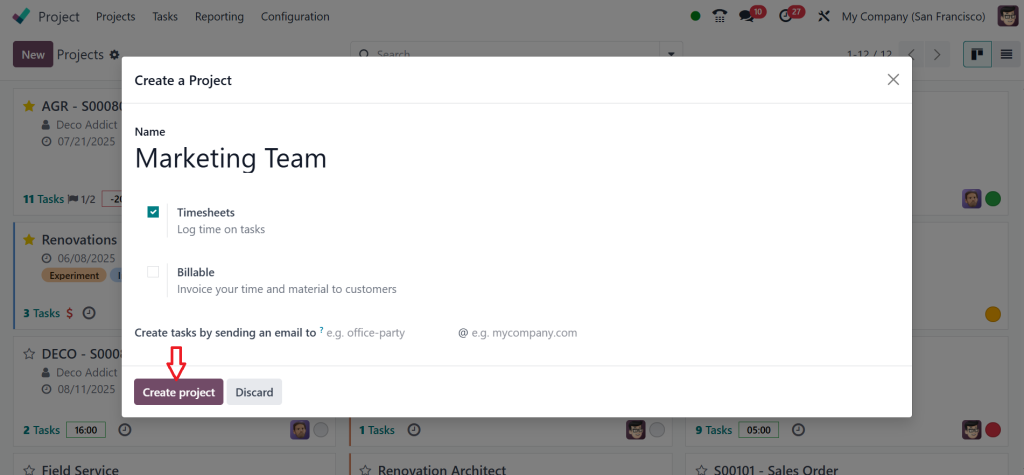
After creating a project, add the stages. Then, make a task for it by clicking on New.
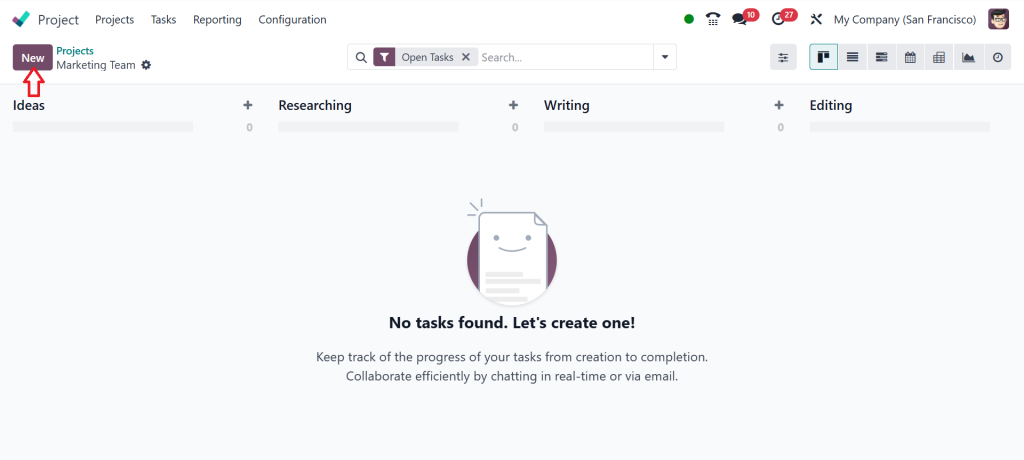
Give the task name, e.g., Weekly Report, and assign it to the particular person. Also, include the tags and deadlines. So, near the deadline, you can see the option called Recurrent click on it.

Now, you can see another two options appear. Press 1 to repeat every day. What basis can we use to categorise this data: daily, weekly, monthly, or yearly? So, this is a weekly report, so let’s give this for the Week. Here, we have two options: one is forever, and the other is until. So, we can set this for a specific period or make it permanent. So, let’s put this away Forever and click on Save.

As you can see in the screenshot below, a smart button appears which is called Recurring Tasks. That’s how easily you can create recurring tasks in the Odoo 18 Project module.
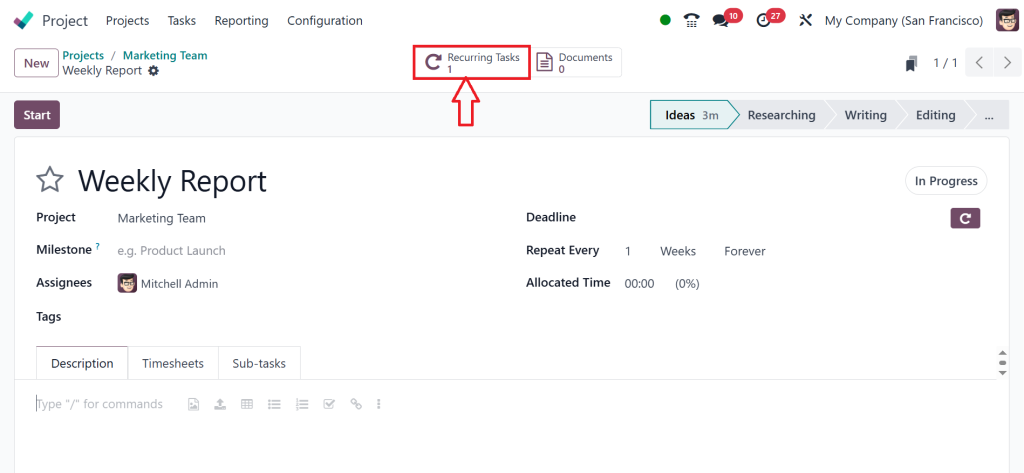
By using this method, you can efficiently schedule repeating tasks in Odoo 18 and remove the need for manual follow-ups.
How to Schedule Repeating Tasks in Odoo 18 Like a Professional
To schedule repeating tasks in Odoo 18, all you need is a bit of planning. Think about the tasks that keep coming back in your workflow. Write them down. Then ask yourself, how often do they repeat? Who handles them? What needs to be included in each task?
Once you have the answers, go back into Odoo and use Scheduled Actions to automate their creation. You can even use some simple Python code if you want more control. Don’t worry, you don’t need to be a programmer. There are examples you can follow that show you exactly how to write this code.
Suppose the joy of knowing that, following Monday, Odoo will automatically create a task for your weekly marketing meeting, assign it to the right person, and even send out notifications, all without you doing a thing. That’s what happens when you schedule repeating tasks in Odoo 18. It’s like giving your system a brain of its own.
Odoo 18 Automate Project Tasks for Better Workflow
The ultimate goal is to automate project tasks in Odoo 18, allowing you and your team to focus on real work. Automation removes the friction from your daily workflow. No more “Did we create that task?” or “Who forgot to send the report?” Odoo handles it all, like a silent partner that never forgets and always shows up on time.
Automation also builds consistency. Each recurring task is created in the same format, with the same checklist, deadlines, and tags. This makes tracking, reporting, and team coordination significantly easier. And it doesn’t stop there. Once you’ve learned recurring tasks, you can explore more ways to automate, such as triggering emails, generating reports, or even changing project stages based on task updates.
When you start automating project tasks in Odoo 18, you’re stepping into a world where your projects feel lighter and more manageable. You’ll spend less time organizing and more time doing.
Why Businesses Love to Set Recurring Tasks in Odoo 18 Projects
The more you use Odoo, the more you realize how helpful automation can be. Businesses that learn how to set recurring tasks in Odoo 18 Projects often report better task tracking, improved accountability, and fewer missed deadlines. And that’s just the beginning.
When your team knows that their recurring tasks are created automatically, they can start each week confidently. They know what’s expected, they see the deadlines clearly, and they can plan their days more effectively. Plus, project managers get to relax a little knowing that Odoo’s taking care of the small but essential stuff.
This isn’t just about software features. It’s about working smarter. It’s about giving your team the tools they need to succeed, without drowning them in manual work. That’s the actual value of learning to set recurring tasks in Odoo 18 Projects.
The Real Impact of Using Odoo 18 Recurring Tasks in Daily Operations
The impact of Odoo 18 recurring tasks goes far beyond just saving time. It’s about building a workplace where nothing slips through the cracks. Every business, regardless of size, has tasks that must be performed regularly. From tracking inventory to updating the website, to checking financials, these tasks never go away. But with recurring tasks, they stop being a problem.
Instead of being reminders scribbled on sticky notes or forgotten emails, they become reliable processes inside your Odoo system. They’re scheduled, assigned, and executed without a second thought. This kind of reliability is what makes teams stronger and projects more predictable.
So, whether you’re a small team of five or a growing company with hundreds of tasks flying around, implementing Odoo 18 recurring tasks brings peace of mind to your operations.
Make Odoo Work for You with Recurring Task Automation
Now that you’ve seen how simple and influential it is to set recurring tasks in Odoo 18 Projects, it’s time to put it into action. Whether you start small with one weekly task or go all-in and automate your entire recurring schedule, the benefits are immediate and long-lasting.
From using the Odoo 18 project task scheduler to learning how to create recurring project tasks in Odoo, to completing a full Odoo project recurring task setup, you now have all the knowledge you need to turn Odoo into your intelligent task assistant. And once you start to schedule repeating tasks in Odoo 18, you’ll wonder how you ever managed without it.
So don’t wait. Explore, experiment, and start using the authority of Odoo 18 to automate project tasks today. Your crew will thank you, and your future self will too.
Ready to simplify your project workflows? Contact Netilligence today and let our Odoo experts help you set up smart recurring tasks that save time and boost productivity.