How to Create & Track Purchase Orders in Odoo 18 Community?
Purchase Orders in Odoo 18 Community
If you manage business procurement and are looking for a way to handle purchase orders, then getting Purchase Orders in Odoo 18 Community is essential. Odoo’s Community Edition provides potent purchase order creation, tracking, and management tools perfect for small to mid-sized businesses.
With the latest Odoo 18 purchase module improvements, businesses can experience a more refined, powerful, and intuitive purchase order workflow. This blog is your all-in-one solution to understanding how to track and create purchase orders in Odoo, highlighting key features and practical steps.
In this blog, we will explore:
How to Odoo create a purchase order in Odoo 18
How to use Odoo 18 to track purchase orders and manage them effectively
The complete Odoo purchase order workflow
Advanced Odoo purchase tracking features
Restructuring your Odoo 18 procurement process
Whether you’re a procurement officer, business owner, or Odoo enthusiast, this comprehensive Odoo purchase module tutorial will empower you to optimize your procurement process.
Understanding the Odoo 18 Purchase Order Workflow in Community Edition
The Odoo purchase order workflow starts from requisition and ends in vendor billing. Here are the main steps:
Step 1 - Create a Purchase Requisition in Odoo 18
Users can initiate a procurement need by creating a purchase requisition. This request can be internal or auto-triggered through reordering rules.
Step 2 - Vendor Selection and Request for Quotation (RFQ)
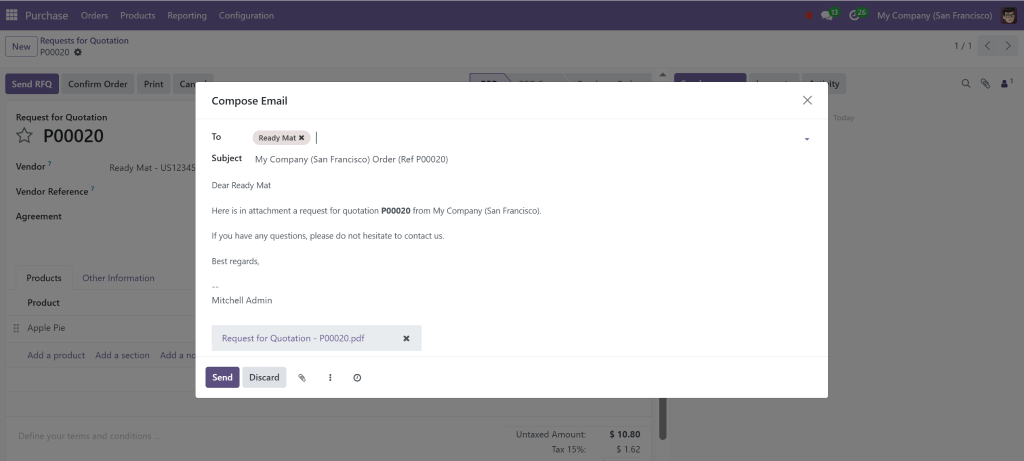
Once the requisition is approved, RFQs can be created and sent to vendors. You can manage multiple vendors and compare pricing from within the same interface.
It will automatically compose and email, which we can send.
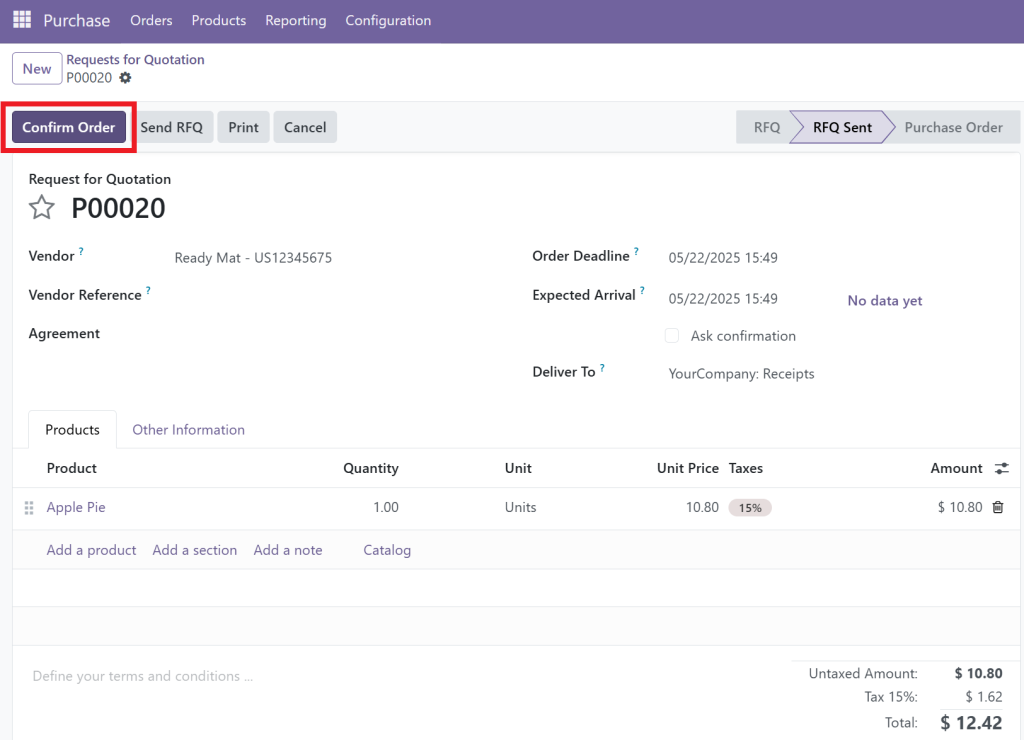
Step 3 - Confirm Purchase Order in Odoo 18 Community
After accepting a quote, confirm the purchase order. Odoo automatically converts the RFQ into a formal PO.
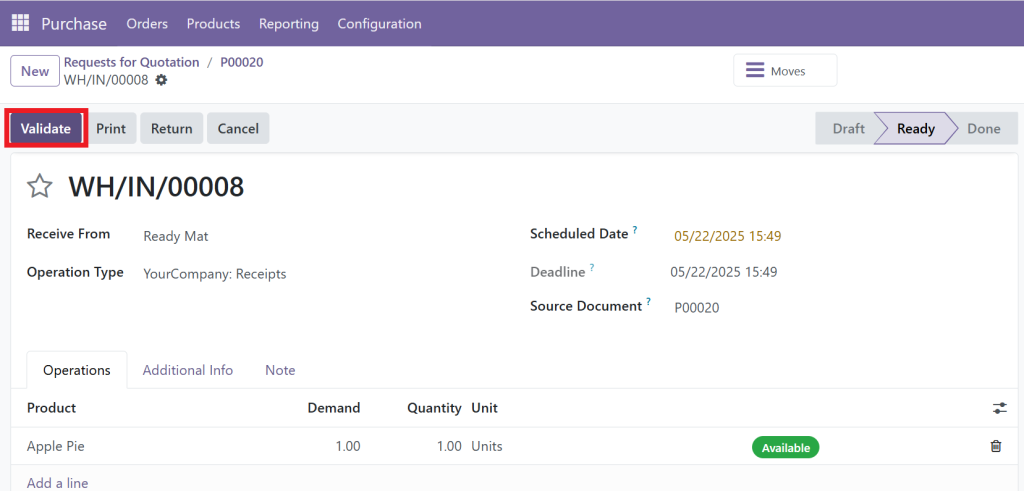
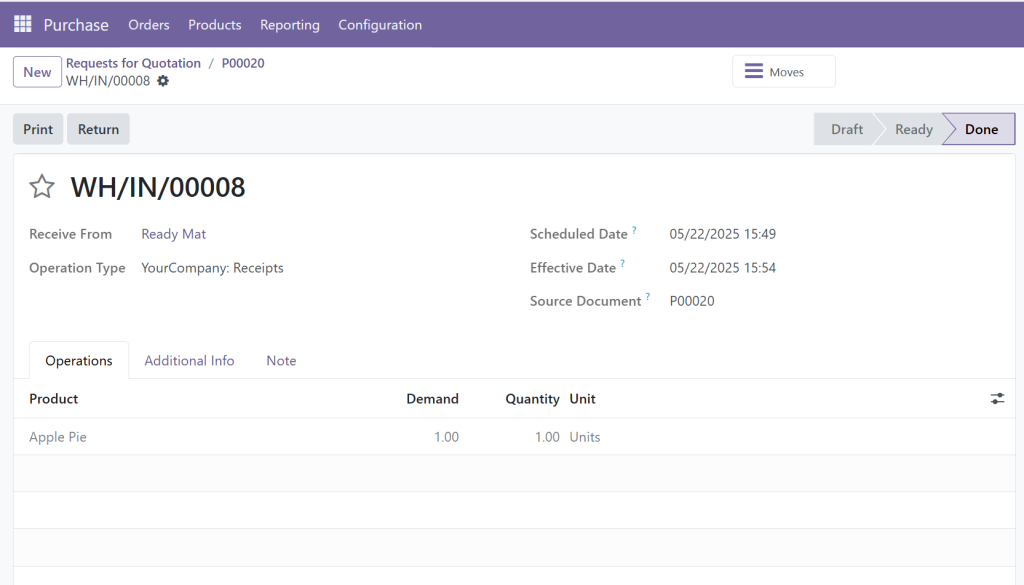
Step 4 - Receive Products and Track in Odoo
Upon delivery, you can validate the receipt of goods. Odoo updates inventory levels accordingly.
Step 5 - Vendor Billing and Payment Processing
Finally, create a vendor bill and register payment. The PO is then marked as fully processed. A complete Odoo procurement process keeps all your steps organised and auditable.
How to Odoo 18 Create Purchase Order Efficiently
Step-by-Step Guide to Odoo Create Purchase Order
Go to the Purchase Module
From the main dashboard, click on ‘Purchase’.
Create a New Request for Quotation
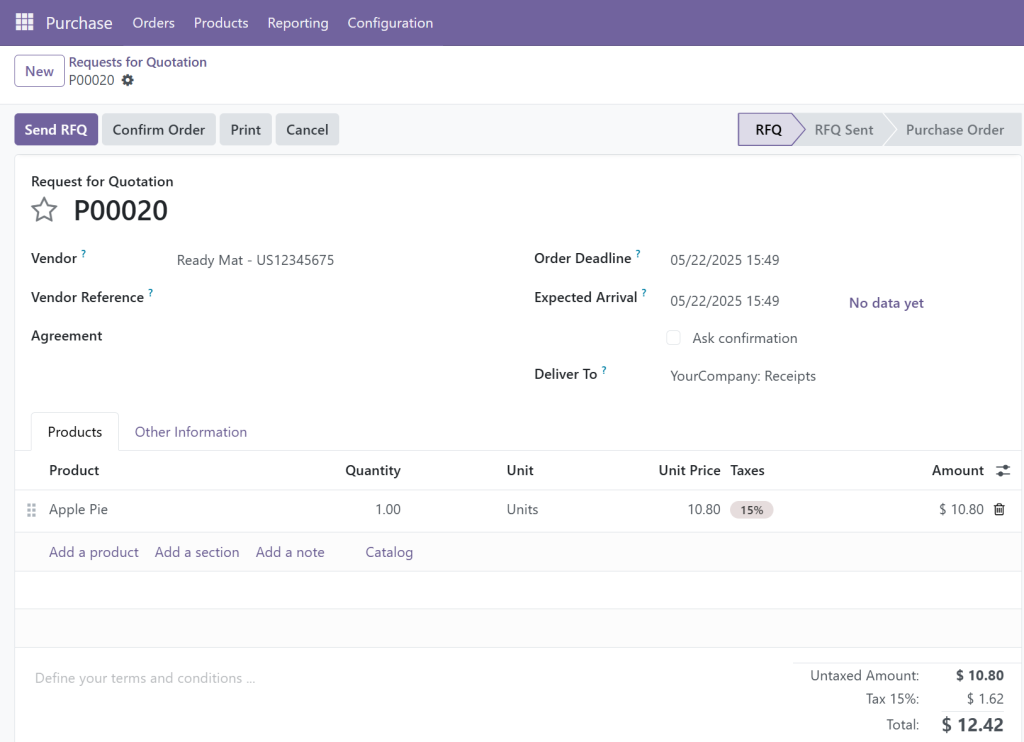
Click ‘Create’ > Fill in the vendor name, product details, and quantity.
Add Additional Order Lines
You can add multiple products, taxes, delivery dates, etc.
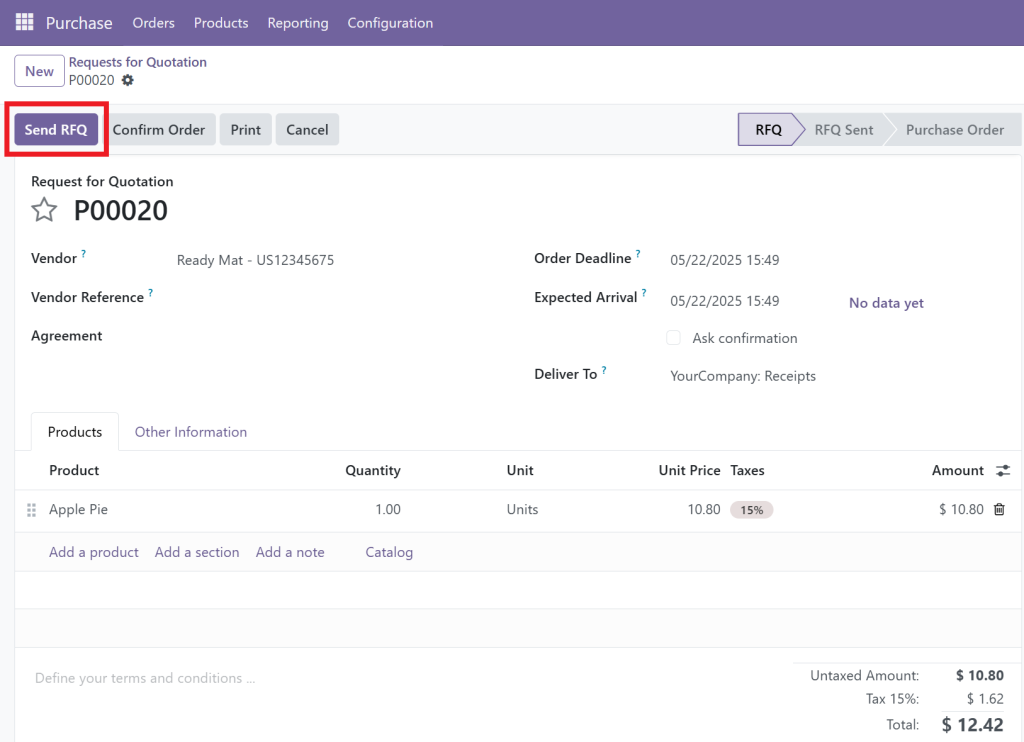
Send the RFQ
Click ‘Send by Email’ or print to send the request.
Confirm as a Purchase Order
Once confirmed, the RFQ status changes to ‘Purchase Order’.
This strong and user-friendly workflow makes it easy for Odoo to create purchase orders for any vendor.
Tip: Automate purchasing using reordering rules from the Inventory module to speed up your Odoo procurement process.
How to Use Odoo 18 to Track Purchase Orders with Precision
Keeping an eye on order status is crucial. Here’s how to Odoo track purchase orders smoothly:
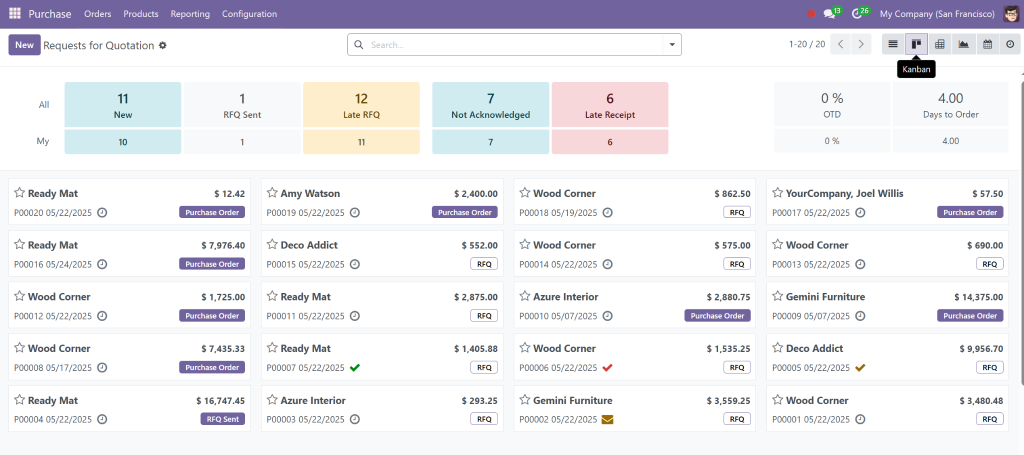
Use the Kanban View to Track Purchase Orders
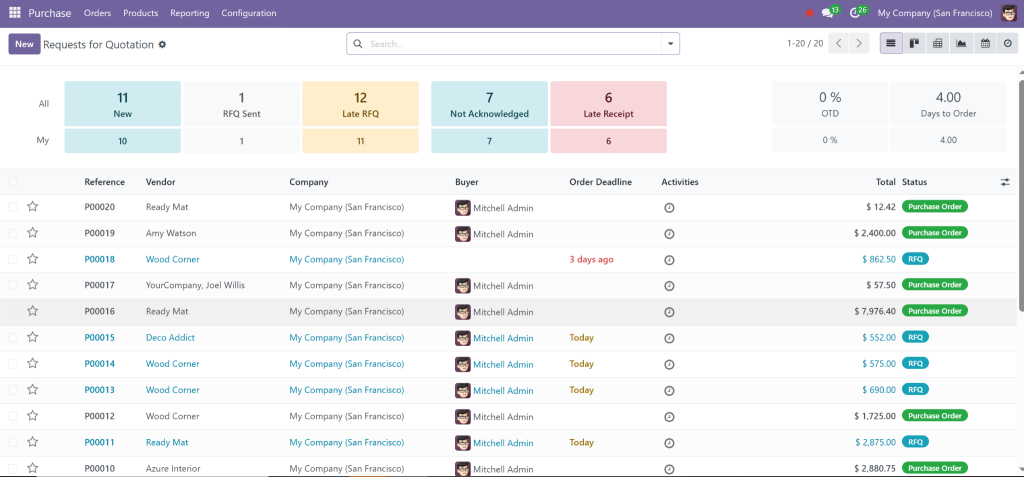
The Kanban board shows all purchase orders across stages – Draft, RFQ Sent, Purchase Order, Received, and Billed.
Access Full Order History in Odoo 18 Community
Click on any order to view complete logs, communication, and delivery status – part of the core Odoo purchase tracking features.
Evaluate Vendor Performance Over Time
Track how long vendors take to deliver and review late deliveries using Odoo purchase tracking features.
Cross-Integration with Inventory and Accounting Modules
Each PO links with inventory for stock and accounting for invoices, which are vital for smooth Odoo 18 purchase order management.
Exploring the Best of Odoo 18 Purchase Module Tutorial
The Odoo purchase module tutorial reveals incredible tools for automation and decision-making:
Smart Vendor Management with ratings
Bulk RFQ Processing and Pricing Comparison
Auto PO Generation via reordering rules
Real-Time Delivery Tracking
Approval Workflow Customisation for Budget Control
These options make your Odoo purchase order management both efficient and strategic.
Best Practices for Odoo 18 Procurement Process
Automate Orders Using Inventory Rules
Set reordering thresholds to auto-create purchase orders, a key time-saving feature in the Odoo procurement process.
Analyse Vendor Reports Regularly
Use analytics to refine vendor selections and improve your Odoo purchase order workflow.
Train Your Team on Full Odoo Purchase Module Tutorial
Empowered teams avoid bottlenecks and errors in the Odoo procurement process.
Use Internal Notes and Tags for Better Management
Organise POs using internal memos and priority tags, increasing your Odoo purchase order management.
Why Netilligence Is Your Ideal Partner for Odoo 18 Purchase Module Setup
As a top-rated Odoo Partner, Netilligence ensures perfect deployment of the Odoo 18 purchase module tutorial in your environment.
Services We Offer for Purchase Orders in Odoo 18 Community
Odoo can Create purchase order flows
Full-featured Odoo purchase order workflow setup
Custom vendor portal integration
Automated tracking and billing via Odoo purchase tracking features
Contact us today and boost your Odoo procurement process with Netilligence.
Procurement with Purchase Orders in Odoo 18 Community
Handling Purchase Orders in the Odoo Community isn’t just easier; it’s smarter. Odoo provides an end-to-end complete purchase order management solution from creation to delivery and billing.
Implementing Odoo with Netilligence means fewer errors, better vendor coordination, and faster procurement cycles. Whether you need help with Odoo to create purchase order processes or wish to improve how you Odoo track purchase orders, we’ve got your back.
Don’t just manage purchases. Optimise them with the Odoo purchase module tutorial.
Hi, I'm Nabia, an Odoo ERP functional & technical content writer. I specialize in blogs, social media content, ad copy, landing pages, service pages, and email campaigns.
We use cookies to ensure that we give you the best experience on our website. If you continue to use this site we will assume that you are happy with it.