
Managing Odoo’s 18 incoming shipments efficiently is a cornerstone of effective inventory control. Whether your business handles simple receipts or complex, multi-stage warehouse processes, Odoo 18 inventory management offers powerful features to streamline every aspect of incoming logistics.
In Odoo 18, companies benefit from highly customizable warehouse configurations, including one-step, two-step, and three-step receipt processes tailored to different operational scales. Managing Odoo 18 incoming shipments has never been more intuitive or scalable, from configuring warehouses to executing precise inventory operations.
This guide covers everything you need to know about managing Odoo’s 18 incoming shipments. It also explores essential aspects like Odoo 18 inventory operations, best practices, and warehouse strategies to help you get the most out of your ERP system.
In the following sections, we’ll explore:
- Step-by-step setup of receipt methods
- Real-world scenarios for choosing between one-step, two-step, and three-step receipts
- Tips to boost accuracy, speed, and inventory transparency
By the end, you’ll master Odoo 18 incoming shipments and elevate your warehouse performance to a new level.
Setting Up Odoo 18 Warehouse Configuration for Incoming Shipments
- Enable:
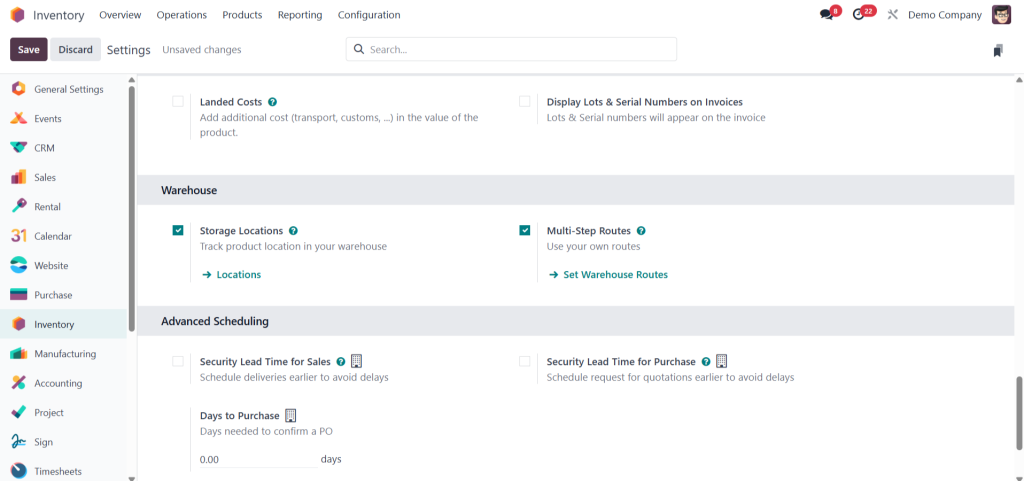
- Storage Locations
- Multi-step Routes
- Storage Locations
- Save the settings.
The first step to managing Odoo 18 incoming shipments efficiently begins with proper Odoo 18 warehouse configuration. You can define how goods should be received depending on the size and complexity of your business.
Step-by-Step Guide: Managing Incoming Shipments in Odoo 18
Step 1: Enable Required Settings
- Open the Inventory module in Odoo 18.
- Go to Configuration → Settings.
- Enable:
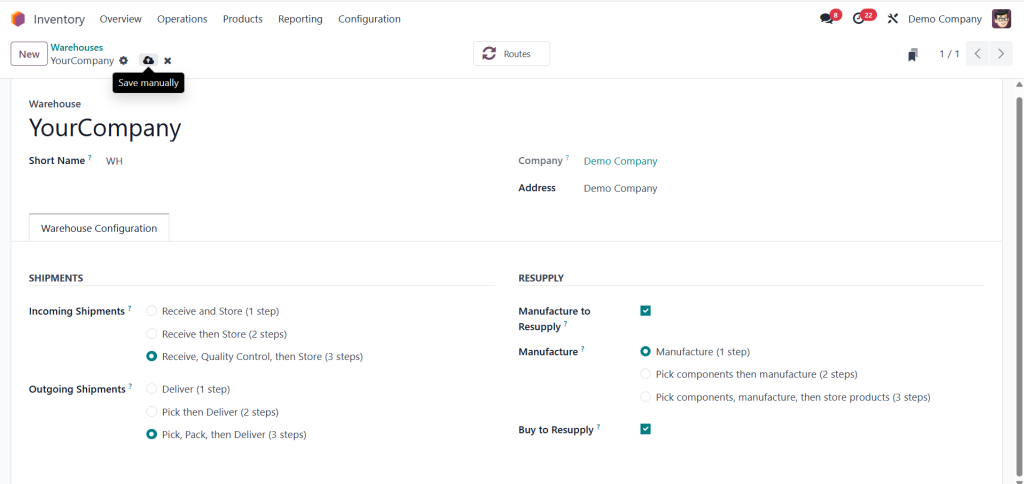
Step 2: Configure Warehouse Receipt Process
- Navigate to Configuration → Warehouses.
- Open your warehouse configuration.
- In the Shipment section, under Incoming Shipments, choose:
- Three-Step (Receive → Quality → Stock)
- Three-Step (Receive → Quality → Stock)
Save your changes.
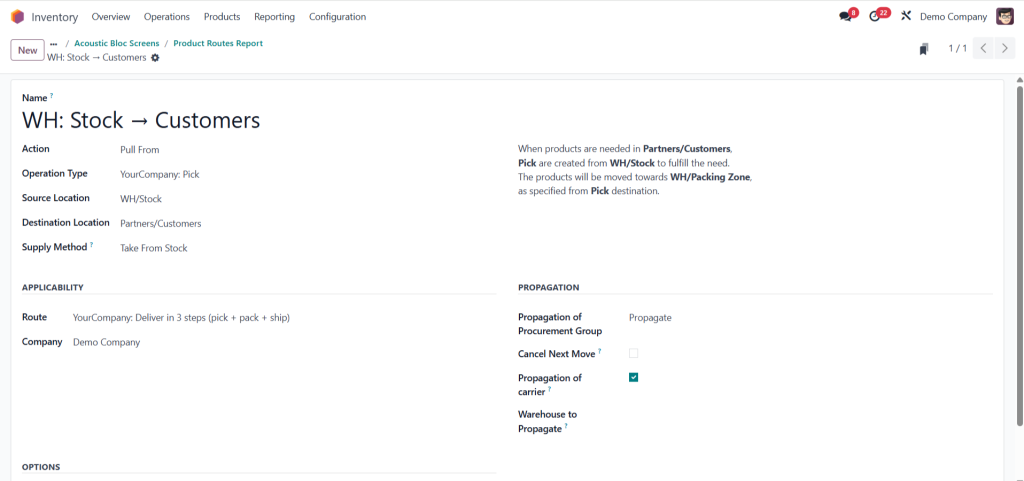
Step 3: Check out all the related product moment
- Click on Routes smart button
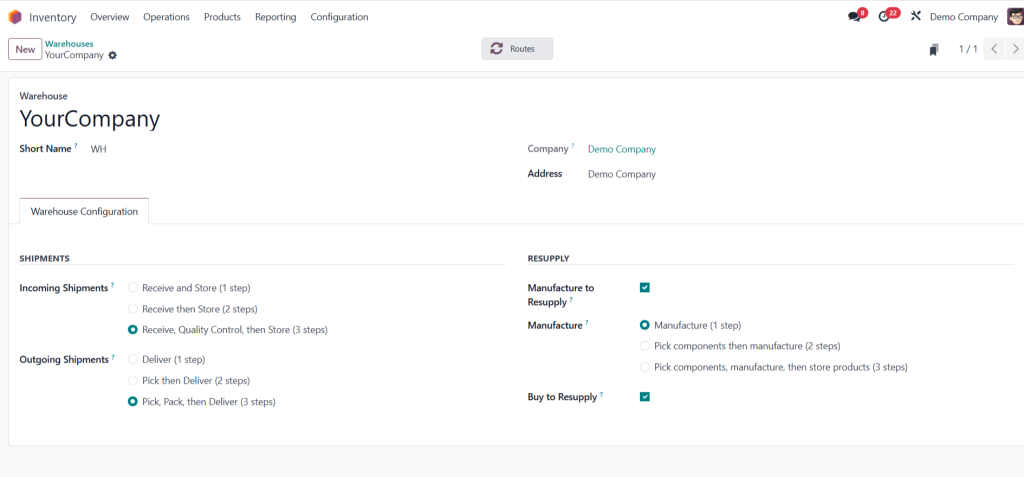
2. Select Deliver,here we can see complete Routes overview
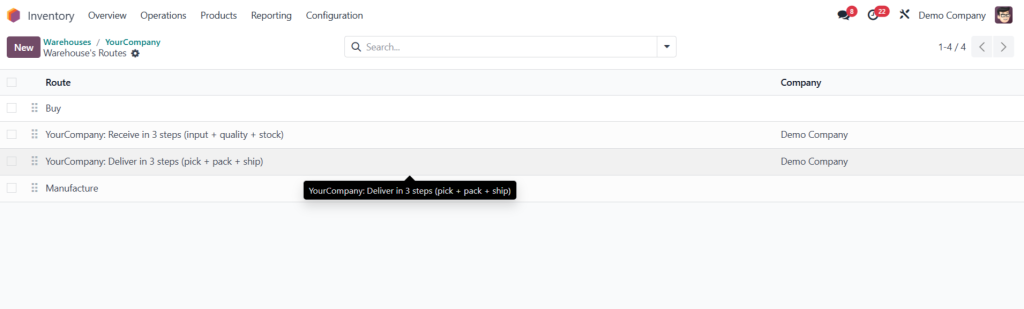
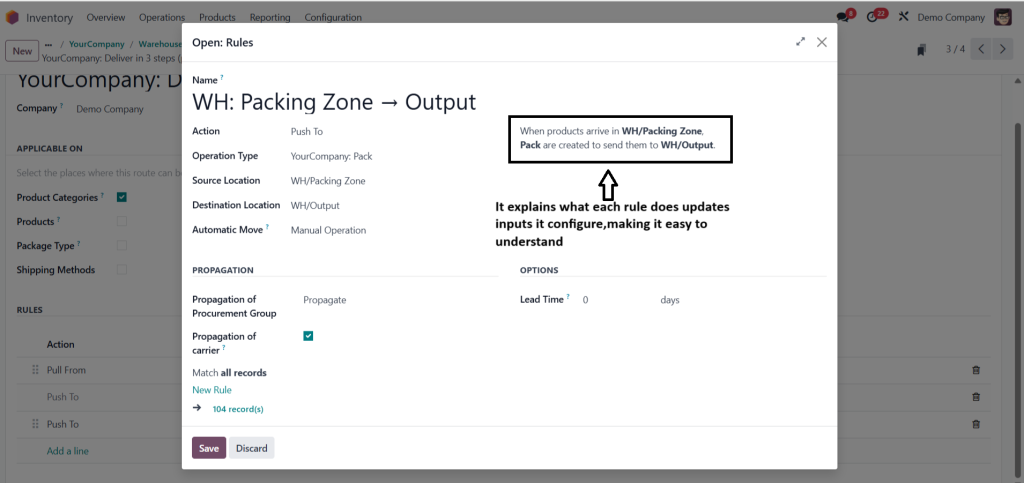
3. Click on any rule,where a pop-up window opnes and we can configure is more specifically
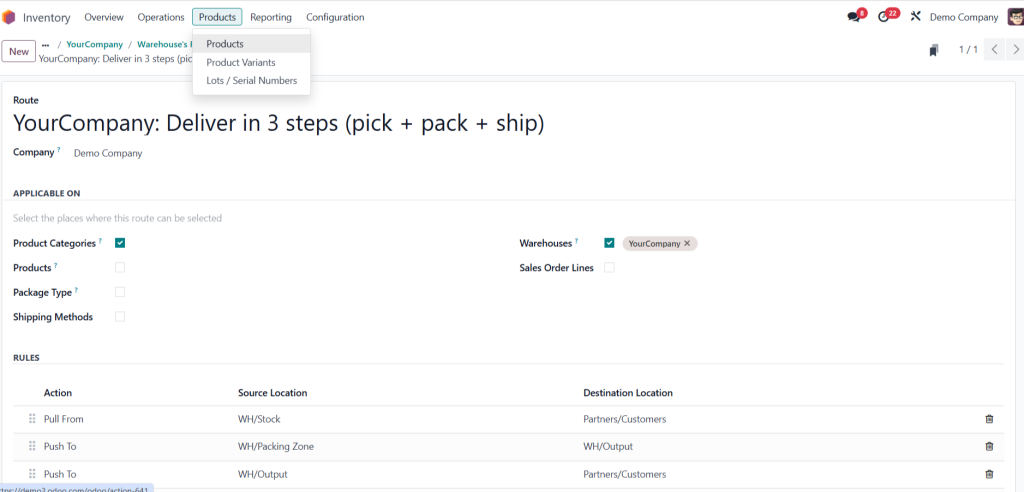
4. To see visual representation of every steps,go to products
5. Open any of products and inside it head over to inventory tab to check out selected routes
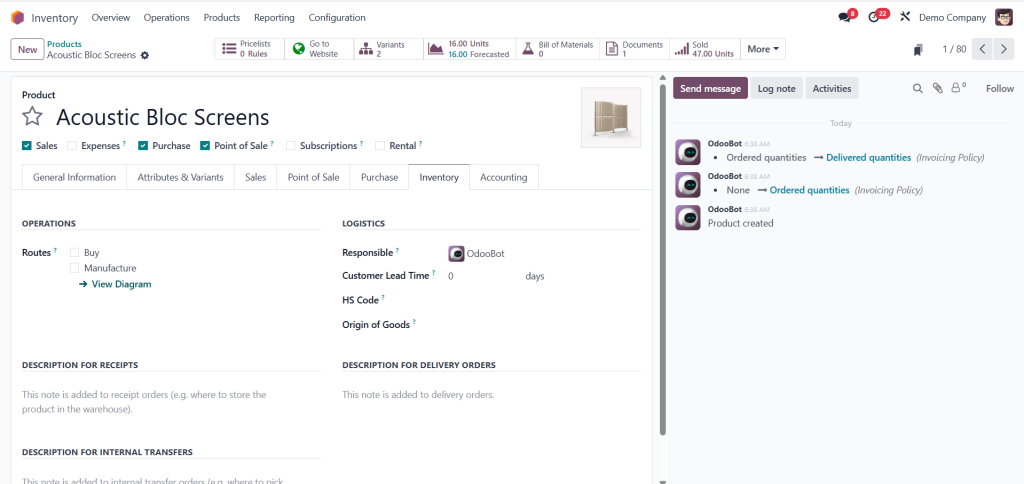
6. Click on view digram link
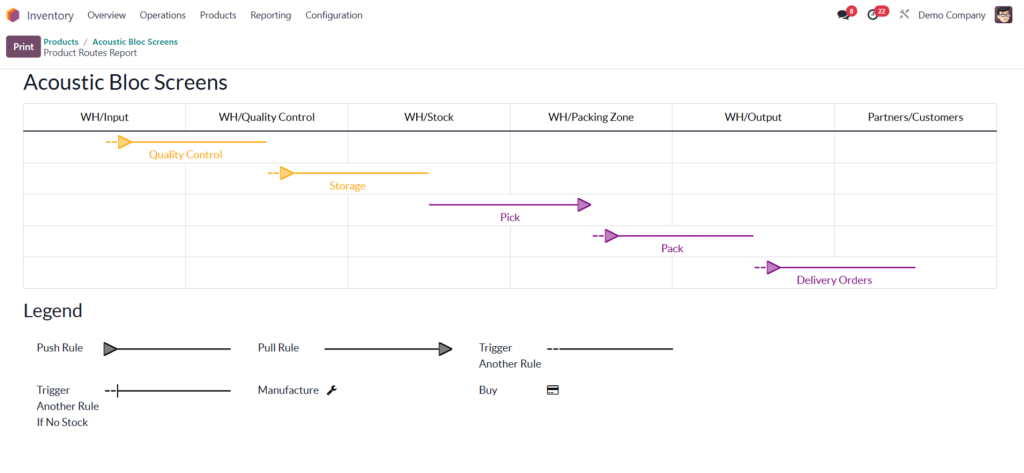
7. If we click on any arrow ,it will take to specific rules configuration page
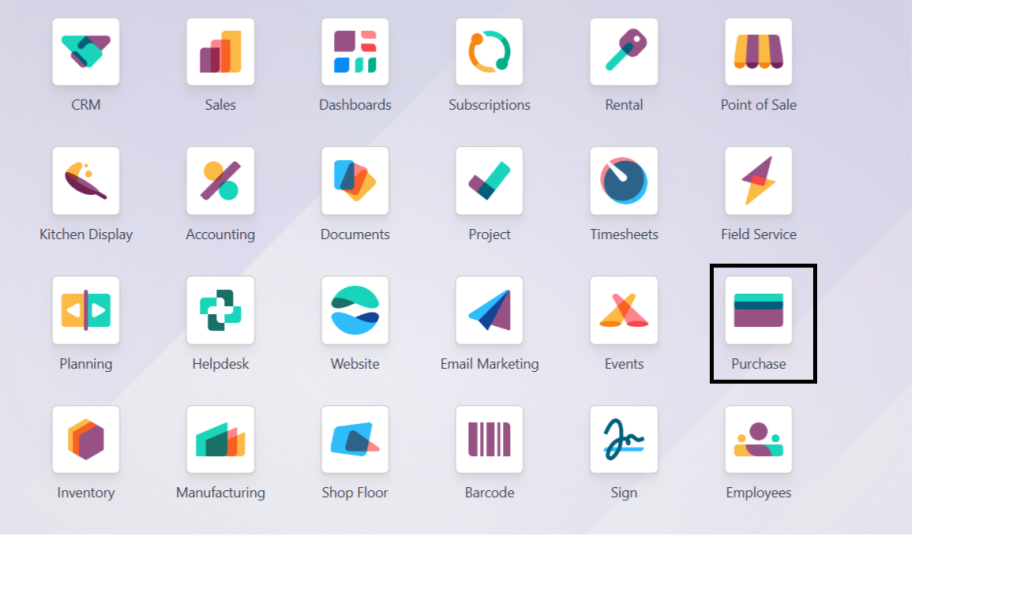
Step 4 : Create a Purchase Order
- Open the Purchase module.
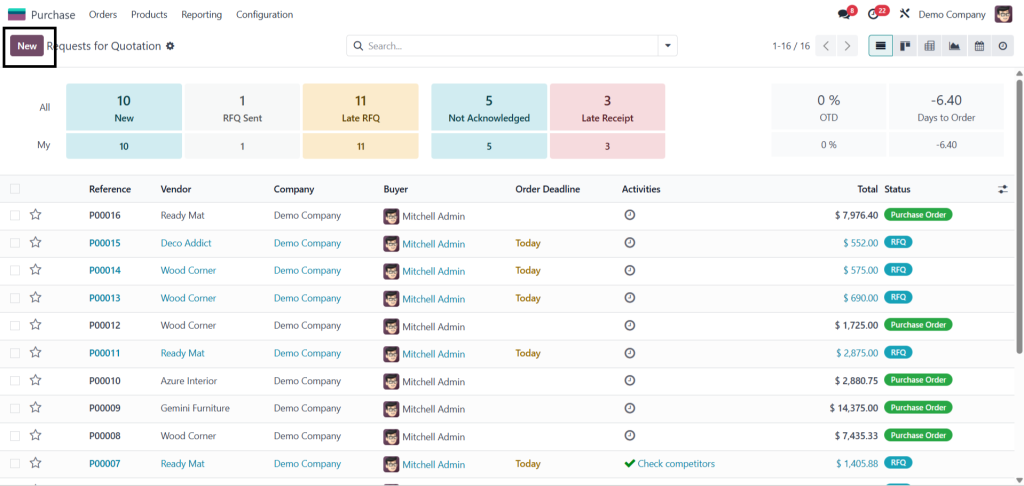
2. Create a new Request for Quotation (RFQ).
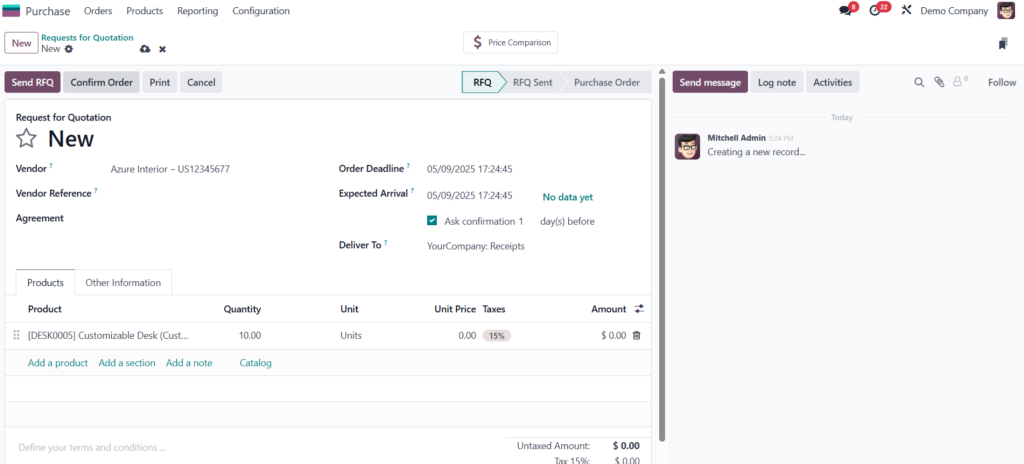
3. Select a Vendor.
4. Add a Product and set the Quantity (e.g., 10 units).
5. Click Confirm to turn the RFQ into a Purchase Order.
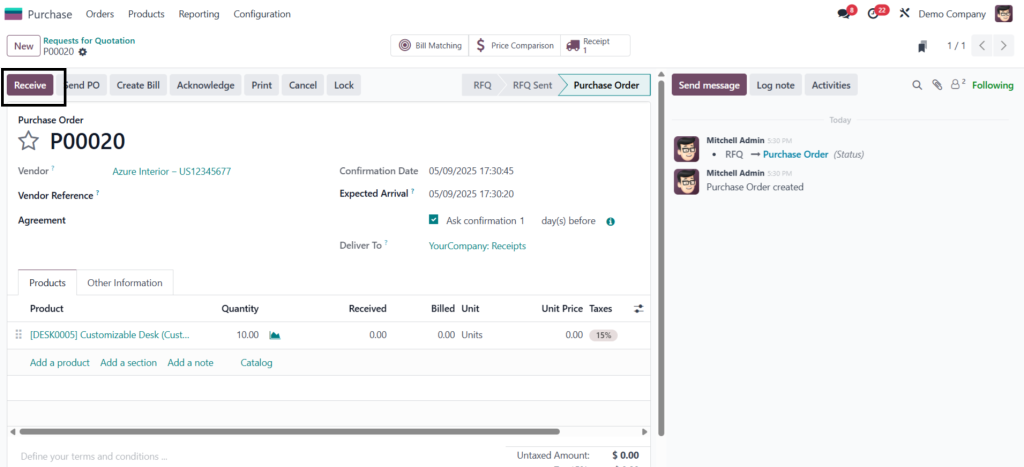
Step 5: Receive Products (Step 1 – Input)
- In the purchase order, click Receive Products.
2.Validate the transfer.
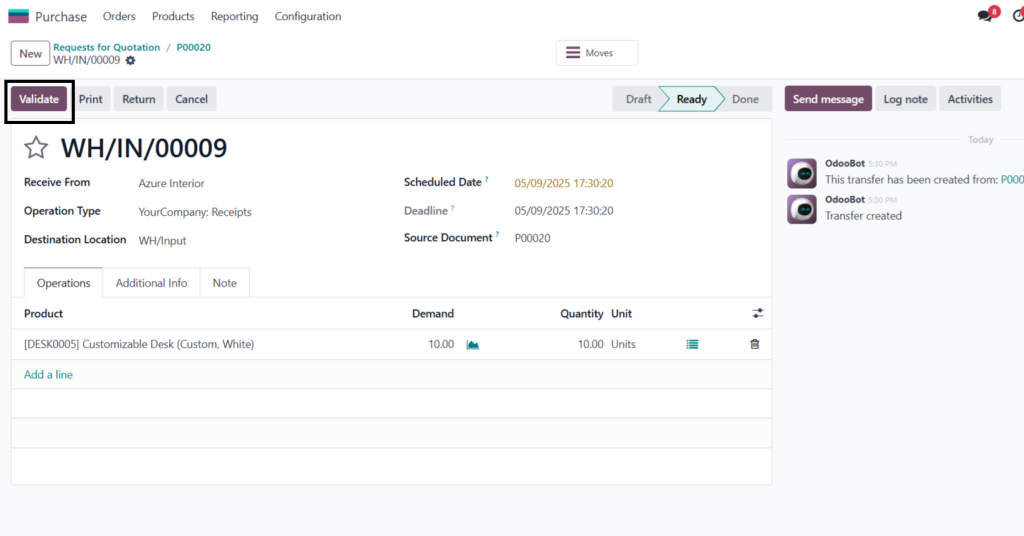
3. This moves the products into the Input Location of the warehouse.
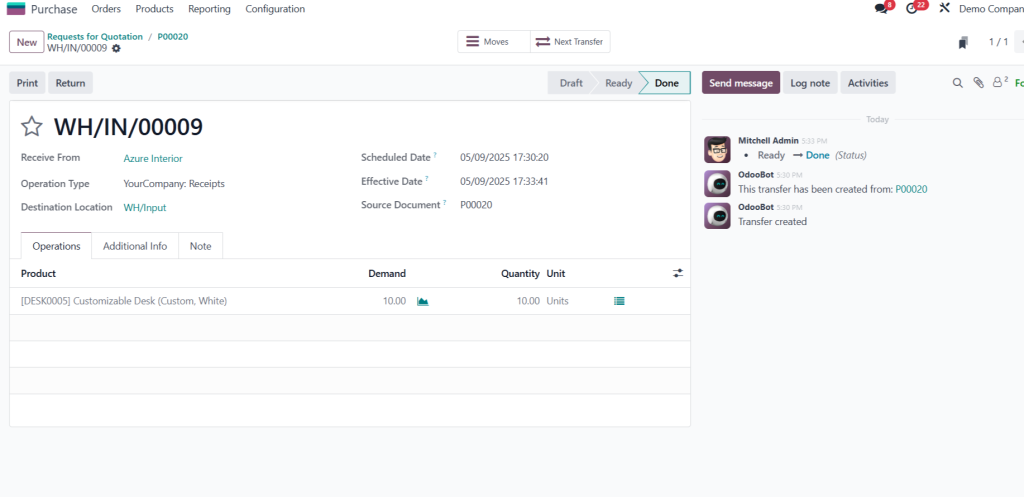
Step 6: Perform Quality Control (Step 2 – Quality Zone)
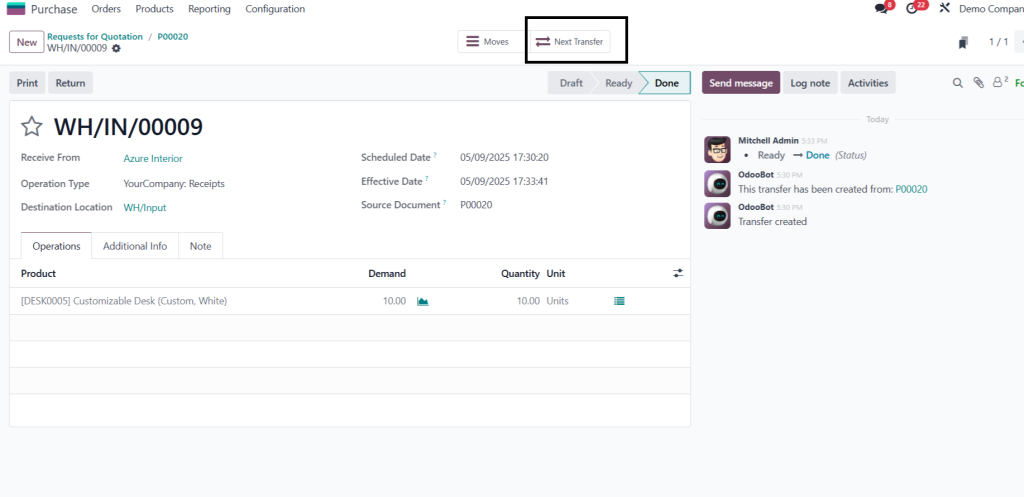
- In the PO or Inventory Overview, click on the next transfer (operation type: Quality Control).
- Validate the quality check.
3. Items now move from Input to Quality Control location.
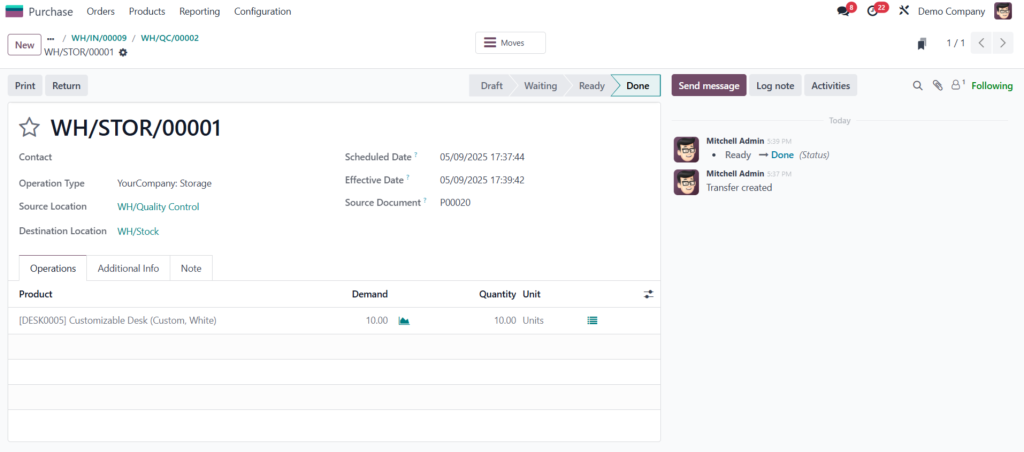
Step 7: Move Items into Stock (Step 3 – Final Storage)
- Click on the next transfer (operation type: Storage).
2. Validate the final movement.
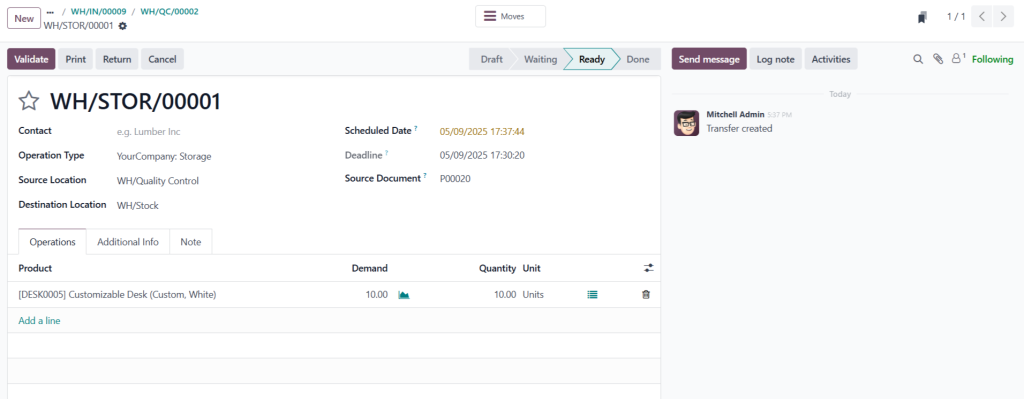
3. Products are now transferred to Warehouse/Stock location.
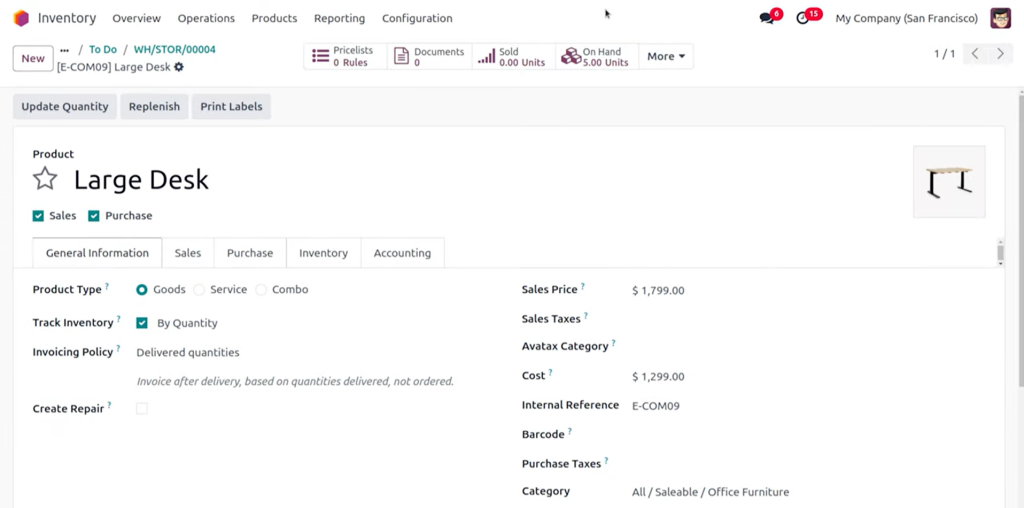
Step 8: Verify Stock
- Go to Products → On Hand.
- Confirm that the correct number of units (e.g., 10) are now in stock.
Odoo 18 One-Step Receipt – Fast and Simple Receiving
When speed is your top priority, the Odoo 18 one-step receipt method is ideal. This setup allows goods to go directly into your warehouse’s stock location.
Ideal For
- Small businesses
- Startups with limited storage
- Low-risk, frequently used items
How It Works
- Vendor sends shipment.
- Goods are received and validated in one step.
- Inventory is updated immediately.
This is the most straightforward method of handling Odoo 18 incoming shipments and is perfect for businesses looking to avoid unnecessary complexity in Odoo 18 inventory operations.
Key Tip: Add barcode scanners or QR code readers to make the one-step process even faster.
Odoo 18 Two-Step Receipt – Balancing Speed and Control
For companies with moderate volume and a need for quality checks or segregation, the Odoo 18 two-step receipt model is the right balance.
Ideal For
- Mid-sized businesses
- Items needing preliminary checks before stocking
- Companies requiring an input zone
How It Works
- Goods arrive at the warehouse.
- They are placed in an input location temporarily.
- After internal validation, goods are transferred to the stock location.
This method improves accuracy and gives teams more control over Odoo 18 incoming shipments, ensuring only validated items are added to the inventory.
Pro Tip: Automate validation rules for faster transition from input to stock using scheduled actions in Odoo 18 inventory management.
Odoo 18 Three-Step Receipt – Maximum Compliance and Accuracy
Businesses handling sensitive products like pharmaceuticals or electronics benefit greatly from the Odoo 18 three-step receipt process.
Ideal For
- Enterprises
- Businesses with strict compliance or quality standards
- Perishable or regulated goods
How It Works
- Goods are received in the input area.
- Items go through quality control.
- Approved goods are transferred to stock.
This is the most robust method of handling Odoo 18 incoming shipments, allowing for complete control, traceability, and compliance.
Best Practice: Enable quality control checkpoints and record test results directly in Odoo for traceability and audit preparation.
Managing Odoo 18 Inventory Operations Effectively
Managing Odoo 18 inventory operations means more than just receiving goods. It includes:
- Tracking incoming transfers
- Batch and serial number registration
- Automated reordering and stock alerts
- Vendor performance tracking
Using these features alongside well-structured Odoo 18 incoming shipments processes ensures that warehouse teams have full visibility and accountability.
Key Features to Use:
- Real-time stock reporting
- Smart tags and filters
- Integration with purchase and quality modules
Tip: Use dashboards and custom reports to keep leadership informed on incoming shipment trends and bottlenecks.
Best Practices for Odoo 18 Incoming Shipments
To get the most out of Odoo 18 incoming shipments, implement the following practices:
Standardize Receiving Processes
Regardless of your receipt type, ensure warehouse staff follow the same standard operation procedure for inspections and validations.
Use Barcoding
Simplify scanning and tracking of items. Odoo 18 supports barcode integration, which speeds up Odoo 18 inventory operations.
Train Your Staff
Even the best system fails without skilled people. Train your warehouse and procurement teams on:
- Understanding receipt methods
- Managing warehouse transfers
- Using mobile inventory features
Integrate with Procurement
Ensure purchase orders automatically generate corresponding incoming shipments to reduce manual entry and errors.
Master Odoo 18 Incoming Shipments with Smart Strategies
By leveraging the right warehouse configuration and understanding when to use one-step, two-step, or three-step receipts, your business can optimize the flow of Odoo 18 incoming shipments with precision and speed.
The flexibility and depth of Odoo 18 inventory management make it a powerful tool for businesses of all sizes. From simple setups to complex operations, Odoo 18 incoming shipments can be tailored to fit your unique workflow, helping you minimize delays, eliminate errors, and boost warehouse productivity.
Take the time to properly configure your warehouse, train your team, and implement automation where possible. The results? Faster operations, better inventory accuracy, and a streamlined supply chain.