How to Set Up & Automate Stock Replenishment in Odoo 18?
Revolutionize Inventory with Odoo Stock Replenishment
Does your business face stock shortages or excessive inventory costs? These common inventory challenges can severely impact operations and customer satisfaction. Traditional stock management methods are often plagued with inefficiencies, leading to missed opportunities and operational hurdles. This is where Odoo stock replenishment comes into play. By leveraging Odoo 18 inventory automation, businesses can overcome these challenges and maintain optimal stock levels.
This comprehensive guide will explore how to set up and automate stock replenishment in Odoo 18. Using Odoo 18 inventory features with advanced tools like Odoo reordering rules and Odoo inventory management, you can rationalize processes, reduce manual errors, and ensure your business operates at peak efficiency. Learn how to reveal your organization’s full potential of Odoo automated stock replenishment.
What is Replenishment in Odoo?
Replenishment in Odoo refers to the automated process of maintaining optimal stock levels by generating orders for procurement or production based on predefined rules. It ensures that businesses can meet demand without overstocking or running out of inventory.
Example of Replenishment in Odoo ERP
Consider a company that sells office supplies. For a popular product like “Printer Ink Cartridges,” the replenishment rule can be set as follows:
Minimum Quantity: 15 units (trigger point for replenishment).
Maximum Quantity: 50 units (target stock level).
Lead Time: 7 days (time the supplier takes to deliver).
When the cartridge stock drops below 15 units, Odoo automatically generates a purchase order to restock up to 50 units. This ensures uninterrupted sales while avoiding overstock.
Benefits of Replenishment in Odoo ERP
Improved Efficiency: Automates the procurement process, saving time and reducing manual effort.
Cost Optimization: Minimizes holding costs and reduces wastage.
Enhanced Customer Satisfaction: Ensures product availability to meet demand consistently.
Scalability: Simplifies inventory management for growing businesses with large product portfolios.
The Importance of Stock Replenishment
Stock replenishment is a critical component of any successful inventory management strategy. It ensures:
Prevention of Stock-outs: Stock-outs disrupt sales, damage customer trust, and lead to lost revenue opportunities.
Avoidance of Overstocking: Overstocking increases warehousing costs, risks product obsolescence, and unnecessarily ties up capital.
By adopting Odoo automated stock replenishment, businesses can strike the perfect balance between supply and demand. This ensures customer satisfaction while optimizing operational costs. Let’s examine how Odoo 18’s advanced tools simplify this crucial process.
Key Features of Odoo 18 for Inventory Management
Enhanced Inventory Operations with Odoo 18
Odoo 18 brings a wealth of features designed to simplify and optimize inventory management. Key highlights include:
Smart Reordering Rules: Define thresholds for stock levels and automate replenishment orders based on real-time data.
Comprehensive Reporting: Access detailed insights into stock movements, forecasts, and performance metrics.
Smooth Integration: Connect with other Odoo ERP modules, such as Sales, Purchase, and Manufacturing, for end-to-end process automation.
Real-Time Inventory Tracking: Monitor stock levels, movements, and availability.
Elimination of Manual Errors: Automation reduces reliance on manual processes, minimizing errors.
Improved Efficiency: Update workflows and reduce administrative overhead.
Better Stock Availability: Always have the right products at the right time.
Cost Savings: Optimize inventory holding costs and reduce wastage.
How to Set Up and Automate Stock Replenishment in Odoo 18: Step-by-Step Guide
Replenishment is an advanced feature in the inventory module of the Odoo ERP. It is a process of maintaining stock to maintain its quantity. Odoo ERP is the best design support system for managing inventory replenishment. Inside the inventory module, we have this replenishment feature. The reordering rules and replenishment are both connected. Let’s go to the inventory module and see the connection between them and how to replenish.
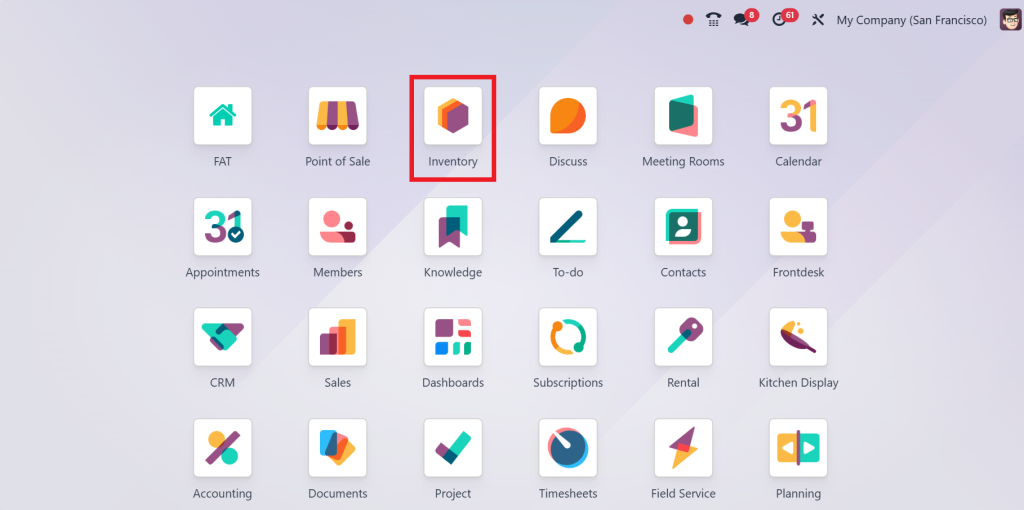
Log in to your Odoo 18 account directly to the Inventory Module.
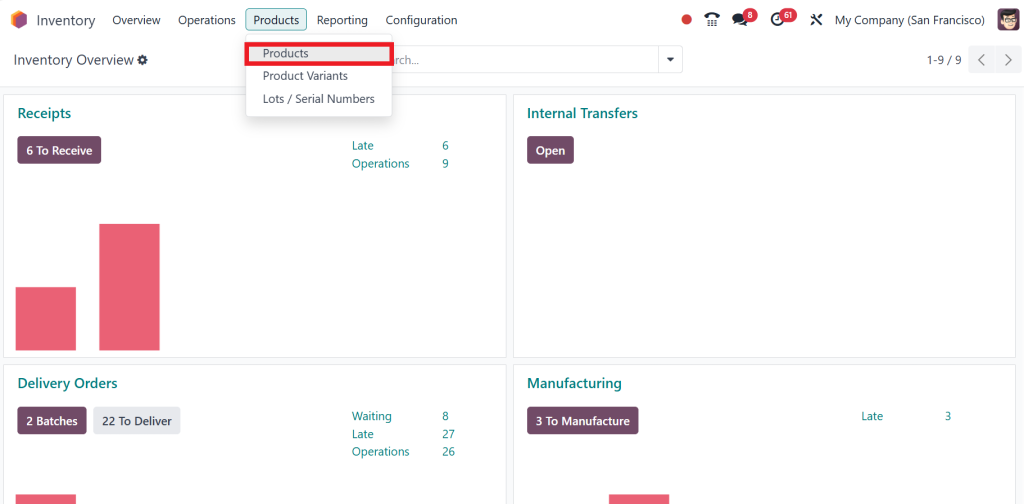
Next, go to the Products menu and click on the Products.
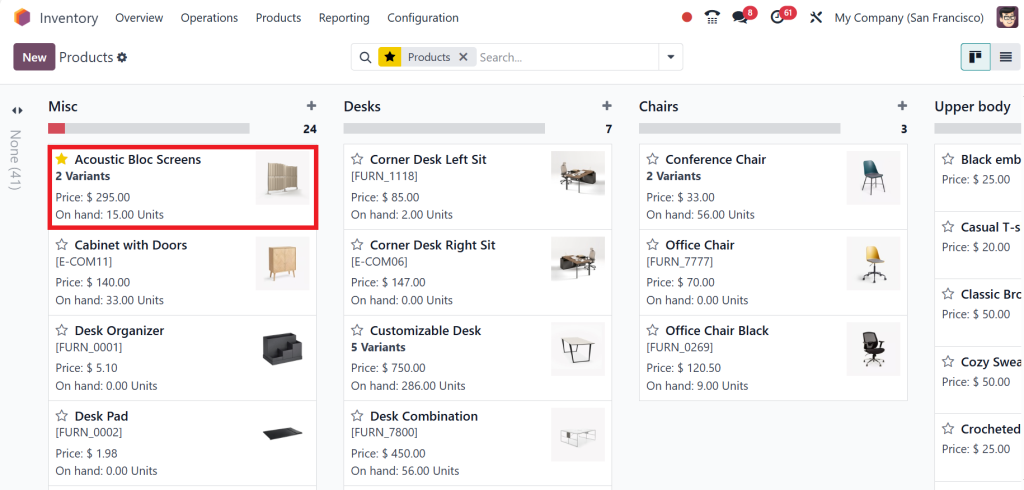
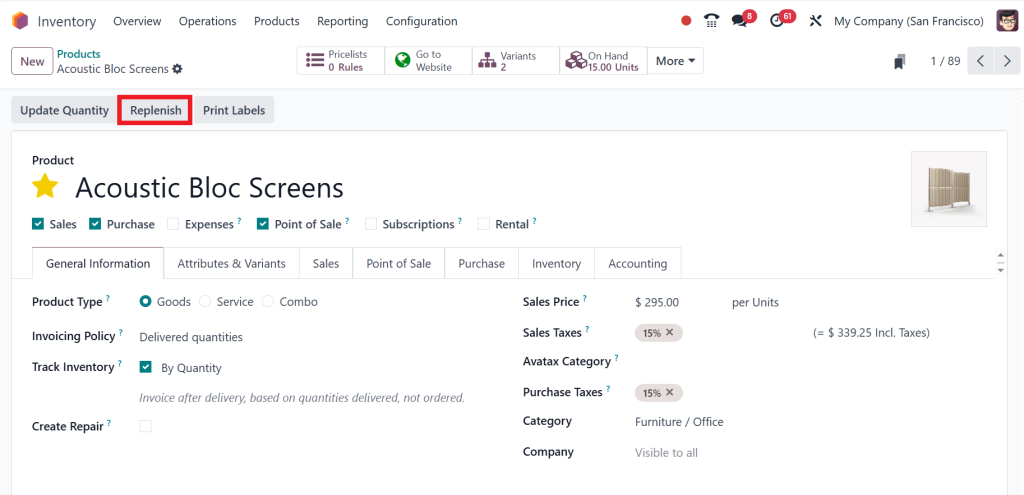
Then, choose any product, but here I’m choosing Acoustic Bloc Screens.
After opening the product, see in the screenshot below that you have Replenish next to the Update Quantity; click on Replenish.
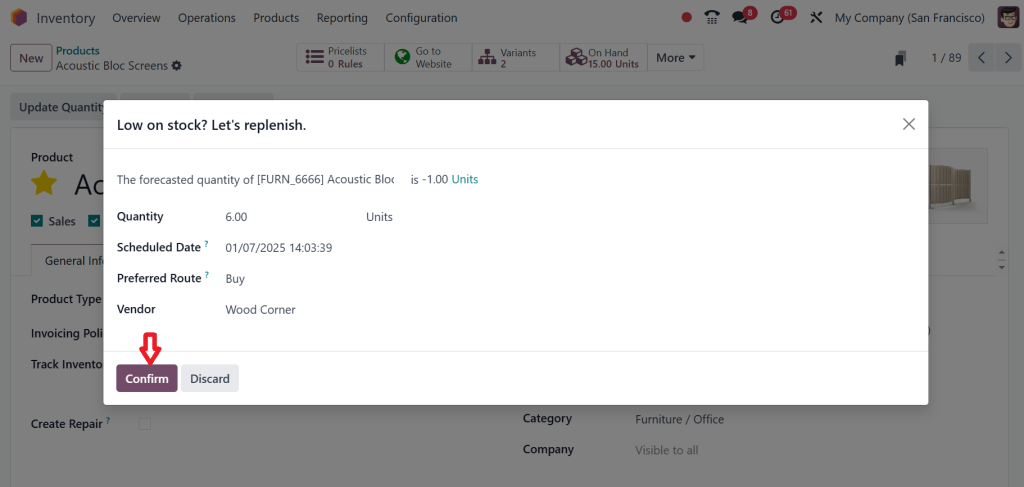
Here, you can give the quantity you are going to replenish. So, I’m giving Quantity 6, meaning I want six to be replenished. This may trigger an RFQ quotation. Add the Preferred Route. I’m selecting the route as Buy. Also, add the Vendor and Schedule Date, then click on Confirm.
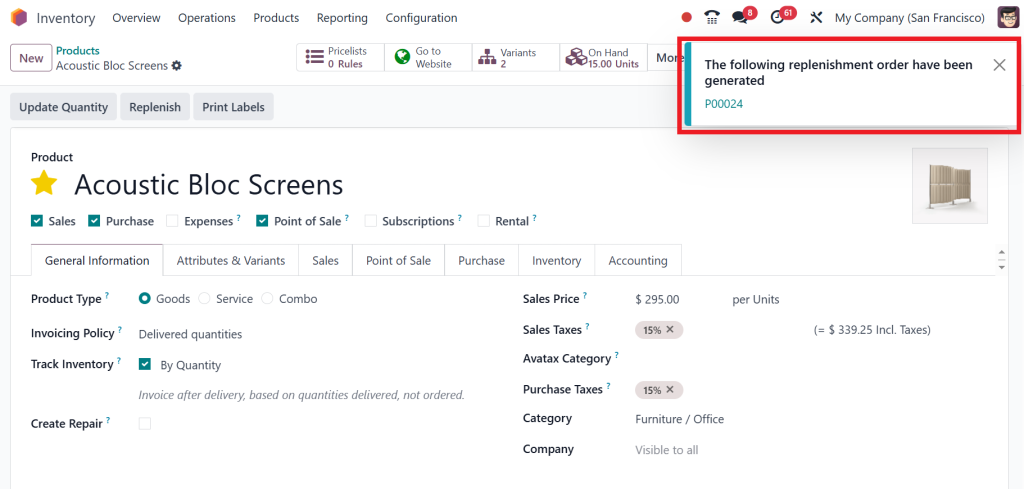
Our replenishment has been created for Acoustic Bloc Screens. The notification is shown in the screenshot below.
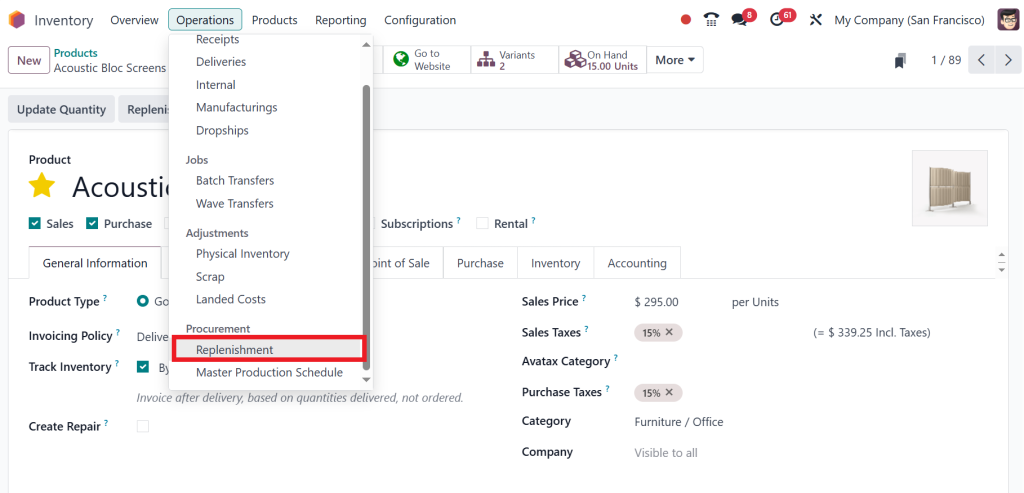
You can see this directly in a menu in Odoo Inventory; we have a separate menu for replenishment. To do that, you have to go to Operations, then under the Procurement section, click on Replenishment.
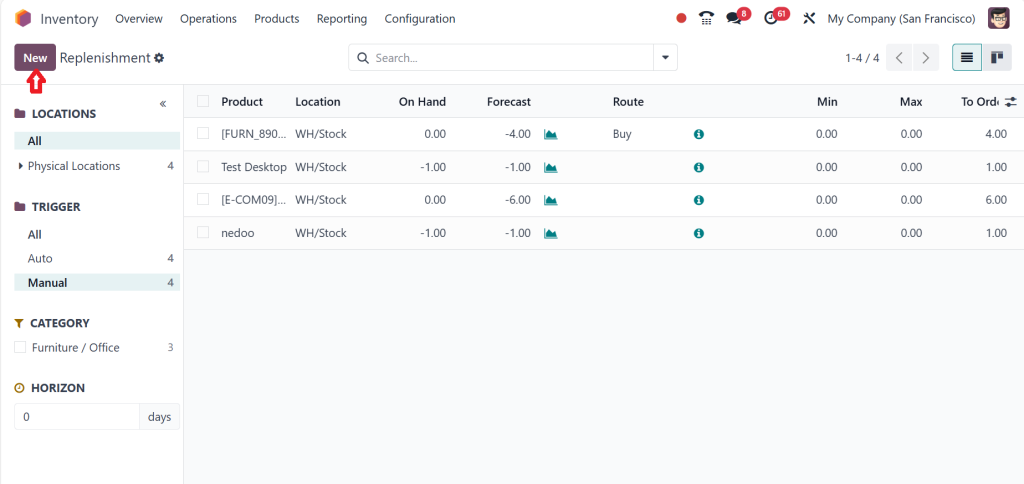
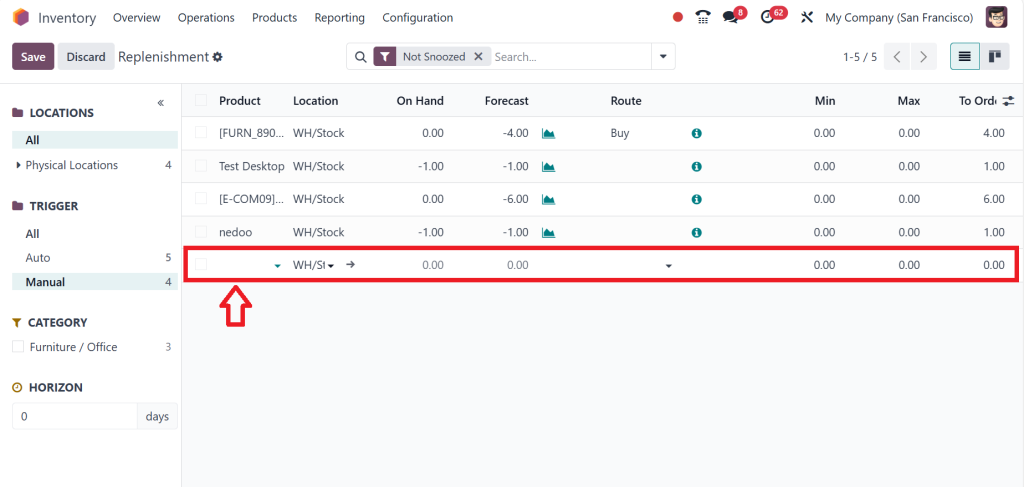
This is the replenishment window; you can create a new replenishment by clicking New.
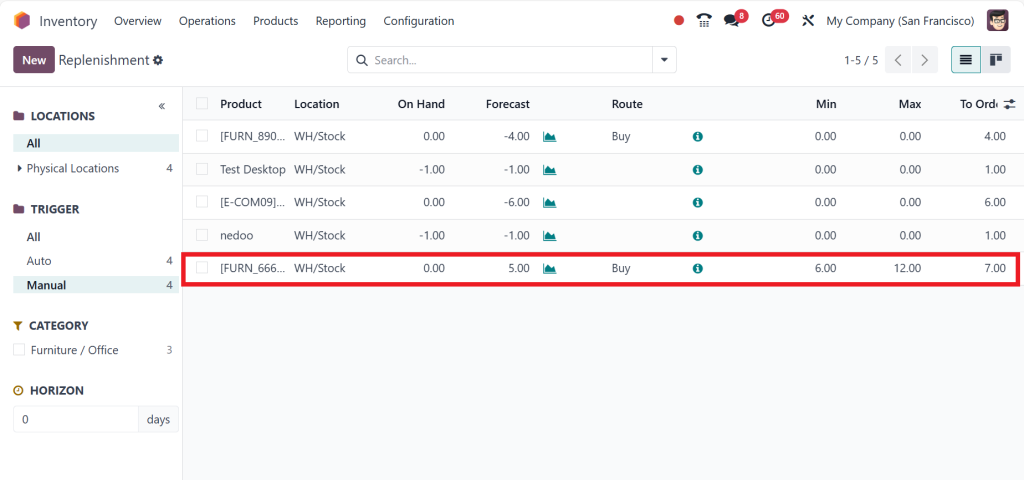
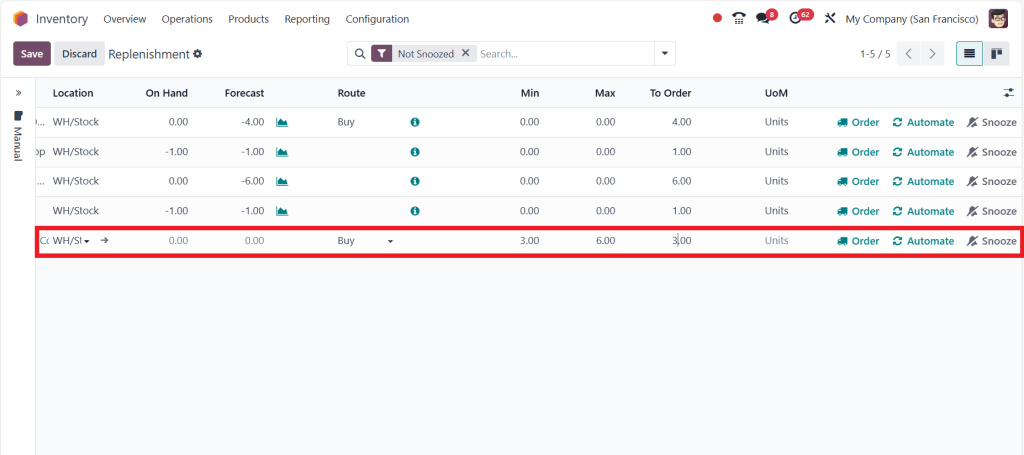
Then, you can choose the Acoustic Bloc Screens product and set the route to Buy. After that, you must select the vendor if you have set it inside the product; you don’t need to put it here. Then, give the minimum and maximum quantity.
So, I’m adding a minimum of 6 and a maximum of 12 quantities and giving To order 7.
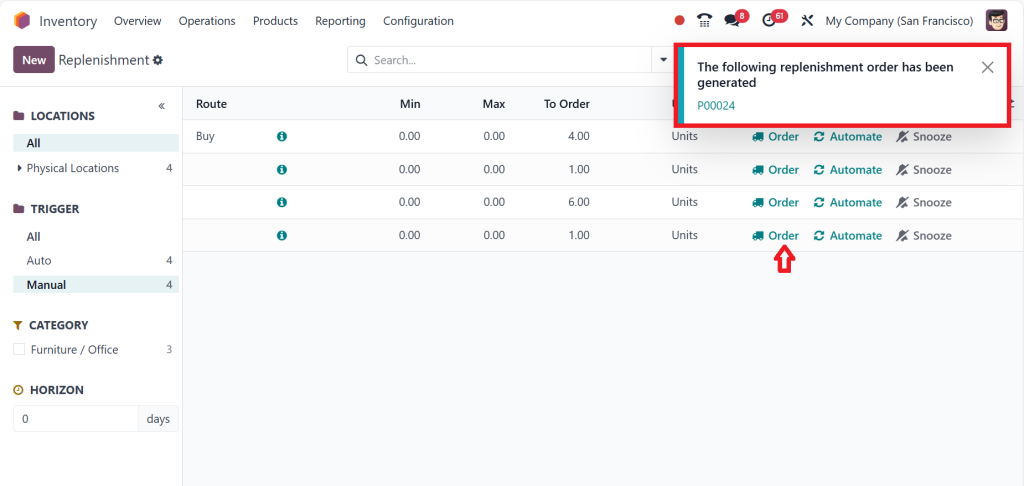
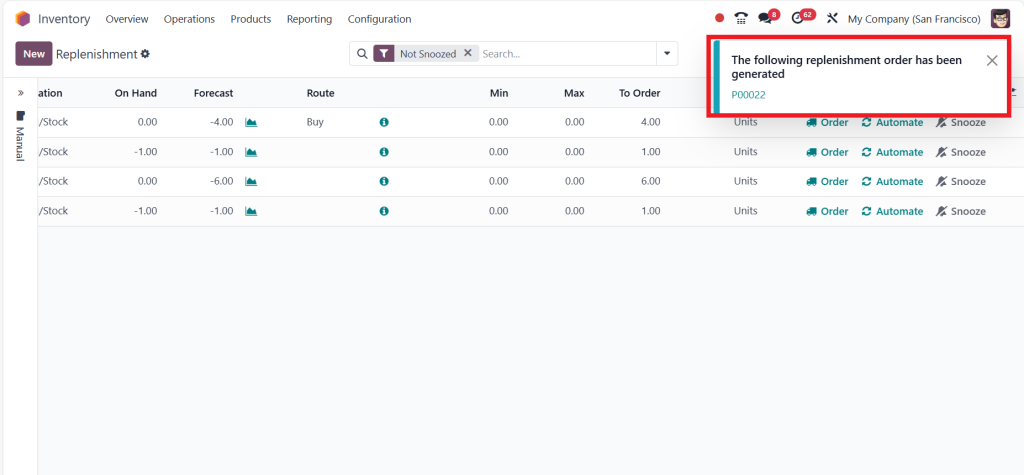
After clicking on Order, you will see the notification: ‘‘The following Replenishment order has been generated.’’
You can create an RFQ manually by clicking on Order. To see the RFQ, go to the Purchase Module.
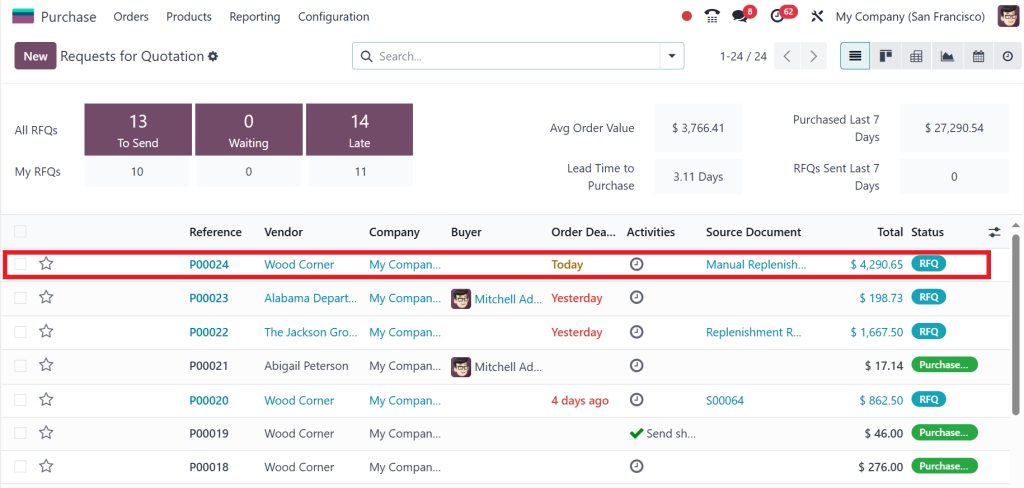
Now, you can see the RFQ created.
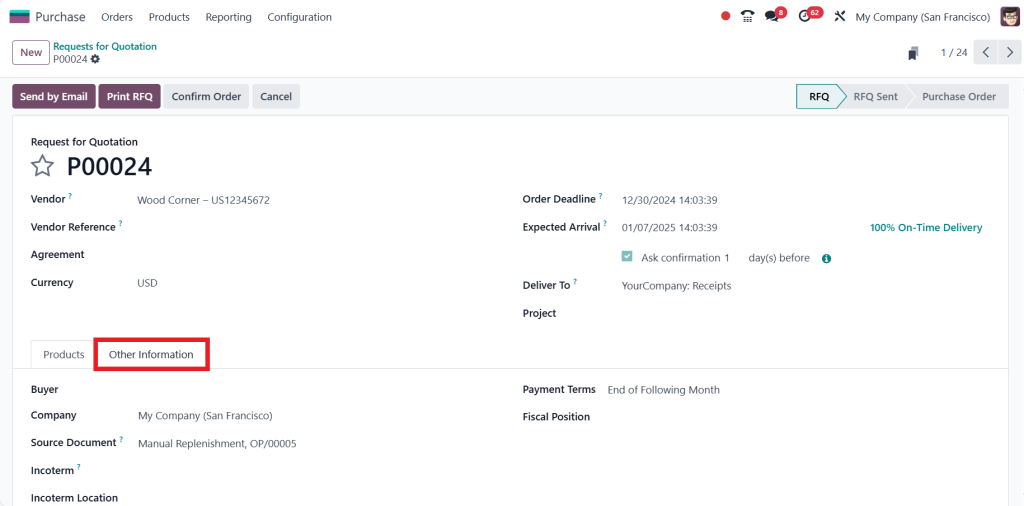
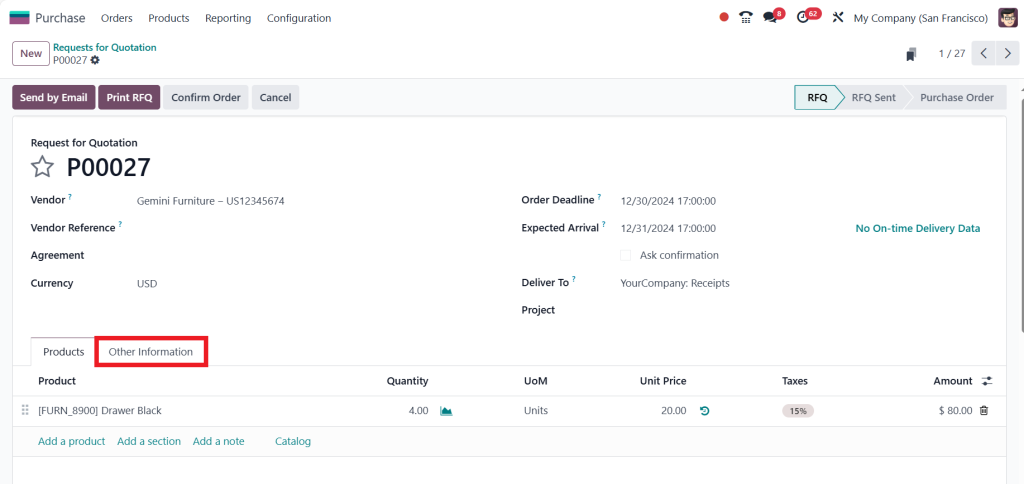
Open that, and you will see the RFQ. Then, click on the Other Information tab to see the other information.
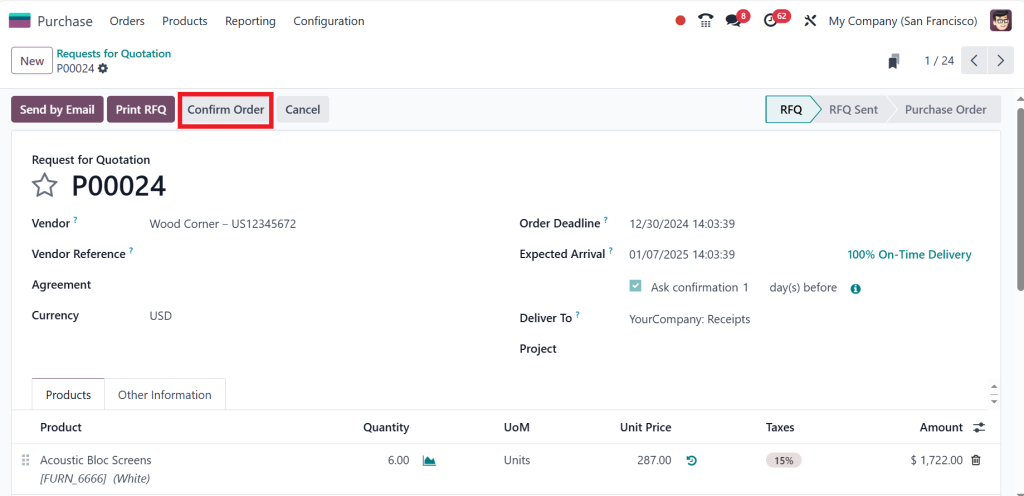
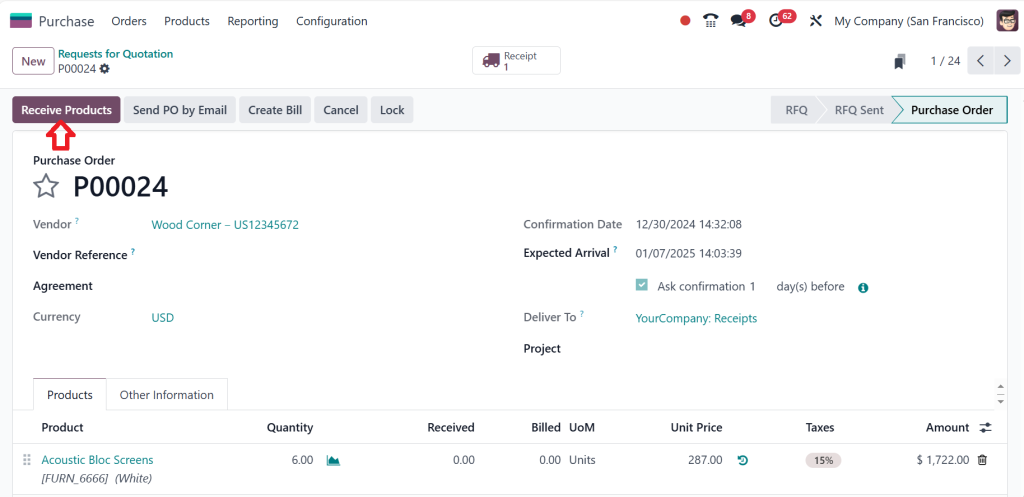
You can see the product Acoustic Bloc Screens, which has a quantity of 6. Then click on Confirm Order.
This is the purchase order right now; let’s receive the order by clicking on Receive Products.
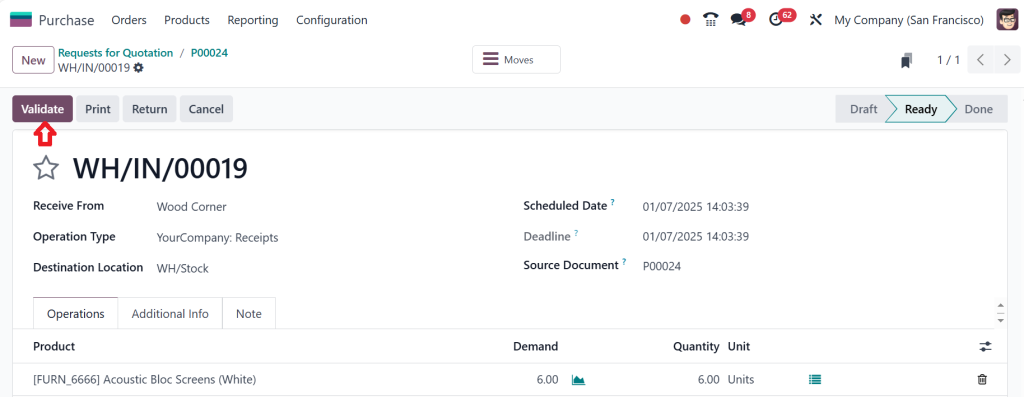
Then, click on Validate. So, this has been applied.
Then, go back to the Inventory Module again, go to Operations > Replenishment, and create a new one by repeating the same process. But this time, I’m going to add a new product, the Corner Desk Left Sit, and this time, I’m clicking on Automate.
Then, the notification shows the order has been generated, as you can see in the below screenshot.
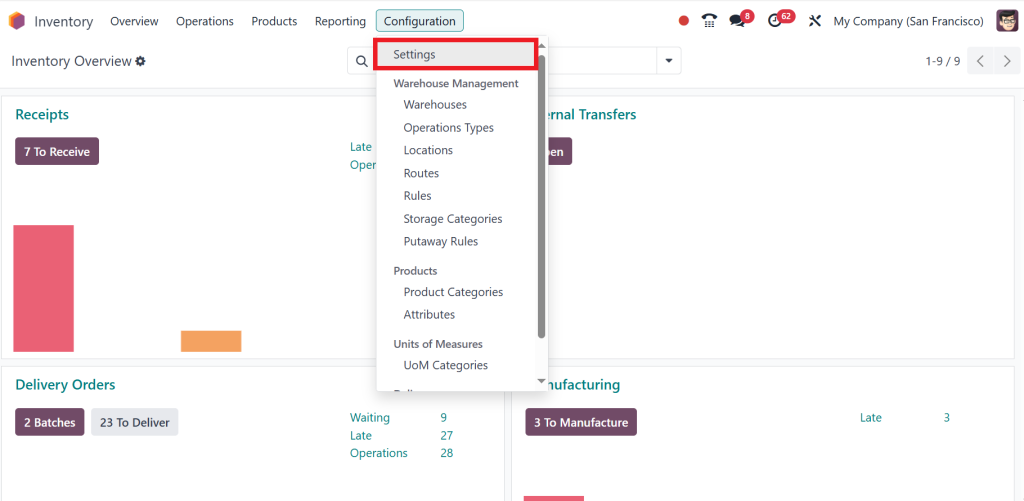
So, what happens is that the orders are automated. I will show you another thing in the Inventory module: go to Configuration > Settings.
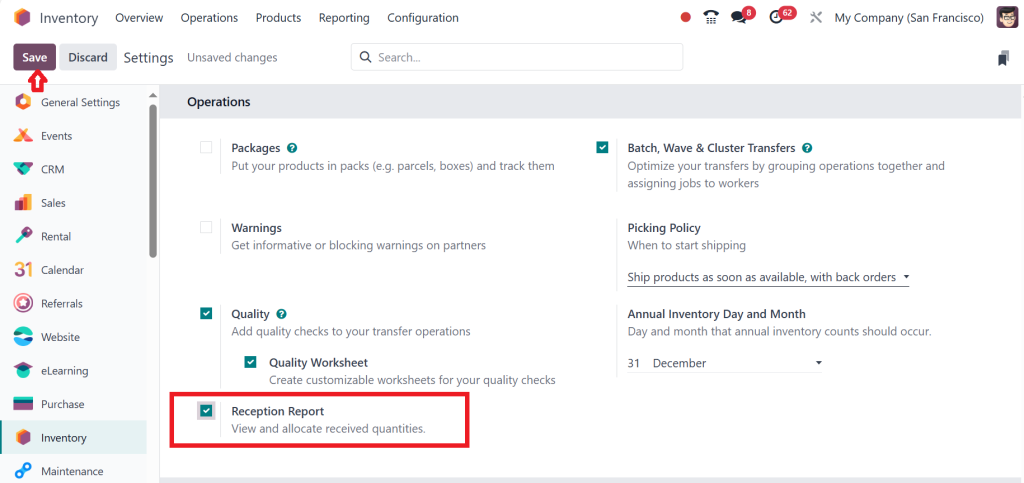
Then, I’ll enable the Reception Report under the Operation section and click Save.
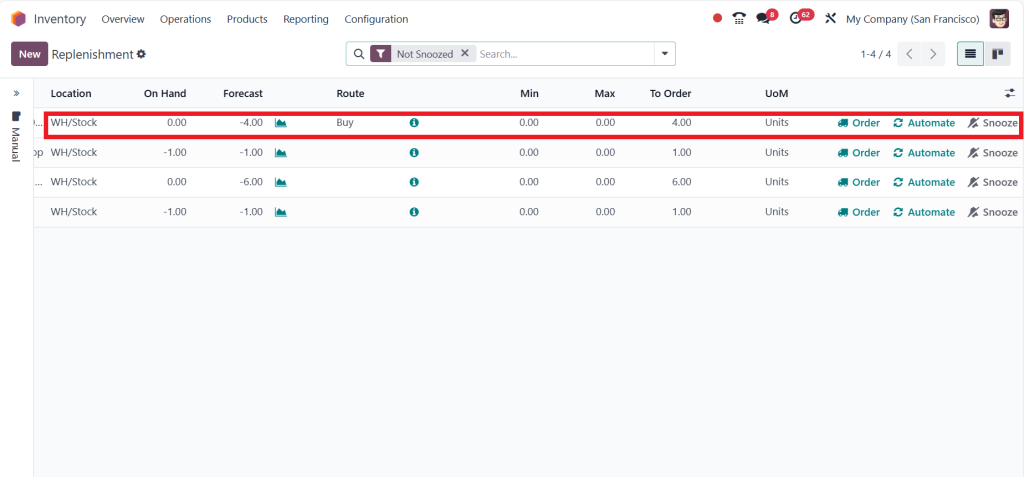
Then again, go to the Inventory Module, and under the operations menu, click Replenishment and click on anyone in the Order. So here, I’m going to click on the first one.
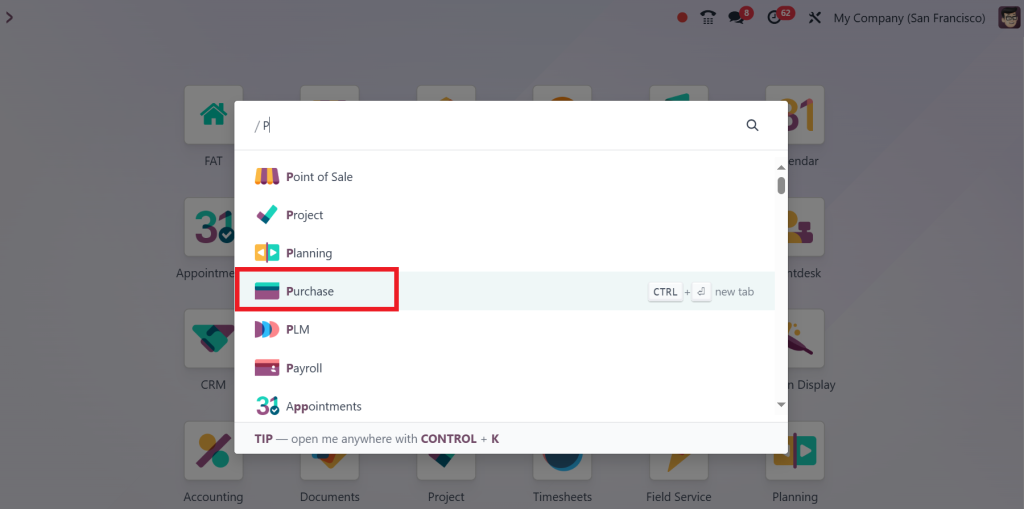
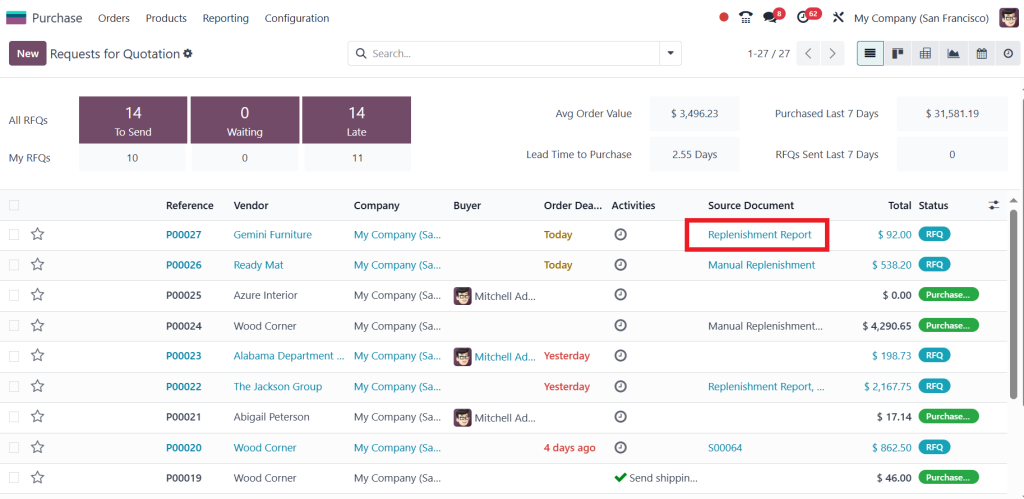
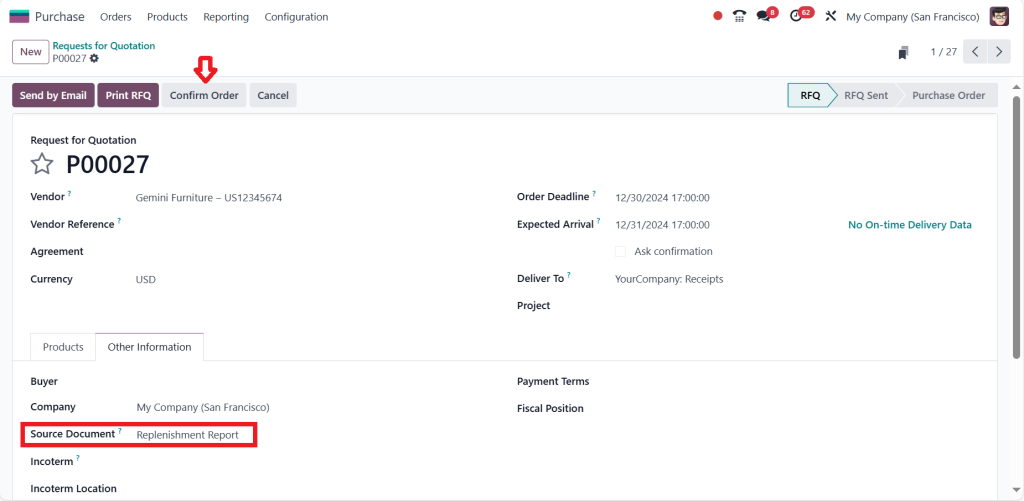
Next, go to the Purchase Module. Here, you can see the RFQ has been generated, and the Source Document is the Replenishment Report created from replenishment.
You can now view all the details about the product here and by clicking on the Other Information tab.
The Source Document is shown as a Replenishment Report here. You can also order replenishment manually or automatically. Now Confirm the order.
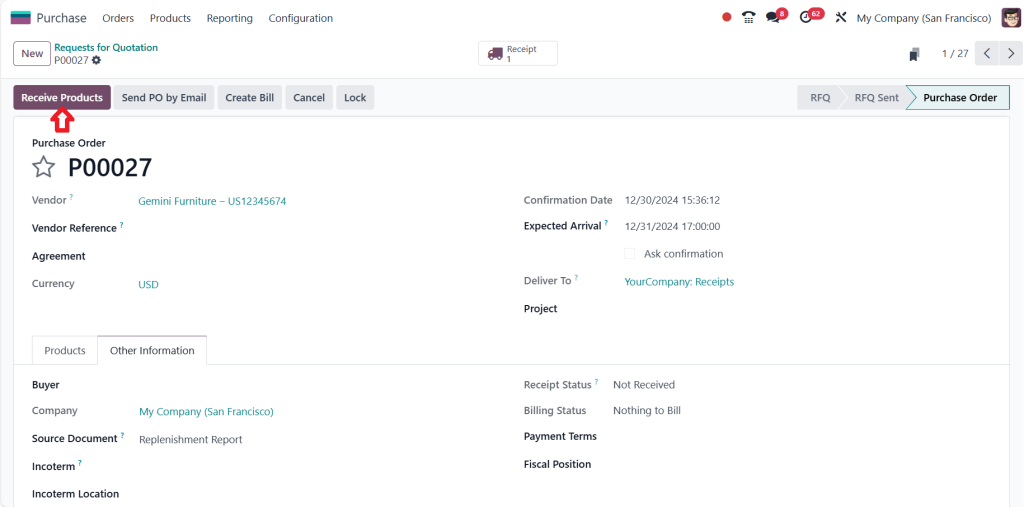
Then click on Receive Products.
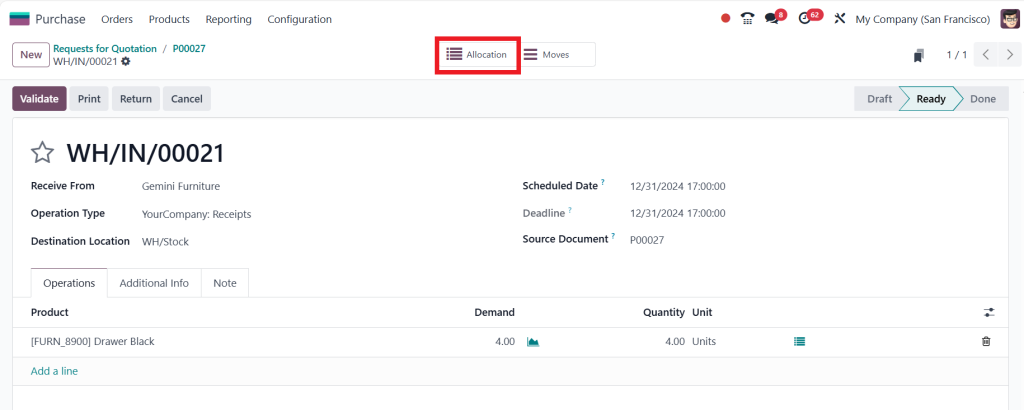
So, now you can see the Allocation click on that.
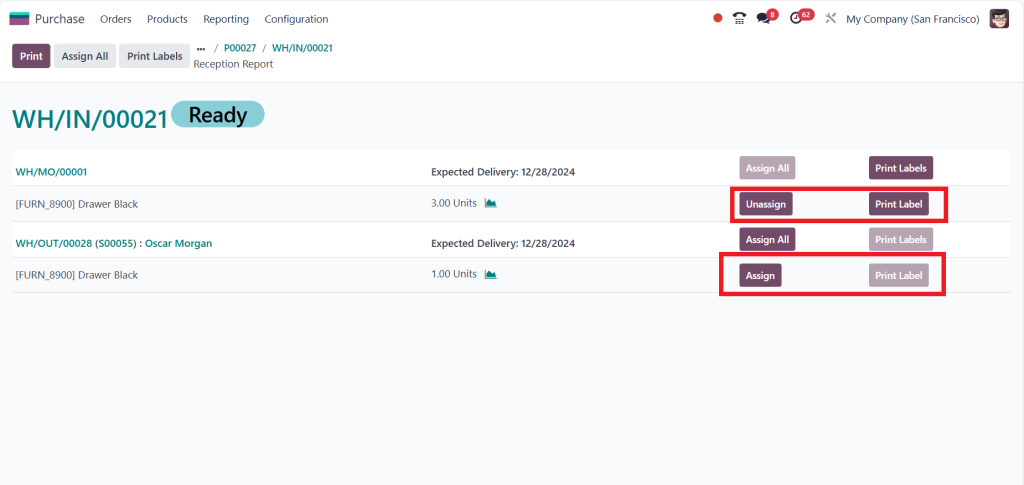
After clicking the Allocation button, you can see the Reception Report, as shown in the screenshot below. Here, you have the required units. If you want, you can Assign them from here, and you have the option to Unassign them as well.
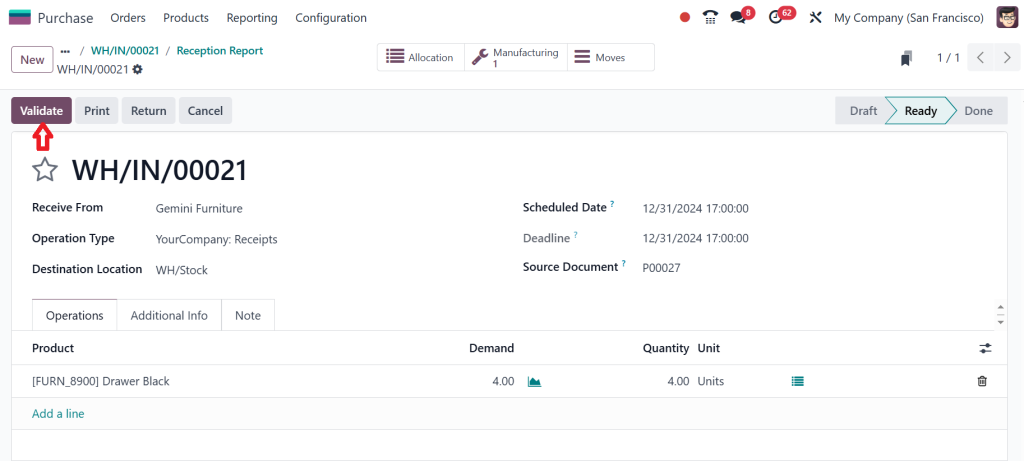
Go back and click on Validate.
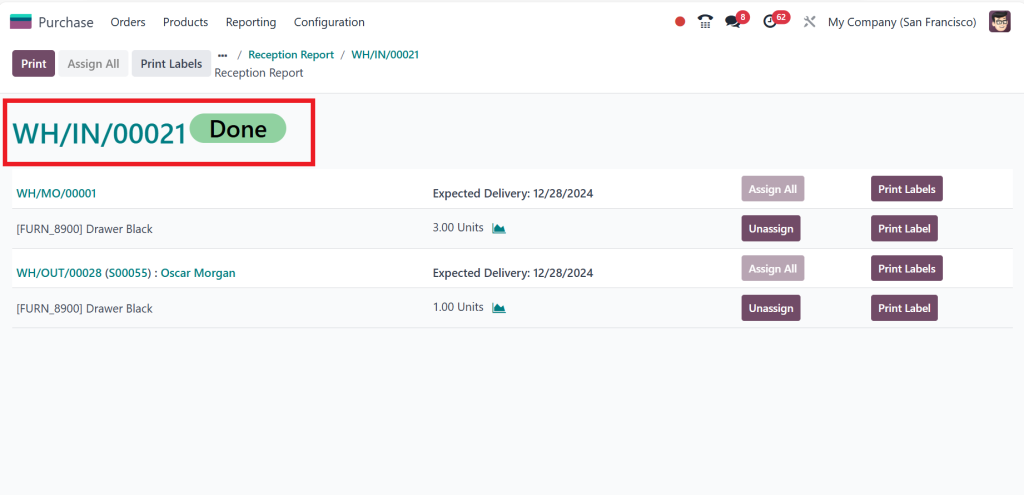
If you click on Allocation again, the status changes from Ready to Done, as shown in the screenshots above and below.
Replenishment is basically updating the stock and maintaining the quantity of stock “On Hand.” This article explains how to set up stock replenishment in Odoo 18 in this step-by-step guide.
Automating Stock Replenishment with Odoo Inventory Automation
Why Choose Odoo Automated Stock Replenishment?
Odoo’s automated stock replenishment leverages advanced algorithms and real-time data to simplify inventory management. Its key capabilities include:
Real-Time Tracking: Continuously monitor stock levels and movements.
Smart Notifications: Receive alerts for low stock or potential shortages.
Dynamic Adjustments: Automatically update reordering rules based on demand trends and sales data.
How to Set Up Automation?
Enable the “Automatic Actions” feature in the Inventory Settings of Odoo 18.
Define triggers that initiate replenishment actions, such as stock levels reaching the minimum threshold.
Set up automated actions to create purchase or production orders when these triggers are activated.
Example Use Case: A grocery retailer can automate replenishing fast-moving items like dairy products. When stock levels fall below a minimum, Odoo generates purchase orders to restock within the supplier’s lead time.
Advanced Features of Odoo 18 for Inventory Optimization
Smart Forecasting with Odoo Reordering Rules
Odoo reordering rules analyze historical sales data and demand patterns to:
Predict future demand accurately.
Dynamically adjust stock levels based on seasonal trends.
Reduce risks of overstocking or stockouts.
Multi-Warehouse Management
For businesses with multiple storage locations, Odoo’s multi-warehouse management feature offers:
Centralized inventory tracking across all locations.
Efficient stock transfers between warehouses.
Improved visibility and efficiency in managing distributed inventory.
Integration with Other Odoo Modules
Odoo 18’s all-in-one integration with other modules amplifies its utility:
Sales: Automatically link sales orders with inventory to ensure product availability.
Manufacturing: Synchronize production schedules with stock levels to avoid delays.
Reveal Efficiency with Odoo Stock Replenishment
Setting up and automating stock replenishment in Odoo 18 can revolutionize your inventory management process. By implementing Odoo stock replenishment, Odoo 18 inventory automation, and advanced Odoo reordering rules, businesses can ensure optimal stock levels, reduce operational costs, and boost customer satisfaction. The advanced Odoo inventory management features offered by Odoo 18 provide the tools you need to achieve these goals flawlessly.
With its innovative capabilities, Odoo 18 empowers businesses to automate repetitive tasks, focus on strategic decision-making, and scale operations effectively. It’s time to hold the future of inventory management with Odoo 18 and transform how your business manages stock replenishment.
Ready to take the next step? Get started with Odoo 18 today and optimize your inventory processes like never before!
Hi, I'm Ilsa Shabbir, an Odoo ERP content writer specializing in functional blogs on Odoo modules. I simplify complex Odoo features, creating clear and engaging content to help businesses understand and optimize their ERP solutions.
We use cookies to ensure that we give you the best experience on our website. If you continue to use this site we will assume that you are happy with it.